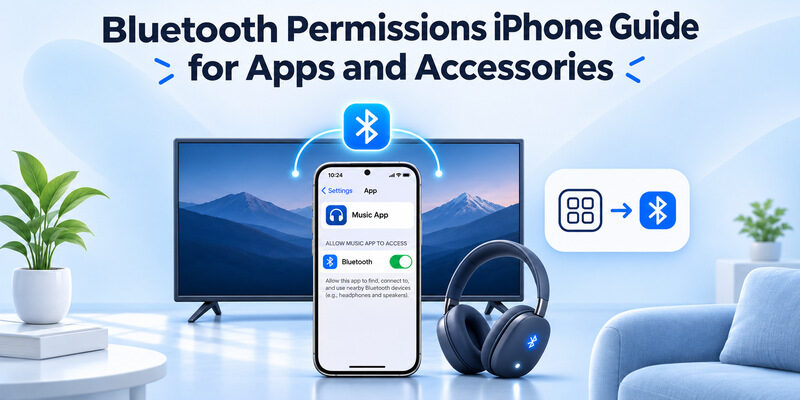
Bluetooth Permissions iPhone Guide for Apps and Accessories
Short answer: Open Settings → Privacy & Security → Bluetooth and review access for the app that needs to find or use the accessory.
The Bluetooth device list and an app’s Bluetooth privacy switch answer different questions. Apple Support documents per-app Bluetooth requests starting with iOS 13 and explains how to review them.
If you searched “Bluetooth permissions iPhone,” review the Bluetooth category under Privacy & Security for the exact app.
If no app is listed, open the relevant feature and look for its request. Return to the category afterward. The list is not a Bluetooth device inventory.
Find Bluetooth Under Privacy and Security
| Feature or step | What to verify |
|---|---|
| Per-app access | Review the permission on the exact app |
| System setting | Check the radio or other system-wide control |
| Accessory or television | Confirm power and the documented connection |
| App action | Retest the feature that requested access |
Review the Bluetooth permission category
In Settings, open Privacy & Security and choose Bluetooth. Find the app and review its switch. Apple documents that apps requesting Bluetooth functions have to ask for access. Set the permission according to the feature you want to use. Check the response here before changing other options for bluetooth permissions iPhone. To understand when a television controller may use Bluetooth, see how a TV remote app connects and compare its supported connection methods.
Open the relevant feature
A privacy report can show activity after a permission was used. Review it after you reproduce the task and match the timestamps to the actual app. Then use the app’s access settings to decide whether it should keep the relevant permission. A report and the current switches describe different things.
Settings → Bluetooth can show a paired accessory and its current connection. Privacy & Security → Bluetooth concerns which apps can use Bluetooth where iOS prompts for access. If a companion app fails while audio still works, check the app’s own switch and try the specific scan again. A repeatable result can help when comparing bluetooth permissions iPhone across firmware versions.
Test the simple chain first and label the source and display ports used. If you add a switch, splitter or receiver, compare the same cable direction, input and command after adding it. Check the intermediate device’s documentation for which port passes control or return audio when those features matter.
Read more: Bluetooth Permissions Android Guide for Nearby Devices
Check the App’s Own Settings
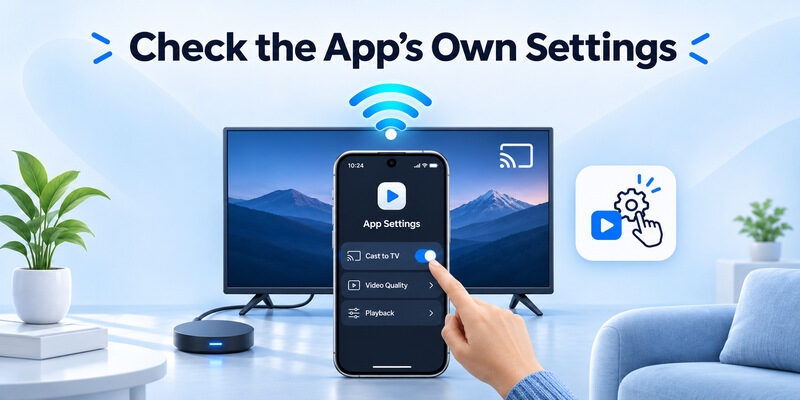
Use the app-specific settings when available
On newer iOS versions, open Settings → Apps and select the app. If a Bluetooth control is shown, review it there. If the app page does not show one, check the privacy category and follow the app’s setup instructions. Record this result with your notes on bluetooth permissions iPhone. For a practical example, review the permissions described in our guide to LG ThinQ setup on iPhone, including Bluetooth and Local Network access for supported features.
Compare access on the same device
Some apps only ask when you start accessory setup. Check the permission after the actual Bluetooth feature has been invoked.
Open the information page for the exact app. A system permission list shows access grouped by resource, while an app’s page groups the resources used by that installed copy. Make one change and immediately open the affected feature to see whether the new access is enough for the task. Keep the result with the settings you use for bluetooth permissions iPhone.
Find the equivalent resource name on the version you use. A settings search can locate the permission category, but opening the app’s own info page confirms that you are editing the installed app. Keep track of the option you changed so you can restore it after testing.
Use the television’s home screen to identify the built-in platform. If a connected streamer is displaying its home page, use the TV remote or physical input controls to return to the native menus. Record the television model before using a support page that assumes a certain software generation.
Read more: App Permissions Android Guide for Every App
Read the Bluetooth Request for Bluetooth Permissions iPhone
Read the request before changing it
The prompt tells you which app is asking. A remote accessory setup can need Bluetooth, but an app may have unrelated features that do not. Choose the access that serves your task, then return to the app and test. Identify the active device before changing bluetooth permissions iPhone.
Verify the requesting app
When you deny access, other app functions can still work. This is a useful clue when browsing in an app works and its accessory scan does not.
Use a known accessory in its documented setup mode. Check whether the phone sees it, whether the correct app can select it, and whether a basic supported action succeeds. These stages give you separate evidence. If the accessory is already connected somewhere else, follow its instructions for switching the connection. To narrow a problem involving bluetooth permissions iPhone, observe which step first changes the result.
Decide which capability is essential before comparing listings. Check the supported control function and the video mode in the official documents for the exact item. When it arrives, use the source and connection you plan to keep, and test your actual daily settings while a return is possible. If your accessory is a speaker, see how to connect a Bluetooth speaker to your TV and verify that the television supports Bluetooth audio output.
Separate Pairing From App Permission
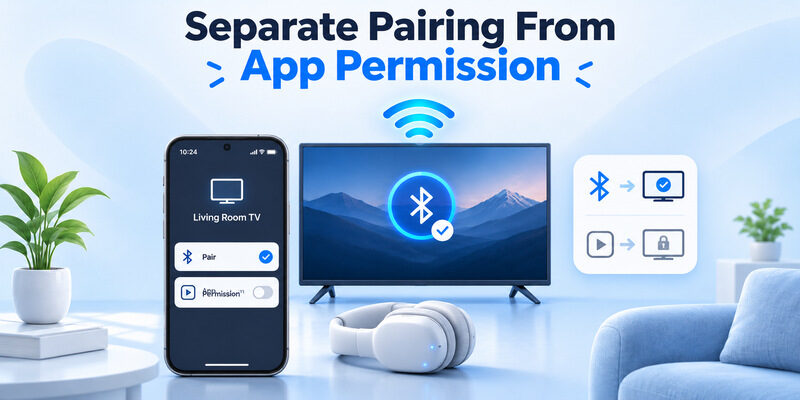
Check Settings → Bluetooth for the radio and any paired accessory. Then check the specific app’s permission. A paired device can be visible to iOS while the app has no Bluetooth access. Some companion devices are discovered in the app rather than added from the system list. If bluetooth permissions iPhone still gives the wrong result, return to this comparison before changing a second setting.
Compare the exact accessory and app. If you have several nearby devices, put only the intended one in the documented setup state.
If a prompt appears on startup, close it and reopen the exact feature if the app allows that. This helps identify what action caused the request. Where the system offers a limited or while-in-use choice, compare it with the documented need and test the feature with that narrower scope. Compare this result with the original symptom before resetting bluetooth permissions iPhone.
Pair while you can see the television screen and identify the intended device by its actual name. If a code appears, compare it with the phone’s selected entry. Verify one direction on the television before testing voice or playback, which may depend on a separate setting or feature.
Compare another device only after confirming that the accessory or television itself responds to its physical controls. If one phone fails and another works, review the failed phone’s app settings. If both fail, check the target’s own settings, network connection or compatibility before restoring more access.
Use the supported app with the phone and television on the same reachable home network. Keep the TV awake for a fresh scan and verify the entry by testing a direction. If the phone still cannot find a TV that can stream, check guest isolation or the app’s discovery access. If you use SmartThings, follow the steps to control a Samsung TV with your phone and review the permissions requested during setup.
Read more: App Permissions iPhone Guide for Camera Location and Local Network
Restore an App’s Bluetooth Access
Restore the app and retest one feature
If the permission was previously denied, enable it for the app you trust to connect to the accessory. Open the app, select the device, and test a function. For a device that still cannot be found, confirm battery and pairing mode before changing other phone settings. In your notes on bluetooth permissions iPhone, include which device actually responded.
Check access before pairing
If permission is already enabled and another compatible phone works, compare the app versions, selected device and previous connection. Keep the accessory state the same.
If a supported accessory remains paired and works for one task, use that as a baseline. Open its companion app and run the scan or control action separately. Check the app’s permission before forgetting a connection that already works. Re-pair only if the accessory instructions call for it. If the result is intermittent, include the starting state in your notes on bluetooth permissions iPhone.
A remote app can need access to the local network even if an accessory in the same room uses Bluetooth. Start by checking how the TV app says it discovers a set. If it uses Wi-Fi, join the same reachable home network and verify the app’s Local Network switch before changing paired accessories. When choosing a free TV remote app for iPhone, check whether it requires Local Network access to find your television.
Check Local Network for TV Remotes
Review Local Network for a television
If the remote app uses Wi-Fi, Apple documents a separate Local Network permission. Check it under Privacy & Security and connect the phone and television to the intended home network. Scan again with the TV awake. Keep the result with the model details when reviewing bluetooth permissions iPhone.
Confirm what the TV needs
A Bluetooth toggle does not grant local Wi-Fi discovery. Identify which connection the app expects and test a direction once the television appears. Learn why guest Wi-Fi can block TV remote apps even when the phone and television both have internet access.
Keep the television awake and open the app’s device picker. Verify the intended home network on both devices. A guest network may offer internet access while isolating its clients from one another. If another compatible phone sees the television, compare permissions and the active network on the original phone. Confirm the same result after returning to your usual setup for bluetooth permissions iPhone.
Check whether the phone has a work profile, management configuration or restrictions. A managed copy of an app can have a separate badge and a separate permission page. If you are comparing two phones, record the installed app version and profile as well as the operating system shown on each.
Open the television’s own network screen and select the intended home network. A saved name can stay in the list while the connection is inactive. Compare the current router name and password if a replacement or configuration change occurred. Check which network the television shows as connected after joining.
Start the test from the television’s native settings so you know which equipment the result belongs to. If available, compare the TV-to-router result with internet access. Then use a familiar TV app. This separates a failed network layer from an isolated app or account problem.
Run the same check after the television spends its usual time in standby. Observe whether it rejoins the expected network and whether the same app can play again. If problems recur only when the set wakes, compare its documented wired option or record the software version before requesting model-specific support.
Check whether a second device sees the same network in the room. If the television offers manual entry for a hidden network, use the exact name and the security details in the router’s settings. If the signal is weak on multiple devices, examine placement and router coverage before resetting the TV.
Read more: Phone and TV on Same WiFi but Not Connecting? How to Fix It
Fix a Bluetooth App That Still Cannot Connect
Reopen the accessory’s setup flow
Put the accessory in its documented setup mode and check whether it is already connected to a different device. Open the vendor’s app on the iPhone and start the pairing or scan feature again. If the iPhone Bluetooth settings show the accessory but the app does not, compare the app’s Bluetooth access and compatibility list. Use the same starting state when testing bluetooth permissions iPhone again.
Test the action that failed
Use the product’s supported reconnect instructions before removing an existing pairing. A failed app scan can have a different cause from a failed iOS connection.
Open the app after the period when the issue normally returns and repeat only its main task. Record which permission prompt actually appears. If the access was removed after inactivity, review the unused-app control for that app and whether a targeted exception fits the way you use it. Use a single change to identify which part of bluetooth permissions iPhone affects the result.
An iPhone can keep a working connection to Bluetooth headphones while a separate companion app has lost Bluetooth access. Leave the working audio connection in place and open the companion app’s documented feature. If the feature still fails after permission is available, compare supported accessory models and software versions before deleting the saved pairing.
Use a phone or laptop on the same network for comparison. Make sure its result comes from Wi-Fi and that the network name is the one used by the television. If both lose internet access together, check router and service status. If only the TV is affected, use its own connection screen.
Review Accessories and App Access
| Example result | First comparison |
|---|---|
| Bluetooth is on but a companion app cannot find an accessory | In Settings, open Privacy & Security and choose Bluetooth. |
| No app appears in the Bluetooth privacy category | On newer iOS versions, open Settings → Apps and select the app. |
| A new app prompt names an unexpected app | The prompt tells you which app is asking. |
| A device is already paired to iOS | Check Settings → Bluetooth for the radio and any paired accessory. |
Identify the accessory and the requesting app
When two devices have similar names, check the model, serial label or indicator described by the manufacturer before selecting one. Review the Bluetooth privacy category for the companion app you actually use and remove access if that app no longer needs the feature. Before you make another change to bluetooth permissions iPhone, repeat the comparison with the equipment you normally use.
Compare the available choices
Test the particular feature again after changing access. System audio pairing and a companion app’s scan can behave independently.
Review the access again after completing setup. Keep the permission needed for a feature you actually use, and test a core action before deciding whether a change is suitable. If you use another app for the same accessory or television, review that app separately. Check the feature against your model’s documentation for bluetooth permissions iPhone.
Try a second installed service on the TV and compare the affected app on another device if possible. An issue confined to one app can depend on the service or account. If every TV app fails, review the television’s active network and use its connection test before changing app settings.
Confirm the full model and regional suffix where the manufacturer uses one. Read its input or system-control section and look for the feature by name. Product pages commonly highlight gaming picture modes. The manual is a better place to verify which port exposes linked power or input control.
Read more: TV Maintenance Guide: A Safe Routine for Every Season
Keep Control Available
Keep a controller available during setup
A physical remote can open TV menus even when a phone app is not yet connected. Use it to check network status or approve a new connection. Then return to the iPhone app and verify only the feature that needs the chosen permission. When you check bluetooth permissions iPhone after an update, start with the same baseline.
Review access after testing
If a second controller already works, use it as a baseline rather than deleting all pairings. That separates phone app access from the television’s actual behavior.
Choose the scope offered by the operating system for the specific feature. A scanner can require the camera while a voice feature can require the microphone. Test the function that made the request immediately after changing its setting. Leave unrelated resource settings as they were during that trial. If you need help with bluetooth permissions iPhone, give support the model and the result of this check.
With a compatible television awake on your home network, use to try a direction key from an iPhone. Review the permission associated with TV discovery if the set does not appear, then check that the phone can reach the television.
Keep a working way to choose inputs and reach the television’s network menu. When phone discovery fails, the original TV remote or documented physical controls can reopen the settings. If you have a separate streaming box, use its original controller to check that box’s connection independently.
Choose a command the receiving device documents and that produces an observable result. A visible input banner or display transition is a good starting point. Compare the receiver and display if you use both. Test standby only after you understand the result with both devices already awake.
Leave the system in its normal sleep state before testing wake, and use the same control to repeat it. An always-awake device can make an initial command appear more reliable than it is during ordinary use. Add automated power or routing only after the manual command gives a repeatable result.
Final Thoughts
Start with the simplest comparison. Check Privacy & Security → Bluetooth for the exact app and review the reason for access. Open the app feature to trigger the permission request when needed.
Use Local Network for an app that discovers compatible TVs on Wi-Fi. Test one direction after confirming the phone and TV are on the intended network. Keep the model number and the working settings for bluetooth permissions iPhone handy.