Free TV Remote App for iPhone by Television Platform
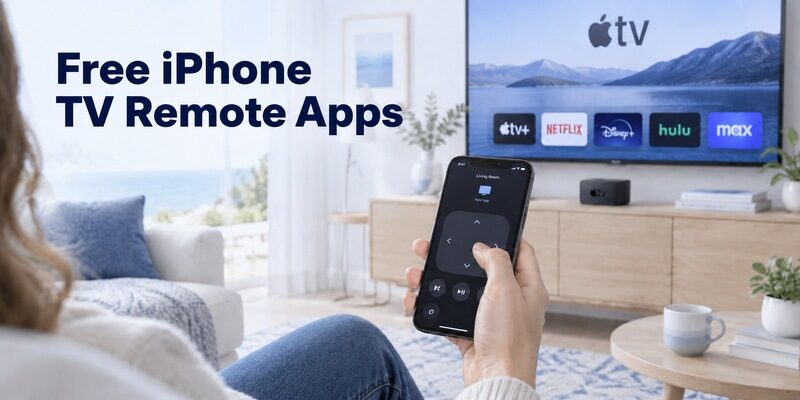
Short answer: Use Apple TV Remote for supported Apple TV or AirPlay televisions, and the matching platform app for other smart TVs.
A free TV remote app for iPhone must match the television or streaming device you want to control. Apple’s built-in remote is useful within its supported scope, while Roku, Samsung, LG, Google, and Fire TV devices have their own mobile routes.
This guide compares those options, explains what free access should include, and walks through connection checks that matter on iOS. It also covers Local Network permission, volume limitations, and non-smart televisions. Choose the actual target first so you do not subscribe to an unnecessary application or expect an iPhone to transmit infrared commands it cannot produce on its own.
Choose a Free TV Remote App for iPhone
Match the app to the device receiving commands. A Samsung television displaying a Fire TV Stick interface contains two potential control targets, each with a different mobile-control route.
| Device or TV platform | iPhone route to check first | Key requirement |
|---|---|---|
| Apple TV HD or Apple TV 4K | Apple TV Remote in Control Center | Supported device and network setup |
| Supported AirPlay smart TV | Apple TV Remote where supported | TV added to Home and assigned a room |
| Roku TV or player | Official Roku mobile app | Reachable Roku device |
| Compatible Samsung TV | SmartThings | Supported TV and account registration |
| Compatible LG TV | LG ThinQ | Supported model and registration |
| Google TV or Android TV | Google Home virtual remote where supported | Compatible target and device setup |
| Fire TV device | Amazon Fire TV app | Shared network and pairing workflow |
Television controls versus streaming controls
Decide whether you need to navigate a streaming device, change television inputs, or adjust an external sound system. One app may not do all three. Start with the device responsible for the task that prompted your search.
A free TV remote app for iPhone can solve streaming navigation without becoming a complete replacement for the television’s original handset. That distinction prevents a working app from being rejected simply because a separate audio device needs its own control.
Official apps and independent alternatives
Verify the publisher in the App Store. Brand names in an application title do not prove manufacturer ownership. Independent apps may support several platforms but have separate advertising, subscription, and feature policies.
The best free TV remote app for iPhone is therefore not one universal download. It is a compatible option whose actual free functions fit your setup and remain accessible without an unwanted trial or payment commitment.
If several family members use different phones, test the iPhone route independently rather than assuming it matches an Android demonstration. The same television can expose different app interfaces across phone platforms. A free TV remote app for iPhone should be selected from the current iOS listing and verified on the actual phone that will be used for viewing.
Use the Built-In Apple TV Remote
Open Control Center
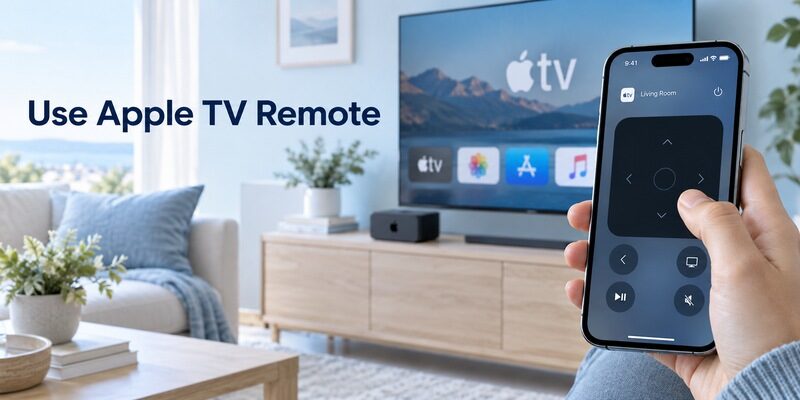
Apple documents its built-in remote for Apple TV HD, Apple TV 4K, and supported AirPlay televisions. On a current iPhone, open Control Center and select the Remote control. Add it through Control Center’s control-selection interface if it is missing; older iOS versions use a different settings route.
Choose the Apple TV or supported television and follow any passcode request. Use the current on-screen code, not a number copied from another setup. The built-in remote does not require a separate paid universal-remote application.
Check Home setup for an AirPlay TV
Apple’s support guidance requires an AirPlay-compatible smart television to be added to the Home app and assigned to a room for this route. AirPlay compatibility does not mean every television feature will be exposed in the remote interface.
If this free TV remote app for iPhone route does not list your television, verify the supported setup before trying random Bluetooth pairing. The remote in Control Center is not a general-purpose Bluetooth controller for all nearby screens.
Keep the television or Apple TV name clear if more than one compatible destination appears. The remote’s selected target matters more than which screen is physically nearest. For a free TV remote app for iPhone setup, confirm the visible television responds to one reversible movement before sending a power or playback command that might affect another room.
Connect Roku and Fire TV from iPhone
Roku televisions and streaming players
Roku describes its official iOS mobile app as free and provides a built-in remote. The device must already be reachable through the supported network arrangement. Select the Roku and open its remote interface, then test a simple navigation command.
A free remote TV app for iPhone connected to a Roku player may not expose the same television controls as a Roku TV. Evaluate volume and power against the actual target instead of assuming every Roku device has identical capabilities.
Amazon Fire TV devices
Install Amazon’s official Fire TV app, sign in as required, and follow its device connection process. Keep the Fire TV screen visible for any pairing request. The application includes content-browsing areas, so locate its remote section before looking for navigation buttons.
Keep TV input control available for an external streamer. If the screen is on the wrong HDMI source, the free TV remote app for iPhone may still reach the Fire TV while you cannot see what it is doing.
Connect Samsung LG and Google Platforms
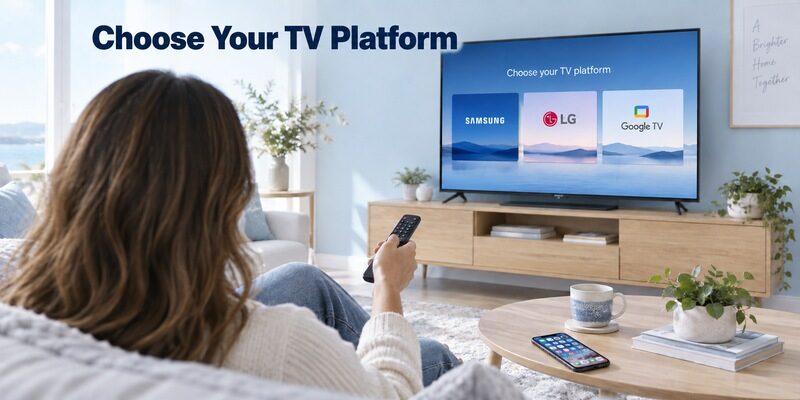
Samsung SmartThings
For a supported Samsung television, use SmartThings and complete the device-addition workflow. A Samsung account and the appropriate connection are part of the documented setup. Approve the television request where required, then open its device card to access available controls.
If your search began with free TV remote control app for iPhone, do not assume you need an independent universal app to operate Samsung. First establish whether the official route covers the exact model and the commands you need.
LG ThinQ
LG ThinQ registers supported LG televisions and opens their available phone controls. Follow LG’s network guidance for the relevant setup, keep the physical remote nearby, and test navigation before exploring pointer or audio functions.
A free TV remote app for iPhone should be evaluated on the registered television’s interface. Features pictured for a newer LG model may differ from those available on an older set, even within the same app.
Google Home virtual remote
Google’s virtual-remote documentation describes selecting a supported device in Google Home on iOS and opening its remote. This route is for compatible Google TV or Android TV devices; it should not be confused with casting to every device that displays a Cast icon.
Confirm remote capability separately from media casting. Sending a video to a television does not establish that the same connection offers Home, Settings, or input commands through the iPhone.
Allow Local Network Access on iPhone
Understand the permission prompt
Apple’s Local Network privacy guidance explains that apps request access before browsing devices on the local network. If you deny that request, an otherwise compatible remote may fail to discover the television.
A free TV remote app for iPhone can still load its own account screen or advertisements through the internet while local discovery is blocked. Those screens do not demonstrate permission to communicate with the TV beside you.
Restore access deliberately
Review Settings, Privacy & Security, and Local Network for the chosen app when applicable. Enable access for the remote you intentionally installed, return to it, and repeat discovery. Menu wording can differ slightly with iOS version.
Fix a denied phone permission on the phone. Resetting the television does not grant Local Network access. Keep unrelated permissions, such as photos or microphone, tied to features you choose to use rather than enabling everything as a troubleshooting shortcut.
Download TV Remote AppVerify That Free Access Meets Your Needs
Installation is only the beginning
A free universal TV remote app for iPhone may download without charge but restrict the remote screen, saved devices, or text entry. Read its purchase information and close optional upgrade prompts if the app allows continued free use.
Before choosing a free TV remote app for iPhone no subscription, perform a normal viewing task with the unpaid functions. If you cannot reach the required button without a trial, the application has not met your no-subscription requirement.
Compare ongoing access
Check whether free operation depends on advertisements, daily limits, or a temporary offer. You do not need to judge an app solely by its business model; you need to understand what happens when the trial ends or the next viewing session begins.
Confirm the feature, price, and duration together. A free TV remote app for iPhone is useful only if its supported functions and access terms fit the way you intend to use it.
| App claim | Useful verification |
|---|---|
| Free download | Can the remote send commands without payment? |
| No subscription | Are there one-time purchases or feature restrictions? |
| Universal compatibility | Is your actual platform and model listed? |
| Full remote | Do input, sound, and required settings work? |
A free remote control app for iPhone should be evaluated after you close and reopen it as well as during its welcome flow. Check whether the same unpaid controls remain accessible. This helps distinguish a useful free TV remote app for iPhone from a first-run demonstration that becomes a subscription requirement before the next normal viewing session.
Check Volume and Other Missing Buttons
Apple TV audio arrangements
Apple documents conditions for volume control through the Control Center remote, including supported HomePod, soundbar, or AirPlay speaker arrangements. If your setup does not support that route, the television’s own volume controller may still be needed.
Do not assume the iPhone’s side buttons can emit the television remote’s infrared volume command. The supported audio path determines the result, not the mere presence of physical volume buttons on the phone.
Other platform limitations
A mobile remote for a streaming player primarily controls that player. Television power, input, and an independent receiver can remain separate tasks. Test each required function in your actual setup before retiring the original remote.
A free TV remote app for iPhone that reliably navigates content is still useful when a second controller handles occasional TV settings. Decide whether that division is acceptable instead of searching indefinitely for an unsupported all-in-one promise.
Create a short list of required commands before comparing another application. If the only missing function is soundbar volume, check the audio route first. Replacing a working free TV remote app for iPhone with several similar downloads may reproduce the same limitation because the missing capability belongs to the equipment arrangement rather than the application’s layout.
Understand No Wi-Fi and Non-Smart TV Claims
iPhone does not have a built-in TV IR transmitter
An app cannot turn the camera, screen, or Bluetooth radio into an infrared emitter for a conventional television remote protocol. A suitable external accessory is a separate hardware solution and needs its own verified compatibility.
A free universal remote app for non smart TV iPhone claim should explain that hardware route clearly. Software alone cannot supply missing infrared hardware. Check the complete setup before buying an adapter or accepting a subscription.
Mobile data does not replace local discovery
A free TV remote app for iPhone without WiFi needs a specific alternative supported by the television and application. A normal local-network app cannot discover an offline television just because the phone has a cellular signal.
A television may use Ethernet while the iPhone uses Wi-Fi if the network permits communication. That is different from having no local network at all. Use the manufacturer’s documented arrangement as the starting point for setup and troubleshooting.
Fix a TV That Will Not Appear
Start with platform and power
Verify that the selected app actually supports the television or streamer. Turn the target on and confirm it is using the expected home network. A saved device can appear offline when standby settings stop network access.
For a free TV remote app for iPhone, then inspect Local Network permission and any guest-network separation. These checks are more useful than reinstalling several apps that depend on the same blocked connection.
Retest after one change
Close and reopen the app after a relevant permission or network change. If a VPN blocks local access, temporarily test without it and restore the preferred setting afterward. Keep notes about whether discovery, pairing, or an individual command fails.
Preserve working device associations where possible. Removing a TV from an app may require a new on-screen approval, which can be difficult if the physical remote is missing. Establish how you will authorize the connection again before clearing setup data.
Make Phone Control Convenient Without Losing Recovery Access
Keep the right controls easy to reach
Place the chosen app where you can find it quickly. For the Apple remote, add its control to Control Center on supported iOS versions. Name TVs by room so the selected destination is obvious to other authorized users.
A free iOS TV remote app should reduce friction during normal viewing. Test it after the phone locks and after the TV enters standby, since those moments are more representative than a single command immediately after registration.
Evaluate a supported alternative
If you want another interface for supported televisions, review and its current compatibility and feature terms. It can serve as a mobile backup once the required connection is established.
The guide explains multi-platform limits. Keep a physical controller for offline recovery, even when your preferred free TV remote app for iPhone handles everyday navigation well.
For shared viewing, show other authorized users how to select the correct room and where the physical backup lives. Do not make recovery depend on borrowing a personal phone that may be away from home. A free TV remote app for iPhone works best as part of an understandable household setup, with its supported functions and offline limits clearly known.
Frequently Asked Questions
Is there a free TV remote app for iPhone?
Yes. Apple’s built-in remote supports specified Apple TV and AirPlay devices, and several television platforms offer official iPhone apps. Choose according to the actual target and confirm the supported features. Independent universal apps may have separate paid upgrades or subscription terms.
What is the best free TV remote app for iPhone?
Start with the official route for your television or streaming platform. It provides a clear compatibility and support baseline. The best fit is the application that performs your required controls reliably without an unwanted payment commitment, rather than the one claiming the most brands.
Can I use the iPhone remote with any smart television?
No. Smart televisions use different platforms and local-control services. Apple’s Control Center remote also has a defined supported scope. Check the television model, platform, and application requirements before assuming that a Wi-Fi connection alone establishes compatibility.
Can I set up a phone remote after losing the handset?
Yes, if the television is already reachable and any required approval can be completed. If it is offline or at initial setup, a compatible physical control may be necessary. Avoid resetting a working network configuration before you have another way to navigate setup.
Final Thoughts
Choose a free TV remote app for iPhone by identifying the actual television or streaming platform, then verify permission, connection, and free feature access. Apple’s built-in remote is a strong option within its supported scope; other devices need their matching route.
Test sound, input, and standby separately from navigation. Keep a compatible physical controller available for recovery, and treat any claim of universal or no-Wi-Fi operation as something that needs a clearly supported communication method.