
LG Magic Remote Technology Behind the Pointer
Short answer: A compatible LG Magic Remote pairs wirelessly with the TV and turns hand movement into an on-screen pointer.
LG Magic Remote technology combines a motion pointer, a center wheel, and normal button controls. Supported models can also offer voice input. If volume or power still responds but the pointer disappears, test whether the remote remains registered with the TV before you replace it. If the arrows work, you can use them to navigate while you check the pointer.
Begin with the model number on the remote and the television. LG’s pairing instructions can vary by generation. The tests below separate power, registration, pointer behavior, and voice so you can focus on the function that actually failed.
LG Magic Remote Technology in Everyday Use
When you move a registered Magic Remote, its motion can move a pointer on the TV. The center Wheel (OK) can select the item, while the surrounding arrows let you move the on-screen focus in steps. Some models let you scroll through supported menus with the wheel. These controls can coexist, so a missing pointer does not always leave the television unusable.
LG Magic Remote technology is most useful to diagnose one action at a time. Open the television’s own home screen. Try the arrows, then the wheel, then the pointer. Record which action is missing. If you can move the pointer and cannot select anything, press the wheel once on a visible tile. For a broader explanation of infrared, paired wireless and network controls, explore how TV remote technology connects a controller to the device receiving each command.
If the arrows work and the wheel does not, check its click action and scroll action separately. The result helps distinguish a single input issue from a lost connection. Note whether each action works after the TV has been awake for a few minutes. The distinction matters when an initial button press wakes the TV but does not immediately bring up the pointer. Use the same test screen so you can compare both results. A connected HDMI device may have its own menus or control limits, so use the TV’s home screen for this first comparison.
Read more: LG Smart TV Network IP Control Explained
Identify Your Magic Remote Model
Look for the exact remote and TV model
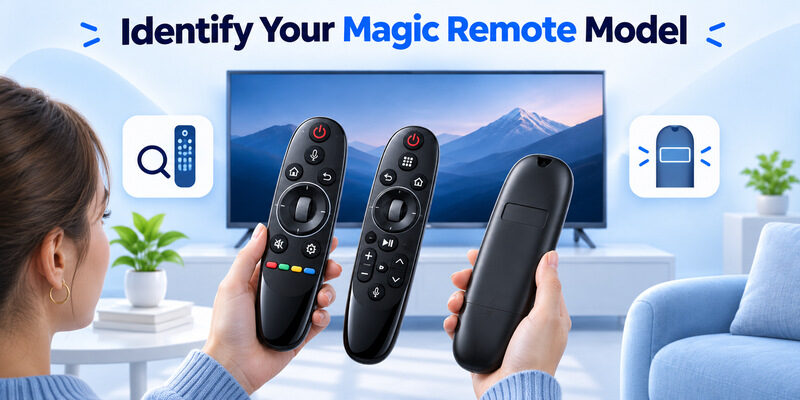
The center wheel and pointer are useful clues, but compatibility depends on the models. Check the remote’s marking on the back, under the battery cover if applicable, or on its packaging. Find the TV model in its support information or on the TV label. Check the remote part number against the television model before you buy or try to re-pair.
LG Magic Remote technology can look similar from one year to the next. The shortcut buttons, microphone controls, and pairing options may differ. If the remote came from a different television, check compatibility first. A similar shape and wheel do not establish that the remote can register to the TV. If you have two LG TVs, keep the model numbers for both in your notes.
LG Magic Remote technology can depend on the generation of the television and the remote together. Do not use a pairing result from one model to infer compatibility with the other. If you are comparing recent replacements, review LG MR26GA and MR25GA and check which remote is listed for your exact television.
Check what the basic controls show you
If power works, check whether the remote can select something on the TV’s home screen. A compatible television can respond to some basic controls even while a pointer feature fails. LG’s pointer troubleshooting guide discusses this symptom. Treat it as a clue to registration, power, or pointer behavior. Use your model documentation for the next test.
| What you notice | What to check |
|---|---|
| Wheel and pointer are present | Exact model and television compatibility |
| Some keys work and the pointer is missing | Registration and pointer activation |
| No response from any key | Battery power, TV awake state, and the remote model |
| Pointer works and voice fails | Microphone operation and available service |
Read more: 5 Device Universal Remote Control Buying and Setup Guide
What the Wheel, Pointer, and Voice Button Do
Use the wheel and arrows for different navigation styles
The directional buttons move focus from item to item. On a supported screen, pointing moves the cursor more freely and the wheel can scroll. Test each input in a TV menu you know. A button, gesture, or scroll action may behave differently in a streaming app or on an external device. A comparison inside the television’s own menu removes that variable.
If you use the wheel to scroll a long list, compare that result with a short press to select a single item. A selection can work even if a particular app ignores scrolling. That distinction is useful when LG Magic Remote technology seems to behave differently across menus.
LG Magic Remote technology can be easier to use if you know which inputs the current screen accepts. When a pointer is absent on one screen, return to the home screen and try moving the remote there. If it reappears, compare the two screens before resetting the remote.
Check the microphone only after navigation works
A supported voice button adds another feature to LG Magic Remote technology. Test a simple direction button first. If it works and voice does not, check the TV’s guidance for using the microphone and the service requirements for your model or region. A voice feature can fail because of the TV connection or a service issue while the remote remains registered.
Try a supported voice action once on the TV’s own screen. If you see a listening indicator, note whether the television heard anything and whether the action was available. That gives you more information than a failed voice request in an app with its own controls.
If the remote registers and the microphone feature is new to you, check whether your model requires holding a button, opening a TV menu, or completing a first-use prompt. The TV’s voice settings and the remote’s physical registration are separate checks. For a closer look at pointer navigation, the scroll wheel and supported voice features, see our guide to LG Magic Remote controls.
Read more: Fire TV Remote Technology and How It Works
Register the Magic Remote With the TV
Start with the model’s registration steps
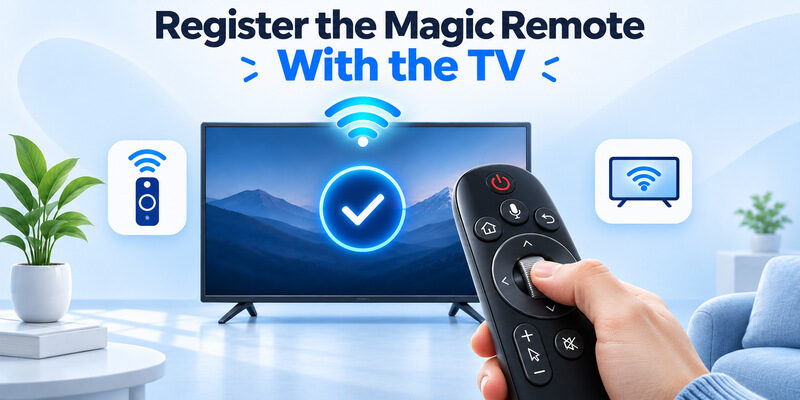
LG Support’s Magic Remote setup guidance describes turning on the television, waiting for it to finish starting, and pressing Wheel (OK) while pointing the remote toward it. Follow the television’s on-screen result. Some LG guidance gives a short wait after turning the TV on before pressing the wheel. Check the instructions for your exact model, especially if you are pairing a replacement.
Registration is central to LG Magic Remote technology. Keep the TV’s home screen visible and try a direction and pointer movement after you see the confirmation. If another remote was already working, put it aside during the test so the response comes from the remote you are trying to register. For a detailed walkthrough, learn how to connect an LG remote to a TV and verify the registration message on the intended screen.
Re-register only when the documented procedure applies
LG’s pointer troubleshooting instructions describe using Back and Home together for at least five seconds on supported remotes to unpair, followed by re-registering with the wheel. Procedures can vary by model. Read the instructions first, and have an alternate control available when practical. When using LG Magic Remote technology on more than one television in a room, watch for the pairing confirmation on the intended TV. Test a command there before adjusting another screen. Watch for the TV or remote indicator described by LG before starting registration again.
Check Power and Basic Buttons First
| Symptom | Useful first comparison |
|---|---|
| Nothing responds | TV power, battery orientation, and a known working control |
| Power works but pointer is missing | Pointer activation and registration |
| Arrows work but the wheel does not | Wheel behavior on a supported TV menu |
| TV responds and an HDMI player does not | Correct input and external-device control |
| Phone app works and Magic Remote fails | Physical remote batteries and registration |
Check the power source before you re-register. Use the battery type or charging instructions listed for your Magic Remote model. For a removable-battery remote, check the markings inside the cover and install fresh batteries. Test the same key close to the TV. If it returns after changing batteries, try the pointer again before changing other settings.
When troubleshooting LG Magic Remote technology, keep the on-screen result simple. With the TV home screen visible, press a single direction and look for a change. If the TV is asleep or showing a different input, use a working control to bring up its own menu. That gives you a better baseline than trying several buttons quickly.
For a more useful LG Magic Remote technology test, compare one button at a time after the TV is fully awake. If the first key wakes it but the next input fails, give the TV time to finish starting and repeat the test. Keep the active input the same.
Read more: Roku Remote Technology and How to Identify It
Restore a Missing Pointer
See whether movement brings the pointer back
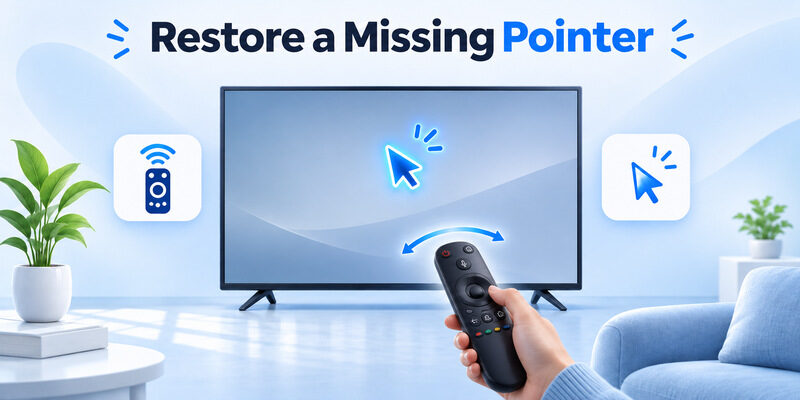
Some LG Magic Remote models let you bring back the pointer by moving the remote. Use the action described for your TV and check on an LG home screen. Try the pointer and the direction buttons separately. If only the pointer is missing, use the arrows to continue navigating while you review pointer or pairing guidance.
If the cursor appears close to the television and disappears at your usual seat, compare the same movement from both locations. Check batteries, distance, and nearby equipment. LG’s pointer support page gives model-specific troubleshooting guidance when power and volume work but the pointer does not. Try the pointer in a simple menu with a clear background before changing the TV’s picture or input settings. If it appears briefly after a movement, compare how it behaves while the remote stays still and when you move it again.
Check pairing before deciding the remote is defective
A pointer that never appears can be a symptom of lost registration. Check whether the television shows a pairing message when you follow its documented steps. Then move the remote again with a menu open. LG Magic Remote technology involves both the TV and the remote. A second compatible remote or the TV’s own physical controls can help you check whether the television is accepting inputs while you diagnose the pointer. If the TV already shows a pointer with a second registered remote, test only one controller at a time. Confirm which remote moved the cursor before replacing a device.
Read more: Apple TV Remote Technology Behind Siri Remote
Separate Voice and HDMI Device Issues
Confirm the microphone feature for your model
If the pointer and arrows work but voice does not, look for the expected listening indicator while using the microphone button. Check the feature on a supported screen and with the TV online if the service requires it. LG Magic Remote technology can support voice separately from pointer input, so a voice issue does not automatically call for a remote reset.
Test the television before a connected device
If an HDMI player ignores the remote, try a basic direction on the LG home screen. When that succeeds, check which source is selected and what external controls your television and player support. A player can need its own remote even when LG Magic Remote technology works on the TV. Check documented HDMI-CEC or external control settings only for the command you need. If the player’s own remote responds, return to the TV’s home screen and check the Magic Remote again.
A successful test there means you can focus on how the TV passes supported commands to the external player. For routine battery, button and storage checks, follow these remote control battery and care tips and use the power source specified for your model.
Compare Magic Remote and ThinQ Control
Use ThinQ for supported phone commands
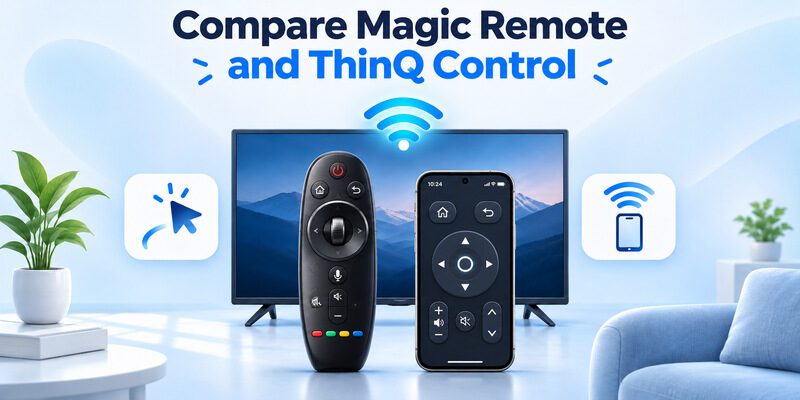
LG USA Support describes adding a compatible television to ThinQ on the same network and opening the TV’s available controls. Use an awake TV for the first app test. Navigation and volume can be available depending on the model. The phone app uses the television’s network connection. LG Magic Remote technology uses the physical remote’s paired link for its pointer and supported functions.
Keep a phone remote as a separate backup
When the TV is reachable and the physical remote is missing, can be an iPhone backup for a compatible smart TV. Select the television and test one command. Compare what your phone can do with the specific features you use on the Magic Remote, such as pointer movement or a dedicated voice button.
If the television has lost its network connection, the phone may not be able to reach it. Use a compatible physical controller or the TV’s available controls to restore the connection before scanning again. When you are comparing LG Magic Remote technology with phone control, note which device is active. A phone app that reaches the LG TV cannot diagnose the battery or registration of a physical remote. It can help you reopen a menu while you test the physical remote.
Read more: TV Remote Technology and How It Works
Choose a Compatible Magic Remote
Match the remote part number and the television
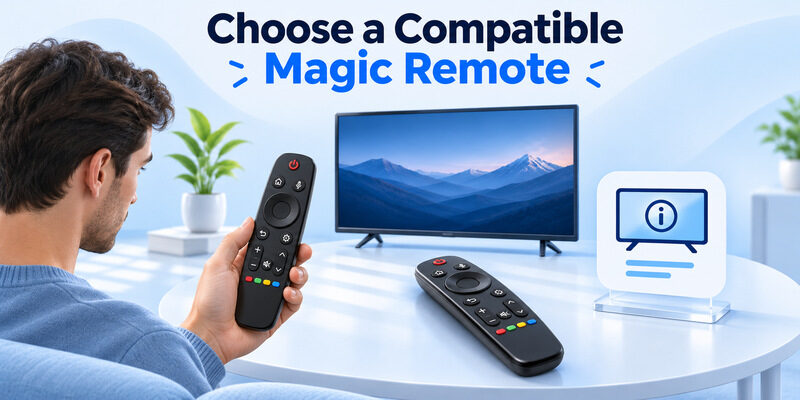
Confirm the replacement’s compatibility with the exact TV. Check LG’s documentation and the remote listing for the model numbers. If you rely on LG Magic Remote technology for pointer, scrolling, or voice, verify that the replacement supports those features on your television. A standard replacement can be suitable for basic keys and still leave the pointer unavailable.
Test the functions you use after registration
Register the replacement, then move the pointer on the home screen and check the wheel and arrows. Try volume separately. If you use voice, test that after you have confirmed the basic controls. A successful power button alone does not verify the functions that motivated the purchase.
Take the replacement to your normal seat and test the pointer, wheel click, and directional navigation again. If it works only at short range, check power and the documented pairing steps before deciding whether to keep it. Once the replacement is working from the usual seat, write down its model and the compatible television. That helps you identify the right remote if there are several similar devices in the house.
Frequently Asked Questions
Does every LG TV support a Magic Remote?
No. Check the TV model and remote part number against LG’s compatibility information. A remote can have a familiar wheel and pointer design while being intended for another television. Verify the features you use before choosing a replacement.
Why do power and volume work when the pointer is missing?
The pointer can depend on the remote’s registration and the screen you are using. Start on the LG home screen, try activating the pointer as your model describes, and follow LG’s registration instructions if it stays missing. Check power separately before replacing the remote.
Can I navigate the TV without using the pointer?
Often, yes. The arrows and Wheel (OK) can provide basic navigation on supported screens. Test them on the LG home screen. If the arrows work and the pointer does not, you can keep using them while you check registration or pointer settings.
Can my phone work while the Magic Remote is unpaired?
A supported phone app can reach a compatible television that is already connected to a usable local network. Use the app to confirm a basic control, then follow LG’s physical remote registration procedure. If the TV is offline, a phone remote may be unavailable.
Final Thoughts
LG Magic Remote technology is easiest to test when you check power, registration, and the pointer separately. Identify the exact models, verify basic navigation on the LG home screen, and follow the documented registration steps. Check voice, HDMI devices, and phone control only after you know which connection works.
