
Fire TV Remote Technology and How It Works
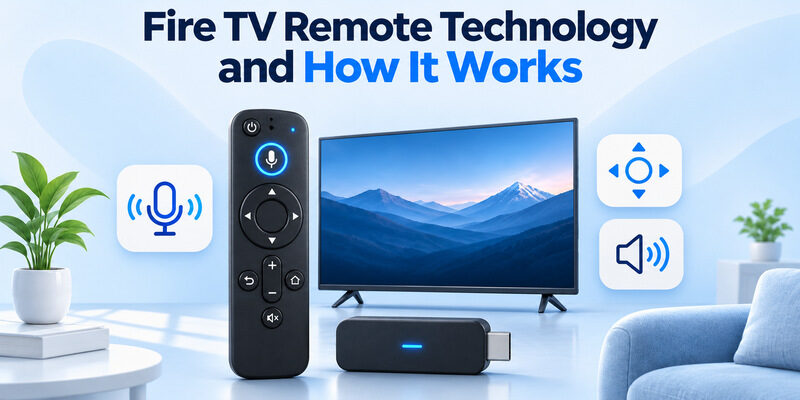
Short answer: An Alexa Voice Remote pairs wirelessly with Fire TV, while supported models use infrared or HDMI control for compatible equipment.
Fire TV remote technology connects the remote to the Fire TV player and can also help operate a separate television or audio system. If the directional ring moves the Fire TV selection but volume does nothing, the remote can already reach the player. Check where the sound is coming from and which equipment the remote is configured to control.
Begin with the device and remote model. A Fire TV Stick, Fire TV Cube, or television with Fire TV built in can have different controls and compatibility. Test one navigation command on the Fire TV screen before changing other settings. That first result gives you a baseline when you troubleshoot a separate button.
Fire TV Remote Technology by Button
Start with a direction on the Fire TV home screen
Open the Fire TV home screen, then press one direction on the ring. Watch the on-screen selection. A working direction button shows the remote can reach the Fire TV device you are watching. If a separate TV remote moves a different home screen, switch the television to the correct HDMI input and repeat the same test with the Fire TV remote.
Fire TV remote technology in a paired Alexa Voice Remote typically uses Bluetooth to reach the player. The remote can work while a Stick is behind the television. If you can only navigate near the player, check the batteries or charge, the setup for that remote model, and the distance before you change TV audio settings. Repeat the direction test at the usual viewing distance after you check power. A problem that only occurs from the couch can have a different cause from a remote that never reaches the player.
If you are starting with a new streaming player, learn how to set up a Fire TV Stick and test its remote before configuring TV power and volume.
Test television and voice features independently
A volume rocker, TV power button, or Alexa voice button can have its own requirements. For Fire TV remote technology troubleshooting, see which feature fails. A volume key may depend on equipment setup, while voice can also require the Fire TV service to be available. Record what still works before you attempt to pair or reset anything.
Read more: Roku Remote Technology and How to Identify It
Identify the Fire TV Device and Remote
Distinguish a player from a television
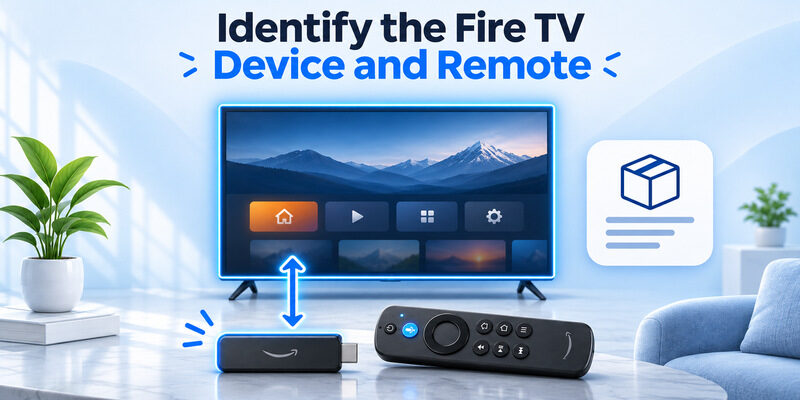
A Fire TV Stick or Cube is separate from the TV that displays it. A television with Fire TV built in can use its own supported remote to control both the interface and television features. Check the Fire TV model and generation, then compare your remote with Amazon’s compatibility list. Fire TV remote technology and available buttons differ across devices.
If you can reach the Fire TV menu, look for its device information. Amazon’s compatibility guide also points to the Devices area of your Amazon account as a way to identify registered Fire TV equipment. If you cannot open the menu, use the model printed on the device or its packaging. For an Insignia television with Fire TV built in, check how to pair an Insignia Fire TV remote and verify the instructions for the exact model.
Look at the remote controls and power source
Check for an Alexa button, a navigation ring, and TV power or volume controls. A Fire TV remote with fewer buttons can still handle player navigation on compatible hardware. A newer-looking remote may have additional features and a different compatibility list. Check how it is powered and what options the exact model supports before assuming a particular feature is available. The terms Alexa Voice Remote, Fire TV Remote, and a TV manufacturer’s remote can cover different product families. If you have a third-party Fire TV television, confirm its compatibility directly with the television manufacturer or Amazon before buying. Fire TV remote technology for a Stick does not automatically cover a TV with Fire TV built in.
| What you are controlling | Connection to check first | What success looks like |
|---|---|---|
| Fire TV menus | Paired physical remote or official phone app | Focus moves on the Fire TV screen |
| TV power or volume | Compatible equipment settings and control path | TV responds to the intended command |
| Soundbar volume | Audio destination and supported equipment configuration | The soundbar’s volume changes |
| Alexa voice action | Paired voice remote and available service | Fire TV responds to the request |
Read more: Apple TV Remote Technology Behind Siri Remote
Pair the Navigation Controls
Add a remote from the Fire TV menu
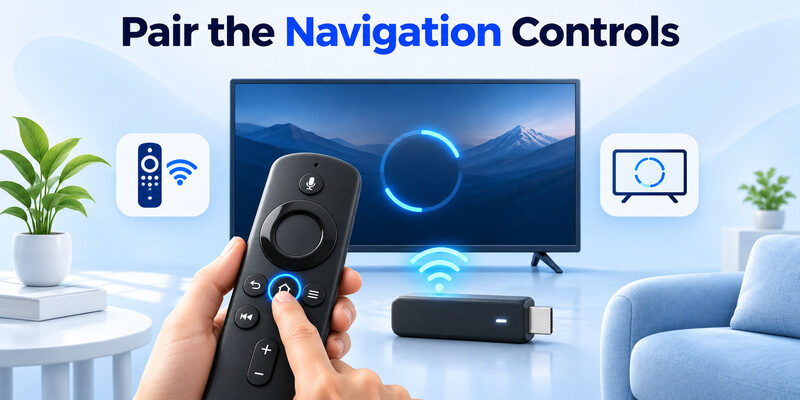
Amazon’s guide for pairing another Fire TV remote describes opening Settings → Controllers & Bluetooth Devices → Amazon Fire TV Remotes with a working controller. Choose the option to add a remote, then follow the screen. Amazon says to hold Home for about ten seconds if the new remote does not appear. Verify compatibility before trying the button sequence again.
If you are troubleshooting Fire TV remote technology with several players in the room, keep the intended Fire TV screen visible during setup. Select the remote entry on that screen, and test a direction key immediately after pairing. That confirms the physical remote reached the correct target. If an earlier remote is still working, put it down for the test. Press only the new remote’s directional ring and check the response. That step can expose an incomplete pairing when the setup screen accepts input from an old remote at the same time.
If the player is already connected to the home network, use the Fire TV Stick remote app to open the controls and check whether the player responds.
Use the backup controller when the original is missing
Amazon documents using the Fire TV app to help pair another remote. This option depends on the phone being able to reach the Fire TV. If the player is offline, check the pairing and setup instructions for the exact model you have. A supported replacement and the documented first-time setup can give you a way to connect without the original remote.
A successful navigation test is the key result for Fire TV remote technology. Leave the pairing alone if only television volume fails. The TV or audio configuration is the next useful test in that case. If you can use the television’s own remote to change volume, leave the TV connected as it is and compare the Fire TV equipment settings. If the TV’s own remote fails as well, confirm the sound output and the device playing the audio before you attribute the symptom to the Fire TV.
Read more: Samsung TV Remote Technology and How It Works
Configure TV and Soundbar Controls
Identify which device receives the volume command
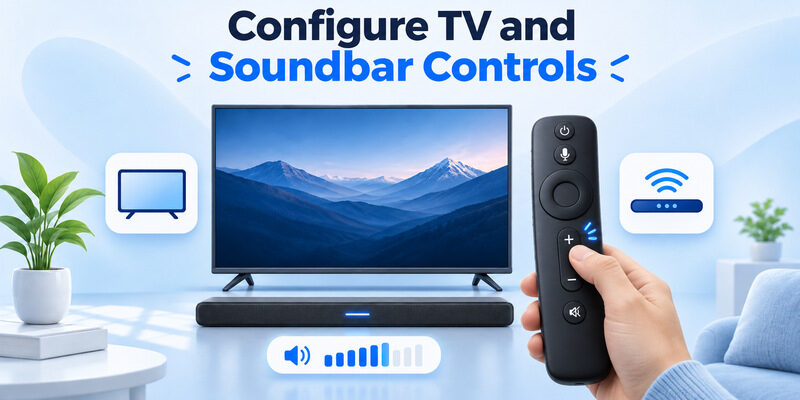
Check whether sound is coming from the television, soundbar, or receiver. Use that equipment’s original remote once to see where its volume indicator appears. If the Fire TV remote can navigate but cannot change the sound, look at Equipment Control where your Fire TV model offers it. Amazon’s Fire TV Soundbar setup guide, for example, directs users to Equipment Control and Manage Equipment for supported Stick or Cube configurations.
This part of Fire TV remote technology may use an infrared command or a compatible HDMI control path, depending on the equipment. For infrared, face the intended receiver and clear its view. For HDMI-CEC, check the relevant settings on the devices in the path. Each method can produce a different result even with a working paired remote. Fire TV remote technology may continue to send directions while a cabinet door blocks the audio receiver’s infrared sensor. Try volume directly in front of the equipment and compare with your usual seat. If the equipment responds from one position only, check the physical path before replacing the remote.
Follow the on-screen equipment test
Select the device type and brand as directed by your Fire TV. Respond to the test based on what the television or soundbar actually does. A profile that changes volume may still have different power or input support. Test each function you use before you finish. If the setup has several HDMI devices, record which input the Fire TV uses and which equipment handles sound. An HDMI audio return connection can carry sound to a compatible soundbar, while CEC handles supported control actions. If sound itself is missing, test playback and audio output first. A volume key cannot diagnose the full audio path by itself.
To understand the audio connection separately from remote control, see how to connect a soundbar to a TV using a supported HDMI ARC, optical or Bluetooth setup.
Use Alexa Voice Without Confusing It With Pairing
Try navigation before the microphone
For voice-related Fire TV remote technology, Amazon’s Alexa guide says to hold the Alexa Voice button on supported remotes while speaking. If navigation responds and voice does not, check how the remote activates the microphone and whether the Fire TV’s internet connection and Alexa features are available. Separate voice from basic pairing. A problem with one voice request can have a different cause from every key failing.
Use a simple supported action, such as opening an installed app, after the Fire TV has finished starting. If it responds to one request but fails another, check the service or app involved. Available Alexa features vary by country and device. For Fire TV remote technology that has a voice button, note whether the screen shows it is listening. If the listening indicator appears, try a second simple request. If nothing appears and the navigation ring still works, confirm the expected button behavior in Amazon’s guide for your remote.
Check what happens when other controls fail
If no directional buttons work and the voice feature is unavailable, check remote power and pairing first. If directional keys work and voice alone fails, note whether a listening indicator appears. That helps you decide whether to check the voice button, the Fire TV’s connection, or the requested feature. Fire TV remote technology gives you more than one signal to observe before replacing the remote.
Read more: Fire TV Remote iOS: How to Control Fire TV and Fire Stick From iPhone
Use the Fire TV App on the Same Network
Connect to the Fire TV you want to control
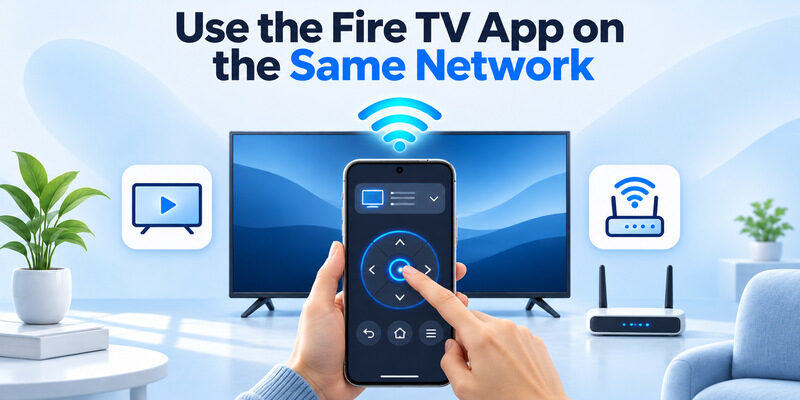
Amazon’s Fire TV guide tells you to put the mobile device and Fire TV on the same Wi-Fi. Open the Fire TV app, select the intended device, and follow the on-screen prompt. Test a direction on the Fire TV home screen. If the phone finds several devices, pick the one on the active screen rather than selecting by a familiar name alone.
Network-based Fire TV remote technology is useful when the physical remote is missing and the player is already reachable. A guest network or an offline player can interrupt discovery. Verify the Fire TV’s network status with another working controller if available. Check the phone’s active network before reinstalling the app. If you recently changed routers, the phone may have joined the new network while the Fire TV remains on its saved one. Use a physical remote to confirm what the Fire TV reports. Once it connects, reopen the app and run a fresh scan from the intended home Wi-Fi.
Choose a phone control for the correct target
The Fire TV app is the first comparison when you need to operate the Fire TV player. If you want to control a separate compatible smart TV, can be a backup on iPhone while the television is reachable. Test on the television’s own home screen to see which device the app controls. Fire TV remote technology for an external player and phone control of the television can be separate.
Choose a Replacement for Your Fire TV
Match the exact model in Amazon’s compatibility list
Amazon publishes a compatibility guide for its different Fire TV remotes. Match the player or television and generation before you buy. A remote sold for a Fire TV Stick may support some models and leave others out. Search by the precise remote name, since listings can use similar names for multiple generations.
If you need Fire TV remote technology for television volume and mute, check that the remote has the relevant controls and that your device supports equipment setup. If you only need basic navigation, a compatible simpler model may be enough. Voice, shortcut, backlight, and remote-finder features vary. Use the features you rely on as your selection criteria. A remote’s shortcut buttons can vary by edition or region. If a listing only shows the front, ask for the exact remote model and check the manufacturer’s documented list. Knowing the model also helps you find the right pairing instructions if the remote arrives without a manual.
Verify controls after you pair the replacement
Start with navigation, then test voice and TV volume in separate steps. If the replacement works from beside the player and fails from the sofa, check distance and power. If it only changes volume when you point at the TV, check the infrared path. Compare the new remote with the original before changing the television’s audio configuration.
Read more: Insignia Fire TV Remote Not Working? Fixes That Work
Test One Failure at a Time
| Symptom | First test |
|---|---|
| No Fire TV navigation | Check remote power, input, and pairing near the player |
| Fire TV navigation works, volume fails | Check the audio destination and Equipment Control |
| Physical remote works, phone cannot find Fire TV | Verify active Wi-Fi and app access |
| Voice fails, navigation works | Check voice activation and the service connection |
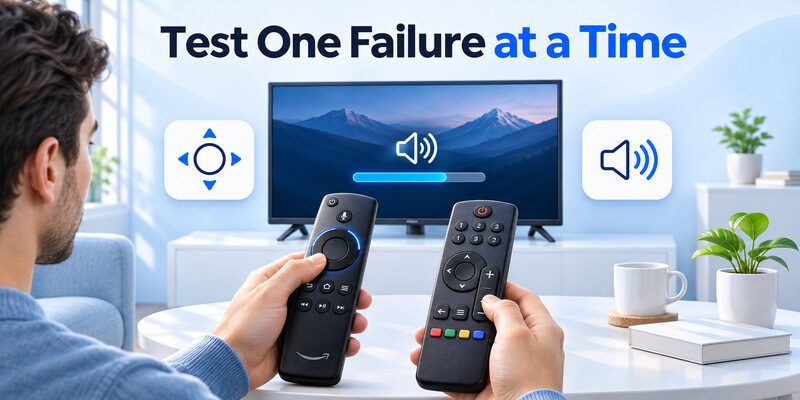
Keep the functioning controls as a baseline. Fire TV remote technology can make one button stop working while several others still respond. Use one known navigation key to confirm the player link, then repeat the failing action. If the original remote still works, leave it available to restore a setting. If you change a setting, test from the same seat and keep the same TV input. That makes it easier to see which adjustment helped.
If the Fire TV app can move the selection while the physical remote cannot, check the physical remote’s power and pairing. If both fail, confirm that the Fire TV is awake and that you are watching its input. Also check whether the TV’s own remote can change inputs. Separating the screens can keep a TV problem from looking like a failed Fire TV remote. When Fire TV remote technology starts working again, retest the original symptom after normal use. A problem that returns only after the TV goes into standby needs a different follow-up from a pairing failure that occurs while it is awake.
Frequently Asked Questions
Does a Fire TV remote need line of sight?
A paired navigation command usually does not require you to point at the Fire TV. An infrared TV or audio command can still need a clear path. Compare navigation and volume separately before changing the Fire TV’s location or buying another remote.
Can I pair a replacement without the original remote?
Sometimes. Amazon documents using the Fire TV app to help pair a compatible physical remote when the app can reach the player. If the player is offline, check the setup instructions for your Fire TV model and the replacement remote’s compatibility.
Why does volume work while the navigation ring fails?
The remote can send volume to the television or audio equipment on a different path from its connection to the Fire TV. Check the active HDMI input and whether the player is awake, then review the physical remote’s power and pairing.
Can one Fire TV remote control a soundbar?
That depends on the Fire TV device, remote, and audio equipment. Check Amazon’s equipment setup documentation for the exact devices. Test whether the soundbar responds to the volume command and whether your setup uses infrared or a compatible HDMI control path.
Final Thoughts
Fire TV remote technology is easier to troubleshoot when you identify the target of each button. Pair the remote for Fire TV navigation, configure the equipment that handles television or soundbar commands, and test Alexa separately. Keep a phone remote available when the Fire TV is reachable on your home network.
