
How to Connect Insignia Remote to TV: Pairing Guide
By the Remote TV App Team
Last updated: August 2026
To connect an Insignia remote to a TV, pair a Fire TV remote by holding the home button for about 10 seconds with the TV on, or program a universal remote by entering an Insignia code — the method depends on your remote type.
Insignia’s own Fire TV remotes pair wirelessly, while universal remotes need a code or auto search. Knowing which you have makes connecting quick and painless.
This guide walks through how to Connect Insignia Remote to TV step by step for both types, including how to program without a code, how to reset the remote if pairing fails, and what to do when nothing works.
Whether you’re setting up a new remote or reconnecting one that dropped its link, the steps below cover it.
Which Type of Insignia Remote Do You Have?

Before connecting, identify your remote type, since it determines the method. Insignia Fire TV remotes are enhanced wireless remotes that pair to the TV, while universal remotes are programmed with a code.
Knowing which you have is the first step in how to connect Insignia remote to TV. A Fire TV remote has a voice or microphone button and pairs over a wireless connection; a basic or universal remote relies on infrared and codes. The rest of this guide covers both paths.
How to Pair an Insignia Fire TV Remote
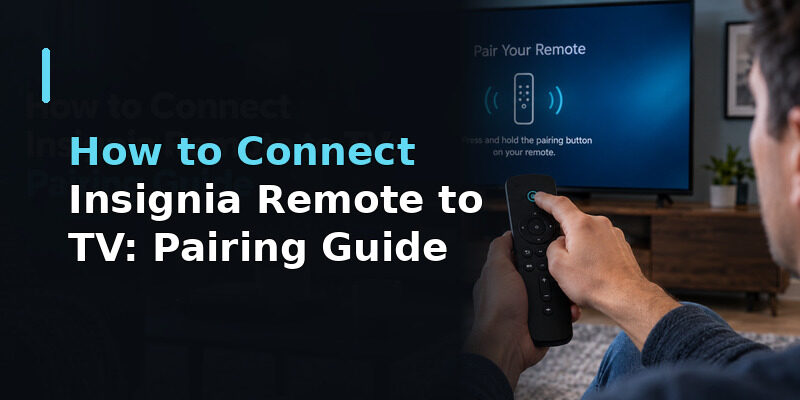
For an Insignia Fire TV remote, pairing is wireless and quick. This is the most common answer to how to connect Insignia remote to TV on modern Insignia smart TVs.
The Pairing Steps
With the TV on and showing the Fire TV interface, press and hold the home button on the remote for about 10 seconds. The TV displays a confirmation when the remote pairs. This is the core of insignia tv remote pairing for Fire TV models.
If the First Attempt Fails
If it doesn’t pair, insert fresh batteries and try again, keeping the remote close to the TV. Weak batteries are the most common reason how to connect Insignia remote to TV stalls on the first attempt, so a fresh set often fixes it.
💡 Discover Helpful Guides: Insignia TV Remote App: Free Options and How to Set Up
How to Program a Universal Insignia Remote
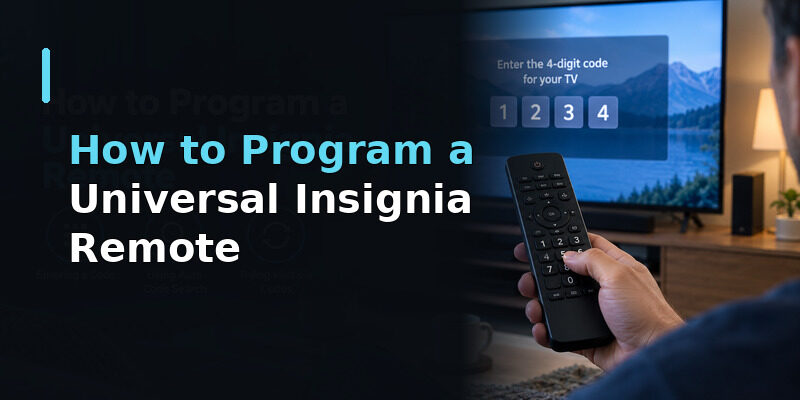
For a universal remote, connecting means programming it with an Insignia code rather than wireless pairing. This is how to connect Insignia remote to TV for infrared universal models.
Entering a Code
Turn on the TV, hold the Setup button until the remote’s light stays on, then enter an Insignia code from your remote’s list. Test power and volume to confirm. This insignia tv remote programming step is the same across most universal remotes.
Using Auto Code Search
If you don’t have a code, auto code search steps through the remote’s library until the TV responds. It’s slower but reliable, and it’s the answer to how to program insignia remote to tv without code when no code list is handy.
Trying Multiple Codes
If a code controls power but not volume, move to the next one in the list. A partial match is normal, and trying the next code usually completes how to connect Insignia remote to TV with full function.
📘 Find the Right Guide: Insignia TV Remote Replacement: Options and Buying Guide
How to Connect an Insignia Remote Without a Code
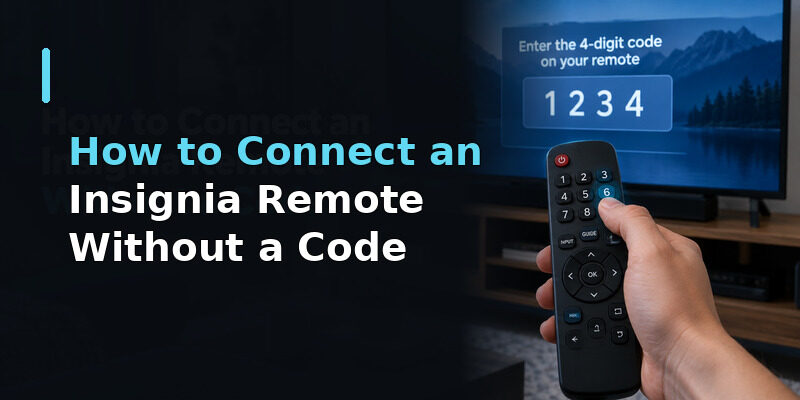
Many people specifically want to know how to program insignia remote to tv without code. There are two routes depending on your remote.
For a Fire TV remote, no code is ever needed — it pairs wirelessly with the home-button method above. For a universal remote with no code list, auto code search does the job by cycling through codes automatically. Either way, how to connect Insignia remote to TV without a code is fully possible.
How to Reset an Insignia Remote
If connecting fails repeatedly, resetting the remote often clears the problem. This is a common companion to how to connect Insignia remote to TV when pairing won’t take.
Resetting a Fire TV Remote
To reset insignia tv remote of the Fire TV type, remove the batteries, unplug the TV for 30 seconds, then reinsert the batteries and re-pair with the home button. This clears a stuck state before reconnecting.
Resetting an Infrared Remote
For an infrared remote, remove the batteries, hold any button for 15 seconds to discharge residual power, then reinsert fresh batteries. This how to reset insignia tv remote step often revives a remote that wouldn’t program.
📖 Read More Guides: Insignia TV Remote Codes: Complete Programming Guide
Troubleshooting a Connection That Won’t Work
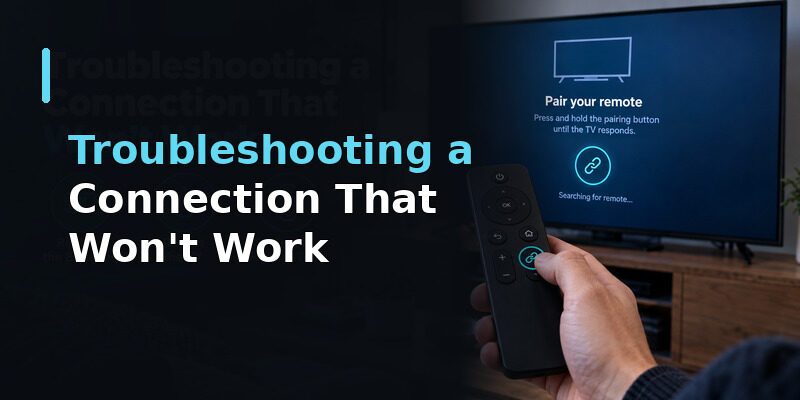
If how to connect Insignia remote to TV still fails after pairing or programming, a few checks resolve most remaining cases.
Replace the Batteries
Weak batteries are the top cause of failed pairing and programming. Fresh alkaline batteries, both replaced at once, resolve a surprising share of connection problems before anything else.
Restart the TV
A frozen TV can refuse to pair. Unplug it for 30 seconds, let it fully boot, and try connecting again. This clears temporary glitches that block how to connect Insignia remote to TV.
Confirm the Remote Type
Trying to pair a universal remote like a Fire TV remote — or entering codes into a Fire TV remote — won’t work. Double-check your remote type, since using the wrong method is a common reason connection fails.
When Connecting Isn’t Worth the Effort
If you’ve tried pairing, programming, resetting, and fresh batteries with no success, the remote may have a hardware fault. At that point, a phone app is faster than continuing to troubleshoot how to connect Insignia remote to TV.
A phone app connects over Wi-Fi with no pairing button, no code, and no batteries — sidestepping every step that can go wrong with a physical remote. It’s often the quickest route back to a working TV.
💡 Discover Helpful Guides: Insignia TV Codes for an Xfinity Remote: Quick Answer
Connect Your Phone Instead With a Remote TV App
Instead of wrestling with how to connect Insignia remote to TV, the Remote TV App connects your phone to the TV over Wi-Fi in seconds — no pairing button, no code, and nothing to reset.
It covers power, volume, navigation, and app launching, and it’s a free backup for a physical remote that won’t connect. to control your Insignia TV from your phone.
FAQs About Connecting an Insignia Remote
How do I connect an Insignia Fire TV remote?
With the TV on, hold the home button on the remote for about 10 seconds until the TV shows a pairing confirmation. Insert fresh batteries first if it doesn’t pair on the first try.
How do I program an Insignia universal remote?
Turn on the TV, hold Setup until the light stays on, then enter an Insignia code and test power and volume. Use auto code search if you don’t have a code.
How do I connect an Insignia remote without a code?
A Fire TV remote never needs a code — it pairs with the home-button method. A universal remote with no code list can use auto code search to connect automatically.
How do I reset an Insignia remote?
For a Fire TV remote, pull the batteries, unplug the TV for 30 seconds, then reinsert and re-pair. For an infrared remote, hold a button for 15 seconds with the batteries out, then insert fresh ones.
Why won’t my Insignia remote connect?
Usually weak batteries, a frozen TV, or using the wrong method for your remote type. Replace the batteries, restart the TV, and confirm whether your remote pairs wirelessly or needs a code.
🗺️ Browse How-To Guides: Lost Insignia TV Remote: What to Do Right Now
Final Thoughts
How to connect Insignia remote to TV comes down to your remote type: Fire TV remotes pair with the home button, while universal remotes need a code or auto search. No code is required for Fire TV remotes, and auto search covers universal remotes without a list.
If connecting fails, fresh batteries, a reset, and a TV restart resolve most cases. And if the remote simply won’t cooperate, the Remote TV App connects your phone over Wi-Fi with no pairing or code at all.
Download TV Remote App