
Insignia TV Remote App: Free Download for Android & iPhone
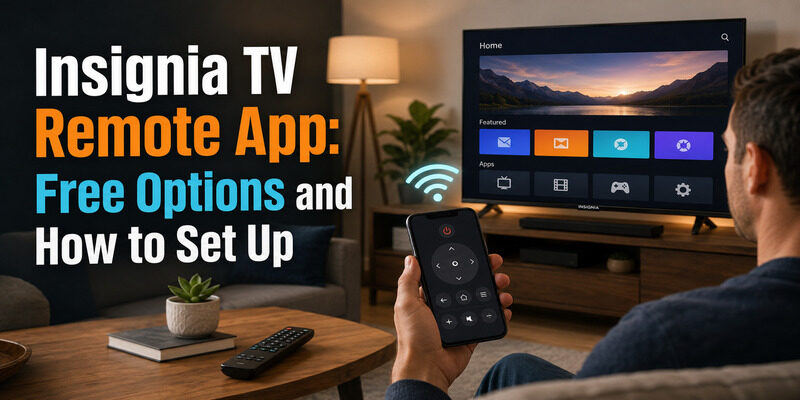
Quick Answer: The best free Insignia TV remote app depends on your television’s operating system. For an Insignia Fire TV, download the official Amazon Fire TV app. For an Insignia Roku TV, use The Roku App. Both provide free remote-control features on compatible Android phones and iPhones.
To control your Insignia TV from your phone, install the appropriate app, connect your phone and TV to the same local Wi-Fi network, select your television, and complete any pairing request.
An Insignia TV remote app is a convenient alternative when your original remote is lost, broken, or unavailable. Depending on the television model, a compatible app can control volume, navigation, playback, and other everyday functions.
This guide explains how to download remote for Insignia TV models, choose the right application, connect your phone, and fix common remote app problems.
Best Free Insignia TV Remote Apps
Not every Insignia television uses the same operating system. Some models run Amazon Fire TV, others use Roku TV, and older televisions may not support Wi-Fi remote applications.
Before downloading an Insignia TV remote app, identify your television’s platform.
| Insignia TV Type | Recommended App | Basic Remote Cost | Connection |
|---|---|---|---|
| Insignia Fire TV | Amazon Fire TV app | Free | Local Wi-Fi |
| Insignia Roku TV | The Roku App | Free | Local Wi-Fi |
| Compatible Insignia Smart TV | Third-party universal remote app | Varies | Wi-Fi |
| Older non-smart Insignia TV | Compatible IR remote app | Varies | Infrared |
1. Amazon Fire TV App for Insignia Fire TV
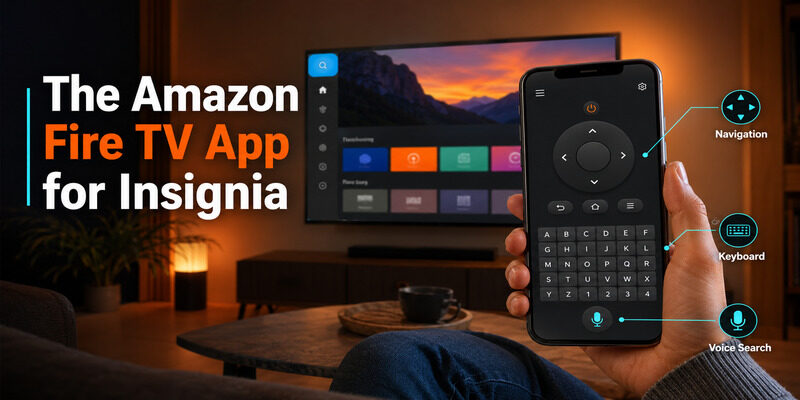
The Amazon Fire TV mobile app is generally the best starting point for an Insignia television running Fire TV.
It provides a virtual remote for compatible Fire TV devices and televisions.
Depending on the device, you can use:
- Directional navigation and selection
- Home and Back controls
- Playback commands
- Smartphone keyboard input
- Voice search on supported devices
- Access to compatible Fire TV functions
The Amazon Fire TV app is available for Android and iPhone.
Best for: Insignia Fire TV owners who want a free official remote app.
Limitations: The television must be compatible and connected to an accessible local network. Not every physical remote function is available in the mobile app.
2. The Roku App for Insignia Roku TV
If your Insignia TV uses Roku OS, The Roku App is the appropriate official remote application.
It offers an on-screen remote for compatible Roku televisions, including supported Insignia Roku TV models.
Available features may include:
- Directional navigation
- Home and Back buttons
- Volume and mute controls
- Playback controls
- Keyboard input
- Private listening on supported devices
Best for: Users who own an Insignia Roku TV.
Limitations: Some features depend on the Roku device, TV model, network configuration, and software version.
3. Universal Remote Apps for Insignia TV
A universal remote app may be useful if you own several television brands and prefer controlling them from one phone.
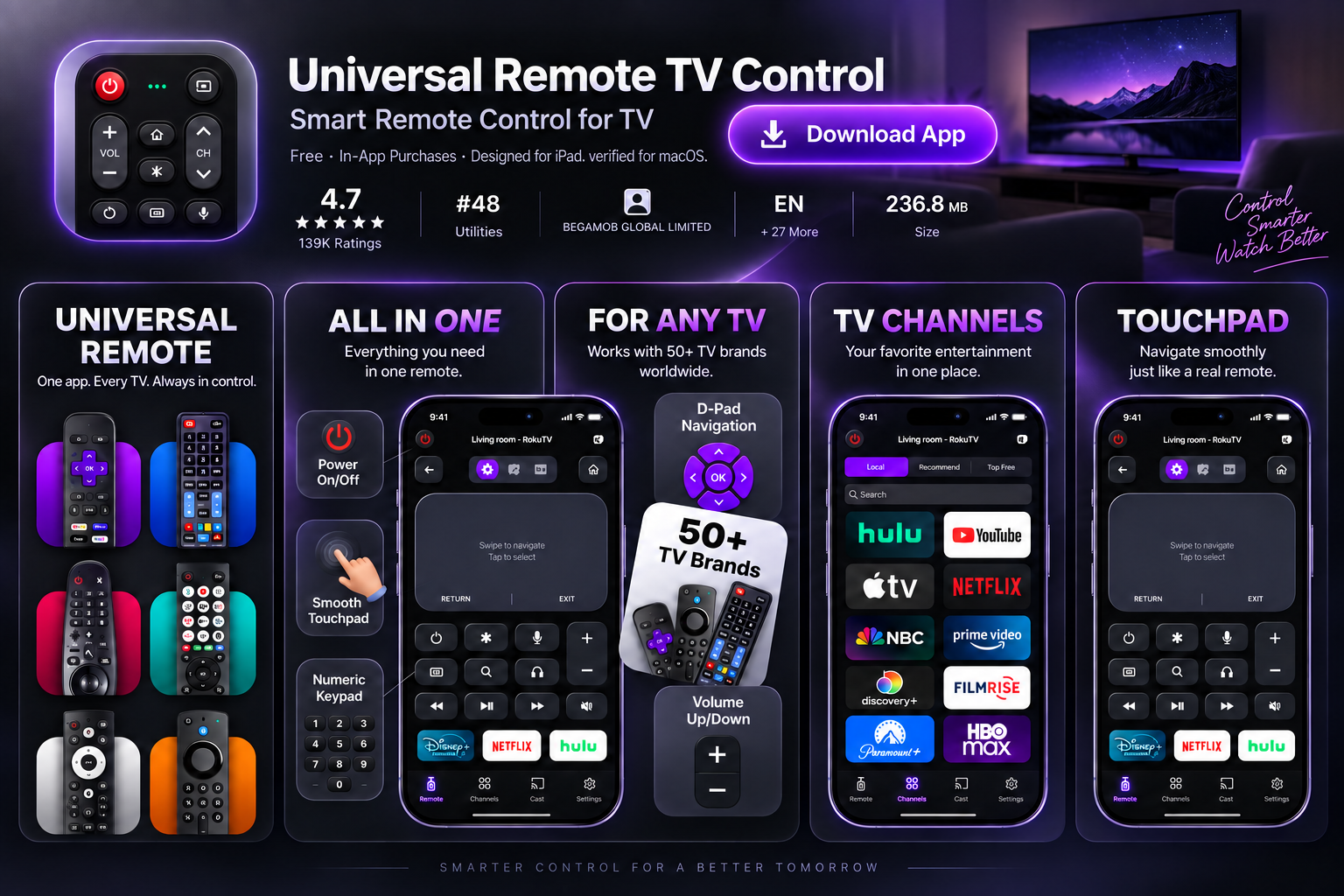
For example, Remote TV App provides a phone-based remote-control solution for supported smart TVs.
Before choosing a universal app, confirm that it supports your specific Insignia television and operating system.
Third-party applications may offer free basic functions, paid features, advertisements, or subscriptions.
Do not assume that an app supports every Insignia TV simply because it advertises universal compatibility.
Which Insignia TV Remote App Should You Choose?
For an Insignia Fire TV, start with the official Amazon Fire TV app.
For an Insignia Roku TV, start with the official Roku app.
For older non-smart Insignia TVs, check whether your Android phone includes an IR blaster or consider a compatible physical remote.
How to Download Remote for Insignia TV
You can download a compatible Insignia TV remote app from Google Play or the Apple App Store.
The correct application depends on whether your Insignia television runs Fire TV or Roku TV.
Step 1: Identify Your Insignia TV Platform
Turn on your television and check its startup screen or Settings menu.
An Insignia Fire TV usually displays Amazon Fire TV branding and uses the Fire TV interface.
An Insignia Roku TV displays Roku branding and uses Roku’s home-screen interface.
If you cannot access the TV menu, check the model number on the back of the television or consult its product specifications.
Step 2: Download Insignia TV Remote App for Android
To download a remote for Insignia TV on Android:
- Open Google Play Store.
- Search for Amazon Fire TV or The Roku App, depending on your television.
- Check the developer and app description.
- Confirm compatibility with your Android phone.
- Tap Install.
- Open the application.
- Allow the permissions required for device discovery and remote functions.
Avoid installing unverified APK files that claim to provide an official Insignia remote.
Step 3: Download Insignia TV Remote App for iPhone
To install an Insignia TV remote app on iPhone:
- Open the Apple App Store.
- Search for Amazon Fire TV or The Roku App.
- Verify the app publisher.
- Tap Get.
- Open the application.
- Allow Local Network access when requested.
- Follow the setup instructions.
Both official applications provide free basic remote-control functions for supported devices.
For additional options, explore our free TV remote apps for iPhone.
Step 4: Check the App Before Installing
Before completing your Insignia TV remote download, review the app’s:
- Developer name
- Supported television platforms
- Smartphone compatibility
- Permissions
- Recent updates
- Free and paid features
- Privacy policy
Use official app stores whenever possible.
💡 Discover Helpful Guides: Insignia TV Remote Replacement: Options and Buying Guide
How to Connect an Insignia TV Remote App
After downloading the correct application, connect your smartphone to your television.
Step 1: Turn On Your Insignia TV
Make sure your television is powered on.
If you have lost the original remote, use the physical power button on your TV if available.
For more alternatives, see our Insignia TV no remote guide.
Step 2: Connect Both Devices to the Same Wi-Fi
Connect your phone and television to the same local network.
Avoid guest networks that prevent connected devices from communicating.
If your router works but the internet connection is temporarily unavailable, some local remote functions may still work.
Step 3: Open the Remote Application
Launch Amazon Fire TV or The Roku App.
Allow any necessary network permissions.
The application should search for compatible devices on your network.
Step 4: Select Your Insignia TV
Choose your television from the available devices.
For Fire TV, you may need to enter a code displayed on the television.
For Roku TV, follow the device connection instructions provided in the application.
Step 5: Test the Virtual Remote
After connecting, test the available controls:
- Directional navigation
- Home and Back
- Volume and mute
- Playback
- Text input
- Other supported features
If the television does not respond, confirm that you installed the correct app for its operating system.
What Can an Insignia TV Remote App Do?
A compatible Insignia TV remote app can replace many everyday functions of a physical remote.
Control Volume and Navigation
Most compatible remote applications provide directional navigation and basic playback controls.
Volume and mute support depends on the television and remote app.
Use Your Smartphone Keyboard
Some Fire TV and Roku applications support smartphone text input.
This can make entering search terms and other text more convenient than using a traditional remote.
Navigate Streaming Applications
You can use a virtual remote to move through supported streaming services installed on your Insignia television.
The remote app does not automatically unlock paid streaming subscriptions.
Use Voice Search and Additional Features
Some remote applications support voice search or other advanced controls.
Feature availability depends on your television, operating system, app version, and region.
Are Insignia TV Remote Apps Completely Free?
The official Amazon Fire TV and Roku mobile applications provide free basic remote-control features on compatible devices.
Third-party applications may offer additional features through paid plans or in-app purchases.
For a broader comparison, read our free remote control app for TV guide.

Can You Use an Insignia TV Remote App Without Wi-Fi?
Most Insignia Smart TV remote applications use a local network to communicate with the television.
However, there are several situations to consider.
If Your Internet Is Down but Wi-Fi Still Works
Your router may continue providing a local network even when internet service is unavailable.
If both devices remain connected, some remote functions may still work.
Online streaming and cloud-dependent features may be unavailable.
If Your TV Is Not Connected to Any Network
The Amazon Fire TV and Roku mobile applications normally cannot discover a television that is disconnected from the local network.
Mobile data alone does not replace the required local connection.
Use an Android Phone With an IR Blaster
Some Android phones include an infrared transmitter.
If your phone has an IR blaster and your Insignia TV supports infrared commands, a compatible IR remote app may work without Wi-Fi.
This does not apply to phones without infrared hardware.
Use a Replacement or Universal Remote
If your television is offline, a physical remote may be the most reliable solution.
Read our Insignia TV remote replacement guide to explore compatible alternatives.
💡 Discover Helpful Guides: Insignia TV Codes for an Xfinity Remote: Quick Answer
Insignia TV Remote App Not Working? Try These Fixes
If your Insignia TV remote app cannot find or control your television, start with the following checks.
1. Confirm Your TV Operating System
Make sure you are using the Amazon Fire TV app for an Insignia Fire TV or The Roku App for an Insignia Roku TV.
An app designed for one platform may not work with the other.
2. Check Your Wi-Fi Connection
Connect your phone and TV to the same local network.
Avoid guest Wi-Fi networks that block device discovery.
Restart your router if necessary.
3. Check App Permissions
On iPhone, allow Local Network access for the remote application.
On Android, review the permissions requested for nearby devices and network discovery.
Permission names depend on your phone and app version.
4. Restart Your Devices
Close the remote application and restart your phone.
Restart your Insignia TV and wait for it to reconnect to the network.
Open the application and search for the television again.
5. Update the App and TV Software
Check for updates to the remote application and your television’s operating system.
Outdated software can sometimes cause pairing or discovery problems.
6. Remove and Reconnect Your TV
If your television appears in the app but does not respond, remove the saved connection if the app provides that option.
Search for the TV again and repeat the pairing process.
7. Check Your Physical Remote
If the mobile app and original remote both fail, the problem may involve the television or its settings.
For more troubleshooting instructions, see our Insignia TV remote not working guide.
FAQs About Insignia TV Remote Apps
Is there a free Insignia TV remote app?
Yes. The official Amazon Fire TV and Roku applications provide free basic remote functions for compatible Insignia Smart TVs.
What is the best Insignia TV remote app?
The best app depends on the TV platform. Use Amazon Fire TV for an Insignia Fire TV and The Roku App for an Insignia Roku TV.
How do I download remote for Insignia TV?
Identify your television’s operating system, search for the corresponding official app in Google Play or the Apple App Store, install it, and follow the pairing instructions.
Can I use my iPhone as an Insignia TV remote?
Yes. Compatible Insignia Fire TV and Roku TV models can be controlled using the appropriate iPhone application over a local network.
Can I use my Android phone as an Insignia remote?
Yes. Android users can install the Amazon Fire TV or Roku application for supported Insignia Smart TVs. Some Android phones also support infrared control.
Can I control my Insignia TV without the original remote?
Yes, if your television is already connected to a compatible network and you can complete any required pairing process.
Why can’t my Insignia TV remote app find my TV?
Common causes include different Wi-Fi networks, blocked device discovery, missing permissions, incompatible apps, or outdated software.
Can an Insignia TV remote app work without Wi-Fi?
Most network-based remote apps require a local network. Certain Android phones with IR blasters can control compatible Insignia TVs without Wi-Fi.
Does every Insignia TV support a remote app?
No. Support depends on the television model and operating system. Older non-smart TVs may require an infrared or physical remote.
📖 Read More Guides: Lost Insignia TV Remote: What to Do Right Now
Final Thoughts
An Insignia TV remote app is easy to find and genuinely free — the Amazon Fire TV app for Fire TV models and trusted alternatives like the Remote TV App both cover full control at no cost. Just avoid apps that paywall the basics or come from unofficial download sites.
Setup takes about a minute on Android or iPhone once your phone and TV share a network, though it does need Wi-Fi to work. Keep a free app installed as a backup and a daily upgrade over the physical remote, and a lost Insignia remote stops being a problem.
Download TV Remote App