
LG Smart TV Network IP Control Explained
Short answer: For everyday phone control, connect a compatible LG smart TV and phone to the same home network and add the TV in LG ThinQ.
LG smart TV network IP control means a compatible controller reaches the television through its network connection. For most households, the practical route is LG’s ThinQ app and its on-screen setup. A home automation controller or commercial installation may instead need a feature documented for a specific LG model. An IP address on the TV’s network screen confirms that it has a network address, but it does not establish that every controller can operate it.
First connect the TV, then test it while it is awake. Check power-on from standby separately, because that feature can depend on the TV and its settings.
LG Smart TV Network IP Control Basics
Choose an app or an integration
For a home setup, choose the controller before changing the television’s network settings. If you want an iPhone or Android phone to work as a remote, start with a compatible TV in LG ThinQ. If you are adding a television to an existing home controller, consult the controller’s compatibility list and the instructions for the exact TV. The same network connection can support several features, each with its own setup.
Keep a physical control for setup
LG smart TV network IP control can be useful even when you still have the physical Magic Remote. Use the physical remote to wake the TV and open its network screen, then use the phone to verify a command. This gives you a backup while the network is being configured.
If the phone cannot reach the TV at all, it may also be unable to restore the TV’s network connection. Before you switch routers or Wi-Fi names, verify that the physical remote reaches the television’s network menu. If only the phone can open it, consider setting up a compatible physical remote while the television is still reachable.
That can save a separate recovery step if the TV later drops off the network. To prepare a physical backup, learn how to connect an LG remote to the TV and verify that it can open the network settings.
Read more: Samsung TV Remote Technology and How It Works
Check Which Kind of Control You Need
Use ThinQ for normal TV operation
LG USA Support documents adding a compatible LG smart TV to ThinQ and using its available controls for actions such as volume or input selection. Start with LG ThinQ for everyday phone control. Run a short navigation or volume test while you can see the television. That helps distinguish a controller that is online from one that can send the command you need.
For LG smart TV network IP control at home, you often do not need to know the TV’s exact IP address. ThinQ can list the television during supported setup. Use the network details to troubleshoot when the device is missing or when you have several TVs with similar names. LG smart TV network IP control is easier to verify if the TV shows a visible reaction.
Select a menu item that has a clear highlight. If the command reaches a different screen, recheck the selected TV in the app before you change the router. If you want to compare phone-based controls, explore these LG TV remote apps and verify which features support your television model.
Check model documentation for an integration
A home automation controller or a commercial installation may list LG models and connection requirements separately. Identify the model number and software version, then confirm that the controller supports that combination. LG publishes separate installation documentation for some commercial models.
A feature shown there may be unavailable in the menus on a household TV. When comparing documentation, check whether it is a general network setup guide or a controller integration guide. The first tells you how the television joins the network. The second should identify the supported control feature and any on-screen permission or model setting it needs.
| What you need | First route to check | What to verify |
|---|---|---|
| Phone navigation and volume | LG ThinQ on a supported TV | Discovery, approval, and one command |
| Motion pointer on the screen | Compatible physical LG Magic Remote | Registration and pointer response |
| Control through a home automation system | Integration documentation for the exact model | Supported connection, permission, and command |
| Wake a TV after it sleeps | Model-specific wake support | A separate standby test |
Read more: LG TV Remote iOS: Official iPhone Setup and Control Guide
Connect the TV and Phone to One Network
Join the intended home Wi-Fi on both devices
Open the TV’s Network settings and check the connection marked as active. Open the phone’s Wi-Fi settings and compare. Use the main home network for the first setup. LG’s ThinQ setup guide recommends using the same network and specifies the same 2.4 GHz network for its Wi-Fi setup steps. Follow the instructions for your model and use a compatible band when you are checking discovery.
If your router shows several similar names, check whether one is a guest or smart-device network. LG smart TV network IP control needs a path from the controller to the television. A guest network can let the phone browse while keeping it away from the TV. Check the active connections from the room where you will use the remote. A phone can rejoin a saved guest network when it moves between rooms. If one location works and another fails, read the phone’s connected network again from the failing spot. Keep the TV connection steady while you compare.
Check the Ethernet path when the TV is wired
If the TV uses Ethernet, follow the cable to the home router or switch that serves it. LG’s webOS network setup guide describes using the TV’s LAN port and checking the Wired Connection option. The labels can vary across webOS versions. With a wired TV and wireless phone, verify that the two connections reach a local network that allows the controller to contact the television. Use LG’s model instructions when setting up ThinQ.
LG smart TV network IP control can fail when a wired television is connected to one router and a wireless phone joins a second. Move the phone to the intended main Wi-Fi for one controlled comparison. Keep the TV awake and reopen the controller before you change any other setting.
Read more: How to Set Quick Access on LG TV Remote: Complete Shortcut Setup Guide
Find the TV Network Details
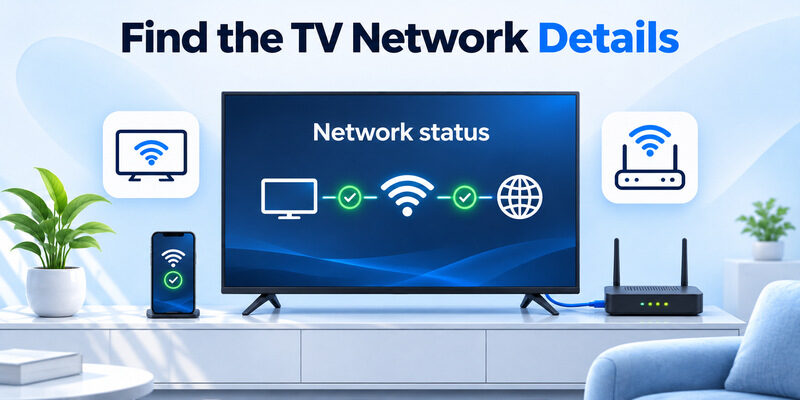
Open the active network connection
Use the TV’s network page to identify whether it is connected over Wi-Fi or Ethernet. LG’s webOS support guide shows different areas for wireless and wired setup. Check the TV’s model guide if the menu names differ. If the model displays an IP address, read it from the active connection. The address for the old connection can change when you move the TV between routers or switch between Wi-Fi and Ethernet.
When diagnosing LG smart TV network IP control, check whether the television reports connected before looking up its address. If the TV is offline or its Wi-Fi name does not match what you expected, fix the connection first. Knowing a previously used address will not make the TV reachable on a different network. If discovery fails despite both devices having internet access, check whether guest Wi-Fi is blocking the TV remote app from reaching the television locally.
Use the home router’s client list if needed
The router may show the television among its connected devices. Compare that list with the TV’s own network screen, especially if the household has several LG TVs. If you need a consistent local address for a supported controller, check whether your router provides address reservation and follow its documentation.
A reservation can keep a device address predictable on that network. The TV still needs to accept the controller and the feature must be supported. For LG smart TV network IP control with a controller that stores an address, record the new address after a router change and test it with the TV awake. If the controller uses a device name or built-in discovery, follow its supported process for replacing an old entry.
Read more: Turn Off Audio Guidance on LG TV Remote: Step-by-Step Guide for LG Smart TVs
Set Up the LG ThinQ Remote
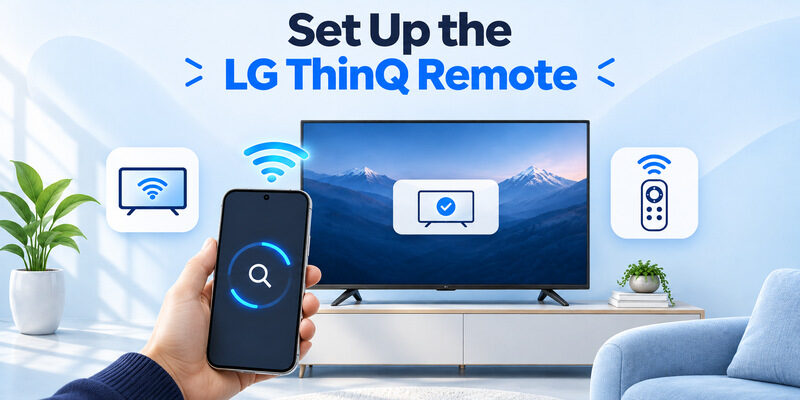
Add the TV and follow its prompt
LG’s support guide says to sign in to ThinQ, open Add a Device, choose TV, and select the intended device from the results. Follow the on-screen instructions for the television and phone. If you see an approval or code, use the prompt from the television you actually want to control. Do the setup while you can see the screen.
If LG smart TV network IP control is intended for several TVs, add one at a time. Check the TV name and then move a visible selection. Confirm that the intended screen responds before adding the next TV. This makes it easier to spot a similarly named television. If the phone app displays a TV you no longer use, do not assume the device entry reflects the current network. Open a fresh scan and compare the on-screen approval prompt before testing a command. LG smart TV network IP control should be confirmed with a response from the physical screen.
Open the TV’s controls and verify a command
Select the added TV to see the controls it supports. LG’s guide shows controls such as input and volume on supported models. Test navigation first, then try the feature you need. If the television appears and volume fails, identify the active sound output. A connected soundbar can change which equipment responds to volume even when phone navigation works. Use the soundbar’s own control as a comparison before changing the TV’s network settings. If you can change inputs and move the selection from the phone, the app already reaches the television. Inspect the separate audio path next.
Read more: Google TV Remote Replacement: Compatibility, Buying, and Pairing Guide
Check a Documented IP-Control Setting
Use the instructions for the exact television
If a controller asks for an IP Control option, check the model-specific LG or integration instructions for its exact name and requirements. Verify that the feature is listed for your model. An LG commercial installation guide can describe setup choices that are specific to that product line. A household TV may use ThinQ and a different set of controls.
LG smart TV network IP control can involve multiple setup steps. The television needs a working network connection, and the controller needs the appropriate permission or approval. If the controller asks for a code, use the one displayed by the TV or the official instructions. Avoid treating a similarly named setting from another model as the same feature.
Test access without changing the whole network
Put the controller and television on the intended local network and use the connection test from the product documentation. If the controller sees the television and cannot send commands, check supported features and approval. If it cannot see the television, confirm the active connection and the app’s local access. Keep other router settings steady while you compare. If LG smart TV network IP control works through ThinQ and fails through a different controller, confirm the second controller’s requirements. That comparison can keep you from resetting a working television connection to fix a feature your model does not support. Record the TV’s model, active network and software version before you ask the controller maker for help. Include the first step that failed so they can distinguish a connection issue from a model limitation.
Test Wake and Standby Separately
Establish a working test while the screen is on
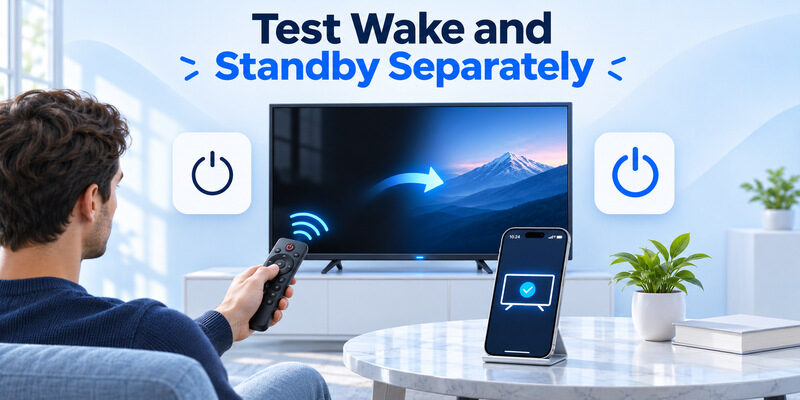
Leave the TV awake and use ThinQ or the documented controller to send one command. Once that works, put the television in standby and test whether the controller can wake it. Use two separate checks for awake control and power-on. A TV can accept commands while active and become unavailable to the app after sleeping.
LG smart TV network IP control after standby depends on the model and settings. A stable result on the home screen is evidence that the network and app can communicate while the TV is awake. A failed wake command calls for checking standby support, not starting the entire pairing procedure again.
Check TV On With Mobile where supported
LG’s ThinQ support page gives a webOS 6.0 example under Devices → External Devices → TV On With Mobile. Check your model’s menu and supported Wi-Fi or Bluetooth wake options. Follow the manufacturer’s instructions for the type of connection you use. If the option is unavailable, confirm whether the model supports phone-based wake before relying on it.
For a repeatable LG smart TV network IP control test, wait until the TV is in its usual standby state. Then try the same app and note whether the television appears, wakes, or remains unavailable. If you must wake it with the physical remote, confirm that phone commands resume once the television is active.
For more context on network bands and device discovery, compare 2.4 GHz and 5 GHz for TV remote apps, then follow LG’s setup instructions for your model.
Troubleshoot Discovery and Commands
| Result | First check |
|---|---|
| TV does not appear in ThinQ | TV awake state, same home network, and app permission |
| TV appears and setup stops | On-screen approval and the correct TV entry |
| Commands work while the TV is awake | Test wake as a separate model-specific feature |
| Volume fails while navigation works | The active speakers and their supported control path |
| One controller works and another fails | Compatibility, permissions, and the connection each controller uses |
Work from the last successful step. If the TV can stream and ThinQ cannot discover it, verify the phone’s Wi-Fi and any local access permission before reconnecting the TV again. Apple Support explains where an iPhone lists Local Network access for apps. If you have two phones, compare the same controller on the same network with the television awake.
For LG smart TV network IP control that stopped after a router change, verify the new network name and the TV’s current address if the controller uses one. If a controller retained the old address, update it using its documentation. After restoring control, restart the app and verify the TV still appears under the intended name, especially if a second television shares the network. Then test one command on the correct screen. If the router shows a separate guest or IoT network, confirm both the television and the controller are using the intended connections. A new router can preserve internet access while changing which devices can communicate locally.
Use a Phone Remote on a Reachable LG TV
Try a backup for a supported television
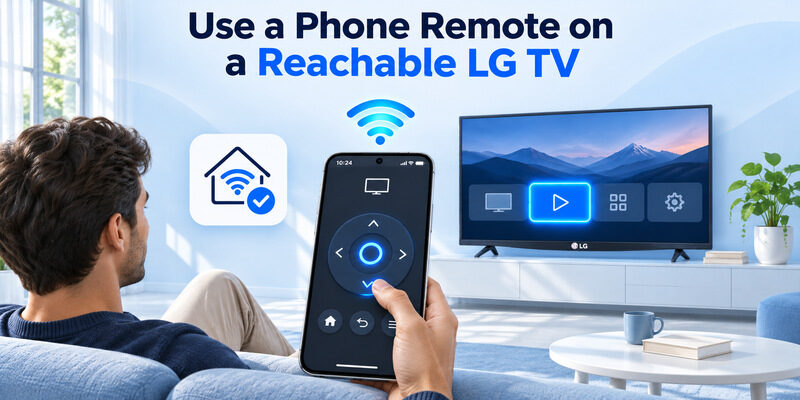
If you have lost the physical remote and the television is reachable, can act as an iPhone backup for a compatible smart TV. Open the device picker, select the television, and test a simple direction command. LG smart TV network IP control through one app does not establish compatibility with every other controller, so check the available controls on your model.
Keep a way to restore the network
A phone app may be unavailable when the television has lost its saved Wi-Fi or changed to an unreachable network. Keep the physical controls or a compatible remote available to reopen network settings. When you reconnect the TV, wait for an active connection and start a new scan before changing app settings. If LG smart TV network IP control was working before the change, compare the first result with the earlier setup. The ability to select a menu item after a fresh scan is a better confirmation than a saved television name.
Final Thoughts
Use LG smart TV network IP control by connecting the TV and controller on a reachable home network and confirming one command. Start with ThinQ for compatible home TVs, check exact model documentation for other integrations, and test standby wake separately. The TV’s active network and its response to a specific command tell you where to look next.
