
Mi Remote Technology and How Phone IR Works
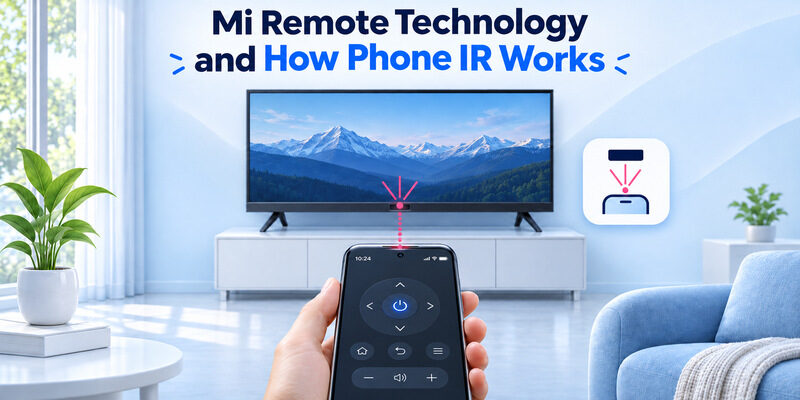
Short answer: Mi Remote uses a compatible phone’s infrared blaster to send remote-control commands to a supported television.
Mi Remote technology can turn a phone into an infrared remote when the phone has the right hardware. The app selects a profile for the appliance and the phone emits the signal. The television’s infrared receiver still needs a usable path to the phone. Installing an app cannot add an infrared emitter to a phone that lacks one.
Start with the exact phone model and TV model. If the phone supports infrared, test more than the power button before saving a profile. If the phone has no emitter and the television supports a network remote, check that option separately.
Mi Remote Technology and What It Controls
Xiaomi’s Mi Remote support guide describes an app that uses a phone’s IR blaster to control supported equipment. The app can offer profiles for televisions and other device categories. The phone sends the chosen command through its infrared hardware. The appliance recognizes the command if the profile and receiver are compatible.
For Mi Remote technology, the phone and the television have different jobs. The phone needs a compatible emitter and app. The television needs a receiver that accepts the selected codes. A phone can have an emitter and still be unable to reproduce every button on an original remote. The result depends on the supported profile and functions of the television.
A first test of Mi Remote technology is to use the television’s own home screen and try volume or a direction button after the profile’s setup prompt. That tells you more than a successful power toggle alone. If the television starts on an external input, switch to its own menu before checking the direction buttons.
A connected player can show a menu that responds to its own controller, while the phone profile is sending commands to the television. A TV that turns on may still need another profile for the controls you use daily. Before setting up an infrared profile, learn how to check whether your phone has an IR blaster using the specifications for its exact model.
Read more: LG Magic Remote Technology Behind the Pointer
Check Whether Your Phone Has an IR Blaster
Verify the exact phone model
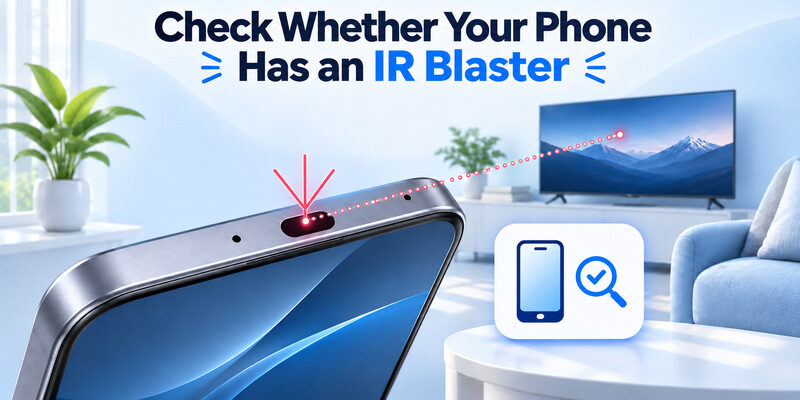
Look up your phone’s specifications for an infrared blaster or infrared transmitter. The Xiaomi or Redmi brand name alone does not establish whether a particular device has it. Use the exact model and region if available. Check the manufacturer’s support information rather than guessing from a small opening on the phone’s frame.
Mi Remote technology relies on hardware for its infrared mode. A camera, proximity sensor, or Bluetooth radio cannot substitute for the emitter. If you borrowed a phone for a test, check that the app has access to the supported infrared feature on that model before testing the television. Use a working physical remote for comparison so you know the receiver itself responds.
If the app is present but the phone has no supported IR hardware, look for the television manufacturer’s network remote instructions. Check the model in the phone’s settings if its marketing name covers multiple versions. A manufacturer can use a familiar name on models with different hardware. Compare the full model identifier before deciding which control method to use.
Check where the phone sends the signal
If your model has a blaster, identify its location from the phone documentation and aim that end toward the TV receiver. Remove anything covering the emitter for one comparison if safe to do so. A thick or poorly aligned case can affect the test. Try the command while the TV is awake and you are standing in front of it.
If the phone is held sideways, verify that the emitter is still facing the screen. That simple change can matter more than switching profiles. For Mi Remote technology in IR mode, the orientation of the phone is part of the test. If your phone has compatible hardware, compare IR remote control apps for Android and check which appliances and commands each app supports.
Compare Infrared and Network Control
| Control type | What it needs | Typical first test |
|---|---|---|
| Mi Remote infrared profile | Compatible phone emitter and TV receiver | Aim the phone and try a supported command |
| Manufacturer’s local phone remote | Supported TV, app, and reachable home network | Scan and select the TV while it is awake |
| Paired original remote | Compatible remote and paired device | Test navigation on the device’s home screen |
| HDMI-CEC through connected equipment | Compatible HDMI devices and settings | Test the supported power or volume action |
Identify the path before troubleshooting. Mi Remote technology in infrared mode sends a signal directly to a television. A local network remote reaches the television through your home connection. A paired original remote can use another wireless path. An app may find a TV over Wi-Fi even if the phone cannot send infrared. A working infrared command says nothing about whether the TV is reachable on the network.
Use the original remote to check the television first. If it works and the phone does not, compare the target, profile, and signal. If both fail, check the TV’s awake state and receiver path. A phone remote for a separate streaming player can also show a different result from an IR command aimed at the television.
Read more: LG Smart TV Network IP Control Explained
Set Up a TV in Mi Remote
Select the device type and manufacturer
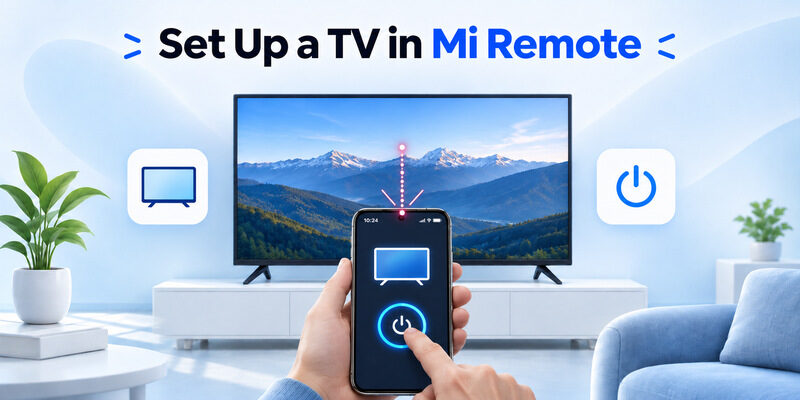
Open Mi Remote on a compatible phone and use the option to add a remote. Choose TV and find the manufacturer in the list. Keep the television in view while you test the profile. Xiaomi’s guide describes choosing the device category and following the app’s button checks. The available labels and profiles can vary by app version and region.
When setting up Mi Remote technology for a television and a separate player, choose the television as the first target. If you later add another device, check its model and whether it actually accepts infrared. A streaming stick that relies on a paired remote may not respond to the phone’s infrared profile.
Follow the app’s response prompts
Aim the phone’s emitter at the TV. When the app asks whether the TV responded, check the screen or sound and choose the answer that matches what happened. If the command fails, continue through the app’s offered tests for that brand. Save the profile once you have tested the keys that matter to you.
This helps avoid settling for a profile that only happens to match one button. If you expect to enter a Wi-Fi password with the phone, check that the profile can open settings, move through a keyboard, and select a letter. That is a more useful real-world test than repeatedly turning the TV off and on. For a broader comparison, explore how TV remote technologies use infrared, paired wireless connections and local networks.
Check More Than the Power Button
Confirm volume and input on the intended TV
After the first success, test at least one other command. Try volume while the TV is awake, then check input or menu navigation if you use those features. If the sound comes through a separate receiver, verify whether the TV or receiver should respond. Mi Remote technology can be working on the television while a different box handles audio.
If the television opens its input list and the phone cannot move through it, compare another profile for the same model if offered. Keep the original remote nearby to restore the input. Record the profile that controls both selection and sound as expected. If you have to use a separate audio profile, test it from the same seat. A TV and soundbar can use different receivers even when they sit close together. Mi Remote technology can use a separate profile for a supported audio device, depending on the app.
Save a clear name for the working profile
If you control more than one TV, name the profiles so you can tell them apart. Use the room or model name. Two televisions from the same manufacturer can respond to overlapping commands. If a button changes the wrong screen, aim at the intended TV and check the profile before changing settings. A clear name makes Mi Remote technology easier to use when multiple devices are nearby.
Read more: Samsung TV Remote Technology and How It Works
Test Line of Sight and Button Codes
Try a command directly in front of the receiver
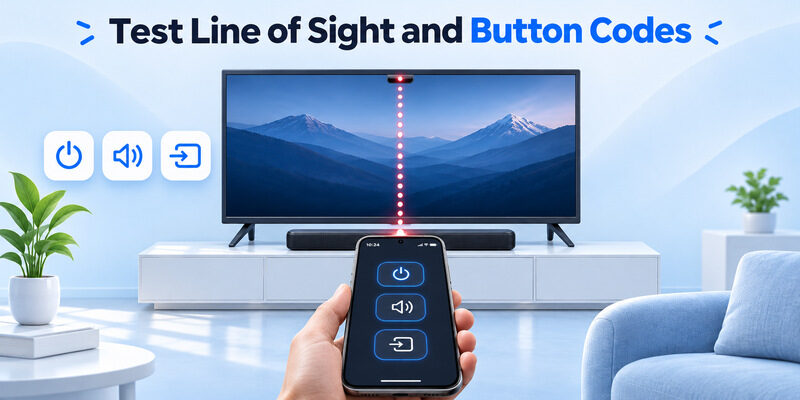
Stand near the television and point the phone’s emitter toward the receiver. Clear the path between the phone and TV. A soundbar on the console or an object near the lower bezel can block the signal on some setups. Use the original remote from the same position as a comparison, then try from your normal seat.
Mi Remote technology uses infrared in this mode. It can behave differently when you point the phone at an angle or hold it with the emitter covered. A command that works close to the TV and fails from the couch is useful evidence. Compare positions before changing the profile. Use the same command and keep the television awake. If the original remote works from the couch and the phone does not, compare their aim and where each device emits its signal. A successful phone test beside the television at least confirms that the selected profile can reach the receiver.
Compare codes when only some commands work
If the phone controls power and fails to change volume, check both the selected profile and the active audio device. Try a compatible alternative profile if the app offers one. If no profile can navigate a particular TV menu, use the original remote to verify the menu accepts those commands at all. Watch for a response you can repeat.
A screen that turns on after a delay can make it hard to tell whether the previous profile or the current one sent a usable command. Wait for the TV to settle before testing the next profile. A failed button can reflect the target or the profile. For an older television, check the requirements for a remote control app for a non-smart TV, including the phone’s transmitter and the TV’s infrared receiver.
| Result | Next check |
|---|---|
| No commands work on the phone | Confirm phone IR hardware, emitter direction, and selected TV profile |
| Power works and other buttons fail | Try the app’s supported alternate profiles and test the intended device |
| Works close to the TV only | Check receiver line of sight and the normal viewing angle |
| Original remote and phone both fail | Check TV power, target, and receiver path |
| A Wi-Fi remote works but Mi Remote does not | Compare phone IR hardware and code support independently |
Use Mi Remote Without TV Wi-Fi When Supported
Confirm what works locally
A supported infrared command can reach a television that is offline because it travels directly from phone to receiver. Test the saved remote profile before you need it. Some app setup or profile retrieval can have separate requirements, so verify your own phone and app. Once you have a usable profile, check that it can reach the television from your normal seat. This matters if you plan to rely on Mi Remote technology while the physical remote is unavailable. Try the same saved profile again the next time you open the app so you know where to find it when the network is down.
Mi Remote technology can help when the television needs a new Wi-Fi password and cannot use a local network remote. If the profile includes usable directional keys, open the TV’s network menu and confirm that you can select the intended network. Keep the original remote available if the phone cannot navigate every step.
Check the difference between the television and the app
A television without internet can still have a usable IR receiver. A compatible phone with no local TV connection can still send infrared. If Mi Remote technology works on one phone and not another, compare the hardware and app support for each model. The TV’s internet status does not determine whether a second phone has the necessary emitter.
Read more: Fire TV Remote Technology and How It Works
Choose a Network Remote for a Supported TV
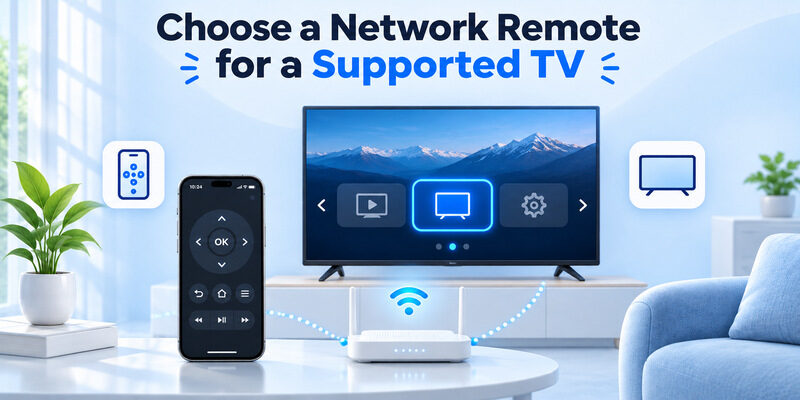
Start with a reachable TV on your home network
If your phone lacks a usable infrared blaster, check whether the TV has a supported phone app. Xiaomi’s support guidance mentions Mi Remote and a Google Home option for compatible Xiaomi TV setups. Follow the manufacturer’s instructions for your exact television. Confirm the phone and TV use the intended network before searching for a device.
A local network remote has a different dependency from Mi Remote technology in IR mode. It needs the TV to be reachable, and may need local access permission or an on-screen approval. A reachable compatible television can respond without a direct line of sight. Check the connection by moving the TV’s highlight from where you normally sit. If a guest network hides the television, move the phone to the intended home network for one fresh scan. An IR profile can be checked separately from that network result.
Use an iPhone backup when the television supports it
For a compatible smart TV already reachable on the home network, can be an iPhone backup when the physical remote is missing. Select the television and test one navigation command. This route uses network access and does not require a built-in infrared blaster on the phone.
Read more: How to Reduce TV Power Consumption: Measure and Adjust
Troubleshoot the Phone and TV Separately
Test with the original remote
Use a working original remote as a baseline if you have one. Confirm the TV responds while you are standing near it. Then test the same function from the phone. When Mi Remote technology fails on one button only, compare the selected profile and the device receiving the command. If the original also fails, check the television or audio equipment first.
Make one change per test
Check the phone model, select the right device category, and try the supported profiles. Keep the same TV screen open while you compare. If a test makes the TV switch inputs, return to the same menu with the original remote before trying the next command. Once Mi Remote technology starts working again, test from your normal seat and keep the profile name you can recognize. That gives you a known working result to compare if the app is updated or the television is moved. Check that the TV still responds from the position where you normally hold the phone.
Frequently Asked Questions
Can Mi Remote add an infrared blaster to any phone?
No. Infrared mode requires compatible phone hardware. Look up the exact model’s specifications. If it lacks an emitter, check the television’s supported network remote options. A Wi-Fi remote needs the television to be reachable and can have different compatibility requirements.
Does infrared control need the TV to be on Wi-Fi?
A compatible IR command can reach the TV without its Wi-Fi connection. The phone needs an emitter, a supported profile, and a usable path to the receiver. Verify app setup requirements separately, especially if you have not yet added a profile.
Why does my phone turn the TV on but fail to navigate?
The selected profile can have a working power code and different support for other buttons. Check volume, input, arrows, and select independently. Try another profile offered for the television if appropriate, and compare with the original remote to confirm the intended menu accepts those commands.
Can I use Mi Remote with a separate streaming stick?
Check the exact streaming device. If it depends on a paired wireless remote and does not accept compatible infrared commands, a phone’s IR profile will not replace that link. Use a documented physical or phone remote for the player, and test the television’s own controls separately.
Final Thoughts
Mi Remote technology works when a compatible phone emits codes that the television’s infrared receiver recognizes. Verify the phone model, select the correct TV profile, and test power plus the everyday commands you need. If your phone has no IR hardware, use a supported network remote when the TV is reachable.
