
5 Device Universal Remote Control Buying and Setup Guide
Short answer: Buy a five-device universal remote when it supports every device and command you want to replace.
A 5 device universal remote control can combine several compatible controllers into one handset. Five is the number of device slots, not a promise that five devices in any room will work. A television, soundbar, and cable box might fit easily. A streaming stick that depends on a paired wireless remote may need a different controller, even when a slot is free.
Write down the exact model of each device and the commands you use most. Compare that list against the remote’s compatibility information before you buy. Once you have the remote, program and verify one device at a time before adding a combined activity.
What a 5 Device Universal Remote Control Can Replace
Start with the devices that already use infrared
A common 5 device universal remote control is designed for compatible infrared equipment. The One For All Smart Control Pro 5, model URC 7956, is one documented example. Its maker describes support for up to five AV devices using infrared, including categories such as TV, set-top box, disc player, audio, and media streamer. Those categories tell you what the remote is designed for. Check the exact model for each device.
If a device already works with a simple remote that you point toward its receiver, infrared is a reasonable starting clue. Check the device manual and the universal remote’s code list before treating that clue as proof. A hybrid original remote can use infrared for one button and a paired link for another.
Keep separate controls where they serve a different function
A 5 device universal remote control may replace basic power, input, and volume for some devices while leaving voice or motion controls on their original remotes. Decide whether you use those features enough to keep the original. If your television menu depends on a pointer, for example, verify that the new remote provides usable directional navigation before relying on it.
To compare physical and phone-based controllers, explore these universal TV remote options and check their supported connections before choosing one.
Read more: LG Smart TV Network IP Control Explained
Count the Devices You Need to Control
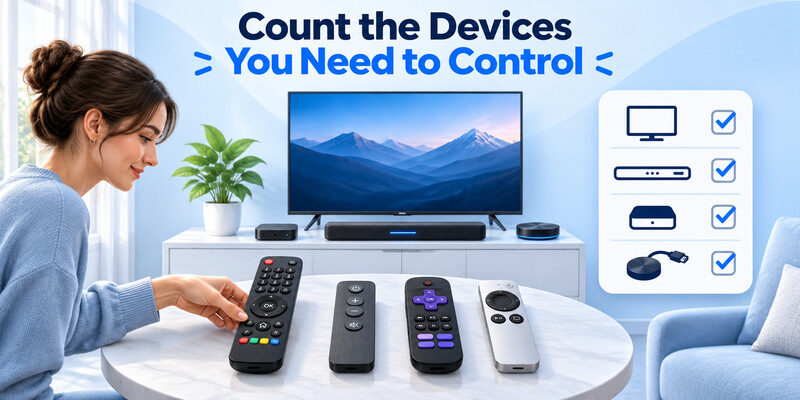
Count physical devices and the commands they receive
Write one row per device, then add the buttons you need. A TV, separate cable box, and separate soundbar are three devices if each receives its own commands. If you use the TV’s built-in streaming apps, those apps usually use the TV’s navigation mode rather than additional device slots. An external streaming box may need its own slot if it accepts commands from the universal remote.
For a 5 device universal remote control in a room with five devices, include the television even when it mostly displays a signal from another box. You may still need its power and input buttons. Conversely, if a soundbar already follows compatible HDMI control from the TV, test whether you actually need a separate soundbar mode for the commands you use.
Mark the remotes you want to replace first
Sort your list by what you use every day. If you have a disc player you rarely operate and a streaming stick that needs its original paired remote, keep both options in the plan. A 5 device remote can still simplify the television, soundbar, and cable box without replacing every controller. The goal is to cover the daily tasks you listed.
For example, note whether you can start watching cable, change volume, and return to a built-in TV app without picking up another remote. That gives you a useful test when the new controller arrives. If one of those tasks needs a separate remote, you can decide whether that trade-off is acceptable before buying.
Start with the universal remote codes list for your controller’s exact model and version, then select the appropriate device category.
Match Each Device to a Remote Mode
| Equipment | Typical mode to check | Test after setup |
|---|---|---|
| Television | TV | Power, input, arrows, and select |
| Cable or satellite box | Set-top box | Guide, channels, and playback |
| Soundbar or receiver | Audio | Volume and mute |
| DVD or Blu-ray player | Disc player | Playback and menu navigation |
| Compatible media streamer | Media player | Home, back, and selection |
Match the mode to the device you want to reach. A 5 device universal remote control may have labeled modes, a device selector, or an app-assisted setup. Check whether the remote supports your combination of categories. A remote that can use five slots in total may handle devices in a specific way when you configure it.
The mode matters when you press a shared key. If you want two devices from the same category, check whether the remote lets you assign both. Some models give you a fixed category per slot, while others let you reassign one. The manual is the place to check before you rely on capacity alone.
With a 5 device universal remote control, keep a simple record of which mode operates each piece of equipment. If a family member finds a button confusing, verify that the remote’s mode indicator is visible and that the right device is selected. A directional button can operate the TV menu in TV mode and move through the cable guide in a cable mode. Before you configure an activity, confirm that each device responds in its own mode. If you can identify a working mode, it is easier to troubleshoot a combined control later.
Read more: Samsung TV Remote Technology and How It Works
Check Infrared Compatibility Before Buying
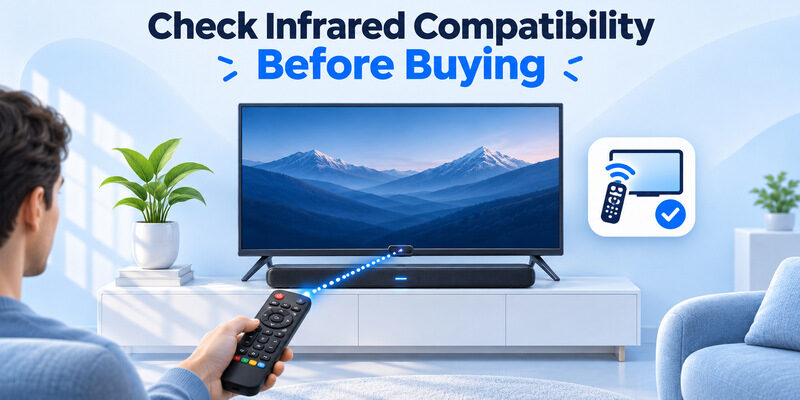
Verify the code support for your model
For a 5 device universal remote control, look up the device model in the maker’s support information. Code tables can list several options for one brand. A code that turns the television on can still miss input selection or a menu button. Use the model documentation and confirm the keys you need before assuming any code for the brand is enough.
Check the soundbar and receiver separately. Even when the television responds to the remote, the audio equipment can use a different code set or a different connection. If an IR receiver is behind a door or blocked by the television, make sure you can leave a usable path from the viewing position. When comparing TV and soundbar remote codes, check the correct device mode and test the audio controls separately from the television.
Identify devices that require a paired link
An infrared 5 device universal remote control cannot send a compatible paired Bluetooth or proprietary wireless command just because it has a streaming-device mode. Check the external player’s specifications. A paired remote can reach a player behind a television, while an infrared remote depends on a compatible receiver and placement.
Some setups let a compatible TV pass selected commands to another device over HDMI-CEC. Check the model and command support if you intend to rely on that path. A successful volume command through HDMI does not mean the remote can directly navigate every attached player.
Read more: Fire TV Remote Technology and How It Works
Check the Buttons and Activities You Actually Use
List the controls you need in each mode
Before buying a 5 device universal remote control, check power, input, volume, mute, menu, back, and select against your own list. If you watch live TV through a cable box, you may also use a guide or number pad. If you mostly stream, you may care more about a responsive directional pad and an easy way to return home.
Check the remote’s layout and documentation together. A label such as Input or AV can work differently depending on the current mode. If the remote supports learning, check whether it can learn an IR signal from your original remote. A learned IR command still needs a device that accepts that signal.
Decide whether a combined activity is useful
An activity can let the same group of buttons control more than one configured device. For example, volume can reach the soundbar and navigation can reach the cable box. One For All’s manual for the URC 7956 documents activity options and model-specific behavior when you choose the AV key. Review the manual for your remote before expecting the same arrangement on another model.
Program One Device at a Time
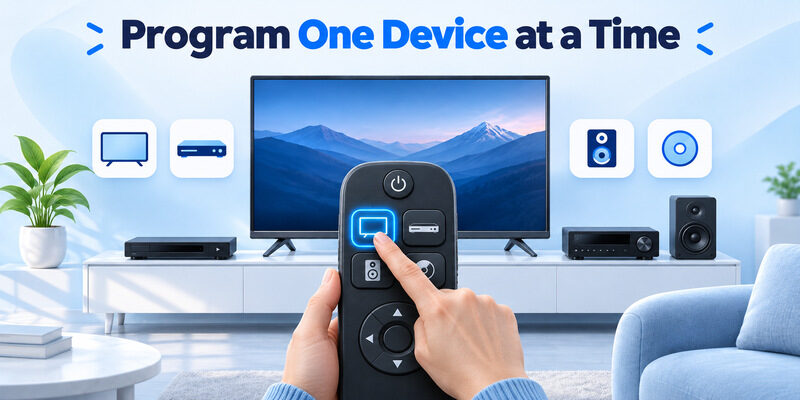
Start with the television
With a 5 device universal remote control, set up and verify the TV mode first. Have the TV on and its own menu visible. Select the mode, follow the remote maker’s code-entry or setup procedure, and test power, input, and directional keys. If one command works and another does not, check for another supported code before proceeding to the next device.
The URC 7956 manual documents more than one setup method, including SimpleSet and code-based setup. Use the procedure for the exact remote model you bought. The setup buttons and signals can differ between remotes that serve the same number of devices. Keep the original TV remote nearby so you can restore the input or settings while you test.
Test at least one command other than Power while the TV is awake. If the TV accepts Power but ignores the directional pad, you may be using a partially compatible code. Consult the manufacturer’s list for another supported code or use its learning function if applicable. If the setup includes a Fire TV device, check universal remote compatibility with Fire TV before relying on an infrared-only handset for player navigation.
Add audio and source devices separately
After the TV responds, add the audio device and test volume and mute. Add the cable box or compatible player afterward, and confirm that the arrows move its selection on the correct screen. A 5 device universal remote control is easier to troubleshoot when you know which mode was added most recently. Write down the code or setup method that worked if the manual provides one.
Test Mixed-Device Volume and Input
Verify the volume destination
If you use a soundbar, switch the TV to its normal audio output and start playback at a comfortable level. Press the universal remote’s volume key and see where the volume indicator appears. Confirm that the equipment producing the sound is responding. A television indicator can appear even while an external audio device needs a separate command.
A 5 device universal remote control with a volume assignment or activity feature can sometimes keep volume pointed at the audio device while the arrows operate another device. If the remote supports that option, use its manual. Test volume after switching modes so you know what will happen during ordinary use.
Test the switch between sources
Choose the TV input for the cable box or player. Then use the corresponding mode to test navigation. If the arrows stay assigned to the TV, return to the correct device mode or review the activity setup. Do one input change at a time and leave the television’s own remote handy during the test.
Read more: Roku Remote Technology and How to Identify It
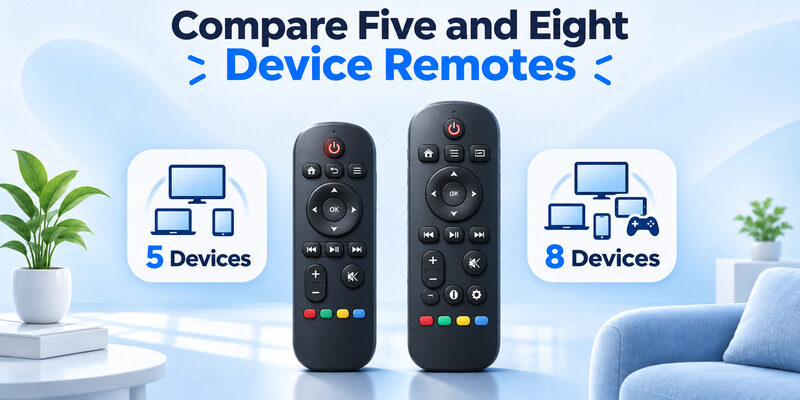
Compare Five and Eight Device Remotes
| Feature | Five-device model | Eight-device model |
|---|---|---|
| Capacity | Up to five supported devices | Up to eight supported devices |
| Best fit | A smaller setup with a known device list | More supported devices or spare slots |
| Compatibility | Check exact model, code, and signal | Check the same items for each device |
| Features | Activities and learning depend on model | Extra slots alone do not establish extra features |
Choose capacity after compatibility. A 5 device universal remote control is a good fit if the TV, audio gear, and source devices you use are supported and fit within the available modes. An 8 device remote control gives you room for more supported equipment. One For All’s Smart Control 8 URC 7880 is one documented example of that larger capacity.
A five-slot unit with the right audio and input controls can be a better match for a small setup than a larger unit with an inconvenient layout. Check whether the devices you plan to add are actually supported and whether a spare slot would be used. The bigger number does not change the need for a compatible control path. If you are choosing a 5 device universal remote control for an older setup, verify whether its device database includes the actual model years in the room. A unit with spare slots may still leave the same equipment unsupported.
Choose the Right Five Device Remote
Check setup options before purchase
Look up the 5 device universal remote control’s manual and make sure the setup method is practical for you. A code list can help you compare compatibility before purchase. An app-assisted process can simplify setup for some users. If you prefer to program from the handset, check whether the model documents on-remote setup.
Verify learning and activity support if you need it. Learning can be useful for a missing button when the original remote sends a compatible IR command. An activity can combine controls you use together. Choose these features because they serve a specific need in your room. Check whether you can find the mode and input buttons by feel if you watch in a dark room.
Check whether you can test it in your setup
After setup, sit where you normally watch the TV and repeat your everyday commands. Try the inputs you actually use, volume and mute, and navigation on the intended device. If a retailer’s listing leaves compatibility unclear, ask for the exact remote model before purchase and review the return terms. A brief real-world test tells you whether the 5 device universal remote control does the jobs on your list.
Read more: Apple TV Remote Technology Behind Siri Remote
Use a Phone Remote as a Backup
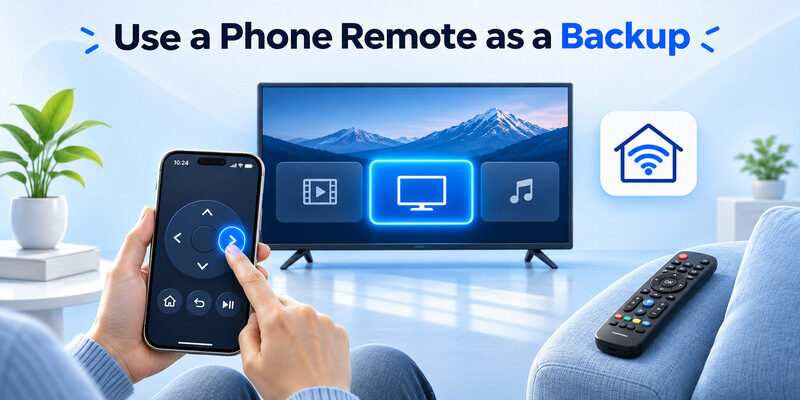
A 5 device universal remote control can be the main physical controller while a phone covers a compatible smart TV on your home network. If the physical remote is missing and the TV is reachable, can be an iPhone backup. Test one direction on the TV screen after selecting it. The app’s supported controls can differ from those of your physical remote.
Keep the original controller for a streaming player that needs its paired remote. A phone app for the television itself may not operate that player’s interface. If the TV has lost Wi-Fi, use the available physical controls to restore its connection before trying the phone.
Frequently Asked Questions
Does each app use one of the five slots?
Usually no. A streaming app built into the television uses the television’s controls. A separate streaming device can require its own supported mode. Count physical devices that receive separate commands, then check whether each of those devices can be controlled by the remote you are considering.
Will a five-device remote control a Bluetooth-only player?
An IR-only remote cannot directly send a paired Bluetooth command. Check the player’s supported control options. If it needs its original paired remote, keep that remote or a documented compatible replacement. A compatible HDMI-CEC setup may pass selected commands on some systems.
Can a universal remote change soundbar volume and navigate the cable box?
Some models can assign those commands to different devices in one activity. First confirm that each device works in its own mode. Then follow the universal remote’s manual for the activity or volume assignment. Test volume and navigation while the cable box is on screen.
Should I buy the eight-device remote for a four-device room?
Only if its specific features or extra capacity suit your setup. Compare compatibility and button layout first. A five-device model already has one spare slot for a four-device room. Choose the larger model if you expect to add supported equipment or prefer its controls.
Final Thoughts
Choose a 5 device universal remote control by matching the equipment, commands, and signal types in your room. Verify each device in its own mode, then configure the activities you use. Keep a compatible original remote or phone backup for features that need a different connection.
