
Roku Remote Technology and How to Identify It
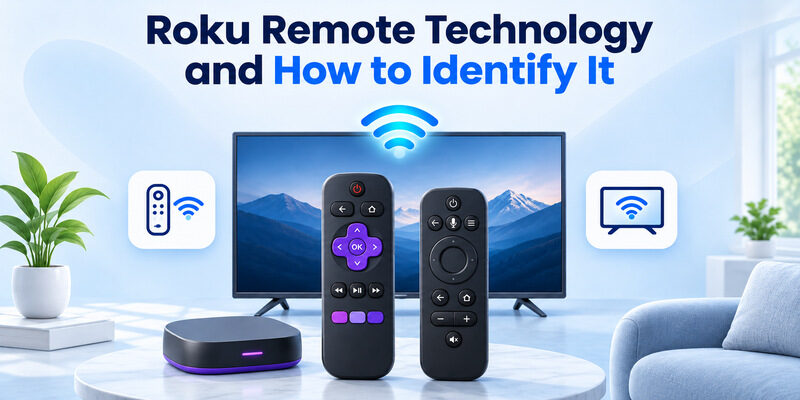
Short answer: Roku Simple Remotes use infrared, while Roku Voice Remotes pair wirelessly with a compatible Roku.
Roku remote technology depends on the remote and the device it controls. Look near the directional pad for a microphone or magnifying glass button to identify a Roku Voice Remote. A Simple Remote needs a clear path to the receiver. A paired Voice Remote can navigate a supported Roku without aiming directly at it, while TV power and volume can involve a separate control path.
Start by identifying whether you have a Roku TV, a separate streaming player, or a Streaming Stick. Then check the model before pairing a remote, buying a replacement, or trying the mobile app.
Roku Remote Technology and the Voice Button
Identify what the remote is designed to do
Roku Support distinguishes a Voice Remote from a Simple Remote by the voice button near the directional pad. The icon can be a microphone or magnifying glass. If you cannot tell from a photo, ask for the remote model and compare it with the manufacturer’s documentation. Roku remote technology can look similar across remotes with different capabilities.
A remote without a voice button can still have TV controls on some Roku TV models. Look at the connected device as well as the remote. If Roku is built into the TV, a compatible Roku TV remote can control the television’s own interface. A remote for a separate Roku player has a different target. If the Roku remote stops working, compare its response on the Roku home screen with its TV power and volume controls before choosing a troubleshooting path.
Use the Roku screen as your test
Turn on the Roku and leave its home screen visible. If you use an external player, select its HDMI input on the TV first. Press Right or Down and check whether the selection moves. This is a useful test of Roku remote technology because it isolates navigation from TV volume and power. A working volume key alone can be misleading when it reaches the television separately. If the TV is already on the correct input but the Roku home screen has not appeared, wait until startup finishes. Comparing two remotes before the device is ready can make a healthy remote look unresponsive. Use the same visible screen for both attempts.
Read more: Apple TV Remote Technology Behind Siri Remote
Match the Remote to the Roku Device
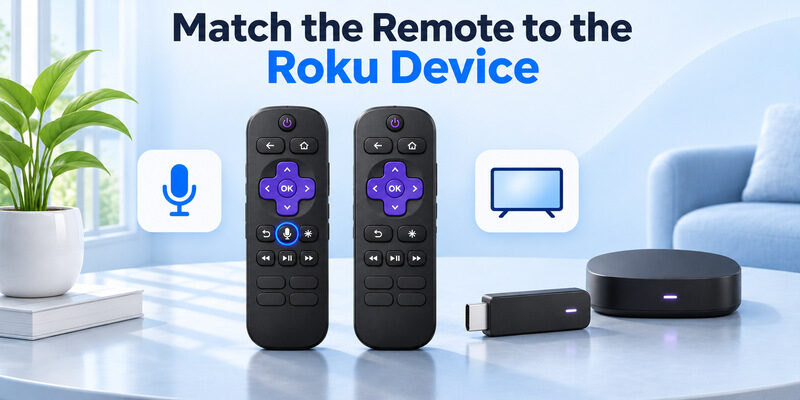
| Remote category | Connection to its Roku target | Compatibility check |
|---|---|---|
| Simple player remote | Infrared on supported players | Check whether the player has a compatible IR receiver |
| Simple Roku TV remote | Infrared for supported Roku TV models | Confirm it is the TV version, not a player remote |
| Roku Voice Remote | Paired wireless connection | Check the voice remote and Roku model pairing list |
| Roku mobile app | Local network connection | Confirm the phone and Roku can reach each other |
Identify the Roku model before buying. A Roku TV is a television with Roku built in. A streaming player or Streaming Stick connects to another television. Roku’s own product listing for the Roku TV Remote specifies compatibility with Roku TVs and excludes separate players. This is a concrete example of why the brand name does not establish compatibility.
When comparing Roku remote technology for a stick and a box, check the exact model. A stick behind the television may need a compatible paired remote. A compatible IR player must have a usable path from the emitter to its receiver. Check the device’s model and documentation. Some Roku TV models also support compatible Voice Remotes, so an infrared remote may be only one of the choices. If your television came with a voice remote, check which features you would lose by replacing it with a simpler remote. Some voice and convenience features are model-specific even within the same product category.
For a TCL Roku television, check TCL Roku TV remote compatibility and pairing before assuming that every Roku remote uses the same connection.
Test a Simple Remote From the Front
Make a clear path to the correct receiver
For infrared Roku remote technology, aim at the Roku receiver. For a Roku TV, that receiver is on the television. For a compatible standalone player, it is on the player. Move anything blocking the path and stand directly in front of it for one test. Try a navigation key with the correct home screen visible.
An IR remote that works from close range and fails from the couch may have weak batteries, a partially obstructed receiver, or a poor angle. Test one condition at a time. Check whether the Roku or a soundbar was recently moved. A small change in receiver position can affect a Simple Remote without changing anything on the television screen. For a straightforward Roku remote technology check, set the player near the front edge of the shelf and clear the space between it and the remote. Compare one press from the usual seat with one press from directly in front of the receiver.
Check the batteries and optional camera test
Install fresh batteries of the size shown in the remote’s compartment. Check their orientation and test again. An infrared-sensitive camera can sometimes show a flash from the emitter, as Sony’s general IR troubleshooting guide explains. Compare with a known working IR remote first because some cameras filter the light. A visible flash confirms that light is emitted, but you still need a compatible code and clear receiver path.
Read more: How to Connect Roku Remote to TV: Full Pairing Guide
Pair a Roku Voice Remote
Put the Roku into pairing mode
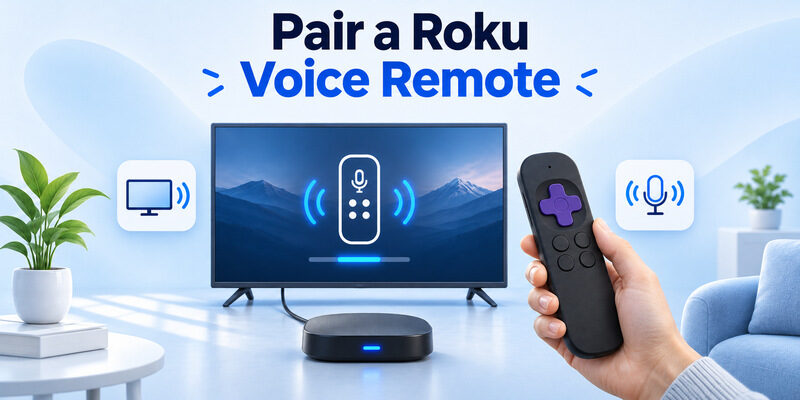
Roku Support documents a menu path under Settings → Remotes & devices → Add devices if you have another working remote or the mobile app. Choose the remote option and follow the screen. If you have no working control, Roku’s guide describes restarting the device, waiting for its home screen, and putting the remote into pairing mode at that point.
The paired form of Roku remote technology needs both devices ready at the same time. If you hold the remote buttons while the television is still on another HDMI input, you may miss the pairing notification. Switch to the Roku input and verify the player is powered before you try again. For help identifying the correct power source, see our guide to Roku TV remote batteries and check whether your model uses replaceable cells or a rechargeable battery.
Use the button sequence for your remote
– Roku Voice Remote with pairing button. Hold the pairing button for five seconds. Look on the back or inside the battery compartment for the button and wait for the status light to flash.
– Roku Voice Remote without pairing button. Hold Back and Home for five seconds. Watch for the status light as Roku’s instructions describe.
Once the pairing completes, try a simple direction command. When diagnosing Roku remote technology, a visible status light is an intermediate check. The result that matters is whether the correct Roku responds after the prompt clears. If several Roku devices are in the room, keep the one you want in pairing mode and verify its home screen as soon as the remote connects. A successful pairing to a different nearby player will not make the intended screen move.
Separate Roku Navigation From TV Power and Volume
Run Roku’s TV-control setup when supported
A paired Voice Remote can navigate the player and still need setup to operate a separate TV. Roku’s TV-control guide says certain models offer power and volume setup with an on-screen sound test. Follow the sound prompts and use a comfortable audible volume. If the player navigates correctly and the TV does not respond, focus on TV control rather than repeating the wireless pairing.
Roku remote technology can involve infrared or HDMI-CEC depending on the model and setup. If a command needs infrared, aim at the television. If Roku’s instructions for the equipment call for HDMI-CEC, check the setting on the TV. Test power and volume separately because support can differ by model. During the sound test, listen for what happens to the sample rather than selecting an answer based on the brand name alone. Repeat the TV-control setup if the instructions lead you to a different device profile. Keep the Roku’s own navigation as a baseline while you compare profiles.
Check how a soundbar or receiver fits
Roku’s TV-control guide explains that a Roku Voice Remote does not directly control other devices such as a soundbar or receiver. Some connected systems can pass audio control through HDMI-CEC. Identify which device is producing the sound. Then use its own remote to verify that it responds before adjusting the Roku’s TV settings. A working directional key is evidence that the remote reaches the Roku, even if the sound system still needs attention.
Read more: Roku TV Remote Size: Dimensions, Types, and Layout
Check Power Before Resetting the Remote
Distinguish replaceable batteries from rechargeable power
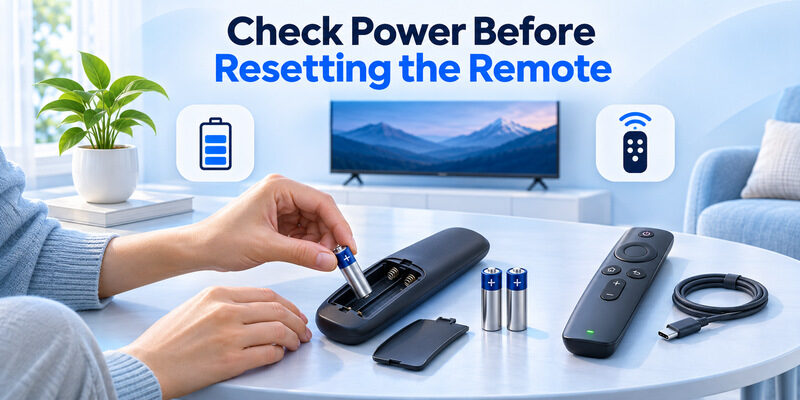
Look for a battery compartment or a charging port. Use the power source specified for the model. An unresponsive rechargeable remote may need time on a compatible charger before it can pair. A remote with replaceable batteries should be tested with fresh batteries installed in the correct orientation.
If Roku remote technology seems to work for a few seconds and then drops, repeat the same navigation command near the device after checking power. Avoid changing Wi-Fi, pairing, and the TV input at once. If navigation returns after charging, you have a useful explanation before doing more troubleshooting. For a detailed setup route, learn how to pair a new Roku remote without the old one and identify whether the replacement requires wireless pairing.
Compare an IR issue and a pairing issue
For a Simple Remote, try a direct line of sight. For a Voice Remote, check the pairing status and follow the appropriate button sequence. When you have a working mobile app, test the same Roku menu with it. The app can show whether the Roku is accepting commands at all. It does not show whether the physical remote has battery power or an active paired link. When diagnosing Roku remote technology on a rechargeable Voice Remote, check whether the remote can navigate after you remove its charging cable. Then repeat the test from your normal seat. The goal is to check how it behaves in ordinary use.
Choose a Replacement by Model
Confirm the Roku target
Before comparing Roku remote technology in replacement listings, write down the model of the device you want to control. Match the remote to that Roku model and check whether you need voice, TV volume, or rechargeable power. A television remote for Roku TV and a simple player remote can look similar while serving different products.
Check the Roku’s device information screen if you have a working controller. If you cannot navigate, use the model marking on the device or its original packaging. If you buy from a third party, ask for the replacement’s exact model before choosing. A listing that only says it is for Roku may group television and player versions together. Check return terms if you cannot verify that the seller’s model matches your device. Search the manufacturer’s compatibility information for that model. The presence of a familiar app shortcut is a less reliable clue.
Test the features that motivated the purchase
After pairing a replacement Voice Remote, check Roku navigation, voice, and television power and volume in separate tests. A basic remote replacement may be fine if your only needs are selecting apps and playing content. If you buy to restore voice or reach a stick behind the TV, confirm that the chosen Roku remote technology supports those functions before relying on it.
Read more: Free Roku Remote Control App: Best Options and Setup
Use the Roku Mobile App as a Temporary Remote
Discover the Roku while it is reachable
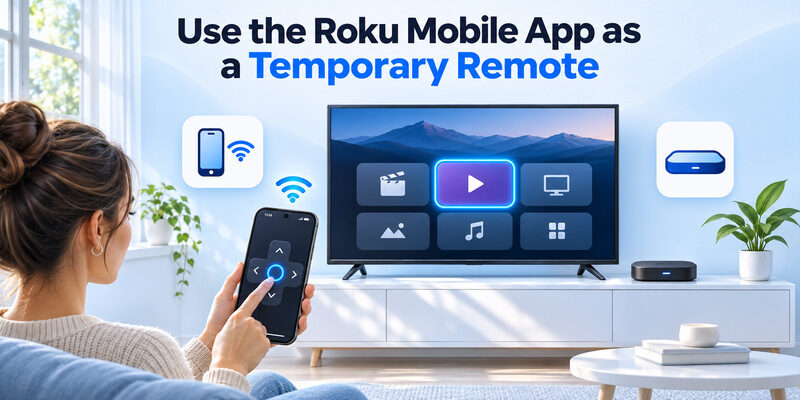
The Roku mobile app uses a network connection, separate from the wireless pairing used by a physical Voice Remote. Roku Support says to put the phone and Roku on the intended home network. Scan with the Roku awake and test one direction button after selection. On iPhone, check Local Network access if the app cannot discover the player.
If you need phone control of the television itself, can provide an iPhone backup for a compatible smart TV on a reachable network. Test which screen responds. Roku remote technology for a separate player is a different target from phone control of the television to which it is attached.
Keep a physical option for an offline Roku
A phone app can help you open the Roku’s remote setup while the device is already reachable. If it has lost Wi-Fi after a router or password change, the app may be unable to find it. Use a compatible physical remote to restore the network. When comparing Roku remote technology for emergency use, verify which controls are still available while the Roku is offline. If the phone app can open the Roku’s network menu while connected, read the active network name before changing it. Switching the player to another network can interrupt the phone connection. Reconnect the phone to the intended network before looking for the Roku again.
Check What Still Works When Wi-Fi Changes
| Symptom | What to check first |
|---|---|
| Phone app loses the Roku after a network change | The Roku’s active network and the phone’s Wi-Fi |
| Voice Remote will not navigate | Power, pairing, and distance from the Roku |
| Simple Remote works only at close range | Batteries and a clear receiver path |
| Menus respond but TV volume fails | Supported TV-control setup and the audio path |
Start with the connection that failed. A physical Roku remote and the phone app use different connections to reach the device. If the phone app fails after a router change but the physical remote still navigates, use the physical remote to check the Roku’s network status. If the phone works and the physical remote does not, check its power and connection first.
For a useful Roku remote technology comparison, keep the Roku input and test command the same. A phone on the main network and a paired remote can both move the same home-screen highlight when their respective links are working. Record which test fails and whether the TV or player is awake at the time. Once Roku remote technology is working again, check the result from the seat where you normally use it. That can expose an infrared obstruction or a weak paired connection that would not show up beside the television.
Read more: How to Pair a New Roku Remote Without the Old One
Questions About Roku Remotes
Do all Roku remotes have to be paired?
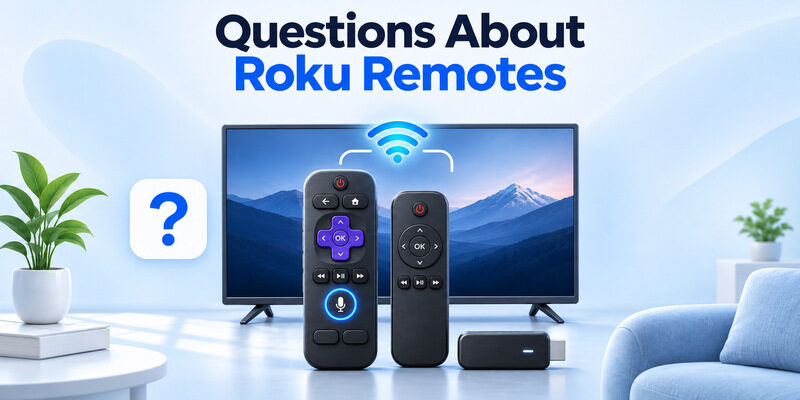
No. A compatible Simple Remote uses infrared and needs a clear path to the receiver. A Voice Remote uses wireless pairing for its connection to supported Roku hardware. Check the model before trying a pairing sequence, particularly when the remote has no voice button.
Can a universal IR remote operate a Roku Streaming Stick?
Check the exact stick and remote model. Many Streaming Stick setups use a compatible paired voice remote. An IR-only replacement needs a Roku with a compatible infrared receiver. Look up the supported hardware before buying, especially when the stick is out of sight behind the television.
Does the Roku Voice Remote control a soundbar directly?
Roku’s support guide says its Voice Remote does not directly control devices such as a soundbar or receiver. Compatible HDMI-CEC equipment can sometimes pass sound control through the system. Use the soundbar’s own remote to verify the device responds, then check the TV and receiver settings.
Can I use my phone before pairing a new Voice Remote?
Yes, when the Roku mobile app can reach the Roku on the local network. Confirm that the app navigates, then open the Roku’s remote setup. A phone app may be unavailable when the Roku is offline or on an unreachable network.
Final Thoughts
Roku remote technology is easiest to identify by matching the remote to the Roku model and testing one navigation command. Use a clear receiver path for a Simple Remote and the model’s pairing steps for a Voice Remote. Once navigation works, check TV volume, voice, and phone control as separate features.
