
Roku Remote Quit Working? Here’s How to Fix It
If your Roku remote quit working, start with fresh batteries and a remote re-pair — those two steps fix the large majority of dead Roku remotes before any deeper troubleshooting is needed.
Roku uses two kinds of remotes, and which one you have changes the fix. A simple infrared remote needs line of sight and usually just batteries, while an enhanced “point-anywhere” remote pairs over Wi-Fi Direct and sometimes needs re-pairing after it drops its connection.
This guide moves from the fastest fixes to the deeper ones, so you can stop as soon as your remote comes back to life. It also covers the brand-specific quirks for TCL, Hisense, Onn, and Element Roku TVs, since a Roku remote quit working situation can look slightly different on each.
Whatever the cause, there’s also a way to keep watching right now using a phone, which we’ll cover near the end.
1. Quick Diagnosis: Why Your Roku Remote Quit Working
Before trying fixes, this table maps the most common symptoms to their usual cause and the fastest fix. Find your symptom, then jump to the matching section below for detail.
| Symptom | Likely Cause | First Fix to Try |
| No response at all | Dead batteries | Replace both batteries with fresh ones |
| Works sometimes, then stops | Weak batteries or interference | Swap batteries; move closer to the TV |
| Power button works, nothing else | Partial pairing or wrong remote mode | Re-pair the remote from scratch |
| Slow or delayed response | Low battery or network congestion | Fresh batteries; restart the TV |
| Stopped after a TV update | Pairing reset by firmware | Re-pair using the pairing button |
2. Start Here: The Two Fixes That Solve Most Cases
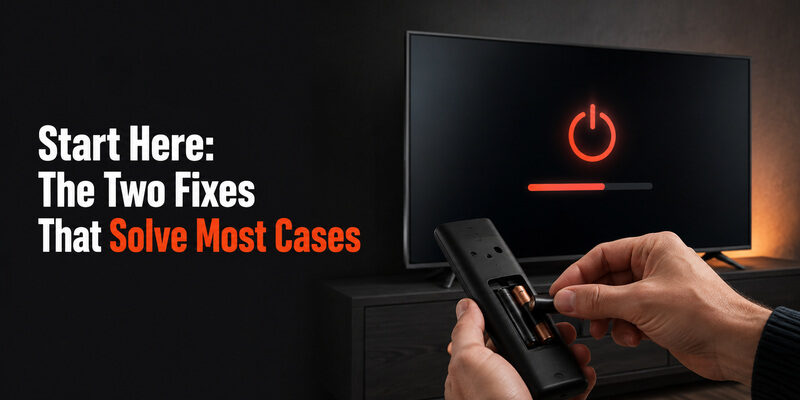
When a Roku remote quit working, two steps resolve it far more often than anything else. Try both before moving on.
Replace the Batteries
This sounds obvious, but weak batteries are the number-one reason a Roku remote quit working, and a battery that still powers a small light can be too weak to sustain a Wi-Fi Direct connection. Use two fresh alkaline batteries rather than partially-used or rechargeable ones, which often read as “fine” but underperform under load.
After swapping, wait a few seconds and test several buttons, not just power. A remote that responds to everything again means batteries were the whole problem.
One detail people miss: batteries can fail unevenly. If you only replace one of the two and reuse a half-drained one alongside it, the remote may still misbehave. Always replace both at once so you’re not diagnosing a half-fixed remote, which can make it look like batteries weren’t the issue when they actually were.
Restart the Roku TV or Device
A quick restart clears temporary software glitches that can make a remote seem dead. Unplug the Roku TV or streaming device from power, wait about 10 seconds, then plug it back in and let it fully boot.
This is worth doing even if you suspect the remote itself, because a frozen Roku system can ignore a perfectly good remote until it’s restarted.
A full unplug-and-wait is more effective than a quick power-cycle, because it fully clears the device’s memory rather than just rebooting the software layer. Give it the full 10 seconds unplugged — a rushed reconnection sometimes doesn’t clear the glitch that made the Roku remote quit working in the first place.
💡 Discover Helpful Guides:
Roku Remote TV: Complete Guide to Setup, Pairing, Apps, Fixes, and Replacement
3. Understanding Your Roku Remote Type First
Before diving deeper, it helps to know which of the two Roku remote types you have, because it changes which fixes even apply when a Roku remote quit working.
The distinction is simple once you know what to look for, and it saves you from trying a re-pair on a remote that doesn’t support pairing at all.
Infrared (IR) Remotes
IR remotes are the simpler, older type. They need a direct line of sight to the TV and have no pairing button. If a Roku remote quit working and it’s an IR model, the fix is almost always batteries, line of sight, or a hardware issue — never re-pairing, since there’s nothing to pair.
You can identify an IR remote by the absence of a pairing button in the battery compartment and the need to point it directly at the TV to work.
Enhanced Point-Anywhere Remotes
Enhanced remotes connect over Wi-Fi Direct and work without line of sight — you can control the TV with the remote pointed anywhere in the room. These have a pairing button inside the battery compartment and can lose their pairing, which is why re-pairing is a key fix for them.
Many enhanced remotes also include extra features like a headphone jack, voice button, or TV power and volume buttons, which the basic IR remotes lack.
📘 Find the Right Guide: How to Connect Roku Remote to TV: Full Pairing Guide
4. How to Re-Pair a Roku Remote That Quit Working
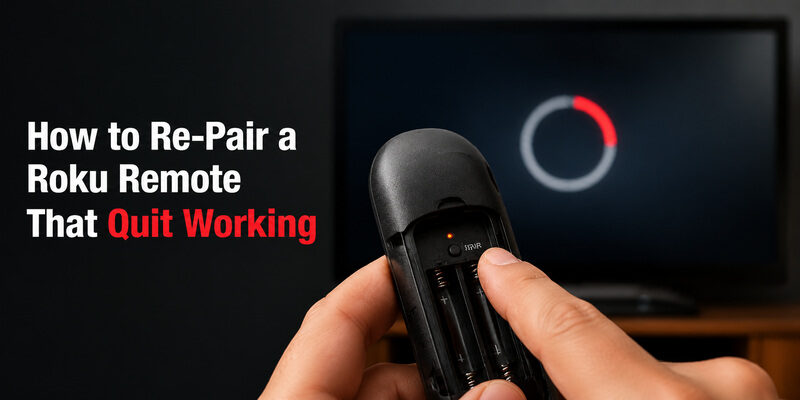
If fresh batteries and a restart didn’t help and you have an enhanced (point-anywhere) remote, re-pairing is the next step. This is the fix for most cases where a Roku remote quit working after an update or a power event.
Finding the Pairing Button
Open the battery compartment. Enhanced Roku remotes have a small pairing button inside, sometimes marked with a pairing icon. Infrared remotes don’t have this button — if yours doesn’t, it’s an IR remote and re-pairing doesn’t apply.
A related guide on connecting a Roku remote from scratch is available in .
The Re-Pairing Sequence
With the Roku TV or device powered on, press and hold the pairing button for about five seconds until the light on the remote begins flashing. Wait up to 30 seconds for the on-screen pairing message to appear and complete.
If it times out, remove the batteries, reinsert them, and repeat. A remote that pairs and then works fully has resolved the Roku remote quit working problem at its most common root.
Hold the button a touch longer than feels necessary — a brief tap won’t trigger pairing mode. The flashing light is your confirmation that the remote actually entered pairing mode; if you don’t see it flash, you haven’t held the button long enough, and the pairing won’t take.
If Re-Pairing Fails Repeatedly
Repeated pairing failures usually point to either batteries too weak to complete the handshake or a hardware fault in the remote. Try one more fresh set of batteries; if pairing still fails, the remote itself may need replacing. A full reset walkthrough is covered in .
📖 Read More Guides: How to Turn On Roku TV Without Remote: Complete Guide
5. When New Batteries Don’t Fix Your Roku Remote
If your Roku TV remote is not working with new batteries, the problem is likely pairing, the Roku system itself, or the remote hardware.
First, restart the Roku TV or streaming device and re-pair the remote. If you use an IR remote, make sure nothing blocks the TV’s IR sensor and test the remote from directly in front of the TV.
You can also point an IR remote at your phone camera and press a button. If you see a flashing light on the camera screen, the remote is still sending an IR signal. If there is no light, the remote may have a hardware fault.
If the remote only works partially:
- Power button works but other buttons don’t: re-pair the remote.
- Remote responds slowly: replace the batteries, restart the Roku device, and check for wireless interference.
- Only certain buttons fail: debris or worn button contacts are the most likely cause.
If restarting and re-pairing do not help, and an IR remote produces no signal during the camera test, replacing the remote is usually the next practical step.
🗺️ Browse How-To Guides: Roku TV Remote Size: Dimensions, Types, and Layout
6. When to Replace Rather Than Repair
There’s a point where continuing to troubleshoot costs more time than it’s worth. If you’ve replaced batteries, re-paired, restarted the device, and confirmed with a phone-camera test that an IR remote isn’t emitting, the remote itself has likely failed.
At that stage, a replacement remote is the practical move. Enhanced Roku remotes and basic IR replacements are both widely available, and a replacement pairs in seconds using the same steps above. A dedicated guide to replacements is available in . Until the replacement arrives, a phone app keeps the TV fully usable so a Roku remote quit working never means a dark screen.
7. FAQs About a Roku Remote That Quit Working
Why did my Roku remote quit working suddenly?
The most common sudden causes are drained batteries and a pairing reset triggered by a TV software update or power interruption. Fresh batteries plus a re-pair resolve the majority of sudden failures.
How do I reset a Roku remote that stopped working?
Remove the batteries, unplug the Roku device for 10 seconds, plug it back in, reinsert the batteries, then hold the pairing button for five seconds to re-pair. This clears most stuck states.
Can I use my phone if my Roku remote quit working?
Yes. The Remote TV App or the official Roku app controls the TV over the same Wi-Fi network, so you can keep watching immediately while you fix the physical remote.
Why is my Roku remote not working with new batteries?
If fresh batteries change nothing, the remote likely lost its pairing, the Roku system is frozen, or the remote has a hardware fault. Re-pair and restart before concluding the remote is broken.
Does a slow Roku remote mean it’s about to die?
Often, yes. A remote that’s slow to respond is frequently showing an early low-battery symptom, so replacing batteries usually restores full speed before an outright failure.
💡 Discover Helpful Guides: Roku iPhone Remote: How to Control Your Roku from iOS
Final Thoughts
When a Roku remote quit working, the fix is usually simpler than it feels: fresh batteries and a re-pair solve most cases, a restart handles the frozen-system ones, and a phone-camera test tells you when the hardware is genuinely done.
Brand quirks for TCL, Hisense, Onn, and Element sets are minor, and the same routine applies across all of them. Keep the Remote TV App installed as a backup so the next time a Roku remote quit working, you can keep watching without missing a beat.
Download LG TV Remote