
How to Connect Roku Remote to TV: Full Pairing Guide
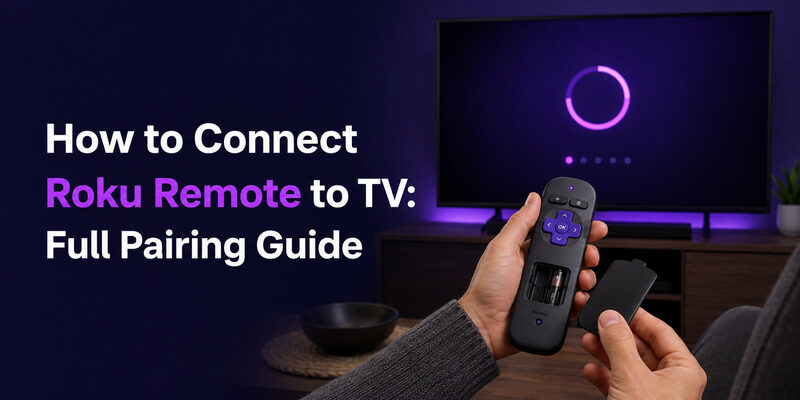
To connect a Roku remote to your TV, press and hold the pairing button inside the battery compartment for about five seconds until the remote’s light flashes, then wait for the on-screen pairing confirmation.
That covers enhanced “point-anywhere” Roku remotes, which are the most common type. Simple infrared remotes don’t pair at all — they just need batteries and line of sight — and a few remotes without a visible pairing button need a slightly different approach.
This guide explains how to connect Roku remote to TV for every remote type, including how to set up volume and power control, how to reprogram a remote to a different TV, and how to pair third-party remotes like Xfinity and Xumo to a Roku TV.
If you’re setting up a brand-new remote, replacing a lost one, or moving a remote between TVs, the right steps are all below.
Quick answer
| Roku remote type | How to connect |
|---|---|
| Simple Remote | Insert batteries and point it directly at the Roku device |
| Voice Remote with pairing button | Hold the pairing button for about 5 seconds |
| Voice Remote without pairing button | Hold Back + Home for about 5 seconds |
| Voice Remote already paired but changing TVs | Put the new Roku device and remote into pairing mode again |
If the remote connects but Power or Volume does not work, you may also need to run Roku’s TV-control setup after pairing.
1. Identify Your Roku Remote Type First
Before trying to pair anything, check which kind of Roku remote you have.
This matters because not every Roku remote uses the same connection method.
Roku Simple Remote
A Roku Simple Remote uses infrared (IR).
It:
- Does not have a pairing button
- Does not need wireless pairing
- Requires a clear line of sight
- Works after you insert working batteries
Roku’s current setup guidance confirms that Simple Remotes do not pair. They are ready to use once batteries are installed, provided the remote can send an unobstructed IR signal to the compatible Roku device.
If you have this type of remote, skip the pairing steps below.
Roku Voice Remote
A Roku Voice Remote communicates wirelessly and must be paired with the Roku device.
Common signs include:
- A microphone or voice button
- TV Power and Volume buttons on supported models
- A pairing button on some versions
- Wireless operation without pointing directly at the Roku device
Importantly, not every current Roku Voice Remote has a physical pairing button.
Some models enter pairing mode by pressing Back + Home together instead.
Download TV Remote App2. How to Connect a Roku Remote to TV With a Pairing Button

If your Roku Voice Remote has a pairing button, the process is straightforward.
Step 1: Turn On the Roku Device
Turn on the Roku TV or the television connected to your Roku streaming player.
Wait until the Roku system has finished starting.
If the Roku device is frozen or the remote is not being detected, restarting the device before pairing can help.
Step 2: Check the Remote Battery
For a battery-powered remote, install a fresh matching pair of batteries.
If you use a rechargeable Roku Voice Remote, make sure it has enough charge to complete pairing.
Low battery power can cause intermittent connection problems or prevent pairing mode from starting correctly.
Step 3: Find the Pairing Button
Depending on the model, the pairing button may be:
- Inside the battery compartment
- On the back of the remote
Press and hold it for approximately five seconds.
Release it when the status light begins flashing.
The flashing light indicates that the remote has entered pairing mode. Roku currently recommends this five-second method for Voice Remotes equipped with a pairing button.
Step 4: Wait for the Roku Device to Detect the Remote
Keep the remote close to the Roku device while pairing.
Wait for the connection process to finish and follow any instructions shown on the TV.
Once paired, test:
- Directional navigation
- Home
- Back
- OK
- Voice control, if available
Do not worry yet if Volume or Power does not work. Those TV controls may require an additional setup step, which we cover below.
3. How to Connect a Roku Remote Without a Pairing Button
A remote with no visible pairing button can be one of two very different types.
Do not assume that every buttonless remote is an IR remote.
Option 1: You Have a Roku Simple Remote
If the remote:
- Has no microphone or voice button
- Has no pairing button
- Needs to be pointed directly at the device
it is probably a Simple Remote.
There is nothing to pair.
Simply:
- Insert fresh batteries.
- Make sure nothing blocks the Roku device’s IR receiver.
- Point the remote directly toward the device.
- Press Home or a directional button.
If it responds, setup is complete.
Option 2: You Have a Roku Voice Remote Without a Pairing Button
Some Roku Voice Remotes do not use a dedicated pairing button.
To pair one:
- Turn on or restart your Roku device.
- Keep the remote near the Roku.
- Press and hold Back + Home together for about five seconds.
- Wait until the remote’s status light begins flashing.
- Follow the pairing message on the TV.
This is Roku’s current pairing method for supported Voice Remotes without a physical pairing button.
Simple Remote vs. Voice Remote Without a Pairing Button
| Feature | Simple Remote | Voice Remote without pairing button |
|---|---|---|
| Wireless pairing | No | Yes |
| Back + Home pairing | No | Yes |
| Requires line of sight | Yes | No |
| Voice button | No | Usually yes |
| Uses IR for Roku navigation | Yes | No |
This distinction is important because repeatedly trying to “pair” a Simple Remote will never work—it was not designed to pair in the first place.
4. Set Up Roku Remote Volume and Power Controls
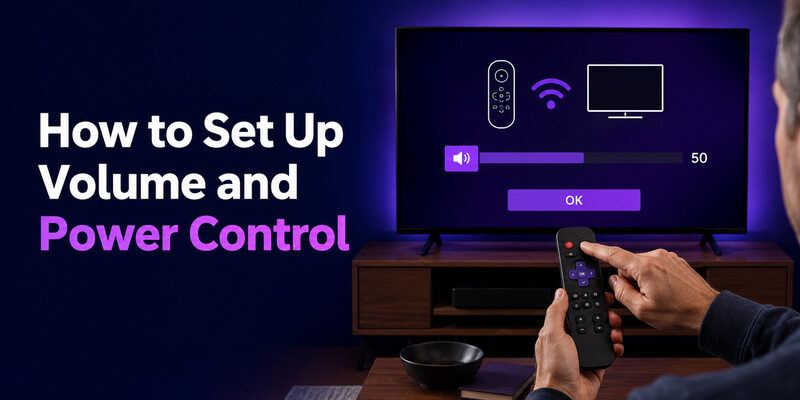
Pairing the remote with Roku and controlling the television’s Power and Volume are related but separate setup steps.
This is especially important when using a Roku streaming player or Streaming Stick connected to a third-party TV.
If navigation works but Power or Volume does not, you usually do not need to pair the remote again.
Instead, go to:
Settings → Remotes & devices → Remotes → Select your remote → Set up remote for TV control
Then follow Roku’s on-screen audio test.
Roku uses this process to configure compatible Voice Remotes for the television’s Power and Volume functions. Some TVs may support only some controls.
If Volume Works but Power Does Not
This does not necessarily mean pairing failed.
Some TV models support Volume control but not Power through the same configuration. Roku specifically notes that TV-control capabilities can vary by television model.
Try:
- Update Roku software.
- Run Set up remote for TV control again.
- Check whether HDMI-CEC is enabled on the TV.
- Test Power and Volume separately.
If Roku navigation works normally, focus on TV-control setup, not Bluetooth pairing.
5. How to Connect a Roku Remote to a Different TV
If you move a Roku Voice Remote to another compatible Roku TV or Roku device, pair it with the new device just as you would during first-time setup.
For a Voice Remote with a pairing button
Hold the pairing button for about five seconds until the status light flashes.
For a Voice Remote without a pairing button
Hold Back + Home for about five seconds.
Then let the new Roku device detect the remote.
If you still have access to another working remote or phone controller, Roku also allows you to start the process through:
Settings → Remotes & devices → Add devices → Remote → Continue.
What About a Simple Remote?
Simple Remotes do not store a wireless pairing.
If the remote is compatible with the new Roku device, install the batteries and point it at the device.
Compatibility still matters, so do not assume every Roku remote will work with every Roku product.
6. Roku Remote Won’t Connect? Try These Fixes
If you’ve followed the correct pairing method and the remote still will not connect, troubleshoot the connection before resetting or replacing anything.
| Problem | Most likely issue | What to try first |
|---|---|---|
| Status light does not flash | Battery/charge or button issue | Replace batteries or charge remote |
| Roku cannot find the remote | Device not in pairing mode | Restart Roku and pair again |
| No pairing button | Remote type unclear | Check whether it is Simple or Voice |
| Pairs then stops responding | Connection or battery issue | Restart Roku and reconnect |
| Navigation works, Volume doesn’t | TV-control setup | Run TV-control setup |
| Remote only works when pointed at TV | Likely IR behavior | Check line of sight |
Restart the Roku Device
If pairing does not start, restart the Roku player or TV.
For a Roku streaming player:
- Disconnect it from power.
- Wait at least five seconds.
- Reconnect power.
- Wait for the Home screen.
- Put the remote into pairing mode again.
Roku recommends restarting the device as one of the standard steps when a Voice Remote fails to pair.
Replace or Recharge the Remote Battery
Do not assume a battery-powered remote has enough power simply because the status light turns on.
Try a fresh matching pair of batteries.
For a rechargeable remote, fully charge it before troubleshooting further.
Keep the Remote Nearby
During initial pairing, keep the remote reasonably close to the Roku device.
You do not need to point a Voice Remote directly at Roku once it is connected, but reducing distance during setup removes another possible cause of pairing failure.
Pair Again
After restarting Roku:
- Pairing-button remote: hold the button for about 5 seconds.
- No-button Voice Remote: hold Back + Home for about 5 seconds.
Then wait for the on-screen pairing message.
If you’ve tried these steps multiple times and the remote remains completely unresponsive, move to the dedicated Roku remote troubleshooting guide rather than repeatedly changing pairing settings.
Internal link: Roku Remote Quit Working? Troubleshooting Guide
7. Paired Roku Remote but Some Buttons Don’t Work

A successful pairing message does not mean every TV-control function has been configured.
Use the type of failure to decide what to fix.
Navigation Works but Volume or Power Does Not
The Roku connection is probably fine.
Run:
Settings → Remotes & devices → Remotes → [your remote] → Set up remote for TV control
Do not repeatedly re-pair a remote that already navigates Roku correctly.
Power Works but Roku Navigation Does Not
Power can use a different control method from Roku navigation.
If Home, Back, and directional buttons do not respond, restart the Roku device and pair the Voice Remote again.
Only One or Two Buttons Fail
If most controls work normally but one physical button does not, pairing is less likely to be the cause.
Check whether the button feels:
- Sticky
- Sunken
- Loose
- Difficult to press
That points more toward button wear or debris than a wireless connection problem.
8. Use Your Phone While Pairing the Roku Remote
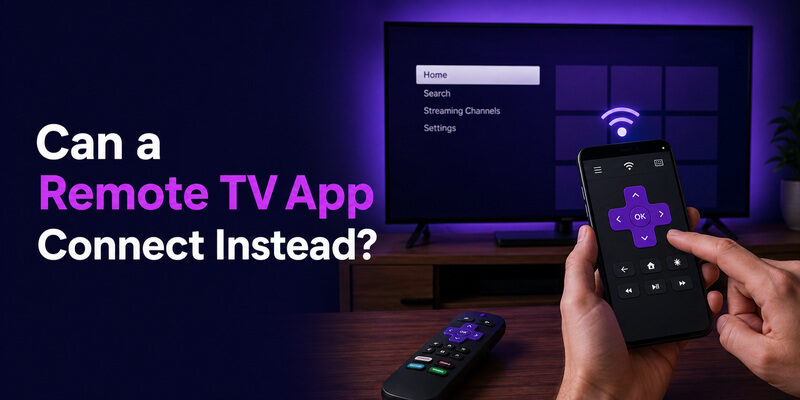
If the Roku device is already connected to Wi-Fi, your phone can provide temporary control while you reconnect the physical remote.
This can be useful when you need to reach:
Settings → Remotes & devices
without a working hardware remote.
The phone and Roku device generally need to be reachable on the same local network for network-based remote control.
You can use the official Roku mobile option or a compatible Remote TV App as a temporary remote while fixing or replacing the physical controller.
With a compatible phone remote, you can continue using common functions such as:
- Navigation
- Play/pause
- App selection
- Volume controls on supported TVs
- Text entry
This section should be treated as a fallback—not as a replacement for correctly pairing the physical Roku Voice Remote.
FAQs About Connecting a Roku Remote to a TV
How do I connect my Roku remote to my TV for the first time?
For a Roku Voice Remote with a pairing button, turn on the Roku device and hold the pairing button for about five seconds until the status light flashes. Wait for the on-screen connection to finish.
If the Voice Remote has no pairing button, hold Back + Home for about five seconds instead.
How do I connect a Roku remote without a pairing button?
First identify the remote.
A Simple Remote does not pair at all; install batteries and use it with a clear line of sight.
A Voice Remote without a pairing button can enter pairing mode by holding Back + Home for around five seconds.
Why isn’t my Roku remote pairing?
Common causes include low battery power, the Roku device not being in pairing mode, or using the wrong procedure for your remote type.
Restart Roku, use fresh batteries or fully charge the remote, then repeat the appropriate pairing method.
How do I get my Roku remote to control TV volume?
If Roku navigation already works, go to:
Settings → Remotes & devices → Remotes → [your remote] → Set up remote for TV control
Then follow the on-screen prompts.
Can I connect a Roku remote to another TV?
A compatible Roku Voice Remote can be paired with another Roku device by putting the new Roku and the remote into pairing mode.
A Simple Remote does not store a wireless pairing, but it still needs to be compatible with the Roku device you want to control.
Why does my Roku remote control the TV but not Roku?
TV Power or Volume and Roku navigation may use different control methods.
If TV controls work but Home, Back, or navigation does not, restart the Roku device and pair the Voice Remote again.
Does every Roku remote have a pairing button?
No.
Roku Simple Remotes have no pairing button because they use IR and do not pair. Some Roku Voice Remotes also lack a physical pairing button but can enter pairing mode by holding Back + Home.
Final Thoughts
Learning how to connect Roku remote to TV starts with identifying the remote type.
A Roku Simple Remote uses infrared, so there is no pairing process. Insert working batteries, maintain a clear line of sight, and use it normally.
A Roku Voice Remote uses wireless pairing. Hold the pairing button for about five seconds, or use Back + Home for models without a pairing button, then wait for the Roku device to complete the connection.
If Roku navigation works but Power or Volume does not, avoid repeating the entire pairing process. Run Set up remote for TV control instead.
And if you need control while troubleshooting the physical remote, a phone remote can provide a useful temporary backup until the Roku remote is connected again.
Download TV Remote App