
Apple TV Remote Technology Behind Siri Remote
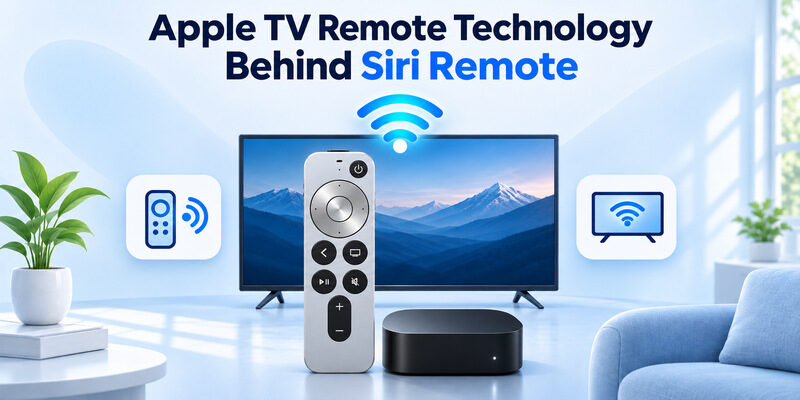
Short answer: Siri Remote uses Bluetooth for Apple TV and can use infrared for TV or audio controls.
Apple TV remote technology changes with the generation and with the button you press. A modern Siri Remote can navigate the Apple TV over Bluetooth while volume takes a separate path. Depending on your settings, the remote can send infrared to the television or sound system, or the Apple TV can pass a command over HDMI-CEC. Older Apple Remotes use infrared to communicate with compatible Apple TV models.
Identify your remote by its front controls and charging port, then test navigation and volume separately. If navigation works, review the audio-control path before pairing the remote again.
Apple TV Remote Technology at a Glance
Press a direction on the remote with the Apple TV home screen visible, then press a volume key. Use these as two separate tests. Navigation tells you whether a modern Siri Remote is talking to the Apple TV box. A volume indicator tells you whether your TV, soundbar, or receiver responds through its configured control path.
Apple TV remote technology can send these commands to two different devices. A television can be displaying the Apple TV home screen while the soundbar controls how loud it sounds. If you see the selection move and the volume stays unchanged, leave the working Bluetooth pairing in place while you identify the audio device. If the screen is on a different input, switch back to Apple TV before you interpret the navigation test. If the input is already correct and the image appears frozen, try another working controller on the same screen. A failure on every controller points to something other than a single physical remote. Record which devices are awake and which screen responds.
To identify the controls on each generation, explore our guide to Apple TV remote buttons and compare them with the remote in your hand.
Read more: Samsung TV Remote Technology and How It Works
Identify Your Apple TV Remote Generation
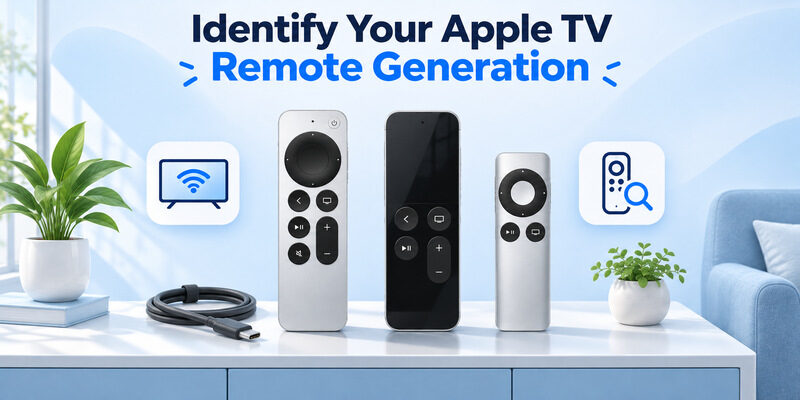
Check the front and charging port
Apple’s remote identification guide describes the second- and third-generation Siri Remotes as silver aluminum with a touch-enabled clickpad. USB-C identifies the third-generation model in this family. The second-generation model charges over Lightning. The first-generation Siri Remote has a black touch surface and charges over Lightning.
When looking up Apple TV remote technology by generation, check both clues. A silver body alone cannot distinguish the two clickpad models. A charging connector is especially useful if you bought the Apple TV used and its remote differs from what originally shipped with the box. If the remote and Apple TV are already paired, Apple’s identification guide also points to the remote section in Settings for the serial number on compatible models. That can help when the remote’s finish or buttons are difficult to distinguish from a seller’s photo.
Distinguish an older Apple Remote from a Siri Remote
Apple’s earlier aluminum and white Apple Remotes use infrared to communicate with supported Apple TV models. They have different button layouts and replaceable batteries. If your remote has no rechargeable port, compare it with Apple’s identification guide before following Siri Remote pairing instructions. Apple TV remote technology on the older models depends on the appropriate IR receiver and its line of sight. For a closer look at navigation, voice input and compatible generations, see our guide to Apple TV Siri Remote features and check which functions your model supports.
| Remote | How to identify it | Main Apple TV connection |
|---|---|---|
| Siri Remote, third generation | Silver clickpad, USB-C | Bluetooth 5.0 |
| Siri Remote, second generation | Silver clickpad, Lightning | Bluetooth 5.0 |
| Siri Remote, first generation | Black touch surface, Lightning | Bluetooth 4.0 |
| Earlier aluminum or white Apple Remote | Older button layout, replaceable battery | Infrared on supported models |
Read more: TV Remote App Not Working After Changing Router? How to Fix It
Follow the Signal From Each Button
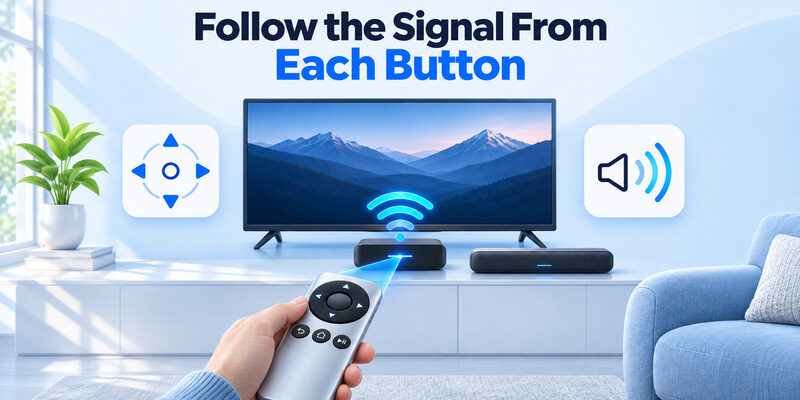
Navigation travels to the Apple TV box
On compatible Siri Remote models, Apple TV remote technology uses a paired Bluetooth link for movement, selection, and other Apple TV commands. This can let the remote navigate the box without a direct line of sight. Test a direction on the Apple TV home screen if you are unsure which device is responding. A focus ring that moves on the TV’s own settings screen may be responding to a different remote or control path.
The touch-enabled clickpad can support both pressing and swiping. If only a particular gesture is unfamiliar, compare how the remote responds to a click and how it responds to a swipe. Check the relevant remote settings before treating a gesture problem as a connection failure. For a more controlled comparison, use a short direction press and then a longer scroll in the same app. If the first works reliably, you can keep the pairing and investigate how the app or remote handles the second input.
Volume and power can take another path
When you press a volume key, Apple TV remote technology can use IR from the remote or an HDMI-CEC command through supported equipment. If you use a receiver, its input and volume controls may be the ones that matter. Look for the device whose volume indicator changes, or check which speakers are active. Then trace the command to that device.
If the key works only when you aim at the TV or soundbar, IR is a possibility. Confirm the configured volume mode in Apple TV settings. With an HDMI-CEC setup, also check that the attached television and receiver support the intended function and have the required control setting enabled.
Choose the Right Volume Control Setting
Check the audio destination first
On Apple TV, open Settings → Remotes and Devices → Volume Control. Apple’s user guide lists choices including Auto, HDMI, IR options, and Learn New Device where supported. Start by identifying whether the audio comes from the television, a soundbar, or a receiver. If you use an IR option, point the remote toward the device that receives the command.
Apple TV remote technology can appear to fail when the system is sending volume to the wrong box. If you changed from TV speakers to a soundbar, test volume with the soundbar’s own remote to identify the target. Then compare the available volume modes on Apple TV. Test the same volume key after each change. Apple TV remote technology is easiest to trace with a repeatable setup. Leave the program playing at a comfortable level, note which speaker is active, and look for a volume indicator on the relevant device. If the setting you change affects a different indicator, restore the previous choice before trying another.
If navigation works but the audio level does not change, troubleshoot Apple TV remote volume not working by checking the selected audio device and its control path.
Separate HDMI control from infrared learning
When the equipment supports HDMI-CEC volume, the command may travel over the HDMI connection. If the connected devices only respond to IR, check the available IR or learning option. Apple’s guide includes Learn New Device for setups where the other choices fail. Follow the TV screen and use a working original remote if the learning process requests one.
Do the same check for power independently. A working volume button does not establish that the setup can turn the TV or receiver on. Apple TV remote technology can use a different setting for home cinema control, depending on the system.
Read more: Apple TV Remote for iPhone: How to Set Up and Use Your iPhone as an Apple TV Remote
Pair a Siri Remote With Apple TV
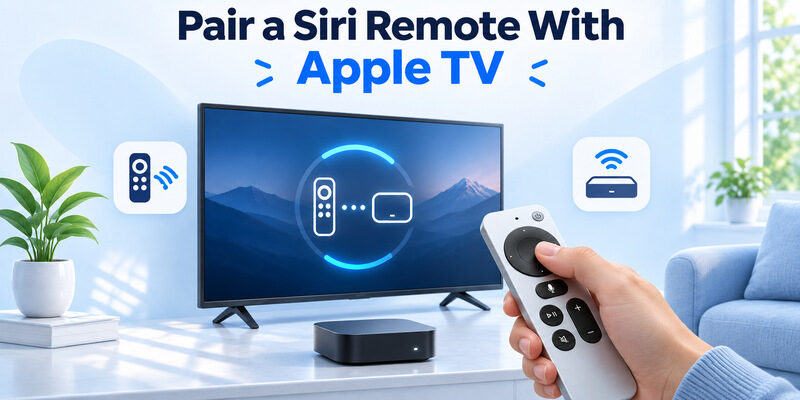
Bring the remote close to the streaming box
Apple Support’s troubleshooting guide directs you to hold the remote about 3 inches from the Apple TV and press Back or Menu with Volume Up for about five seconds. Use Back on a model with that button or Menu on an older Siri Remote. If the screen asks you to place the remote on top of the box, follow the prompt. Use the Apple TV box as the reference point, even if it is behind the television.
If you are tracing Apple TV remote technology after replacing a remote, confirm that the Apple TV is awake and that the television shows the correct HDMI input. A pairing notification on another input will be easy to miss.
Verify pairing before troubleshooting audio
After pairing, test Right or Down on the Apple TV home screen. If it works, compare volume and power separately. Apple’s guidance also describes restarting the Apple TV if pairing does not complete and restarting the remote with a separate button combination. Use the steps listed for your remote and check the TV screen before you repeat the procedure. A remote restart and a pairing attempt use different button combinations. If the paired remote can navigate for a moment and then loses connection, charge it and run the test again close to the Apple TV. This keeps power and range separate from the TV audio settings.
Re-pairing is a useful test when every navigation key fails. If the clickpad already works, Apple TV remote technology gives you a clearer lead through the volume configuration or the receiving equipment. Check the audio device before pairing a second time.
Read more: Lost Apple TV Remote? How to Find It Fast and Keep Watching
Diagnose Navigation, Volume, and Charging
| What you see | First check |
|---|---|
| No navigation or selection | Charge the remote and check pairing near the Apple TV |
| Navigation works, volume fails | Audio destination, IR line of sight, or HDMI control settings |
| Volume works only when pointed at the audio device | Check whether the configured path uses infrared |
| Phone remote works and the Siri Remote does not | Physical remote power, compatibility, and pairing |
Check the battery and connector
If no commands work, charge the remote with the cable for its generation. Apple’s identification guide distinguishes USB-C on the third-generation Siri Remote and Lightning on the previous rechargeable Siri Remote models. The earlier Apple Remote models use a replaceable battery. Do not assume a familiar-looking connector or a silver shell establishes which generation you have.
When diagnosing Apple TV remote technology, check the charge status on the Apple TV if you have a working phone remote or other compatible control. This helps you decide whether to repeat the pairing steps or inspect the charging setup first. If the battery was low, give it time on a known working cable and charger, then repeat the same navigation test from the same seat. A charging connection should match the remote’s port without force.
Compare physical and phone control
If the Apple TV Remote in Control Center operates the box and the Siri Remote does not, the box is still accepting at least one control path. Recheck the Siri Remote’s battery and pairing. If neither operates the box, check the television’s active input, whether the Apple TV is powered on, and whether the phone is on the correct network. That makes the troubleshooting result specific to the failing connection. If the soundbar needs a separate control, explore soundbar remote app options and verify support for the exact audio model.
Use an iPhone as an Apple TV Remote
Find Apple TV Remote in Control Center
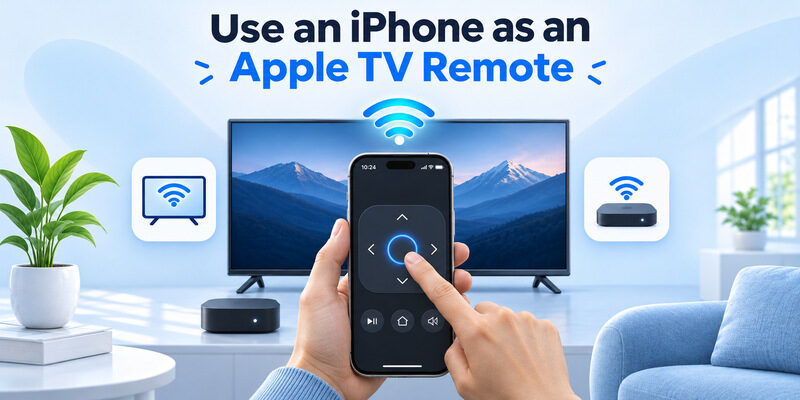
Apple Support explains how to add the Apple TV Remote control to Control Center on iPhone or iPad. Connect the phone and supported Apple TV to the same Wi-Fi, open the control, and select the device. Enter the code shown on screen if asked. Test navigation on the Apple TV home screen before relying on the phone during setup.
Phone-based Apple TV remote technology uses a network path. It can work while a physical Siri Remote is unpaired. A phone that uses an isolated guest network may fail to find the Apple TV even if the television itself can stream. Check which network the Apple TV box uses. If the television and the box both show up in a device list, select the box by its name and verify that the navigation highlight moves on the Apple TV input.
Check which device the phone can control
Apple’s built-in remote supports compatible Apple TV models and certain AirPlay-compatible smart TVs, with setup requirements. Check the listed device and verify which menus respond. The iPhone volume behavior depends on the connected equipment. Use the physical audio remote when the phone does not support volume in that setup.
If you want phone control of the television itself and have a compatible smart TV, can be an iPhone backup on a reachable home network. Select the television and test one command. Treat that as a separate control path from Apple’s Control Center remote for the Apple TV box. If you keep both controls on your phone, record which one reaches the television itself and which one reaches the streaming box. Testing both on the screen you can see prevents a successful connection to the wrong device from obscuring the problem.
Read more: Apple TV Remote Icon: What It Means and How to Use It
Choose a Compatible Replacement
Match the player and software version
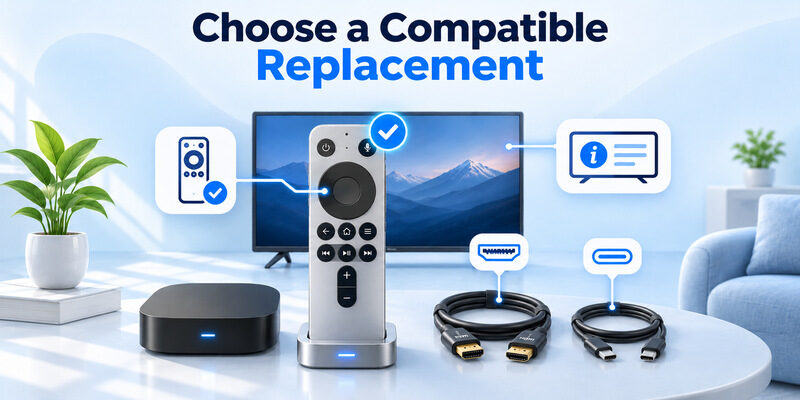
Check the Apple TV model and tvOS version before buying. Apple’s identification guide lists the third-generation Siri Remote as compatible with Apple TV 4K and Apple TV HD on tvOS 15.4 or later. Confirm current compatibility for the exact remote you choose, especially when buying a used remote. Use the model and software requirements together.
If you are comparing Apple TV remote technology across a new remote and an older Apple TV, identify what you need for everyday use. A compatible older IR remote can send basic commands on supported hardware. A supported Siri Remote can add features that depend on the paired link. If you are buying for a setup with a separate receiver, check the receiver’s volume-control options too. Apple TV remote technology on the replacement is only part of that comparison. The equipment that receives the audio command determines which volume path can work.
Verify volume support after pairing
Once a replacement moves the Apple TV selection, configure the volume for the television or audio receiver in your setup. Keep the original equipment remote handy if you need to teach an IR command. Test the volume from your seat and from directly in front of the equipment. The difference can help identify whether the configured Apple TV remote technology depends on an IR path.
Frequently Asked Questions
Does Siri Remote need to point at Apple TV?
For a paired Bluetooth navigation command, usually no. Apple TV remote technology can still require aiming for an IR volume or power command directed to other equipment. Compare the two buttons with the Apple TV home screen visible and the audio device in front of you.
Do second- and third-generation Siri Remotes use the same charger?
No. Apple identifies the silver second-generation Siri Remote by its Lightning port and the silver third generation by USB-C. Check the port before choosing a cable. Both have rechargeable batteries, so start with a known working cable of the correct type if the remote is unresponsive.
Can Control Center replace the remote during pairing?
It can give you temporary control of a compatible Apple TV already reachable on the home network. Select the device and confirm that navigation works. Then follow Apple’s physical remote pairing steps near the box. A phone may be unavailable as a backup if the Apple TV is still offline.
Why does volume work only from one seat?
Check whether the configured volume path uses infrared. A soundbar or television can be hard to reach from some angles, especially if its receiver is behind another object. Try the volume key directly in front of the device, then compare with the normal seat.
Final Thoughts
Apple TV remote technology works best when you identify the destination of each command. Bluetooth handles Siri Remote communication with a compatible Apple TV, while TV or audio control can use infrared or HDMI-CEC. Check the remote generation, test navigation first, and troubleshoot volume along its separate path.
