
Apple TV Remote Icon: What It Is, Where to Find It & Fix It
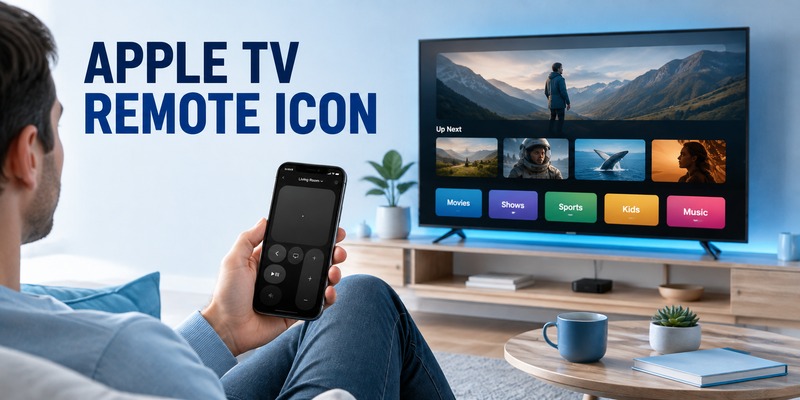
Looking for the Apple TV Remote icon on your iPhone or iPad?
The icon gives you quick access to Apple’s software remote for controlling a compatible Apple TV or AirPlay-enabled smart TV. On current iPhone and iPad software, you can open Apple TV Remote directly from Control Center, select your TV, and use your device as a remote. Apple also now offers a standalone Apple TV Remote app for supported devices.
If you cannot find the icon, the problem is often simply that the Remote control has not been added to Control Center. If the icon is visible but your Apple TV does not appear, that is usually a separate connection issue.
This guide focuses specifically on identifying, finding, adding, and troubleshooting the Apple TV Remote icon.
1. What Does the Apple TV Remote Icon Mean?
The Apple TV Remote icon is the shortcut that opens Apple’s virtual remote-control interface on an iPhone or iPad.
Tap it and you can choose a compatible Apple TV or smart TV and then access remote controls from your mobile device. Apple currently supports Control Center remote use with:
- Apple TV 4K
- Apple TV HD
- Compatible AirPlay smart TVs
For an AirPlay-compatible smart TV, Apple says the television must first be added to the Home app and assigned to a room.
The important distinction is that the Remote icon opens TV controls. It is not the same thing as opening the Apple TV streaming app or an AirPlay destination menu.
Download LG TV Remote2. Apple TV Remote Icon vs Apple TV App vs AirPlay
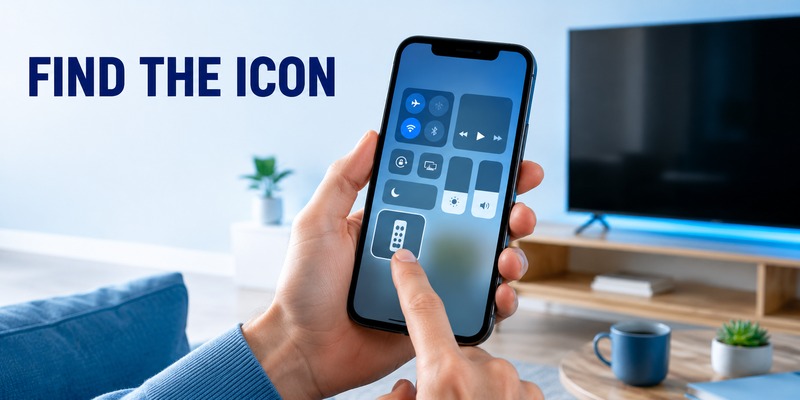
Several Apple icons can appear close together, especially in Control Center, and their functions are easy to confuse.
| Control | Main purpose |
|---|---|
| Apple TV Remote | Control an Apple TV or compatible television |
| Apple TV app | Watch and discover video content |
| AirPlay | Send audio/video to another device |
| Screen Mirroring | Mirror your iPhone or iPad display to another screen |
Apple TV Remote
Use this when you want to:
- Navigate Apple TV menus
- Select content
- Control playback
- Enter text
- Use supported TV controls
Apple TV app
The Apple TV app is primarily a media app. Opening it does not automatically turn your phone into the normal Apple TV remote interface.
AirPlay
AirPlay is mainly about sending media to another device.
If your goal is to play a video from your phone on the TV, AirPlay may be what you need.
If your goal is to navigate Apple TV as though your phone were the physical remote, use Apple TV Remote instead.
Screen Mirroring
Screen Mirroring duplicates the display of your iPhone or iPad on a compatible screen.
It is also different from Apple TV Remote.
This distinction is useful because someone searching for the Apple TV Remote icon may actually be looking at one of these nearby controls.
💡 Discover Helpful Guides
Apple remote tv app: Complete Apple TV Remote Guide for iPhone, Siri Remote, Pairing & Fixes
3. Where Is the Apple TV Remote Icon on iPhone?
The most common place to find it is Control Center.
On a current iPhone:
- Swipe down from the upper-right corner of the screen.
- Open Control Center.
- Look for Apple TV Remote.
- Tap it.
- Choose your Apple TV or compatible television.
Apple says that if requested during setup, you may need to enter a four-digit passcode shown on the television into your iPhone or iPad.
If the Remote control is not there, that does not necessarily mean anything is wrong with Apple TV.
It may simply need to be added to Control Center.
💡 Discover Helpful Guides: Apple TV Remote Replacement: Buying and Setup Guide
4. How to Add the Apple TV Remote Icon to Control Center
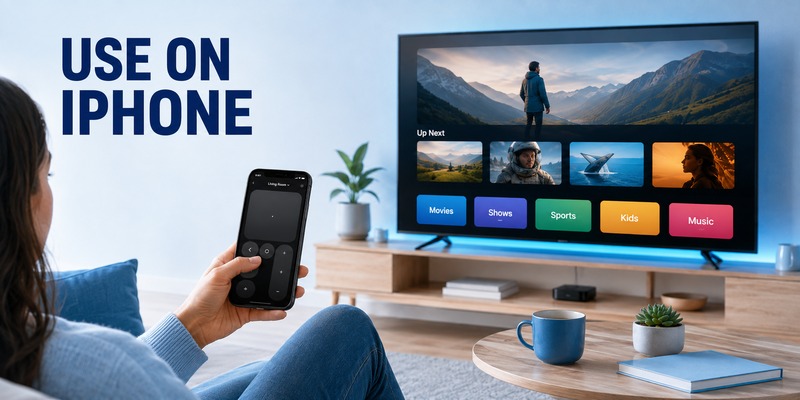
On current iPhone and iPad software, Apple provides a straightforward way to add Remote.
Open:
Control Center → Add Controls → Add a Control → Remote
You can also search for Remote in the Control Center controls list.
Once added, the control remains available for quick access.
On iOS 17 and earlier
Apple documents a different route for older software:
Settings → Control Center → Apple TV Remote → Add
This difference is worth noting because older tutorials may show a Settings-based method while newer devices let you customize Control Center directly.
5. Where Is the Apple TV Remote Icon on iPad?
The process is similar on iPad.
Swipe down from the upper-right corner to open Control Center, then look for Apple TV Remote.
If the control is missing:
- Open Control Center.
- Choose Add Controls.
- Select Add a Control.
- Search for Remote.
- Add it.
Apple supports Apple TV Remote in Control Center on both iPhone and iPad.
This means you do not need to keep your physical Siri Remote nearby every time you want basic Apple TV control.
💡 Discover Helpful Guides: How to Reset Your Apple TV Remote: Pairing, Volume, and No-Remote Fixes
6. Apple TV Remote Icon vs. a Universal Remote
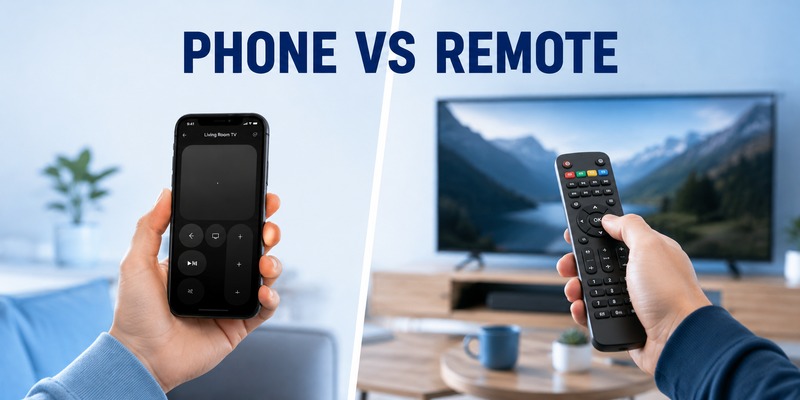
The apple tv remote icon is convenient, but a phone is not always the control method everyone wants. If you are researching an apple tv remote universal solution, check the remote’s instructions and the control method it uses. With a compatible infrared remote, Apple TV can learn button signals through the Remotes and Devices settings. Some TV or receiver remotes may also control Apple TV through HDMI-CEC when the connected equipment supports and enables that feature.
| Control option | Main advantage | Best for |
| Phone remote | Always nearby for many users | Backup control and quick navigation |
| Siri Remote / Apple TV Remote | Native Apple TV experience | Daily Apple TV use |
| apple tv universal remote | Can reduce the number of physical remotes | Multi-device entertainment setups |
A universal remote can be useful, but the phone control remains a practical backup when the physical remote is unavailable or needs reconfiguration.
7. Why Is the Apple TV Remote Icon Missing?
A missing icon and a missing Apple TV are two different problems.
This distinction can save a lot of unnecessary troubleshooting.
Problem 1: The Remote icon itself is missing
If you cannot see Apple TV Remote anywhere in Control Center:
- Check other Control Center pages.
- Use Add Controls.
- Search for Remote.
- Add the Remote control.
- Make sure your iPhone or iPad software is up to date.
Apple explicitly tells users to add Apple TV Remote to Control Center when the button is not displayed.
You usually do not need to reset Apple TV just because the shortcut is missing.
Problem 2: The icon is there, but your Apple TV is missing
If the Remote icon opens correctly but the TV does not appear, the icon is not the problem.
Now you should troubleshoot the connection.
This is a much cleaner way to diagnose the issue:
No icon → check Control Center.
Icon but no TV → check connectivity.
📖 Explore Articles: Apple TV Remote for iPhone: How to Set Up and Use Your iPhone as an Apple TV Remote
8. Apple TV Remote Icon Appears but Apple TV Is Missing
Apple’s current troubleshooting starts with the network.
Check Wi-Fi
Make sure the iPhone or iPad and Apple TV are connected to the same Wi-Fi network.
On iPhone or iPad:
Settings → Wi-Fi
On Apple TV:
Settings → Network
Apple lists this as the first check when Apple TV Remote cannot be set up.
Update the devices
Apple recommends updating:
- iOS or iPadOS
- tvOS
to the latest supported versions.
Restart both devices
If the network is correct but the Apple TV still does not appear:
- Restart the Apple TV or compatible smart TV.
- Restart the iPhone or iPad.
- Open Apple TV Remote again.
Apple also includes restarting the devices in its official troubleshooting sequence.
Check which TV you selected
If your home contains several Apple TVs, verify that you are choosing the correct one.
Naming them by room can help:
- Living Room
- Bedroom
- Office
The icon can work correctly even when you accidentally select the wrong target device.
9. FAQ About the Apple TV Remote Icon
What does the Apple TV Remote icon do?
It opens Apple’s virtual remote interface so you can control a compatible Apple TV or AirPlay-enabled smart TV from an iPhone or iPad.
Where is the Apple TV Remote icon on iPhone?
Look in Control Center. Swipe down from the upper-right corner, then tap Apple TV Remote.
If it is missing, use Add Controls → Add a Control → Remote.
Why did my Apple TV Remote icon disappear?
The control may have been removed or moved in Control Center.
Add it again from Control Center customization before troubleshooting Apple TV itself.
Is the Apple TV Remote icon the same as the Apple TV app icon?
No.
Apple TV Remote opens remote controls, while the Apple TV app is primarily used for watching and discovering video content.
Is Apple TV Remote the same as AirPlay?
No.
Apple TV Remote controls a TV or Apple TV interface. AirPlay sends compatible media from one device to another.
Why can I see the Remote icon but not my Apple TV?
Check that the iPhone or iPad and Apple TV are on the same Wi-Fi network. Apple also recommends updating the devices and restarting them if setup still fails.
Do I need to download an app to get Apple TV Remote?
Not necessarily.
Apple TV Remote is available through Control Center. Apple also now provides a standalone Apple TV Remote app for supported Apple devices.
Can I use the icon if I lost my physical remote?
Yes, if your iPhone or iPad can connect to the supported Apple TV setup.
The standalone Apple TV Remote app also includes functionality related to locating a misplaced physical Apple TV Remote.
📘 Find the Right Guide: Apple TV Remote iPad: How to Set Up and Control Apple TV From Your iPad
9. Final Thoughts
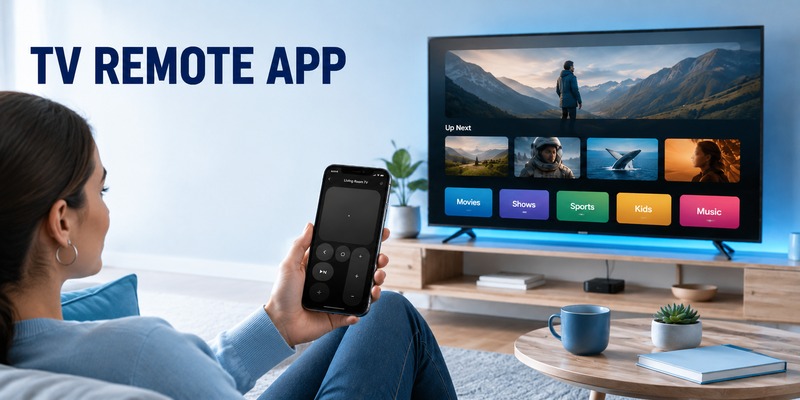
The Apple TV Remote icon is primarily a shortcut to Apple’s software remote controls on iPhone and iPad.
If you cannot find it, start with:
Control Center → Add Controls → Remote
If the icon appears but the Apple TV does not, stop troubleshooting the icon and check:
same Wi-Fi → software updates → restart the devices.
And unlike older Apple TV Remote guides, current Apple users have two official access options: Apple TV Remote in Control Center and Apple’s standalone Apple TV Remote app.
Download LG TV Remote