
Apple TV Remote App: Best Free Options for iPhone & Android
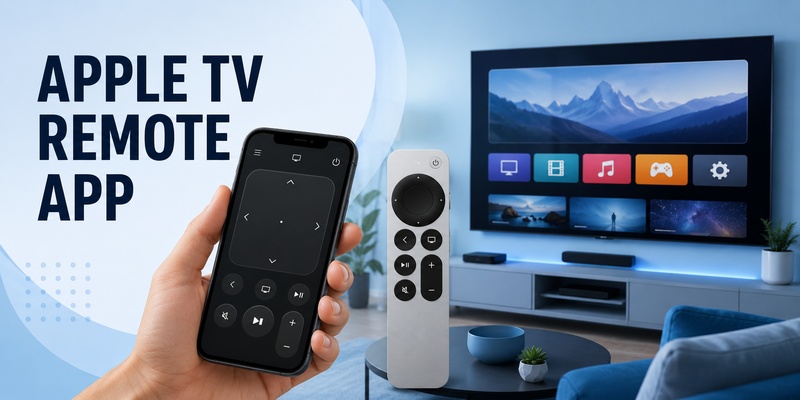
Quick Answer: The best free Apple TV remote app for iPhone is Apple’s own Apple TV Remote, available through Control Center on supported iPhones. It lets you navigate Apple TV, control playback, and enter text without paying for a third-party remote. On Android, Apple does not offer an equivalent official Apple TV remote app, but some third-party remote applications may support Apple TV devices.
To connect an iPhone, open Control Center, tap Remote, select your Apple TV, and enter the pairing passcode if prompted. Your iPhone and Apple TV should be connected to the same Wi-Fi network.
If you’re looking for a free remote app for Apple TV because your physical remote is missing, this guide explains the available options, compatibility, setup steps, and troubleshooting.
Best Free Apple TV Remote Apps Compared
The right Apple TV remote app depends on your smartphone and the device you want to control.
| Remote Option | iPhone | Android | Basic Cost | Best For |
|---|---|---|---|---|
| Apple TV Remote | Yes | No | Free | Official Apple TV control |
| Third-party Apple TV remote apps | Varies | Varies | Free or paid | Alternative mobile controls |
| Universal TV remote apps | Varies | Varies | Often freemium | Multiple compatible devices |
| Physical Siri Remote | Not applicable | Not applicable | Hardware purchase | Full physical control |
1. Apple TV Remote – Best Free Option for iPhone
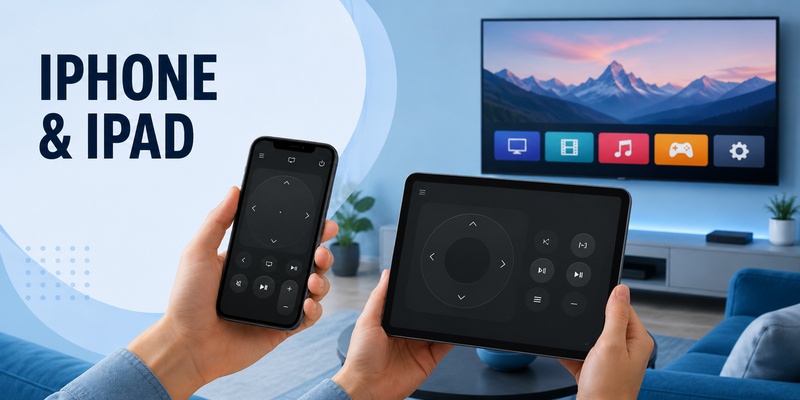
Apple TV Remote is Apple’s official solution for controlling compatible Apple TV devices from an iPhone or iPad.
On supported devices, it is available in Control Center and may also be accessible from the Home Screen or App Library.
You can use it to:
- Navigate the Apple TV interface
- Open applications
- Select movies and shows
- Control supported playback
- Enter text with your phone
- Switch between compatible Apple TV devices
- Adjust volume with supported audio equipment
The basic remote functionality is free.
Best for: iPhone and iPad owners using Apple TV 4K or Apple TV HD.
Limitations: Some controls depend on the Apple TV model, iOS version, network connection, and audio setup.
2. Third-Party Apple TV Remote Apps
Some third-party developers offer applications that claim to support Apple TV.
These may provide virtual buttons, navigation, or additional controls.
However, compatibility varies significantly.
Before installing a third-party Apple TV remote app:
- Check whether it explicitly supports your Apple TV model.
- Verify that it supports your phone’s operating system.
- Review recent user feedback.
- Check whether remote controls are free or require a subscription.
- Confirm which permissions and network connections are needed.
A free download does not always mean that every feature is free.
3. Universal Remote Apps
Universal remote apps are designed to control several compatible TV brands or streaming devices.
For example, Remote TV App offers smartphone remote functionality for supported televisions and streaming platforms.
If you own multiple devices, a universal remote app may reduce the need to switch between different applications.
However, check the app’s Apple TV compatibility and pricing before installing it.
For a broader comparison, read our free remote control app for TV guide.
4. Is the Apple TV Remote App Completely Free?
Apple’s official Apple TV Remote functionality is free for compatible iPhones and iPads.
You do not need an Apple TV+ subscription to use the remote.
Apple TV+ and other streaming subscriptions are separate services for watching content.
Third-party apps may charge for premium features or remove-ads options.
🗺️ Browse How-To Guides: Apple TV Remote Icon: What It Means and How to Use It
How to Use Apple TV Remote App on iPhone
For most iPhone users, Apple’s official remote is the easiest and most reliable starting point.
Step 1: Open Control Center
On an iPhone with Face ID, swipe down from the top-right corner.
On older supported iPhones with a Home button, swipe up from the bottom edge.
Find the Apple TV Remote icon.
Step 2: Add Apple TV Remote if It Is Missing
On current iOS versions:
- Open Control Center.
- Select the option to add controls.
- Search for Remote.
- Add the Remote control.
On iOS 17 and earlier, you may need to open Settings, select Control Center, and add Apple TV Remote there.
Step 3: Select Your Apple TV
Tap the Remote icon.
Choose your Apple TV from the available device list.
Step 4: Complete Pairing
If a four-digit code appears on your television, enter it on your iPhone.
Wait for the connection to complete.
Step 5: Start Controlling Apple TV
Use the touch area and on-screen controls to navigate menus, open apps, and control playback.
For detailed gestures and button instructions, read our Apple TV remote for iPhone guide.
Do You Need to Download an Apple TV Remote App?
Usually, you can use the Apple TV Remote control already available through iOS.
On supported current configurations, Apple also documents a Remote app that can be opened from the Home Screen or App Library and downloaded from the App Store if it is not installed.
You do not need to purchase an unrelated paid remote app just to use Apple’s official controls.
For more information, see our Apple TV remote download guide.
🧭 Explore Guides: Apple TV Remote Replacement: Buying and Setup Guide
Can You Use an Apple TV Remote App on Android?
Android users do not have the same built-in Apple TV Remote feature found on iPhone.
Apple does not provide an equivalent official Android remote app for controlling Apple TV hardware.
However, compatible third-party applications may offer some remote functionality.
How to Find an Apple TV Remote App for Android
- Open Google Play Store.
- Search for an Apple TV-compatible remote application.
- Read the compatibility information.
- Check whether the app supports Apple TV 4K or Apple TV HD.
- Review its pricing and permissions.
- Install the app only from a trusted source.
- Follow the developer’s pairing instructions.
Avoid assuming that any Android TV or Google TV remote app will control Apple TV hardware.
These platforms use different device-control systems.
Are Free Android Apple TV Remote Apps Reliable?
Reliability depends on the developer, app version, supported device, and network configuration.
Some applications may support basic navigation but not advanced controls.
Others may require payment after installation.
For the most predictable experience, Apple’s official iPhone/iPad remote or a compatible physical Siri Remote remains the safer choice.
Can Google TV App Control Apple TV?
The Google TV remote is designed for compatible Google TV and Android TV devices.
It should not be presented as an official Apple TV remote solution.
If an Android app claims Apple TV support, verify that support independently.
💡 Discover Helpful Guides: Apple TV Siri Remote: Complete Guide to Features, Generations, Pairing, and Everyday Use
How to Connect Your Phone to Apple TV
The connection process depends on your phone and chosen application.
Connect an iPhone to Apple TV
- Turn on your Apple TV.
- Connect your Apple TV to Wi-Fi.
- Connect your iPhone to the same Wi-Fi network.
- Open Apple TV Remote.
- Select your Apple TV.
- Enter the displayed pairing code if requested.
- Test navigation and playback.
Apple TV Remote in Control Center supports Apple TV 4K, Apple TV HD, and compatible AirPlay-enabled smart TVs that meet Apple’s setup requirements.
Connect an Android Phone to Apple TV
For a compatible third-party app:
- Connect your phone and Apple TV to the required network.
- Open the remote application.
- Allow any necessary device-discovery permissions.
- Follow the app’s device-search instructions.
- Select Apple TV if it appears.
- Complete any required authorization or pairing.
- Test the available controls.
These steps are general. The actual process varies by third-party application.
Can You Connect Without the Original Siri Remote?
Yes, if your Apple TV is already configured, connected to the network, and available for pairing.
However, if Apple TV has been reset or disconnected from its network, you may need a physical remote or another supported setup method.
If you cannot find your controller, read our lost Apple TV remote guide.
Apple TV Remote App Features and Limitations
A mobile remote can replace many everyday physical controls, but not every function works in every setup.
Navigate Menus and Apps
On iPhone, use the remote’s touch area to move through menus.
Swipe to navigate and tap to select.
The available buttons may vary by iOS and tvOS version.
Control Playback
You can play, pause, and navigate supported content using the remote interface.
Some streaming applications offer additional playback controls.
Type With Your Phone Keyboard
When Apple TV displays a supported text field, your iPhone may allow keyboard entry.
This is useful for searching content and entering account details.
Adjust Volume
Volume controls have additional requirements.
Apple documents volume adjustment through supported audio configurations, including certain HomePod, soundbar, and AirPlay-compatible speaker setups.
If your iPhone remote navigates correctly but cannot adjust volume, the issue may be a limitation of your audio configuration.
See our Apple TV remote volume not working guide.
Control an AirPlay-Compatible Smart TV
Apple TV Remote can also work with certain AirPlay-compatible smart televisions.
For this setup, Apple requires the supported TV to be added to the Home app and assigned to a room.
Not every AirPlay-enabled television supports every remote-control function.
📖 Read More Guides: Thomson TV Remote App iOS: How to Control Your Thomson TV From iPhone
Can You Control Apple TV Without Wi-Fi?
Apple’s official mobile remote normally requires compatible local network connectivity.
If the Internet Is Down but Wi-Fi Still Works
Your local Wi-Fi network may continue operating when your internet connection is unavailable.
Some local remote functions may still work while both devices remain connected.
However, streaming services may not function normally.
If Apple TV Is Not Connected to the Network
The remote app may not discover an Apple TV that is offline or connected to an inaccessible network.
Cellular data alone is not a substitute for the required local connection.
Can You Use Bluetooth Instead?
Do not assume that a generic Bluetooth connection between your phone and Apple TV provides remote-control functionality.
Use the supported Apple remote setup or a compatible third-party method.
What if You Have No Working Remote?
If your Apple TV is disconnected from the network and cannot be paired through a mobile app, a compatible physical Siri Remote may be necessary.
For setup and recovery options, read our Apple TV remote pairing guide.
📘 Find the Right Guide: iOS Remote Control: Turn Your iPhone or iPad Into a Smart TV Remote
Apple TV Remote App Not Working? Troubleshooting
If your Apple TV remote app cannot connect, try these solutions.
1. Check the Network
Confirm that your phone and Apple TV are on the same accessible Wi-Fi network.
Guest networks or device-isolation settings can interfere with discovery.
2. Update Your Devices
Install available iOS or tvOS updates.
For third-party apps, install the latest compatible app version.
3. Restart Apple TV and Your Phone
Restart both devices, wait for the network connection to return, and try again.
4. Check App Permissions
On iPhone, make sure required Local Network permissions are enabled.
For third-party Android applications, review the permissions needed for device discovery.
5. Select the Correct Apple TV
If you have multiple Apple TV devices, confirm that you selected the correct one.
6. Complete Pairing Again
If a passcode appears, enter the current code displayed on the television.
Do not reuse an old pairing code.
7. Troubleshoot Volume Separately
If navigation works but volume does not, check your audio equipment and supported volume-control methods.
The connection itself may be functioning correctly.
8. Test the Physical Remote
If you have a Siri Remote, check whether it controls Apple TV.
If both physical and mobile remotes fail, investigate the Apple TV’s power, software, and network status.
For physical remote recovery, see our how to reset Apple TV remote guide.
💡 Discover Helpful Guides: Apple TV Remote Pairing Not Working: How to Fix Pairing, Disconnects, and Remote Control Problems
FAQs About Apple TV Remote Apps
What is the best free remote app for Apple TV?
Apple TV Remote is the best official free option for compatible iPhones and iPads. It is integrated with Apple’s device-control experience.
Is there a free Apple TV remote app for iPhone?
Yes. Apple’s official Apple TV Remote functionality is free.
Is there an official Apple TV remote app for Android?
Apple does not provide an equivalent official Android remote app for Apple TV hardware. Some third-party apps may offer compatible controls.
Do I need to download an Apple TV remote app?
Not necessarily. On supported iPhones, Apple TV Remote is available through Control Center. Apple also documents a Remote app on certain current configurations.
How do I connect my iPhone to Apple TV?
Connect both devices to the same Wi-Fi network, open Apple TV Remote, select your Apple TV, and enter the passcode if requested.
Can I use my phone as an Apple TV remote?
Yes. Compatible iPhones and iPads can use Apple’s official remote. Android users need to check third-party compatibility.
Does Apple TV Remote work with Apple TV 4K?
Yes. Apple’s official remote supports Apple TV 4K and Apple TV HD.
Can I use Apple TV Remote without Wi-Fi?
The standard setup requires compatible local network connectivity. An offline Apple TV may not be discoverable.
Can the Apple TV remote app control volume?
Yes, on supported audio setups. Not every TV or sound system allows volume control through the iPhone remote.
Is Apple TV Remote the same as the Apple TV streaming app?
No. Apple TV Remote controls compatible hardware, while the Apple TV app is used to discover and watch video content.
Can I use Apple TV Remote if I lost my Siri Remote?
Yes, if Apple TV is already connected to an accessible network and you can complete pairing.
Final Thoughts
A free Apple TV remote app can make controlling your streaming device easier, especially when the physical Siri Remote is missing.
For iPhone and iPad users, Apple’s official Apple TV Remote is the recommended starting point. It offers free navigation, playback controls, and convenient text input on compatible devices.
Android users may find third-party alternatives, but should verify compatibility and pricing before installing.
Whichever option you choose, confirm that your Apple TV is connected to the correct network and that your remote app supports the functions you need.
Download LG TV Remote