
How to Pair Apple TV Remote: Reconnect, Sync & Fix Pairing
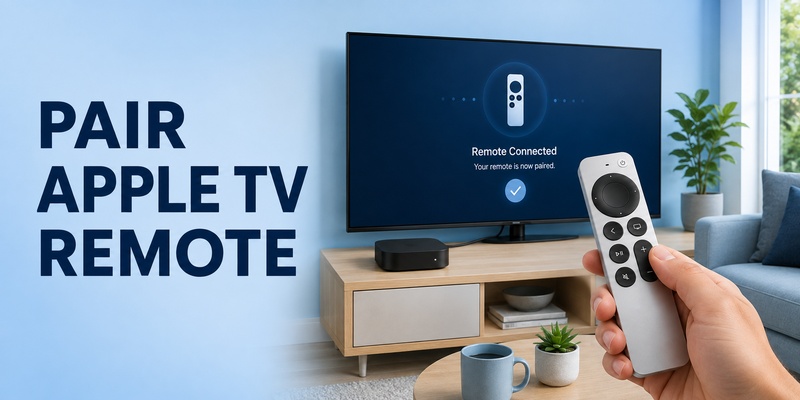
Quick Answer: To pair a Siri Remote or newer Apple TV Remote, turn on Apple TV, hold the remote about three inches (7.5 cm) from the device, and press Back + Volume Up for approximately 2–5 seconds, until a pairing message appears. If your remote has a Menu button instead of Back, use Menu + Volume Up. Follow any onscreen instructions to finish.
If you need to reconnect an Apple TV remote that stopped working, restart it by holding TV/Control Center + Volume Down for about five seconds, then try pairing again.
For an older aluminum or white Apple Remote, use Menu + Right for six seconds to link it to a compatible Apple TV.
This guide explains how to pair an Apple TV remote, reconnect a disconnected Siri Remote, sync older Apple remotes, and fix pairing failures.
How to Pair Apple TV Remote in 5 Steps
For most Apple TV 4K and Apple TV HD users, pairing a Siri Remote takes only a few seconds.
Step 1: Turn On Apple TV
Make sure your Apple TV is connected to power and displaying its interface or setup screen.
If the device is unresponsive, disconnect its power cable, wait at least six seconds, and reconnect it.
Step 2: Move the Remote Close to Apple TV
Hold the remote approximately three inches (7.5 cm) from the front of the Apple TV device.
Keep it close during pairing.
Step 3: Press the Pairing Buttons
For a newer Siri Remote with a Back button:
Back + Volume Up
For a first-generation Siri Remote with a Menu button:
Menu + Volume Up
Hold both buttons together for approximately 2–5 seconds, or until Apple TV responds.
Step 4: Complete the Pairing Process
Watch the television for a pairing notification.
If prompted, place the remote on top of the Apple TV device to finish pairing.
Wait until the connection is established.
Step 5: Test the Remote
Try these controls:
- Directional navigation
- Center Select
- Back or Menu
- TV/Control Center
- Play/Pause
If the remote navigates normally, pairing was successful.
Important: Volume and Power may depend on separate infrared or HDMI-CEC settings. If navigation works but volume does not, the remote may already be paired correctly.
How to Reconnect Apple TV Remote
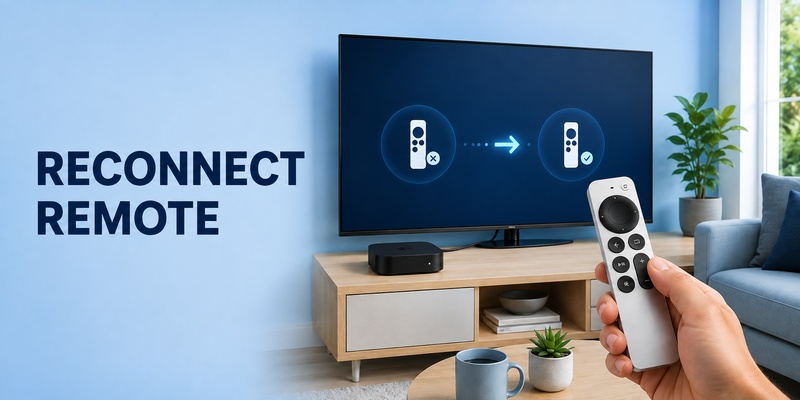
If your Apple TV remote was previously working but suddenly disconnected, you may not need to pair it from scratch.
Start with a remote restart.
1. Restart the Siri Remote
For supported Siri Remote and newer Apple TV Remote models:
- Press and hold TV/Control Center + Volume Down.
- Continue holding for about five seconds, or until the Apple TV status light turns off and back on.
- Release both buttons.
- Wait approximately 5–10 seconds.
- Press any button on the remote.
- Check whether Apple TV displays a Remote Connected notification.
This restarts the physical remote without erasing Apple TV apps or settings.
For more details, see our how to reset Apple TV remote guide.
2. Charge the Remote
If the Apple TV remote will not reconnect:
- Connect the remote to a compatible USB-C or Lightning cable.
- Charge it for at least 30 minutes.
- Disconnect the charging cable.
- Try reconnecting.
- If necessary, repeat the pairing button combination.
Older aluminum and white Apple Remotes use replaceable batteries instead of USB charging.
Read our Apple TV remote charging guide for model-specific instructions.
3. Restart Apple TV
If restarting the remote does not help:
- Unplug Apple TV from power.
- Wait at least six seconds.
- Reconnect power.
- Wait for Apple TV to finish starting.
- Attempt pairing again.
Restarting Apple TV is different from a factory reset.
A factory reset is not normally necessary to reconnect a remote.
4. Pair the Remote Again
Hold the remote close to Apple TV.
Press Back + Volume Up, or Menu + Volume Up on a first-generation Siri Remote.
Wait for the pairing message.
If prompted, place the remote on top of Apple TV.
5. Check Bluetooth Signal Strength
On supported Apple TV models running tvOS 18 or later:
- Open Settings.
- Select Remotes and Devices.
- Select Remote.
- Check the Bluetooth signal indicator if available.
Move closer to Apple TV and reduce interference from nearby devices.
Apple recommends remaining within approximately 20 feet (six meters) when troubleshooting signal problems.
💡 Discover Helpful Guides: Apple TV Remote Replacement: Buying and Setup Guide
How to Sync Apple TV Remote
People often search for how to sync an Apple TV remote when they want to connect a remote to a new Apple TV or restore a lost connection.
For newer Siri Remotes, syncing generally means pairing.
There is no separate content-syncing process required.
Sync a Siri Remote With Apple TV 4K
- Turn on Apple TV 4K.
- Position the remote near the device.
- Hold Back + Volume Up, or Menu + Volume Up on the appropriate model.
- Wait for the onscreen pairing notification.
- Test navigation.
An Apple TV 4K supports one paired Apple TV 4K remote at a time.
Pairing a new compatible remote can automatically unpair the previous one.
Sync a Replacement Apple TV Remote
If you purchased a replacement remote:
- Verify compatibility with your Apple TV model.
- Charge the remote if necessary.
- Turn on Apple TV.
- Move the replacement remote close to the device.
- Use the pairing button combination.
- Follow any onscreen instructions.
If the old remote disconnects after the new one pairs, this can be expected behavior on Apple TV 4K.
Can You Sync One Apple TV Remote With Two Apple TVs?
A Siri Remote is not intended to remain paired as the primary remote to multiple Apple TV 4K devices simultaneously.
To switch between devices, pair it with the Apple TV you want to control.
The previously paired Apple TV may lose its remote connection.
How to Pair an Older Apple Remote
Older aluminum and white Apple Remotes use infrared instead of the Bluetooth pairing method used by Siri Remotes.
They are commonly associated with earlier Apple TV generations.
Pair an Aluminum or White Apple Remote
- Turn on your compatible Apple TV.
- Point the remote toward the Apple TV device.
- Press and hold Menu + Right for six seconds.
- Look for the linked remote icon on the television.
- Test the remote.
Unpair an Older Apple Remote
If the remote is linked to the wrong device or needs to be reconnected:
- Point the remote toward Apple TV.
- Hold Menu + Left for six seconds.
- Look for the unlink icon.
- Hold Menu + Right for six seconds to link it again.
Older Apple Remote Not Responding
If the aluminum or white remote does not respond:
- Replace its coin-cell battery with the correct type.
- Remove obstacles blocking the infrared signal.
- Point the remote toward Apple TV.
- Restart Apple TV.
- Try unlinking and linking the remote again.
Do not use Siri Remote Bluetooth pairing instructions for an older infrared-only remote.
Apple TV Remote Pairing Not Working? Troubleshooting
If your Apple TV remote will not pair, identify the symptom before attempting more disruptive fixes.
| Problem | Possible Cause | Recommended Fix |
|---|---|---|
| No pairing message | Distance or wrong buttons | Move closer and retry |
| Remote does not respond | Low battery | Charge or replace battery |
| Remote disconnected | Temporary connection problem | Restart remote |
| Pairing fails repeatedly | Apple TV software or connection issue | Restart Apple TV |
| Replacement remote won’t pair | Compatibility issue | Check Apple TV model |
| New remote pairs, old remote stops working | Primary remote replaced | Expected on Apple TV 4K |
| Navigation works, volume fails | IR/CEC settings | Check Volume Control |
| Older Apple Remote does nothing | Battery or infrared issue | Replace battery and check IR |
1. Apple TV Remote Not Pairing After Charging
Check that the charging cable and power source work.
Charge the remote for at least 30 minutes, then retry pairing.
If the remote has visible damage or cannot charge, it may require service or replacement.
2. Apple TV Remote Won’t Pair After Restart
Unplug Apple TV for at least six seconds.
Reconnect power and wait for the device to start.
Move the remote close to Apple TV and repeat the pairing sequence.
3. Apple TV Remote Connected but Not Working
If Apple TV recognizes the remote but buttons do not respond:
- Restart the remote.
- Check the battery level.
- Move closer to Apple TV.
- Check Bluetooth signal strength if supported.
- Restart Apple TV.
- Pair the remote again.
For more detailed troubleshooting, read our Apple TV remote not responding guide.
4. Apple TV Remote Volume Not Working After Pairing
Pairing and volume control are separate functions.
If the remote navigates Apple TV correctly but cannot adjust volume:
- Open Settings on Apple TV.
- Select Remotes and Devices.
- Select Volume Control.
- Try the appropriate IR or HDMI-CEC option.
- Test Volume Up and Volume Down.
See our Apple TV remote volume troubleshooting guide for more help.
5. Apple TV Remote Keeps Disconnecting
Possible causes include:
- Low battery
- Weak Bluetooth signal
- Wireless interference
- Temporary tvOS problems
- Remote hardware issues
Move closer to Apple TV, restart the remote, and check for software updates.
If disconnections continue, test the remote with the Apple TV in an open, unobstructed position.
6. Apple TV Remote Pairing Not Working After a Software Update
Restart Apple TV and the remote.
If you can access Apple TV settings using another controller, check for additional tvOS updates.
Then retry pairing.
Avoid factory-resetting the Apple TV unless standard troubleshooting has failed and there is a separate reason to reset the device.
How to Pair Apple TV Remote Without the Original Remote
If your original remote is lost or broken, you can often use an iPhone or iPad as a temporary controller.
Use Apple TV Remote in Control Center
For a compatible Apple TV:
- Connect your iPhone or iPad to the same Wi-Fi network as Apple TV.
- Open Control Center.
- Tap the Apple TV Remote control.
- Select your Apple TV.
- Enter the displayed passcode if prompted.
- Use the onscreen controls to navigate.
The built-in iPhone remote works with Apple TV HD, Apple TV 4K, and supported AirPlay-compatible smart TVs.
For instructions, read our Apple TV remote for iPhone guide.
Pair a Replacement Physical Remote
Once your Apple TV is powered on:
- Bring the compatible replacement remote near Apple TV.
- Hold Back/Menu + Volume Up.
- Follow the pairing message.
- Test navigation.
You generally do not need the old remote to pair a compatible replacement.
What If Apple TV Is Not Connected to Wi-Fi?
If Apple TV is offline, your iPhone may not be able to discover it through Control Center.
You may need a compatible physical remote or another supported control method to restore access.
See our lost Apple TV remote guide for alternatives.
📘 Find the Right Guide: Apple TV Remote iPad: How to Set Up and Control Apple TV From Your iPad
FAQs About Pairing, Reconnecting, and Syncing Apple TV Remotes
How do I pair my Apple TV remote?
For a supported Siri Remote, hold it close to Apple TV and press Back + Volume Up, or Menu + Volume Up on the first-generation model, until pairing begins.
How do I reconnect an Apple TV remote?
Restart the remote using TV/Control Center + Volume Down for about five seconds. If it does not reconnect, pair it again.
How do I sync my Apple TV remote?
For a Siri Remote, syncing generally means pairing. Use Back/Menu + Volume Up near Apple TV.
What buttons pair an Apple TV Siri Remote?
Use Back + Volume Up on newer Siri Remotes or Menu + Volume Up on the first-generation Siri Remote.
How do I pair an old aluminum Apple Remote?
Point it toward a compatible Apple TV and hold Menu + Right for six seconds.
How do I unpair an old Apple Remote?
Hold Menu + Left for six seconds while pointing the remote at Apple TV.
Why won’t my Apple TV remote pair?
Common causes include low battery, incorrect button combinations, excessive distance, compatibility issues, or a temporary connection problem.
How long should I hold the pairing buttons?
Apple’s instructions vary slightly by guide. Hold the appropriate buttons for approximately 2–5 seconds or until the pairing notification appears.
Can I pair a replacement Apple TV remote without the old one?
Yes, provided the replacement is compatible with your Apple TV model.
Can two Siri Remotes be paired with one Apple TV 4K?
Apple TV 4K supports one paired Apple TV 4K remote at a time. Pairing another primary remote automatically unpairs the previous one.
Does reconnecting an Apple TV remote erase settings?
No. Restarting or re-pairing the remote does not erase Apple TV apps, accounts, or content.
Why does my remote work except for volume?
Volume may use infrared or HDMI-CEC instead of the connection used for navigation. Check the Volume Control settings.
Can I pair Apple TV using my iPhone?
You can use Apple TV Remote in Control Center on a compatible iPhone to control Apple TV and access settings, provided the devices can communicate over the network.
Should I factory-reset Apple TV if pairing fails?
Not initially. Try charging, restarting, re-pairing, and restarting Apple TV before considering a full factory reset.
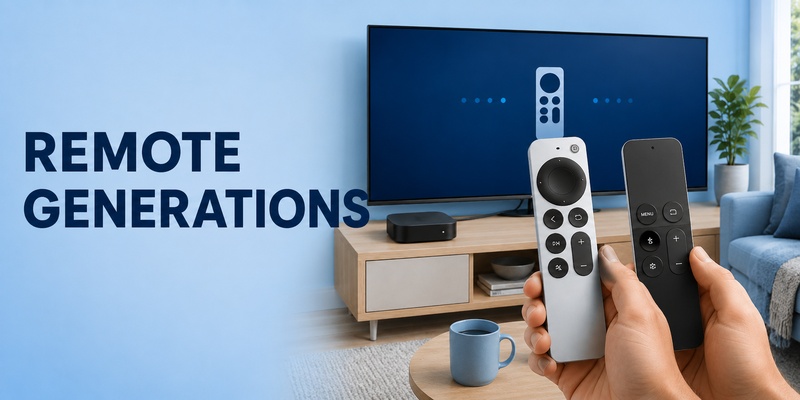
The most reliable way to learn how to pair apple tv remote is to remember three things: identify the remote generation, keep the remote close to Apple TV, and use the correct button combination. Newer silver Siri Remotes use Back + Volume Up, while the original black Siri Remote uses Menu + Volume Up.
If pairing does not work immediately, do not jump straight to replacement. Charge the remote, restart it with TV/Control Center + Volume Down, power-cycle Apple TV if needed, and then try how to pair apple tv remote again. A temporary apple tv remote disconnected state is often recoverable without changing your TV or network setup.
The same process covers most questions about replacement remotes, reconnecting after a drop, and moving a remote to another Apple TV. If you need a broader troubleshooting path, distinguish wireless pairing from physical damage: how to pair apple tv remote cannot repair a broken button or charging port.
When the physical controller is unavailable, use Apple TV Remote in iPhone or iPad Control Center whenever the devices can communicate on the same network. For compatible televisions and multi-device control, a Remote TV App can provide another phone-based option.
Once the remote is charged and close to the box, how to pair apple tv remote should usually take only a short button sequence rather than a complete Apple TV reset. In practice, a how to pair apple tv remote routine is a small maintenance skill worth remembering.
Download LG TV Remote