
Apple TV Remote Not Responding? What to Check First
If your Apple TV Remote Not Responding, do not start by repeatedly resetting or pairing it. First identify what has actually stopped working.
A Siri Remote that does nothing at all needs a different fix from one that still navigates Apple TV but cannot control volume. Likewise, a remote that worked yesterday but now keeps disconnecting is different from a new replacement remote that has never paired successfully.
Use this quick diagnosis first:
| What happens? | Likely direction | Start here |
|---|---|---|
| No buttons respond | Battery, connection, or remote state | Charge and test again |
| Remote appears frozen | Temporary remote state | Restart the remote |
| Remote previously worked but disconnected | Connection issue | Reconnect |
| New/replacement remote won’t connect | Pairing | Pair the remote |
| Works only close to Apple TV | Weak Bluetooth signal | Check signal strength |
| Navigation works but volume doesn’t | TV/audio control | Check Volume Control |
| Only one button fails | Button/hardware issue | Inspect the remote |
| Nothing helps after charging and pairing | Software or hardware | Update, restart Apple TV, consider service |
Apple’s current troubleshooting guidance follows the same general areas: pairing, restarting the remote, checking Bluetooth signal strength, charging the remote, and updating tvOS.
1. Identify What Is Not Responding
Before changing settings, test the remote.
Try:
- Moving left or right on the Apple TV Home Screen
- Pressing the center of the clickpad
- Pressing Back
- Pressing Play/Pause
- Adjusting volume
The results tell you a lot.
Nothing responds
If Apple TV does not react to navigation, Back, Play/Pause, or other Apple TV controls, start with:
Battery → remote restart → connection/pairing
Navigation works but volume does not
If you can still browse apps and open content, the Siri Remote is already communicating with Apple TV.
A volume-only problem is therefore usually not a reason to repeatedly reconnect the remote.
Volume can depend on:
- HDMI-CEC
- Infrared
- The television
- A soundbar
- An AV receiver
- Apple TV’s Volume Control setting
Treat that as a separate audio-control problem.
Remote works but keeps dropping out
If the remote reconnects and then disconnects again, focus on:
- Charge
- Bluetooth signal
- Distance
- Obstructions
- tvOS
That belongs to a connection-stability workflow rather than repeated initial pairing.
Download LG TV Remote2. Pair the Remote Again Before Trying Anything More Complex
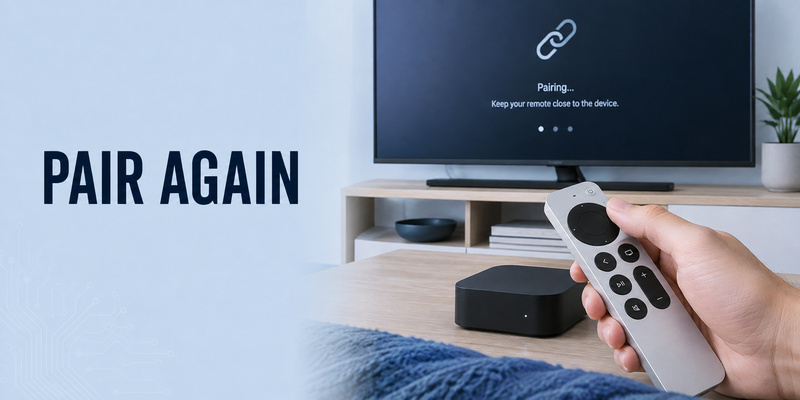
Apple’s current recommendation for apple tv remote not responding is to try pairing the remote again first. This is especially important if you recently replaced the remote, moved it between Apple TV boxes, saw a disconnected notification, or have not used the device for a while.
For newer Siri Remote models, bring the remote to about three inches from Apple TV and point it toward the front of the box. Press and hold Back and Volume Up for about five seconds. On a first-generation Siri Remote with a Menu button, hold Menu and Volume Up instead. If Apple TV asks you to place the remote on top of the box, do so until pairing finishes.
A reliable pairing sequence is:
- Turn on Apple TV.
- Bring the remote very close to the Apple TV box.
- Hold Back + Volume Up, or Menu + Volume Up on older remotes.
- Keep holding for about five seconds.
- Follow any pairing message on screen.
If my apple tv remote is not working because it lost its pairing, this can restore control immediately. If the remote does not pair, unplug Apple TV from power, wait about six seconds, reconnect it, and try the pairing sequence again. For apple tv remote not responding after the power cycle, restart the remote before another pairing attempt.
For a more pairing-specific troubleshooting path, see apple tv remote pairing not working. If the remote connects but drops again later, the guide to apple tv remote reconnect is the more relevant next step.
Do not repeatedly reset Apple TV when apple tv remote not responding is caused by a simple pairing loss. Re-pairing is faster, less disruptive, and should be tested before more invasive troubleshooting.
🛠️ Learn with Step-by-Step Guides: Apple TV Remote Icon: What It Means and How to Use It
3. Restart the Siri Remote or Apple TV Remote
A remote can still be paired with Apple TV but temporarily stop responding.
In that case, restart the remote rather than immediately pairing it from scratch.
For supported Siri Remote and Apple TV Remote models:
- Press and hold TV/Control Center + Volume Down.
- Keep holding for about 5 seconds, or until the Apple TV status light turns off and back on.
- Release the buttons.
- Wait 5–10 seconds.
- Press any button.
Apple says that when the connection returns, a Remote Connected notification should appear.
What if it still does not respond?
If the remote remains unresponsive after charging and restarting, check whether it is still paired.
For the complete restart/reset workflow, use your dedicated How to Reset Apple TV Remote guide instead of expanding that intent here.
💡 Discover Helpful Guides
Apple remote tv app: Complete Apple TV Remote Guide for iPhone, Siri Remote, Pairing & Fixes
4. If Apple TV No Longer Recognizes the Remote, Pair It Once
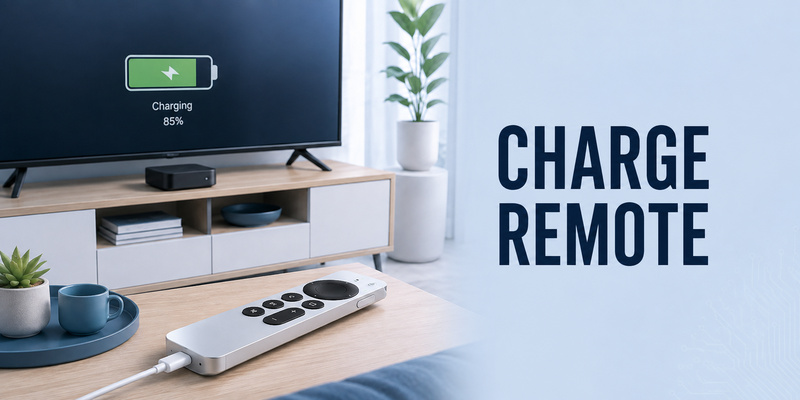
If no navigation controls work after charging and restarting, the connection may actually be lost.
Move the remote close to Apple TV.
Apple currently recommends keeping it within approximately 8 cm / 3 inches during pairing. Then hold:
Back + Volume Up
for about 5 seconds.
For older remotes with a Menu button, use:
Menu + Volume Up
If Apple TV asks you to place the remote on top of the Apple TV box, follow the onscreen instruction.
Do not keep pairing over and over
If the pairing works and the remote immediately starts controlling Apple TV, stop there.
If it pairs successfully but disconnects again later, the main issue is now connection stability, not initial pairing.
For new or replacement remotes that have never connected successfully, send the user to your dedicated How to Pair Apple TV Remote article.
💡 Discover Helpful Guides: Apple TV Remote Replacement: Buying and Setup Guide
5. Check Bluetooth Signal Strength and Remove Interference
If the remote pairs successfully but apple tv remote not responding happens from across the room, check signal quality. On Apple TV running tvOS 18 or later, Apple provides a Bluetooth signal-strength indicator for the remote under Settings > Remotes and Devices > Remote.
A weak Bluetooth RSSI reading suggests that the remote and Apple TV are struggling to maintain a reliable link. Apple recommends moving within about 20 feet, or roughly six meters, and removing objects that block the area around Apple TV, the television, receiver, or soundbar.
This is especially relevant when why isn’t my apple tv remote working has an answer that changes with distance. If the remote works perfectly from three feet away but becomes unreliable from the couch, replacing the remote before checking signal conditions would be premature.
For apple tv remote not responding mainly from the couch, compare behavior at close and normal viewing distances. Things to test include:
- Move closer to Apple TV.
- Reposition objects directly around the Apple TV box.
- Avoid hiding the box deep inside a closed cabinet while testing.
- Confirm whether performance changes when nearby equipment is moved.
- Check Bluetooth RSSI when tvOS provides the option.
| Test result | What it suggests | Next move |
| Strong signal, remote still fails | Pairing, battery, or remote state | Restart and re-pair |
| Weak signal improves nearby | Distance or obstruction | Reposition equipment |
| Signal good but only one button fails | Function-specific issue | Check button or setting |
| Remote disconnects at random | Charge or unstable connection | Charge, restart, then re-pair |
When apple tv remote not responding is distance-dependent, signal troubleshooting is more useful than resetting settings. It also explains why a remote may appear normal during setup next to the box but become unreliable during everyday use from the sofa.
💡 Discover Helpful Guides: How to Reset Your Apple TV Remote: Pairing, Volume, and No-Remote Fixes
6. Restart Apple TV and Update tvOS
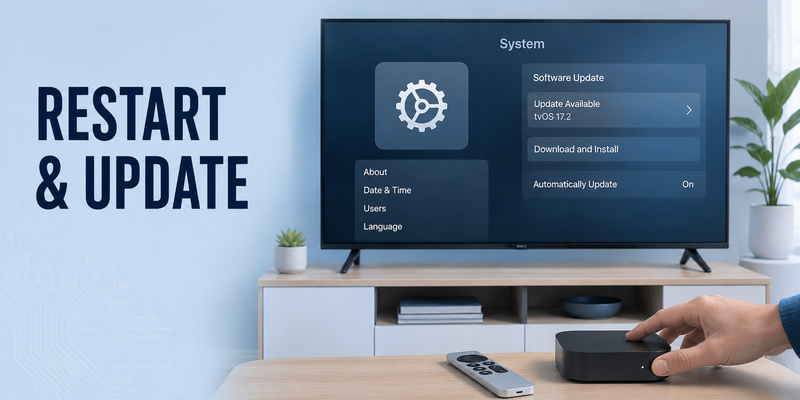
When apple tv remote not responding survives pairing, remote restart, charging, and signal checks, restart Apple TV itself. A temporary tvOS or Bluetooth service issue can sometimes affect how Apple TV communicates with an otherwise functional remote.
If you still have partial control, restart Apple TV from Settings. If you have no working remote at all, disconnect Apple TV from power, wait several seconds, and reconnect it. Apple specifically recommends a six-second power disconnect when a remote refuses to pair.
After Apple TV starts again, test the remote before making any additional changes. If needed, repeat the pairing procedure once. If apple tv remote not responding continues, confirm charge and signal again before moving toward replacement. Avoid stacking several resets together because you want to know which step actually changed the behavior.
Software also matters. Apple recommends updating Apple TV to the latest available tvOS version. If your physical remote cannot navigate the interface, you can use Apple TV Remote on an iPhone or iPad as a temporary controller, provided the mobile device and Apple TV can communicate on the same Wi-Fi network.
If apple tv remote stopped working shortly after a software change or long period without updates, confirming current tvOS is a sensible part of troubleshooting. An update is not a guaranteed fix for every remote problem, but it eliminates known software issues and keeps Apple’s latest remote support behavior in place.
A good sequence for persistent apple tv remote not responding is therefore: restart Apple TV, test, update tvOS if available, and test again. Only after those steps should you start considering a hardware failure or replacement remote. An apple tv remote not responding after Apple TV itself has restarted should then be tested again from close range before you assume the remote hardware has failed.
7. Fix One Button or Volume Control That Is Not Responding
Sometimes apple tv remote not responding describes only one feature. A search for apple tv remote not working can therefore refer to a single control rather than the whole remote. Navigation may work normally while volume, mute, power, or a physical button does nothing. That is not the same as the entire remote losing its connection.
For volume problems, Apple recommends restarting the remote first. If that does not help, go to Settings > Remotes and Devices > Volume Control and try a different available method. Depending on your setup, volume may be controlled through HDMI-CEC, infrared, a receiver, soundbar, or another audio device.
If only the volume controls are failing, see apple tv remote volume not working rather than repeatedly pairing the whole remote.
For a single physical button, inspect whether it feels different from the others. A button that sticks, fails to spring back, or requires unusual pressure may have debris or physical wear. Use a clean, dry, soft cloth around the surface. Do not pour liquid cleaner into the remote or pry under a button with a sharp tool.
If all navigation buttons respond but one key does not, the Bluetooth connection is probably not the main issue. If none of the buttons respond, return to pairing, restart, charging, and signal checks.
This distinction matters because apple tv remote not responding is a broad symptom. The most efficient fix comes from matching the troubleshooting step to what is actually failing instead of assuming every problem requires the same reset. When apple tv remote not responding refers only to one control, troubleshoot that control path before replacing the whole remote.
📖 Explore Articles: Apple TV Remote for iPhone: How to Set Up and Use Your iPhone as an Apple TV Remote
8. Use Your iPhone or iPad as a Temporary Apple TV Remote
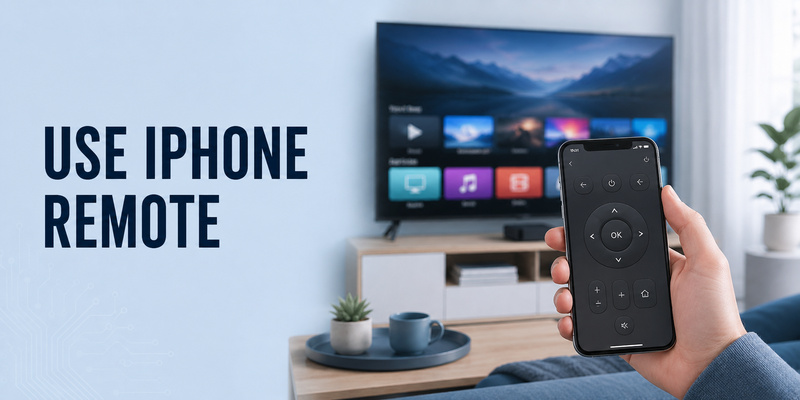
If the physical apple tv remote not responding problem prevents you from navigating Settings, an iPhone or iPad can provide a useful backup. Apple TV Remote is available through Control Center on supported Apple mobile devices.
Open Control Center, add or select Remote, then choose your Apple TV. If prompted, enter the passcode shown on the television. For setup and troubleshooting, Apple says the iPhone or iPad should be on the same Wi-Fi network as Apple TV.
The phone remote lets you navigate menus, enter text, start playback, and reach settings while you work on the physical controller. During apple tv remote not responding troubleshooting, this keeps access to diagnostics and software updates available. It is especially useful for checking tvOS updates, restarting Apple TV through Settings, or verifying whether Apple TV itself is functioning normally.
If my apple tv remote is not working but the iPhone controller works immediately, that is useful diagnostic information. It suggests Apple TV is operational and narrows the problem toward the physical remote, its pairing, its charge, or its signal.
For a dedicated walkthrough, see how to use Apple TV remote on iPhone. If you want broader phone-based television control across supported devices, a Remote TV App can also serve as a convenient backup depending on your TV platform and connection setup.
It also gives you a way to reach Settings while apple tv remote not responding prevents normal navigation.
9. Frequently Asked Questions
Why is my Apple TV remote suddenly not responding?
The most common areas to check are pairing, battery charge, remote state, and Bluetooth signal. Start by pairing the remote close to Apple TV. If that fails, restart the remote, charge it for at least 30 minutes, and check signal strength when available.
What should I do if my Apple TV remote quit working completely?
If apple tv remote quit working with no buttons responding, charge it first if battery status is uncertain, then try pairing with Back/Menu + Volume Up. If pairing fails, restart the remote with TV/Control Center + Volume Down and try pairing again.
Why is my Apple TV remote not working but my iPhone remote works?
If why is my apple tv remote not working while the iPhone remote works normally, Apple TV itself is probably still reachable. Focus on the physical remote: charge it, restart it, re-pair it, and check Bluetooth signal strength before considering hardware replacement.
Do I need to reset my entire Apple TV when the remote stops responding?
No. A full Apple TV reset is usually unnecessary for apple tv remote not responding. Start with remote pairing, remote restart, charging, and Apple TV restart. These steps preserve your apps and settings while testing the most common connection problems first. For most apple tv remote not responding cases, a full erase of Apple TV would be far more disruptive than the problem requires.
Can a Remote TV App replace the physical Apple TV remote?
A Remote TV App can be a useful phone-based option for compatible televisions, while Apple’s built-in Apple TV Remote in iPhone or iPad Control Center is the primary Apple-specific backup. Compatibility and available controls depend on the device and network setup.
📘 Find the Right Guide: Apple TV Remote iPad: How to Set Up and Control Apple TV From Your iPad
10. Final Thoughts
When apple tv remote not responding, the fastest solution is usually a structured troubleshooting sequence rather than a factory reset. Start by pairing the remote again close to Apple TV. If that fails, restart the remote with TV/Control Center + Volume Down, then test the connection again. Keeping that order makes apple tv remote not responding easier to diagnose because every step tests a different failure point.
Next, charge the remote for at least 30 minutes, check Bluetooth signal strength, reduce distance and obstructions, and restart Apple TV. If the remote works except for volume or one button, troubleshoot that function separately instead of treating the entire remote as disconnected.
The pattern behind remote-control complaints is that several different problems can produce the same symptom. Pairing loss, low charge, weak Bluetooth signal, tvOS state, and physical button damage each require a different fix.
If the physical remote remains unusable, Apple TV Remote on iPhone or iPad can keep your Apple TV accessible while you troubleshoot. A compatible Remote TV App can also provide broader phone-based TV control for supported setups. This backup is especially practical when apple tv remote not responding blocks access to the settings you need for further diagnosis.
In most cases, apple tv remote not responding can be narrowed down without replacing the entire Apple TV box. Work through pairing, restart, charging, signal, software, and individual-button checks in that order, and only move to repair or replacement when the evidence points to a genuine hardware problem. If apple tv remote not responding remains after every connection and power test, hardware service becomes a much more reasonable next step.
Download LG TV Remote