
Apple TV Remote Charge: How to Charge, Check Battery & Fix Issues
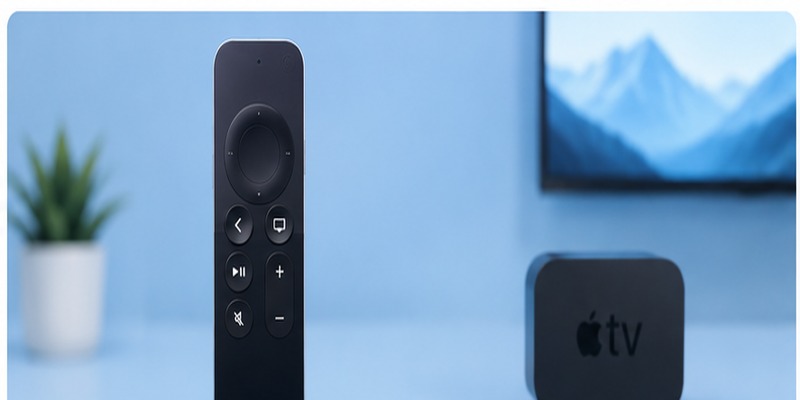
An Apple TV Remote charge takes about three hours for a full recharge, and the cable you need depends on which Siri Remote generation you own.
The Siri Remote 3rd generation charges via USB-C, while the 1st and 2nd generations use Lightning. Older aluminum and white Apple Remotes do not recharge; they use replaceable coin-cell batteries.
For a normal Apple TV Remote charge, connect the correct cable to a compatible USB power source and leave the remote connected. You can check the battery level on Apple TV under Settings → Remotes and Devices → Remote.
This guide covers Apple TV Remote charging time, compatible cables, battery checks, common charging problems, and what to do when the remote still does not work after charging.
1. Apple TV Remote Charge: Which Remotes Are Rechargeable?
Before connecting a cable, identify which Apple TV remote you own. Apple has released several generations, and they do not all use the same battery or charging system.
| Apple TV remote | How to identify it | Battery | Charging method |
|---|---|---|---|
| Siri Remote 3rd generation | Silver, touch-enabled clickpad | Built-in rechargeable battery | USB-C |
| Siri Remote 2nd generation | Silver, touch-enabled clickpad | Built-in rechargeable battery | Lightning |
| Siri Remote 1st generation | Black, glass Touch surface | Built-in rechargeable battery | Lightning |
| Apple Remote – aluminum | Older silver design | Replaceable coin battery | Does not charge |
| Apple Remote – white | Older white design | Replaceable coin battery | Does not charge |
According to Apple Support, the 3rd-generation Siri Remote uses USB-C. The 1st- and 2nd-generation Siri Remotes have rechargeable internal batteries but use a Lightning connector.
Older Apple Remotes work differently. The aluminum model uses a replaceable CR2032 or BR2032 3V coin battery, while the older white Apple Remote uses a CR2032 battery.
This distinction matters because an Apple TV Remote charge is only relevant to rechargeable Siri Remote models.
If your remote has no charging port on the bottom, do not keep looking for a USB cable. You probably need to replace its coin-cell battery instead.
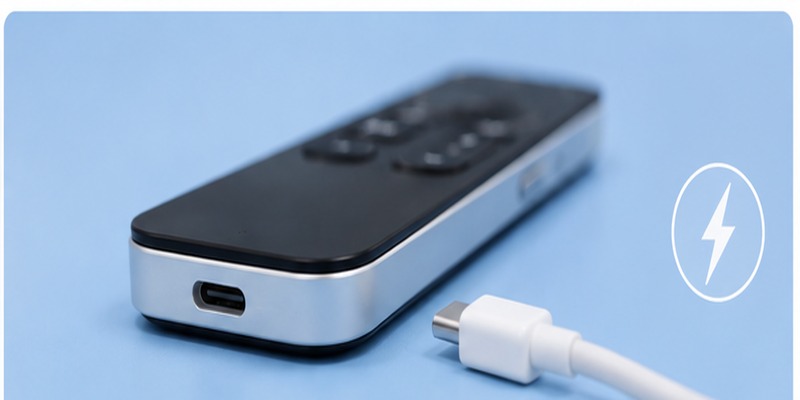
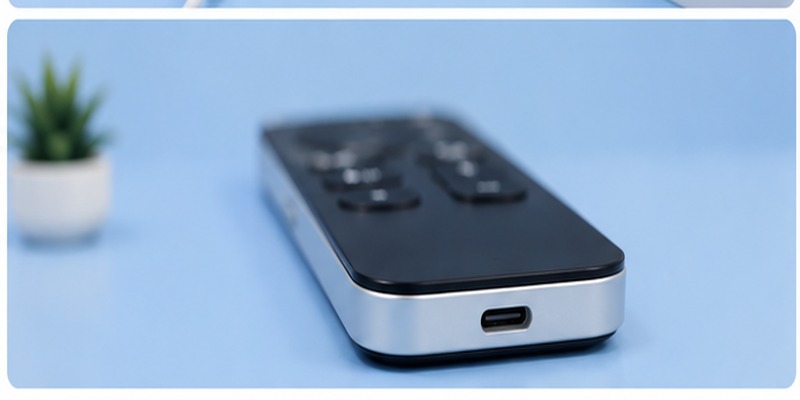
The easiest way to tell the 2nd- and 3rd-generation silver Siri Remotes apart is to inspect the charging port:
- USB-C port → 3rd generation
- Lightning port → 2nd generation
That simple check can prevent you from buying the wrong cable.
2. What Charger Does an Apple TV Remote Use?
You do not need a special Apple TV-branded power adapter to charge a Siri Remote.
What matters is the connector on the remote.
Siri Remote 3rd Generation: USB-C
The latest Siri Remote has a USB-C charging port on the bottom.
Use a compatible USB-C cable and connect it to a suitable power source, such as:
- USB-C wall adapter
- Computer
- Laptop
- Powered USB port
A standard compatible USB power source is sufficient for an Apple TV Remote charge.
You do not need a high-wattage MacBook charger or a dedicated “Apple TV Remote charger.”
Siri Remote 1st and 2nd Generation: Lightning
The 1st- and 2nd-generation Siri Remotes use Lightning.
Depending on the power adapter you have, you can use:
- Lightning to USB-A
- USB-C to Lightning
The connector going into the remote must be Lightning.
This is especially important with the silver Siri Remote because the 2nd- and 3rd-generation models can look very similar from a distance.
Do not assume that every silver Siri Remote uses USB-C.
Inspect the charging port before buying a replacement cable.
💡 Discover Helpful Guides: Apple remote tv app: Complete Apple TV Remote Guide for iPhone, Siri Remote, Pairing & Fixes
3. How to Complete an Apple TV Remote Charge
Charging a Siri Remote only takes a few steps.
Step 1: Identify the charging port
Look at the bottom of the remote.
You should see either:
- A USB-C port
- A Lightning port
If there is no charging port, you may have an older Apple Remote with a replaceable battery.
Step 2: Connect the correct cable
Insert the matching charging cable into the remote.
The connector should fit easily without excessive pressure.
Step 3: Connect the other end to power
Plug the cable into a compatible USB power source, such as:
- Wall charger
- Computer
- Laptop
- Power bank
- USB hub
Step 4: Leave the remote connected
If the battery still has some power, the remote may become usable quickly.
If the battery is fully drained, give it at least 30 minutes before testing it again.
Step 5: Check the battery percentage
On Apple TV, go to:
Settings > Remotes and Devices > Remote
The displayed battery level can help confirm whether the Apple TV Remote charge is working.
💡 Discover Helpful Guides: Apple TV Remote Replacement: Buying and Setup Guide
4. Apple TV Remote Charge Time: How Long Does It Take?
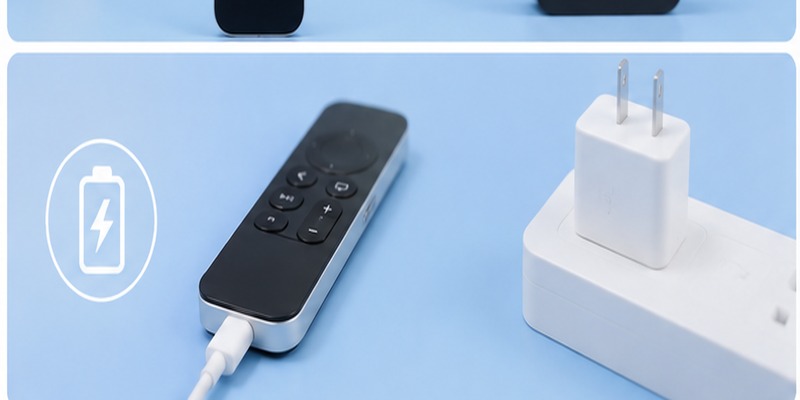
A full Apple TV Remote charge takes about three hours.
You may be able to use the remote much sooner if you only need enough power to continue watching TV, but approximately three hours is the useful benchmark for a full recharge.
You also should not need to charge a healthy Siri Remote very often.
Apple states that the Apple TV 4K remote generally needs charging only a few times per year under typical use. The rechargeable battery in current Siri Remote models is designed to last for months between charges in normal daily use.
Actual battery life varies depending on:
- How often you use the remote
- Siri usage
- Navigation frequency
- Remote age
- Battery condition
- How often it controls other devices
A remote that lasts for weeks or months between charges is behaving very differently from one that needs charging every two or three days.
If your Apple TV Remote charge lasts only a short time even after reaching a high battery percentage, the internal battery may be aging.
Before replacing the remote, however, verify that it is actually reaching a full charge and that the charging cable or port is not intermittently disconnecting.
5. How to Check Apple TV Remote Battery Level
Apple TV lets you check the Siri Remote battery percentage directly.
Open:
Settings → Remotes and Devices → Remote
Look for Battery Level.
This is useful before, during, and after an Apple TV Remote charge.
For example, if the remote shows 12% before charging, connect it to power and check again later.
If the level moves from 12% to 35%, the remote is receiving power.
If it remains at 12% after a reasonable charging period, investigate the:
- Cable
- Power adapter
- Charging port
- Remote battery
Apple TV may also display a low-battery warning when the Siri Remote needs charging.
Checking the actual percentage is more useful than waiting until the remote becomes completely unresponsive. Charging while some battery remains also means you can quickly verify whether the battery percentage is increasing.
💡 Discover Helpful Guides: Lost Apple TV Remote? How to Find It Fast and Keep Watching
6. How to Know If Your Apple TV Remote Is Charging
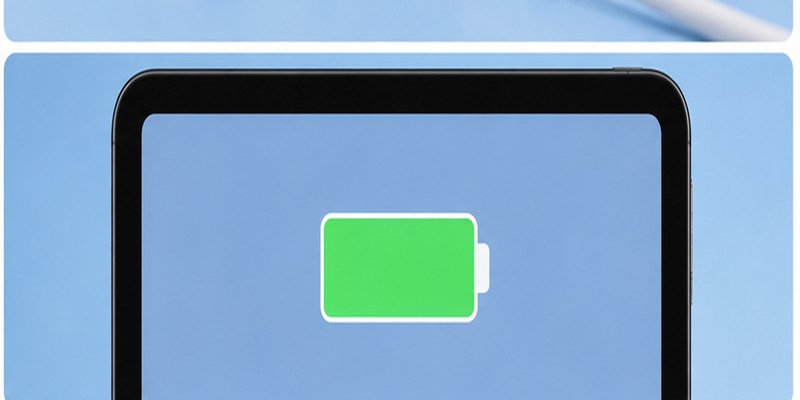
The Siri Remote does not have a large display showing a charging animation, so it is understandable to wonder whether power is actually reaching the battery.
The most reliable test is simple.
First, check:
Settings → Remotes and Devices → Remote
Note the current battery percentage.
Then connect the remote to power and leave it charging.
Check the battery percentage again later.
If it increases, the Apple TV Remote charge is working.
For example:
Before charging: 18%
After charging: 46%
That confirms that the cable, charging connector, and internal battery are receiving power.
Do not rely on searching for a dedicated charging LED.
Apple’s own guidance directs users to the battery information shown through Apple TV.
You can also continue using the Siri Remote while it is connected to the charger. If the remote responds normally while plugged in, that behavior is expected.
7. Apple TV Remote Charge Not Working: Quick Fixes
If your Apple TV Remote charge is not working, start with the charging path before assuming the battery has failed.
| Problem | Likely cause | First fix |
|---|---|---|
| Battery percentage never rises | Cable or power problem | Try another known-working cable |
| Still no charge | Faulty USB source | Try another adapter or USB port |
| Connector feels loose | Port debris/damage | Inspect the charging port |
| Cable does not fit correctly | Wrong connector | Check USB-C vs Lightning |
| Charges but drains very quickly | Aging battery | Monitor battery life after full charge |
| Battery rises but remote does not work | Not a charging problem | Check pairing/reset |
Try Another Cable
Start with the easiest test.
USB-C and Lightning cables can fail internally even when they look perfectly normal from the outside.
Connect another known-working cable of the correct type.
If the battery percentage begins increasing, the original cable was likely the problem.
Try Another Power Source
If changing the cable does not help, use another USB power source.
Try:
- Another wall adapter
- Another computer USB port
- Another powered USB connection
This helps determine whether the charger rather than the Siri Remote is causing the failed Apple TV Remote charge.
Inspect the Charging Port
Look inside the USB-C or Lightning port.
Dust or debris can prevent the connector from sitting properly.
A damaged or unusually loose port can also interrupt charging.
Do not insert metal objects into the port.
If debris is visible, clean carefully without damaging the contacts.
Confirm USB-C vs Lightning
This mistake is particularly easy with the silver Siri Remote.
Remember:
Siri Remote 2nd generation → Lightning
Siri Remote 3rd generation → USB-C
Check the port itself instead of identifying the model only by its silver appearance.
Allow Enough Charging Time
If the battery is extremely low, leave the remote connected rather than testing it every few minutes.
Apple gives approximately three hours as the full charging time.
Check the battery level again after giving the remote enough time to recover.
💡 Discover Helpful Guides: Apple TV Remote Buttons Explained: Home, Menu, Power, Control Center
8. Apple TV Remote Charging but Not Working
A successful Apple TV Remote charge does not guarantee that every remote problem will disappear.
If the battery has power but the remote still does not control Apple TV, the issue may involve pairing, Bluetooth, or the buttons themselves.
Move closer to Apple TV
Bring the Siri Remote closer to the Apple TV box.
Then try using the navigation buttons again.
Restart the remote
Restarting a compatible Siri Remote can help resolve temporary connection problems.
After restarting it, allow a moment for the remote to reconnect.
Pair the remote again
If the remote has lost its connection to Apple TV, you may need to pair it again.
Bring the remote close to the Apple TV and follow the pairing instructions displayed on the television.
Restart Apple TV
A temporary software or Bluetooth issue on Apple TV itself can also cause the remote to appear unresponsive.
Go to:
Settings > System > Restart
Check individual buttons
If most buttons work but one does not, charging is probably not the problem.
For example:
- Volume button does not respond
- Power button does not work
- Clickpad behaves incorrectly
- Back button does not respond
These symptoms point more toward button, HDMI-CEC, TV compatibility, or hardware issues.
9. How Long Does an Apple TV Remote Battery Last?
A healthy Siri Remote should not need charging every few days.
Under normal use, a rechargeable Siri Remote can typically operate for months between charges, although real battery life varies.
Battery life depends on factors such as:
- How frequently you use Apple TV
- Siri usage
- Remote age
- Battery health
- Wireless activity
- Overall usage patterns
After a full Apple TV Remote charge, most users should be able to use the remote for an extended period before seeing another low-battery warning.
If the battery suddenly starts draining within a few days, possible causes include:
- Battery degradation
- Charging failure
- Software issues
- Connection problems
- Hardware damage
Rechargeable batteries naturally lose capacity as they age.
📘 Find the Right Guide:
Android TV Remote Control iOS: How to Control Android TV From an iPhone
10. Apple TV Remote Charge FAQs
How Long Does an Apple TV Remote Charge Take?
A full Apple TV Remote charge takes approximately three hours, according to Apple. You can use the Siri Remote before it reaches 100%, and it can continue operating while connected to a charging cable.
What Charger Does an Apple TV Remote Use?
It depends on the generation.
The Siri Remote 3rd generation uses USB-C, while the 1st and 2nd generations use Lightning. Older aluminum and white Apple Remotes use replaceable coin-cell batteries and are not rechargeable.
Can I Charge an Apple TV Remote With an iPhone Charger?
Yes, as long as the cable connector matches the Siri Remote and the adapter provides a compatible USB power connection.
You do not need a dedicated Apple TV Remote charger.
How Do I Know When the Apple TV Remote Is Charging?
Check:
Settings → Remotes and Devices → Remote
Note the battery percentage before charging and check it again later. An increasing percentage confirms that the remote is receiving power.
Does the Apple TV Remote Have a Charging Light?
The Siri Remote does not rely on a prominent charging indicator like many other rechargeable accessories.
Checking the battery percentage through Apple TV is the most reliable way to confirm the Apple TV Remote charge.
Can You Replace the Apple TV Remote Battery?
Modern rechargeable Siri Remotes use an internal battery that is not designed for routine user replacement.
If the battery no longer holds a useful charge after you have ruled out cable, charger, and port problems, service or remote replacement may be necessary.
Final Takeaway
The most important part of Apple TV Remote charge is identifying the correct connector. Newer Siri Remote models use USB-C, while earlier rechargeable generations use Lightning.
If your remote is completely dead, give it at least 30 minutes of charging before troubleshooting further. Then check the battery percentage under Settings > Remotes and Devices > Remote.
If the battery level increases but the remote still does not work, the problem is probably no longer charging-related. Move on to checking pairing, Bluetooth connection, button problems, or the Apple TV itself.
[aa_cta title=”Download Authenticator App” text=”Secure your accounts with fast, reliable two-factor authentication. Download now and protect your login in seconds.” button_text=”Download Now” button_url=”https://authenticator-app.begamob.com/download-app/?utm_source=Post&utm_campaign=SEO&utm_content=SEO”]
