
Apple TV Remote for iPhone: Where to Find It and How to Set It Up
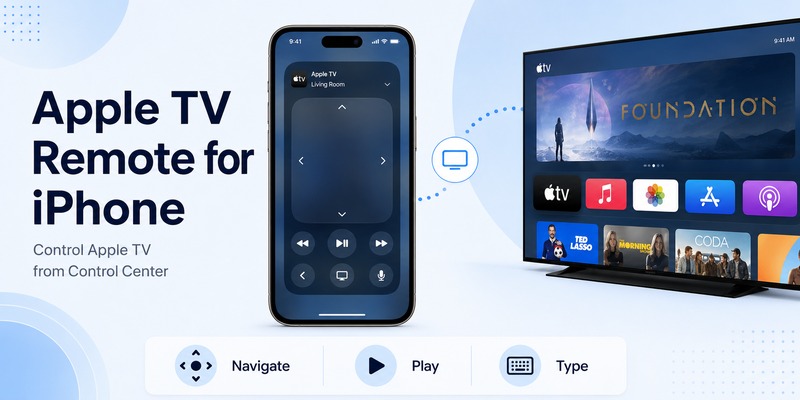
Losing your Apple TV remote does not mean you have to stop watching TV until you find it. If you have an iPhone nearby, Apple already provides a built-in apple tv remote for iphone that can control compatible Apple TV devices directly from Control Center.
There is no need to search through the App Store for an official standalone remote application. On modern versions of iOS, Apple TV Remote is integrated into Control Center. You can use it to move around the Apple TV interface, select apps, control playback, return to the Home Screen, use Siri-related controls where supported, and enter text more easily with your iPhone.
Apple says its Control Center remote works with Apple TV 4K, Apple TV HD, and supported AirPlay-compatible smart TVs.
That makes apple tv remote for iphone useful not only when your physical Siri Remote is lost but also when you simply prefer using a touchscreen.
This guide explains where the remote is located, how to set it up, how pairing works, what you can control, and how to troubleshoot common connection problems.
1. What Is Apple TV Remote for iPhone?
The apple tv remote for iphone is a software-based remote control built into iOS.
Instead of requiring a separate physical remote, your iPhone displays a touch-based interface that can communicate with a compatible Apple TV over your network.
If you are wondering what is apple tv remote on iphone, think of it as a virtual version of many of the controls available on the Siri Remote.
The interface provides a large touch area for navigation along with controls for common Apple TV actions. Depending on your Apple TV, software version, audio equipment, and configuration, you can navigate menus, select content, control playback, adjust compatible audio systems, and access additional controls.
Apple currently says the Control Center remote supports:
- Apple TV 4K
- Apple TV HD
- AirPlay-compatible smart TVs that meet Apple’s requirements
For an AirPlay-compatible smart TV, Apple instructs users to add the television to the Home app and assign it to a room before using it with the remote.
One important advantage of apple tv remote for iphone is convenience. Your iPhone is often already in your hand, so you do not need to find another device before pausing a show or searching for something to watch.
It can also be especially useful when typing passwords, email addresses, search terms, or other longer text because using an iPhone keyboard is often faster than selecting letters individually on a television screen.
Download TV Remote App2. Where to Find Apple TV Remote for iPhone
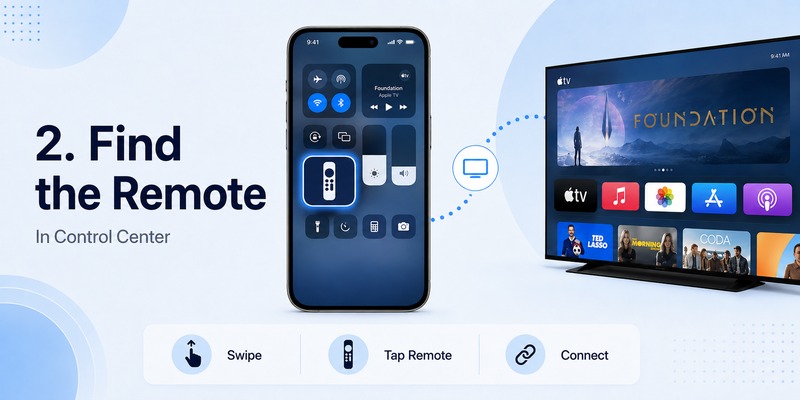
If you are searching where is apple tv remote on iphone, look in Control Center, not in the App Store or on the iPhone Home Screen.
On current Face ID-equipped iPhones:
- Swipe down from the top-right corner of the screen.
- Look for the Remote control.
- Tap it to open Apple TV Remote.
On older iPhones with a Home button, Control Center may be opened by swiping upward from the bottom edge, depending on the iPhone and iOS version.
The Apple TV Remote for iPhone is therefore different from a traditional standalone app. It is integrated into iOS and designed to be opened quickly from Control Center.
If you cannot see the Remote icon, that does not necessarily mean your iPhone lacks the feature.
It may simply need to be added to your Control Center layout.
This is also why searching the App Store for an official Apple TV Remote download can be confusing. On current iPhones, the primary Apple-provided remote experience is already built into the operating system.
If your search intent is specifically about downloading it, see how to download apple tv remote on iphone.
💡 Discover Helpful Guides
Apple remote tv app: Complete Apple TV Remote Guide for iPhone, Siri Remote, Pairing & Fixes
3. How to Add Apple TV Remote to Control Center
If the Remote control is missing, add it before trying to connect your Apple TV.
On current iOS versions, Apple instructs users to customize Control Center directly.
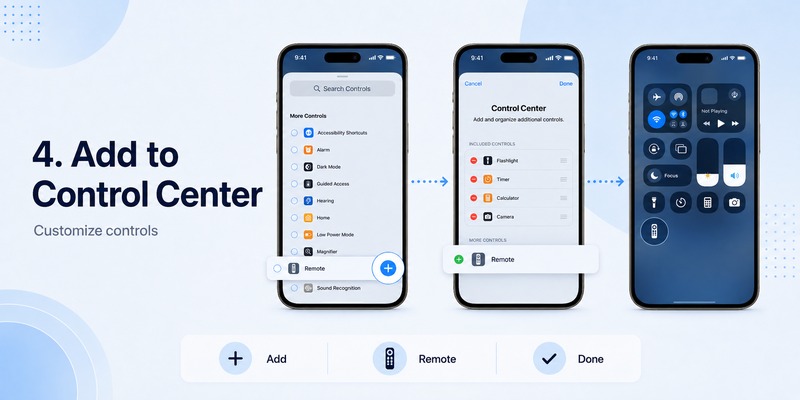
On Current iOS Versions
- Swipe down from the top-right corner to open Control Center.
- Tap Add Controls.
- Choose Add a Control.
- Search for Remote, or scroll until you find it.
- Tap Remote to add it.
Once added, you can position the control somewhere convenient in your Control Center layout.
If you use Apple TV regularly, keeping Remote near your playback or connectivity controls can save a few taps every time you want to use your iPhone as Apple TV remote.
On iOS 17 and Earlier
Apple’s instructions are different for older iOS versions.
Go to:
Settings → Control Center → Apple TV Remote → Add
This distinction is useful because many older tutorials still tell everyone to open Settings → Control Center.
If you have a newer iPhone and cannot find the option there, customize Control Center itself instead.
You normally need to add the control only once.
After that, Apple TV Remote for iPhone should remain available from Control Center whenever you need it.
💡 Discover Helpful Guides: Apple TV Remote Replacement: Buying and Setup Guide
4. How to Set Up Apple TV Remote for iPhone
Once Remote appears in Control Center, connecting your iPhone is straightforward.
Before you begin, confirm that your iPhone and Apple TV are using the same Wi-Fi network.
Then follow these steps.
Step 1: Open Control Center
Swipe down from the top-right corner of your iPhone screen.
Tap Remote.
Step 2: Choose Your Apple TV
The Remote interface displays compatible devices it can discover.
Tap the Apple TV you want to control.
If you have Apple TVs in several rooms, make sure you select the correct one.
Giving devices clear room names in your Apple Home setup can make this much easier.
Step 3: Enter the Four-Digit Passcode
If Apple TV asks you to pair the devices, a four-digit passcode appears on the television screen.
Enter that code on your iPhone.
You do not normally need to open a separate Bluetooth pairing menu.
Step 4: Test the Connection
After pairing, swipe across the Remote’s touch area.
The selected item on the TV should move as you navigate.
Tap an item to confirm that selection works.
At this point, your Apple TV Remote for iPhone is ready for basic everyday control.
For detailed gestures, buttons, playback controls, switching devices, and keyboard functions, continue with how to use apple tv remote on iphone.
💡 Discover Helpful Guides: How to Reset Your Apple TV Remote: Pairing, Volume, and No-Remote Fixes
5. Does Apple TV Remote Work on iPhone 16 and Newer iPhones?
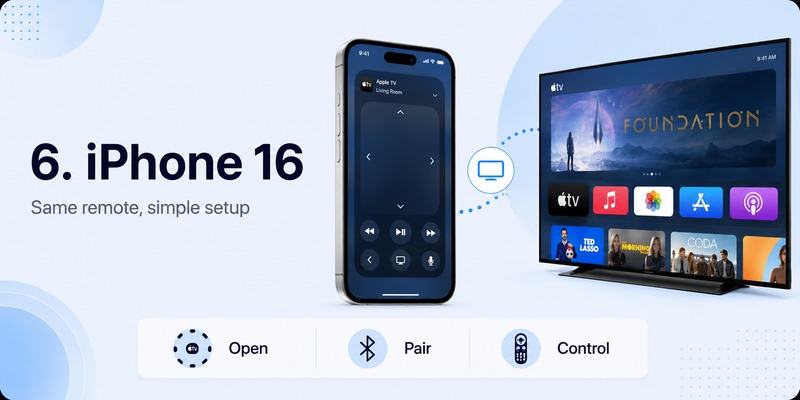
Recent iPhones use the same built-in Control Center Remote.
On an iPhone 16 or another recent Face ID model:
Swipe down from top-right → Remote → Select Apple TV
If Remote is missing, add it through Control Center as described above.
The process is determined mainly by the version of iOS rather than by whether you have an iPhone 16, iPhone 15, or another recent model.
This also means you should be cautious with pages suggesting that a special “Apple TV Remote for iPhone 16” download is required.
For Apple’s built-in Apple TV control, it is not.
Keeping both iOS and tvOS updated is more important than looking for a model-specific remote app.
7. What Can You Control After Connecting?
Once Apple TV Remote for iPhone is connected, it covers the everyday functions most people need when their physical Siri Remote is unavailable.
| Function | iPhone Remote |
|---|---|
| Menu navigation | Yes |
| Select/open content | Yes |
| Playback controls | Yes |
| Back/navigation controls | Yes |
| Text input | Yes |
| Switch between Apple TVs | Yes |
| Volume | Depends on audio setup |
| All physical Siri Remote functions | Not always |
Text input is one of the most useful advantages.
When Apple TV requests text, using the iPhone keyboard is usually much faster than moving around an onscreen keyboard with directional controls.
Volume is more dependent on your setup.
Apple says the volume buttons in its Control Center remote can control volume when Apple TV is configured with supported equipment such as a HomePod, soundbar, or other AirPlay-compatible speakers.
If your setup does not support that arrangement, you may still need the physical television or audio-system remote for volume.
This is why Apple TV Remote for iPhone is an excellent replacement for many everyday tasks without necessarily reproducing every function of a physical Siri Remote.
🧭 Explore Guides: How to Reset Your Apple TV Remote: Pairing, Volume, and No-Remote Fixes
8. Apple TV Remote for iPhone Not Connecting: Quick Fixes

If Apple TV does not appear or your iPhone refuses to connect, start with the network rather than repeatedly opening and closing the Remote.
Apple’s current troubleshooting guidance prioritizes three checks:
same Wi-Fi → software updates → restart devices.
| Problem | First thing to check |
|---|---|
| Apple TV not listed | Confirm both devices use the same Wi-Fi |
| Remote control missing | Add Remote to Control Center |
| Pairing code does not complete | Retry connection and passcode |
| Remote previously worked | Restart Apple TV and iPhone |
| Connection remains unstable | Update iOS and tvOS |
Check the Same Wi-Fi Network
On iPhone, open:
Settings → Wi-Fi
On Apple TV, check:
Settings → Network
Make sure both devices are connected to the same home network.
Be especially careful with guest Wi-Fi networks. Two devices can appear to be connected to the same router while network isolation prevents them from discovering each other.
Update iPhone and Apple TV
If setup still fails, update your iPhone to the latest compatible version of iOS and Apple TV to the latest available version of tvOS.
Software mismatches or temporary bugs can interfere with device discovery.
Restart Both Devices
Restart your iPhone and Apple TV, then reopen Control Center and try again.
If the problem goes beyond basic setup—such as repeated searching, volume problems, or an iOS-specific connection issue—see the dedicated apple tv remote ios troubleshooting guide.
🗺️ Browse How-To Guides: How to Use an Apple TV Remote: Buttons, Navigation, Power, and Everyday Shortcuts
9. Can Your iPhone Replace the Siri Remote?
For many everyday tasks, yes.
An Apple TV Remote for iPhone is particularly useful when:
- Your Siri Remote is lost
- The physical remote is charging
- You already have your phone in your hand
- You need to type a password or search phrase
- Several people in the household want access to Apple TV controls
- You want a convenient backup remote
The iPhone also removes one of the most annoying parts of losing a remote: waiting to buy a replacement before you can comfortably navigate Apple TV again.
However, there are reasons to keep a physical apple tv siri remote.
A Siri Remote provides physical buttons, a dedicated clickpad, immediate access without unlocking a phone, and hardware designed specifically around Apple TV.
If your original remote is permanently lost or damaged and you prefer physical controls, see the apple tv remote replacement guide.
The iPhone is therefore best viewed as a strong alternative or backup—not necessarily a reason every user should stop using the Siri Remote.
📖 Explore Articles: Lost Apple TV Remote? How to Find It Fast and Keep Watching
10. Can Apple TV Remote for iPhone Replace the Siri Remote?
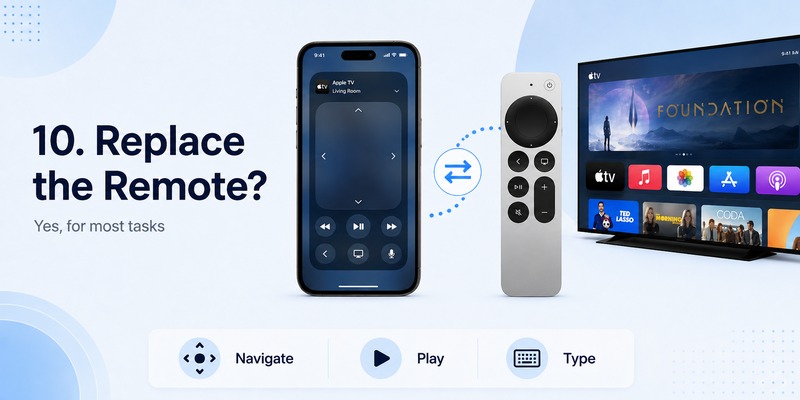
For many everyday tasks, yes.
You can use apple tv remote for iphone for navigation, selection, playback, and other common Apple TV functions.
If you regularly keep your phone nearby, you may even find yourself using it more often than the physical remote.
However, the iPhone is not always a perfect replacement.
A physical Siri Remote offers tactile controls that you can operate without looking at a touchscreen. It also does not require you to unlock or access another device before controlling the television.
Battery state is another consideration. If your iPhone is charging in another room or has no battery left, a physical remote remains more convenient.
The best setup is often to use both.
Keep the Siri Remote available for everyday television control while using apple tv remote for iphone when you need fast text input, cannot locate the physical remote, or already have your phone in hand.
Interestingly, recent Apple TV and iPhone software can also help locate certain physical Apple TV remotes.
Apple says an iPhone running iOS 17 or later can help locate a compatible Siri Remote or Apple TV Remote, such as supported second-generation or later models. The iPhone displays proximity feedback as you move closer.
So your iPhone can potentially serve both as the remote and as a tool for finding the missing physical one.
💡 Discover Helpful Guides: Apple TV Remote Not Responding? 10 Practical Fixes to Get It Working Again
11. Frequently Asked Questions About Apple TV Remote for iPhone
Is Apple TV Remote Already on iPhone?
Yes. On supported iPhones, Apple TV Remote is integrated into Control Center. You normally do not need to install a separate official remote app from the App Store.
Do I Need to Download Apple TV Remote for iPhone?
Normally, no. Open Control Center and look for Remote. If it is not visible, add the Remote control to your Control Center layout rather than searching for a separate Apple app.
Where Is Apple TV Remote on iPhone?
Open Control Center. On current Face ID iPhones, swipe down from the upper-right corner and tap Remote. If the icon is missing, use Add Controls to add it.
Does My iPhone Need to Be on the Same Wi-Fi as Apple TV?
Yes for normal setup and discovery. Apple recommends confirming that the iPhone and Apple TV or compatible AirPlay smart TV are connected to the same Wi-Fi network when the Remote cannot connect.
Can Apple TV Remote for iPhone Replace the Siri Remote?
For many everyday functions, yes. You can navigate, select content, control playback, and enter text. Some hardware-specific or audio-control workflows may still make the physical Siri Remote more convenient.
11. Final Thoughts
Apple TV Remote for iPhone is already built into Control Center, making it one of the easiest ways to control an Apple TV when the physical Siri Remote is missing or unavailable.
Start with:
Control Center → Remote → Select Apple TV → Enter the four-digit passcode if prompted.
If Remote is missing, add it directly through Control Center on current iOS versions. On iOS 17 and earlier, check Settings → Control Center instead.
For the most reliable setup, keep your iPhone and Apple TV on the same Wi-Fi network and keep iOS and tvOS updated.
Most importantly, you do not need to search for another app just to use your iPhone as Apple TV remote. Use Apple’s built-in Remote first. If you later need detailed controls, troubleshooting, a physical replacement, or one app for several Smart TV brands, move to the appropriate dedicated guide instead.
Download TV Remote App