
How to Use an Apple TV Remote: Buttons, Navigation & Shortcuts
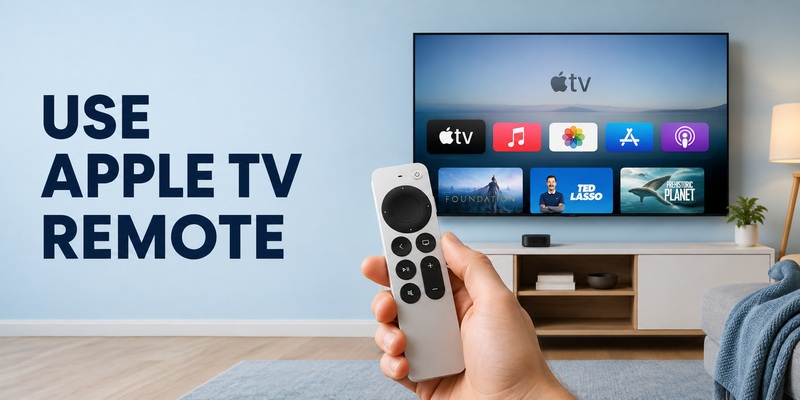
Using an Apple TV Remote becomes much easier once you understand a few core actions: move, select, go back, control playback, open Control Center, and adjust your TV or audio system.
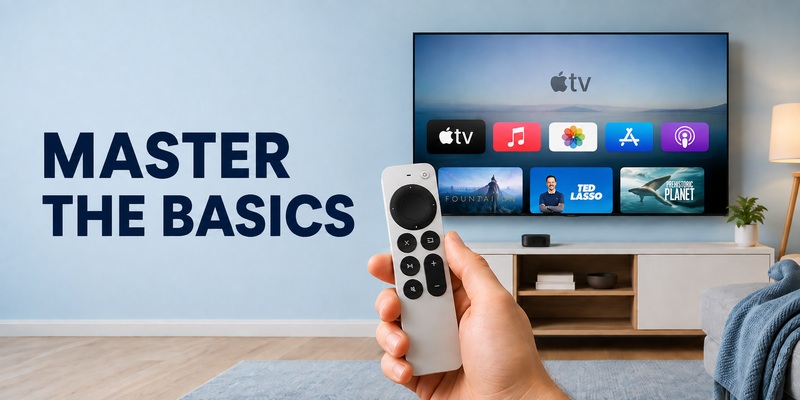
On newer silver Siri Remote models, you navigate with the circular touch-enabled clickpad. The first-generation black Siri Remote uses a touch surface instead, but the basic idea is similar.
For everyday use:
- Use the clickpad to move and select.
- Press Back to return to the previous screen.
- Press Play/Pause to control media.
- Press the TV/Control Center button once to open the Apple TV app or Home, depending on your region and settings.
- Double-press the TV button to open the App Switcher.
- Press and hold it to open Control Center.
- Hold the Siri button and speak to search or dictate text.
Apple documents these controls for current Siri Remote and Apple TV Remote models.
This guide focuses on actually using the physical Apple TV remote, rather than pairing, resetting, or replacing it.
1. Identify Which Apple TV Remote You Have
Before learning the controls, check which design you are holding.
Newer silver Siri Remote
The second- and third-generation Siri Remote designs use a circular clickpad at the top.
The clickpad combines:
- Directional presses
- Touch gestures
- A center Select button
- Timeline scrubbing
These remotes also include dedicated buttons for Back, TV/Control Center, Play/Pause, Mute, Volume, Siri, and Power.
First-generation Siri Remote
The older black Siri Remote uses a rectangular touch surface rather than the newer circular clickpad.
It also uses a Menu button where newer remotes use Back.
You can still swipe to navigate and press the touch surface to select.
The controls are similar enough that most everyday instructions apply to both generations, but gestures and button names can differ.
For a detailed button-by-button reference, see your dedicated Apple TV Remote Buttons Explained guide.
Download LG TV Remote2. Apple TV Remote Buttons at a Glance
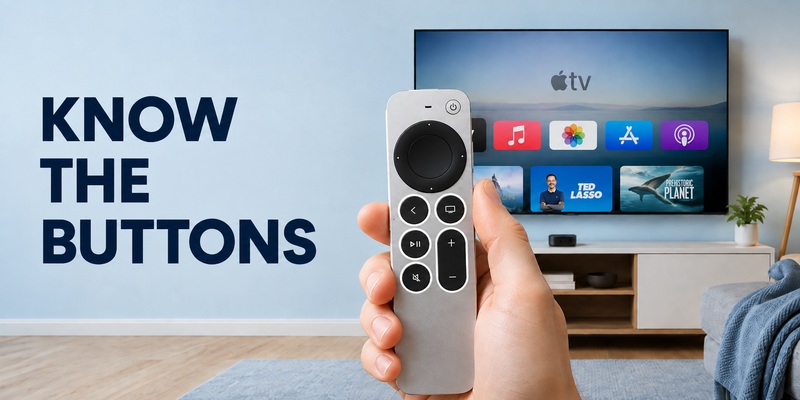
You do not need to memorize every feature before using the remote.
Start with these controls:
| Button | Main function | Typical use |
|---|---|---|
| Clickpad / touch surface | Move and select | Browse apps, menus and content |
| Back / Menu | Return to previous screen | Exit a menu or go back one level |
| TV / Control Center | Apple TV app/Home, App Switcher, Control Center | System navigation |
| Play/Pause | Start or pause media | Movies, shows and music |
| Siri | Voice search and dictation | Search or enter text |
| Mute | Mute compatible audio | Quickly silence sound |
| Volume + / − | Adjust compatible TV/audio volume | Everyday sound control |
| Power | Turn compatible setup on/off | Apple TV and supported TV/receiver |
A useful distinction is that Apple TV navigation and television control are not always the same thing.
Your remote may navigate Apple TV perfectly even when Power or Volume does not work, because those commands can depend on HDMI-CEC, infrared, your television, soundbar, or AV receiver. Apple provides separate Home Theater Control and Volume Control settings for these functions.
💡 Discover Helpful Guides
Apple remote tv app: Complete Apple TV Remote Guide for iPhone, Siri Remote, Pairing & Fixes
3. Navigate Apple TV With the Clickpad or Touch Surface
Navigation is the control you will use most often.
Move around the screen
On newer Siri Remotes, press the top, bottom, left, or right side of the clickpad ring to move one step in that direction.
You can also swipe across the clickpad.
For example:
- Swipe left to move through a row toward the left.
- Swipe right to move right.
- Swipe up or down through menus and lists.
Apple also supports repeated swipes for moving through longer lists more quickly.
Select an item
Move the highlight over the item you want, then press the center of the clickpad.
Use this to:
- Open an app
- Choose a movie
- Select a menu option
- Confirm a setting
- Open a content page
On the first-generation Siri Remote, press the touch surface instead.
Go back one screen
Press Back on newer remotes.
On the first-generation Siri Remote, press Menu.
A single press normally returns to the previous screen.
Apple also documents holding the Back button to return to the Home Screen.
This is useful because you do not need to return all the way Home every time you want to leave a submenu.
4. Play, Pause, Skip, Rewind, and Scrub
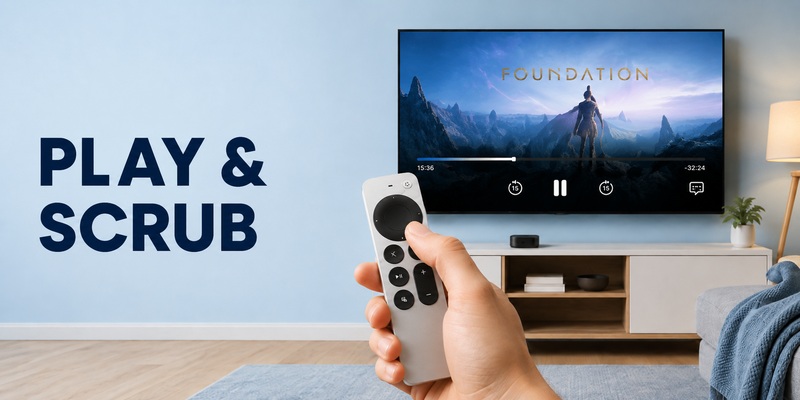
The Siri Remote offers more playback control than simply Play and Pause.
Play or pause
Press Play/Pause once to pause supported content.
Press it again to continue.
Skip backward or forward
On newer clickpad remotes, the left and right sides of the clickpad ring can be used during playback.
Apple documents pressing the left side to move backward and the right side to move forward.
Holding either side can continue rewinding or fast-forwarding. Repeated presses can change the playback speed.
Scrub through a video timeline
For more precise movement:
- Pause the video or activate the timeline.
- Swipe left or right across the clickpad.
- Stop when you reach the point you want.
- Press Play/Pause to continue.
On supported interfaces, you can also move your finger clockwise or counterclockwise around the clickpad ring to scrub through the timeline.
This circular gesture is particularly useful when you want more precise control than repeatedly pressing rewind or fast-forward.
App controls can vary
Netflix, YouTube, Apple TV, Prime Video and other streaming apps do not always display identical playback menus.
Some apps may offer additional controls such as:
- Subtitles
- Audio tracks
- Episode lists
- Playback speed
- Info panels
So if a gesture behaves differently inside one app, check the controls displayed on screen rather than assuming the remote has stopped working.
💡 Discover Helpful Guides: Apple TV Remote Replacement: Buying and Setup Guide
5. Turn On Your TV and Control Volume
One of the most useful parts of how to use an apple tv remote is controlling more than the Apple TV box itself. With a compatible setup, the Siri Remote can also wake connected TV or receiver equipment.
On current Apple TV 4K software, go to Settings > Remotes and Devices and look under Home Theater Control. Depending on your setup, Apple provides options such as Control TVs and Receivers or Turn On Your TV with Your Remote. When properly configured, powering Apple TV on or off can also turn compatible TV or receiver equipment on or off.
That answers the intent behind how to use apple tv remote to turn on tv: first enable the relevant home-theater control option, then use the Power button on newer silver remotes or the appropriate Apple TV wake/sleep controls. HDMI-CEC support on the TV or receiver is often central to this behavior.
Volume is slightly different. Apple TV can use HDMI-CEC or infrared for volume. If it does not respond, check Settings > Remotes and Devices > Volume Control.
| What works | Likely meaning | What to check next |
| Apple TV navigation and TV power | Core remote connection is healthy | No action needed |
| Navigation works, volume fails | Audio control path may differ | Volume Control settings |
| Apple TV wakes, television stays off | TV control may not be enabled | HDMI-CEC / Home Theater Control |
| Nothing responds | Remote may need charge, pairing, or restart | Connection troubleshooting |
Separating these layers is essential to how to use an apple tv remote without assuming every failure is a remote failure. When you know how to use an apple tv remote for navigation first, power and volume problems become easier to isolate.
6. Use Siri and Control Center Faster
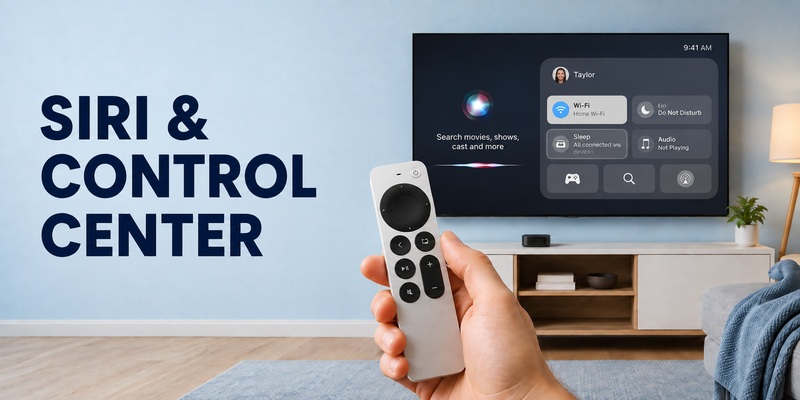
Once the basic controls feel natural, how to use an apple tv remote becomes faster with Siri and Control Center. These features reduce clicks for search, profiles, settings, and playback.
Use Siri for search and commands
On a Siri Remote, press and hold the Siri button, speak your request, then release it. Availability varies by language and region. Siri can also support dictation in compatible text fields.
Open Control Center
Press and hold the TV/Control Center button to open Control Center. This area gives you quick access to system functions without leaving the context of what you are watching. A quick press of the TV button can perform a different action depending on your Apple TV settings, so the long press is the reliable way to reach Control Center.
These shortcuts are useful because how to use an apple tv remote is not only about knowing which button performs an action; it is also about reducing unnecessary steps. Learning how to use an apple tv remote efficiently usually means replacing repeated menu navigation with Control Center or voice when those options are faster. Voice search can replace long typing, and Control Center can replace a trip through several Settings screens.
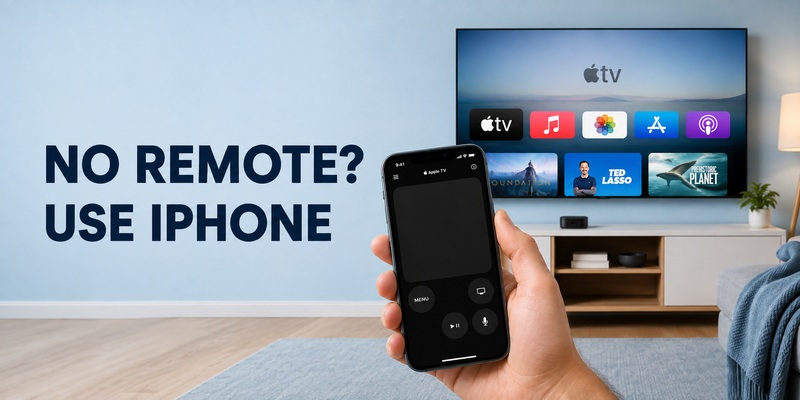
If you use an iPhone as a remote, Apple provides similar touch and button controls through Control Center. The dedicated guide on how to use apple tv remote on iphone is useful when you want to move between the physical remote and phone control without relearning the interface.
💡 Discover Helpful Guides: How to Reset Your Apple TV Remote: Pairing, Volume, and No-Remote Fixes
7. Restart or Reconnect an Apple TV Remote
Even after you understand how to use an apple tv remote, the remote may occasionally stop responding as expected. Before replacing it, distinguish between restarting the remote, pairing it again, and restarting the Apple TV box. Treat them as different actions.
For how to restart apple tv remote, Apple’s current procedure for Siri Remote and Apple TV Remote is to press and hold the TV/Control Center button and Volume Down at the same time for about five seconds, or until the Apple TV status light turns off and on again. Release the buttons, wait for the remote to disconnect, and then press a button after the Remote Connected notification appears.
The phrase apple tv remote restart is often confused with resetting or re-pairing. Restarting refreshes the remote; pairing tells Apple TV which remote should control it. If pairing is required, Apple currently instructs users to place the remote close to Apple TV and hold Back (or Menu on older models) plus Volume Up for five seconds. If pairing fails, Apple recommends unplugging Apple TV, waiting six seconds, reconnecting power, and trying again.
| Action | Button combination / step | Use it when |
| Restart remote | TV/Control Center + Volume Down | Remote is connected but behaving incorrectly |
| Pair remote | Back/Menu + Volume Up | Apple TV does not recognize the remote |
| Restart Apple TV | Disconnect power, wait six seconds, reconnect | Pairing still fails |
Once you know how to use an apple tv remote normally, reserve restart and pairing steps for genuine connection problems rather than everyday navigation mistakes. If you need deeper troubleshooting, see how to reset apple tv remote or how to pair apple tv remote. Knowing these distinctions makes how to use an apple tv remote much less frustrating when a normal button press stops working.
📖 Explore Articles: Apple TV Remote for iPhone: How to Set Up and Use Your iPhone as an Apple TV Remote
8. If the Apple TV Remote Stops Responding
This article is about using the remote, so troubleshooting should stay simple.
Start with three checks:
1. Charge the remote
Make sure the Siri Remote has enough battery power.
2. Restart the remote
If it becomes unresponsive, Apple recommends holding:
TV/Control Center + Volume Down
for about five seconds, or until the Apple TV status light turns off and back on.
Then release the buttons and wait for the remote to reconnect.
For the complete process, see How to Reset Apple TV Remote.
3. Pair it again if necessary
If Apple TV no longer recognizes the remote, it may need to be paired again.
Keep detailed pairing troubleshooting in How to Pair Apple TV Remote rather than duplicating it here.
That keeps the intent of this article focused on using the remote, not repairing every possible connection problem.
📘 Find the Right Guide: Apple TV Remote iPad: How to Set Up and Control Apple TV From Your iPad
9. Frequently Asked Questions
How do I use the Apple TV Remote?
Use the clickpad or touch surface to move through the Apple TV interface and press the center to select. Back returns to the previous screen, Play/Pause controls media, Siri handles voice commands, and the TV/Control Center button provides access to Apple TV system features.
How do I go to the Apple TV Home Screen?
On newer Siri Remotes, press and hold the Back button to return to the Home Screen. Apple also allows the TV button behavior to vary depending on region and settings.
How do I open Control Center with the Apple TV Remote?
Press and hold the TV/Control Center button.
A single press and double press have different functions, so make sure you hold the button rather than tapping it.
How do I switch between apps on Apple TV?
Double-press the TV/Control Center button to open the App Switcher. Swipe between apps and press the clickpad center to select one.
How do I fast-forward with the Siri Remote?
On a newer clickpad remote, use the right side of the clickpad ring during playback. Holding the side can continue fast-forwarding, while repeated presses can change speed on supported content.
How do I rewind?
Use the left side of the clickpad ring. You can also activate the timeline and scrub backward for more precise control.
Can the Apple TV Remote turn my television on and off?
Yes, with a compatible Apple TV 4K, television or receiver setup. Check Settings → Remotes and Devices → Home Theater Control and make sure the required HDMI-CEC functionality is enabled.
Why does the remote work with Apple TV but not volume?
Apple TV navigation and volume can use different technologies. Volume may depend on HDMI-CEC, infrared, a receiver, soundbar or other configuration. Check Settings → Remotes and Devices → Volume Control.
Can I use my iPhone instead?
Yes. Apple TV Remote in Control Center can control Apple TV HD or later from a compatible iPhone or iPad.
🛠️ Learn with Step-by-Step Guides: Apple TV Remote Icon: What It Means and How to Use It
10. Final Thoughts
The simplest way to master how to use an apple tv remote is to build a small set of habits. Use the clickpad or touch surface for navigation, press the center to select, use Back for one-level navigation, rely on Play/Pause during media, and learn the TV/Control Center button for faster system access.
After that, add the features that matter to your setup. Configure television power if your TV and receiver support it, check the correct volume-control method, and use Siri when voice search is faster than manual typing. These are the details that turn how to use an apple tv remote from basic button knowledge into a smooth home-theater workflow.
Keep the restart and pairing combinations in mind, but use them only when needed. For everyday viewing, the remote should feel simple rather than technical. If the physical remote is missing or unavailable, iPhone or iPad Control Center gives you a strong backup, and a compatible Remote TV App can be useful when you want broader phone-based TV control across your setup.
Once you know the difference between Apple TV navigation, television power, audio control, and connection troubleshooting, how to use an apple tv remote becomes straightforward. Start with navigation, add shortcuts gradually, and keep phone control ready as a backup.
Download LG TV Remote