
Google TV Remote Replacement: Compatible Options & Setup Guide
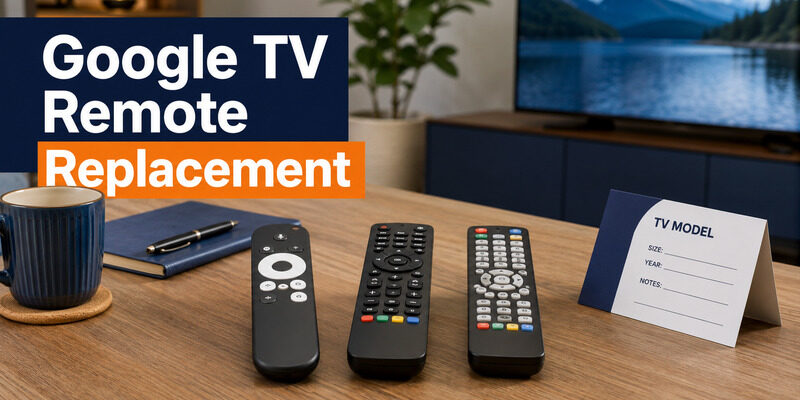
Quick Answer: If you need a Google TV remote replacement, first identify whether you use Chromecast with Google TV, Google TV Streamer, or a smart TV with Google TV built in. For Google’s streaming devices, a compatible Google Voice Remote is usually the most reliable physical replacement. You can also use the free Google TV or Google Home app as a temporary remote on your phone. For TCL, Sony, Hisense, and other Google TV televisions, choose a replacement designed for your exact TV model.
A replacement remote is not always necessary. If your original controller has stopped working, replacing its batteries or reconnecting Bluetooth may solve the problem.
This guide explains which Google TV replacement remotes are compatible, how to pair a new remote, and what to do when your replacement does not work.
Best Google TV Remote Replacement Options
There are three main ways to replace a lost or broken Google TV remote: buy an original remote, use a compatible third-party remote, or control the device with your smartphone.
The right choice depends on your device and the features you need.
Google TV Remote Replacement Compatibility
| Device | Recommended Replacement | Important Note |
|---|---|---|
| Chromecast with Google TV 4K | Compatible Google Voice Remote | Check supported generation |
| Chromecast with Google TV HD | Compatible Google Voice Remote | Verify model compatibility |
| Google TV Streamer 4K | Google TV Streamer Voice Remote | Supports Streamer-specific features |
| TCL Google TV | TCL-compatible replacement remote | Match the TV model |
| Sony Google TV | Sony-compatible replacement remote | Voice and Bluetooth support vary |
| Hisense Google TV | Hisense-compatible replacement remote | Confirm model and region |
| Compatible Google TV / Android TV | Google TV or Google Home app | Requires network connectivity |
Important: Google TV is an operating system, not a universal remote hardware standard. Two devices running Google TV may require different physical remotes.
Option 1: Original Google Voice Remote
An original Google Voice Remote is generally the best replacement for a compatible Chromecast with Google TV or Google TV Streamer.
Google’s newer Google TV Streamer Voice Remote is listed as compatible with:
- Google TV Streamer (4K)
- Chromecast with Google TV (4K)
- Chromecast with Google TV (HD)
It includes navigation buttons, voice control, playback controls, and a customizable button.
Some advanced features, including Find My Remote, depend on the streaming device and remote combination.
You can check the official Google TV Streamer Voice Remote listing for current compatibility and availability.
If you own the original Chromecast model, read our Chromecast with Google TV remote guide before choosing a replacement.
Option 2: Compatible Third-Party Remote
A third-party Google TV remote replacement may be suitable if you only need basic controls or want an alternative to an original remote.
However, not every remote advertised as “Google TV compatible” supports every feature.
Before purchasing, check whether the remote offers:
- Compatible Bluetooth or infrared control
- Directional navigation and OK
- Home and Back buttons
- Volume and power control
- Voice search, if required
- Support for your exact streaming device or TV model
Some inexpensive remotes support only basic navigation and cannot use Google Assistant.
If you are considering a generic remote, our universal remote TV guide explains the differences between infrared, Bluetooth, and smartphone-based controls.
Option 3: Use Your Smartphone as a Replacement
If your physical remote is missing, your phone may provide an immediate solution.
The official Google TV and Google Home apps support virtual remote functionality on compatible devices.
This option is useful when:
- You cannot find the original remote.
- The remote batteries are empty.
- You are waiting for a replacement to arrive.
- You prefer typing with your phone keyboard.
- You want basic navigation without purchasing another controller.
Your phone and Google TV device generally need to be connected to the same local network.
For more information, see our Google Home TV remote guide.
Compare Official, OEM, and Universal Options
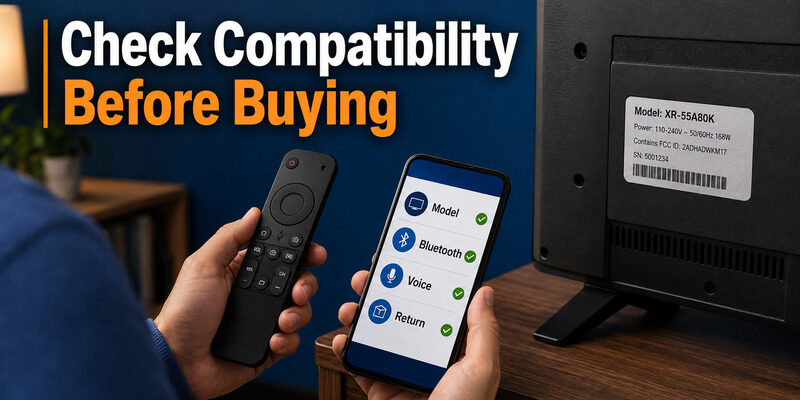
The best replacement remote for google tv depends on which functions matter. Official or OEM remotes are more likely to preserve voice input, Bluetooth navigation, input control, and branded shortcut buttons. Universal options can cost less but may rely on infrared and omit advanced functions.
| Replacement type | Strengths | Tradeoffs | Best for |
|---|---|---|---|
| Official Google Voice Remote | Known pairing flow and Google features | Compatibility is device-specific | Chromecast with Google TV or Google TV Streamer |
| TV-brand OEM remote | Closest match to television functions | Exact model matching required | Hisense, TCL, Sony, and other Google TVs |
| Third-party Bluetooth remote | Navigation without line of sight | Voice and special buttons may vary | Basic Google TV control |
| Universal IR remote | Broad TV power/volume support | May not provide full Google TV navigation | Simple fallback or older TVs |
| Phone remote | Immediate and no physical purchase | Usually requires same Wi-Fi | Temporary control and setup |
Google’s support page says the Chromecast Voice Remote is compatible with Chromecast with Google TV. Google’s newer documentation says the Google TV Streamer Voice Remote can control the Google TV Streamer (4K) or Chromecast with Google TV, plus configured TV, soundbar, or receiver functions. Check the current product listing for your market before purchase.
🛠️ Learn with Step-by-Step Guides: Apple TV Remote Icon: What It Means and How to Use It
Check Compatibility Before Buying
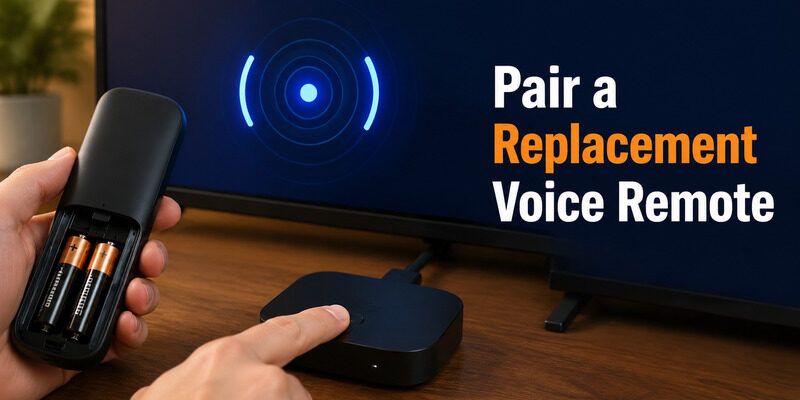
A listing that says “works with Google TV” is not enough evidence for a safe google tv remote replacement purchase. Verify these items:
- exact TV or streamer model numbers;
- Bluetooth versus infrared control;
- voice microphone support;
- power, input, mute, and volume control method;
- battery type and whether batteries are included;
- firmware or pairing requirements;
- return policy for incompatible accessories.
Bluetooth and infrared do different jobs
Bluetooth handles menu navigation without direct line of sight and often supports voice input. Infrared usually controls TV power, volume, and input only when pointed toward the sensor. Some remotes combine both, so a unit can navigate Google TV but still need remote-button setup for the television.
HDMI-CEC is not a remote protocol
CEC lets devices send commands over HDMI, which can allow one remote to control connected equipment. It does not make every handset compatible. If volume works but navigation does not, the remote may be controlling the TV through IR or CEC without being paired to Google TV.
Avoid listings that promise every voice feature but do not name the supported model, Bluetooth version, or pairing method.
🛠️ Learn with Step-by-Step Guides: How to Control Google TV With Phone on Android and iPhone
Choose a Hisense Google TV Remote Replacement
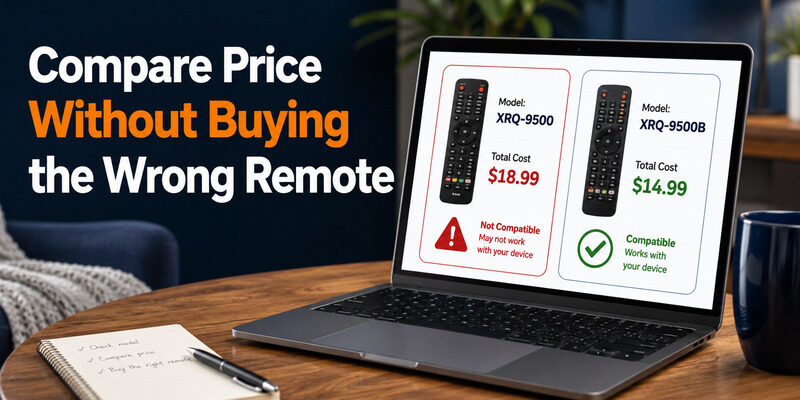
A hisense google tv remote replacement should match the television’s complete model number. This model check is the most important google tv remote replacement safeguard for built-in Google TV sets. Hisense support materials direct owners to its support and replacement-parts routes, and model-specific setup guides show that pairing steps can differ from Google’s standalone streaming hardware.
Use this buying order:
- Search the exact TV model on the official Hisense support or parts page for your country.
- Compare the replacement part number with the original remote label.
- Confirm whether the remote uses Bluetooth, IR, or both.
- Verify voice support and shortcut buttons if those matter.
- Buy from an authorized parts source or a seller with clear returns.
Some Hisense manuals pair the remote from Settings > Remotes & Accessories and use a model-specific button hold. Do not assume that Back + Home, which Google documents for some Google TV devices, is correct for every Hisense model.
Pair a Replacement Voice Remote
For a Google streaming device already set up, Google’s official google tv remote replacement process is straightforward.
Google streaming device button method
- Turn on the Chromecast with Google TV or Google TV Streamer.
- Press the button on the back of the streaming device for about 5–10 seconds to start pairing mode.
- Insert two fresh AAA batteries into the replacement Voice Remote.
- Wait for the remote to appear and complete pairing on screen.
Pair from Settings with a phone
If the device is running but does not open pairing, use a phone remote. Go to Settings > Remotes & Accessories > Pair remote or accessory, put the new remote in pairing mode, select it, and confirm. Google’s Bluetooth accessory guide uses this settings path for visible devices.
For a google tv streamer 4k remote replacement, confirm you have the newer remote if you want the customizable button and Find My Remote speaker. Those features depend on the remote hardware, not just the Google TV software; see the guide for ringing methods and limitations.
If pairing fails, move the remote within a few feet of the device, remove other new Bluetooth accessories from pairing mode, restart the streamer, and try again. A ten-flash LED pattern indicates unsuccessful pairing on supported Voice Remotes.
📘 Find the Right Guide: Apple TV Remote iOS: Set Up, Connect, and Fix Common iPhone Remote Problems
Restore Power, Volume, Input, and Voice
Successful Bluetooth navigation does not guarantee that every google tv remote replacement button is configured. After pairing, test D-pad, Home, Back, voice, volume, mute, power, and input.
Open All Settings > Remotes & Accessories > Set up remote buttons. Configure volume control, power, and input for the connected TV, soundbar, or receiver. Google’s official setup uses this area and may test several IR codes before finding one that works.
| What works | What fails | Likely issue | Next action |
|---|---|---|---|
| D-pad and Home | Volume/power | IR or CEC not configured | Run Set up remote buttons |
| Volume/power | D-pad/navigation | Remote not paired over Bluetooth | Pair as an accessory |
| All buttons except voice | Microphone permission or unsupported remote | Check model and permissions | |
| Remote disconnects | Battery or Bluetooth stability | Replace batteries, update, re-pair |
If the remote LED remains on but commands fail, use . If pairing records seem corrupted, follow before returning the replacement.
Compare Price Without Buying the Wrong Remote
The price of a google tv remote replacement changes by country, seller, stock, shipping, and whether the part is official. For searches such as google tv remote price in bangladesh or price of universal tv remote, compare total delivered cost rather than the headline price.
Check:
- model and part number in the listing title and photos;
- official/OEM versus compatible third-party status;
- voice and Bluetooth support;
- taxes, import fees, delivery time, and batteries;
- warranty and return shipping;
- seller reviews that mention the same device model.
A cheaper remote that only controls power and volume is poor value if you need Google TV navigation. Conversely, paying for voice and finder hardware may be unnecessary for a spare used only in a guest room.
💡 Discover Helpful Guides: Do You Need to Download the Apple TV Remote on iPhone?
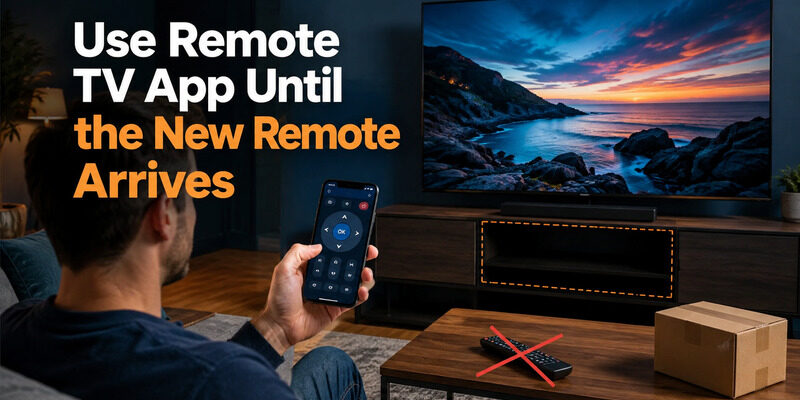
Use Remote TV App Until the New Remote Arrives
While waiting for a google tv remote replacement, Remote TV App can provide navigation and playback control on supported TVs connected to the same local network. It also helps you open Remotes & Accessories to pair the new handset when it arrives.
Visit the homepage to check compatibility. Pair a phone controller before discarding the failed remote, especially if the TV may need a Wi-Fi password or an on-screen confirmation later.
💡 Discover Helpful Guides: How to Connect Google TV to WiFi Without Remote: 5 Working Methods
Final Thoughts
Buy a google tv remote replacement only after matching the exact TV, Chromecast, or Google TV Streamer model. Official and OEM remotes offer the best chance of preserving voice, Bluetooth navigation, power, input, and volume, while generic infrared remotes may provide only basic control.
Confirm compatibility, return terms, and the pairing method before paying. Pair at close range with fresh AAA batteries, then configure remote buttons separately. If you only need temporary control, a phone remote can bridge the gap without risking an incompatible purchase.
Download LG TV Remote