
2.4GHz vs 5GHz for Smart TV Remote Apps
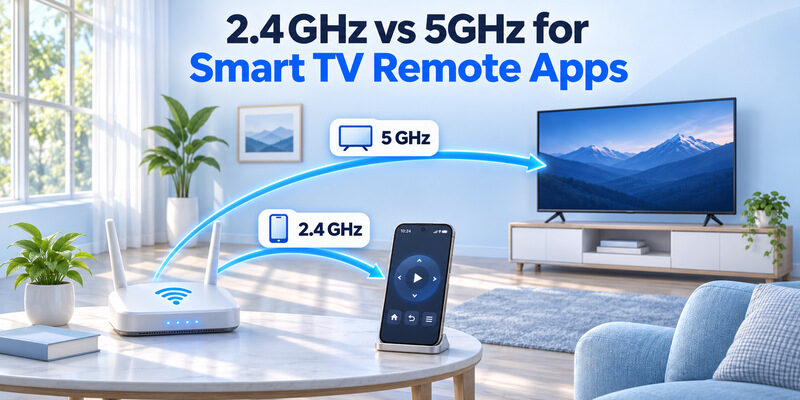
When comparing 2.4ghz vs 5ghz for smart tv remote apps, 2.4GHz is generally better for longer-distance connections, while 5GHz offers higher speeds and potentially less interference when the TV is close to the router.
However, you do not need 5GHz speeds simply to control your television from your phone. Most remote commands use very little bandwidth.
Quick answer:
- Choose 2.4GHz if your television is far from the router or separated by several walls.
- Choose 5GHz if your TV is close to the router and you want better performance for streaming alongside remote control.
- Use either band for the remote app when the phone and TV can communicate on the same local network.
- For initial pairing, follow any brand-specific instructions requiring both devices on the same Wi-Fi band.
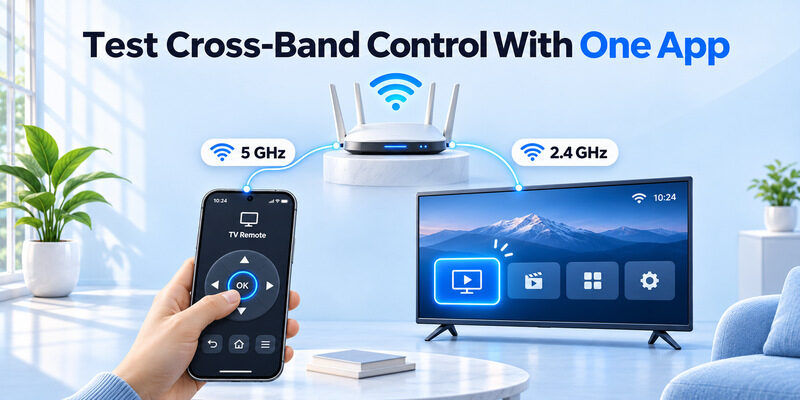
A common misunderstanding is that your smartphone and television must always use the same frequency. In most properly configured home networks, a phone using 5GHz can communicate with a television using 2.4GHz.
What matters most is local network connectivity, device compatibility, and reliable Wi-Fi coverage.
This guide explains 2.4ghz vs 5ghz for smart tv remote apps, including signal range, wireless speed, pairing requirements, router settings, and troubleshooting methods for popular smart TV brands.
1. 2.4GHz vs 5GHz for Smart TV Remote Apps: Quick Comparison
Before deciding which Wi-Fi band to use, it helps to understand the technical differences.
Both frequencies allow compatible devices to connect to wireless networks, but they have different performance characteristics.
2.4GHz vs 5GHz comparison
| Feature | 2.4GHz Wi-Fi | 5GHz Wi-Fi |
|---|---|---|
| Typical coverage | Longer range | Shorter range |
| Wall penetration | Generally better | Generally weaker |
| Potential speed | Lower | Higher |
| Interference | Often more crowded | Often less crowded |
| Older TV compatibility | More common | Model-dependent |
| Remote app commands | Suitable | Suitable |
| High-quality streaming | Depends on signal and speed | Often preferable |
| Best use | Distant or older TVs | Nearby modern TVs |
For basic TV remote control, signal reliability is more important than maximum Wi-Fi speed.
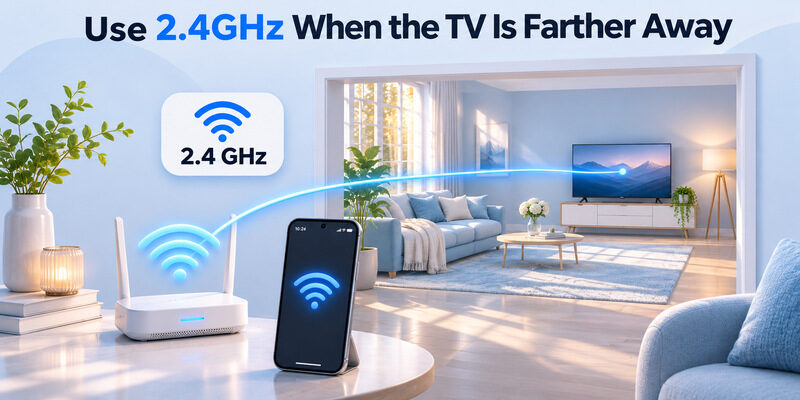
If your TV is located across the house, 2.4GHz may provide a more stable connection.
If your television is in the same room as the router, 5GHz can provide faster data transfer without sacrificing practical remote responsiveness.
Why 2.4GHz provides longer range
Lower-frequency wireless signals generally travel farther and penetrate common household obstacles more effectively.
This makes 2.4GHz useful for devices located behind walls or across larger rooms.
According to NETGEAR’s technical support documentation, 2.4GHz provides the greatest coverage of the common Wi-Fi bands, while 5GHz offers faster speeds over a shorter range.
Why 5GHz can be faster
The 5GHz band provides access to wider channels and more available spectrum.
This can improve throughput for streaming, downloads, and other bandwidth-intensive activities.
However, a remote app does not continuously transfer large video files simply to perform commands such as changing channels.
In the comparison of 2.4ghz vs 5ghz for smart tv remote apps, 5GHz is not automatically better for every television.
A strong 2.4GHz connection can be more useful than a weak 5GHz signal.
Download TV Remote App2. How Wi-Fi Frequency Affects Smart TV Remote Apps
To understand 2.4ghz vs 5ghz for smart tv remote apps, consider how a smartphone communicates with a television.
Most Wi-Fi-based remote applications send small commands through a local network.
For example, when you press Volume Up, the application sends a control message to the TV.
The television receives the command and increases the volume.
This process generally requires very little bandwidth compared with video streaming.
Do remote apps need high-speed Wi-Fi?
No, not for basic control.
Navigation, volume adjustment, menu selection, and channel changes usually involve relatively small amounts of network traffic.
A reliable connection matters more than having the fastest wireless band.
For this reason, switching from 2.4GHz to 5GHz may not noticeably improve how quickly the television responds.
However, high interference, packet loss, weak signal strength, or network congestion can make remote commands unreliable.
Can phones and TVs use different Wi-Fi bands?
Yes, in many home networks.
For example:
- Smartphone: HomeWiFi-5G
- Smart TV: HomeWiFi-2.4G
- Router: Same home LAN
When both wireless bands are connected to the same local network and the router permits communication, the phone may still discover and control the TV.
The router normally bridges traffic between the connected bands.
Different Wi-Fi frequencies do not automatically mean different local networks.
However, some routers place devices on separate subnets or use client isolation.
These restrictions can prevent communication even when both devices have internet access.
Why some apps require the same band during setup
Certain manufacturer-specific pairing procedures recommend connecting both devices to the same Wi-Fi band.
For example, LG’s official ThinQ setup instructions recommend using the same 2.4GHz network during Wi-Fi connection and initial registration.
This is a setup-specific requirement rather than a universal limitation of all smart TV remote applications.
If your device cannot complete pairing, follow its manufacturer’s instructions before troubleshooting advanced router settings.
Does the Wi-Fi band affect remote response time?
Potentially, but not necessarily in the way people expect.
Wi-Fi latency depends on several factors:
- Signal strength
- Wireless interference
- Network congestion
- Router performance
- Device processing
- Application design
A strong, uncongested 2.4GHz connection can respond faster and more reliably than a weak 5GHz connection.
When evaluating 2.4ghz vs 5ghz for smart tv remote apps, measure actual connection stability rather than assuming the higher frequency always wins.
3. Should You Use 2.4GHz or 5GHz for Your Smart TV?
Choosing the correct frequency depends on how your television is used.
The best band for streaming may differ from the best band for a device located far from the router.
Is 2.4GHz or 5GHz better for a smart TV?
If you are asking is 2.4 or 5 ghz better for smart tv, consider both streaming and remote control.
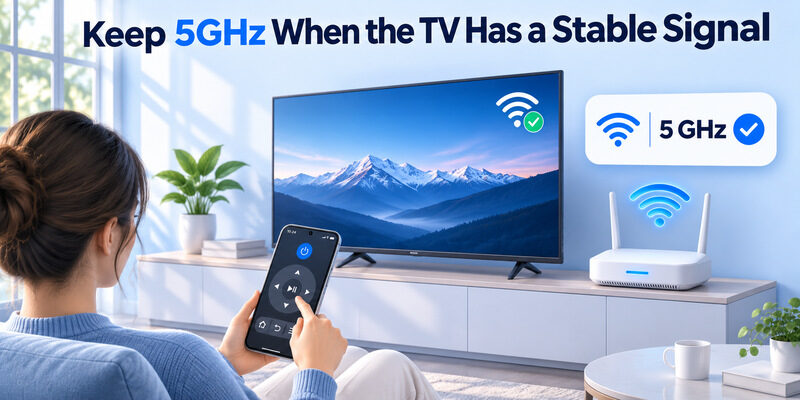
For a nearby television capable of connecting to 5GHz, that band is often preferable for high-resolution streaming.
For a TV farther away, 2.4GHz may maintain a stronger connection.
If your primary concern is 2.4ghz vs 5ghz for smart tv remote apps, choose whichever band provides stable connectivity.
When to choose 2.4GHz
Choose 2.4GHz when:
- The TV is far from the router.
- Several walls separate the devices.
- Your television supports only 2.4GHz.
- You experience unstable 5GHz reception.
- The manufacturer recommends 2.4GHz for pairing.
Some older and lower-cost smart televisions do not support 5GHz.
Before changing wireless settings, check the television’s network specifications.
When to choose 5GHz
Choose 5GHz when:
- The television is close to the router.
- You frequently stream high-resolution content.
- The 2.4GHz band is crowded.
- Your TV supports dual-band Wi-Fi.
- You experience interference on 2.4GHz.
A 5ghz smart tv connection can provide higher throughput, particularly when signal strength is good.
However, it does not guarantee faster remote-control commands.
Do smart TVs use both frequencies?
If you are wondering do smart tvs use 2.4 or 5ghz, the answer depends on the specific model.
Many modern smart televisions support dual-band Wi-Fi.
Others support only 2.4GHz, and newer premium devices may support additional wireless capabilities.
Check your model’s user manual or network specifications to determine which bands are available.
How streaming requirements differ from remote requirements
According to Netflix’s published connection recommendations, 15 Mbps or higher is recommended for Ultra HD (4K) streaming.
This is an internet connection recommendation, not a requirement for a remote-control application.
Basic remote commands need dramatically less throughput than video streaming.
Therefore, 2.4ghz vs 5ghz for smart tv remote apps should be evaluated separately from Wi-Fi performance for watching 4K content.
A television may respond perfectly to its remote app on 2.4GHz while struggling to stream high-bitrate video over the same connection.
4. How to Connect Smart TV and Remote App to the Right Wi-Fi Band
If you want to connect smart tv to 2.4 or 5ghz, first check whether your router broadcasts separate network names.
Some routers display both frequencies under one Wi-Fi name.
Others use names such as Home-2.4G and Home-5G.
Step 1: Check available Wi-Fi networks
On your television:
- Open Settings.
- Navigate to Network or Internet.
- Select Wireless Connection.
- Review available Wi-Fi networks.
- Identify your main home network.
If your router uses one name for multiple frequencies, it may automatically select the band.
Step 2: Connect the TV
Choose the network best suited to your television.
For a TV far from the router, try 2.4GHz.
For a TV near the router, try 5GHz if supported.
Enter the Wi-Fi password and confirm that the connection succeeds.
Do not use an isolated guest network for initial remote app pairing.
Step 3: Connect your smartphone
Open your phone’s Wi-Fi settings.
Connect it to the same trusted home network.
If your TV manufacturer’s setup instructions require the same network name or frequency band, follow those instructions.
Otherwise, different bands can work when they share the same reachable LAN.
Step 4: Open your remote application
Launch the compatible remote app.
Wait for the television to appear.
Select the TV and complete any authorization request.
For compatible televisions, the Remote TV app provides smartphone-based remote control functions.
The app may require local network access and supported television hardware.
Step 5: Test the connection
Once paired, test several controls:
- Increase and decrease volume.
- Navigate through menus.
- Open a supported streaming application.
- Switch inputs if supported.
- Close and reopen the remote app.
If the connection remains stable, your setup is working.
For 2.4ghz vs 5ghz for smart tv remote apps, successful pairing and consistent command response are more meaningful than the frequency label alone.
LG Smart TV: 2.4GHz or 5GHz?
If you are comparing lg smart tv 2.4 or 5ghz, start with your television’s model specifications.
LG recommends using the same 2.4GHz Wi-Fi network during certain ThinQ setup procedures.
After setup, supported models may operate using other compatible network configurations.
If the app cannot find your television, consult our LG ThinQ app not finding TV troubleshooting guide.
5. Fix Smart TV Remote Apps Not Working on 2.4GHz or 5GHz
Even when your television supports both bands, the remote application may fail to discover or control it.
In many cases, this does not mean one frequency is incompatible.
The problem may involve network isolation, device permissions, or router configuration.
Fix 1: Check whether both devices share a LAN
When 2.4ghz vs 5ghz for smart tv remote apps becomes a connection issue, check the local network first.
A phone using 5GHz and a television using 2.4GHz should often communicate through a properly configured home router.
However, communication may fail when the router separates the connections.
Check whether either device uses:
- Guest Wi-Fi
- IoT Isolation
- AP Isolation
- Client Isolation
- Separate VLANs
Keep your phone and television on a trusted network that permits communication.
Fix 2: Temporarily use the same Wi-Fi band
If discovery fails, connect both devices to the same supported band for a controlled test.
For example, connect both to 2.4GHz.
Then reopen the remote application.
If pairing succeeds, investigate whether your router separates traffic between bands.
Remember that matching Wi-Fi frequencies is a troubleshooting technique, not always a permanent requirement.
Fix 3: Restart your devices
Restart the TV, smartphone, and router.
Wait for all devices to reconnect.
Then reopen the remote application.
This refreshes temporary connections and may clear outdated discovery information.
Fix 4: Check smartphone permissions
On iPhone, open:
Settings > Privacy & Security > Local Network
Make sure your remote app has the required permission.
Apple introduced Local Network privacy controls in iOS 14.
On Android, review the permissions requested by the relevant remote application.
These may include Nearby Devices or other discovery-related permissions, depending on the software.
Fix 5: Disable VPN interference
Some VPN configurations block local traffic or interfere with device discovery.
Temporarily disconnect your VPN and test the remote.
If the connection works without the VPN, check whether your VPN supports LAN access or split tunneling.
Fix 6: Change the Wi-Fi band when reception is weak
If the TV frequently disconnects on 5GHz, try 2.4GHz.
If 2.4GHz is heavily congested, test 5GHz if the TV supports it.
The best band is the one that delivers reliable signal strength and low interference in your particular home.
Fix 7: Reconnect the TV in your app
If the app still cannot control the television, remove the saved device when that feature is available.
Search for the TV again and complete pairing.
For Samsung users, the samsung tv remote app guide explains compatible smartphone remote setup and troubleshooting.
For 2.4ghz vs 5ghz for smart tv remote apps, connection problems are often solved through these network checks rather than replacing the television.
6. 2.4GHz vs 5GHz vs 6GHz: Is 6GHz Better?
Newer Wi-Fi technology introduces another frequency band: 6GHz.
When comparing 6ghz vs 5ghz vs 2.4 ghz, remember that higher-frequency networks generally offer access to more spectrum but have shorter practical coverage.
How 6GHz Wi-Fi works
The 6GHz band was introduced for Wi-Fi 6E and is also supported by compatible Wi-Fi 7 equipment.
It provides additional spectrum and can support wider channels.
According to Intel’s wireless technology documentation, the fully available 6GHz spectrum can accommodate up to seven 160MHz channels in regions where the complete band is authorized.
This offers opportunities for higher throughput and reduced congestion.
However, 6GHz requires compatible routers, client devices, and regional regulatory support.
Comparison of all three bands
| Feature | 2.4GHz | 5GHz | 6GHz |
|---|---|---|---|
| Coverage | Longest generally | Medium | Shortest generally |
| Potential throughput | Lowest | Higher | Highest potential |
| Interference | Often crowded | Often lower | Typically cleaner |
| Older TV compatibility | Common | Varies | Limited |
| Basic remote controls | Excellent when stable | Excellent when stable | Excellent when supported |
| Main advantage | Range | Speed and balance | Additional spectrum |
For most households, 6GHz is not essential for controlling a TV through a smartphone.
A remote application does not need multi-gigabit wireless speeds.
Is 6GHz worth using for a smart TV?
If your television, phone, and router support 6GHz, it may provide a fast connection in suitable conditions.
However, many televisions do not support this band.
For 2.4ghz vs 5ghz for smart tv remote apps, adding 6GHz does not fundamentally change how local remote-control commands work.
Reliable local network communication matters more than maximum theoretical bandwidth.
7. Best Wi-Fi Settings for Reliable Smart TV Remote Control
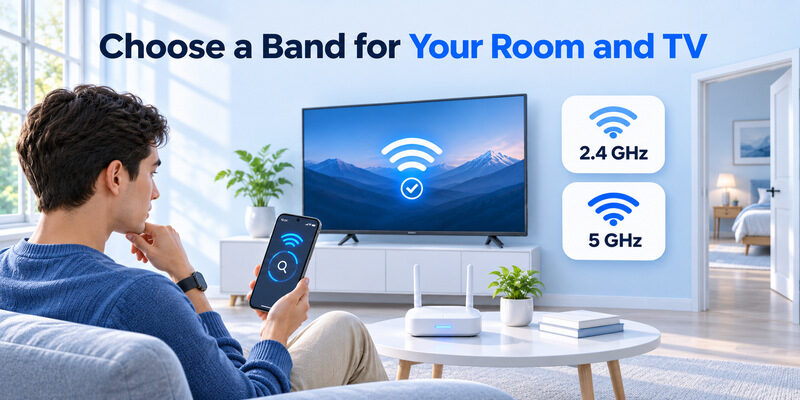
Choosing the correct band is only one part of a stable connection.
Several router settings can influence how successfully your phone discovers and controls the television.
Place your router carefully
Avoid positioning the router behind large metal objects, inside enclosed cabinets, or near devices that generate significant interference.
A more central, elevated position can improve wireless coverage.
If your TV is located far from the router, consider an appropriately placed mesh access point or wired Ethernet connection.
Reduce 2.4GHz interference
The 2.4GHz band is widely used by household electronics and neighboring Wi-Fi networks.
Bluetooth devices, microwave ovens, and nearby routers can contribute to interference.
ASUS recommends considering non-overlapping channels such as 1, 6, and 11 for 20MHz 2.4GHz configurations in regions where those channels are available.
Automatic channel selection is often a reasonable starting point.
Use appropriate channel widths
Wider channels can improve potential throughput but may increase interference in crowded environments.
For 2.4GHz, a 20MHz channel width is often a sensible choice.
On 5GHz, wider channels may be useful for high-speed streaming if supported.
Remote control requires little bandwidth, so maximum channel width is not necessary solely for remote commands.
Avoid unnecessary guest network isolation
Guest networks often restrict communication between devices.
If your television is on the main network while your phone uses an isolated guest network, the remote application may fail.
Connect your personal devices to the appropriate trusted LAN.
Keep router firmware updated
Router firmware updates may improve compatibility and network stability.
Use the manufacturer’s official update procedure.
Also keep your television firmware and remote application updated.
Consider mesh Wi-Fi carefully
Mesh networks can improve coverage across larger homes.
However, incorrectly configured guest networks, multiple routers, or isolated subnets may interrupt device discovery.
For a deeper explanation, read Does Mesh WiFi Affect Smart TV Remote Apps?.
When choosing 2.4ghz vs 5ghz for smart tv remote apps, a well-configured mesh network can be more important than forcing every device onto a single frequency.
8. Frequently Asked Questions About Smart TV Wi-Fi Bands
Is 2.4GHz better than 5GHz for a TV remote app?
Not always.
2.4GHz usually provides better range, while 5GHz supports higher potential speeds.
For remote commands, both can work effectively.
When comparing 2.4ghz vs 5ghz for smart tv remote apps, choose the band that delivers stable reception and allows local device communication.
Can a phone on 5GHz control a TV on 2.4GHz?
Yes, in most properly configured home networks.
The phone and TV can use different frequencies while communicating through the same local network.
However, some manufacturer-specific pairing procedures may require both devices to use the same band temporarily.
Should I use 2.4 or 5GHz for my smart TV?
If you are asking 2.4 or 5ghz for smart tv, choose based on signal quality and usage.
Use 2.4GHz for greater distance or older devices.
Use 5GHz for faster streaming when coverage is strong.
Does a remote app need fast Wi-Fi?
No.
Basic remote-control commands require very little bandwidth.
For 2.4ghz vs 5ghz for smart tv remote apps, stability and network accessibility are more important than peak speeds.
Does a 2.4GHz Android remote app work with a 5GHz TV?
If you are searching for 2.4 ghz remote control app android, remember that the application normally uses the phone’s existing network connection.
The remote app itself is not necessarily restricted to one frequency.
A compatible Android phone and TV may communicate across bands when the router permits it.
Can I use a TV remote app without internet?
Sometimes, yes.
A compatible network-based remote application may function over a local Wi-Fi network without active internet access.
However, some devices require internet connectivity for activation, account services, or particular features.
Can I use an iPhone as a universal TV remote?
Yes, for compatible smart televisions.
A smartphone remote app can provide controls for navigation, volume, channels, and supported smart TV functions.
For example, universal remote tv control offers an iPhone-based remote option for compatible devices.
The app requires supported network connectivity and compatible television hardware.
What if my TV only supports 2.4GHz?
You can continue using it.
A 2.4GHz-only television can often communicate with a phone using 5GHz when both devices belong to the same accessible local network.
If pairing fails, temporarily connect the phone to 2.4GHz and follow the manufacturer’s setup instructions.
Which Wi-Fi band is best for 4K streaming?
5GHz is often preferable when its signal is strong because it supports higher potential throughput.
However, 4K streaming can also work over 2.4GHz if the actual connection provides sufficient sustained bandwidth.
The internet service, wireless interference, and TV hardware all affect performance.
Where can I download a smart TV remote app?
For compatible smart TVs, you can Download universal remote tv control on your iPhone.
The application is free to download, with in-app purchases.
Important: Supported TV models and remote functions vary. The application does not replace your router or eliminate the need for compatible connectivity.
Conclusion
When comparing 2.4ghz vs 5ghz for smart tv remote apps, the best option depends on signal strength, router configuration, and television compatibility.
Choose 2.4GHz for better coverage and 5GHz for faster connections when the television is close enough to the router.
Most smartphone remote applications do not require high wireless speeds, so stable local communication is the priority.
Your smartphone and television can often use different Wi-Fi bands successfully, provided that both devices remain accessible within the same home network.
If the remote application fails to connect, check device discovery, network isolation, app permissions, and pairing settings before changing your router’s frequency configuration.
For reliable remote control, focus on a stable connection rather than simply choosing the fastest Wi-Fi band.
Download TV Remote App