
Fire TV Stick Remote App: Setup, Pairing, and Fixes
Short answer: Install the Amazon Fire TV app and pair it with a Fire TV Stick on the same Wi-Fi.
The fire tv stick remote app can replace many navigation tasks when a physical Alexa Voice Remote is lost or unresponsive. The Stick must already be powered, connected, and discoverable; the app cannot configure a device stranded on a new Wi-Fi network by itself. Start with Amazon’s official app, confirm the on-screen code, and test the controls you need before trying a third-party alternative.
1. Which Fire TV Stick Remote App to Use: Fire Tv Stick Remote App
Amazon’s Fire TV app is the first option for a Fire TV Stick. Identify the streaming stick rather than the television brand, then verify that the listing is published by Amazon. A fire tv stick remote app choice depends on the interface displayed by the actual streaming device, not merely the TV brand.
| Device | Phone route | Prerequisite |
| Fire TV Stick | Amazon Fire TV app | Same local network and on-screen code |
| TV panel | TV maker control or HDMI CEC | Separate hardware support |
| Offline stick | Physical Fire TV remote | Network setup first |
Official Fire TV app
Amazon’s help page “Use Your Mobile Device Like a Fire TV Remote” describes installing the Fire TV app, putting phone and Fire TV on the same Wi-Fi, and signing in to an Amazon account. It controls the Fire TV interface. It does not make an unrelated television’s hardware commands universally available.
Read more: Westinghouse TV Remote App: Roku TV Setup and Phone Controls
Universal app as a second option
A universal interface such as may be convenient in a room with several supported devices. Check the actual Fire TV Stick model, trial terms, and functions. Do not assume that a generic app offers every Alexa Voice Remote button or voice feature. Begin with official control to establish whether the Stick is reachable.
For a fire tv stick remote app, the most useful first check is whether the television actually displays the Fire TV home screen. A TV branded Toshiba or Insignia may have Fire TV built in, while a small Stick on HDMI is a separate device. Choose the named target in the app and verify navigation there. If only TV input or soundbar volume fails, the mobile connection may be healthy and the remaining issue belongs to equipment control.
2. Check the Network Before Downloading
A mobile remote communicates with a Fire TV device across the local network. Confirm the Stick is showing its home screen and that the phone is not on mobile data or isolated guest Wi-Fi. For fire tv stick remote app, confirm local reachability while the device is awake before attempting a pairing code.
For a step-by-step setup route, use this Fire TV remote app download guide and verify that the phone and Stick are on the same reachable Wi-Fi network.
Same Wi-Fi means local reachability
A router may give the phone and Stick internet access while blocking device-to-device traffic on a guest network. Open network settings on both devices, compare their Wi-Fi names, and retry on a normal home network. A VPN can also interfere with discovery; pause it for the initial connection test.
The first-setup exception
A Stick at first setup or after a reset may not yet know your Wi-Fi credentials. A phone app cannot discover a device with no route onto the network. Use a compatible physical remote to complete setup, or follow Amazon’s documented recovery options for the exact Fire TV model. Avoid factory reset as an initial app fix.
A fire tv stick remote app cannot repair a router that is isolating devices. If both devices show internet access but discovery is empty, compare the local Wi-Fi name, guest settings, and whether the phone VPN routes traffic elsewhere. Keep the Stick awake while testing. If the TV was moved to another home, the old Stick credentials may still be stored, so use a compatible physical controller to join the new network before rescanning.
If setup stalls, note whether the Stick is visible on screen, on the same router, and listed in the app. These three observations separate a power problem from network isolation and an app permission problem. Work from the earliest failed step rather than resetting all devices at once.
Read more: Sceptre TV Remote App: What Works for IR and Smart Models
3. Pair the Phone With Fire TV Stick
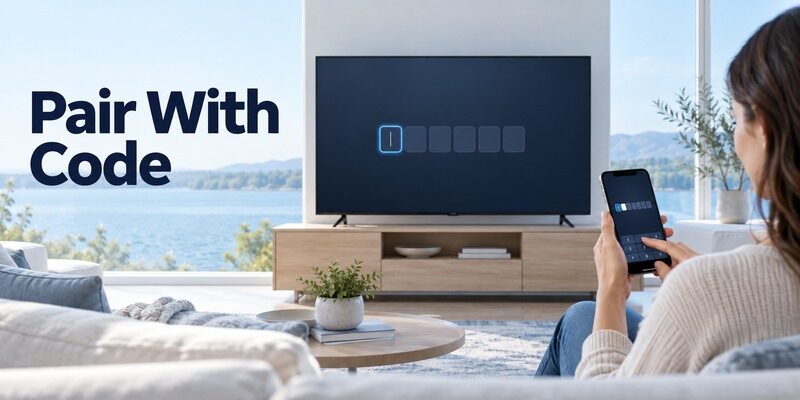
Use Amazon’s current app instructions and keep the TV screen in view. The code is a local confirmation that the phone selected the correct device. The fire tv stick remote app pairing prompt should appear on the screen of the device you selected in the phone app.
Select the device
Open the Fire TV app, sign in as requested, and choose the Stick by its device name. If several Fire TV devices appear, check the room and on-screen name before pairing. A connection to a different household device can look like an unresponsive remote even though the app is working normally. After the official method works, a universal remote TV app may be worth comparing for a household that controls several supported devices from one phone.
Enter the on-screen code
Type the displayed code promptly into the app and wait for the remote interface. If the code expires, request a fresh one; do not try to reuse a previous code or enter credentials into an unrelated website. Test a directional key and Home first, then examine playback and volume separately.
During fire tv stick remote app pairing, note whether the Stick appears, whether a code appears on the screen, and whether the code is accepted. Those are three different failure points. A missing device points toward network reachability; no code may mean the wrong device was selected; rejection may be a stale prompt. Retry only the failed stage. This avoids clearing app data or factory resetting a working Stick unnecessarily.
4. Use iPhone and Android Controls
The official Fire TV app is available for supported mobile devices. Permission wording differs by operating system, but the local network requirement does not. Once connected, fire tv stick remote app controls may differ between iPhone and Android releases; test the same basic navigation keys.
iPhone local-network permission
If an iPhone cannot find the Stick, verify Wi-Fi and allow local-network access for the Fire TV app in iOS settings. Reopen the app after changing permission. Cellular data alone will not discover a Stick on the household router. Keep the phone unlocked while entering the pairing code.
Android discovery and updates
On Android, update the Fire TV app through the official store and allow permissions needed for nearby or network discovery. Check that the phone has not joined a guest SSID. When navigation works but voice or keyboard does not, compare app permissions and the feature’s supported device requirements rather than re-pairing everything.
The fire tv stick remote app interface can differ slightly between iOS and Android, so focus on the resulting device connection rather than identical screenshots. When permission has been changed, reopen the app and rescan. A phone that quietly switched from Wi-Fi to cellular data can still browse websites but cannot find the local Stick. Test a directional key while the Fire TV menu is visible before judging voice or typing.
Read more: Sanyo TV Remote App: Roku TV and Older Model Options
5. What the App Can and Cannot Control
The fire tv stick remote app is a remote for a streaming device. TV power, input, and external audio controls can be routed through other hardware. A successful fire tv stick remote app connection establishes streaming-device navigation, while TV power and sound may take another route. iPhone users can also compare a free TV remote app for iPhone, but should test it against the Fire TV Stick before relying on paid features or subscriptions.
Navigation and keyboard
The app can make text entry and search easier than a small remote keypad, depending on the current app version. Test Home, Back, directional navigation, playback, and text fields. A working keyboard does not guarantee the phone can wake the television from deep standby.
TV volume and HDMI equipment
A Fire TV Stick may use HDMI CEC or equipment control for some TV and soundbar functions. If volume does not respond, test the television speakers and the physical TV remote, then inspect the Fire TV equipment-control setup. A streaming app cannot repair a disabled HDMI CEC connection or an unsupported soundbar.
A fire tv stick remote app may navigate streaming menus yet leave TV volume unchanged because the Fire TV Stick, TV panel, and soundbar are three separate control targets. Draw a simple path: phone to Stick across Wi-Fi, then Stick to TV or soundbar through configured equipment control or HDMI CEC. If Home works, do not re-pair the phone to solve audio. Verify the soundbar’s own remote and the TV speaker setting first.
An HDMI stick and a television are separate devices even when they appear as one viewing experience. Test navigation on the Fire TV home screen, then test TV volume and input. Record which command fails before changing HDMI CEC or soundbar settings.
6. If the Physical Fire TV Remote Is Lost
A phone is most helpful while the Fire TV Stick remains awake and on its original network. Keep the recovery path clear before replacing batteries or changing the router. If a fire tv stick remote app fallback requires the physical controller, identify its compatible generation before ordering one.
Use the app to reach settings
Once connected, the app can navigate Fire TV settings. Amazon’s help also describes using the Fire TV app to pair a new physical remote. Follow the on-screen menu for the current software version and confirm the replacement remote is compatible with your Stick generation.
Do not erase the network casually
A factory reset removes the device’s network association and can eliminate the phone’s only control path. Record the current Wi-Fi name and keep a compatible physical remote available. If the Stick is already offline, use Amazon’s documented setup and recovery steps rather than repeated app installations.
If a fire tv stick remote app is your only working controller, preserve the network state until a physical replacement arrives. A factory reset can remove the app’s route to the device. Photograph the device model and current Wi-Fi name, then use the connected phone to reach Amazon’s remote-pairing menu. Confirm the replacement supports that Fire TV generation before attempting to pair. The same-looking remote housing does not prove compatibility.
Read more: JVC TV Remote App: Roku TV Setup and Compatibility
7. Fire TV App Not Finding the Stick
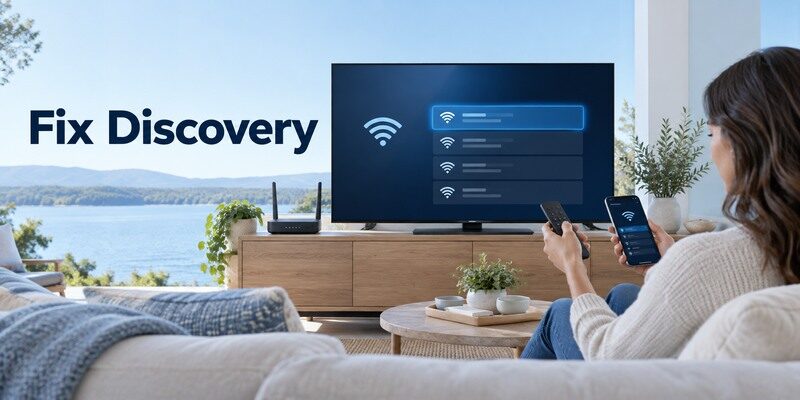
Resolve discovery in a sequence: power, network, permissions, then app state. Switching apps before those checks rarely changes the local connection. When fire tv stick remote app discovery fails, record the first failure and check only that layer before resetting hardware.
| Symptom | Check | Next action |
| Not listed | Wi-Fi or guest isolation | Join the same reachable network |
| Code fails | TV screen and app session | Restart app; request a fresh code |
| Navigation works, volume fails | TV equipment control | Check HDMI CEC or TV remote |
Check power and HDMI input
Verify the Stick is powered from a suitable adapter and the TV shows its Fire TV interface. Selecting the wrong HDMI input can make the phone’s commands appear to do nothing. If the Stick is frozen, restart it using the documented device method and wait for the home screen.
Check router and app state
Move phone and Stick onto the same reachable Wi-Fi; avoid guest isolation and VPN routing for the first test. Close and reopen the Fire TV app, then choose the right device name. If discovery remains absent, inspect the Stick network settings with a working physical controller.
When the fire tv stick remote app cannot find a device after a power outage, wait for the Stick to finish loading before rescanning. Confirm the TV is on the correct HDMI input and the power adapter is connected; some TV USB ports provide insufficient power for stable operation. Then check the router. Separating a black screen from an empty discovery list prevents a network fix being attempted on an unpowered device.
Before ordering a backup controller, check whether a universal remote will work on Fire TV, because compatibility varies by remote generation and the controls you need.
8. App Versus Replacement Alexa Voice Remote
The app is useful as a backup; a physical remote remains valuable for network recovery, quick access, and households with multiple viewers. Compare fire tv stick remote app alternatives by the missing command they restore and the device each one actually reaches.
When a phone is enough
If the Fire TV Stick stays on Wi-Fi and the app supplies the navigation, search, and playback you need, a phone can handle routine viewing. Check subscription terms for third-party apps. Keep a second way to turn on the TV and change HDMI inputs.
When to buy a remote
Buy a remote listed as compatible with your exact Fire TV device generation. Voice, TV power, and equipment-control behavior vary. A lookalike remote might navigate but lack a key function. Amazon’s pairing instructions are the safer reference than an unverified universal button combination.
The fire tv stick remote app is attractive as a backup because a phone is often nearby, but a shared household may prefer a physical controller that works immediately without unlocking a phone. Compare actual routine: quick pause, voice search, input switching, and volume. If the app covers all but one command, a model-compatible physical remote may still be valuable. Avoid paying for a universal subscription before testing the official baseline.
When replacing hardware, keep the Fire TV model identifier and the old remote’s functions beside the seller’s compatibility list. A replacement should cover the commands used in your room, not merely pair once.
Source: documents mobile-app setup and same-network pairing. Check the current screen prompts for your device.
If the television itself is a supported smart model, is another option to assess after the official device method. Check the current listing and in-app purchase terms, then test navigation, power, and volume on your actual setup. It cannot add IR hardware or restore an offline device.
Read more: Philips TV Remote Not Working? Fix Buttons, Pairing, and Voice
9. Safe Download and Privacy Checks
Use the official mobile store and verify the developer before installing any fire tv stick remote app. App titles that contain “Fire” are not proof of Amazon authorship. A fire tv stick remote app download should come from the verified publisher and document its supported devices and terms.
Permission scope
A local network permission is understandable for a device-discovery app. Review requests for unrelated contacts or administrative access. Check the store’s privacy section and recent support information. Never enter your Amazon password into a third-party page linked from an ad.
Free and paid controls
The official platform app is a useful no-cost baseline where available. A universal app may charge for extras or show ads; compare its current listing before accepting a trial. Pay only after testing the specific remote functions you actually need on your Stick.
A safe fire tv stick remote app listing should name its publisher, supported devices, and paid features plainly. Review permissions in relation to local discovery and voice features. If an app asks you to provide an Amazon password through a separate website, stop and use Amazon’s official route. Keep software updated through the store, and remove unused third-party apps after a trial rather than leaving broad permissions granted indefinitely.
Read more: Toshiba TV Remote Not Working? Fix Fire TV Pairing and Power
10. Frequently Asked Questions
These answers resolve the remaining practical questions about fire tv stick remote app.
Is the Fire TV app free?
Amazon’s official Fire TV app is a baseline mobile remote for supported devices. Review its current store listing for availability in your region; third-party apps may include in-app purchases or subscriptions.
Can I use the app without Wi-Fi?
No for ordinary network control. The phone and Fire TV Stick need a reachable local network. If the Stick has lost its connection, restore setup with a compatible physical method first.
Can the app control TV volume?
Sometimes, depending on device settings, HDMI CEC, and connected audio equipment. Test the TV or soundbar directly when app navigation works but volume does not.
Why does the app show the wrong Fire TV?
Multiple devices on the network can appear by similar names. Check the on-screen device name and room, select the correct Stick, and enter its own pairing code.
11. Final Thoughts
The best fire tv stick remote app is one that connects to the correct Stick on your local network and performs the commands you need. Start with Amazon’s official app, preserve a physical route for offline recovery, and use a universal phone remote only after checking real compatibility and terms.
