
How to Connect Soundbar to TV: HDMI ARC, Optical, and Bluetooth
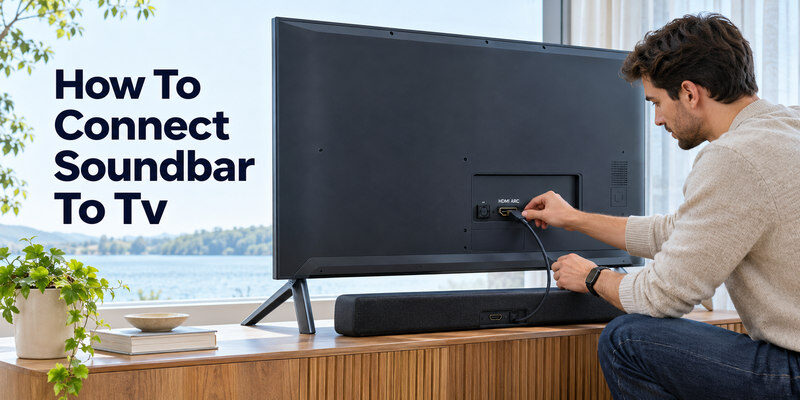
Learning how to connect soundbar to tv is simple when you know which audio ports and settings to use. The best connection is usually HDMI ARC or eARC, because it allows your television to send audio directly to your soundbar through a single cable.
Quick answer:
- Find the HDMI port labeled ARC or eARC on your TV.
- Connect it to the soundbar’s HDMI OUT (TV ARC/eARC) port.
- Turn on both devices.
- Open your TV’s Settings > Sound > Audio Output menu.
- Select HDMI ARC, eARC, or External Audio System.
- Enable HDMI-CEC if required, then play a video to test the sound.
If your television does not support HDMI ARC, use an optical cable or Bluetooth when both devices support it.
This guide explains how to connect a soundbar to a tv, including the correct cables, compatible audio settings, popular soundbar brands, and troubleshooting methods.
1. How to Connect Soundbar to TV: Choose the Best Connection
Before connecting anything, examine the ports on the back or side of your television and soundbar.
The available connections determine which audio formats and control features you can use.
HDMI ARC and HDMI eARC
HDMI ARC stands for Audio Return Channel. It allows compatible televisions to send audio to a soundbar through an HDMI connection.
HDMI eARC, or Enhanced Audio Return Channel, is an improved version that supports higher-bandwidth audio formats.
According to the HDMI Licensing Administrator, eARC can support uncompressed 5.1 and 7.1 surround sound, audio sampling rates up to 192 kHz, and bandwidth up to approximately 37 Mbps.
It also supports formats including Dolby TrueHD, DTS-HD Master Audio, and Dolby Atmos when the connected equipment and content are compatible.
Best for: Modern smart TVs, streaming, gaming, and home theater systems.
Optical digital audio
An optical cable transmits digital audio through a light-based connection.
It is a practical alternative when HDMI ARC is unavailable.
Optical connections commonly support stereo PCM and compressed surround formats such as Dolby Digital 5.1, depending on the equipment.
However, they cannot carry the same high-bandwidth audio formats as HDMI eARC.
Best for: Older televisions, basic soundbars, and reliable wired audio.
Bluetooth wireless audio
Bluetooth lets compatible televisions connect to soundbars without an audio cable.
It is convenient, but audio latency, pairing interruptions, and codec limitations can affect performance.
Best for: Simple wireless setups and casual television watching.
AUX or analog audio
Some older televisions provide a 3.5 mm headphone output or another analog audio output.
If the soundbar has a compatible analog input, a suitable cable can connect them.
Best for: Basic soundbars and older televisions without digital audio options.
Soundbar connection comparison
| Connection | Sound quality | TV remote control | Recommended use |
|---|---|---|---|
| HDMI eARC | Excellent | Usually supported | Premium home theater |
| HDMI ARC | Very good | Usually supported | Most modern TVs |
| Optical | Good | Depends on equipment | Older TVs |
| Bluetooth | Varies | Limited or model-dependent | Wireless convenience |
| AUX | Basic stereo | Depends on TV output | Legacy devices |
Recommendation: When deciding how to connect soundbar to tv, choose HDMI eARC first, HDMI ARC second, and optical when ARC is unavailable.
2. How to Connect Soundbar to TV With HDMI ARC or eARC
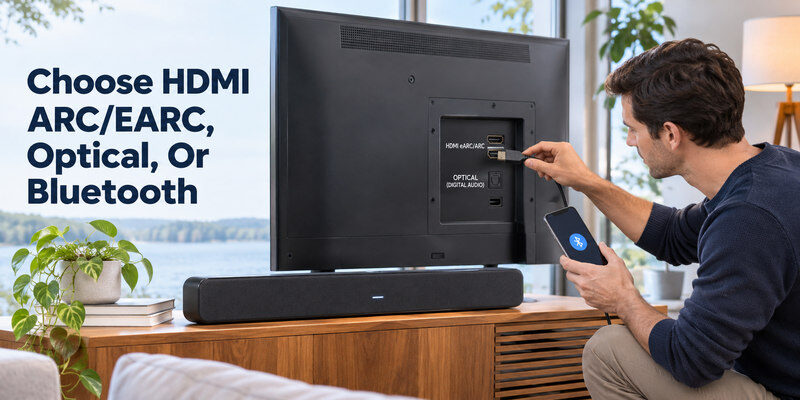
For most modern televisions, how to connect soundbar to tv with hdmi is the most important setup method to understand.
HDMI provides a wired connection and can support synchronized power and volume controls through HDMI-CEC.
Step 1: Identify the correct HDMI ports
Look for an HDMI connection on your television labeled:
- HDMI ARC
- HDMI eARC
- HDMI IN (ARC/eARC)
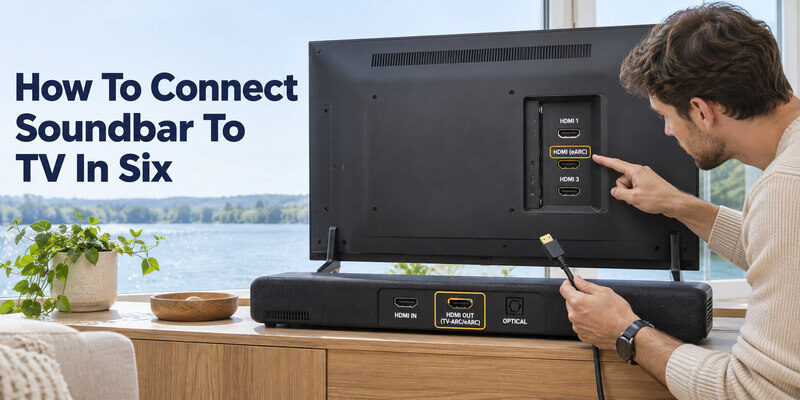
Next, find the soundbar port labeled HDMI OUT (TV ARC/eARC) or something similar.
Important: Do not confuse HDMI IN with HDMI OUT on the soundbar. HDMI IN is typically designed for external sources such as gaming consoles or streaming devices.
Step 2: Connect the HDMI cable
Turn off the television and soundbar before attaching cables.
Connect one end of the HDMI cable to the TV’s HDMI ARC or eARC port.
Connect the other end to the soundbar’s HDMI OUT (ARC/eARC) port.
Use a good-quality, compatible HDMI cable. For demanding eARC installations, a certified Ultra High Speed HDMI cable is a reliable option, although other suitable cables may work.
Step 3: Select the soundbar input
Turn on both devices.
Use the soundbar’s remote or physical controls to select the appropriate input mode.
Depending on the model, this may appear as:
- TV ARC
- HDMI ARC
- eARC
- TV
Wait for the soundbar to recognize the connection.
Step 4: Change your television’s audio output
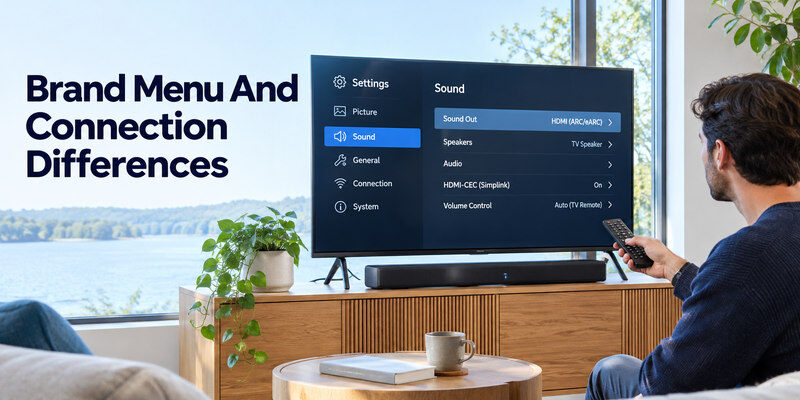
Open the television settings.
Navigate to the sound or audio menu and select the connected soundbar or HDMI audio output.
The exact menu differs between manufacturers.
If available, turn on HDMI-CEC so the television can communicate with the soundbar.
Step 5: Test the connection
Play a familiar movie, television program, or streaming video.
Gradually increase the volume.
Check whether sound comes through the soundbar rather than the television’s built-in speakers.
Also test the television remote’s volume buttons.
If they control the soundbar correctly, HDMI-CEC is likely working.
Tip: If the soundbar remains silent, temporarily set the TV’s digital audio output to PCM. This can help determine whether an unsupported audio format is causing the problem.
HDMI ARC vs eARC: Which should you use?
When researching how to connect soundbar to tv hdmi, you may encounter both standards.
HDMI ARC is sufficient for many everyday streaming services and conventional surround sound systems.
HDMI eARC offers greater bandwidth and is especially useful for compatible devices playing lossless multichannel audio.
However, both the TV and soundbar must support the relevant format to use its full capabilities.
An eARC television connected to an ARC-only soundbar will generally operate using ARC capabilities when the devices support that fallback.
3. How to Connect a Soundbar to TV With an Optical Cable
If your television does not support HDMI ARC, optical audio is usually the next practical choice.
Understanding how to connect soundbar to tv through an optical port is especially useful for older televisions.
Step 1: Locate the optical ports
Find the television port labeled Digital Audio Out (Optical), Optical Out, or SPDIF Out.
Locate the corresponding Optical In port on your soundbar.
These ports are usually square-shaped and may have protective covers.
Step 2: Connect the optical cable
Carefully remove any protective plastic caps from the cable connectors.
Insert one end into the television’s optical output.
Connect the other end to the soundbar’s optical input.
Avoid sharply bending the cable or forcing the connectors.
Step 3: Configure audio output
Turn on both devices and select Optical or D.IN on the soundbar.
On your television, navigate to the audio settings and select Optical, Digital Audio Out, or External Speaker.
If no sound is produced, try changing the digital audio format to PCM.
Step 4: Test television audio
Play a video and increase the volume gradually.
If the soundbar receives audio but the TV remote cannot adjust its volume, use the soundbar remote or another supported control method.
Remember: Optical audio does not provide HDMI-CEC control. It may also have limitations with advanced surround sound formats.
For many viewers, however, it delivers clear dialogue and dependable everyday audio.
4. How to Connect Soundbar to TV Using Bluetooth or AUX
Not every installation needs an HDMI cable.
If you want to learn how to connect soundbar to smart tv wirelessly, Bluetooth may be suitable.
Connecting a soundbar through Bluetooth
First, confirm that your television supports Bluetooth audio output. A television with Bluetooth functionality does not necessarily support Bluetooth speakers.
Then follow these steps:
- Turn on the soundbar.
- Activate Bluetooth pairing mode using its Bluetooth or Source button.
- Open the television’s Bluetooth or Sound Output settings.
- Select Bluetooth Speaker List, Bluetooth Audio, or the equivalent option.
- Choose the soundbar from the available devices.
- Confirm pairing and test the sound.
If the soundbar does not appear, disconnect it from previously paired devices and try again.
Bluetooth works best when the devices are relatively close and there are few sources of wireless interference.
However, Bluetooth can introduce a delay between the picture and sound.
For gaming or movies where synchronization matters, a wired HDMI connection is generally preferable.
Connecting with a 3.5 mm AUX cable
Some soundbars include an AUX IN port.
If your television offers a headphone output, connect it to the soundbar’s AUX IN using an appropriate 3.5 mm cable.
Select AUX on the soundbar and test playback.
You may need to adjust both the television output volume and soundbar volume to achieve a comfortable listening level.
AUX connections typically carry stereo audio rather than digital surround sound.
Can you connect a soundbar without HDMI ARC?
Yes.
When exploring how to connect soundbar to tv without HDMI ARC, consider optical, Bluetooth, or a compatible analog output.
The best alternative depends on the ports and functions supported by both devices.
5. How to Connect Vizio, LG, Bose, JBL, and Sony Soundbars
Different soundbar brands use similar connection methods, but their settings, input labels, and additional features may vary.
Below are practical instructions for several popular manufacturers.
How to connect Vizio soundbar to TV
If you are searching for how to connect vizio soundbar to tv, start by checking whether the soundbar and television have HDMI ARC or eARC ports.
- Connect the television’s HDMI ARC/eARC port to the Vizio soundbar’s compatible TV HDMI output.
- Turn on the devices.
- Select the correct TV audio output.
- Enable HDMI-CEC and ARC where required.
- Test playback using the television remote.
On some Vizio televisions, you can also use the CEC device discovery function.
If HDMI ARC is unavailable, check whether the specific Vizio soundbar supports optical input.
Vizio setup tip: Some models include a separate HDMI IN port for external devices. Do not use it instead of the TV ARC/eARC connection.
How to connect LG soundbar to TV
The process for how to connect lg soundbar to tv usually involves HDMI ARC, optical audio, or Bluetooth.
For an LG television:
- Connect the soundbar to the television’s HDMI ARC/eARC port.
- Open Settings and find Sound Out.
- Select HDMI ARC or HDMI(ARC) Device.
- Enable SIMPLINK (HDMI-CEC).
- Select the matching function on your soundbar.
If you want to know how to connect an lg soundbar to an lg tv wirelessly, check whether both devices support LG Sound Sync or another compatible Bluetooth audio mode.
LG Sound Sync availability depends on the model.
LG setup tip: Ensure SIMPLINK is enabled if ARC audio or TV remote control functionality is not working properly.
How to connect Bose soundbar to TV
For users researching how to connect bose soundbar to tv, the preferred method is typically HDMI ARC or eARC.
Connect the television’s ARC/eARC port to the compatible HDMI port on the Bose soundbar.
Then select the external audio system in the television’s sound settings.
Supported smart Bose models may use the Bose app to guide initial setup and configure additional features.
If the television lacks HDMI ARC, many compatible Bose soundbars also support optical audio.
Bose setup tip: Use the setup instructions for your exact model. Supported applications and connection options differ across Bose soundbars.
How to connect JBL soundbar to TV
To understand how to connect jbl soundbar to tv, check whether your model supports HDMI ARC, eARC, or optical input.
For a compatible JBL soundbar:
- Connect HDMI OUT (TV ARC/eARC) on the soundbar to the television’s ARC/eARC port.
- Enable HDMI-CEC if required.
- Select the TV audio output.
- Choose the TV or ARC audio source on the JBL soundbar.
- Play content and verify sound.
Some JBL models automatically prioritize HDMI ARC/eARC over optical audio when both connections are present.
JBL setup tip: Use one TV audio connection method during initial troubleshooting to avoid confusion over which input is active.
How to connect Sony soundbar to TV
The usual process for how to connect sony soundbar to tv is similar to other HDMI-compatible soundbars.
Connect the Sony soundbar’s HDMI OUT (TV eARC/ARC) port to the television’s corresponding HDMI ARC/eARC input.
On compatible Sony BRAVIA televisions, open the audio settings and select Audio System instead of TV Speakers.
Enable BRAVIA Sync when HDMI device control is required.
After setup, confirm that television sound plays through the soundbar.
If HDMI is unavailable, check for an optical connection.
Sony setup tip: BRAVIA Sync is Sony’s implementation of HDMI-CEC. It can help coordinate power and volume control between supported devices.
Do soundbars need to match the TV brand?
No.
You can generally connect an LG soundbar to a Samsung television, a JBL soundbar to a Sony television, or other combinations.
The connection standards and supported audio formats matter more than matching brand names.
However, brand-specific features may require compatible products from the same manufacturer.
6. How to Configure Smart TV Audio Settings
Knowing how to connect a soundbar to a smart tv involves more than plugging in a cable.
The television must also send audio to the appropriate device.
Select the correct audio output
Open the television’s Settings menu and look for Sound, Audio, Speakers, or Audio Output.
Choose the connected external audio device.
Common options include:
- HDMI ARC/eARC
- Optical Audio
- Bluetooth Speaker
- External Audio System
- Receiver or Soundbar
If the TV continues using its internal speakers, confirm that external speaker output is selected.
Enable HDMI-CEC
HDMI-CEC allows compatible devices to exchange control commands.
Manufacturers often use different names for this feature:
| TV brand | HDMI-CEC name |
|---|---|
| Samsung | Anynet+ |
| LG | SIMPLINK |
| Sony | BRAVIA Sync |
| Panasonic | VIERA Link |
| Other brands | HDMI-CEC or CEC |
Enabling HDMI-CEC may allow one remote to control soundbar volume and power.
The precise functionality varies by television and soundbar.
Configure digital audio formats
Some televisions provide settings such as:
- PCM
- Auto
- Bitstream
- Pass Through
- Dolby Digital
For basic troubleshooting, PCM is often a useful starting point.
For supported surround sound systems, Auto, Bitstream, or Pass Through may preserve more advanced audio formats.
If you use Dolby Atmos content, verify that your television, soundbar, source device, and connection all support the required format.
Connect gaming consoles and streaming devices
You can usually connect a streaming device or gaming console to a television’s HDMI input while sending audio from the TV to the soundbar through ARC/eARC.
Alternatively, some soundbars include HDMI inputs for connecting external devices directly.
For this setup:
- Connect the external device to HDMI IN on the soundbar.
- Connect the soundbar’s HDMI OUT to the TV.
- Select the appropriate HDMI input.
Before using HDMI passthrough, verify that the soundbar supports the video features your device needs, particularly high-refresh-rate gaming or advanced HDR formats.
7. How to Fix Common Soundbar Connection Problems
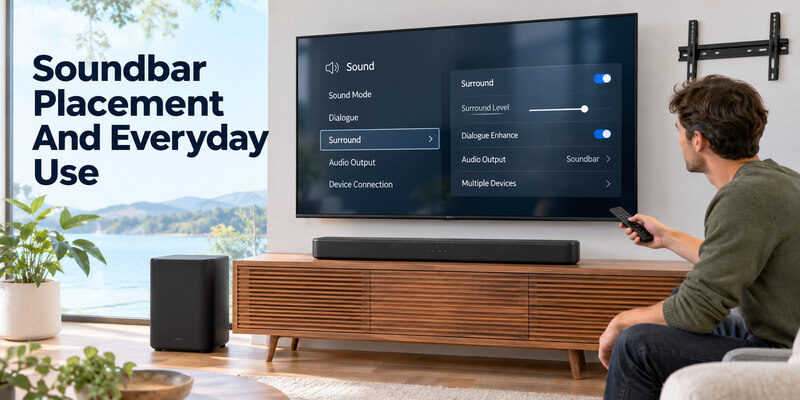
Even when you follow the correct instructions for how to connect soundbar to tv, audio issues can occasionally occur.
Most problems involve incorrect ports, input selection, incompatible formats, or HDMI control settings.
Problem 1: Soundbar connected but no sound
If the soundbar is powered on but silent:
- Check whether the television is muted.
- Confirm that the soundbar is connected to the correct port.
- Select the appropriate input on the soundbar.
- Change the television audio output to the external device.
- Restart both devices.
- Try PCM as the digital audio output format.
If you use HDMI ARC, verify that the cable is connected to the dedicated ARC/eARC port, not an ordinary HDMI input.
Most importantly, make sure the TV and soundbar are using the same connection method.
Problem 2: HDMI ARC is not working
HDMI ARC requires a compatible connection and the appropriate device settings.
If ARC fails:
- Enable HDMI-CEC on the television.
- Check whether ARC/eARC is activated.
- Disconnect and reconnect the HDMI cable while devices are powered off.
- Try a known-working compatible HDMI cable.
- Update device firmware if an appropriate update is available.
You can also unplug both devices from power, wait approximately one minute, reconnect them, and repeat the setup.
Problem 3: Bluetooth soundbar not detected
If the television cannot find the soundbar:
- Confirm Bluetooth audio output is supported.
- Activate pairing mode on the soundbar.
- Disconnect other devices currently paired with it.
- Remove an old pairing record from the television.
- Restart the pairing process.
Keep the soundbar close enough to the television for a stable connection.
Problem 4: Audio is delayed
When the audio does not match the picture, the television or soundbar may be introducing processing latency.
Open the sound settings and look for AV Sync, Audio Delay, or Lip Sync.
Adjust the setting gradually until speech matches the on-screen movement.
If you are using Bluetooth and the delay persists, try HDMI ARC or optical instead.
Some devices provide automatic audio synchronization, but the actual behavior depends on their capabilities.
Problem 5: TV remote cannot control the soundbar
First, check whether HDMI-CEC is enabled.
Then verify that the soundbar supports volume control through the active HDMI connection.
If you are using optical audio, HDMI-CEC commands cannot travel through the optical cable.
Some televisions support infrared remote programming for external speakers, but this is model-dependent.
Problem 6: Dolby Atmos is unavailable
A soundbar advertised with Dolby Atmos does not automatically receive Atmos audio in every setup.
Check that:
- Your content includes a compatible Atmos soundtrack.
- Your soundbar supports the relevant Atmos format.
- Your TV can output or pass through that format.
- The connection has sufficient bandwidth.
- The selected digital audio settings are compatible.
HDMI eARC is generally preferable for high-bandwidth Atmos formats, although certain compressed Atmos implementations can work through compatible HDMI ARC equipment.
Problem 7: Sound cuts out intermittently
Intermittent audio may result from a loose cable, wireless interference, incorrect format negotiation, or firmware problems.
Try testing with another HDMI cable, changing the audio output format, or temporarily disconnecting unnecessary devices.
If audio works through optical but not HDMI ARC, investigate the ARC/eARC and HDMI-CEC settings before replacing the soundbar.
Download TV Remote App8. Frequently Asked Questions About Connecting Soundbars
What is the easiest way to connect a soundbar to a TV?
The easiest method for most modern televisions is HDMI ARC.
Connect the television’s ARC port to the soundbar’s compatible HDMI output, select external audio output, and enable HDMI-CEC if needed.
For basic setups, this is usually the most convenient answer to how to connect soundbar to tv.
How do I connect my soundbar to my TV without an HDMI cable?
If you are wondering how to connect my soundbar to my tv without HDMI, check whether both devices support optical audio or Bluetooth.
Optical is generally the better choice when you want stable wired sound.
Bluetooth offers wireless convenience when supported.
Can I connect any soundbar to any smart TV?
Not necessarily.
You must have at least one compatible audio output and input method.
Most modern devices offer HDMI ARC/eARC or optical audio, but compatibility should be confirmed before purchasing accessories.
Can I use one remote for both my TV and soundbar?
Yes, on many compatible setups.
HDMI-CEC often allows the television remote to control soundbar volume and power through HDMI ARC/eARC.
Optical and Bluetooth setups may require separate controls unless the devices support another control method.
Does HDMI eARC sound better than optical?
HDMI eARC supports higher-bandwidth formats and more advanced surround sound capabilities.
However, the audible improvement depends on your content, soundbar, speakers, and source format.
For basic stereo television programs, optical may provide entirely satisfactory audio quality.
Can I connect my soundbar without a TV remote?
Yes, depending on the equipment.
Some TVs provide physical buttons, supported mobile remote applications, or other control interfaces.
If you need to navigate your TV’s audio settings and your television is compatible, the Remote TV app may provide a convenient alternative to a physical TV remote.
Download Remote TV App for iPhone
Note: A TV remote application controls supported television functions. It does not replace the audio cable, Bluetooth pairing process, or a soundbar manufacturer’s dedicated app.
Which soundbar connection is best for gaming?
HDMI eARC is often the best option for compatible modern gaming systems because it supports high-quality multichannel audio and is suitable for setups that prioritize synchronization.
However, your TV and soundbar must support the audio and video features you intend to use.
Avoid relying on Bluetooth when you are especially sensitive to audio delay.
Why does my soundbar work with some apps but not others?
Different apps and devices may output different audio formats.
A television might successfully play stereo audio while failing to pass through another application’s surround sound format.
Try changing the television’s digital audio output to PCM as a test, then configure a supported surround format if available.
Conclusion
Understanding how to connect soundbar to tv starts with identifying the available ports and choosing the correct audio output settings.
HDMI ARC or eARC is the recommended choice for most modern televisions, especially when you want improved home theater audio and convenient remote control.
Optical audio is a dependable alternative, while Bluetooth and AUX connections are useful for compatible devices with different requirements.
Whether you use a Vizio, LG, Bose, JBL, or Sony soundbar, the essential steps remain similar: connect the correct ports, select the matching input, configure television audio output, and test playback.
With the correct setup, you can enjoy clearer dialogue, more detailed sound effects, and a more immersive television experience.
