
How to Set Up Fire TV Stick in 6 Easy Steps (Beginner’s Guide)
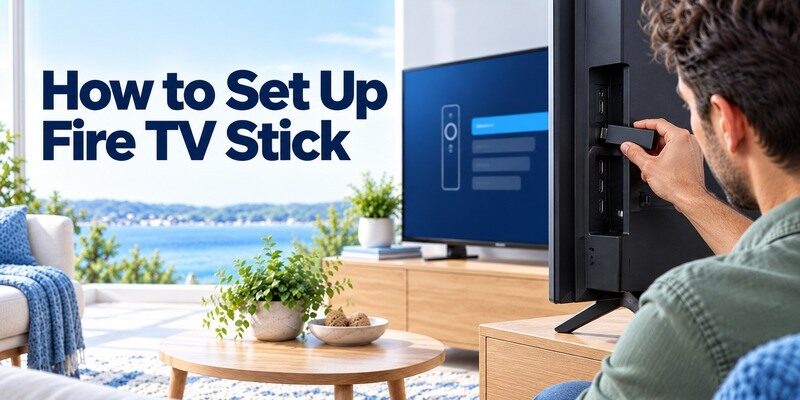
Short answer: Connect Fire TV Stick to your TV’s HDMI port and its recommended power source, select that HDMI input, pair the remote, join Wi-Fi, and sign in to Amazon. These are the six steps for how to set up Fire TV Stick from a new box through its first home screen. A new device may download updates before the home screen appears. Keep the TV’s own remote nearby for input selection, and check the instructions for your particular Stick model because its supplied power cable and setup screens can differ. The guide below separates each action so you can see exactly where setup stops if something goes wrong.
What you need before starting
The simplest way to learn how to set up Fire TV Stick is to lay out the equipment before you reach behind the television. This Fire TV Stick setup guide follows Amazon’s list: the Stick, its remote and batteries, an HDMI-equipped TV, internet access, and an Amazon account. Check the box for the power cable, adapter, and optional HDMI extender supplied with your particular model. Some newer models describe a supported direct-power arrangement, so follow the model’s included power instructions rather than assuming every Stick uses the same cable.
| Item | Why you need it | Check before connecting |
|---|---|---|
| Fire TV Stick and supplied power parts | Runs the streaming interface | Match the cable and adapter to your model |
| TV with an open HDMI input | Displays setup | Note the port label, such as HDMI 2 |
| Fire TV remote and batteries | Navigates the first run | Insert fresh batteries in the marked direction |
| Wi-Fi name and password | Connects to the internet | Use a network you can access from the TV |
| Amazon account | Registers the device | Have your sign-in method ready |
Check the HDMI port and clearance
If the back of a wall-mounted TV is cramped, the included HDMI extender can give the Stick room and reduce strain on the port. You do not need to buy a separate HDMI cable for a standard Stick: the device’s HDMI connector plugs into the TV or extender. These Fire TV Stick installation steps start with the port label; write down the exact input now. A blank screen later is often the TV displaying a different input, not a faulty streaming device.
Prepare the network and account
The initial setup needs a working connection to reach Amazon and obtain any updates. A Wi-Fi password copied from the router label may be obsolete if the network has since been renamed. Confirm it with another connected device. You can create an Amazon account during setup if you do not have one, but having the email or phone number and password ready saves time.
How to Set Up Fire TV Stick in 6 Steps
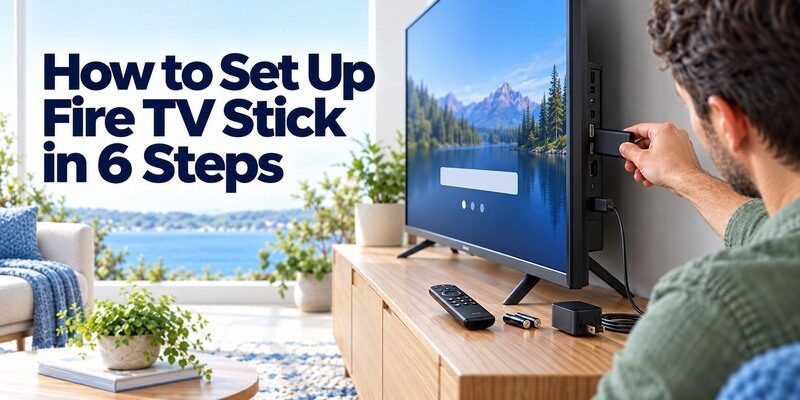
Here is how to set up Fire TV Stick in the order you will use it. Work through the six actions once, then use the later troubleshooting sections only for the step that fails. Amazon’s current setup guidance follows the same physical connection, input, remote, network, and account flow. The screen labels and supplied power arrangement can vary by Stick generation, so follow your model’s included instructions when they are more specific.
If you need another controller, first check whether a universal remote works with Fire TV and confirm support for your exact Stick generation.
Step 1 – Connect Fire TV Stick to HDMI
Insert the Stick’s HDMI connector into an open HDMI port on the television. If the port sits in a narrow recess or nearby cables prevent a firm connection, use the HDMI extender included with models that supply one. Do not force the Stick into a crowded port. Note the input’s label, such as HDMI 2, before moving away from the back of the TV. If you searched how to connect Fire TV Stick to TV, this is the physical connection; the TV input choice in Step 3 makes its picture visible.
Step 2 – Connect the Power Supply
Connect the supplied power cable to the Stick and then use the power method designated for that model. Amazon’s general Fire TV Stick instructions show the included adapter plugged into a wall outlet and caution against an arbitrary TV USB port. Some newer models have a specified direct-power cable; use that arrangement only when your model’s instructions support it. HDMI carries the signal but does not supply the Stick’s operating power. A loose cable or insufficient supply can produce a low-power warning, repeated restarts, or no usable picture.
Step 3 – Select HDMI Input
Turn on the TV and use its own remote or physical input button to select the exact HDMI port from Step 1. Wait for the Fire TV welcome screen to appear. If the screen says no signal, check the port selection, seating, and power before changing any network settings. The TV may not switch inputs automatically. This is a common reason how to set up Fire TV Stick appears to fail before the on-screen setup has even begun.
Step 4 – Pair the Fire TV Remote
Insert the included AAA batteries according to the polarity marks. The Fire TV remote usually pairs automatically as the device boots. Test the directional ring and Select on the welcome screen; if the cursor does not respond, hold Home for about 10 seconds while you are within roughly 10 feet (3 m) of the Stick. Amazon’s pairing guidance uses that timing and distance. A quick tap of Home may not start pairing, and changing volume with the TV’s separate remote does not confirm the Fire TV remote works.
Step 5 – Connect to Wi-Fi
Choose the language shown on the screen, then select your household Wi-Fi network and enter its current password. A QR-based phone option may appear on some setup screens; otherwise use the Fire TV remote. Check the network name and letter case before retrying a rejected password. For Fire TV Stick first time setup, the connection also allows registration and updates, so keep the Stick powered while it completes them. If no network appears, the Wi-Fi troubleshooting section below gives the refresh and restart sequence.
Step 6 – Sign In to Amazon
Follow the on-screen sign-in method for your Amazon account. Depending on the screen, you may scan a QR code or enter the displayed activation code at the Amazon address shown on the TV. Create an account if needed, then follow the remaining prompts for preferences and optional equipment control. Do not unplug the Stick during an update. How to set up Fire TV Stick ends at a responsive home screen, not at the first successful password entry. You can sign in to individual streaming apps afterward; those credentials may be separate from your Amazon account.
Read more: Remote Control App for Non Smart TV: IR Options and Limits
Confirm the first run is complete
After the six steps, how to set up Fire TV Stick has succeeded when the home screen responds to the included remote and the device can open an app over your network. The first startup may include downloads that take longer than a normal boot. Give the screen time to finish before assuming it has frozen, and check a specific symptom if it never progresses. A useful answer to how to set up Fire TV Stick ends with one successful playback test.
Check the home screen and remote
Move across several tiles, press Select, return with Back, and press Home. These actions confirm the remote is paired to the Stick rather than merely controlling television volume. If navigation works but volume does not, finish the separate equipment-control setup later. Record the exact screen or message if navigation stops; that detail points you to HDMI, remote, Wi-Fi, or account recovery.
Open one app and complete its sign-in
Launch an app you intend to use and test a short title. The app may require its own account or subscription. A working home screen with a single app’s sign-in error is not a failed Fire TV installation. If the interface is still applying updates, wait for it to settle before testing playback. This check turns a Fire TV Stick setup guide into a usable installation rather than a list that stops at registration.
Once the Stick is connected, follow the Fire TV Stick remote app setup guide to connect your phone and test basic navigation.
Pair the Fire TV remote during setup
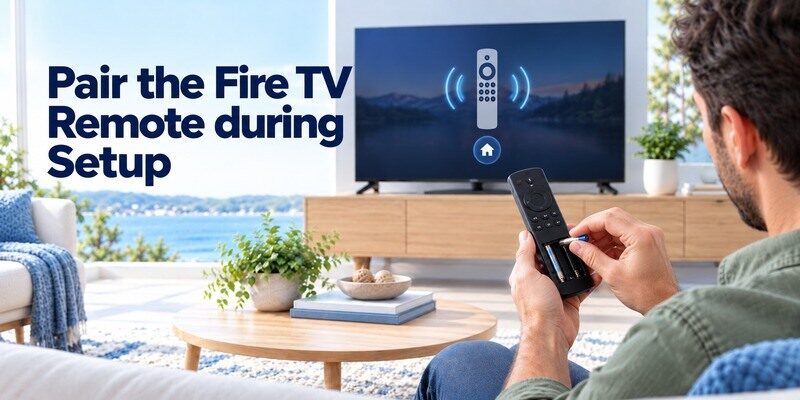
Step 4 covers the normal pairing action. If it fails, learning how to set up Fire TV Stick means checking the remote separately from the TV input and the power supply. Amazon’s pairing help starts with distance, batteries, and a long Home press before more involved resets. Keep the remote near the Stick, not merely near the TV screen, and watch for a pairing confirmation or a response to Select.
When automatic pairing fails
Check that both AAA batteries are seated in the marked direction and that the back cover is secure. Try a new alkaline pair if the cells are old. Stand within about 10 feet (3 m) of the Stick and hold Home for roughly 10 seconds, then test the directional ring. A TV remote that changes volume is not proof that the separate Fire TV remote has paired. If the on-screen setup reacts, continue with how to set up Fire TV Stick at the point you left off.
When the Home hold still fails
Remove the batteries for 30 seconds, reinstall them, and repeat the long Home press. Amazon’s pairing help then suggests restarting the Fire TV device if the remote remains unresponsive. Button-combination resets differ by remote generation, so use instructions for the remote actually in your box. If Wi-Fi was configured already, Amazon’s mobile Fire TV app may help with navigation or pairing; it cannot reliably discover a brand-new Stick that has not joined the network.
Read more: Does Phone Have IR Blaster? How to Check and Use It
Select the right picture and sound settings
The core of how to set up Fire TV Stick is complete when you can navigate the home screen, but the display and audio should also be checked before you call it done. A Stick can show its menu even if a particular movie’s format, the TV’s input setting, or a soundbar route is wrong. Test an ordinary clip first, then adjust a specific setting only when you can identify the symptom.
Verify the image on the selected input
Open a title in an app you use and check that the picture fills the screen without flickering. This playback check completes the display part of how to set up Fire TV Stick. If the TV displays no signal, go back to HDMI and power first; a resolution setting cannot help if the device is not booting. If the interface appears but a 4K or HDR title looks wrong, confirm that your TV, the connected HDMI port, the content, and the particular Fire TV model support the desired format. Menu names can vary by software version.
Check where the audio is playing
Play a short clip and listen through the TV speakers or your soundbar. If the picture works but sound does not, inspect the TV’s selected audio output and the soundbar’s input before changing Fire TV preferences. Devices attached through an AV receiver add another input to check. Testing one ordinary clip first separates a general connection problem from a single app or title issue.
If you use a Samsung soundbar, review how to control a Samsung soundbar with a TV remote and check the HDMI CEC or optical-control path separately.
Connect Fire TV Stick to Wi-Fi reliably
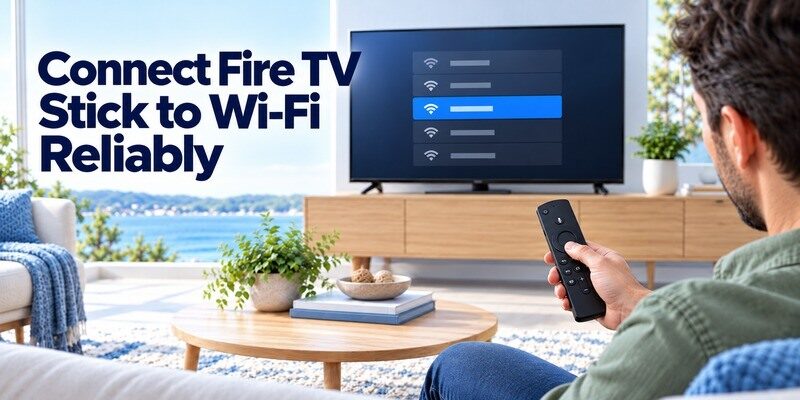
When you are learning how to set up Fire TV Stick, Wi-Fi is often the first screen where a small mistake stops progress. Select the intended network name and check the password carefully before retrying. If the network is missing, Amazon advises pressing Back to refresh the list, then restarting the Stick and home networking equipment if necessary. An Ethernet adapter may be an option for some models, but it is not included or supported universally.
If your network name is missing
Press Back on the remote to refresh the available networks. Check whether another device can see the network from the same room. If not, restart the router or move the router and Stick closer where possible. In how to set up Fire TV Stick, a missing network is a discovery problem before it is a password problem. Amazon’s setup troubleshooting suggests unplugging the Stick’s power for one minute before retrying, then restarting the modem and router in order. Let each device finish coming online before testing again.
If the password is rejected
Check letter case, punctuation, and similarly shaped characters such as `0` and `O`. Re-enter the current password rather than assuming the sticker on the router is still correct. A guest network with device isolation can also complicate later phone-remote discovery, even when it gives the Stick internet access. Complete setup on the household network you plan to use regularly. If that network later changes and you no longer have the physical remote, the guide on covers that separate recovery case.
Read more: Home Theater System Remote App: Receiver and TV Control
Resolve Amazon sign-in and registration issues
Step 6 signs the device in. If it stalls, how to set up Fire TV Stick safely is to check whether the activation code expired, the network disconnected, or the Amazon account needs recovery. Amazon’s official instructions allow an on-screen QR code or a code entered at the displayed Amazon address. Enter credentials only through the device’s prompt or an Amazon page you intentionally opened. A code for linking an account is different from a code used to pair a phone remote.
If the activation code expires
Request a fresh code on the TV rather than reusing the one from an older screen. If the TV offers a QR code, scan the current one with your phone; otherwise type the displayed Amazon address yourself and enter the new code. If you are checking how to set up Fire TV Stick securely, read the device name before confirming it on your account. Interface choices can change, so use the current on-screen directions rather than an old screenshot.
If the account sign-in loops
Confirm the Stick is still online and that the account credentials work on another device. If the password is forgotten, use Amazon’s account recovery. A failed sign-in does not by itself mean the hardware needs a factory reset. Finish registration before judging whether apps are missing, because app access and downloads can depend on account and region. Keep the device powered while it retries rather than interrupting an update in progress.
Set up remote controls and test a stream
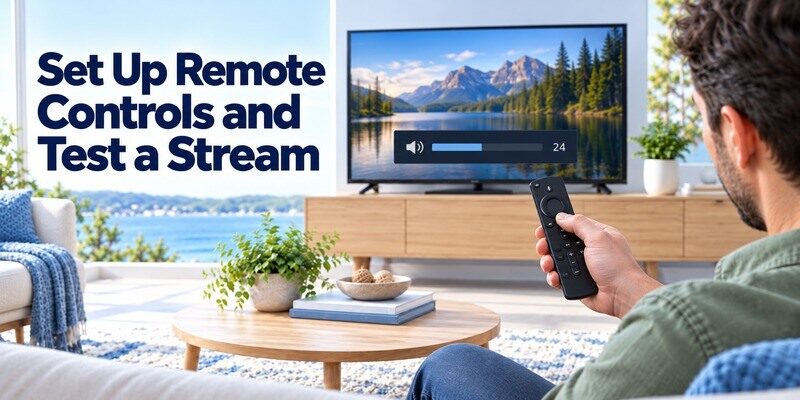
After learning how to set up Fire TV Stick for basic navigation, decide whether the Alexa Voice Remote should also control TV or soundbar power and volume. Amazon’s setup flow can ask about equipment control. That is a separate test from pairing the remote to the Stick: the navigation keys may work while volume does not. Do not repeat the whole Fire TV setup just because TV volume fails.
After the Stick reconnects, check the remote app connection troubleshooting steps if your phone still cannot discover it on the local network.
Test navigation before equipment control
Open the Fire TV home screen, move across a few tiles, and launch a streaming app. Then return Home and try playback, pause, and Back. These checks prove the Stick, remote, network, and interface are responding. A complete answer to how to set up Fire TV Stick includes this test, not just reaching the home screen. If an app requires its own subscription or sign-in, that is separate from the Amazon account used to register the device.
Configure TV or soundbar volume separately
Follow the on-screen equipment-control prompts and test power and volume when asked. If volume affects the wrong device or nothing happens, identify whether sound comes from the TV, soundbar, or AV receiver and revisit that equipment choice. Some commands use different control paths from Fire TV navigation, and support varies by remote and connected hardware. Keep the original TV or soundbar remote available while you confirm the behavior.
Fix common first-time setup failures
If how to set up Fire TV Stick seems to stop midway, identify the exact screen where it stopped. Changing account settings will not cure a blank HDMI input, and moving the router will not pair dead remote batteries. Work from the physical connections outward. If you return to how to set up Fire TV Stick after an interruption, resume at the last screen that worked. Amazon’s setup and pairing help supports these checks, though the wording on your screen may differ by model.
| Symptom | Likely area | First useful check |
|---|---|---|
| No signal or black screen | Input, HDMI, or power | Select the exact HDMI port and reseat the supplied connections |
| Low-power warning or repeated reboot | Power arrangement | Use the model’s designated cable and power instructions |
| Remote does not move the cursor | Batteries or pairing | Fit fresh cells and hold Home near the Stick for about 10 seconds |
| Wi-Fi name absent | Network discovery | Press Back to refresh, then restart the Stick or router |
| Sign-in code fails | Expired code or account | Request a new on-screen code and check the account |
Separate a blank display from an unpaired remote
When no Fire TV image appears, use the TV’s own remote to select the port and inspect power. The Fire TV remote cannot navigate a screen the TV is not displaying. When the setup screen is visible but its cursor will not move, focus on remote batteries and pairing instead. How to set up Fire TV Stick from that point depends on which of those two symptoms you actually see. This distinction avoids needless factory resets and makes the next action obvious.
Restart only the component that failed
For Wi-Fi problems, retry the network and restart the router if another device is also affected. For a frozen Stick, disconnect its power, wait, and reconnect it; give the welcome screen time to return. For sign-in trouble, use a fresh code or account recovery. The recovery path for how to set up Fire TV Stick should follow the failed component, not erase your earlier progress. Reserve a factory reset for a later, model-specific troubleshooting path because it erases setup and sends you back to the beginning.
Use a phone remote after network setup
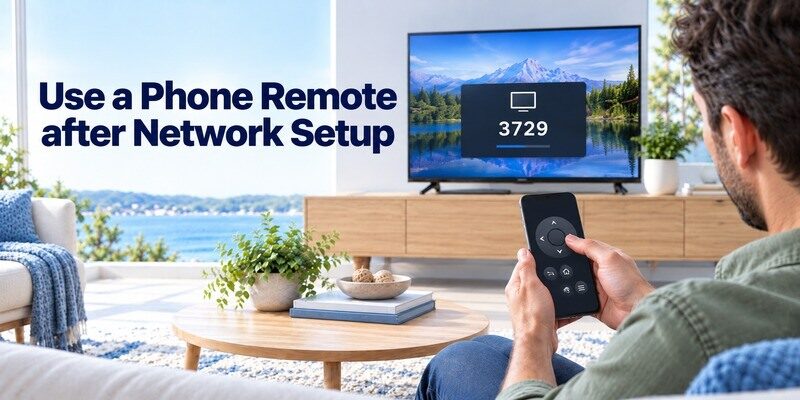
Once how to set up Fire TV Stick has reached a working Wi-Fi connection, a phone can help when the physical remote is lost or unreliable. Amazon’s official Fire TV mobile app requires the phone and Fire TV to be on the same Wi-Fi network. The Remote TV App is another contextual option for a supported Fire TV device: open it, select the detected device, and follow any on-screen pairing-code prompt. Check compatibility for the exact Stick and app version before relying on it.
Choose an app only after the Stick is online
A Wi-Fi remote needs the target device visible on the local network. If the Stick has never connected to Wi-Fi, use the supplied remote or another compatible physical control to complete first-time setup. That limitation matters when a phone-only tutorial claims to show how to set up Fire TV Stick with no physical remote. Once connected, test directional navigation, Select, and Back in the app. If you are comparing phone options, the guide explains the official Amazon choice and compatible alternatives. Phone control of TV volume or power can vary with the television, soundbar, and equipment-control setup.
Keep a physical route to network recovery
If you change routers or passwords, a phone app may lose the Stick until it rejoins the new network. Keep the Fire TV remote and TV input control accessible. If an already-connected app drops repeatedly, use the guide for that distinct problem. For households with more than one television platform, the offers a compatible-device fallback for navigation from a phone; verify the particular Fire TV device rather than assuming every model has identical support. Amazon’s own Fire TV app is the straightforward first option for Fire TV-only control.
Final Thoughts
How to set up Fire TV Stick follows a practical order: check the included parts, connect HDMI and the model’s recommended power, choose the matching TV input, pair the remote, connect Wi-Fi, and sign in to Amazon. Finish with a short navigation and playback test. If a step fails, use its specific symptom to choose the next check instead of starting over. The power arrangement and on-screen menu can vary by Fire TV Stick generation, so let the instructions supplied with your exact model settle any difference. A phone remote becomes useful once the Stick is already on the same network.
