Samsung Smart TV Network Settings Greyed Out Fixes
Short answer: Return to the Samsung TV’s Home screen, restart it and check which network option is unavailable.
Samsung Support’s greyed-out menu guide explains that some options depend on the source or current setup, and recommends model-specific checks.
Samsung smart TV network settings greyed out? Work from the first result you can verify on the television. Begin from Samsung’s own Home screen and open All Settings with a physical remote. Check the exact model when menus differ. Observe the connection or setting that failed and compare it with playback on the television before choosing how far to troubleshoot.
Open the Network Menu From Home
| What you observe | What to check next |
|---|---|
| Only an IP field is greyed out | Check whether addressing is automatic |
| The complete Network menu is unavailable | Return to Home and restart through ordinary controls |
| A hotel or office manages the TV | Ask its operator about the documented restriction |
| A built-in app still streams | Record the exact unavailable option and active route |
Open the Samsung settings outside the active app
Use the physical remote to leave the foreground input or app and return to Home. Open All Settings and look for Network under the path used by the model. If you are unsure which control opens the TV menu, review the Samsung TV remote buttons and locate the Home control for your model.
Samsung recommends leaving an active app or source when that context may restrict a setting. Open Samsung Home, close any prompts and go to the full settings screen. If one submenu now opens, write down where the difference appeared. This can be more useful than briefly disconnecting the television from the router when the symptom is access to a menu. Include whether this occurred before or after the change when you describe the “Samsung smart TV network settings greyed out” case.
Verify the active connection
When you revisit the “Samsung smart TV network settings greyed out” case, try the same action from a regular TV source or Home if a submenu was unavailable while another function was active.
Read the warning before confirming any reset. The smallest option that targets the connection is usually the easiest to verify. Keep the normal control and current Wi-Fi credentials nearby. If the prompt describes accounts, applications or general TV settings, confirm the manufacturer’s exact procedure before continuing. Then open the documented network setup again.
Use the network’s normal automatic addressing as a baseline when it is appropriate. Make a record of deliberately configured values before changing them, and ask the network owner if those values are required. If the TV has no local address or gateway on a network where it should, resolve that stage first. A DNS change concerns name lookup farther along the connection.
Read more: Smart TV Without Internet What Still Works
Identify the Exact Unavailable Option
Distinguish the disabled settings
Write down whether Network, Network Status, Reset Network, Wi-Fi or an IP detail is unavailable. Check the visible connection state.
A disabled IP detail while automatic configuration is on can be expected for that detail, even when Network Status opens normally. A completely unavailable Network page has a different scope. Record both screens or capture the wording, then test a built-in app. This helps support match the restriction instead of diagnosing an outage that does not exist. Write down the result if you need to report the “Samsung smart TV network settings greyed out” case.
Confirm the original behavior
The entire menu disappearing differs from a single entry staying unavailable in its current context. For help navigating the television, consult the Samsung remote control manual and check the controls available on your remote.
Record the model and active route when working through the “Samsung smart TV network settings greyed out” case. Check which individual action is disabled and which controls still open. Try from the TV’s own Home screen after a normal restart. An unavailable address field can be expected for automatic addressing, while an entire missing settings menu calls for a model-specific check. Compare that result with a built-in app and note whether the equipment is managed.
After changing a connection, play a familiar short video in an app installed on the television. If it fails, try a second service and inspect network status without assuming the first app’s generic error identifies the cause. If the TV can still stream from an HDMI player, return to Home for a test that belongs to the set itself.
If the Samsung smart TV network function not available message appears only on one setting, capture the exact label and currently active connection. If the entire Samsung smart TV network grayed out menu is inaccessible, check the source and operating context.
Samsung smart TV network settings greyed out: Try a Normal Restart
Restart the television fully
Use the Samsung model’s documented restart or cold boot. Reopen the same settings screen before relaunching the app where the symptom appeared.
For a supported Samsung cold boot, follow its ordinary model guidance. Keep the input, network route and app state comparable across tests. Open the same menu before restarting the previously active app. If the control returns after restart and then disappears when a specific app opens, report that repeatable sequence with the model and software. Reuse the same conditions the next time you check the “Samsung smart TV network settings greyed out” case.
Compare the affected option
Include the active route in a report on the “Samsung smart TV network settings greyed out” case. A short off and on can resume standby. Check whether the same entry remains disabled from the TV’s own interface.
Avoid conflating turning the TV off briefly with a full documented restart. If you reboot network equipment, let its normal service indicators return before restarting the television or running the next test. Open the TV’s status before relaunching the app. A result that changes after standby and recovers after restarting can provide useful model-specific evidence. Write down the result if you need to report the “Samsung smart TV network settings greyed out” case.
Keep the test clip and playback settings consistent through comparisons. Try it at the time you usually see trouble and again when the household connection is quiet. Note how long playback stays smooth and whether quality shifts. Record the connection used for each run to separate repeatable results from differences in content or timing.
Check the router’s current network name and password using a fresh connection on another trusted device. An already-connected phone can prove the network is running without proving that your remembered password is correct. After verifying the password, rejoin on the TV and record the active network. Compare the result with what the television showed before the change.
Read more: Smart TV Internet Connection Setup for Wi-Fi and Ethernet
Compare the Network Menu and an App
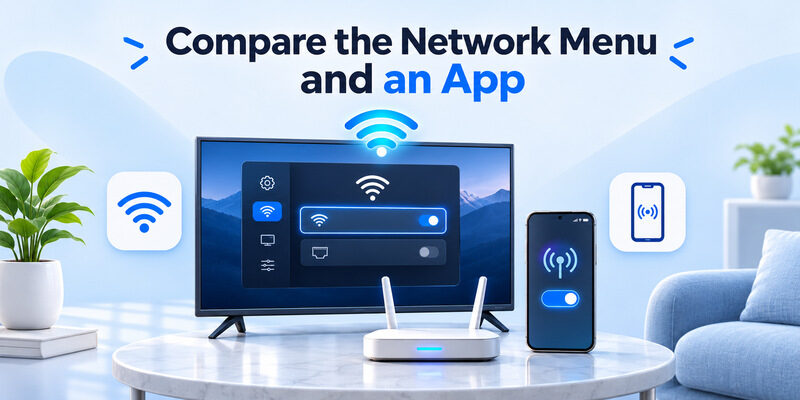
Compare the network menu with a TV app
Test a built-in app and inspect the status screen separately. If apps still work, note what part of the settings is restricted.
Use the same baseline for the “Samsung smart TV network settings greyed out” case. If a manual IP control remains dimmed while normal playback works, inspect the page’s current addressing mode and the control’s description. Confirm whether you actually need manual configuration. If you can still open Network Status, verify the television reaches the router and a native application before deciding the dimmed control represents a network problem.
Run the visible check
A disabled manual IP field can coexist with a good automatic connection. Confirm the actual symptom before resetting anything. Include whether this occurred before or after the change when you describe the “Samsung smart TV network settings greyed out” case.
Start the next comparison for the “Samsung smart TV network settings greyed out” case from the same room. Take the television’s diagnostic stages in order. Observe the physical or wireless link, then local access through the router and finally the internet result where the model exposes it. Stop at the first failed stage when choosing a comparison. A streaming app can report a vague error while the network screen provides a more specific result.
A hidden Wi-Fi name requires exact manual entry on devices that support it. Verify the spelling and current security details from the network owner. Compare with a visible network if the hidden setup fails. A failed scan, an unsupported radio option and a rejected password are distinct results even if all of them leave the TV offline. To compare menu, app, and connection symptoms, see how to diagnose common smart TV problems before choosing a reset.
Use normal conditions for the rooms where people watch. A cable that works across a temporary route confirms a useful option before you plan a permanent run. If the wireless result is already stable, measure again during typical simultaneous use. The choice is easier when you can compare the cost of routing with the benefit you observed.
Check Whether Hotel or Managed Settings Apply
Check managed or hospitality control
If the TV belongs to a hotel, office or managed building, ask the owner or administrator about network menu restrictions. Use ordinary user settings only.
For a television supplied by a venue or building, confirm which controls the operator provides to residents or staff. Use the supplied operating procedure and the existing network, and give the operator the exact on-screen label. If the same personally owned set worked before, report when it changed and what mode or source was active. Use the observed change to narrow down the “Samsung smart TV network settings greyed out” case.
Verify the active connection
A managed configuration can be intentional. Give the responsible person the model and setting label instead of changing hidden service controls. Write down the result if you need to report the “Samsung smart TV network settings greyed out” case.
When discussing the “Samsung smart TV network settings greyed out” case with support, start at the television’s own Home screen and open its complete settings. An HDMI-connected player can present a nearly identical looking menu, and quick settings often show only shortcuts. Look up the exact model and region when the path differs. Write down the first menu and its current connection before tapping a reset or disconnect option.
Check how a laptop or phone behaves on the same network without another connection covering it. If it also cannot reach multiple familiar services, read the router or modem’s normal service indicators. Use the provider’s supported service check when relevant. Keep the TV’s local configuration available for comparison once internet access returns.
Identify the entry by its exact name and verify it is the currently saved one before you remove it. A Settings page can show nearby networks and previously used ones in the same list. If the model offers management of saved entries, read the prompt to confirm you selected the intended network rather than the broader reset.
Read more: 4K Monitor With HDMI-CEC Buying Guide
Review Network Status and Software Version
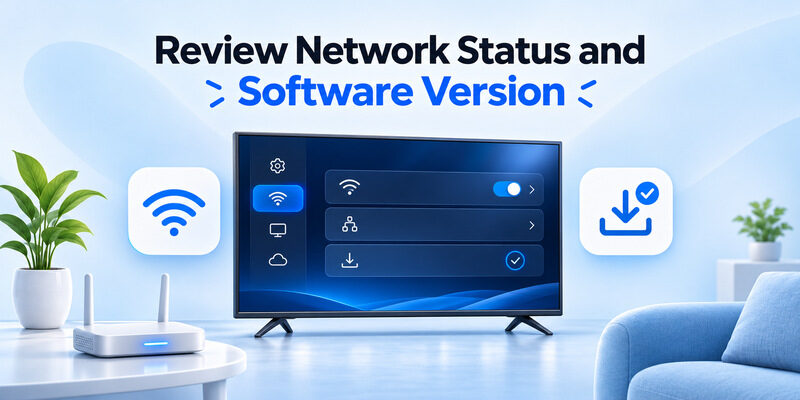
Check ordinary support information
Verify the model, current firmware and any Network Status screen available. Use official Samsung documentation to see when the disabled option should be usable. If the remote cannot open the settings or restart the television, follow the Samsung TV remote troubleshooting guide and test the available physical controls.
Confirm the original behavior
If the model supports a standard update or troubleshooting step, compare the result after completing it through the normal menu. Write down the result if you need to report the “Samsung smart TV network settings greyed out” case.
Before asking for support, record the complete model and software along with the exact menu labels. Use the same native screen after restarting. Include the active connection and what one other device can do on that network. A model-specific case with observable results is easier to evaluate than a report that only says Wi-Fi is bad. Reuse the same conditions the next time you check the “Samsung smart TV network settings greyed out” case.
Make the comparison from the actual room with the same home network. Disable mobile data on a comparison phone just long enough to check the result. If the television alone fails, note its active link and exact issue. If both devices fail, keep the TV settings and investigate the common equipment or service first.
For an ongoing Samsung smart TV network not available message, record whether Network Status and other built-in settings still open. Consult the manufacturer for the specific model.
Open a local settings page and time a familiar task before opening a streaming service. If the TV menus lag and playback is stable, use the model’s software and app guidance. When menus are responsive and only one service buffers, compare that specific streaming path. The two tests ask different questions about the television.
Check a Wired or Wireless Connection
| Task | Useful comparison |
|---|---|
| Distinguish the disabled settings | The entire menu disappearing differs from a single entry staying unavailable in its current context. |
| Check managed or hospitality control | A managed configuration can be intentional. |
| Check the physical connection as a separate test | Use a phone hotspot or another wired port only when the television offers a way to select or detect that connection. |
Check the physical connection as a separate test
On a model with LAN, confirm whether Ethernet is connected when a wireless-specific option is unavailable. If practical, test after disconnecting the cable while you retain local physical control.
When comparing a disabled wireless option, record whether Ethernet is attached, whether the television reports the wired route as active and whether the option remains restricted after a supported restart. If you temporarily remove a working wire, keep the physical remote and cable available so you can restore the baseline. Do not infer support for a control the exact model does not document. Reuse the same conditions the next time you check the “Samsung smart TV network settings greyed out” case.
Compare the affected option
Use a phone hotspot or another wired port only when the television offers a way to select or detect that connection. Record the menu and actual status.
For a fair wired comparison, confirm the television’s status actually moved from Wi-Fi to Ethernet after the cable was attached. Use the same router and built-in app first, so you changed the local connection only. If wired works, retest the wireless path from the usual room. Reconnect the expected route after you finish comparing.
Look at what the television’s wireless list contains as a whole before choosing an action. If it sees several networks but misses your own, compare broadcast name, signal and radio compatibility. When it sees nothing, use a verified nearby hotspot or another known network for a clearer test. Keep the television in the same place during the comparison.
Read more: HDMI-CEC Command List for Power Input and Audio
Prepare a Clear Samsung Support Request
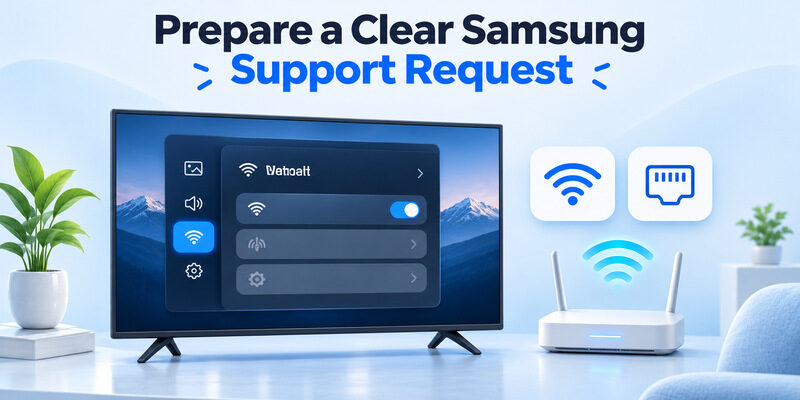
Describe precisely what stays unavailable
Send Samsung the exact menu wording, model and software, active input and result after restart. Note whether built-in apps work and whether another person manages the TV. If only one service fails while other apps work, see how to fix a TV app that is not loading before changing the television’s network settings.
Run the visible check
A report that names the exact disabled item makes it easier to find a documented restriction or a proper recovery procedure. Keep this observation with the model and software details for the “Samsung smart TV network settings greyed out” case.
Retain the evidence from before a broader reset so you can compare afterward. Make sure the TV owner can restore any accounts or device settings along with the network information. Check the exact model and the procedure’s scope. If the comparison already points to a specific provider or service failure, address that before affecting working parts of the TV setup. Keep this observation with the model and software details for the “Samsung smart TV network settings greyed out” case.
After the temporary connection test, turn off the alternate network if you control it and choose the regular home network from the device’s own menus. Reopen connection status before watching a long program. Where the television stores more than one entry, check which network it automatically chooses the next time it wakes.
If you need a backup for compatible TV controls, open on an iPhone after the television reconnects to a reachable home network. Select that TV with its screen awake and test one direction. If discovery fails, check the actual network and the app’s relevant local access.
Use the full model suffix and the symptoms observed on independent network paths when discussing parts with a repair provider. Tell the provider which radio, Ethernet or Bluetooth features the model supports and whether each works. The label alone will not establish the failing component. Keep any safe external workaround while the authorized provider checks the fit.
Final Thoughts
Send Samsung the exact menu wording, model and software, active input and result after restart. A report that names the exact disabled item makes it easier to find a documented restriction or a proper recovery procedure.
For the “Samsung smart TV network settings greyed out” case, record the comparison that worked and retest the task you use most.