
How to Fix Smart TV Problems: A Symptom-First Guide
To fix most smart TV problems, restart your TV, check its internet connection, update its software, and test the affected app or device. If the problem continues, check your HDMI cables, remote control, picture settings, or audio output before considering a factory reset.
Learning how to fix smart tv problems can save you time, money, and unnecessary repair costs. Many issues come from temporary software glitches, unstable Wi-Fi, outdated applications, incorrect settings, or disconnected accessories rather than damaged television hardware.
Whether you own a Samsung, LG, Sony, TCL, Hisense, or Roku TV, the troubleshooting process follows similar principles.
This guide covers common smart tv problems and fixes, including:
- Smart TV won’t turn on or keeps restarting.
- Streaming apps freeze, crash, or buffer constantly.
- Wi-Fi connects but internet access doesn’t work.
- The TV displays a black screen or distorted picture.
- Sound disappears or doesn’t match the video.
- The remote control stops responding.
- Software updates fail or become stuck.
- Screen mirroring and HDMI connections stop working.
Start with the simplest fix and test your television before moving to the next step. This approach helps identify the actual cause without accidentally deleting your settings.
1. How to Fix Smart TV Problems: Quick Troubleshooting Checklist
If you need a fast solution, begin with this smart tv troubleshooting guide before exploring advanced settings.
Step 1: Restart Your Smart TV
A complete restart clears temporary software processes and may resolve freezing, delayed navigation, and application errors.
- Turn off your television.
- Disconnect its power cable.
- Wait approximately 60 seconds.
- Reconnect the power cable.
- Turn on the television.
- Check whether the original problem remains.
Google TV’s official troubleshooting instructions recommend unplugging an unresponsive device for one minute before reconnecting it.
For compatible Samsung televisions, holding the remote’s Power button until the TV restarts can perform a cold boot.
Tip: Turning off a smart TV with its remote may only place it in standby mode. A complete restart is often more effective.
Step 2: Identify the Problem
Different symptoms require different solutions.
| Problem | First Action |
|---|---|
| TV won’t turn on | Check power cable and outlet |
| TV freezes | Perform a full restart |
| Wi-Fi disconnected | Restart router and reconnect |
| Streaming buffers | Test internet speed |
| Apps keep crashing | Update or reinstall the app |
| Black screen | Check HDMI input and connections |
| No sound | Check mute and audio output |
| Remote not working | Replace batteries or reconnect |
| Software update fails | Check storage and internet connection |
Step 3: Change One Setting at a Time
When learning how to fix smart tv problems, avoid changing several settings simultaneously.
For example, if Netflix freezes, restart the application first. If it still freezes, check for an update. Only then consider clearing its data or reinstalling it.
Changing one setting at a time makes it easier to understand what actually fixed the issue.
Step 4: Check Whether Other Devices Work
If your TV cannot connect to the internet, test the same network using your phone or computer.
If every device has connectivity problems, investigate your router or internet service before changing television settings.
The goal is to determine whether the fault belongs to the TV, an individual app, the network, or an external accessory.
Download TV Remote App2. Fix Smart TV Power, Freezing, and Slow Performance
Power and performance problems are among the most frustrating television issues.
Fortunately, many can be resolved without professional repairs.
Smart TV Won’t Turn On
If your television displays no picture and no power indicator, begin with its electrical connection.
Try these steps:
- Confirm the power cable is securely connected.
- Test the outlet using another device.
- Disconnect unnecessary external accessories.
- Press the physical Power button on the television.
- Disconnect power for approximately one minute.
- Reconnect the television and test it again.
Avoid opening the television’s housing or attempting internal electrical repairs.
If the power indicator flashes repeatedly, consult your manufacturer’s instructions for the specific model. Flashing patterns do not have a universal meaning across brands.
Smart TV Freezes or Becomes Unresponsive
A frozen television may stop responding to remote commands, display a stuck application, or fail to open its home screen.
To resolve this issue:
- Restart the television completely.
- Disconnect unnecessary HDMI accessories.
- Close recently opened applications where supported.
- Install available software updates.
- Remove unused applications to free storage.
Google TV recommends restarting slow devices, closing background applications, and checking for app and system updates.
These recommendations provide a practical starting point for how to fix smart tv problems involving system responsiveness.
Smart TV Is Running Slowly
Smart televisions have processors, memory, and storage limitations, just like smartphones.
Performance may decline when several applications are running or storage becomes limited.
To improve performance:
- Open Settings and locate the Apps or Storage section.
- Remove applications you no longer use.
- Clear cache for problematic applications where supported.
- Disable unnecessary automatic app launches if available.
- Restart the television.
- Install compatible system updates.
Avoid deleting essential system applications or making undocumented developer-setting changes.
Important: Older televisions may remain slower than newer models because of hardware limitations. A factory reset cannot increase processor speed or memory capacity.
The best approach to how to fix smart tv problems related to slow performance is to identify whether the slowdown affects the entire system or just one application.
3. How to Fix Smart TV Wi-Fi and Streaming Problems
Network connectivity is essential for streaming services, software updates, and many smart TV functions.
If your television frequently disconnects or buffers, determine whether the problem is your Wi-Fi signal, available bandwidth, or streaming service.
Smart TV Connected to Wi-Fi but No Internet
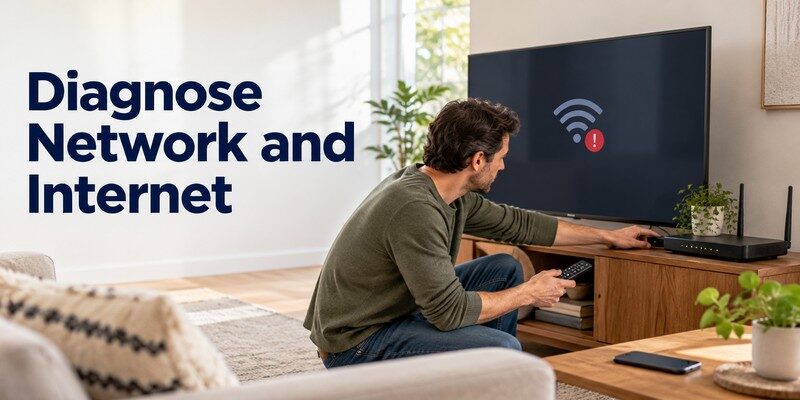
A television can successfully connect to a router without having working internet access.
Follow these steps:
- Open Settings > Network or Network & Internet.
- Confirm the correct Wi-Fi network is selected.
- Run the television’s network test, if available.
- Restart your router.
- Restart the TV.
- Forget and reconnect to the Wi-Fi network if necessary.
If the issue remains, test another connection, such as a mobile hotspot, when available.
If the TV works on a different network, the original router or internet connection may be responsible.
Understanding how to fix smart tv problems involving Wi-Fi starts with separating local network connectivity from actual internet access.
Smart TV Keeps Buffering
Buffering occurs when video content cannot be delivered quickly or consistently enough for uninterrupted playback.
According to the Netflix Help Center, the recommended stable internet connection speeds are:
| Streaming Quality | Recommended Speed |
|---|---|
| HD 720p | 3 Mbps or higher |
| Full HD 1080p | 5 Mbps or higher |
| Ultra HD 4K | 15 Mbps or higher |
A television may still buffer even when your internet plan exceeds these speeds. Wireless interference, network congestion, and poor signal quality can reduce actual performance.
Improve Your TV’s Wi-Fi Connection
For a more stable connection:
- Move the router closer to the television when practical.
- Remove major obstacles between the router and TV.
- Connect to a 5 GHz network when the signal is sufficiently strong and the TV supports it.
- Try 2.4 GHz when longer range is more important.
- Use Ethernet if the television has a compatible port.
- Pause large downloads on other devices.
- Restart the router after configuration changes.
Google TV’s official support guidance also recommends checking the selected Wi-Fi band, repositioning the router, or using a wired connection.
Streaming Quality Keeps Dropping
If Netflix, YouTube, or another service frequently switches to lower resolution, test your connection during the problem rather than relying only on your internet plan’s advertised speed.
If only one streaming service is affected, check that service’s app and account before changing your entire network.
For how to fix smart tv problems involving streaming quality, connection stability matters as much as download speed.
4. Fix Smart TV Apps That Crash, Freeze, or Won’t Open
Streaming applications sometimes stop working because of outdated software, corrupted temporary data, account problems, or compatibility changes.
Restart the Problematic App
Begin by closing the application completely.
On supported Google TV devices:
- Open Settings.
- Select Apps.
- Choose the affected application.
- Select Force Stop.
- Reopen the application.
If your television doesn’t provide a Force Stop option, restart the device instead.
Clear Application Cache or Data
Temporary application data can sometimes interfere with normal operation.
On compatible Android TV or Google TV devices:
- Open Settings > Apps.
- Select the affected app.
- Open Storage & Cache, if available.
- Choose Clear Cache.
- Restart the application.
If clearing the cache doesn’t help, consider Clear Data.
Warning: Clearing application data may remove saved settings and require you to sign in again.
Update or Reinstall the Application
An older app version may contain bugs or stop supporting certain functions.
Check your television’s app store for updates.
If updates do not resolve the issue, uninstall and reinstall the affected application when your TV allows it.
Samsung’s official support guidance recommends cold booting the television, updating software, reinstalling the problematic app, and considering a Smart Hub reset when simpler fixes fail.
What If Multiple Apps Keep Crashing?
When several applications fail simultaneously, investigate system-wide causes:
- Limited available storage.
- Unstable internet access.
- Outdated operating system.
- Temporary system errors.
- Service or account authentication problems.
For how to fix smart tv problems affecting multiple apps, prioritize system diagnostics instead of repeatedly reinstalling every application.
Remember: If one app fails but the others work, the issue is more likely app-specific. If every app fails, examine the TV’s software and network.
5. Troubleshoot Smart TV Picture and Sound Problems
Picture and audio problems can result from input selection, HDMI cables, streaming content, television settings, or hardware failures.
The fastest diagnosis begins by checking whether the television can display its own menus.
Smart TV Has a Black Screen
A black screen does not automatically mean your display panel is damaged.
First, press the Home or Settings button on your remote.
If the TV menu appears: The display is operating, and the problem may come from an external device, selected input, or application.
If the TV menu does not appear: Restart the television and check whether the manufacturer logo or startup screen becomes visible.
Then try these steps:
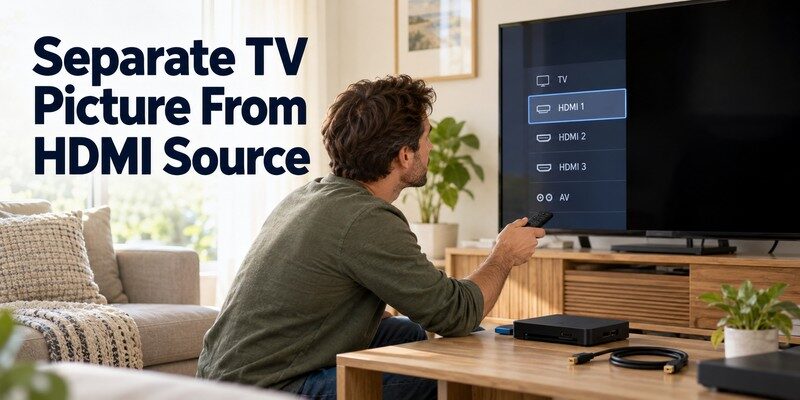
- Verify that the correct HDMI input is selected.
- Restart the connected streaming device or console.
- Disconnect and reconnect the HDMI cable.
- Test a different HDMI port.
- Try another known-working cable.
- Restart the TV.
LG’s 2026 support guidance recommends checking whether the on-screen volume indicator appears when troubleshooting a television with sound but no picture.
This simple test can help distinguish a display issue from an external input problem.
Smart TV Picture Is Blurry or Pixelated
Poor picture quality may be caused by low-resolution content, network instability, or incorrect picture settings.
Try the following:
- Check the source video’s resolution.
- Test a different streaming application.
- Confirm that higher-quality playback is available.
- Disable excessive image sharpening.
- Adjust picture mode to match the content.
- Check the HDMI connection.
- Test whether the same issue appears on the TV home screen.
A 4K television cannot create genuine 4K detail from a low-resolution source. Upscaling may improve presentation, but it cannot restore missing original detail.
Smart TV Has No Sound
If video works but audio does not, check the television’s output configuration.
- Increase the TV volume.
- Disable mute.
- Open Settings > Sound.
- Select TV Speakers or Internal Speakers for testing.
- Disconnect Bluetooth headphones or speakers.
- Restart the affected application.
- Check the connected HDMI device’s volume.
- Run the television’s audio self-diagnosis if available.
LG’s official troubleshooting instructions emphasize checking the selected audio output, external device volume, HDMI connections, and built-in sound tests.
When using a soundbar, inspect HDMI ARC/eARC settings and ensure the soundbar is connected to the correct input.
Learning how to fix smart tv problems involving audio requires checking both the television and any connected sound equipment.
6. Fix Smart TV Remote, HDMI, and Screen Mirroring Issues
Your television may be working correctly even when its remote control or connected accessories stop responding.
Smart TV Remote Control Not Working
Start by checking whether the problem affects every button or only certain functions.
Step 1: Replace or recharge the batteries.
For remotes using replaceable batteries, insert a fresh matching pair and verify the correct polarity.
Step 2: Check the signal path.
If the remote uses infrared, remove objects blocking the TV receiver.
Step 3: Restart the television.
A frozen TV interface can make a working remote appear defective.
Step 4: Reconnect the remote.
Voice remotes may use Bluetooth or another wireless pairing system. Follow the instructions for your exact television model.
If you own a TCL television, see our guide to TCL TV not responding to remote.
For Google TV users, our Google TV remote not working guide explains additional pairing and button troubleshooting.
Control Your Smart TV With Your Phone
A smartphone can provide an alternative control method when a compatible television’s physical remote stops working.
The Remote TV app is designed to help users control supported televisions through their phones.
Depending on TV compatibility and available functions, a remote application may provide:
- Directional navigation.
- Volume adjustment.
- Channel control.
- Media playback commands.
- Access to supported TV functions.
For Samsung televisions, read our samsung tv remote app guide for compatible smartphone control options.
If you prefer controlling supported TV brands from your iPhone, explore universal remote tv control.
Important: A network-based remote generally requires the phone and television to communicate over a compatible local network. It cannot repair a damaged TV screen, restore a disconnected router, or replace missing hardware features.
Smart TV HDMI Not Working
HDMI problems may produce a black screen, missing audio, or a No Signal message.
Try these fixes:
- Select the correct HDMI input.
- Turn the external device off and on.
- Reconnect the HDMI cable securely.
- Try another HDMI port.
- Test a different cable.
- Restart both connected devices.
If the issue affects only one HDMI port, document the behavior before considering hardware repair.
Smart TV Screen Mirroring Not Working
Screen mirroring problems often involve network discovery, wireless compatibility, or device permissions.
Check that:
- Your phone and TV support compatible mirroring methods.
- Both devices use the appropriate network.
- Local network permissions are enabled where required.
- The TV accepts the connection request.
- Neither device is running outdated software.
Also remember that AirPlay, Google Cast, and Miracast are different technologies. Support for one does not guarantee support for another.
For how to fix smart tv problems involving accessories, test the connection method and device compatibility before resetting the television.
7. Fix Smart TV Software Updates and Factory Reset Problems
Software updates can improve compatibility, address bugs, and provide security fixes.
However, some televisions encounter download errors, installation problems, or temporary slowdowns during the update process.
Smart TV Software Update Fails
Common smart tv software update issues include:
- Update download repeatedly fails.
- The TV reports insufficient storage.
- An update remains pending.
- The television restarts unexpectedly.
- An application stops working after an update.
Before troubleshooting, confirm that the update is intended for your television model.
How to Update Smart TV Software
Samsung TV
On many models:
- Open Settings.
- Select Support.
- Choose Software Update.
- Select Update Now.
- Follow the on-screen instructions.
Menu names may differ between Samsung software versions.
LG Smart TV
On many recent webOS models:
- Open Settings.
- Select All Settings.
- Navigate to Support.
- Open Software Update.
- Check for available updates.
Older webOS versions may place the update option under General or About This TV.
Google TV
Google’s official instructions use:
Settings > System > About > System Update.
Select the available update and follow the prompts.
Do not disconnect power while an update is actively installing unless the manufacturer specifically instructs you to do so.
What If an Update Is Stuck?
If your TV appears to be updating for an unusually long time, first check whether it is still displaying an installation progress indicator.
Installation times vary by model, update size, and internet connection.
For reference, Google’s support documentation states that updates to certain Chromecast or Google TV streaming devices typically take approximately 10–12 minutes. This is not a universal estimate for every smart TV firmware update.
If the process has clearly failed, follow your manufacturer’s recovery instructions instead of repeatedly unplugging the television during installation.
How to Factory Reset a Smart TV
A factory reset is a last-resort troubleshooting option.
It can resolve some persistent configuration problems, but it also erases user settings and may remove apps, saved networks, and account information.
This smart tv factory reset guide covers the basic preparation.
Before resetting:
- Record your Wi-Fi credentials.
- Confirm that you know your streaming account passwords.
- Save any settings you may need later.
- Disconnect unnecessary external accessories.
- Check the manufacturer’s reset instructions for your model.
Typical reset locations:
| TV Platform | Common Reset Menu |
|---|---|
| Samsung | Settings > General or General & Privacy > Reset |
| LG webOS | Settings > General or System > Reset to Initial Settings |
| Google TV | Settings > System > About > Factory Reset |
| Roku TV | Settings > System > Advanced System Settings > Factory Reset |
Menu paths vary by model and software version.
After a reset, reconnect to Wi-Fi, install updates, sign back into your applications, and test the original issue.
A factory reset cannot fix a broken display panel, damaged power supply, or defective HDMI hardware.
For how to fix smart tv problems involving persistent software glitches, resetting is appropriate only after less disruptive methods have failed.
8. Prevent Smart TV Problems and Know When to Seek Repair
Regular maintenance can reduce software errors and connection problems, although it cannot prevent every hardware failure.
Smart TV Maintenance Checklist
To keep your television operating reliably:
- Update software regularly. Install compatible firmware and security updates.
- Remove unused applications. Keep available storage for normal system operation.
- Maintain stable Wi-Fi. Use a well-positioned router or Ethernet connection where possible.
- Keep ventilation clear. Avoid blocking the television’s ventilation openings.
- Inspect connected cables. Check for loose HDMI and power connections.
- Restart when necessary. A restart can resolve temporary performance problems.
- Use compatible accessories. Verify remote and streaming-device support before purchasing replacements.
- Protect your accounts. Keep streaming accounts secure and review connected devices.
A maintenance routine makes how to fix smart tv problems easier because there are fewer potential causes to investigate.
When Should You Contact a Professional?
Some problems require qualified technical assistance rather than software troubleshooting.
Contact your television manufacturer or an authorized repair provider when:
- The TV repeatedly fails to power on with a working outlet.
- The screen is cracked or physically damaged.
- Persistent lines or image defects appear even in TV menus.
- The television shuts down unexpectedly after basic checks.
- There is a burning smell, smoke, or evidence of electrical damage.
- The television continues failing after manufacturer-approved recovery steps.
Stop using the television immediately if you notice smoke, burning smells, exposed wiring, or electrical damage.
Frequently Asked Questions
What Is the First Thing to Try When a Smart TV Stops Working?
Perform a complete restart by disconnecting the television from power for approximately one minute, then reconnecting it.
If the problem continues, identify whether it involves power, Wi-Fi, an application, picture, sound, or remote-control commands.
Why Does My Smart TV Keep Freezing?
Possible causes include software bugs, limited available resources, application failures, or outdated firmware.
Restart the television, close unnecessary applications, and install available updates.
Can a Smart TV Be Fixed Without a Factory Reset?
Yes. Many software and connectivity issues can be resolved through restarts, network checks, app updates, or setting adjustments.
A factory reset should normally be one of the final troubleshooting steps.
Why Is My Smart TV Connected to Wi-Fi but Not Streaming?
Your TV may be connected to the router without having reliable internet access.
Run a network test, restart the router, compare other devices, and check the affected streaming service.
Can I Use My Phone if My TV Remote Stops Working?
Yes, on supported televisions.
A compatible remote application can provide alternative controls when the TV and phone meet the connection requirements.
You can Download universal remote tv control for your iPhone and check compatibility with your television.
Does a Factory Reset Fix Every Smart TV Problem?
No. A factory reset may resolve software and configuration issues, but it cannot repair damaged internal components or physical defects.
Final Thoughts
Understanding how to fix smart tv problems begins with simple troubleshooting rather than expensive repairs or immediate factory resets.
Restart your TV, verify connectivity, inspect affected applications, check picture and audio settings, and update compatible software before making major changes.
If the problem involves remote control functionality, a compatible smartphone remote can provide a practical alternative.
With a systematic approach, you can resolve many everyday television problems, identify issues that require professional support, and keep your smart TV running more reliably.
Download TV Remote App