Google TV Remote Not Working? Fix LED, Pairing & Button Issues
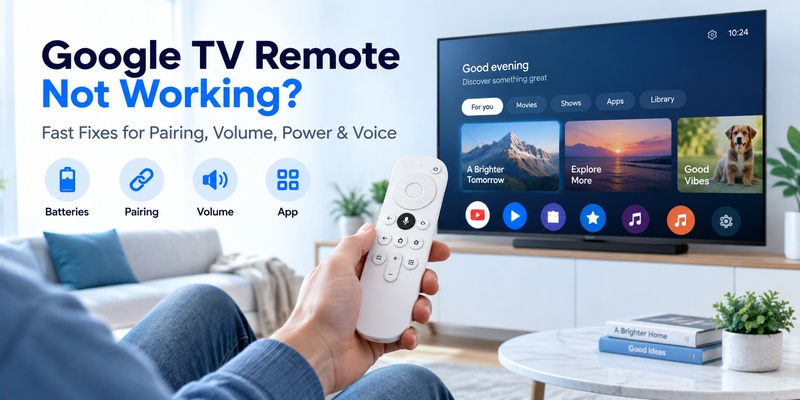
Quick Answer: If your Google TV remote is not working, remove and reinsert the batteries, try a fresh pair, restart your Google TV device, and reconnect the remote. If the remote light is on but the buttons do nothing, check its LED pattern and Bluetooth pairing. If navigation works but Volume or Power does not, check the TV-control settings instead.
For a Chromecast with Google TV Voice Remote, you can usually start pairing by holding Back + Home for about three seconds. Reset procedures differ between the Chromecast Voice Remote and the newer Google TV Streamer Voice Remote.
Do not factory-reset your entire television or streaming device before trying the less disruptive fixes below.
Google TV Remote Not Working? Try These Quick Fixes
Start with these steps:
- Remove both batteries from the remote.
- Reinsert them correctly or install two fresh 1.5V AAA batteries if your model uses them.
- Move closer to the Google TV device.
- Restart the television or streaming device.
- Test Home, Back, and the directional pad.
- Check the remote LED if the buttons still do not respond.
- Re-pair the remote if navigation is not working.
- Check IR or HDMI-CEC settings if only Volume, Power, or Input fails.
Use the symptom table below to find the most relevant solution.
| Symptom | Possible Cause | First Fix |
|---|---|---|
| Remote completely dead | Batteries, contacts, hardware | Replace batteries |
| Light on but no navigation | Bluetooth pairing or connection | Restart and re-pair |
| Slow pulsing LED | Ready to pair | Start pairing |
| Rapidly blinking LED | Pairing activity | Check pairing result |
| Volume or Power not working | IR/CEC configuration | Set up remote buttons |
| Voice commands not working | Bluetooth, microphone, software | Check connection and updates |
| Phone remote not connecting | Network or pairing issue | Check Wi-Fi |
| Remote disconnects repeatedly | Battery or interference | Replace batteries and restart |
The correct fix depends on whether you have a Chromecast Voice Remote, a Google TV Streamer Voice Remote, or a remote supplied by a TV manufacturer.
📖 Read More Guides: Google Remote TV: Complete Guide to Apps, Pairing, Fixes, Phone Control, and Replacement
Google TV Remote Not Working but Light Is On
If your Google TV remote is not working but the light is on, the remote is receiving power, but that does not necessarily mean it is connected to the television.
The LED may indicate pairing, voice input, a software update, or another remote status.
What Does the Google TV Remote Light Mean?
The table below summarizes documented LED patterns for Google’s Chromecast and Google TV Streamer voice remotes.
| LED Pattern | Possible Meaning | What to Do |
|---|---|---|
| Two quick flashes after battery insertion | Batteries detected | Test the remote |
| Slow white pulse | Ready to pair | Start or retry pairing |
| Fast white pulse | Pairing in progress on Google TV Streamer remote | Wait for the result |
| Two quick flashes after pairing | Pairing succeeded | Test navigation |
| Ten quick flashes on Google TV Streamer remote | Pairing failed | Restart and retry |
| Solid white light | Microphone activity or model-specific update/reset state | Check what the remote is doing |
| No light after fresh batteries | Power, contact, or hardware issue | Inspect batteries and contacts |
Not every pattern applies to every remote.
For example, Google’s documentation identifies the rapid pairing and ten-flash failure patterns for the Google TV Streamer Voice Remote. Do not apply these meanings automatically to third-party Google TV remotes.
Fix 1: Check the Batteries Even if the Light Turns On
A glowing LED does not guarantee that the remote has enough power to maintain a stable wireless connection.
Try the following:
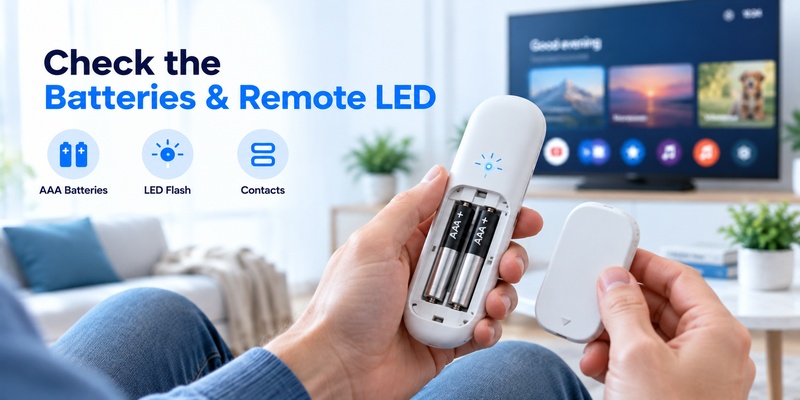
- Remove both batteries.
- Check their orientation.
- Install a fresh matching pair.
- Inspect the battery contacts.
- Reinsert the batteries and watch for LED activity.
- Test the remote again.
For supported Google voice remotes, Google recommends two fresh 1.5V AAA batteries when battery-related troubleshooting is necessary.
Avoid mixing old and new batteries.
Fix 2: Restart the Google TV Device
If the remote LED turns on but Google TV does not respond:
- Disconnect the streaming device from power.
- Wait approximately one minute.
- Reconnect power.
- Wait for Google TV to finish starting.
- Test Home and navigation.
For televisions with Google TV built in, follow the manufacturer’s restart instructions.
A restart can help clear a temporary Bluetooth connection problem.
Fix 3: Reconnect the Remote
If the light pulses but the remote cannot navigate, pairing may be incomplete.
For a Chromecast with Google TV Voice Remote:
- Turn on the Chromecast and TV.
- Enter the pairing screen if needed.
- Hold Back + Home for approximately three seconds.
- Wait for the remote to connect.
- Test Home, Back, and the directional pad.
If you cannot access the TV’s settings, use a compatible phone remote as a temporary controller.
For detailed instructions, read our how to pair Google TV remote guide.
Fix 4: Check Whether the Light Is on the Remote or Streaming Device
Do not confuse the small LED on the handheld remote with the indicator on the Chromecast or Google TV Streamer.
The remote LED indicates remote-specific activity.
The streaming device LED indicates the status of the streaming hardware.
Their light patterns have different meanings and require different troubleshooting steps.
How to Fix a Google TV Remote That Won’t Pair
A Google TV remote not pairing may have lost its Bluetooth connection after a restart, update, battery replacement, or device reset.
Re-pair the Chromecast Voice Remote
- Make sure Chromecast with Google TV is powered on.
- Keep the remote close to the streaming device.
- Enter pairing mode on the Chromecast when necessary.
- Hold Back + Home for approximately three seconds.
- Wait for the pairing process to finish.
- Test navigation.
If pairing fails, restart the Chromecast and repeat the process.
Forget the Remote and Pair It Again
If the remote appears connected but still does not work:
- Use a compatible phone remote to navigate Google TV.
- Open Settings.
- Select Remotes & Accessories.
- Select the affected Voice Remote.
- Choose Forget and confirm.
- Restart the Google TV device if necessary.
- Put the remote into pairing mode.
- Pair it again.
The exact menu labels may vary by device and software version.
Google TV Streamer Remote Not Pairing
The Google TV Streamer Voice Remote has its own pairing and reset procedures.
Use the Google TV Streamer settings or the physical pairing control on the streaming device, following Google’s model-specific instructions.
Do not assume the Chromecast Voice Remote reset combination is correct for the Google TV Streamer remote.
How to Reset a Google TV Remote
If battery replacement, restarting, and re-pairing do not solve the problem, a remote factory reset may help.
Identify your remote model first.
Reset Chromecast With Google TV Voice Remote
- Remove both batteries.
- Wait five minutes.
- Press and hold Home.
- Reinsert the batteries while holding Home.
- Continue holding while the LED is solid.
- Release Home when the LED begins pulsing.
- Wait for automatic pairing or re-pair using Back + Home.
This procedure is for Google’s Chromecast Voice Remote.
Reset Google TV Streamer Voice Remote
- Press and hold Mute and Center/Select together.
- Keep both buttons pressed.
- Watch for the LED to blink white.
- Continue holding through the countdown sound.
- Release when the LED turns solid white.
- Pair the remote again if necessary.
Google indicates that this reset normally takes about 10–12 seconds.
Should You Factory-Reset the Entire Google TV Device?
Usually not as a first step.
A device factory reset can erase settings, installed-app data, accounts, and preferences.
Try resetting the remote before resetting the streaming device or television.
For model-specific instructions, see our how to reset Google TV remote guide.
💡 Discover Helpful Guides: How to Pair and Reconnect a Google TV Remote
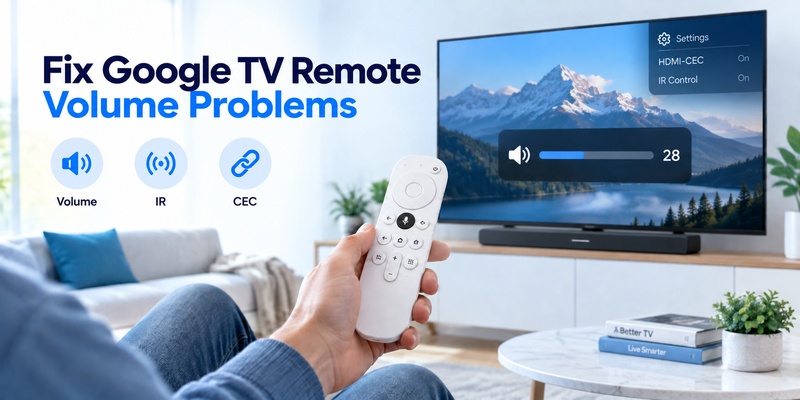
Google TV Remote Volume, Power, or Input Not Working
If Home, Back, and navigation work but Volume, Power, or Input does not, the remote’s Bluetooth connection may be functioning normally.
These controls can use infrared or HDMI-CEC, depending on your configuration.
Check the Remote Button Settings
On a supported Google streaming device:
- Open Settings.
- Select Remotes & Accessories.
- Open Set up remote buttons.
- Choose the television, soundbar, or receiver.
- Reconfigure Volume, Power, or Input.
- Test the buttons again.
Check HDMI-CEC
If your setup uses HDMI-CEC, verify that the television and connected devices have compatible CEC settings enabled.
Different TV brands may use different names for HDMI-CEC.
Check the Infrared Signal
For infrared-based controls:
- Point the remote toward the TV or audio device.
- Remove obstacles between the remote and its IR receiver.
- Confirm the correct device brand is configured.
- Try another compatible control configuration if available.
If the remote can navigate Google TV but cannot change volume, do not immediately factory-reset the Bluetooth pairing.
Google TV Remote Buttons or Voice Control Not Working
Some remote problems affect only one feature rather than the entire controller.
Home, Back, or Directional Buttons Not Working
If navigation buttons stop responding:
- Replace or reseat the batteries.
- Restart Google TV.
- Check whether the remote is still paired.
- Re-pair the remote.
- Test the buttons again.
If only one physical button fails while the others work, inspect it for sticking or damage.
Google TV Remote Voice Control Not Working
Voice control depends on the remote model, connection, microphone, and supported Google TV services.
Try these steps:
- Check the batteries.
- Confirm that navigation works.
- Restart the Google TV device.
- Check the internet connection.
- Reconnect the remote if needed.
- Check for available software or remote updates.
- Test voice input again.
A solid LED during microphone use may be normal for supported Google remotes.
If voice control fails but other functions work, focus on voice-related settings before resetting the entire television.
Remote Works Intermittently
Intermittent failures may be caused by:
- Weak batteries
- Loose battery contacts
- Wireless interference
- Excessive distance
- Temporary software issues
- Physical damage
Move closer to the device, replace the batteries, and restart Google TV.
If the problem persists, test with another compatible remote or phone controller.
Google TV Remote App Not Working
Sometimes the physical remote works, but the virtual remote on your Android phone or iPhone cannot connect.
Phone-based remote controls typically depend on network discovery rather than the physical remote’s Bluetooth pairing.
Check the Wi-Fi Connection
- Connect your phone and TV to the same accessible Wi-Fi network.
- Confirm that Google TV is powered on.
- Open the supported remote app.
- Select your television.
- Enter the pairing code displayed on the TV if prompted.
- Test navigation.
If the television does not appear, check for guest-network isolation or connectivity problems.
Use Your Phone When the Physical Remote Fails
A phone remote can help you reach the Google TV settings when the physical remote is unresponsive.
It may allow you to:
- Open Remotes & Accessories
- Forget a malfunctioning remote
- Start pairing
- Navigate menus
- Control playback
- Enter text
For setup instructions, read our Google TV remote app for Android guide.
A compatible universal remote TV app may also be useful for supported devices.
When Should You Replace Your Google TV Remote?
Consider replacement after you have:
- Tested fresh batteries.
- Restarted the Google TV device.
- Tried re-pairing.
- Performed the correct model-specific remote reset.
- Checked whether a phone remote can control the TV.
- Ruled out temporary software or network problems.
Signs of possible hardware failure include:
- No LED activity with known-good batteries
- Damaged battery terminals
- Persistent failure to enter pairing mode
- Physical button damage
- Liquid exposure
- Repeated failures after a successful reset
A remote that lights up but never pairs may still have a hardware problem.
However, if several compatible remotes fail with the same Google TV device, investigate the television or streaming device before buying another remote.
For replacement options, see our Google TV remote replacement guide.
🗺️ Browse How-To Guides: How to Connect Google TV to WiFi Without Remote: 5 Working Methods
FAQs About Google TV Remote Problems
Why is my Google TV remote not working?
Common causes include weak batteries, lost Bluetooth pairing, temporary Google TV software problems, incorrect IR settings, or remote hardware damage.
Why is my Google TV remote not working when the light is on?
The LED indicates that the remote has power or is performing an activity, but it does not guarantee a successful Bluetooth connection. Check the light pattern, restart Google TV, and re-pair the remote.
What does a blinking white light on a Google TV remote mean?
It depends on the remote model and blinking pattern. A slow pulse commonly indicates pairing readiness. On the Google TV Streamer Voice Remote, rapid blinking can indicate pairing activity.
Why is my Google TV remote light solid white?
A solid light can indicate microphone activity or a model-specific update or reset state. Check the remote model and whether the voice button is being pressed.
What do ten flashes mean on a Google TV Streamer remote?
Google documents ten quick flashes as an unsuccessful pairing attempt on the Google TV Streamer Voice Remote.
How do I re-pair my Chromecast Voice Remote?
With Chromecast ready to pair, hold Back + Home for approximately three seconds, then wait for pairing to complete.
How do I reset my Chromecast with Google TV remote?
Remove both batteries, wait five minutes, hold Home while reinserting the batteries, and release Home when the LED begins pulsing.
How do I reset a Google TV Streamer remote?
Hold Mute and Center/Select together until the LED turns solid white after the reset sequence.
Why does my Google TV remote work except for volume?
Volume may use IR or HDMI-CEC rather than the same connection used for navigation. Check Settings > Remotes & Accessories > Set up remote buttons.
Can I use my phone if my Google TV remote stops working?
Yes, on compatible devices. Connect your phone and Google TV to the same network and use Google’s supported virtual remote functionality.
Does a Google TV remote need Wi-Fi?
Google’s physical voice remotes generally use Bluetooth for navigation and may use IR for certain TV controls. A phone-based remote typically requires local-network connectivity.
Should I factory-reset Google TV to fix the remote?
Only after trying batteries, restarting, pairing, and remote-specific reset procedures. A full device factory reset is more disruptive and can erase data and settings.
Do these steps work on Sony, TCL, and Hisense Google TVs?
Some general troubleshooting steps may apply, but manufacturer-supplied remotes can use different pairing, LED, and reset procedures. Follow the instructions for your exact television model.
Final Thoughts
If your Google TV remote is not working, begin with batteries, a device restart, and Bluetooth pairing.
When the remote light is on but the buttons do nothing, use the LED pattern to identify whether the remote is ready to pair, attempting to pair, or reporting a failure.
If navigation works but Volume or Power does not, investigate IR and HDMI-CEC settings instead of resetting everything.
For persistent problems, reset the correct remote model and use a phone remote to access Google TV settings before considering hardware replacement.