
Google TV Remote App for Android: Which App Should You Use?
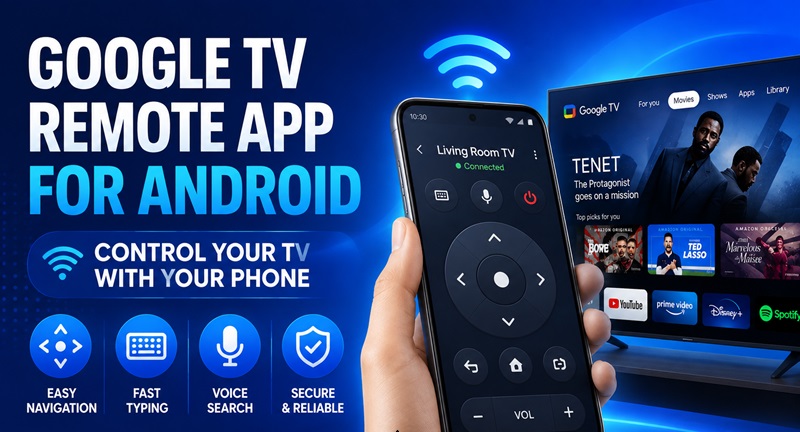
The Google TV app is the best starting point for most Android users who want to control a compatible Google TV or Android TV from their phone. It provides a virtual remote, text input, media controls, volume control on supported setups, Google Assistant access, and quick remote access from Android Quick Settings.
But it is not the only Google-related remote option you may see.
Android users can also encounter Google Home, Android TV Remote Service, Android’s Quick Settings remote, and third-party universal TV remote apps. These tools are related, but they do not all serve the same purpose.
This guide focuses on one question: which Google TV remote app should an Android user actually use?
Best Google TV Remote Options for Android
Before downloading another remote app, identify which option matches what you are trying to do.
| Option | Best for | What it does |
|---|---|---|
| Google TV app | Most Google TV and Android TV users | Main phone-based virtual remote |
| Google Home | Google streaming devices and smart-home users | Device control inside the Google Home ecosystem |
| Android TV Remote Service | Android system remote functionality | Supports remote features used through Google apps and Android |
| Android Quick Settings Remote | Fast everyday access | Opens TV controls without finding the full app |
| Universal Remote TV App | Homes with multiple TV brands | One interface for multiple compatible televisions |
For most people searching for a Google TV remote app for Android, the Google TV app should be the first option to try.
Google’s current documentation specifically says the Google TV mobile app can control compatible Google TV and Android TV devices.
1. Google TV App: Best Choice for Most Android Users
The Google TV app provides the most direct route from an Android phone to a compatible Google TV or Android TV.
Once connected, Google says the phone can be used to:
- Navigate the TV interface
- Play and control media
- Adjust volume
- Turn supported TVs on or off
- Activate Google Assistant
- Enter text for searches and login fields
The text-input feature alone can make the phone remote more useful than a physical controller in some situations.
Entering:
- Movie titles
- Email addresses
- Wi-Fi passwords
- Search queries
- Account names
is usually much faster from an Android keyboard than by selecting letters one at a time on the television.
Who should use the Google TV app?
Start here if:
- Your television runs Google TV
- Your television runs Android TV
- You use Chromecast with Google TV or a compatible Google streaming device
- You want a straightforward virtual remote on Android
- You frequently type searches or login information on the TV
If your goal is simply to replace the basic controls of a Google TV remote with your phone, this is usually the clearest option.
2. Google TV App vs Google Home
Google Home can also provide remote functionality for certain Google streaming devices.
Google currently documents both the Google Home app and Google TV app as phone-control options for Chromecast with Google TV and Google TV Streamer.
That does not mean the two apps have exactly the same purpose.
Use Google TV when:
- Your main goal is TV navigation
- You want an obvious virtual remote
- You frequently use the phone keyboard
- You want quick Android remote access
- You primarily interact with entertainment content
Use Google Home when:
- The TV or streaming device is already part of your Google Home setup
- You also manage speakers, lights, cameras, or other smart devices
- You want TV control inside a broader smart-home interface
- You use Chromecast with Google TV or Google TV Streamer
For someone specifically searching for a remote app, Google TV is usually the simpler place to begin.
Google Home makes more sense when television control is only one part of a larger connected-home setup.
Download TV Remote for AndroidExplore Samsung TV Remote App: Download a Remote TV App for Android: Control Your TV With Your Phone
3. How to Set Up a Google TV Remote App for Android
Setting up a google tv remote app for android does not normally require complicated networking.
The important part is making sure the phone and television can discover each other.
Pair through the Google TV app
Google’s current Android TV instructions describe the following process:
- Open the Google TV app on the Android phone.
- Tap the option to connect to the TV.
- Choose the television or device you want to control.
- Enter the pairing code shown on the television.
- Complete the pairing process.
Once paired, the google tv remote app for android becomes a virtual controller for the selected device.
The precise labels or placement of controls may change as Google updates its apps, so users should follow the interface currently displayed on their phone rather than relying solely on screenshots from older tutorials.
Keep the phone and TV on the same network
Network configuration is one of the most important requirements.
Google’s troubleshooting guidance states that the phone and TV must be connected to the same Wi-Fi network for the virtual remote connection.
For example:
- Phone: HomeWiFi
- TV: HomeWiFi
This should work.
But:
- Phone: HomeWiFi
- TV: GuestWiFi
may prevent discovery even if both networks come from the same router.
If your google tv remote app for android keeps scanning without displaying the television, checking Wi-Fi should therefore be one of the first troubleshooting steps.
It is a much more likely cause than assuming the remote feature itself is broken.
4. When Should You Use a Universal Remote App Instead?
The Google TV app is designed around Google’s television ecosystem.
A universal remote app becomes more useful when your household includes several different TV platforms.
For example, you may have:
- Google TV in the living room
- Samsung TV in a bedroom
- LG TV elsewhere
- Roku TV in another room
Using a separate manufacturer or platform app for every television can become inconvenient.
A compatible universal Remote TV App can provide one interface for multiple supported televisions.
However, universal does not mean guaranteed compatibility with every model.
Before relying on a third-party remote, test:
- Device discovery
- Navigation
- Volume
- Power
- Playback
- App access
- Reconnection after closing the app
The official Google TV app remains the strongest starting point when you only need to control a compatible Google TV or Android TV.
A universal app makes more sense when multi-brand control is the priority.
📖 Read More Security Guides: Samsung TV Remote App Android: Complete Download and Setup Guide
5. Using Your Android Phone as a Daily TV Remote
Once connected, a google tv remote app for android can become more than an emergency controller.
It can fit naturally into everyday viewing.
Navigate without reaching for another device
Consider a typical evening.
You are scrolling on your phone while watching TV. A streaming episode ends, and you want to switch to another app.
With a traditional setup, you put the phone down, find the remote and navigate the television.
With a google tv remote app for android, the controller is already in your hand.
That small difference becomes useful when you repeatedly switch content throughout the day.
Google’s mobile remote functionality supports common TV-control actions, and its documentation describes features such as media control, volume adjustment and text input for compatible Google TV or Android TV setups.
Use the phone keyboard for searches
The biggest productivity improvement may still be typing.
Streaming interfaces increasingly require text for:
- movie searches;
- YouTube searches;
- usernames;
- email addresses;
- Wi-Fi information;
- app searches.
A google tv remote app for android turns those tasks into normal phone typing instead of directional-button typing.
This can be particularly useful for users who regularly search for content rather than simply opening recommendations from the TV home screen.
The google tv remote for android concept therefore makes the most sense when viewed as an alternative input method rather than merely a digital copy of a plastic remote.
For navigation, the physical remote may still feel faster.
For typing, the phone often has the advantage.
6. Why the Google TV Remote Cannot Find Your TV
A google tv remote app for android is only convenient when the television appears in the device list.
If it does not, there are several logical places to investigate before reinstalling everything.
Check Wi-Fi first
Google specifically recommends confirming that both devices are connected to the same Wi-Fi network when a virtual remote is not working.
Start on the phone.
Open Android network settings and identify the current Wi-Fi network.
Then check the TV’s network settings.
The names should match.
Be especially careful if your router provides:
- a guest network;
- an extender network;
- multiple access points;
- separate home and IoT networks.
The internet may work on both devices while local discovery between them is restricted.
That situation can make a google tv remote app for android appear broken even though both devices are technically online.
Restart the TV when discovery gets stuck
Google also recommends restarting the Google TV device during virtual remote troubleshooting. Its instructions include disconnecting power, waiting briefly and reconnecting the device before trying the remote again.
A restart can refresh network discovery and services used for pairing.
After the television returns to the home screen, reopen the google tv remote app for android and scan again.
Avoid changing five settings simultaneously.
Testing one change at a time makes it easier to identify what actually fixed the connection.
If Wi-Fi is correct and a restart solves the issue, there is little reason to reset the entire TV or reinstall unrelated apps.
📚 Explore More Guides: Hisense TV Remote App for Android: Setup Guide A-Z
7. Which Android Remote Option Should You Choose?
A simple decision framework works well.
Choose Google TV app if:
You primarily want to control a Google TV or Android TV.
Choose Google Home if:
You already control the television as part of a broader Google smart-home setup.
Use Android Quick Settings if:
You want the fastest possible access to the remote throughout the day.
Leave Android TV Remote Service in place if:
You are using Google’s remote ecosystem normally. It functions as a system service rather than a separate everyday remote interface.
Consider a universal Remote TV App if:
You want one Android phone app to control several compatible television brands.
8. Frequently Asked Questions
What is the official Google TV remote app for Android?
The Google TV app is Google’s main mobile option for controlling compatible Google TV and Android TV devices.
Is the Google TV remote free on Android?
Google’s virtual remote functionality is part of its Google TV ecosystem. Availability and app naming can vary by country and device.
Is Google Home the same as the Google TV remote?
No.
Both can provide control for supported Google streaming devices, but Google TV focuses more directly on entertainment and virtual remote use, while Google Home is part of Google’s broader smart-home environment. Google officially supports both apps for compatible Google streaming hardware.
What is Android TV Remote Service?
It is a Google system service that supports Android TV remote functionality, including D-pad/touchpad navigation, voice search, and keyboard input.
Should I download an Android TV Remote Service APK?
Normally, start with official Google Play updates rather than installing an unknown APK.
Can I add the Google TV remote to Android Quick Settings?
Yes. Google specifically recommends adding the TV remote to Quick Settings for faster access from Android.
Can the Google TV app control Android TV?
Yes. Google’s Android TV documentation says the Google TV app on a phone or tablet can be used to navigate Android TV.
Why can’t the app find my television?
Check that the phone and television are connected to the same Wi-Fi network. If they are, restart the TV and try pairing again.
9. Final Thoughts
For most Android users, the Google TV app is the clearest choice for controlling a compatible Google TV or Android TV.
Google Home provides another route for supported Google streaming devices, while Android TV Remote Service works behind the scenes to support remote functionality across Google’s Android ecosystem. Android users also gain the advantage of Quick Settings access, which can make the phone remote much faster to reach.
The main question is therefore not simply “Can my phone control my TV?”
It is which Android remote option fits the way you use Google TV.
Choose Google TV for direct everyday remote control, Google Home for broader smart-home integration, Quick Settings for fast access, or a compatible universal Remote TV App when controlling several TV brands from one phone matters more than staying inside a single platform.
Download TV Remote for Android