
Download TV Remote for Android: Free Apps & Setup Guide
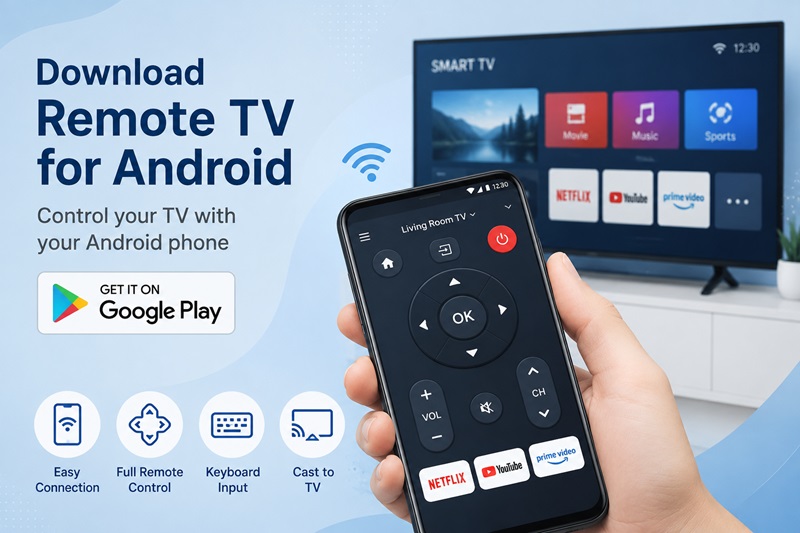
Quick Answer: To download a TV remote for Android, open the Google Play Store and install an app compatible with your television. For Google TV and Android TV, use Google’s TV remote functionality. For Roku TV, use the Roku mobile app; for Samsung Smart TVs, try SmartThings; for LG webOS TVs, use LG ThinQ; and for Fire TV devices, use the Amazon Fire TV app.
After installing the app, connect your Android phone and TV to the same Wi-Fi network, select your television, and complete any required pairing.
Most official remote apps provide basic controls for free. A third-party universal remote app may support multiple TV brands, although some features can require payment.
If you’re looking to download remote TV for Android, this guide explains the safest download methods, the best free options, APK installation considerations, and how to fix common connection problems.
Best Free TV Remote Apps for Android
The best TV remote app for Android depends on the operating system used by your television.
A Samsung TV running Tizen, an LG TV running webOS, and a Google TV device may require different remote applications.
Compare Android TV Remote Apps
| TV Platform | Recommended Starting App | Basic Remote Cost | Connection |
|---|---|---|---|
| Google TV / Android TV | Google TV | Free | Local Wi-Fi |
| Roku TV / Roku streaming player | Roku mobile app | Free | Local Wi-Fi |
| Samsung Smart TV | Samsung SmartThings | Free on compatible TVs | Network |
| LG webOS Smart TV | LG ThinQ | Free on compatible TVs | Network |
| Amazon Fire TV | Amazon Fire TV app | Free | Local Wi-Fi |
| Multiple supported TV brands | Third-party universal remote app | Free, freemium, or paid | Depends on app |
| Older infrared TV | Compatible IR remote app | Varies | Infrared |
Compatibility depends on the exact television model, software version, and supported control functions.
1. Google TV Remote App for Android
The Google TV app provides remote functionality for compatible Google TV and Android TV devices.
It can support:
- Menu navigation
- Playback controls
- Text input
- Volume control
- Supported power controls
- Google Assistant features on compatible devices
To connect, open Google TV, select TVs nearby, choose your television, enter the pairing code, and tap Pair.
For detailed setup instructions, see our Google TV remote app for Android guide.
2. Roku Remote App for Android
The official Roku mobile app provides a free remote for supported Roku TVs and streaming devices.
You can use it to navigate the Roku interface, launch supported channels, and control playback.
Additional features depend on the device and app version.
For more information, read our free Roku remote control app guide.
3. Samsung SmartThings Remote
Samsung SmartThings supports remote functionality for compatible Samsung Smart TVs.
The app can help you access basic controls and manage supported Samsung smart-home devices.
See our Samsung TV remote app guide for compatibility and setup information.
4. LG ThinQ Remote
LG ThinQ provides remote-control features for supported LG webOS televisions.
Depending on the model, you may be able to navigate menus, adjust volume, change inputs, and manage compatible smart-home features.
Read our LG TV remote app guide for additional options.
5. Amazon Fire TV Remote App
The Amazon Fire TV app can control compatible Fire TV devices through your Android phone.
It provides navigation and playback controls, with additional features depending on your device.
6. Universal Remote Apps for Android
If you own multiple TV brands, a third-party universal remote app may offer a more convenient way to control compatible devices.
Before installing, check:
- Supported TV brands and operating systems
- Whether the app supports your exact model
- Wi-Fi or infrared requirements
- Available free features
- In-app purchases and subscription terms
- Privacy and permissions
For a broader comparison, see our universal remote TV app guide.
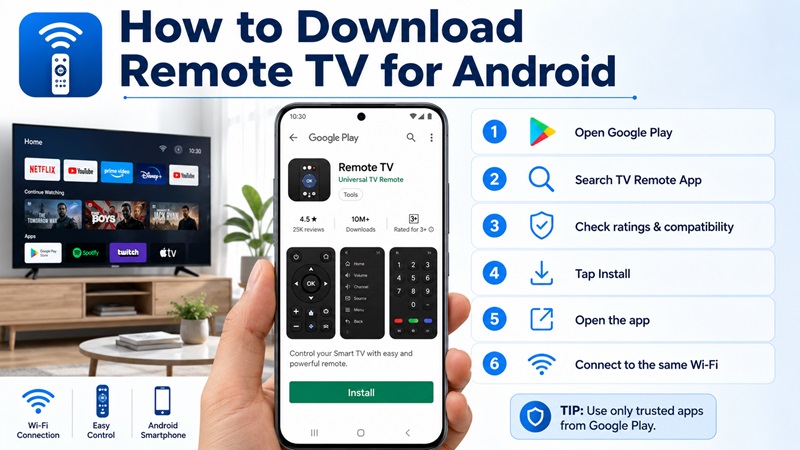
How to Download and Install a TV Remote App on Android
Downloading a remote TV app for Android is usually straightforward.
Step 1: Identify Your TV Brand and Operating System
Check your television’s model and operating system.
Common platforms include:
- Samsung Tizen
- LG webOS
- Roku TV
- Google TV
- Android TV
- Amazon Fire TV
Some manufacturers sell TVs with different operating systems, so the brand name alone may not be enough.
Step 2: Open Google Play Store
On your Android phone, open Google Play Store.
Search for the app that supports your TV.
Verify the publisher before downloading.
Step 3: Install or Update the App
Tap Install, or Update if the app is already installed.
Avoid installing outdated versions from unfamiliar websites.
Step 4: Open the Remote App
Launch the application.
Complete any required initial setup or sign-in.
Grant permissions needed for device discovery when appropriate.
Step 5: Connect Your Phone and TV
For most Wi-Fi-based apps:
- Turn on the television.
- Connect the TV to your home network.
- Connect your Android phone to the same Wi-Fi network.
- Open the remote app.
- Select your TV from the device list.
- Complete pairing if prompted.
Step 6: Test the Remote Controls
Try the main controls:
- Home
- Back
- Navigation
- Select
- Volume
- Mute
- Playback
- Input
- Power, where supported
Some features may be unavailable on certain TV models.
Android TV Remote APK: Download and Installation
People searching for an Android TV remote APK may be looking for an Android application package rather than a standard Google Play installation.
However, APK installation is not necessary for most users.
What Is an Android TV Remote APK?
An APK is an Android application package used to install an application.
It is different from a traditional TV remote code.
An APK file can contain a TV remote application, but installing it does not guarantee compatibility with your television.
Do You Need to Download an APK?
Usually not.
For compatible Google TV and Android TV devices, use the official Google TV app or another supported Google remote interface.
The older standalone Android TV Remote Control app appears in some outdated tutorials. For current setup, Google’s supported remote functionality is the better starting point.
Is It Safe to Download a TV Remote APK?
An APK from an unverified source may be outdated, modified, or unsafe.
Before installing any APK:
- Check whether the app is available on Google Play.
- Confirm the developer’s identity.
- Prefer an official developer distribution channel.
- Review the app’s required permissions.
- Avoid modified or cracked versions.
- Keep Android and Play Protect updated.
How to Install an APK on Android
If an app’s legitimate developer provides an APK directly:
- Download the file from the official developer source.
- Verify that the file is intended for your Android version.
- Open the downloaded APK.
- If Android requests permission to install from that source, review the request carefully.
- Install the app only if you trust its origin.
- Disable unnecessary install permissions afterward.
- Open the app and follow its setup instructions.
The exact menu names depend on your Android version and manufacturer.
Important: Do not disable device security protections simply to install an unknown remote app.
Can You Install a Phone Remote APK on an Android TV?
Not necessarily.
An application designed to turn an Android phone into a remote may not be designed to run on the television itself.
Check whether the APK is intended for Android phones, Android TV, or Google TV.
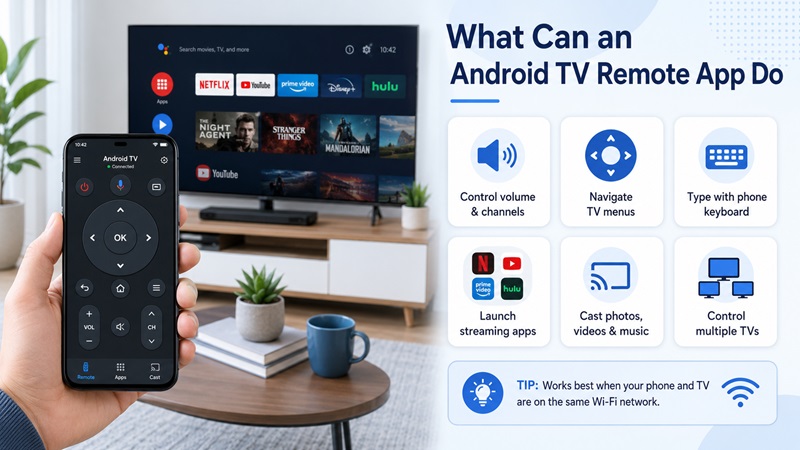
How to Connect an Android Phone to Your TV
The connection method depends on your television and remote application.
Method 1: Connect Through Wi-Fi
Most modern smart TV remote apps use local Wi-Fi.
- Turn on your TV.
- Confirm that your TV and phone are on the same accessible network.
- Open the compatible remote app.
- Select your television.
- Approve the connection or enter the displayed code.
- Test the remote.
Method 2: Connect Through Infrared
Some Android phones include an infrared blaster.
With a compatible IR app, the phone may control certain televisions without Wi-Fi.
To use infrared:
- Confirm that your phone has an IR blaster.
- Install a compatible IR remote app.
- Select your TV manufacturer.
- Choose a supported remote profile.
- Point your phone toward the television.
- Test Power, Volume, and Input.
Installing an IR remote app cannot add infrared hardware to a phone that lacks it.
Method 3: Connect Through Bluetooth
Some televisions and control applications support Bluetooth or other wireless pairing methods.
However, not every Android remote app can connect directly over Bluetooth.
Follow the TV manufacturer’s instructions and the app’s supported pairing process.
Does the Remote App Need a TV Code?
Wi-Fi remote apps may require an on-screen pairing PIN.
This is different from a three-, four-, or five-digit code used to program a physical universal remote.
If you need codes for a traditional controller, see our TV code lookup guide.
Can You Use a TV Remote App for Android Without Wi-Fi?
Yes, in some situations.
If Your Phone Has an IR Blaster
A compatible infrared app may control a supported television without Wi-Fi.
This works because infrared sends commands directly from the phone to the TV.
If Wi-Fi Works but Internet Is Down
Your local Wi-Fi network may continue working without internet access.
Some remote-control functions may still work while the phone and television remain connected locally.
Streaming services and account-based features may require internet access.
If Your TV Is Completely Offline
A Wi-Fi-only remote app may not discover a TV that is disconnected from the network.
You may need the television’s physical buttons, a compatible replacement remote, or a supported infrared solution.
Can You Control a Non-Smart TV With Android?
Possibly.
A non-smart TV may be controllable through a compatible infrared phone and app.
However, a Wi-Fi-only remote application generally cannot control an infrared-only television.
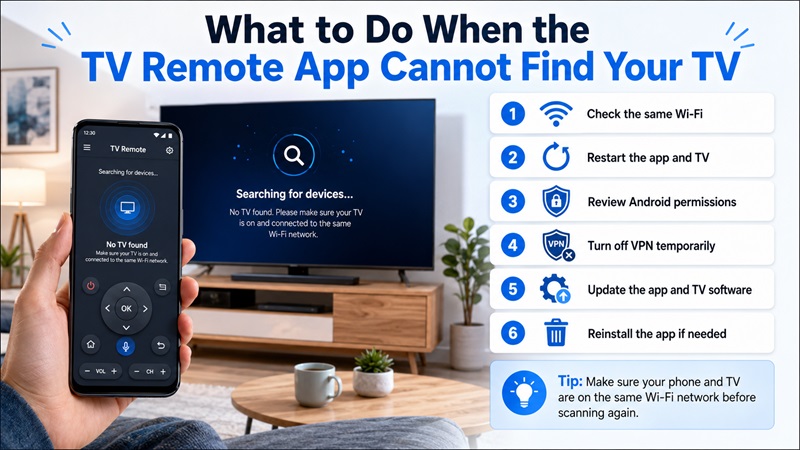
TV Remote App for Android Not Working? Troubleshooting
If your Android remote app cannot find or control your TV, try these solutions.
1. TV Not Found
Check whether the phone and television are connected to the same Wi-Fi network.
Confirm that the TV supports the selected app.
Guest networks and router isolation can block device discovery.
2. Pairing Code Not Working
Use the current code shown on the television.
Restart pairing if the code expires or is rejected.
Make sure you selected the correct TV.
3. App Connects but Buttons Do Not Work
Test Home and navigation first.
Check the app’s compatibility with your TV model.
Update the application and television software.
4. Volume Control Not Working
Volume control may depend on your television, streaming device, and audio configuration.
For Google TV, check supported volume-control settings.
If navigation works but volume does not, the connection may still be functioning correctly.
5. Remote App Keeps Disconnecting
Check Wi-Fi stability.
Restart the phone and TV.
Update the remote app.
If necessary, restart the router and check for device-isolation settings.
6. Remote Stops Working After Standby
Some TVs disable network-control features while in deep standby.
Check for supported network standby, quick start, or mobile power-on settings.
The available options vary by manufacturer.
7. App Requires Payment
Check whether the app is a free trial or freemium product.
Some apps provide basic controls for free but charge for additional features.
Compare official remote apps before paying for an unnecessary subscription.
8. APK Will Not Install
Possible causes include:
- Incompatible Android version
- Corrupted download
- Unsupported device architecture
- An existing app-signature conflict
- Security restrictions
- An outdated APK
Prefer installing the current official version from Google Play.
9. Phone Cannot Control an Older TV
Check whether your phone includes infrared hardware.
A Wi-Fi-only remote app cannot directly control an older infrared-only television.
For more troubleshooting options, read our remote TV app guide.
FAQs About Downloading TV Remote Apps for Android
What is the best free TV remote app for Android?
The best option depends on your TV. Google TV, Roku, SmartThings, LG ThinQ, and Amazon Fire TV provide official remote functionality for compatible devices.
How do I download remote TV for Android?
Open Google Play Store, find a compatible remote app, verify the developer, and install it.
Is there a free TV remote app for Android?
Yes. Many official remote apps offer free basic controls on supported televisions and streaming devices.
Can I use my Android phone as a TV remote?
Yes, if your phone and television support a compatible connection method, such as Wi-Fi or infrared.
What is an Android TV remote APK?
It is an Android application package containing a remote-control application. APK installation is generally unnecessary when a supported app is available through Google Play.
Is Android TV Remote Control APK still necessary?
Usually not. Google’s current supported remote functionality is available through the Google TV app and compatible Android interfaces.
Can I use a TV remote app without Wi-Fi?
Yes, if your Android phone has compatible infrared hardware and you use a suitable IR remote app. Most smart TV remote apps require local-network connectivity.
Does every Android phone have an IR blaster?
No. Infrared hardware is available only on certain Android phone models.
Why can’t my Android remote app find my TV?
Common causes include different Wi-Fi networks, device isolation, missing permissions, unsupported TV models, or a television that is offline.
Can I control Samsung TV with Android?
Yes, on compatible Samsung Smart TVs using SmartThings or another supported remote application.
Can I control LG TV with Android?
Yes, compatible LG webOS TVs can use LG ThinQ or other supported remote applications.
Can I use one remote app for multiple TV brands?
Some universal remote apps support multiple television brands. Check the supported models and pricing before installing.
Do Android remote apps need universal TV codes?
Most Wi-Fi remote apps do not use traditional universal remote codes. They may use a pairing PIN instead.
Is it safe to install a remote app APK from a third-party website?
Unverified APKs can pose security risks. Prefer Google Play or a trusted official developer source.
Final Thoughts
Downloading a TV remote app for Android is an easy way to control compatible televisions without relying entirely on a physical remote.
Start by identifying your TV platform, choosing an official or reputable compatible application, and installing it from Google Play.
For smart TVs, connect your phone and TV to the same Wi-Fi network and complete pairing. For older televisions, check whether your Android phone supports infrared control.
If you are searching for an Android TV remote APK, remember that manual installation is usually unnecessary. The safest starting point is the latest supported app from an official source.
