
Best TV Remote App for Android in 2026: 8 Apps Compared
The best TV remote app for Android is the Google TV app if you own an Android TV or Google TV device, and your TV maker’s own app (SmartThings, LG ThinQ or Roku) if you own one of those brands. For anything else, a universal app such as Lean Remote is the flexible runner-up.
This guide is for anyone who has lost a remote, broken one, or just wants to type a search with a real keyboard. We compared eight apps on TV compatibility, price, control features and how painful setup is.
How we researched this: remotefortv.com is an independent guide. We have no affiliate deal with any app below, and every app lists its drawbacks. Facts come from official support pages and published reviews (linked in the Sources section), not from our own lab testing of every app. Prices and in-app purchases change often, so check the store listing before you pay.
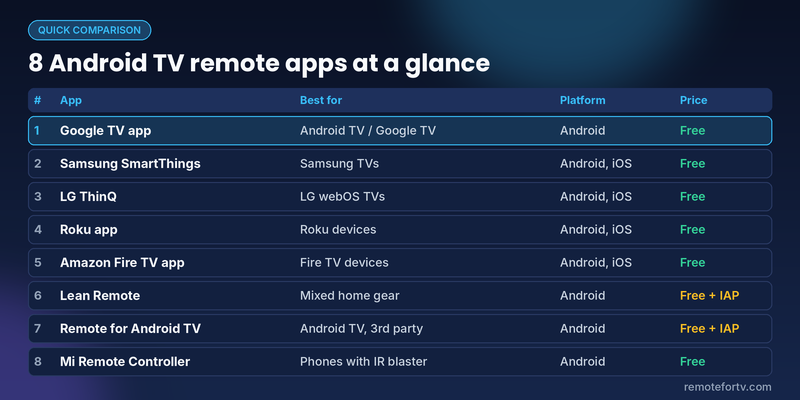
Quick comparison: best TV remote apps for Android
| # | App | Best for | Works with | Price | Standout feature |
|---|---|---|---|---|---|
| 1 | Google TV app | Android TV and Google TV owners | Google TV, Android TV | Free | Full remote with D-pad, voice and keyboard |
| 2 | Samsung SmartThings | Samsung TV owners | Samsung smart TVs | Free | Mobile Remote with touchpad and number pad |
| 3 | LG ThinQ | LG TV owners | LG webOS TVs | Free | Magic Remote style pointer controls |
| 4 | Roku app | Roku owners | Roku players and TVs | Free | Headphone Mode for private listening |
| 5 | Amazon Fire TV app | Fire TV Stick owners | Fire TV devices | Free | Alexa voice, keyboard and app launcher |
| 6 | Lean Remote | Mixed gear at home | Many TV brands, set-top boxes, DVD players | Free (optional purchases) | Macros and Wi-Fi or IR control |
| 7 | Remote for Android TV | A third-party Android TV remote | Android smart TVs | Free with in-app purchases | Voice, keyboard and touchpad |
| 8 | Mi Remote Controller | Phones with an IR blaster | IR devices, some Wi-Fi TVs | Free | Works without Wi-Fi via infrared |
Prices are as reported by the sources listed below and change often. Check Google Play before installing.
Quick picks
- Best overall for Android TV and Google TV: Google TV app
- Best for Samsung: SmartThings
- Best for LG: LG ThinQ
- Best universal remote app for Android: Lean Remote
Read more: Best LG TV Remote App in 2026: 8 Top Picks Compared
How we chose the best TV remote app for Android
We scored each app on four things:
- Compatibility. Does it work with your TV brand, and does it need extra hardware such as an IR blaster (a small infrared emitter built into some phones)?
- Control depth. Navigation, volume, power, text entry, voice, and app launching.
- Cost and ads. Free to use, or buried in paywalls and ad breaks.
- Setup effort. How many steps and permissions before it works, and how clear the official instructions are.
Official apps got credit for reliability and for not needing extra permissions. Third-party apps got credit for flexibility, and lost points for ads.
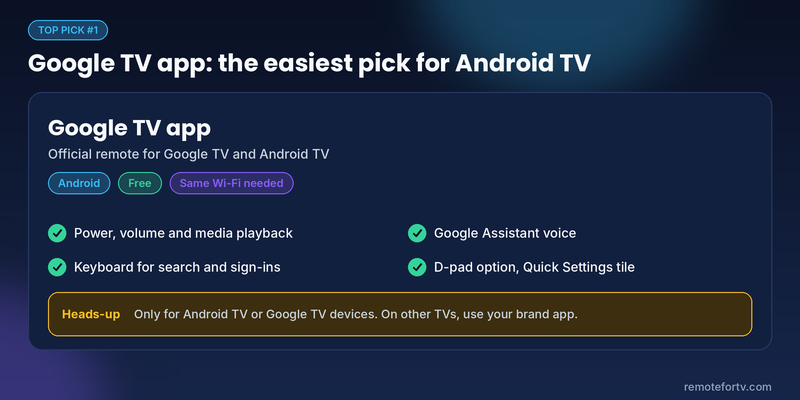
Google TV app: best TV remote app for Android with Google TV or Android TV
Platform: Android · Price: Free · Works with: Google TV and Android TV devices
For Google TV and Android TV owners, the best TV remote app for Android is also the one made by Google. Google’s support page says you can pair a phone with a TV from the app, then play and control media, turn the TV on or off, change volume, start Google Assistant and type text for searches or sign-ins. A TV Remote tile can also be added to Quick Settings so the remote is one swipe away.
Android Central’s walkthrough adds useful detail: after you tap Connect TV, you pick your device, type the six-digit code shown on the screen, then swipe to navigate or switch on D-pad control from the three-dot menu.
Pros
- Official and free, with no ads described in the sources we checked
- Keyboard, voice, volume and power in one place
- D-pad option for people who dislike touch gestures
Cons
- Only useful with Android TV or Google TV devices
- Phone and TV must be on the same Wi-Fi network, otherwise the remote may not appear
- One reviewer reported connection failures with a Chromecast during testing, so results can vary by device
Our take: If your TV runs Google TV or Android TV, install this first. You can also use the remote inside the Google Home app, but Android Central notes that it has no D-pad option, so navigation is more limited.
Read more: Best Universal TV Remotes: Apps vs Physical Remotes Compared
Samsung SmartThings: best TV remote app for Android on a Samsung TV
Platform: Android and iOS · Price: Free · Works with: Samsung smart TVs
Samsung’s SmartThings app doubles as a mobile remote. According to Samsung’s support guide, you add the TV with the + button, scan nearby devices, enter the PIN shown on the TV, then tap the Mobile Remote icon on the TV card. You get power, volume, channel, a touchpad or directional pad, number and color keys, Back, Home and a Bixby microphone.
Pros
- Official, free, and covers the whole Samsung remote layout
- Quick panel shortcut for fast access
- Customizable remote options such as theme and accessibility mode
Cons
- Bixby and Vision AI Companion may not be supported depending on region, model or language
- Features and layout vary by TV model and app version
- Samsung’s page says phone and TV must share Wi-Fi for registration, but does not say whether everyday use needs the same network
Our take: The obvious answer for Samsung households. The Samsung page we read covers Hong Kong products, so check your own region’s guide.
Read more: Best Remote TV App: Top Apps for iPhone, Android & Smart TVs
LG ThinQ: best free TV remote app for Android with an LG TV
Platform: Android and iOS · Price: Free · Works with: LG webOS TVs
LG ThinQ turns your phone into something close to a Magic Remote. LG’s help library says the app can switch inputs, adjust volume and channels, move a pointer, scroll and use arrow and OK keys. Setup means signing in with an LG account, tapping Add a Device, choosing TV, and selecting your set.
Pros
- Official LG app with Magic Remote style controls
- Android phones can power on a TV over Wi-Fi or Bluetooth when “TV On with Mobile” is enabled in the TV’s settings (webOS 6.0 path)
- Works with voice assistants once accounts are linked
Cons
- Needs an LG account
- Phone and TV must be on the same network, and for Wi-Fi LG says both must use the same 2.4 GHz network
- TVs with webOS 3.5 or later can be switched on through the app, while older versions can only be switched off
Our take: Clean and reliable for LG owners, as long as you sort out the network and account first.
Roku app: best TV remote app for Android with Roku devices
Platform: Android and iOS · Price: Free · Works with: Roku players and TVs
The official Roku app is a simple, free remote for Roku devices. Android Authority describes it as controlling nearly everything on Roku hardware, including playback, navigation and voice search, and notes that volume is the one thing that still needs your TV remote.
Its best trick is Headphone Mode. Roku’s support page says up to four mobile devices can use it at once, which is handy for late-night viewing. The catch: while it is on, you will not hear audio from the TV speakers.
Pros
- Official, free, no IR sensor needed
- Private listening through wired or paired Bluetooth headphones
- Voice search and keyboard entry
Cons
- Roku devices only
- Both devices must be on the same wireless network
- Headphone Mode has limits (for example, no analog over-the-air TV, and not every Roku product supports it)
Our take: If you own a Roku, this is a no-brainer.
Amazon Fire TV app: best TV remote app for Android with a Fire TV Stick
Platform: Android and iOS · Price: Free · Works with: Fire TV devices
The Fire TV app mirrors the handheld remote. Guiding Tech’s walkthrough lists navigation keys, a keyboard, an Alexa icon for voice, an app launcher, playback keys and a swipe pad you can enable by turning off the Directional Pad toggle. Pairing means choosing your Fire TV on the same Wi-Fi network and entering the PIN shown on the TV.
Pros
- Official and free
- Keyboard entry saves a lot of time when searching
- A Mini Remote in the notification panel and lock screen is available on Android only
Cons
- Requires location and Bluetooth permissions to be granted
- You may be asked to sign in to an Amazon account for some services
- The source we read does not describe volume controls, so check how your setup handles volume
Our take: A strong pick for streaming-stick owners. The Guiding Tech article quotes an old minimum Android version (Android 4), so confirm the current requirement on Google Play.
Lean Remote: best universal remote app for Android
Platform: Android · Price: Free, with optional in-app purchases · Works with: many TV brands, set-top boxes and DVD players
Lean Remote suits homes with mismatched gear. Android Authority says it combines several remotes into one, supports macros (a sequence of commands in one tap) and smart home integration, and can work over Wi-Fi or an IR blaster.
Pros
- Handles TVs, set-top boxes and DVD players in one app
- Macros for “movie night” style one-tap routines
- Customizable layout
Cons
- IR control needs a phone with an IR blaster
- No voice control, according to AirDroid’s review
- Less polished than a first-party app for any single brand
Our take: The best choice when no official app covers your gear. Check the Play Store “Data safety” section before you install it, as with any third-party remote.
Remote for Android TV: a third-party Android TV remote app
Platform: Android · Price: Free, with in-app purchases · Works with: Android smart TVs
Android Authority lists this app with voice commands, a built-in keyboard, a touchpad and volume monitoring, and says phone and TV must be on the same Wi-Fi network. Its reported in-app purchase range was $3.99 to $19.99 per item at the time of that review.
Pros
- Easy to use, per Android Authority
- Voice, keyboard and touchpad in a single screen
Cons
- Shows a few ads
- In-app purchases can add up
- Does the same job as the free Google TV app on most Android TVs
Our take: Worth a try only if you prefer its layout. For most people the Google TV app is the safer free option.
Mi Remote Controller: best IR remote app for Android phones with a blaster
Platform: Android · Price: Free · Works with: IR devices, with some Wi-Fi TV support
AirDroid’s roundup says Mi Remote Controller handles TVs, air conditioners and fans over IR, with Wi-Fi support for some devices, and lists it as free with no ads or in-app purchases. The limits: it needs a Xiaomi phone with an IR blaster, and smart TV control is basic.
Pros
- Works without a network because it uses infrared
- Free, with no ads per AirDroid
Cons
- Requires a phone with a built-in IR blaster
- Basic smart TV features only
Our take: Great if your phone has an IR blaster and your TV is older, otherwise skip it.
Read more: Download Remote for Vizio TV: Complete Setup Guide
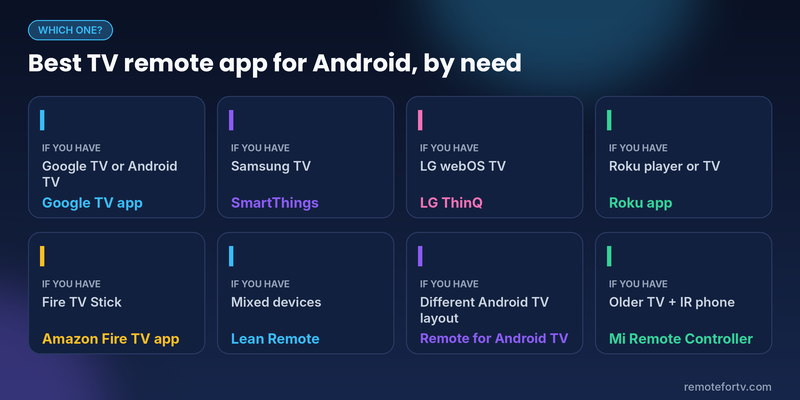
Which is the best TV remote app for Android for you?
| If you have… | Install |
|---|---|
| Google TV or Android TV | Google TV app |
| Samsung smart TV | SmartThings |
| LG webOS TV | LG ThinQ |
| Roku player or Roku TV | Roku app |
| Fire TV Stick | Amazon Fire TV app |
| Several brands of devices | Lean Remote |
| Older TV and a phone with IR blaster | Mi Remote Controller |
| Android TV and you want a different layout | Remote for Android TV |
What to look for in a TV remote app for Android
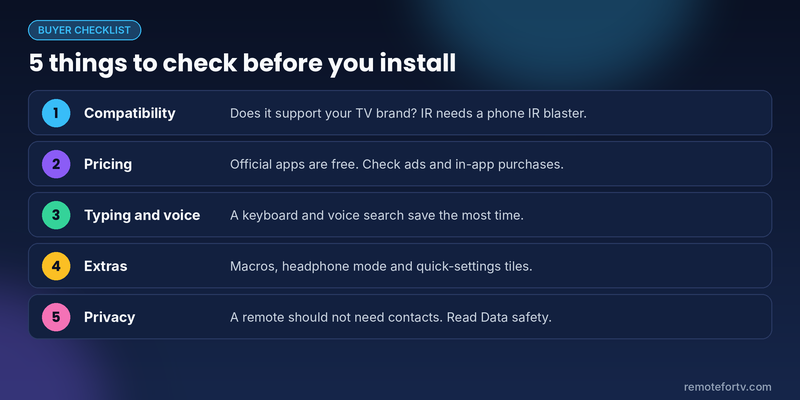
- Compatibility first. Wi-Fi remotes talk to smart TVs over your network, while IR remotes need a built-in IR blaster on the phone. AirDroid’s guide explains this split well.
- Pricing. Official apps are free. Third-party apps often add ads or in-app purchases, so read the store listing before paying.
- Typing and voice. A keyboard and voice search save more time than any other feature.
- Extras. Macros, headphone mode and quick-settings tiles are nice, but not essential.
- Privacy. A basic remote should not need contacts or location. Check the Data safety section on Google Play before installing a third-party app.
How to set up a TV remote app for Android
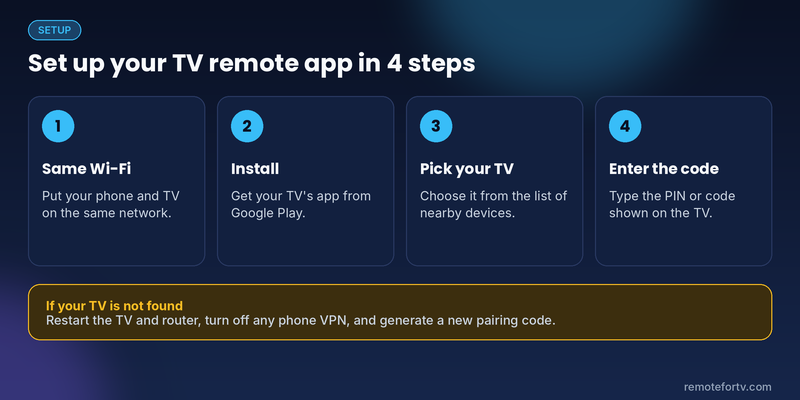
- Put phone and TV on the same Wi-Fi. This fixes most “TV not found” problems.
- Install the right app for your TV from Google Play.
- Open the app and pick your TV from the list of nearby devices.
- Enter the PIN or code shown on the TV screen, then start using the remote.
If the app cannot find your TV
- Restart the TV and router.
- Turn off VPN or custom DNS on the phone.
- Turn on the TV setting that allows remote or network control if it exists (the name varies by brand).
- Grant the permissions the app asks for, such as microphone for voice.
- Generate a new pairing code, or clear the app’s cache.
FAQ
What is the best TV remote app for Android?
The best TV remote app for Android is the Google TV app for Android TV and Google TV devices. If you own a Samsung, LG or Roku TV, the maker’s own app is usually the better fit. For mixed equipment, Lean Remote is a flexible universal option.
Can I use my Android phone as a remote for any TV?
Not always. Smart TVs can be controlled over Wi-Fi by an app that supports your brand. Older TVs need a phone with a built-in IR blaster, and not every phone has one.
Do TV remote apps for Android work without Wi-Fi?
IR-based apps such as Mi Remote Controller do not need Wi-Fi, but they need an IR blaster. Wi-Fi remotes need your phone and TV on the same network. LG says Android phones can also switch on some LG TVs over Bluetooth.
Are free TV remote apps for Android safe?
Official apps from Google, Samsung, LG, Roku and Amazon are the safest starting point. For third-party apps, check the Data safety section on Google Play and be wary of apps that ask for contacts or location.
Why does my TV remote app not find my TV?
Usually the phone and TV are on different Wi-Fi networks. Reconnect both to the same one, restart the TV and router, and disable any VPN on your phone.
Final verdict: the best TV remote app for Android
The best TV remote app for Android depends on the TV in your living room. Use the Google TV app for Android TV and Google TV, SmartThings for Samsung, LG ThinQ for LG, and the Roku or Fire TV apps for those platforms. If your setup is mixed, try Lean Remote. Start with the official app for your brand, and only move to a third-party app if it is missing something you need.
