
Best Free LG TV Remote Apps for Android & iPhone
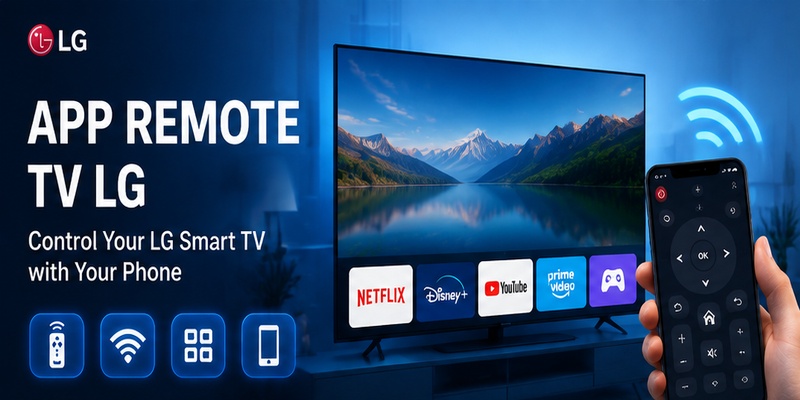
Quick Answer: The best free LG TV remote app for most compatible LG Smart TVs is LG ThinQ, the official app from LG Electronics. It lets you control supported LG televisions using an Android phone or iPhone. If you need to control multiple TV brands, a compatible universal remote app is another option, although some third-party apps require in-app purchases.
To get started, download LG ThinQ, connect your smartphone and LG TV to the same local network, add your television to the app, and complete the pairing process.
Looking for the best free LG TV remote app, a safe way to download remote TV LG software, or a universal remote for multiple televisions? This guide compares your options, explains how to install and connect them, and helps you fix common problems.
Best Free LG TV Remote Apps Compared
A free LG TV remote app can replace many everyday functions of a physical remote, including volume adjustment, menu navigation, and playback controls.
However, not every app supports every LG TV model. The correct choice depends on whether you own a compatible LG webOS Smart TV, an older television, or multiple TV brands.
| Remote Option | Best For | Connection | Cost |
|---|---|---|---|
| LG ThinQ | Compatible LG Smart TVs | Local network | Free basic remote functions |
| Universal Remote TV Control | Multiple supported TV brands | Wi-Fi/network | Free download; premium features may apply |
| Other third-party LG remote apps | Alternative remote interfaces | Usually Wi-Fi | Free, freemium, or paid |
| IR remote app | Compatible older LG TVs | Infrared | Depends on app and phone |
1. LG ThinQ – Best Official Free LG TV Remote App
LG ThinQ is the recommended starting point for users who want an official LG TV remote control app.
The application is developed by LG Electronics and supports remote-control functions on compatible LG Smart TVs.
Depending on your television model and software version, LG ThinQ may provide:
- Volume and mute controls
- Channel navigation
- Home and Back buttons
- Directional menu navigation
- Input selection
- Supported app launching
- Pointer or touchpad-style controls
- Power controls on supported models
LG ThinQ also integrates compatible LG televisions with other supported LG smart-home products.
Best for: Users who own a compatible LG Smart TV and want an official remote application without a separate basic remote subscription.
Limitations: Not every LG television supports ThinQ, and advanced functions vary by model.
2. Universal Remote TV Control – Best for Multiple TV Brands
A universal remote app can be useful if you own several compatible televisions from different manufacturers.
For example, Remote TV App offers a universal remote-control solution designed for multiple supported smart-TV brands, including LG.
A universal app may allow you to switch between compatible TVs without opening a different manufacturer-specific application for each device.
However, compatibility depends on the television model, app version, and connection method.
Some universal apps are free to download but require payment for premium controls.
Best for: Users who want to manage several supported television brands through one remote interface.
Limitations: Free features and supported LG models vary. Test essential controls before paying.
3. Other Third-Party LG Remote Apps
Independent developers also offer LG remote apps for Android and iPhone.
These applications may provide alternative button layouts, navigation interfaces, or shortcuts.
Before installing a third-party app, check:
- Supported LG TV models
- Developer identity
- Android or iOS requirements
- Basic controls available for free
- Advertising and subscription conditions
- Privacy policy and app permissions
- Recent reviews and updates
An application advertising itself as a free LG TV remote may still charge for some features.
Which LG TV Remote App Should You Choose?
Choose LG ThinQ if you own a compatible LG Smart TV and primarily want reliable basic controls.
Choose a universal remote app if you need one application for multiple compatible TV brands.
If your LG TV is an older non-smart model, check whether your Android phone has an infrared blaster or consider a physical replacement remote.
How to Download a Free LG TV Remote Control App
The safest way to download a free LG TV remote control app is through Google Play or the Apple App Store.
Always verify the developer and compatibility before installing.
Download LG TV Remote App for Android
To download LG ThinQ on Android:
- Open Google Play Store.
- Search for LG ThinQ.
- Select the app published by LG Electronics.
- Review the current Android requirements.
- Tap Install.
- Open LG ThinQ.
- Sign in or create an LG account if prompted.
- Follow the instructions to add your television.
After installation, keep your television powered on and connected to your home network.
Download LG TV Remote App for iPhone
If you use an iPhone, follow these steps:
- Open the Apple App Store.
- Search for LG ThinQ.
- Verify that the publisher is LG Electronics.
- Tap Get.
- Open the application.
- Sign in if required.
- Allow Local Network access when prompted.
- Add your compatible LG television.
You can find LG ThinQ by searching the official Apple App Store.
For other iPhone remote options, explore our free TV remote app for iPhone guide.
Is It Safe to Download LG Remote Apps From APK Websites?
Downloading LG remote applications from unofficial APK websites can expose your device to unnecessary security risks.
Use trusted app stores whenever possible.
Avoid applications that request unrelated permissions or require payment before explaining which functions are included.
➡️ Explore More: LG Remote TV: Complete Guide to Setup, Apps, Pairing, Codes, and Troubleshooting
How to Connect Your Phone to LG Smart TV
After installing LG ThinQ, you need to register your television before using its remote controls.
Step 1: Turn On Your LG TV
Make sure your LG television is powered on.
For the initial setup, keep the physical remote available if possible. Some TVs require on-screen pairing confirmation.
Step 2: Connect Your Phone and TV to the Same Network
Connect your smartphone and LG Smart TV to the same local network.
Avoid guest Wi-Fi networks that isolate connected devices.
If your television uses Ethernet, make sure it belongs to the same local network as your phone.
Step 3: Open LG ThinQ and Add Your TV
Open LG ThinQ.
Select the option to add a device, then choose your television from the available products.
The exact menu labels may differ between Android, iPhone, and ThinQ app versions.
Step 4: Complete the Pairing Process
Follow the instructions displayed in the app.
Your LG TV may show a pairing request or verification code.
Approve the request or enter the code when prompted.
Step 5: Open the Remote Interface
After successfully registering your television:
- Open LG ThinQ.
- Select your LG TV.
- Open the available remote-control interface.
- Test navigation and volume.
- Check input selection and other supported controls.
For more information about LG television controls, see our LG Remote TV guide.
➡️ Explore More: LG Remote TV: Complete Guide to Setup, Apps, Pairing, Codes, and Troubleshooting
Best Free Universal Remote App for LG TV
A free universal remote app for LG TV can be a convenient alternative when you want to control several television brands using one smartphone.
However, universal remote compatibility should never be assumed.
Official LG ThinQ vs Universal Remote Apps
| Feature | LG ThinQ | Universal Remote App |
|---|---|---|
| Developer | LG Electronics | Third-party developer |
| Primary focus | Compatible LG devices | Multiple supported brands |
| Basic remote controls | Free on supported TVs | Depends on app |
| LG ecosystem integration | Supported | Usually limited |
| Multiple TV brands | Not its main purpose | Often supported |
| Advanced features | Model-dependent | App-dependent |
| Subscription | No separate basic remote subscription | May apply |
When Should You Choose a Universal Remote?
A universal remote app may be useful when:
- You have several smart TVs from different brands.
- You prefer one remote interface for multiple devices.
- You want to compare alternative button layouts.
- Your television is supported by a reputable third-party app.
Before subscribing, confirm that the app detects your LG TV and that its basic buttons work correctly.
Can Universal Remote Apps Control Older LG TVs?
Some older LG televisions use infrared remote commands rather than network-based controls.
An Android phone with a built-in IR blaster may work with a compatible IR remote app.
Most iPhones do not include an infrared transmitter, so they cannot directly send traditional IR remote commands without additional hardware.
A universal Wi-Fi app cannot control a television that lacks the required network-control capabilities.
For a broader comparison, read our free universal TV remote app guide.
What Can a Free LG TV Remote App Do?
The available features of an LG TV remote app depend on your television model, operating system, and application.
Volume and Channel Controls
Compatible applications can adjust volume, mute audio, and change channels.
These functions are useful when your original remote is missing or its buttons are not responding.
Menu Navigation
A virtual remote can help you move through your LG Smart TV menus and access settings.
Some models support pointer-style controls, while others provide directional navigation only.
Streaming and Playback
A compatible app can help you navigate streaming services installed on your LG television.
Some apps also provide playback controls or supported shortcuts.
Input Selection
Certain LG remote applications allow you to switch between HDMI inputs and other supported sources.
This can be helpful when switching between a streaming device, game console, and TV channels.
Power Control
Power-on and power-off functionality varies by LG TV model and settings.
Some LG Smart TVs support network-based power controls when the relevant standby and connectivity options are enabled.
If your television is fully disconnected from power, a smartphone app cannot turn it on.
Are Free LG TV Remote Apps Really Free?
LG ThinQ provides basic remote-control functions for compatible LG televisions without a separate remote-control subscription.
Third-party applications may be free to install but charge for advanced features or remove-ads options.
Always review pricing and test compatibility before purchasing.
LG TV Remote App Not Working? Try These Fixes
If your LG TV remote app cannot find your television or stops responding, the issue may involve network connectivity, app permissions, pairing, or device compatibility.
1. Check Your Wi-Fi Connection
Make sure your phone and LG TV are connected to the same local network.
Avoid guest networks that prevent devices from discovering one another.
If necessary, restart your router.
2. Restart Your Phone and LG TV
Close the remote app and restart your smartphone.
Restart your LG TV and wait for it to reconnect to the network.
Open the app and try again.
3. Update LG ThinQ and Your TV Software
Check Google Play or the Apple App Store for updates.
Also check whether your LG television has an available software update.
4. Check App Permissions
On iPhone, confirm that LG ThinQ has Local Network permission.
On Android, review the nearby-device and other permissions required by your app version.
5. Remove and Reconnect Your TV
If your television appears in LG ThinQ but does not respond, remove the saved device if appropriate and add it again.
Complete any pairing confirmation displayed on the television.
6. Check Your TV Model
Older LG TVs may not support the current ThinQ remote-control features.
Confirm your model’s compatibility before trying additional applications.
If your physical remote is also malfunctioning, read our LG TV remote not working guide.
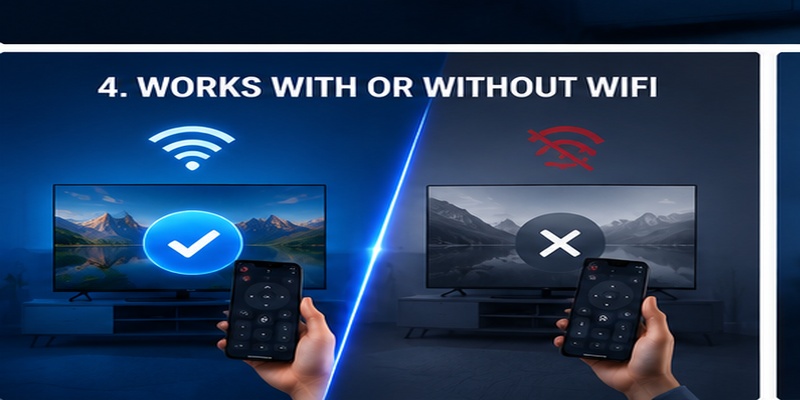
Can You Control LG TV Without Wi-Fi?
Most LG Smart TV remote applications require a compatible local network.
However, there are alternative methods in some situations.
Use an Android Phone With an IR Blaster
If your Android smartphone has a built-in infrared transmitter, a compatible IR remote app may control certain LG TVs without Wi-Fi.
Check whether your phone includes IR hardware before installing an infrared remote app.
Use the Physical TV Controls
Some LG televisions include a physical power button or joystick-style control.
These controls may allow basic operations without a remote.
For more instructions, see our how to turn on LG TV without a remote guide.
Use a Replacement Remote
If your LG television cannot connect to a mobile application, a compatible physical remote may be the simplest solution.
A traditional remote may also provide functions unavailable through some phone apps.
Why Choose the Remote TV App?
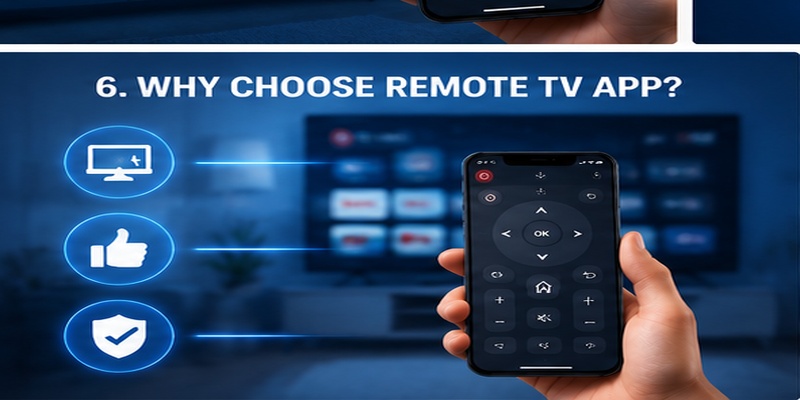
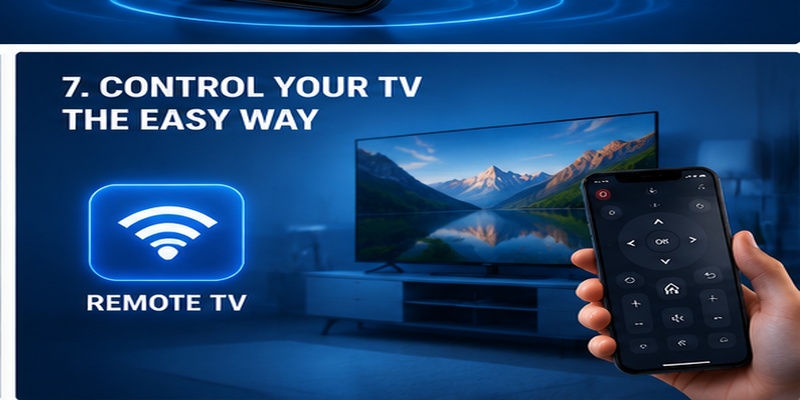
A dedicated remote TV app can change the way users interact with smart televisions. Instead of depending entirely on a small physical controller, users can manage their LG TV through a device they already carry every day.
An app remote tv lg solution is especially useful for people who frequently stream content, search applications, or manage multiple smart devices.
One App for Multiple Smart TVs
One advantage of mobile remote applications is flexibility.
A universal controller may support:
- LG TVs
- Samsung TVs
- Sony TVs
- Streaming devices
- Other smart entertainment products
For households with multiple screens, a single application can reduce the need for several physical remotes.
A free universal remote app for lg tv may be useful when different devices exist in the same home.
However, universal applications may not provide every brand-specific feature.
Easier Control and Better Convenience
Smartphone-based controllers provide several practical benefits:
Faster typing
Searching for content is easier with a phone keyboard.
Always available
Most people keep their phone nearby, reducing the problem of losing the remote.
Better navigation
Touchscreens can provide larger controls compared with compact physical remotes.
Easier setup
Users can update applications without purchasing new hardware.
These advantages make mobile controllers a useful backup or replacement option.
Remote TV App as a Backup Solution
Even users who prefer physical remotes can benefit from having an application installed.
A backup controller helps when:
- The remote battery dies
- The remote is misplaced
- A button stops working
- Guests need temporary control
- The original remote is being replaced
However, users should configure the application before an emergency happens.
If the TV is not connected to the network and the physical remote is unavailable, setting up a mobile controller may become difficult.
Final Recommendation
The best app remote tv lg choice depends on your personal needs.
Choose a simple free application if you only need:
- Volume control
- Navigation
- Power functions
- Input switching
Choose a more advanced solution if you need:
- Keyboard typing
- Multiple device support
- Smart-home integration
- Additional customization
Before downloading, always check compatibility, privacy permissions, and pricing details.
A reliable mobile controller does not need hundreds of features. The best solution is the one that connects quickly, works consistently, and provides the controls you use most often.
FAQs About LG TV Remote Apps
What is the best free LG TV remote app?
LG ThinQ is the recommended official free option for most compatible LG Smart TVs. It provides basic remote-control functions on supported Android phones and iPhones.
How do I download a free LG TV remote control app?
Open Google Play or the Apple App Store, search for LG ThinQ, verify that the developer is LG Electronics, install the app, and follow the instructions to add your television.
Is there a free universal remote app for LG TV?
Yes. Some universal remote apps offer free features for compatible LG televisions. However, certain apps require in-app purchases or subscriptions.
Can I use my phone as an LG TV remote?
Yes. Compatible LG Smart TVs can be controlled through LG ThinQ or another supported remote application.
Can I control LG TV with an iPhone?
Yes. LG ThinQ supports compatible iPhones and LG Smart TVs. Available functions depend on the television and app version.
Does LG ThinQ work without Wi-Fi?
LG ThinQ’s network-based TV remote functions generally require a compatible local network. An IR-equipped Android phone may provide an alternative for certain televisions.
Why can’t LG ThinQ find my TV?
Possible causes include different networks, missing permissions, incompatible TV models, outdated software, or incomplete pairing.
Can I turn on LG TV using a remote app?
Some LG televisions support power-on commands through compatible remote applications. Availability depends on the TV model, standby settings, and network connection.
Do LG remote apps work with older non-smart TVs?
Network-based remote apps generally do not work with non-smart TVs that lack compatible network-control features. An IR remote app or physical remote may be necessary.
Final Thoughts
The best free LG TV remote app depends on your television model and the features you need.
For most compatible LG Smart TVs, LG ThinQ is the recommended starting point because it provides official remote-control functionality without a separate basic remote subscription.
If you own multiple television brands, a compatible universal remote app may offer additional convenience.
Before downloading, verify your TV’s compatibility, review the app’s free features, and confirm the required network connection.
With the right application, your Android phone or iPhone can become a convenient replacement for many everyday LG TV remote functions.
🔍 View Related Articles: Download the LG TV Remote App: Control Your LG TV From Your Phone
