
VIZIO TV Remote App: Download, Setup & Troubleshooting
Short answer: Use the official VIZIO Mobile app to control a compatible VIZIO smart TV from your phone. Install it from your phone’s app store, put the phone and TV on the same Wi-Fi network, select the TV in the app, and complete any on-screen pairing prompt. A generic remote app can be useful for supported models, but check compatibility before relying on it.
The exact screens vary by TV model and app version. A phone remote needs a working path to the TV; it will not repair a TV that is offline or cannot be powered on. This guide covers the choice of app, Android and iPhone setup, common discovery failures, and the point at which a physical remote is still necessary.
Pick the Right VIZIO App
The quickest starting point is VIZIO’s own mobile app. VIZIO describes its mobile app as a way to control compatible TVs and soundbars and advises keeping the app current and both devices on the same Wi-Fi. Verify the publisher in the official store instead of assuming that the first result for vizio tv remote app is made by VIZIO. The app listing and television model information together matter more than a promotional claim of universal support. For a vizio tv remote app, a clear publisher identity is the first compatibility filter, not an afterthought.
Official VIZIO Mobile app
For a supported VIZIO smart TV, begin here. The app combines an on-screen remote with device discovery and other features that may depend on region, account, and model. Its interface can change over time, so follow the current prompts rather than an old screenshot. If the TV is already on the network, this route usually avoids entering a universal-remote code. Keep the vizio tv remote app that passed your actual model test installed as a backup after the physical handset returns.
Third-party phone remotes
Another vizio tv remote control app might support a particular TV through Wi-Fi or, on a suitable Android phone, an infrared transmitter. Check the supported platform and model before installing. Wi-Fi support is not the same as infrared support: an iPhone does not become a traditional IR transmitter simply because an app displays remote buttons. Avoid app listings that demand unrelated permissions or promise to control every VIZIO model without stating a connection method.
| Choice | Connection to check | Best first use | Limitation |
| Official VIZIO Mobile | Same local network | Supported VIZIO smart TV | TV must be discoverable |
| Platform-specific third-party app | Wi-Fi or supported IR hardware | Model-specific alternative | Feature set varies |
| Physical replacement remote | Compatible hardware | Offline setup and recovery | Match the TV model |
Confirm the TV and Network Are Ready
Before downloading a vizio tv remote app, turn on the television and confirm that its home screen can reach the network. If the TV has never joined your new Wi-Fi, the phone app may have no way to find it. Use a working remote, the TV’s physical controls where available, or a compatible replacement to complete that initial network setup. Check the model label on the rear of the TV or the system information menu, because a TV’s product name alone does not prove app compatibility. A vizio tv remote app can only discover a TV it can reach through its supported connection path.
Same Wi-Fi means the same local network
Connect the phone to the household network used by the TV. Guest Wi-Fi, a phone hotspot, and a second router with client isolation can prevent discovery even when both devices show internet access. A TV connected by Ethernet may still be reachable from a phone on Wi-Fi if they share the same local network and the router allows local traffic. Turn off VPN routing temporarily if it separates local devices. The right vizio tv remote app should be judged by supported commands, permissions, and its behavior on your TV.
Keep the TV awake for first pairing
Power on the screen and leave it at the home menu during discovery. If your set displays a code or confirmation dialog, complete it on the TV; a phone cannot approve a prompt it cannot see. For a lost-remote situation, locate the TV’s physical power or control button first. Do not factory reset the television as a routine first step, because doing so can erase the network connection the phone app needs.
Download a Vizio TV Remote App Safely
Search the Apple App Store or Google Play for VIZIO Mobile and verify the developer and supported device notes. The phrase free vizio tv remote app can describe a free download while other content or services may have separate terms; read the current listing. VIZIO’s official mobile page is the authority for the current naming and requirements. Install updates before troubleshooting an app that has been sitting unused for months. Before installing a vizio tv remote app, compare the current store description with the platform on the TV.
On an iPhone
Allow the app the local-network access it requests for device discovery. If you denied that permission earlier, reopen iOS Settings for the app and enable local network access, then relaunch it. Keep the phone on Wi-Fi rather than cellular data for the pairing attempt. A vizio tv remote app for iphone should be evaluated by its current store listing, because supported control features vary by app and TV.
On Android
Enable Wi-Fi and grant the permissions the app explicitly explains for nearby device discovery. Android’s permission labels can differ by version. If you are considering a vizio tv remote app for android that claims IR control, verify that your specific handset actually has an IR blaster; software alone cannot add that hardware. Prefer a current official-store release to a sideloaded package with unknown origin.
Pair Phone With Your TV
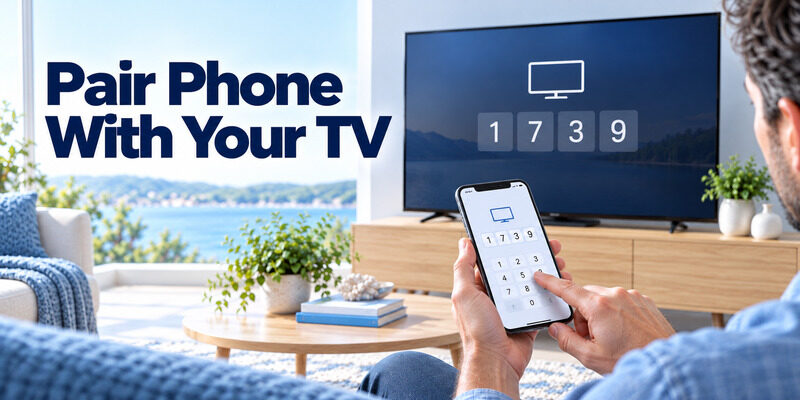
Open the app, choose the device-discovery or add-device action, select the correct TV, and follow the instructions shown on the phone and television. VIZIO’s pairing help describes selecting the device and completing the on-screen pairing flow. The order or naming of controls can change with app updates. If several TVs share a room, verify the displayed device name or model before approving; pairing the wrong screen is a surprisingly common reason the controls seem unresponsive. A vizio tv remote app pairing code belongs to the television in front of you, not another device in the house.
Approve the pairing prompt
Some sets show a code; others show a confirmation. Enter the code only in the app you intentionally installed, and watch the television for a successful connection state. If no prompt appears, return to the TV home screen and retry discovery once. Repeatedly entering a stale code will not fix a blocked local-network connection.
Test a simple command first
Press Home or move the selection one tile, then try volume. Navigation is a more useful initial test than power, because remote wake functions can be model-dependent. If navigation works but volume does not, check whether audio is going to a soundbar or external receiver with separate controls. If the app shows two devices, explicitly select the TV, not the soundbar.
Use the Virtual Remote
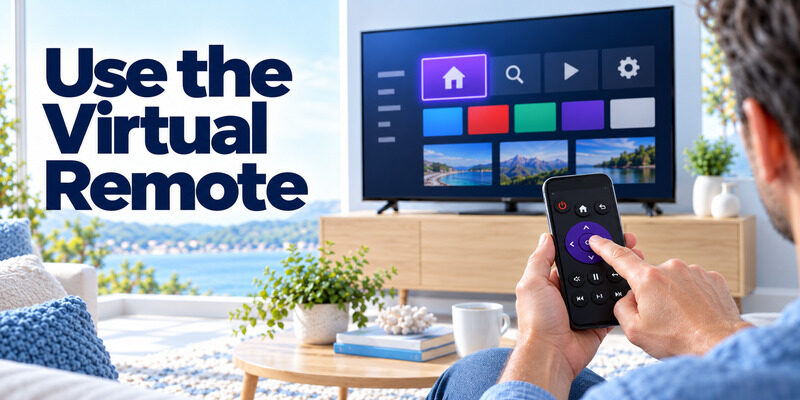
A vizio smart tv remote app is useful because the phone is usually nearby and its touch controls can replace day-to-day navigation. Use the directional pad to move between tiles, tap Select to open a menu, and use Back or Home to exit. Features beyond basic navigation vary by TV and app release; the mobile keyboard may appear for search fields, but do not assume it works in every third-party streaming app. The everyday value of a vizio tv remote app is fastest to judge with Home, Select, and Back.
Navigation and playback
Try one command at a time if the menu feels slow. If commands accumulate, confirm the Wi-Fi connection before repeatedly tapping; queued inputs can make the TV appear to jump several positions later. The app remote may expose playback, input, or channel controls according to the connected device. A missing button in one screen is not proof the television is unsupported; inspect the app’s available remote views.
Volume and power expectations
TV speakers, HDMI-connected audio, and external soundbars can respond differently. Test volume while the TV speakers are selected, then compare the external audio setup. Power-on over the network can depend on the TV’s standby networking settings and model. Keep the physical power button accessible while assessing a vizio tv remote app free download; a phone remote is strongest when the television is already awake and connected.
Compare Official and Universal App Features
The best vizio tv remote app for a household is the one that actually supports its television and common tasks. A household with one compatible VIZIO smart TV will usually start with the manufacturer’s app. A multi-brand home may prefer a separate universal interface if it supports each device, but should test commands on each TV before discarding physical remotes. Promotional screenshots are not a compatibility test. Do not select a vizio tv remote app solely because its screenshot contains a familiar purple directional pad.
Look for a clear connection method
An app should say whether it controls through Wi-Fi, Bluetooth, or an IR emitter. Many phone remotes use the local network; they cannot send infrared light from a phone without IR hardware. For a TV that is offline, a Wi-Fi remote will not be a setup shortcut. If an app claims Bluetooth pairing, check whether your TV model actually exposes that mode for phone control rather than assuming that all smart TVs do.
Evaluate privacy and subscriptions
Read the app-store privacy information, permissions, and purchase terms before granting access. Local-network permission is relevant to discovery; contacts or unrelated sensitive data deserve scrutiny. A free install can contain ads or optional purchases. If a third-party app offers a trial, check the subscription details before accepting. Keep the official app as a baseline for diagnosing whether a problem is with the TV/network or the alternative app.
| Need | Sensible starting point | Verify before relying on it |
| One compatible VIZIO TV | VIZIO Mobile | TV appears in device list |
| Several brands | Universal phone remote | Each exact model and command |
| TV offline | Compatible physical remote | Model and button layout |
TV Not Found? Check Wi-Fi
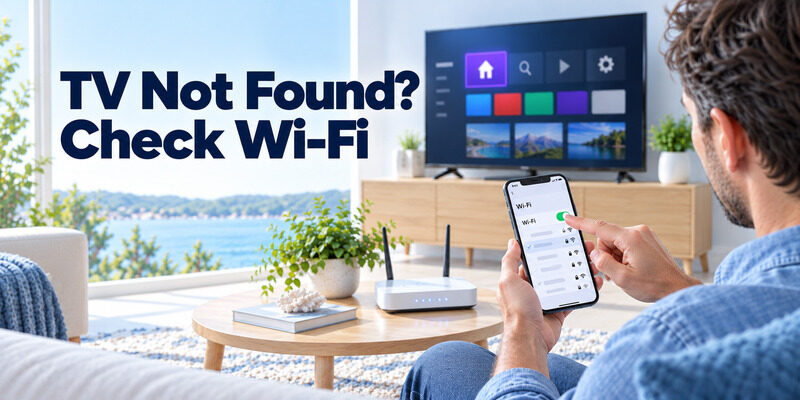
If the vizio tv remote app does not discover the TV, start with the network, not a reinstall. Confirm the TV itself has internet access, then compare the Wi-Fi network names on phone and TV. Reopen the app and leave the TV on the home screen. VIZIO’s mobile support specifically recommends current app software, the same Wi-Fi network, and a stable connection. A router restart can help, but it briefly interrupts every device in the household. When a vizio tv remote app sees no devices, a local-network check usually gives more information than another download.
Check the phone side
Disable a VPN temporarily, verify local-network permission, and switch from cellular to the household Wi-Fi. On iPhone, revisit the app’s local-network toggle. On Android, check the current nearby-device or network permissions requested by the app. If discovery works on another phone, compare its permissions and network rather than factory resetting the television.
Check the TV and router side
Make sure the TV has not connected to an old SSID after a router change. Guest networks and client isolation can block device-to-device traffic. Reboot the TV through its normal restart control or power cycle it if the menu is unavailable; then retry pairing. A connection problem after a Wi-Fi change often requires restoring the TV’s network first with physical controls.
Solve a Connected App That Does Not Respond
A device can appear in the list but still ignore commands. Select it again, test Home, and compare another control such as volume. Force close and reopen the phone app, update it, and restart the TV. If the command delay is intermittent, test closer to the router and avoid congested network conditions. Do not treat an app’s connection badge as proof that every remote function on the TV works. A vizio tv remote app that connects yet misses Volume deserves a focused audio-path test.
Pairing lost after an update
Remove the saved device in the app if the current version offers that control, then pair again while the TV is visible. If the app asks for a new code, use the new on-screen prompt. A cached device entry for a different television with a similar name can cause the same symptom. Record the TV model and the app version before contacting support.
Only one command fails
If Home and navigation work but an input, voice, or power function does not, this is not a full pairing failure. Check the exact feature’s model support and the TV’s sound or power settings. A third-party app may expose a button without implementing it for your set. Test with VIZIO Mobile or the physical remote to isolate the limitation.
When a Phone Can’t Help
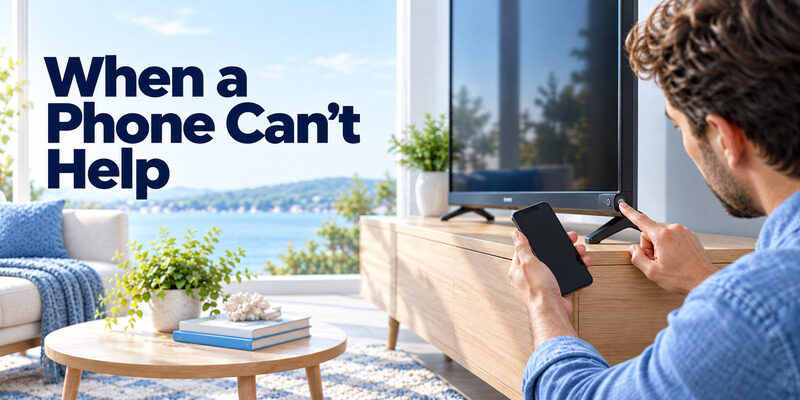
When the TV is already on Wi-Fi, a phone app can bridge a missing or broken remote. If it is not, look for a physical button on the television, an already paired phone, or a compatible replacement remote. The location and capabilities of TV controls vary by model. Never claim that pressing a single button will let every VIZIO TV type a new Wi-Fi password. An offline television is the main case where a vizio tv remote app cannot replace the missing hardware immediately.
Recover network access first
If your router name or password changed, restore the old network settings temporarily if practical, or use the TV’s controls and a compatible remote to join the new network. A phone app usually cannot discover an unconnected TV. After the TV is online, reconnect the app and verify that it can navigate. Keep the replacement remote available for future setup and recovery.
A practical universal fallback
For compatible televisions, the offers a phone-based control alternative when a physical remote is missing. Check its supported device and network requirements on your phone before relying on it for VIZIO. A phone app cannot guarantee control of an offline television; this limit applies to the official route as well.
Frequently Asked Questions
Is the VIZIO mobile app free to download?
The official VIZIO Mobile listing is the best source for current pricing and availability in your region. Check its store page before installing. Separate content or account services may have their own terms, so distinguish the remote-control function from streaming purchases.
Can I control a VIZIO TV without Wi-Fi?
Usually not with a network-based phone remote. A physical remote or supported IR-equipped Android phone and compatible app may be an alternative. Confirm the TV model and handset hardware; an ordinary iPhone does not transmit IR remote commands.
Why does my phone see a soundbar but not the TV?
The soundbar and TV may have separate device entries and network states. Check the TV’s own Wi-Fi connection, select the correct device in the app, and ensure both devices share the local network. A visible soundbar does not prove the TV is online.
Can I turn on the TV with my phone?
It depends on the TV model and standby-network behavior. Test this after successful navigation pairing rather than making it your first check. Keep a physical power-button or compatible remote fallback if waking over the network fails.
Final Thoughts
A vizio tv remote app works best when the television is already on the same accessible network as the phone. Start with VIZIO Mobile, verify the model, pair on-screen, and test navigation before exploring advanced controls. If the TV is offline, restore its network through physical controls or a compatible remote. A third-party phone option is useful only when it supports your actual device and does not overpromise offline control.
Download TV Remote App