
VIZIO TV Remote Not Working? Easy Fixes to Try
Short answer: Replace the remote’s batteries, clear the TV’s receiver path, and restart the VIZIO TV. Test the TV’s own power button before assuming the remote is broken. If basic buttons work but voice does not, investigate pairing or a model-specific voice feature instead of replacing a functioning infrared remote.
A dead TV, weak batteries, blocked IR receiver, frozen TV, and a disconnected voice remote can feel identical from the sofa. The order below separates those faults without wiping the TV’s settings. Button layout and wireless capabilities differ by VIZIO model, so identify the model before attempting a special pairing sequence or buying a replacement.
Vizio TV Remote Not Working: Fast Fixes First
Work from reversible checks to more involved ones. Put in a fresh matched pair of the battery type printed inside the compartment, verify polarity, point directly at the TV, and try Power and Home from a short distance. Then press the television’s physical power button. If the screen does not respond to that button, a remote reset is unlikely to be the first solution. VIZIO’s support hub maintains separate help for the remote and for the TV, which reflects this important distinction. A Vizio TV remote not working on every key warrants a different diagnosis from one failed shortcut.
A two-minute isolation test
Watch the TV’s standby indicator, if your model has one, while pressing Power. Next, use the TV’s physical control to turn it on. Finally, try a second known-good remote or an already paired phone app, if available. These comparisons tell you whether the television can receive any command. Record whether all buttons fail or only one group; a Vizio TV remote not working on Volume alone points to a different path than a completely dead keypad. The phrase Vizio TV remote not working is too broad to justify a factory reset without a symptom check.
Avoid a premature factory reset
A factory reset may remove Wi-Fi settings and accounts, leaving you with a harder setup problem when the remote is unusable. Save that option for a TV-specific fault confirmed after easier steps, and follow the manual for your model. A power cycle is less disruptive and often enough to clear a temporary software stall.
Download TV Remote AppReplace Remote Batteries
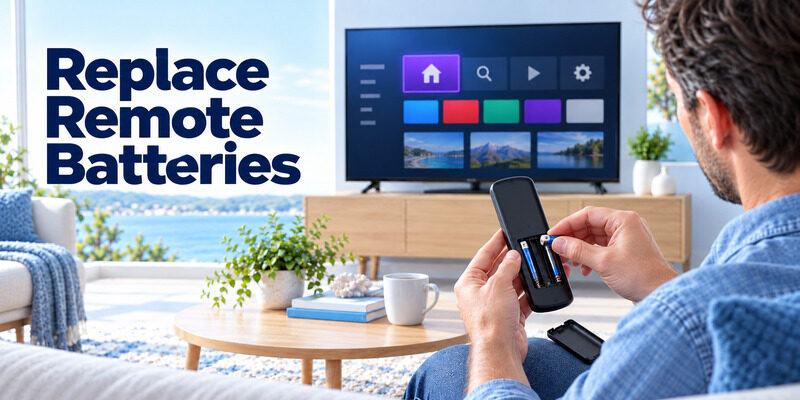
Open the battery cover and inspect the type and polarity markings; VIZIO remote designs vary. Replace both cells together with fresh ones of the specified type. Do not mix an old cell with a new one or reverse the plus and minus ends. A remote can light an indicator yet send unreliable commands when batteries are weak. Check for residue or corroded metal contacts before closing the cover. For a Vizio TV remote not working intermittently, document whether a fresh cell changes the pattern.
Confirm each cell touches its contact
A cell can sit in the tray but fail to reach a flattened spring. Remove it and seat it firmly without bending or scraping the metal. If a contact is heavily corroded, use the manufacturer’s maintenance guidance or consider replacement rather than improvising an electrical repair. Keep loose batteries away from children and dispose of spent cells appropriately. A Vizio TV remote not working with one battery pair may still be fine when the contacts are reseated.
Test more than the Power key
After replacing batteries, press Home, an arrow, and Volume with the TV awake. If Power alone fails, the issue may be a single worn button or a power-state limitation, not total battery failure. If all commands return to normal, wait a day before buying a new remote; intermittent faults can still indicate a loose contact.
Check the IR Signal
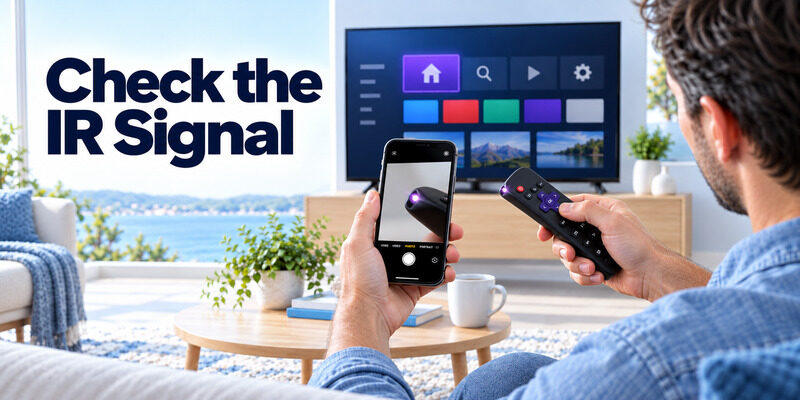
Many physical remotes send basic commands by infrared light. Stand close to the TV, face the front of the remote toward the receiver area, and move objects away from the lower front edge of the screen. A soundbar, decoration, or low cabinet lip can accidentally block the receiver. Direct sunlight and other intense light can also complicate a weak signal. The receiver position differs among VIZIO sets, so consult the model guide instead of assuming it sits in the center. A Vizio TV remote not working beyond a few feet often points toward weak power or a blocked receiver path.
Use a phone camera as a rough check
Open a phone camera, point the front tip of an IR remote at the camera, and press a button. Some cameras show a faint flashing light from an IR LED. This is only a rough test: camera filters differ, and a Bluetooth or RF command may not emit visible IR in this test. A flash does not prove that every button or the TV’s receiver works. A no-flash result alone is not a final diagnosis. When a Vizio TV remote not working report follows furniture rearrangement, inspect the new line of sight.
Change distance and angle
Try from a few feet in front of the TV with no obstruction. If it works close up but not at the normal seat, revisit batteries, line of sight, and receiver obstruction. If it fails only from one location, compare direct sunlight or reflective surfaces at that time of day. Do not tape over the receiver or dismantle the TV to investigate.
Separate a TV Power Problem From a Remote Problem
If the TV does not turn on with its own button, verify that its power cord is firmly seated and that the outlet works with another safe device. Look for the standby light, and unplug the television if you need to inspect an external power connection. A TV with no power cannot respond to a perfectly functional remote. If the TV turns on physically, then the remote path deserves attention. A Vizio TV remote not working while the TV’s own button also fails shifts attention to television power.
Test the physical control deliberately
Locate the TV button according to your model’s manual; it may be under or behind the bezel. Press it once and give the TV time to start. Some controls are multi-function joysticks, so a short press and long press may do different things. Avoid an undocumented button combination. Make a note of the screen’s response, since support can use that observation. A Vizio TV remote not working from the couch but working close up provides a useful distance clue.
Check the selected input
If the screen is on but shows a blank HDMI input, the remote may be working while the source device is off. Press Home or Input and observe whether the on-screen selection changes. This single test distinguishes a display/input problem from an unresponsive remote. A cable box remote can also control its own box without controlling TV menus, which causes confusion when two remotes are on the table.
Power Cycle Your VIZIO TV
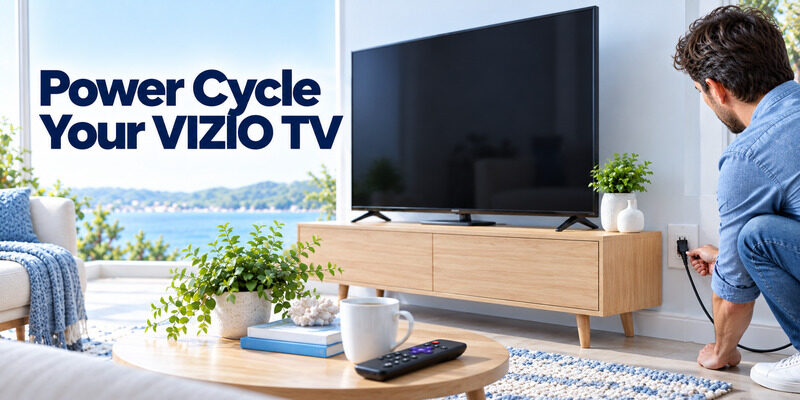
Turn off the TV if possible, unplug it from the wall, wait about a minute, and reconnect it. Let the home screen finish loading before testing the remote again. This restarts the TV without intentionally erasing account or network settings. If the wall outlet is difficult to reach, use the TV’s normal restart option when a working control path exists. Avoid power cycling repeatedly while a software update is actively installing. A Vizio TV remote not working immediately after a TV freeze may recover once the set completes a restart.
What a restart can fix
Temporary menu freezes, network stalls, and missed command processing can clear after a restart. It cannot repair a leaking battery, damaged keypad, or failed receiver. If the TV’s physical button worked before and after the restart but the remote still does not, return to signal diagnosis. If neither control works, investigate TV power and hardware. Treat a Vizio TV remote not working only in a particular app as a possible TV software or input issue.
Watch the first response after boot
Test Home once, then an arrow. A quick first command followed by long delays can suggest TV performance or connection issues, while no IR response at any time points elsewhere. Refrain from pressing many keys during boot; you may create a queue that makes the menu jump when it finally loads.
Diagnose the Pattern of Failed Buttons
The pattern matters more than the phrase vizio tv remote not working. A single stuck or nonresponsive key differs from every key failing. A voice button can require wireless pairing while ordinary navigation still works through another signal path on supported models. VIZIO model information lists whether a set supports a voice remote; do not generalize from a picture of another model’s handset. A Vizio TV remote not working only for Volume may involve an external sound system rather than the handset.
Only Volume or Mute fails
Check whether audio is routed through TV speakers, a soundbar, or an AV receiver. Try the TV’s on-screen volume and the external device’s own control. If the remote changes an on-screen volume bar but sound does not change, investigate the audio output rather than the remote. If no volume overlay appears but other TV keys respond, the button itself or a device-control setting may be responsible. A Vizio TV remote not working for one family member may simply be aimed at a set-top box instead of the TV.
Only Power or Input fails
Check the TV’s current standby state and test the command from a close, unobstructed position. If Input works but Power does not, inspect the Power key and compare another control path. An HDMI-connected device may wake or switch the TV through HDMI-CEC, making it appear that a remote button caused a change when the external device did. Isolate one device at a time.
| What you observe | Likely area | First check |
| No TV response to physical button | TV power or hardware | Outlet and power cable |
| Physical button works, remote never does | Remote or receiver | Batteries and IR path |
| Basic keys work, voice fails | Wireless pairing or feature | Model-specific voice setup |
| Phone app works, physical remote fails | Physical remote | Contacts and signal test |
Voice Button Not Working
Do not apply a universal pairing shortcut to every VIZIO remote. First verify that both the TV and its original handset support voice or wireless features. If navigation works and only the microphone does not, consult the exact model’s remote-pairing instructions, update TV software through the normal menu if available, and check microphone permissions or account prompts shown on-screen. The paired component may be separate from basic IR commands. A Vizio TV remote not working for voice alone calls for the exact voice model’s pairing guidance.
Recognize a pairing-specific symptom
A voice-capable remote that navigates menus but cannot initiate voice search is more likely to have a voice-feature issue than a total power failure. Note whether a microphone icon or pairing message appears on the TV. Pairing steps vary by remote generation; avoid holding arbitrary keys for long periods because that can trigger a different mode. If a Vizio TV remote not working problem recurs after a day, revisit the contact springs rather than resetting accounts.
Reconnect with the model instructions
Use the VIZIO support page or manual for your exact TV and remote model. Keep the remote near the screen, ensure fresh batteries, follow the on-screen sequence, and confirm the pairing completion message. If the TV cannot reach the menu, use physical controls or another compatible remote first. Document the specific message if the attempt fails so the next step is targeted.
Replace or Use Your Phone
Consider replacement when fresh batteries, an unobstructed path, TV restart, and model-appropriate pairing have all failed while the TV responds to physical controls or another remote. Match the TV model and, ideally, the remote part number. A lookalike handset can lack a voice function or use different command codes. Buy from a source that clearly states supported models and has a sensible return policy. A Vizio TV remote not working after all reversible checks is a reasonable candidate for model-matched replacement.
Check the model before buying
Read the sticker on the TV and any label in the remote’s battery compartment. Compare button layout, voice support, and official compatibility information. A universal remote may cover basic power and volume while missing app shortcuts or voice. Do not assume that every VIZIO remote works with every VIZIO TV solely because the brand matches. A Vizio TV remote not working alongside another failed compatible handset deserves VIZIO’s TV-side support.
| Replacement path | Advantage | Important check |
| Exact VIZIO part | Closest feature match | TV model and remote part |
| Compatible universal remote | Basic control across devices | Codes and missing voice functions |
| Phone app | Convenient temporary control | TV already on the network |
When repair makes sense
For minor visible grime around a button, follow safe external cleaning guidance without spraying fluid into the remote. Damaged battery contacts, impact damage, and leaking cells may justify replacing the handset. Avoid opening the TV or making electrical repairs to its receiver; contact VIZIO support when another known-good remote also fails and the TV otherwise functions.
Control the TV While You Wait
An already connected phone can keep a supported TV usable while you source a remote. VIZIO Mobile requires the phone and TV to share an accessible network. If a previously paired app works, test navigation and volume to confirm the TV’s control system is alive. If the TV is offline, the app may not be able to reconnect; a physical button or compatible replacement is then the practical route. A Vizio TV remote not working while a paired phone succeeds helps isolate the original handset.
The phone app as a diagnostic tool
When the phone remote works but the physical one does not, the TV and network are probably functioning. Focus on batteries, signal, or pairing of the handset. When neither works but the TV’s physical button does, investigate the network app separately from the remote path. The two failures do not automatically share one cause.
A broader app fallback
The can be considered as a phone control option for supported TVs while a VIZIO remote is unavailable. Verify your specific device and connection requirements in the app. It does not turn an offline television into a networked one, and it does not replace the need for a compatible hardware remote during some initial setup steps.
Prevent the Same Problem Next Time
Keep a spare matched battery pair in a safe place and note the TV and remote model numbers. Avoid leaving the remote where spills can reach the keys. If you use a phone remote as backup, set it up while the physical remote still works, and test it after changing routers. This preparation matters because network-based controls are least useful precisely when the TV loses network access. Prevent a Vizio TV remote not working crisis by setting up an approved phone backup while the hardware still works.
Record the successful test
Once fixed, test Power, Home, arrows, Volume, and any voice feature separately. A single successful Power press is not enough to establish that every function returned. Write down which step solved the issue; if it recurs after a few days, that pattern may point to battery contact, interference, or a failing handset.
Preserve a recovery path
Keep the TV’s physical control location and the compatible remote model documented. Do not rely exclusively on the phone app for router changes or factory setup. This is especially useful in a household where someone else may need to operate the TV when the primary phone is away.
Final Thoughts
For vizio tv remote not working, start with batteries, line of sight, and a test of the TV’s physical controls. Power cycle the television, then distinguish a completely dead handset from a voice-only or single-button problem. Pair only according to the exact model’s instructions. If a known-good control path works but the handset still fails, a model-matched replacement is more sensible than repeatedly resetting the TV.
Download TV Remote App