
Roku Remote Control Download: Get the Official App and Connect Your Phone
Short answer: The official roku remote control download is the free Roku mobile app for Android and iPhone. Install it from your phone’s app store, sign in as prompted, connect the phone and Roku to the same home network, and open the Remote controls for the selected device. The important limitation is initial access: a Roku that is not connected to the network may still need a physical remote before the app can find it. This guide covers both Roku TVs and separate streaming players, including TVs sold under brands such as onn. and TCL. It also explains why working navigation, television volume, and headphone listening are separate tests rather than interchangeable signs of complete compatibility.
Find the Official Roku Remote Control Download
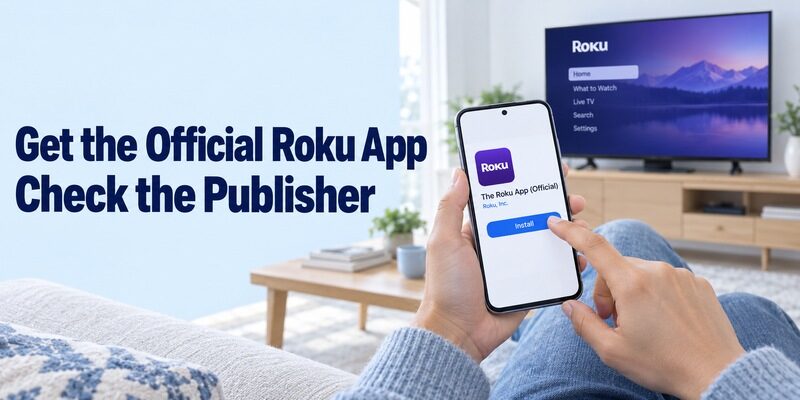
Check the app’s publisher before installing or paying for anything. A roku remote control download should lead to Roku’s own mobile application when your goal is ordinary control of a supported Roku device.
Choose the Roku listing in your phone’s store
Google Play lists “The Roku App (Official)” under Roku, Inc. & its affiliates. On iPhone, follow the App Store route provided on Roku’s own mobile-app page. Confirm the publisher and current device requirements before downloading.
For a clear explanation of the official app’s no-cost remote features, see this free Roku remote control app guide before considering any similarly named paid alternative.
The remote belongs on your phone or tablet. Searching the television’s streaming-app store for a phone controller is a different task and will not install the mobile app on your handset. Keep the two stores separate during setup.
If you want to download roku tv remote software after losing a controller, first verify that you are looking at the official mobile app rather than a paid independent substitute with a similar purple icon.
Separate free control from paid entertainment
Roku describes its mobile app as free to download and use, without a subscription for the app itself. Individual streaming services and premium content can still cost money. Free remote control does not unlock every program shown in search results.
For a download free roku tv remote search, examine any payment screen carefully. A recurring subscription offered by another publisher is not evidence that Roku requires a remote-control membership. Finish the roku remote control download through the verified listing and assess the connection before considering an alternative.
Check Whether Your Roku Is Ready for Phone Control
A reachable Roku is the prerequisite that a download cannot supply by itself. Before completing the roku remote control download, determine whether the device is already set up and connected.
Distinguish a missing remote from missing network access
Roku’s mobile-app page explains that an already connected device can be controlled from a phone on the same Wi-Fi network. A newly installed, reset, or disconnected Roku may need a physical remote to finish setup or restore mobile control.
When initial setup or network recovery requires a handset, use this replacement remote for Roku TV guide to choose a compatible backup before changing the device’s settings.
That distinction answers the practical question behind download roku tv remote on my phone: is the television merely missing its handheld controller, or has it also lost the connection the phone would use? Check the screen and any available local controls before changing settings.
Do not factory-reset a functioning Roku simply because the remote is missing. Resetting can remove the saved network information you need for phone access. Preserve the working state while you identify the appropriate next step.
Confirm that the target actually runs Roku
A roku remote control download supports Roku equipment, not every smart television with the same manufacturer name. Check the home screen and system information for the Roku platform.
For download onn roku tv remote or download remote for tcl roku tv searches, the Roku wording is decisive. An onn. streaming device or TCL television using another platform needs its own controller route. If a separate Roku player is connected by HDMI, the phone targets that player even though a different brand appears on the television’s bezel.
For TCL owners, this troubleshooting guide for a TCL Roku TV remote that is not working also helps separate Roku-platform issues from problems with the television hardware itself.
Connect the App and Open the Correct Remote
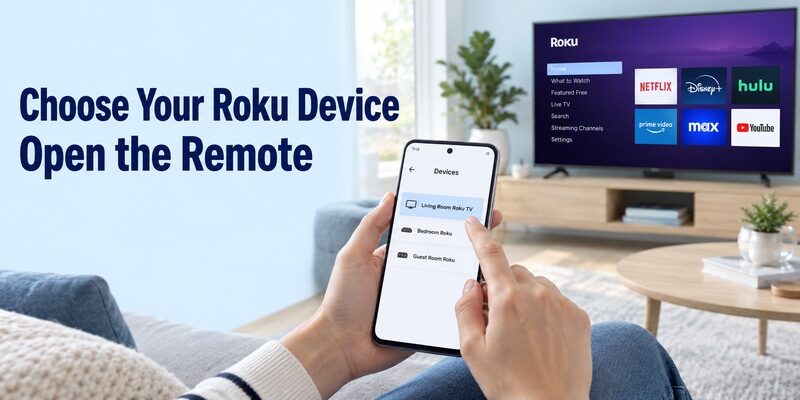
Choose the intended device and verify a visible response. Installation success alone does not complete a roku remote control download.
Use the normal discovery workflow
Open the app, complete its current sign-in prompts, and select your Roku from the available devices. Roku’s remote guide then directs you to Remote. Follow the app’s displayed flow rather than looking for an Android TV pairing screen or a Bluetooth accessory menu.
Keep the Roku awake for this first trial. If several devices appear, compare their names with the room and screen you are using. Select one and watch that screen while you issue a single command. If the selected Roku does not appear or the app cannot establish a connection, follow the focused checks in this guide to fixing a Roku remote app that will not connect before reinstalling anything.
If you intend to download remote control for roku in a household with several players, clear names save time. Record which device responded before adding another television to your routine.
Prove the connection with a small test
Press a directional arrow once, then try Select and Back. These simple actions reveal whether the correct menu responds and whether taps arrive promptly. Avoid holding a button down while the connection is still uncertain.
After the roku remote control download connects, open a familiar streaming app and return Home. A stable sequence across those basic controls is a better starting point than testing every button at once. If nothing responds, keep the exact device name and any error message for troubleshooting. Do not change accounts, router settings, and app installations together, because you would lose the evidence of which step mattered.
Know What Changes Between a Roku TV and a Player
The device receiving commands determines which controls are available. A roku remote control download for a Roku TV and the same app connected to an HDMI player can produce different results.
Identify the television-level controls
On a Roku TV, the Roku system is built into the television. With a separate player, the app primarily operates the player’s interface. Sound and power may travel through an additional control path involving the TV or attached audio equipment. Before assuming the app should control every connected device, check whether a Roku TV remote works with a Roku Stick, because the streaming player and television can have separate control requirements.
Roku’s current remote guide includes HDMI-CEC as a route for player-based TV power and volume. It advises enabling CEC on the television and checking the player’s Control other devices settings for the relevant supported options. Availability still depends on the equipment and configuration.
| Your arrangement | Primary app target | Additional check |
|---|---|---|
| Television with Roku built in | Roku TV system | Available TV controls |
| Roku player connected by HDMI | Streaming player | Supported HDMI-CEC power and volume |
| Roku with separate sound equipment | Roku plus audio path | Which device handles sound |
| TV using another operating system | Not its native system | Correct platform-specific app |
Test volume and power independently
A successful roku remote control download should not be declared broken because navigation works while one sound button does not. Identify the active speakers, then compare the phone with the physical controller that normally changes their volume.
For a download remote for onn roku tv request, also check whether you selected the integrated Roku TV or an external player connected to it. Two available Roku targets can make the controls appear inconsistent even when each connection is working as designed. If navigation works but sound control does not, use this Roku remote volume troubleshooting guide to identify whether the active speakers, HDMI-CEC, or selected device is responsible.
Make Navigation, Search, and Text Entry Comfortable
Use the input style that produces accurate, predictable commands. Once your roku remote control download is connected, adjust how you operate it before judging the entire experience.
Try traditional buttons and swipe navigation
Roku’s remote guide documents traditional and swipe layouts. Try the available layout settings in the app and perform the same short menu sequence with each. Choose the one that makes it easiest to move once and select the intended item.
A larger swipe area can feel different from a physical directional pad. Give yourself a short practice session on the home screen, where an accidental movement is easy to reverse. Keep deliberate taps separate from swipes while learning the layout.
If another household member prefers visible arrows, show them how to return to that view. The best arrangement is the one each person can use reliably, rather than a setting chosen solely because it looks more modern.
Check keyboard and voice in a suitable field
Open a normal search field before using the phone keyboard. Enter a short, non-sensitive phrase and check that it reaches the intended screen. The Google Play listing describes keyboard entry and voice search, but also notes regional availability for certain features.
A roku remote control download does not guarantee identical voice support in every language or country. If a voice option is absent, check the current regional listing and device support. Test ordinary navigation separately so a missing optional feature does not obscure the fact that the basic remote already works.
Set Up Headphone Mode as a Separate Audio Feature
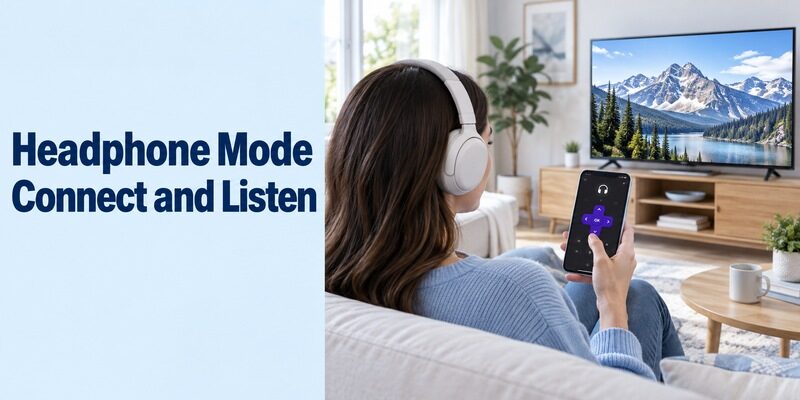
Connect headphones to the phone and check support for the Roku device and content source. Headphone listening adds useful functionality to a roku remote control download, but it has its own requirements.
Start with supported playback and a low volume
Roku’s Headphone Mode guide describes plugging headphones into the mobile device or connecting Bluetooth headphones to it, then activating the headphone icon in the app’s Remote view. Set a comfortable low volume before wearing them.
When active, this mode stops sound from the TV speakers. Try a supported streaming program first and check both the headphone audio and the speaker behavior. That controlled test helps distinguish a routing issue from a muted television.
The guide also limits Headphone Mode on Streambar and Smart Soundbar products to their built-in streaming player, rather than external devices such as a console. Do not assume every sound passing through your entertainment system will reach the phone.
Investigate a missing icon or delayed sound
Roku’s separate audio troubleshooting guide says an absent headphone icon can reflect an outdated app or unsupported device. Update through the original store and verify device support before looking for hidden settings.
That guide also provides audio-delay adjustments for supported Bluetooth headphone use. Establish a stable connection first, then follow the current controls if speech and picture do not align. Repeating the roku remote control download without checking the audio path is unlikely to explain why arrows work while headphone listening does not. Keep the successful navigation result as evidence that at least part of the setup is functioning.
Fix Discovery Without Losing a Working Setup
Investigate the local connection before replacing the app. If the roku remote control download opens but no device appears, work through the network and permission checks in a controlled order.
Compare the actual network information
Roku’s connection guide points to Network, then About in the device settings. Compare that information with the phone’s current connection. For troubleshooting, use the same network name and band where practical, especially when similarly named networks are available.
The guide also explains that wired and wireless devices need a compatible local-network arrangement. Internet access on both devices does not by itself prove they can communicate with each other. A guest network or separated network segment can be relevant.
For iPhone or iPad, review Roku’s Local Network permission in the phone settings. A VPN can also prevent discovery if it routes local traffic away from the home network. Make a reversible test and restore your normal configuration afterward.
Check whether mobile control is enabled
Roku’s app troubleshooting page directs users to System, Advanced system settings, and Control by mobile apps. Inspect the options shown by your installed Roku software and use the documented setting that permits the required control.
Do not change unrelated network-access options merely because an older tutorial uses different labels. If you cannot reach the setting with available controls, a compatible physical remote may be necessary. Another roku remote control download cannot authorize itself on a device whose existing configuration prevents app commands.
Resolve Download and Phone-Compatibility Errors
A store or security error is different from a television that cannot be discovered. Identify which problem you have before restarting your Roku.
Read the exact message on the phone
Roku’s current app troubleshooting guide covers required-version and security-requirement errors. It recommends checking app and store updates and notes that rooted, uncertified, or otherwise unsupported phone software may be incompatible.
Let the current app store determine whether your phone meets the requirements. Do not assume an old installer from another website provides a supported solution to a compatibility message. Preserve the wording of the error so support can distinguish it from a network problem.
If the download roku tv remote app process never completes, first establish whether other legitimate store downloads work on that phone. That simple comparison helps separate a store-account or connection issue from a Roku-specific installation problem.
Keep retries focused and reversible
For a roku tv remote download that installs but will not open, update through the original store and restart the phone before making broader changes. Follow the applicable official troubleshooting steps for your platform.
Keep any currently working physical controller available throughout. Uninstalling the phone app can remove local preferences, while resetting the television can affect a much larger setup. Choose the smallest action that addresses the observed error and test again before moving to the next one.
Save the Setup and Prepare for Everyday Recovery
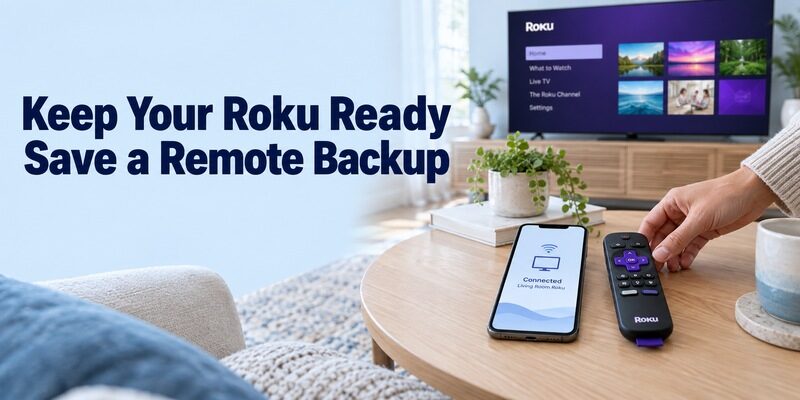
A reliable phone remote includes a plan for the day the network changes. Finish the roku remote control download by recording the working device and teaching the household how to reconnect.
Keep a useful control checklist
Save the app name, Roku device name, and functions that passed testing. Include any limitation involving the sound system, standby, or Headphone Mode. There is no need to keep passwords in these notes.
| Check | Record the result |
|---|---|
| Correct device selected | Room and Roku name |
| Home, arrows, and Back | Responsive or specific failed button |
| Sound and power | Working path or physical backup |
| Headphone listening | Supported source and tested headphones |
| Reconnection | App reconnects after being closed |
Ask another user to reopen the app and select the intended device. This short handover often reveals an unclear name or an assumption that would otherwise become a later support problem. Consider the roku remote control download complete only after this second person can repeat the basic sequence without guessing which device or input you meant. Keep the checklist brief enough to use from the sofa.
Preserve access during network changes
Keep a compatible physical remote before replacing the router or changing Wi-Fi credentials. The saved connection may be the only reason the phone can currently reach the Roku. Make network changes when you have time to reconnect and test the device.
The guides cover other television-control routes if another room uses a different platform. For this Roku, keep the verified app updated and remove unused trial controllers once you have chosen a working setup. Review any independent-app subscription through its store account separately from deleting the app.
Final Thoughts
The right roku remote control download is Roku’s official free mobile app, paired with a reachable and supported Roku device. Confirm the publisher, connect on the home network, and test basic navigation before optional features. Distinguish Roku TV controls from an HDMI player’s CEC functions, and check headphone support independently. Preserve a physical backup for first setup and network recovery so a missing phone or changed Wi-Fi connection does not leave you without a practical controller.
