
Realme TV Remote App Download: Match the App to Your Television
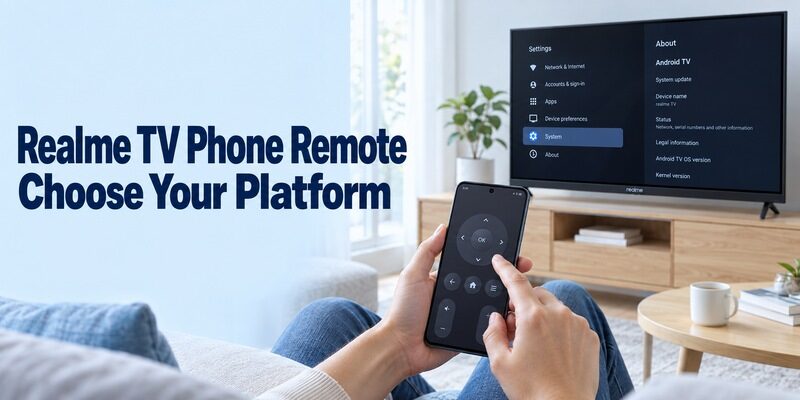
Short answer: A realme tv remote app download works only when the app supports your television’s platform or your phone has the infrared hardware required by the app. For a compatible realme Android TV, start with Google’s phone remote. A realme Neo 32 running Linux needs a different assessment, and an external realme Google TV stick is a separate device from the television displaying it. Before installing anything, find the model name and check the TV’s system information. Then use this guide to choose a store listing, complete the appropriate connection, and test the controls you actually need. One successful arrow press is useful evidence, but it does not establish that power, volume, voice, and input selection will all work.
Start Your Realme TV Remote App Download with the TV Model
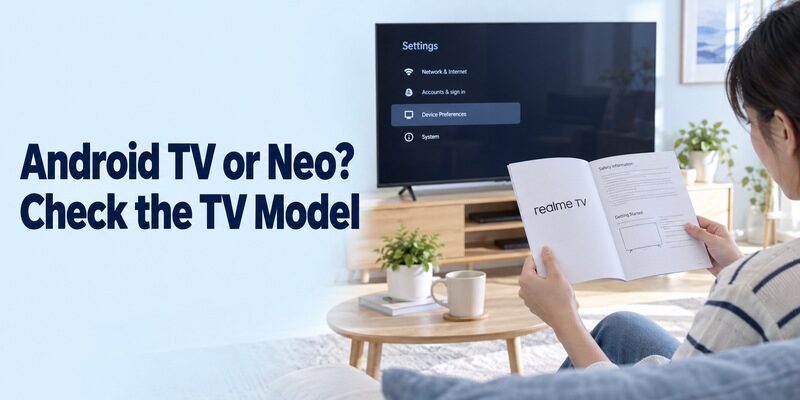
The name on the bezel does not identify the phone-control protocol. A realme tv remote app download should begin with the television’s model and operating system, not a search result promising compatibility with every realme product.
Separate Android TV from the Neo platform
Realme’s product page for its Smart TV Full HD 32 describes certified Android TV. That is a model-specific example, rather than a statement about every television the company has sold. Its original Android version also does not tell you what software an individual set currently runs.
By contrast, realme’s support article “Does realme Smart TV Neo 32 support Android apps?” identifies that model as Linux based, without Google Play or Android app installation. Built-in casting on that set is not proof that Google’s phone remote can pair with it.
This platform-first distinction also applies when choosing an app for another multi-platform brand, as explained in this guide to choosing a TV remote app by operating system.
| What you identify | Sensible first route | What to verify |
|---|---|---|
| Compatible realme Android TV | Google TV phone remote | Network discovery and pairing code |
| Realme Neo 32 on Linux | Model documentation or compatible IR control | Supported phone hardware and TV profile |
| External realme Google TV stick | Remote for the stick | Correct HDMI source and separate TV controls |
| Unknown model | Label and system information | Platform before installation |
Record the target before you search
Write down the model from the rear label or the settings information page. If reaching the label means moving a wall-mounted television, use its documentation or purchase record instead. You only need enough information to distinguish the platform.
For a realme tv remote app download, also record whether you want to operate the television’s own menus or a streaming stick. Give connected devices distinct room names where the software allows it. A phone can find several nearby devices, and selecting the wrong one can look like a failed installation.
Get the Google Phone App for an Eligible Android TV
Install the controller on the phone; do not treat a phone store listing as a TV update. For the Google route, a realme tv remote app download generally means obtaining Google TV from your phone’s normal app store.
Check the publisher and phone platform
On Android, examine the Google TV listing published by Google LLC in Google Play. On iPhone, check Google TV in Apple’s App Store and confirm the same publisher identity. App availability and minimum phone requirements can vary, so let the store assess your current device.
When a manufacturer offers more than one similarly named product, compare the publisher and the app’s stated purpose with this official TV companion app publisher check before installing.
Google’s mobile app page describes the app as available at no cost in supported countries. Paid movies or other storefront purchases are separate from testing the remote. An unrelated subscription offer in a similarly named app should not be mistaken for a Google pairing requirement.
Read the store’s current device requirements before installing. If the listing is unavailable in your region, do not assume a random download site offers an equivalent supported version. A physical remote is still a practical way to operate the TV while you resolve availability.
Keep similarly named products separate
A realme tv remote app download does not automatically mean installing realme Link, a casting utility, or a TV launcher. Choose software whose documented function matches phone-based television control. A familiar brand name can cover several unrelated product categories.
For the broader Google setup, see . Keep the app installed while testing the television so you can distinguish download trouble from connection trouble. Repeatedly replacing apps makes that distinction harder and rarely fixes a TV that is disconnected from the network.
For an eligible Android TV, use the platform-specific steps in this Google TV remote app for Android setup instead of substituting an unrelated casting or launcher app.
Pair the Phone with the Television You Selected
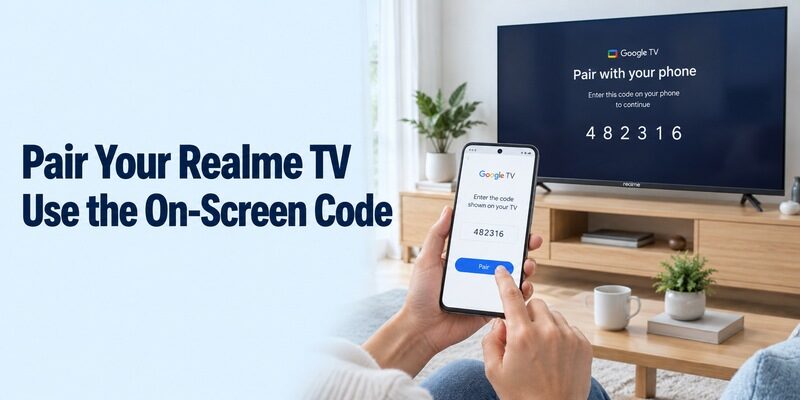
A network remote needs a reachable, compatible television and the required authorization. Completing a realme tv remote app download is only the first stage; pairing establishes which device the phone may control.
Follow the displayed code workflow
Google’s Android TV support guide describes opening the phone app’s TV connection control, choosing the television, entering the code shown on its screen, and completing pairing. Interface wording can differ between phone platforms and app versions, so follow the prompts that actually appear.
Start with the television awake and the phone on the same home network. Check the TV’s own network status rather than relying on the Wi-Fi indicator on your phone. A TV connected by Ethernet can still be on the local network; the important question is whether the two devices can communicate.
When several televisions appear, select the room you recorded earlier. Read the code from that screen, not another television nearby. If the prompt expires, request a fresh pairing attempt and use the new information. A current on-screen code is required for each pairing attempt, so follow the same device-selection checks outlined in this Android TV remote pairing and compatibility guide.
Test one command before expanding the setup
After a realme tv remote app download and successful pairing, try a single directional move, then Select and Back. Watch the intended television respond. Avoid rapid repeated taps while you are still checking responsiveness.
Pairing a physical Bluetooth remote in the television’s accessory settings is a different process. Do not enter that menu merely because a phone app cannot find the TV. Likewise, a code accepted by the app does not prove that every advanced button will be supported. Establish basic navigation first and leave feature testing for a controlled second pass.
Evaluate Independent Realme-Named Apps and Infrared Claims
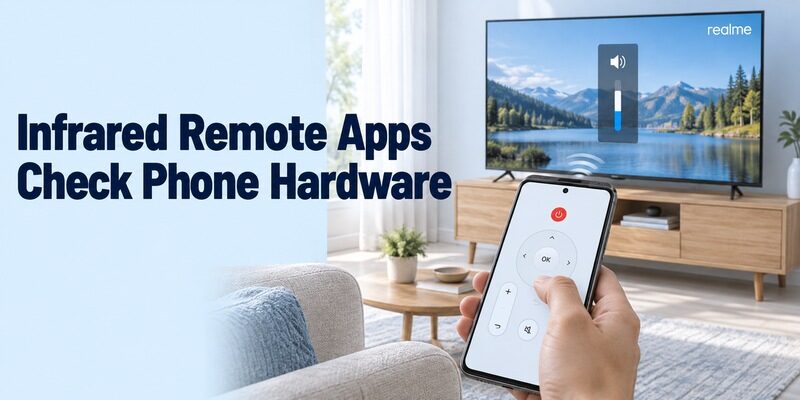
An app’s name is not evidence of manufacturer endorsement or universal compatibility. An independent realme tv remote app download may use infrared, network control, or different modes depending on the version.
Read the requirements, including conflicting claims
The Google Play listing “Remote for Realme TV” from Mobile-Care explicitly describes itself as unofficial and requires an infrared sensor. That requirement concerns the phone’s transmitter, not the television’s original handheld remote.
Another listing, from SmartTV Remote Pro, includes infrared and no-voice wording in its description while its release notes mention Wi-Fi and infrared. Treat those statements as a reason to verify the current app’s supported mode and your exact equipment. They do not establish that all realme televisions will work over Wi-Fi.
A realme tv remote app download that requires infrared cannot add a missing transmitter to a phone. Check the phone manufacturer’s specifications for the precise model. A camera, proximity sensor, or ordinary Bluetooth radio is not a substitute for the required IR hardware.
Test profiles without changing television settings
For a supported IR phone, point its transmitting edge toward the television’s receiver and try one harmless command. Use volume down or a directional button before testing power, particularly if you would otherwise lose the working setup screen.
If the app offers several realme profiles, test them methodically and record which one works. A profile that handles volume but not navigation may be incomplete for your television. Do not compensate by trying hidden service-menu commands. Realme’s Full HD model page describes Bluetooth and infrared in its physical remote, but those capabilities do not transfer automatically to a phone or an independent app.
Treat a Realme Google TV Stick as Its Own Target
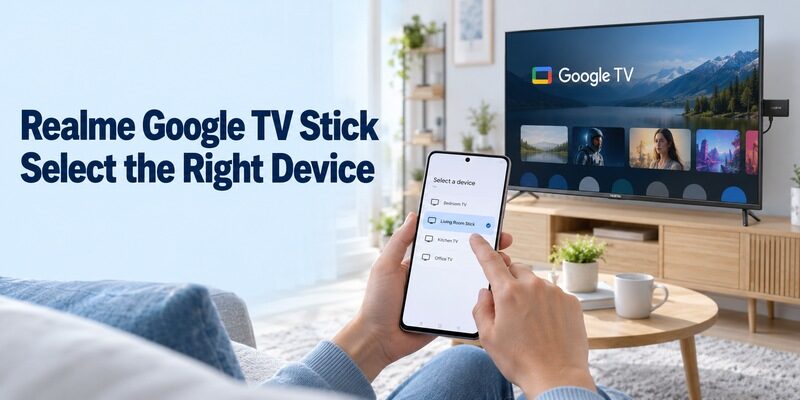
Controlling an HDMI stick and controlling the television are related but separate tasks. A realme tv remote app download can successfully operate the stick while leaving the TV’s input or sound settings untouched.
Open the correct HDMI source first
Use the television’s available controls to display the input occupied by the stick. Then confirm that the menus on screen belong to Google TV on that device. If you pair with the television’s built-in Android system instead, the phone may work perfectly while operating a different interface.
Realme’s support material for its 4K Smart Google TV Stick describes setup through Google Home or the physical remote. Keep that initial setup distinction in mind: a device that has not joined the network may need its supplied controller before a phone can reach it.
Avoid naming both devices simply “Living Room.” A label such as “Living Room Stick” gives you a clearer target in device lists. This small change also helps another household member choose the correct remote later.
Verify HDMI-CEC for television-level commands
Realme documents HDMI-CEC settings for the stick and says CEC must also be enabled on the television. Consult the TV’s instructions for its corresponding setting. Menu wording can vary, so use the model’s documentation instead of guessing a path.
That capability does not guarantee that every phone button will control every attached television or sound system. Following a realme tv remote app download, test navigation on the stick separately from TV volume, input selection, and standby. If the first works but the others fail, you have narrowed the problem to the command path rather than the entire app.
Check Text Entry, Voice, Casting, and Standby Individually
A usable remote should match your routine, not merely display a familiar keypad. Run a short feature check after the realme tv remote app download so you know what the phone can reliably replace.
Try the features in a normal viewing session
Open an ordinary search field and see whether the phone offers text entry. Test a short title rather than a password or payment detail. Then try a second app if the keyboard behaves differently; text fields do not necessarily accept input in identical ways.
If a voice control appears, check its permission prompt and try a simple search. Do not infer phone voice support from a microphone button on the physical realme remote. The app, television software, and chosen input method all matter.
Casting is another separate function. A phone sending media to the television does not prove that its remote app supports settings navigation or power control. Use the remote and casting features for their documented purposes.
| Test | Successful result | If it fails |
|---|---|---|
| Arrows and Select | Intended menu responds once | Recheck target and connection |
| Keyboard | Short text reaches the active field | Try another supported text field |
| Volume | Correct speaker output changes | Identify TV, stick, or sound-system control |
| Wake from standby | Device becomes reachable | Check model-specific standby support |
Repeat the test after normal standby
Once the realme tv remote app download works while the TV is awake, put the television into ordinary standby and wait briefly. Try waking it with the app only if that function is offered. Record the outcome rather than assuming it will match navigation support. This gives your realme tv remote app download a realistic success checklist instead of an all-or-nothing verdict.
Keep the physical remote nearby during this test. A television unplugged from mains power cannot accept ordinary app commands, and a sleeping network interface may require a different wake method. Those situations should not be reported as failed installation.
Troubleshoot the Stage That Actually Failed
Diagnose discovery, authorization, and command response separately. Repeating a realme tv remote app download will not correct an incompatible platform or an unreachable television.
Resolve network discovery before trying another app
If the TV never appears, check that it is awake, connected, and supported by the chosen remote. Compare the phone’s connection with the television’s network information. Guest networks or client isolation can prevent local devices from communicating even when both have internet access.
If a VPN is active on the phone, inspect whether it permits local-network traffic. Use a temporary, reversible test where appropriate and restore your normal settings afterward. Avoid changing several router options together, because that removes the evidence of which change helped.
When the TV appears but pairing fails, restart the pairing flow and use the current on-screen code. Review any permission prompt that is directly relevant to finding local devices. Do not approve unrelated permissions simply to make a warning disappear.
Diagnose partial or infrared-only response
If navigation works but volume does not, identify where sound is coming from and which device the app controls. A separate soundbar may explain why one command behaves differently. Test with the physical remote to establish whether the television itself responds normally.
For infrared, check the phone’s actual transmitter, aim, distance, and the selected profile. Remove an obvious obstruction before changing profiles. If no supported command works, stop treating another realme tv remote download as proof that the same hardware will suddenly become compatible. The useful next step is checking the phone and TV requirements, not collecting more installations.
Keep an Offline Backup and a Clear Household Setup
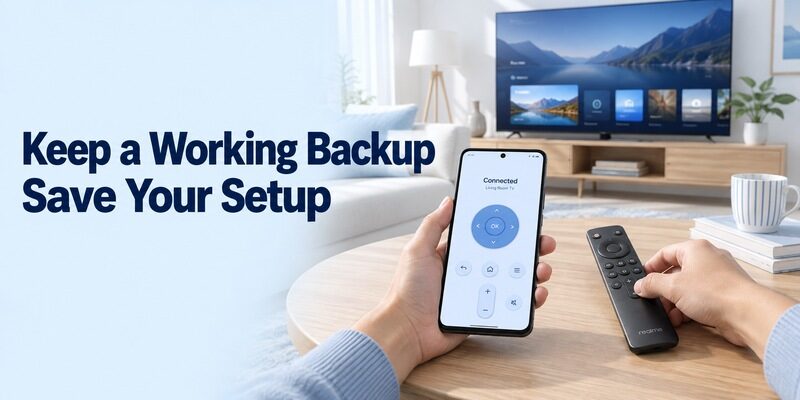
Phone control is most useful when recovery is straightforward. Finish the realme tv remote app download by documenting the successful setup and preserving a way to operate the television without that phone.
Plan for a changed network or a missing phone
Keep a working physical remote accessible, especially before changing the Wi-Fi name or password. Once the TV loses its saved connection, a network phone remote may no longer reach the menu needed to update it.
If your phone has verified infrared hardware and a working profile, test that method independently of Wi-Fi before relying on it as a backup. Otherwise, use a suitable physical replacement or the television’s documented local controls. Do not assume a USB accessory, mouse, or keyboard will provide every needed function unless the model supports it.
Write down the app name and publisher, the television or stick you selected, and the controls that passed testing. You do not need to record passwords or pairing codes. Those details should remain in their appropriate secure locations.
Make everyday use predictable
Let another household member try the working setup while you are present. Explain which device name to choose and whether power or volume still requires the physical remote. A brief handover prevents a partially supported function from being mistaken for a new fault.
For other television platforms, the guides can help you compare the relevant control route. Remove unused trial apps after you have chosen a reliable option, and review any subscription separately in the store account. Keep the successful controller updated through its original store and retest essential buttons after substantial software changes. Revisit your realme tv remote app download notes before replacing a working app; a changed device name or network may explain the difference.
Final Thoughts
The right realme tv remote app download starts with the correct platform and ends with a tested connection. Use Google’s phone remote for eligible Android TV equipment, evaluate independent infrared apps against real phone hardware, and treat a Google TV stick as a separate target. Check navigation, sound, typing, and wake behavior individually. Keep the physical remote available for setup and recovery, and save the app and device details that worked so everyday control stays simple.
