
OnePlus TV Remote App Download: Install Connect and Control Your Screen
Short answer: Look for OnePlus Connect from OnePlus Ltd. in your phone’s supported app store, then connect it to your supported OnePlus TV using the app’s current prompts. The official Android and iPhone listings checked for this guide remain visible, but installation eligibility depends on your device and region. A oneplus tv remote app download should not be confused with O+ Connect, which serves a different cross-device role. This guide covers selecting the correct listing, setting up the connection, using the trackpad and keyboard, and testing everyday controls. It also explains when Google’s Android TV remote route is a useful alternative and when the television’s physical remote remains necessary for recovery.
Start with the Official OnePlus TV Remote App Download
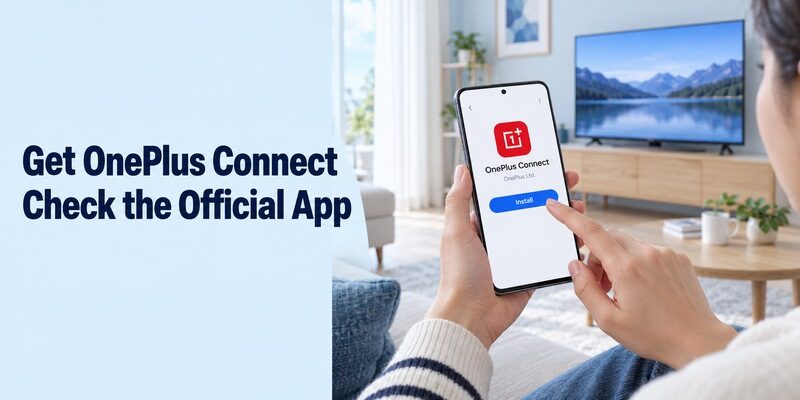
Identify OnePlus Connect and Its Publisher
OnePlus Connect is the manufacturer’s phone companion for supported OnePlus televisions. Its Google Play listing identifies OnePlus Ltd. and describes remote navigation, phone typing, app switching, and media features. OnePlus’s own Q1 product information also presents Connect as part of its television-control experience.
For a oneplus tv remote app download, read the publisher rather than choosing the first result with a red icon. Open the current listing on the phone you plan to use, check compatibility, and install from the supported store. A listing visible in a browser does not guarantee that every phone can install it.
When comparing branded remote listings, this guide to a TV remote app’s publisher and connection method shows why the developer name and supported control route matter more than the app title alone.
Check Availability Without Assuming a Recent Update
The Android listing checked for this guide shows a March 2023 update, while the iPhone listing’s version history shows a February 2022 release. These are useful context when comparing old tutorials with a current phone. They do not, on their own, establish that the application will or will not work on your equipment.
If a oneplus tv remote app download is unavailable to your account, read the store’s actual explanation. Device requirements, regional availability, and software compatibility are different issues. Do not treat a third-party APK page as proof that the manufacturer supports that version on your current phone or television.
If you are considering an APK because the store listing is unavailable, first review the limits and installation checks for an Android TV remote APK rather than assuming it can replace an official, region-supported release.
If Connect already works on another household phone, compare the app name and publisher before changing that working installation. Use it as a reference for the television’s device name and supported controls. The difference between the two phones may be installation eligibility or permissions rather than a fault in the TV. Preserve the functioning arrangement while testing the new one.
Choose the Correct App for Android or iPhone
Use the Phone-Specific OnePlus Listing
The iPhone listing also names OnePlus Ltd. and offers OnePlus Connect as a free download. Its description includes trackpad control, typing, app switching, video casting, and screenshots. Check the current requirements displayed for your iPhone rather than assuming that every feature in an Android tutorial also appears on iOS.
An Android oneplus tv remote app download belongs on the Android handset; an iPhone installation belongs in the iPhone’s App Store. You are adding a controller to the device in your hand, not installing a phone application into the television’s entertainment catalog. Keep the app name and publisher in your setup notes. Include the phone operating-system version so you can compare the setup accurately after a future phone update.
For Android alternatives outside the OnePlus ecosystem, compare the available options in this guide to free TV remote apps for Android and match the connection method to your television platform.
Do Not Substitute O+ Connect by Name Alone
O+ Connect is a different product. Its App Store description discusses file transfer and cross-device features between Apple devices and supported OPPO, OnePlus, or realme devices. That description is not a OnePlus television remote installation guide, even though the naming can look similar in search results.
Before continuing a oneplus tv remote app download, confirm that the description explicitly concerns controlling OnePlus TV. Likewise, a phone’s infrared utility is a separate controller with its own hardware and profile requirements. A OnePlus phone and a OnePlus television sharing a brand name does not make all their applications interchangeable.
| Search result | Main role to verify | Appropriate next step |
|---|---|---|
| OnePlus Connect, OnePlus Ltd. | Supported OnePlus TV companion | Check phone eligibility and connect |
| O+ Connect | Cross-device transfer and related features | Use only for its stated task |
| Google TV, Google LLC | Supported Android TV or Google TV remote | Pair through Google’s workflow |
| Independent OnePlus remote | Developer-specific compatibility | Verify transport, model, and purchases |
| Phone infrared utility | IR command transmission | Confirm emitter and matching profile |
Prepare the Television and Establish the Connection
Start with an Awake TV and a Known Network
Keep the television on and its screen visible during first setup. A practical starting condition is the phone and TV on the same home Wi-Fi network. OnePlus’s TV help page explicitly uses a shared network for casting and provides model-specific network guidance; follow the television’s own instructions where the connection workflow differs.
After a oneplus tv remote app download, check that the phone has not switched to a guest network or mobile data while the TV remains elsewhere. Open the television’s available network information and note the connection name. Do not assume that internet access on both devices proves that local device discovery is permitted.
For a broader explanation of network-based control, see how an Android phone can control a television when the TV and handset can communicate on the same local network.
Follow the Current Device-Selection Prompts
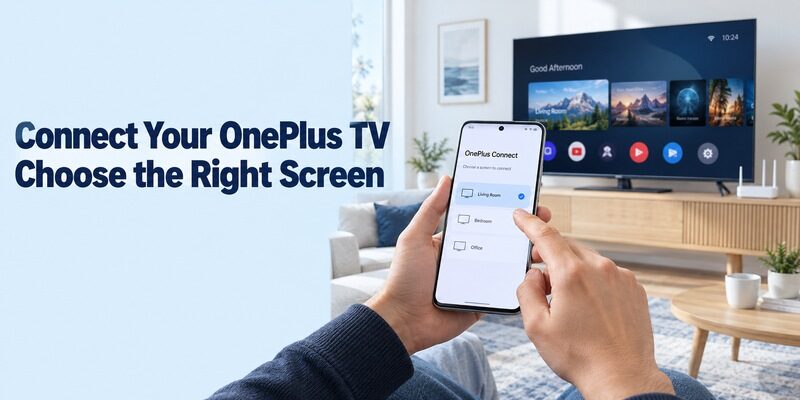
Open Connect and use its available television connection or device-selection control. Choose the intended TV and follow the actual approvals shown by the phone and screen. Permit relevant discovery access when requested and explained by the app. Menu names and onboarding details can vary with the application and television software.
A oneplus tv remote app download is not finished merely because the icon appears on the phone. Confirm that the selected television responds to a simple navigation action. If the workflow displays a code, use the code from that current attempt; do not apply a supposed universal PIN from an unrelated remote guide.
Keep the physical controller within reach during registration. If several televisions appear, select one and observe its screen before proceeding. Give the device a recognizable room name where supported, or note the identifier that distinguishes it. This avoids reconnecting to the wrong screen during later viewing sessions.
After the first successful oneplus tv remote app download setup, leave the television on while you briefly switch away from the phone app and return. Check whether the connection remains usable or requires device selection again. This small test reveals the actual reconnection routine on your phone without introducing the separate question of standby wake support.
Make the Trackpad and Phone Keyboard Useful
Practice Navigation on a Familiar Screen
OnePlus Connect’s trackpad is intended to make phone navigation practical. Start on the television’s home screen, where movement and selection are easy to observe. Use small, deliberate gestures, select one familiar app, and return home before exploring optional controls or shortcuts.
After a oneplus tv remote app download, compare the phone’s behavior with the task rather than the physical handset’s appearance. A swipe area need not resemble a directional ring to serve the same navigation purpose. If your version offers different control modes, choose the one that is easiest to repeat without looking down constantly.
Test Typing in an Actual Text Field
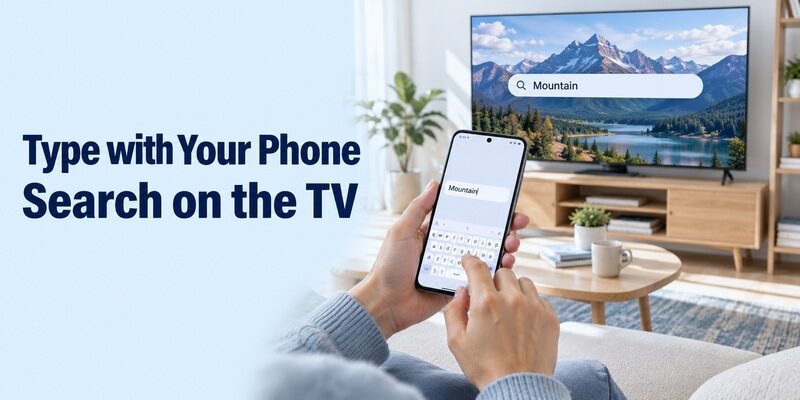
OnePlus’s Q1 information describes TypeSync, which uses the phone keyboard for television text entry. Test typing only after selecting an appropriate search field on the TV. Start with a short, ordinary search term and verify that the correct characters appear before entering anything longer.
A oneplus tv remote app download may make text entry more convenient, but individual applications can handle input differently. If typing fails in one field while navigation works, try another supported search field and record the difference. That is a narrower problem than a completely disconnected television and calls for a different investigation.
Practice correcting a character and leaving the search field as well as entering text. A useful keyboard workflow includes recovery from mistakes. If someone else uses the TV regularly, show them how to return to the normal remote screen after typing so they are not left navigating from an unfamiliar panel.
Keep App Switching, Casting, and Optional Features Separate
Verify the Shortcuts That Matter to You
Quick app switching can reduce repeated menu navigation. OnePlus’s television materials describe moving between frequently used applications through Connect. Check which shortcuts your own version presents, then open one familiar service and confirm that it launches on the intended television.
For a oneplus tv remote app download, prioritize your normal viewing routine over the longest advertised feature list. A shortcut may open a service without providing a subscription or signing you into it. If the application launches but a title will not play, investigate the service account or playback problem separately from remote control.
Test Media Sharing Without Assuming Feature Parity
The Android listing describes media functions beyond navigation, while OnePlus’s older promotional page discusses viewing statistics and scheduling features. Treat those descriptions as features to check on supported versions, not a guarantee that every current phone and TV combination exposes identical menus.
When testing a oneplus tv remote app download, separate casting, mirroring, screenshots, and ordinary control. Begin with a non-sensitive local item if you try media sharing, and read the requested access in context. A successful remote connection does not prove that every video format, streaming service, or screen-mirroring route is supported.
If you use a casting feature, check how to stop it and return to the television’s normal interface. Keep that exit path in the household instructions. It is more useful to understand one complete sharing session than to enable several optional functions without knowing which device currently controls playback.
Consider what happens when the phone receives a call or is handed to someone else. Some OnePlus materials describe smart-volume behavior on supported arrangements, but you should verify the actual result before relying on it. Keep sound at a comfortable level during the test and check whether the previous level returns as expected afterward.
Try Google’s Remote Route When Connect Is Not Suitable
Confirm the Android TV Platform
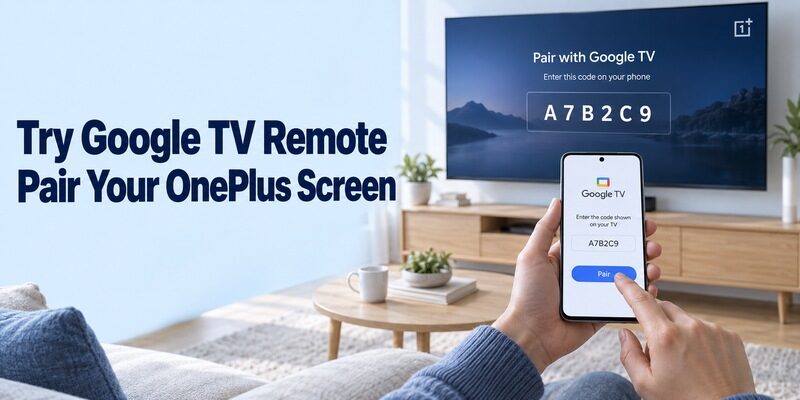
Google provides a separate phone-remote workflow for compatible Android TV devices. OnePlus’s Q1 materials identify Android TV, but you should still check the actual television model and software. Google’s controller is a platform alternative; it is not a renamed version of OnePlus Connect or a replacement for every manufacturer-specific feature.
If the oneplus tv remote app download cannot be installed or does not suit your phone, review the route for a compatible device. The relevant publisher is Google LLC. Confirm the television is ready for network discovery before attempting a fresh connection.
Pair Through Google’s Documented Workflow
Google’s Android TV support instructions use the Google TV app to select the television, enter its displayed code, and pair. Follow the prompts available on your phone, keeping both devices on the required shared network. Read the code from the intended screen rather than another television nearby.
After using this alternative to a oneplus tv remote app download, test Home, Back, direction, and text entry where supported. Do not expect OnePlus-specific shortcuts, statistics, or media features simply because basic control succeeds. Keep the controller that best covers your actual needs and document any remaining requirement for the physical handset.
If both applications are installed, test them one at a time. Otherwise, it can be difficult to tell which app produced a response or which one is still connected. Label the preferred controller clearly so another viewer does not have to repeat the comparison each time they want to watch television.
Diagnose Missing Devices, Failed Commands, and Standby Problems
Identify the First Failed Stage
Installation, discovery, connection, and command response are separate milestones. If the store rejects the phone, network changes will not address that eligibility issue. If the TV is absent from the device list, confirm the correct model, awake state, network, and relevant discovery permissions before reinstalling the application.
When a oneplus tv remote app download connects but one command fails, write down which commands still work. Home working while volume fails suggests a more specific problem than a missing television. If an external speaker system supplies sound, identify its control arrangement rather than assuming the app should directly operate every attached device.
Test Wake Behavior After Ordinary Control Works
Turning a television off and waking it later are different tests. Establish reliable control while the TV is awake, then use normal standby and check the supported wake behavior for that model. Do not disconnect mains power as part of the same test; a television without electrical power cannot receive a phone command.
For a oneplus tv remote app download that works only while the screen is already on, retain the physical controller and consult the model’s standby settings. Avoid changing unrelated energy or network settings blindly. Record whether the app reconnects after waking the TV manually, because that distinction helps separate wake support from ordinary network control.
Change one setting or condition at a time and repeat the same simple command. If you simultaneously reinstall the app, restart the router, and alter TV settings, a successful result will not show which change mattered. A short, consistent test also makes a later support request easier to understand and reduces the chance of losing a usable partial setup.
| Problem | First check | Evidence to keep |
|---|---|---|
| App cannot install | Store and phone requirements | Exact message and phone OS |
| TV does not appear | Awake state, platform, local network | Model and connection names |
| Current registration fails | Selected TV and live approval prompt | Error text and app version |
| Text input alone fails | Focused field and application support | Field tested, navigation result |
| Volume or wake alone fails | Audio target or standby capability | Working commands and TV settings |
Preserve a Recovery Route and a Repeatable Setup
Use the Exact Model’s Physical-Remote Instructions
The phone connection and physical Bluetooth-remote pairing are different procedures. OnePlus’s model manuals describe the supplied remote and its pairing requirements for supported Bluetooth and voice functions. Use the manual matching your television instead of applying button combinations from a different handset generation.
If the TV has lost its network after a router change, a new oneplus tv remote app download may not restore access by itself. OnePlus’s support materials include model-specific network setup routes, including Connect-assisted setup on supported equipment. If that route is unavailable, use a compatible physical controller or documented onboard controls to recover the necessary menus.
Record the Working App and Viewing Sequence
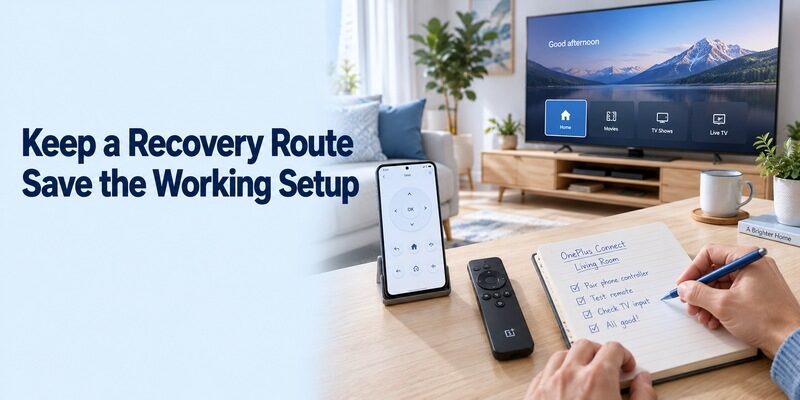
Save the television model, phone platform, app publisher, device name, and any controls that still need the physical remote. Close and reopen the app, then repeat a normal viewing session. Check input selection, launching content, pausing, changing sound, and returning home rather than only confirming that the phone reconnects.
Ask another household member to repeat the sequence from your note. If they cannot identify the correct device or return from a text field, improve the instructions while the setup is fresh. Further platform guidance is available at , alongside the television’s model-specific documentation for hardware and recovery tasks.
Final Thoughts
Choose OnePlus Connect from the verified publisher, confirm your phone’s eligibility, and test a complete viewing routine. A oneplus tv remote app download should produce dependable navigation and useful typing, with optional features assessed separately. If Connect is unsuitable, Google’s documented remote route may cover a compatible Android TV model. Keep the working configuration recorded and retain a physical recovery method for network changes, standby limitations, and initial setup.
