
Micromax TV Remote Original App Download: Check the Publisher and Connection
Short answer: Check the app publisher and your phone’s hardware first: the Micromax remote listings verified for this guide are independent apps, with different infrared or Wi-Fi requirements. A micromax tv remote original app download search does not, by itself, identify software published by Micromax. Some results need a phone with an infrared transmitter; others advertise network control for compatible smart models. Those routes are not interchangeable. This guide explains how to read the current listings, choose a realistic connection method, install the relevant controller, and test essential buttons. It also shows when a matching physical remote is a better solution than continuing to download applications that cannot communicate with your equipment.
Verify a Micromax TV Remote Original App Download Before Installing
Read the Developer and Disclaimer
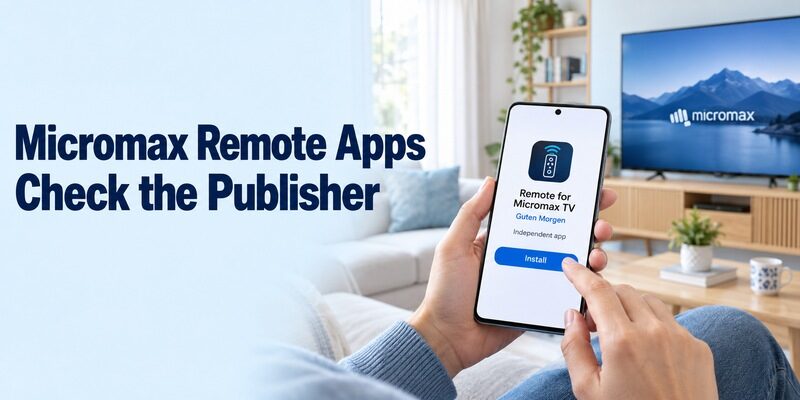
A television brand in an app title is a compatibility claim, not proof of manufacturer authorship. The Google Play listing for Remote for Micromax TV by Guten Morgen explicitly describes itself as unofficial. Micromax TV Remote & Cast by Code Cooker also states that it is independent and not endorsed by Micromax.
Before trusting a branded listing, compare it with this guide to evaluating free TV remote control apps so you can separate app-store wording from genuine compatibility evidence.
For a micromax tv remote original app download, compare the publisher, description, and support details. No Micromax-published phone controller was verified in the sources checked for this guide. That finding does not prove that no manufacturer-supported option exists for any model or region; consult the exact television’s documentation if it names one.
Separate an Original Handset from a Phone App
An original physical remote is hardware supplied or specified for a television. A mobile download is software running on a phone. Even an app with a convincing picture of the handset cannot supply a missing transmitter or guarantee every button’s command code.
If you decide that a handset is the more reliable option, follow the steps for pairing a universal remote with a television after confirming that it supports your exact Micromax model.
If your micromax tv remote original app download search began because the handset broke, write down what you actually need: power, input selection, menu navigation, or all three. The useful result is a controller that performs those actions reliably, with a clear publisher and a supported connection path.
Keep a photograph of the old handset if you have it, but use the television’s model information as the stronger reference. Similar-looking remotes can send different codes. Conversely, a phone controller may look completely different while providing the few commands your viewing routine needs. Appearance is a convenient clue, not a compatibility test.
Decide Whether Your Equipment Can Use Infrared or Wi-Fi
Check the Phone Before Choosing an IR App
Infrared control needs compatible transmitting hardware. Look up the exact phone model’s specifications for an IR blaster or infrared emitter. A camera, Bluetooth radio, or ordinary USB charging port does not establish this capability. Software installation cannot add a built-in transmitter that the phone lacks.
For phones without an infrared emitter, an Android TV remote connection option may still work when the television or attached player supports control over the local network.
Before completing a micromax tv remote original app download, confirm whether an advertised accessory is actually supported by both the chosen app and phone. Do not buy an adapter simply because its connector fits. For an IR-only television and a phone without suitable hardware, a compatible physical remote is often the direct route.
Check the Television’s Actual Smart Platform
A Wi-Fi remote needs a television that supports the app’s control method. Record the TV model and the operating-system information available in its settings or manual. Terms such as LED, HD, and smart describe broad product features; they do not identify a particular remote protocol.
A micromax tv remote original app download should therefore follow an equipment check, not just a brand search. If a streaming box supplies the home screen, identify that box separately. Its phone controller may navigate streaming apps while the Micromax panel still needs another method for input or picture settings.
When the connected device is an Android TV box rather than the television itself, use the dedicated Android TV box remote control app guide to identify which screen the phone is actually controlling.
If the model label is difficult to reach, check the purchase invoice or the TV’s information menu before moving the screen. Write down the full identifier rather than only its first few letters. A micromax tv remote original app download becomes easier to evaluate when support can distinguish the exact product from another television in the same size range.
| Equipment finding | Practical route | Required proof |
|---|---|---|
| TV accepts IR; phone has compatible emitter | Supported IR app and profile | Several essential buttons respond |
| Compatible smart TV and network app | Wi-Fi controller | Exact model and protocol support |
| Confirmed compatible Android TV system | Google’s documented remote route | Correct platform and successful pairing |
| External streaming player supplies menus | Player’s supported controller | Correct player selected |
| No compatible phone route | Matching physical handset | Exact TV model compatibility |
Try a Verified Infrared Listing with the Correct Hardware
Install the App on the Phone
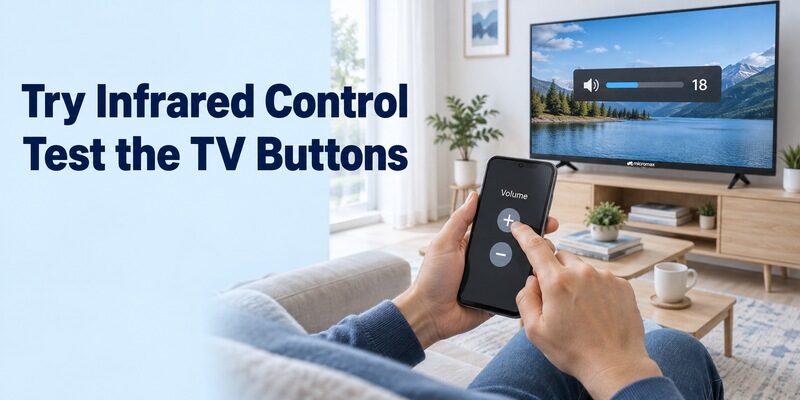
Guten Morgen’s current listing requires an IR-emitter phone. It also identifies advertising and its independent status. Those details establish the type of controller being offered, but they are not a guarantee that every Micromax model or command is supported.
For this micromax tv remote original app download route, open the supported phone-store listing and check its current requirements before installing. Keep the television awake during the first command test. If the application presents several remote layouts or profiles, treat them as candidates to test rather than choosing only by visual similarity.
You can also review the practical limits of a free TV remote app for Android before assuming that installation alone will provide every original-remote function.
Consider Mi Remote as a Separate Publisher’s Option
Xiaomi’s Mi Remote information includes Micromax among supported brands. Its support guidance describes adding a remote, choosing the device category and brand, and testing commands. This is Xiaomi software with a relevant compatibility claim, not evidence of a Micromax-authored app.
When evaluating a micromax tv remote original app download through Mi Remote, select the television category and Micromax profile where available. Follow the current test prompts with compatible IR hardware. Save a profile only after checking useful commands; a single successful power response may coexist with incorrect input or navigation mappings.
Point the emitting end of the phone toward the television’s receiver area and remove obvious obstructions. Test from a normal viewing distance after the initial close-range check. A profile that works only when the phone is held in an awkward position may not be a practical everyday replacement.
Begin with a modest volume level and a harmless menu command. Do not repeatedly press Power while the television is still responding to the previous press. Slow, deliberate tests help separate delayed response from an incorrect profile. Once the main commands work, check whether reopening the application preserves the chosen remote or asks you to select it again.
Use a Network App Only for a Supported Smart Model
Read the Current Wi-Fi Requirements
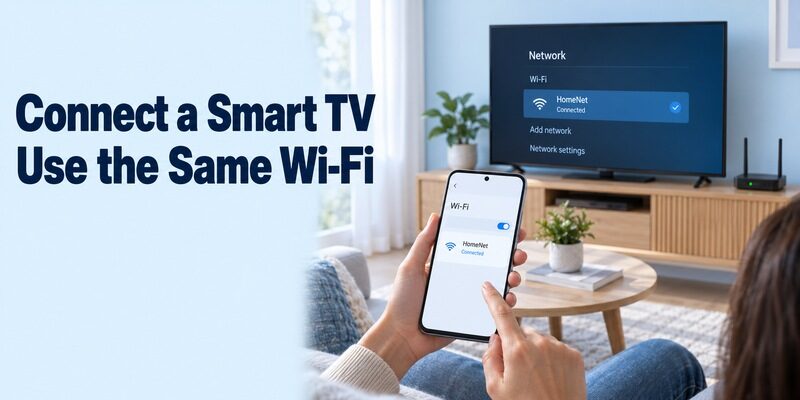
Code Cooker’s Micromax TV Remote & Cast currently describes same-network control for compatible smart televisions. Its listing qualifies features by television model and software version, including power and casting. It is a different route from an application that explicitly requires an infrared emitter.
For this micromax tv remote original app download option, place the Android phone and supported television on the same home Wi-Fi network, open the app, and select the intended screen. Follow any actual connection or approval prompts. Do not invent a universal PIN or enter a code copied from an unrelated tutorial.
If the TV is compatible with Google TV or Android TV, use a verified Google TV remote app for Android setup instead of applying a Wi-Fi pairing method intended for another platform.
Keep Android TV Pairing Conditional on the Platform
Google’s Android TV support guide documents a phone remote through Google TV: select the television, enter its displayed code, and pair. Use that route only when the television or attached player is a compatible Android TV device. A generic Android-based interface is not enough evidence by itself.
If this is the appropriate alternative to a micromax tv remote original app download, verify the platform first and follow Google’s current device-discovery prompts. The Google TV app belongs on the controlling phone. Installing an unrelated remote application in the TV’s entertainment store does not necessarily create the missing phone connection.
Keep the intended screen visible during registration, especially in a home with several televisions. If a code appears, use the one generated by that current attempt. Once connected, send one directional command and watch which display responds before proceeding to sound, power, or media features.
For a micromax tv remote original app download using network discovery, give the TV a recognizable room name if its own settings support renaming. Otherwise, note how to distinguish it in the device list. Selecting the wrong nearby screen can look like a pairing failure when the app is actually waiting for approval elsewhere in the home.
Test a Complete Viewing Routine Before Saving the Setup
Check More Than the Power Button
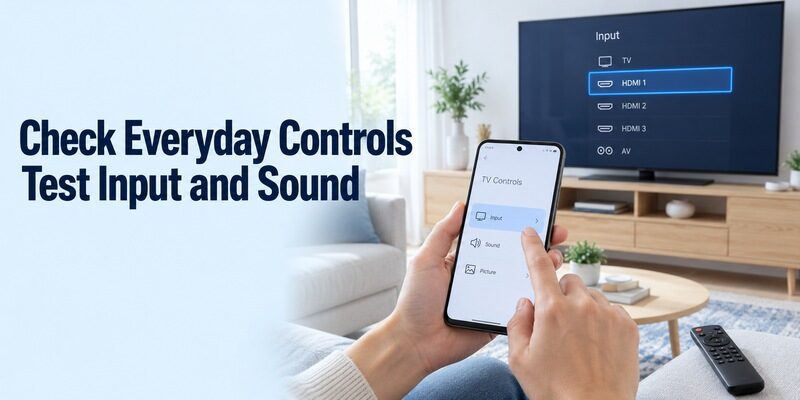
A useful replacement must support the commands you actually use. Begin with the TV already on, so an unsuccessful wake command cannot hide otherwise working navigation. Move through a menu, select an item, return, adjust volume, and open the input selector if that control is available.
After a micromax tv remote original app download, use short presses and observe one response at a time. If pressing Back changes an input or a direction changes a channel, record the mismatch. That pattern is more informative than describing the whole app as broken and starting again without notes.
Separate the Television, Player, and Speakers
The screen, attached streaming box, and external speakers may receive commands through different routes. A phone remote that navigates the player might not open the television’s picture menu. Likewise, soundbar volume can depend on its own controller or a supported equipment-control arrangement.
Judge the micromax tv remote original app download against the intended target. Test one normal sequence from start to finish: select the input, open familiar content, pause, adjust sound, and return home. If two controllers remain necessary, label their roles clearly so another viewer can repeat the routine.
Troubleshoot the First Stage That Fails
Investigate Discovery and Pairing Separately
A missing device and an incorrect button response point to different problems. For a network app, verify the model’s support and the phone’s actual Wi-Fi connection. A guest network or isolation setting can prevent local devices from communicating even when both can access the internet.
If a micromax tv remote original app download installs but finds nothing, confirm the TV is awake and connected before changing app settings. Reopen the application after correcting the network. If the TV appears but registration fails, focus on the current screen prompt, selected device, and any relevant local-network permission.
Investigate IR Hardware and Profile Matching
For infrared control, changing a router password will not repair a missing emitter or incorrect command profile. Check the phone specification, emitting end, line of sight, and selected remote layout. Compare results with the physical handset if one still works, using the same television and basic command.
If a micromax tv remote original app download produces only partial control, note which buttons succeed before trying the next supported profile. Avoid random service-menu codes or firmware changes. The goal is ordinary remote operation; a profile problem does not establish that the television itself needs to be reset.
Change one condition at a time. For example, correct the phone’s network connection and repeat discovery before reinstalling anything. For IR, keep the same distance while comparing profiles. This simple discipline makes the result easier to interpret and gives the app developer a useful description if you later need help with a specific button mapping.
| Observed failure | First investigation | Useful result to record |
|---|---|---|
| Store will not install app | Phone and regional requirements | Exact store message |
| Network app finds no TV | Supported model and local network | TV system and network names |
| Pairing prompt fails | Current device and approval attempt | Displayed error, without sharing private codes |
| IR app has no effect | Emitter, aim, and profile | Phone model and tested profile |
| Only some buttons work | Command mapping or separate target | Working and failing commands |
Understand Download Costs and Optional Features
Distinguish Free Installation from a Complete Solution
A free install does not establish compatibility or include missing hardware. Read the current store’s advertising and purchase information for the app you choose. Evaluate the basic remote before paying for optional features, and check any subscription terms separately from the television’s own entertainment services.
In a micromax tv remote original app download search, an advertised premium upgrade cannot by itself make an IR-only phone application transmit without compatible hardware. Ask what the paid feature actually changes. Removing advertisements, adding convenience controls, and supporting a new connection method are different claims that require different evidence.
Treat Casting and Remote Control as Separate Tests
Casting photographs or videos is not the same function as navigating television menus. A network application may support one feature more broadly than another. Test a simple, non-sensitive media item only after ordinary control works, and verify any requested media access in the context of that task.
If the phone can send a video but cannot change the input, describe those results separately. This prevents a working media feature from being mistaken for a complete handset replacement. Keep the original viewing method available until you have established which parts of the new application are useful.
Also test what happens when the phone screen locks or you switch to another application. Return to the controller and check whether it reconnects to the intended television. This is an everyday usability test, not a promise of background operation. If reconnection requires selecting the device again, include that step in the instructions for other household members.
Know When to Stop Downloading and Use a Physical Remote
Recover Access to an Offline Television
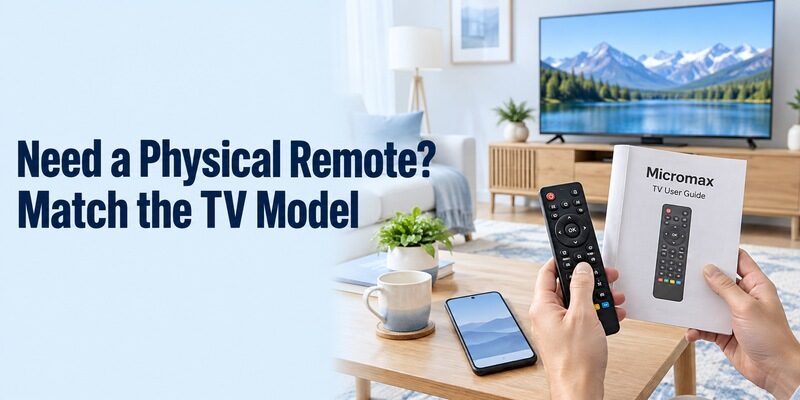
A phone app cannot always perform the first setup of an unreachable TV. After a router change, an offline television may need its network credentials restored before a Wi-Fi controller can find it. Use supported onboard buttons or a compatible physical handset to regain the necessary menu access.
Before repeating a micromax tv remote original app download, identify that setup dependency. A new installation on the phone does not automatically enter the Wi-Fi password on a disconnected screen. Avoid factory-resetting a usable television unless its model-specific troubleshooting instructions actually require that step and you can complete setup afterward.
Save Evidence for a Replacement or Support Request
Record the TV model, phone model, app publisher, connection method, and commands tested. For a physical replacement, ask for compatibility with the exact television rather than only the brand. Confirm input selection and menu navigation as well as power; those controls often determine whether initial setup is possible.
Keep a short household note with the working profile or device name. Reopen the app and repeat the routine once before treating it as dependable. Broader setup guidance is available at , while the model-specific notes should stay with the television’s own documentation.
After a successful micromax tv remote original app download, ask another viewer to try the saved setup without repeating the original search. They should be able to select the correct device and return to the usual input. If that requires extra explanation, add a short instruction to the note rather than relying on whoever performed the first installation.
Final Thoughts
Start with the publisher, then match the controller to the available hardware and television platform. A micromax tv remote original app download should lead to a verified installation route and tested commands, not an assumption that every branded listing is official. Use infrared only with compatible transmitting hardware, network control only with a supported smart model, and a matching physical handset when phone control cannot meet the setup requirements. Save the working configuration so the next viewing session starts smoothly.
