
How to Set Up a Universal Remote to a TV: Complete Guide
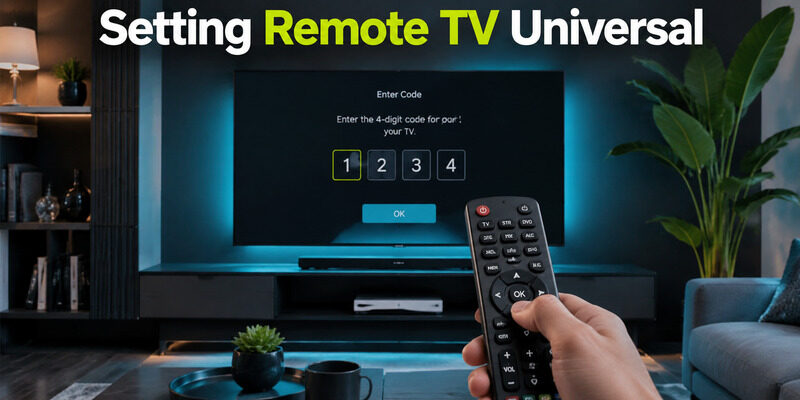
Quick Answer: To set up a universal remote to a TV, turn on your television, install fresh batteries in the remote, enter programming mode, select the TV device, and enter a compatible code from the remote manufacturer’s code list. Test Power, Volume, Input, and Menu. If you don’t know the code, use Auto Code Search if your remote supports it.
Most traditional universal remotes use infrared (IR), so they do not require Bluetooth pairing. The correct setup procedure depends on the remote brand and model.
If you’re looking for help with setting remote TV universal controls, this guide covers programming with or without a code, connecting to Smart TVs, using multiple device modes, and fixing common problems.
What You Need Before Setting Up a Universal Remote
Before programming a universal remote to your TV, identify the equipment you want to control.
You will need:
- Your universal remote control
- Fresh batteries or a charged remote
- Your TV brand and model
- Your universal remote brand and model number
- The remote’s code list or instruction manual
- Access to the TV’s Power button
- A clear line of sight for infrared remotes
Find Your Universal Remote Model Number
Check the back of the remote, inside the battery compartment, or under the battery cover.
The model number matters because different remotes use different programming sequences and code databases.
For example, many GE/Jasco universal remotes use code-list versions such as CL3, CL4, CL5, and CL6.
A code that works on one version may not work on another.
If you cannot find your manual, visit the manufacturer’s support website and search for your exact remote model.
For detailed lookup instructions, read our how to find TV code for universal remote guide.
Understand the Different Connection Methods
Not all universal remotes work the same way.
| Remote Type | Connection Method | Typical Setup |
|---|---|---|
| Traditional universal remote | Infrared (IR) | Direct code entry or code search |
| Learning universal remote | Infrared learning | Copy commands from an original remote |
| Bluetooth universal remote | Bluetooth | Model-specific device pairing |
| Smart remote with hub | IR, RF, Wi-Fi, or Bluetooth | Hub or companion-app setup |
| Smartphone remote app | Usually local Wi-Fi | Discover and authorize the TV |
A remote described as universal is not guaranteed to support every television or advanced feature.
How to Program a Universal Remote to a TV With a Code
Direct code entry is usually the fastest method when you know your remote model and have the correct code list.
Step 1: Turn On the TV
Use the television’s physical Power button or original remote to turn it on.
Keep the TV powered on while programming.
Step 2: Enter Programming Mode
Follow your remote’s manual to enter setup mode.
Depending on the model, the button may be labeled:
- Setup
- Set
- Code Search
- Program
- Magic
Some remotes require holding a device button or pressing a combination of buttons instead.
Wait for the indicator light or confirmation described in the manual.
Step 3: Select TV Mode
If your remote has device-selection buttons, press TV.
This tells the controller which device profile you want to program.
Step 4: Enter the TV Code
Find your television brand in the code list for your exact universal remote.
Enter the first recommended code.
The remote may flash or turn off its indicator light to confirm that the code was accepted.
If the code is rejected, check its length and try another code from the same list.
Step 5: Test the Remote
Point the remote toward the TV and test:
- Power
- Volume Up and Down
- Mute
- Input or Source
- Home or Menu
- Directional navigation
- OK or Select
- Back or Return
Do not stop after testing Power.
A partially compatible code may turn the TV on and off without supporting important navigation functions.
Step 6: Save the Working Code
Some remotes save the code automatically. Others require pressing a confirmation or device button.
Follow the instructions for your model.
Record the working code and remote model for future reference.
Example: GE Universal Remote Direct Code Entry
For many standard GE/Jasco remotes, the official procedure is:
- Find the remote’s model and CL code-list version.
- Turn on the television.
- Hold Setup until the red indicator light turns on.
- Release Setup.
- Press the TV device button.
- Enter the first four-digit code listed for your television.
- Point the remote at the TV and test its functions.
- Repeat with another listed code if necessary.
This example applies to supported GE/Jasco models, not every universal remote.
Example: RCA Universal Remote Programming
RCA remotes may use different programming procedures depending on the model.
For example, some RCA models require holding the TV device key while entering a four-digit code, rather than following the GE Setup-button sequence.
Always use the manual for your exact RCA model.
The important steps remain the same: identify the model, find the correct code, enter programming mode, save the code, and test multiple functions.
💡 Discover Helpful Guides: Apple TV Siri Remote: Complete Guide to Features, Generations, Pairing, and Everyday Use
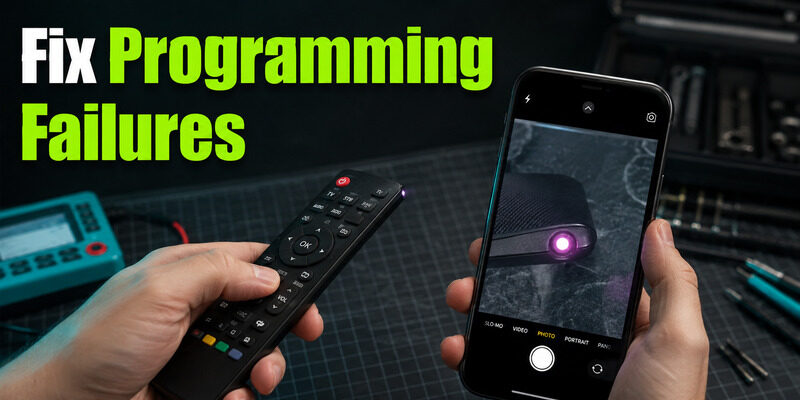
How to Set Up a Universal Remote Without a Code
If you cannot find the correct code, try one of the alternative programming methods supported by your remote.
Method 1: Automatic Code Search
Auto Code Search cycles through the command profiles stored in the universal remote.
A typical procedure is:
- Turn on the TV.
- Enter the remote’s programming mode.
- Select TV mode.
- Start the automatic code-search function.
- Keep the remote pointed at the television.
- Watch for the TV to respond.
- Save the detected code using the required button sequence.
- Test all important controls.
The exact sequence varies significantly by remote model.
For example, some GE/Jasco remotes search in groups of ten codes, then allow you to test individual codes in the matching group.
Other remotes use repeated Power or Channel button presses.
Important: Do not assume that every remote saves a code when you press OK or Enter. Follow the confirmation instructions in your manual.
Method 2: Manual Code Search
Manual search lets you move through the remote’s stored codes one at a time.
Depending on the model, you may need to press Power, Channel Up, or another button repeatedly.
When the television responds, save the selected code.
This method may take longer than direct code entry.
Method 3: Brand Code Search
Some universal remotes offer a brand-search feature.
Instead of scanning every stored profile, the remote searches codes associated with a particular TV manufacturer.
Check your manual to confirm whether this feature is available.
Method 4: Learning Mode
Certain advanced universal remotes can copy infrared commands from an original remote.
A typical learning process involves:
- Placing both remotes facing each other.
- Entering learning mode on the universal remote.
- Selecting the button to program.
- Sending the matching command from the original remote.
- Saving the learned command.
- Repeating for other buttons.
Learning mode generally requires a functioning original remote and does not guarantee support for Bluetooth voice commands or other non-infrared features.
What if None of These Methods Work?
Check whether your remote actually supports your television.
Older universal remotes may not contain the necessary command profile for newer devices.
In that situation, a compatible replacement remote or supported smartphone remote app may be more practical.
How to Connect a Universal Remote to a Smart TV
You can often connect a traditional universal remote to a Smart TV using the same code-entry or code-search process used with older televisions.
However, advanced Smart TV features may require additional hardware or a different pairing method.
Pairing vs. Programming: What’s the Difference?
People frequently search for how to pair a universal remote to a TV, but the word pair can describe two different processes.
Infrared programming: You enter a code that selects a command profile stored in the remote. The television does not normally need to approve a connection.
Bluetooth or RF pairing: The remote establishes a wireless connection with a compatible device. This may require an on-screen pairing prompt or a special button combination.
These processes are not interchangeable.
How to Connect a Universal Remote to Samsung TV
For a traditional infrared universal remote:
- Find the remote model and compatible Samsung TV codes.
- Turn on the Samsung television.
- Enter programming mode.
- Select TV.
- Enter a supported Samsung code.
- Test Power, Volume, Input, and navigation.
Some advanced Samsung Smart Remote features require compatible Samsung hardware and cannot be reproduced by a basic universal IR remote.
How to Connect a Universal Remote to LG TV
To program a compatible universal remote to an LG TV:
- Identify the universal remote model.
- Find the LG code list for that remote.
- Turn on the TV.
- Enter programming mode.
- Select TV and enter the correct code.
- Test the buttons.
LG Magic Remote registration is different from programming a third-party infrared universal remote.
For brand-specific codes, read our LG universal remote TV codes guide.
How to Connect a Universal Remote to Sony TV
Sony televisions may support compatible infrared universal remotes for basic controls.
Use the code list for your universal remote model, not an unrelated Sony code list.
Advanced Bluetooth voice-control features may require an original compatible Sony remote.
See our Sony remote control codes guide.
How to Connect a Universal Remote to Hisense TV
Many Hisense televisions support compatible infrared universal remotes.
Find the Hisense codes for your remote model and use direct code entry or auto search.
The correct procedure depends on the controller and the television platform.
For additional codes and setup details, read our Hisense TV code for universal remote guide.
How to Connect a Universal Remote to Vizio or Insignia TV
For compatible Vizio and Insignia televisions:
- Find the remote manufacturer’s TV code list.
- Select Vizio or Insignia.
- Program the remote using the specified procedure.
- Test Power, Volume, Input, and Menu.
- Try another listed code if some functions fail.
If the remote cannot control smart features, check whether a compatible original remote or phone app offers better support.
Can a Universal Remote Control Roku TV, Fire TV, or Google TV?
Sometimes, but compatibility depends on the device.
A Roku TV may accept compatible infrared TV commands, while a Roku Streaming Stick or Fire TV Stick may rely on wireless control methods that a basic IR universal remote cannot reproduce.
Google TV and Android TV televisions may support basic infrared commands while reserving voice or Bluetooth features for compatible remotes.
Check whether you are controlling the television itself or a separate streaming device.
Can You Use a Universal Remote With Kogan or Other Less Common TV Brands?
Possibly.
Search the universal remote manufacturer’s code database for the television brand and model.
If the brand is missing, try a supported automatic code-search feature.
Do not assume that a code from another TV brand will work reliably.
📘 Find the Right Guide: Google Home TV Remote: How to Control Your TV From the Home App
How to Use a Universal Remote Control With a TV
Once programming is complete, learn how the remote’s device modes and shared controls work.
Switch Between TV, AUX, DVD, and Other Modes
Many universal remotes can control more than one device.
Common device buttons include:
- TV
- AUX
- DVD
- CBL or SAT
- AUD
- STREAM
Press the appropriate device button before sending commands.
For example, selecting TV may control the television, while selecting AUD may control a compatible soundbar or receiver.
Control a TV and Soundbar With One Remote
Some universal remotes support separate audio-device programming or master-volume control.
To configure a compatible soundbar:
- Identify the soundbar model.
- Find its code in the remote manufacturer’s database.
- Select the appropriate audio-device mode.
- Program the soundbar.
- Test Volume and Mute.
- Configure volume lock or master-volume settings if supported.
Some TVs can also pass audio commands through HDMI-CEC, depending on the connected devices.
Use a Universal Remote With Streaming Devices
Before programming a streaming device, confirm that your universal remote supports its control method.
Basic infrared remotes cannot automatically control devices that require Bluetooth, RF, or Wi-Fi.
If the streaming device supports HDMI-CEC, certain commands may pass through a compatible television.
However, HDMI-CEC support varies by hardware and settings.
How to Reprogram a Universal Remote to Another TV
You can usually reprogram a universal remote when you replace your television.
- Identify the new TV brand.
- Find its codes in your remote’s code list.
- Enter programming mode.
- Select TV.
- Enter a compatible code or run auto search.
- Save and test the new configuration.
Programming a new TV profile may replace the previous profile stored under the TV device button.
How to Confirm the Remote Is Ready for Daily Use
After setup, turn the TV off and on again.
Test the functions you use most frequently.
Make sure the remote still works after the television returns from standby.
If it controls several devices, confirm that switching modes does not cause unexpected behavior.
💡 Discover Helpful Guides: Google TV Remote Not Working Light On: LED Meanings and Fast Fixes
Universal Remote Not Working? Troubleshooting
If your universal remote does not connect, pair, or control the television correctly, use the following checks.
1. The Remote Does Not Respond at All
Replace the batteries or charge the remote.
Check that the battery contacts are clean and the batteries are inserted correctly.
Confirm that the remote is in the correct device mode.
2. The TV Does Not Respond to Any Button
Possible causes include:
- Incorrect setup code
- Wrong remote model or code-list version
- Blocked infrared sensor
- Incorrect device mode
- Unsupported television
- Remote hardware failure
Start by verifying the model and code list.
3. Power Works but Volume or Input Does Not
The code may be a partial match.
Try another code listed for your TV brand and remote model.
A different command profile may support more functions.
4. Volume Controls the Wrong Device
Check the remote’s volume lock or master-volume configuration.
The remote may be directing audio commands to a soundbar or receiver instead of the TV.
5. The Remote Stops Working After a Battery Change
Some remotes retain their programmed codes when batteries are changed, but retention behavior varies by model.
Check whether the remote still has the correct TV profile.
If necessary, program it again using the saved code.
6. The Remote Cannot Navigate Smart TV Apps
Basic infrared remotes may support only a subset of Smart TV functions.
Advanced features such as voice search, motion-pointer controls, and Bluetooth-dependent commands may require compatible hardware.
7. Auto Code Search Finds a Code but It Does Not Work Properly
Repeat the search and test another profile.
Do not choose a code based only on whether the TV turns off.
8. The Remote Controls the TV but Not the Streaming Stick
Confirm that the streaming device supports the remote’s communication method.
A remote programmed for the television may not automatically control a separate streaming stick.
9. The Remote Is Still Not Compatible
If the remote does not contain a suitable command profile, programming cannot create support that the hardware or firmware lacks.
Consider an original replacement remote, a compatible advanced universal remote, or a supported smartphone app.
For compatible smart televisions, see our free remote control app for TV guide.
FAQs About Universal Remote Setup
How do I set up a universal remote to my TV?
Turn on the TV, identify your remote model, enter programming mode, select TV, enter a compatible code, and test the controls. If you do not have a code, use auto search if supported.
How do I pair a universal remote to a TV?
For traditional infrared remotes, pairing usually means programming a compatible TV command profile. Bluetooth remotes may require a separate wireless pairing procedure.
How do you program a universal remote to a TV without a code?
Use automatic code search, manual code search, or brand search if your remote supports those methods.
How do I connect a universal remote to a Smart TV?
Use the remote manufacturer’s setup procedure. Most compatible infrared universal remotes use direct code entry or code search, while Bluetooth models may require device pairing.
Can any universal remote work with any TV?
No. Compatibility depends on the remote’s supported devices, command database, connection technology, and hardware capabilities.
Can I program a universal remote without the original TV remote?
Often, yes. You can use the television’s physical Power button and program a compatible universal remote using its code list or auto-search feature.
How do I find the TV code for my universal remote?
Identify the universal remote brand, model number, and code-list version. Then use the manufacturer’s official code finder to select your TV brand.
Why does my universal remote only turn the TV on and off?
The selected code may support only basic commands. Try another compatible code and test additional functions.
Do universal remotes work with Samsung, LG, Sony, and Hisense TVs?
Many do, but compatibility and supported functions vary by remote model and television.
Do I need Wi-Fi to program a universal remote?
Traditional infrared universal remotes generally do not require Wi-Fi. Network-based smartphone remote apps and some advanced smart remotes may require it.
Can a universal remote control multiple devices?
Yes, if the remote supports multiple device profiles. Program each compatible device separately and use the correct device-selection mode.
Can I use a universal remote with a soundbar?
Often, yes. The remote must support the soundbar or its control method. Some models also support master-volume settings.
How do I reset or reprogram a universal remote?
Follow the manufacturer’s model-specific instructions. You can usually replace a stored TV profile by programming a new code, but a full factory reset may use a different procedure.
What should I do if auto code search does not find my TV?
Verify the remote’s compatibility, check its batteries and infrared path, and consult the manufacturer. The remote may not contain a compatible command profile.
🗺️ Browse How-To Guides: Apple TV Remote Volume Not Working? Here’s How to Fix It
Final Thoughts
Setting remote tv universal control is a sequence: confirm protocol compatibility, use the exact model’s code list, try direct entry, fall back to automatic search, and score every candidate across real buttons.
A television that powers off is not fully programmed until volume, input, and navigation also pass. Treat partial response as a clue to try another stored profile, not as proof the remote is defective.
Use Remote TV App beside the infrared handset when smart-platform functions sit outside the universal remote’s capabilities.
Download LG TV Remote