
Sony Remote Control Codes: Universal Remote Setup Guide
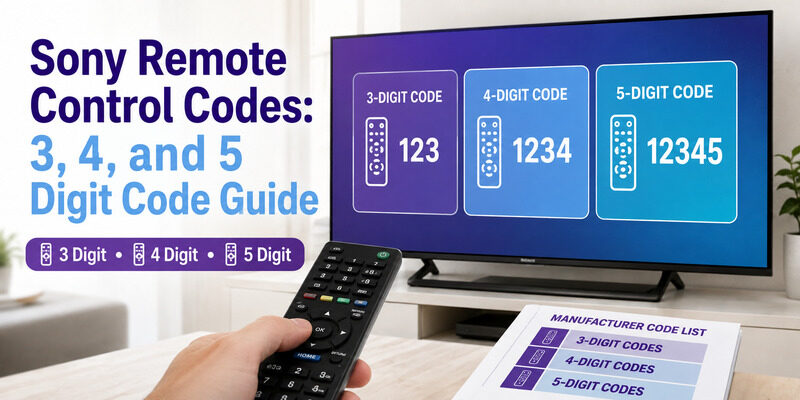
Quick Answer: Sony remote control codes depend on the universal remote’s brand, model, and code database. Sony states that some Sony-branded universal remotes use 01 or 001 for Sony products, but these are not universal codes for GE, RCA, One For All, or every other remote.
To find the correct Sony TV code, identify your universal remote model, open its official code list, select Sony under the TV category, and enter a compatible code. If the code fails, try the next listed code or use automatic code search when supported.
This guide explains Sony universal remote TV codes, how to find three-, four-, and five-digit setup codes, how to program your remote, and what to do when the TV does not respond.
Sony Universal Remote TV Codes: What You Need to Know
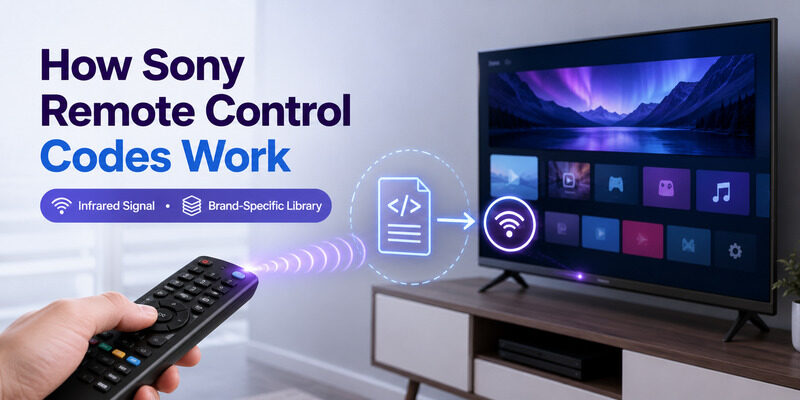
A universal remote code is a number used to select a stored set of control commands inside a compatible remote.
When you enter the correct code, the remote can send commands recognized by your Sony television.
Common functions include:
- Power
- Volume
- Mute
- Channel selection
- Input switching
- Menu navigation
- Playback controls, where supported
However, not every code supports every function.
Is There One Universal Code for Every Sony TV?
No.
The correct Sony TV remote code depends on the universal remote’s manufacturer and model.
Two people using the same Sony television may need different codes because their universal remotes use different command databases.
Sony’s 01 and 001 Codes
Sony’s official support documentation identifies 01 or 001 for Sony products when using certain Sony universal remote controls.
These codes should not be interpreted as universal setup codes for all third-party remotes.
If you own a GE, RCA, Philips, One For All, or cable-provider remote, use that manufacturer’s code list instead.
Why Do Sony Remote Codes Have Different Lengths?
You may encounter two-, three-, four-, and five-digit Sony remote codes.
The length depends on the remote’s programming system.
For example, a remote that requires five digits will not necessarily recognize a four-digit code from another manufacturer.
Do not add zeros or remove digits unless your remote’s official manual specifically instructs you to do so.
How to Find Sony TV Codes by Remote Brand
The most reliable method is to identify the universal remote first.
Sony-Branded Universal Remotes
If you are using a Sony universal remote, start with Sony’s official programming support.
- Find the remote model number.
- Open the Sony remote-control programming page.
- Search for the model.
- Select the device category.
- Find the appropriate manufacturer code.
- Follow the programming instructions for that model.
Sony’s code lookup applies to supported Sony remote models and should not be used as a universal database for third-party controllers.
GE Universal Remote Codes for Sony TV
GE and Jasco universal remotes use model-specific code lists.
Some models identify their code database with a version such as CL3, CL4, CL5, or CL6.
To find a compatible Sony code:
- Open the battery compartment.
- Locate the model and code-list version.
- Open the matching GE/Jasco code finder.
- Select Sony under TV.
- Enter one of the codes listed for your remote.
- Test the television controls.
A Sony code from one GE code-list version may not be valid for another.
RCA Universal Remote Codes for Sony TV
RCA remote codes also vary by model and revision.
Some RCA remotes require four-digit codes, while others use five-digit codes.
Before programming:
- Identify the RCA remote model.
- Find its official setup-code list.
- Select the TV device category.
- Locate Sony.
- Follow the model-specific programming steps.
If multiple Sony codes are available, test them one at a time.
One For All Remote Codes for Sony TV
One For All provides different code databases for different remote models.
A code for one One For All remote may not work with another.
Use the setup-code list for your exact model and select Sony as the television manufacturer.
Some dedicated Sony replacement remotes may be preprogrammed and may not require code entry.
Cable and Satellite Remote Codes for Sony TV
Cable-provider remotes, including certain Xfinity, DIRECTV, and other models, may also control Sony televisions.
Their codes and setup methods are provider-specific.
Find the exact remote model and use the provider’s official setup instructions.
Do not assume that a code from a standalone universal remote will work with a cable remote.
Sony TV Remote Codes: 2, 3, 4 and 5 Digits
Searches for Sony remote control codes often specify the number of digits.
However, code length alone is not enough to identify the correct code.
| Code Format | Where It May Be Used | How to Find the Correct Code |
|---|---|---|
| 2 digits | Certain Sony-branded universal remotes | Sony’s model-specific documentation |
| 3 digits | Some older universal remotes | Matching remote manual |
| 4 digits | Various third-party universal remotes | Manufacturer’s model-specific code list |
| 5 digits | Certain newer or provider-specific remotes | Matching model and code database |
2-Digit Sony Remote Code
Sony documents 01 for certain Sony universal remote configurations.
Only use it if your Sony remote’s programming instructions specify that format.
3-Digit Sony TV Remote Codes
Three-digit codes appear in some older universal remote databases.
The correct code depends on the remote manufacturer and model.
Check your remote’s original manual rather than relying on a generic three-digit list.
4-Digit Sony TV Remote Codes
Four-digit codes are common in several universal remote systems.
However, different brands may assign different numbers to the same Sony television.
Identify the remote’s exact model and code-list version before choosing a code.
5-Digit Sony TV Remote Codes
Some universal and service-provider remotes require five-digit setup codes.
Use only codes documented for that particular remote.
A code listed for a different five-digit system may not be compatible.
Which Code Should You Try First?
Use the first Sony code recommended by your remote’s official code list.
If it does not provide complete functionality, try the next listed code.
For a detailed lookup process, see our how to find TV code for universal remote guide.
How to Program a Universal Remote to a Sony TV
Most traditional infrared universal remotes support direct code entry.
The exact button sequence varies by manufacturer.
Step 1: Prepare the Television
Turn on your Sony TV.
Make sure the television responds to its physical power button.
Install fresh batteries in the universal remote.
Step 2: Identify the Remote Model
Check the remote’s battery compartment, rear label, or manual.
Find the corresponding Sony TV codes in the official code list.
Step 3: Enter Programming Mode
Depending on the remote, you may need to press and hold:
- Setup
- Code Search
- A device button
- Another model-specific programming combination
Wait for the indicator light or confirmation signal described in the manual.
Step 4: Select TV Mode
Press the TV device button if your remote requires device selection.
This ensures that the code is assigned to the television rather than another device.
Step 5: Enter the Sony TV Code
Enter the code from the matching manufacturer list.
Watch for the confirmation signal.
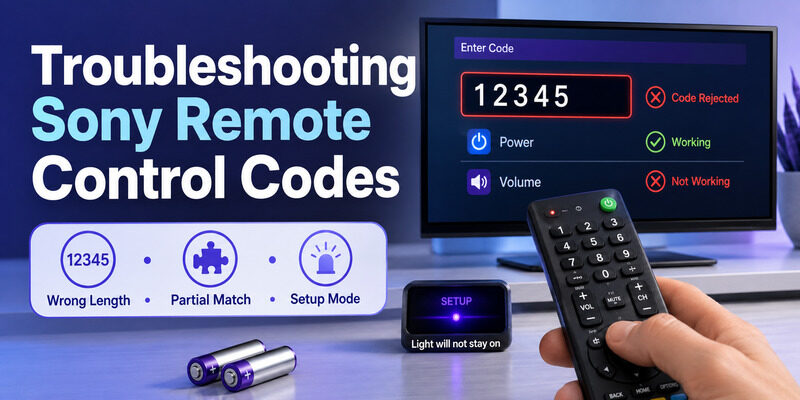
If the remote rejects the code, verify its length and model compatibility.
Step 6: Test the Remote
Point the remote toward the television and test:
- Power
- Volume
- Mute
- Input
- Home or Menu
- Directional navigation
- OK or Select
If only Power works, the selected code may be a partial match.
Try another code from the same verified list.
Step 7: Save the Working Code
Record the code, remote brand, model number, and code-list version.
This will make future setup easier.
For more general instructions, see our how to program a universal remote to a TV guide.
How to Program a Sony TV Remote Without a Code
If you cannot find a working Sony code, some universal remotes offer automatic or manual code search.
Method 1: Automatic Code Search
A typical auto-search process involves:
- Turning on the Sony TV.
- Entering programming mode on the universal remote.
- Selecting TV mode.
- Starting automatic code search.
- Waiting for the television to respond.
- Saving the detected code.
- Testing all important buttons.
The exact sequence depends on the remote model.
Some remotes scan automatically, while others require repeated button presses.
Method 2: Manual Code Search
Manual search allows you to cycle through stored command profiles.
Depending on the remote, you may need to press Power, Channel Up, or another button repeatedly.
When the TV responds, save the code as instructed.
Do not continue searching after finding a working profile unless you intend to test alternatives.
Method 3: Learning Remote Functions
Some advanced universal remotes support infrared learning.
This allows the controller to copy supported infrared commands from an original Sony remote.
The process generally requires both remotes to be positioned facing each other.
Learning cannot reproduce every Bluetooth-dependent or voice-control feature.
Does a Sony Voice Remote Need a Numeric Code?
Usually not.
Sony’s original Bluetooth voice remotes use a different registration or pairing process on compatible TVs.
Do not confuse Bluetooth pairing with entering numeric setup codes on a third-party infrared universal remote.
For Sony remote hardware instructions, see our Sony remote control manual guide.
Sony TV Remote Code Not Working? Troubleshooting
If a Sony universal remote TV code does not work, check these common causes.
1. Wrong Remote Code Database
The code may belong to a different brand or model of universal remote.
Confirm the exact remote model and code-list version.
2. Incorrect Device Mode
A multi-device remote may still be set to AUX, DVD, or another device.
Select TV mode and try again.
3. Weak Batteries
Low battery power may prevent programming or cause inconsistent infrared signals.
Replace the batteries and repeat the setup process.
4. Blocked Infrared Sensor
Remove objects blocking the TV’s infrared receiver.
Point the remote directly toward the television.
5. Only Power or Volume Works
A code can provide partial compatibility.
Try the next Sony code from the same manufacturer’s list.
Test Input, Menu, and navigation before settling on a code.
6. Voice or Smart Features Do Not Work
Traditional infrared universal remotes may not support:
- Bluetooth voice control
- Microphone functions
- Model-specific shortcuts
- Some advanced Google TV features
These functions may require an original compatible Sony remote.
7. The TV Responds Slowly
Check battery power, remote distance, infrared interference, and the TV’s software responsiveness.
Restart the television if necessary.
8. The Remote Cannot Control External Devices
Programming a Sony TV code does not automatically configure a soundbar, streaming box, or cable receiver.
Those devices may require separate setup codes or supported HDMI-CEC controls.
If you need a compatible replacement, see our Sony TV remote replacement guide.
Sony Original Remote vs. Universal Remote
A universal remote can be a practical replacement for a lost or damaged Sony controller, but it may not reproduce every original feature.
| Feature | Original Sony Remote | Third-Party Universal Remote |
|---|---|---|
| Power and volume | Usually supported | Supported with compatible code |
| Input switching | Model-dependent | Code-dependent |
| Menu navigation | Supported on compatible models | May be limited |
| Voice commands | Supported on selected models | Often unavailable |
| Bluetooth pairing | Supported on selected models | Depends on remote |
| Control of other devices | Model-dependent | Depends on remote capabilities |
When Should You Choose a Universal Remote?
A universal remote may be suitable when you mainly need Power, Volume, Input, and basic navigation.
It can also be useful if you want to control multiple compatible devices.
When Is an Original Sony Remote Better?
An original compatible remote is generally preferable when you need:
- Voice commands
- Bluetooth connectivity
- Model-specific buttons
- Full smart TV navigation
- Features requiring Sony-specific hardware
Can You Use a Phone Instead?
Many compatible Sony Google TV and Android TV devices can be controlled through supported smartphone remote features.
Phone-based control generally uses the local network rather than a numeric universal remote code.
For setup options, see our Sony TV remote app guide.
FAQs About Sony Remote Control Codes
What is the universal remote code for a Sony TV?
There is no single code for every universal remote. Sony documents 01 or 001 for certain Sony-branded universal remotes, but third-party codes vary by manufacturer and model.
What are the 3-digit Sony TV remote codes?
Three-digit codes depend on the universal remote model. Check its official code list to find the correct Sony entry.
What are the 4-digit Sony remote control codes?
Different four-digit remote databases use different Sony codes. Find the code list for your exact remote brand, model, and revision.
What are the 5-digit codes for Sony TV?
Five-digit Sony TV codes depend on the remote’s code database. Use the matching manufacturer’s documentation rather than a generic list.
How do I program a universal remote to a Sony TV?
Turn on the TV, enter the remote’s programming mode, select TV, enter a compatible Sony code, and test the controls.
How do I program a Sony TV without a code?
Use automatic or manual code search if your universal remote supports it.
Why does my Sony universal remote code not work?
Common reasons include an incorrect code-list version, wrong device mode, weak batteries, blocked infrared signals, or partial compatibility.
Why does my universal remote turn on Sony TV but not open the menu?
The selected code may support only some functions. Try another code from the correct remote code list.
Does a Sony BRAVIA Smart TV need a universal remote code?
A third-party programmable infrared remote generally needs a compatible setup code. An original Sony Bluetooth voice remote typically uses a separate pairing process.
Can I control Sony TV with my phone instead of a universal remote?
Yes, on supported Sony smart TVs using compatible mobile remote features and network connectivity.
Final Thoughts
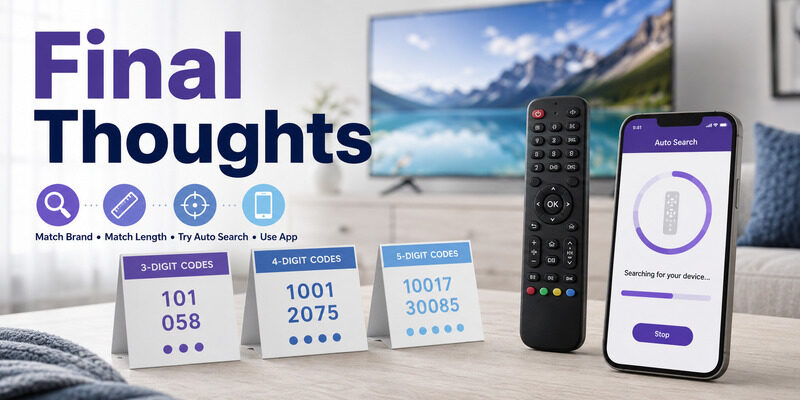
Finding the correct Sony remote control codes starts with identifying your universal remote—not simply searching for a Sony TV code.
Check the remote’s manufacturer, model number, and code-list version, then use the matching official code list.
After programming, test Power, Volume, Input, Menu, and navigation to confirm the code works properly.
If direct code entry fails, try code search when supported. For advanced voice and Bluetooth features, an original compatible Sony remote or supported smartphone remote may be a better option.
Download TV Remote App