Smart TV Network Cable Guide for Ethernet Setup
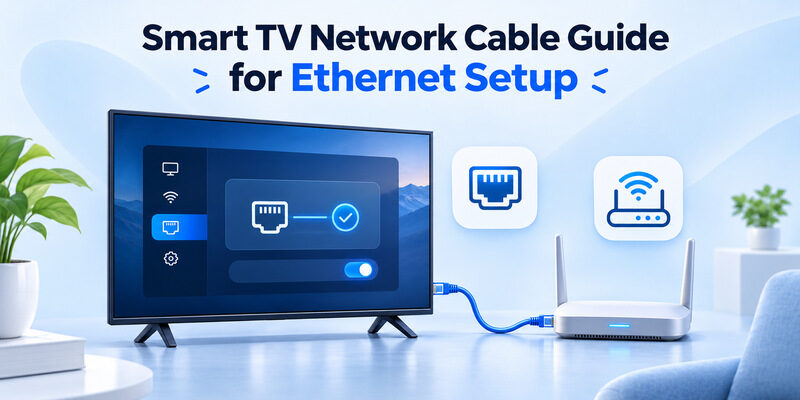
Short answer: Use a Cat5e or Cat6 Ethernet cable between the TV’s LAN jack and a router LAN port.
Samsung Gulf Support’s wired internet setup guide shows the router-to-TV Ethernet connection and how to choose the wired option.
Use the model’s documented capabilities when deciding whether you need a smart TV network cable. Start with a short direct connection if you can. A sound choice depends on three things you can verify before installation: the connector on the television, the path to the router, and what the TV reports after the cable is connected.
Smart TV network cable: Choose the Right Ethernet Cable
| What you observe | What to check next |
|---|---|
| The TV and router both have Ethernet | Use Cat5e or Cat6 and an active router LAN port |
| A long route passes through a wall jack | Test the installed jack or compare a direct lead |
| The TV reports a link but cannot stream | Check its local address and another device on the router |
| Wi-Fi and Ethernet both work | Compare the same stream under ordinary household load |
Choose Cat5e or Cat6
Cat5e and Cat6 are appropriate for ordinary home TV runs. Choose the length and a connector that fits behind the TV, then check the network port speeds before paying for a higher category.
Check the working baseline
A thicker cable or larger plug boot may press against a wall mount. Use a route with room for an ordinary bend and access to the latch. Write down the result if you need to report the smart TV network cable. Before switching to Ethernet, you can also troubleshoot slow Wi-Fi on your TV and compare the results with a wired connection.
Check the connection the accessory actually provides. For a compatible adapter, verify both the network side and the connector or interface the television expects. Run the comparison with the TV’s built-in feature, not an unrelated HDMI source. A device that lights up or appears on a computer still needs support from the television’s software.
A phone on Wi-Fi and a television on Ethernet can share the router’s local network if the router allows it. Guest isolation can block phone discovery even with a working internet test. Use the main reachable network for both as a comparison. Then check any permission the app requests for local access, and repeat a single visible action.
Use a smart TV internet cable with plugs that fit the television and router LAN ports. Check whether the smart TV network port has a published maximum rate before choosing the rest of the connection.
Read more: Sony Smart TV Network Settings for BRAVIA Models
Find the LAN Port on Your TV
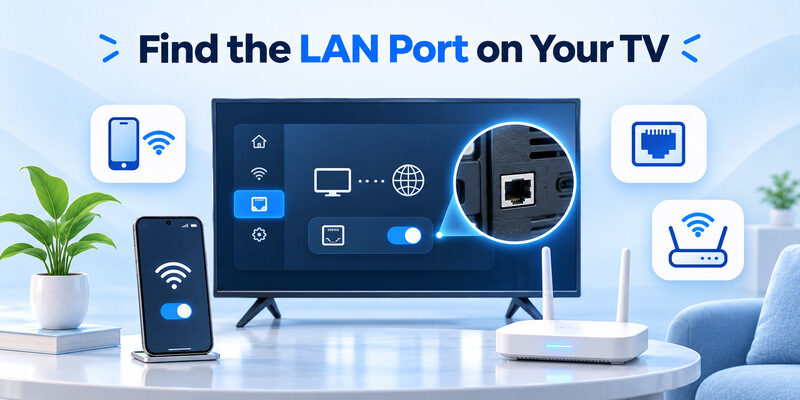
Read the TV jack label
Find LAN or Ethernet in the documentation and on the rear or side panel. A phone-style jack, USB port and HDMI input serve different functions. Some TV models omit the network jack.
On a wall-mounted television, use the rear panel diagram to see which way the locking clip faces. A cable that connects easily with the TV on its stand can bend too sharply after mounting. Route enough spare length for a service loop and leave the connector accessible. If you use a wall plate, label the matching router-side termination or check it against another wired device before mounting the set. Reuse the same conditions the next time you check the smart TV network cable.
Compare the active path
A label in the lower corner can be difficult to see after mounting. Check the model diagram before reaching behind the TV. Reuse the same conditions the next time you check the smart TV network cable.
Check the equipment at both ends. The TV’s cable should reach the router’s local network or a switch connected to it. Confirm the plug is seated without putting sideways pressure on the socket. If a router shows a link indicator, observe it after reconnecting the cable. The television’s wired status is the next check after the physical link appears.
For a fair wired comparison, confirm the television’s status actually moved from Wi-Fi to Ethernet after the cable was attached. Use the same router and built-in app first, so you changed the local connection only. If wired works, retest the wireless path from the usual room. Reconnect the expected route after you finish comparing.
A wired TV and a phone connected to Wi-Fi may still communicate if both devices can reach each other on the local network. Learn how to use a TV remote app with different network connections.
Plan the Cable Route
Measure with the TV in position
Measure along the furniture and walls the cable will actually follow, with some slack near both ends. Keep it out of sharp bends and away from pinching where a door or mount moves.
Use the same baseline for the smart TV network cable. If the router is in a different room, try a temporary cable along a route where nobody can trip over it before deciding on a permanent path. Record how the TV behaves when Wi-Fi is under the usual load. If Ethernet solves a repeatable problem, you can plan a proper wall run or use a verified existing socket. If both routes work equally during normal viewing, consider whether the cable is worth installing.
Verify the physical connection
Keep the change and the observation separate when assessing the smart TV network cable. For an installed wall cable, confirm the wall jack leads to the intended router or switch. A live jack in another room does not prove this one is connected.
A long in-wall run adds a wall jack and usually a patch cable at each end. A direct run from the router to the TV removes those pieces for a quick comparison. Use a known working cable and the same TV input and app. If direct works, inspect the installed path systematically before you replace the TV or buy a higher category.
Read more: Vizio Smart TV Network Settings for Wi-Fi and Ethernet
Connect the TV to the Router
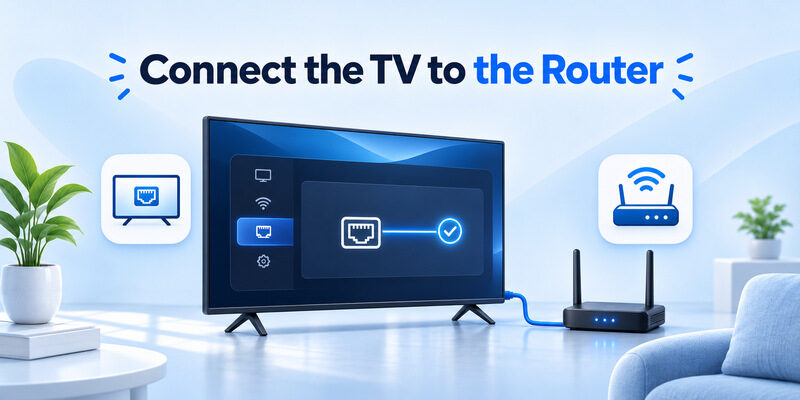
Use a LAN port on the router
Connect one end to the TV and the other to an active router or network switch LAN port. Select Wired in the TV setup if offered. Leave internet uplink wiring as it was.
Test at the usual location
On a router with a separate WAN or Internet socket, leave that socket for the modem or service. Connect the TV at a LAN socket. Include whether this occurred before or after the change when you describe the smart TV network cable. If your wired TV is online but your phone cannot find it, check whether guest Wi-Fi is preventing TV discovery on your network.
A TV’s network menu can report that it is connected without showing the negotiated port speed. Check the manufacturer’s specifications or the router’s normal client view where that information is available. When comparing a faster cable, use the same endpoints and test the actual streaming feature. An unchanged result can reflect the capabilities of the ports. Use the observed change to narrow down the smart TV network cable.
Check the router’s current network name and password using a fresh connection on another trusted device. An already-connected phone can prove the network is running without proving that your remembered password is correct. After verifying the password, rejoin on the TV and record the active network. Compare the result with what the television showed before the change.
A smart TV fiber internet setup usually still uses ordinary Ethernet from the home router to the television. The provider’s fiber termination supplies the router or gateway. Check the Ethernet connection at the TV separately.
When two access points use the same name, the wireless list may show one apparently familiar choice. Use the router’s regular client view where available to identify the equipment serving the TV. Compare with one known network or a clearly named test hotspot and then return to the household arrangement. Keep working mesh names intact unless the network owner intends to change them.
Confirm the TV Is Using Ethernet
Read the active connection
Open the TV’s status screen and verify that it shows an Ethernet link and network address. Some TVs switch automatically. Others ask for a connection type or may keep the wireless setup visible.
Check the working baseline
If the TV still shows wireless as active, follow its documented way to select wired. A saved wireless name can remain in the list after you move to Ethernet. Write down the result if you need to report the smart TV network cable.
Record the model and active route when working through the smart TV network cable. Keep the TV in the same place and connect a temporary Ethernet cable where supported. Compare the exact app and playback mode on the original and wired paths. Note the time of day, startup delay and any drop in quality. A wired success points toward a local wireless factor, and a second device can help judge whether the rest of the service is also affected.
If the TV still shows a good picture through HDMI, a supported external streamer can be a temporary way to keep using apps. If Ethernet is available and works, it can preserve the TV’s own online features. Decide based on which features you need while you wait for the exact model’s diagnostic or repair advice.
Read more: LG Smart TV Network Settings for webOS
Choose Ethernet or Wi-Fi by Room
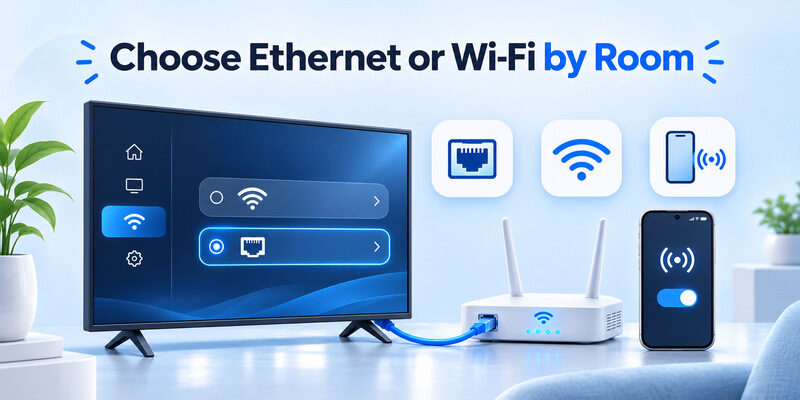
Compare the room’s actual conditions
A wired link can improve reliability when the TV sits far from the router or behind a wall. Wi-Fi is useful where a cable run is impractical. Compare playback in the same room and at the same time.
Compare the active path
Keep the original starting state for the smart TV network cable. Try a temporary cable before paying for an installation. Use the same clip from the same TV app to compare results fairly. After replacing your router, you may also need to reconnect or pair your phone remote again. Follow these steps to fix a remote app after changing your router.
If you repeat the test for the smart TV network cable, use normal conditions for the rooms where people watch. A cable that works across a temporary route confirms a useful option before you plan a permanent run. If the wireless result is already stable, measure again during typical simultaneous use. The choice is easier when you can compare the cost of routing with the benefit you observed.
Use the television manual and router documentation to check that both support the configured wireless security and frequency. Start with the current password and exact SSID. If another trusted device can make a fresh connection, note how the television’s error differs. Use a secured, documented setup without relaxing protections on the home network for a transient test.
Fix a Wired Connection That Fails
Try a known working short cable and another router LAN port. If the TV shows wired connected but internet access fails, compare another device using that same network.
If there is no physical link, check the latch, wall jack and switch. If an address is present, move on to the gateway or internet test. Write down the result if you need to report the smart TV network cable.
A television that reports Ethernet disconnected needs a physical-link check before speed testing. A TV with a good link and no network address needs a router or DHCP check instead. A set that has an address and plays a built-in service already validated the cable for that task. Use those three observations as distinct checkpoints when buying or returning a cable. Use the observed change to narrow down the smart TV network cable.
If a port has no link, try one working cable and one working router port before inspecting the status again. Check the model’s instructions for whether the port is available as a connection choice. A port that links only after a particular plug is reseated gives you a more useful observation than repeated internet tests with no physical connection. Keep this observation with the model and software details for the smart TV network cable.
Start the next comparison for the smart TV network cable from the same room. After changing a connection, play a familiar short video in an app installed on the television. If it fails, try a second service and inspect network status without assuming the first app’s generic error identifies the cause. If the TV can still stream from an HDMI player, return to Home for a test that belongs to the set itself.
A hidden Wi-Fi name requires exact manual entry on devices that support it. Verify the spelling and current security details from the network owner. Compare with a visible network if the hidden setup fails. A failed scan, an unsupported radio option and a rejected password are distinct results even if all of them leave the TV offline.
Read more: Samsung Smart TV Network Settings for Wi-Fi and Ethernet
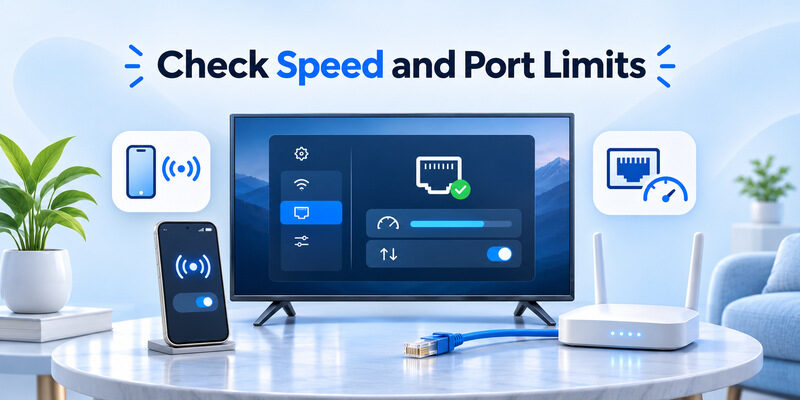
Check Speed and Port Limits
| Task | Useful comparison |
|---|---|
| Read the TV jack label | A label in the lower corner can be difficult to see after mounting. |
| Read the active connection | If the TV still shows wireless as active, follow its documented way to select wired. |
| Check the slowest link in the chain | A port’s nominal rate is different from the throughput an app receives. |
Check the slowest link in the chain
A TV’s Ethernet port can set the upper limit even when the cable and router are faster. Check the exact TV manual or the router’s reported negotiated link, where available.
Include the active route in a report on the smart TV network cable. A standard Cat5e or Cat6 cable is a practical reference even when the router has faster ports. Check whether the router reports the TV link as 100 Mbps or 1 Gbps, then compare what the app actually receives. If the television’s port negotiates at the same rate on both leads, moving to a more expensive cable is unlikely to change that result.
Test at the usual location
A port’s nominal rate is different from the throughput an app receives. The TV connection, router activity and internet service can all affect an observed result.
A link that can pass ordinary streaming under light load may behave differently at the busiest hour. Replay a familiar program in the fixed location with the usual network activity. If a measured result changes while other devices also slow, compare the shared link separately. This keeps one short speed test from deciding the entire setup.
If you are shopping for smart TV 1Gb Ethernet, look for a documented Gigabit LAN port on the exact television. A faster internet plan or a Cat6 lead alone cannot raise the port’s negotiated maximum.
Read more: Smart TV Network Settings by Brand and Platform
Test Streaming and Phone Control
Verify two independent tasks
Play a short video through an app installed on the television. Then try a supported local remote from a phone on the same reachable home network.
Check the working baseline
A wired TV and Wi-Fi phone can communicate on a typical home LAN. Guest or isolated networks can block that connection regardless of internet speed. Include whether this occurred before or after the change when you describe the smart TV network cable.
Local control has its own baseline. Put the phone and compatible television on the expected home network and open the app with the TV awake. Select the actual device and test a direction that produces an obvious focus change. If a different set responds, verify the device name before reconnecting or removing any saved equipment. Keep this observation with the model and software details for the smart TV network cable.
Verify mobile data on the phone before turning the hotspot on. Check that it appears in another device’s wireless list, then use the television for a short connection and playback test. The comparison uses a different network and upstream service, so a successful result narrows the problem without proving one particular router setting caused it.
If you need a backup for compatible TV controls, open on an iPhone after the television reconnects to a reachable home network. Select that TV with its screen awake and test one direction. If discovery fails, check the actual network and the app’s relevant local access.
Frequently Asked Questions
Can I use an old Cat5e cable?
Yes if it is undamaged, long enough and gives a stable link for the setup. Test it before replacing it.
Will Ethernet increase picture resolution?
An improved connection can help adaptive streaming maintain quality. The service plan, content and TV still determine which resolution is available.
Will a USB Ethernet adapter work?
Only use one when the model documentation supports it. An adapter that works on a laptop can be unsupported on a TV.
Does a wired TV need the Wi-Fi password?
Usually the router’s wired connection assigns an address without a Wi-Fi password. Follow the setup instructions for the network you actually use.
Final Thoughts
Play a short video through an app installed on the television. A wired TV and Wi-Fi phone can communicate on a typical home LAN. Guest or isolated networks can block that connection regardless of internet speed.
For the smart TV network cable, record the comparison that worked and retest the task you use most.