
TV WiFi Slow: Diagnose the Connection at the TV
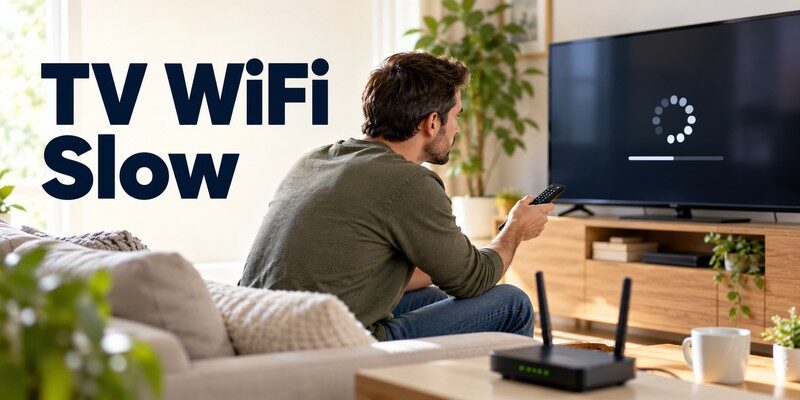
If your tv wifi slow problem is causing buffering, freezing, or endless loading screens, restart your TV and router, move the router closer, connect to 5 GHz WiFi if supported, and check your internet speed. These simple steps can often improve streaming without replacing your television.
Quick answer: Try these five fixes first:
- Restart the TV and WiFi router. Disconnect power for approximately 30–60 seconds, then reconnect.
- Switch to 5 GHz WiFi. Use it when the TV is close enough to the router and supports the band.
- Move the router closer. Reduce walls, cabinets, and electronic interference.
- Disconnect unnecessary devices. Pause downloads and other high-bandwidth activities.
- Test an Ethernet connection. A wired connection can eliminate wireless interference.
Netflix recommends a stable internet connection of at least 3 Mbps for 720p, 5 Mbps for 1080p, and 15 Mbps for 4K Ultra HD streaming. If your TV receives less than the recommended speed, videos may buffer, reduce quality, or take longer to load.
However, a fast internet plan does not automatically guarantee fast WiFi on your television.
This guide explains what causes slow Smart TV internet, how to test your connection, and how to improve WiFi performance on Samsung, LG, Roku, Sony, and Google TV devices.
1. Why Is TV WiFi Slow? Common Causes
The tv wifi slow problem happens when your television receives insufficient or unstable network performance for streaming, downloading, or loading online content.
You might have a 300 Mbps home internet plan but still experience buffering on a Smart TV. This happens because your internet plan’s advertised speed and the speed your television actually receives are different measurements.
Weak WiFi Signal
Distance is one of the most common causes of slow Smart TV internet.
If your router is downstairs and the television is upstairs, wireless signals must travel through floors, walls, and furniture.
Concrete walls, metal objects, and enclosed entertainment cabinets can weaken the connection.
According to Google’s official Nest WiFi troubleshooting guidance, distance, physical obstacles, and wireless frequency can affect network performance.
Too Many Devices Sharing Bandwidth
Streaming televisions, smartphones, laptops, gaming consoles, and smart-home devices share the available network resources.
For example, a household might have:
- Two televisions streaming 4K content
- A laptop downloading a large game
- Several phones playing videos
- Smart cameras uploading recordings
These activities consume bandwidth and may create congestion, especially when the internet connection or router is under heavy load.
Incorrect WiFi Frequency
Most modern dual-band routers provide 2.4 GHz and 5 GHz wireless networks.
The 2.4 GHz band generally offers longer range but is more susceptible to congestion and interference.
The 5 GHz band often provides higher throughput at shorter distances.
Connecting to the wrong band for your room can make a tv wifi slow problem worse.
Outdated TV Software
Smart TVs use operating systems such as Tizen, webOS, Roku OS, Android TV, or Google TV.
Outdated software can cause compatibility problems, application freezes, or connectivity errors.
Nevertheless, a slow television interface does not always mean the internet connection is slow. Limited memory or a struggling application can create similar symptoms.
Router or Internet Provider Problems
An overloaded router, temporary internet outage, damaged network cable, or congested internet connection may reduce performance.
If every device in your home experiences slow internet simultaneously, the issue is more likely related to your router, modem, or internet provider than the television itself.
Download TV Remote App2. How to Check Your Smart TV Internet Speed

Before trying advanced fixes, measure your TV’s actual internet performance.
A tv wifi slow diagnosis is easier when you know whether the problem affects the television alone or your entire home network.
Test Your TV’s Download Speed
Depending on your television, you may have a network diagnostic, an internet speed test inside an application, or a compatible browser-based testing option.
Netflix provides a convenient built-in option on supported TV devices.
To test your connection using Netflix:
- Open the Netflix application.
- Navigate to Get Help.
- Select Check Your Network.
- Wait for the connection test to finish.
- Record the reported download speed.
The exact menu location may vary by application version.
Netflix’s official Help Center provides these recommended speeds:
| Streaming Quality | Resolution | Recommended Download Speed |
|---|---|---|
| HD | 720p | 3 Mbps or higher |
| Full HD | 1080p | 5 Mbps or higher |
| Ultra HD | 4K | 15 Mbps or higher |
These figures are minimum recommendations for a stable Netflix stream, not guaranteed performance targets for every streaming platform.
Additional devices, network congestion, and other applications may require more total bandwidth.
Compare TV Speed With Phone Speed
To determine whether the tv wifi slow issue affects only your television:
- Connect your smartphone to the same home WiFi network.
- Stand near the television.
- Run a speed test on your phone.
- Run the available network test on your TV.
- Compare the results.
For the most useful comparison, ensure both devices use the same WiFi band where possible.
If your phone achieves 150 Mbps while your TV achieves 8 Mbps, the difference may involve signal reception, wireless hardware capabilities, router settings, or device-specific software.
These measurements do not automatically prove a hardware failure because different devices have different WiFi capabilities.
Check WiFi Signal Strength
Many televisions display connection quality in their network settings.
A signal labeled Poor or Fair suggests you should investigate placement and interference.
Roku’s official support documentation recommends checking signal strength through:
Settings > Network > About
You can then select Check Connection to examine the network.
A speed test is a useful starting point, but multiple tests provide a better picture than one isolated result.
📖 Read More Guides: TV No Picture: Fast Checks for a Black or Blank Screen
3. How to Fix TV WiFi Slow: 12 Easy Solutions
The best smart tv wifi slow fix is to start with reversible network changes before resetting settings or buying new equipment.
Follow these 12 methods in order.
Fix 1: Restart Your Smart TV
A restart clears temporary system activity and reloads the television’s network connection.
Steps:
- Turn off your television.
- Disconnect it from power.
- Wait approximately 30–60 seconds.
- Reconnect the power cord.
- Turn on the TV and test a streaming application.
This is especially useful when the tv wifi slow issue appeared suddenly after your television had been operating normally.
Fix 2: Restart Your WiFi Router
Routers can experience temporary software errors or connection problems.
Turn off or unplug your modem and router, following your equipment manufacturer’s instructions.
Wait about 30 seconds, then reconnect the modem first.
Allow it to finish starting before reconnecting the router. When the network is available, reconnect your television.
Samsung, Google, and Roku all recommend network equipment restarts as part of their official troubleshooting procedures.
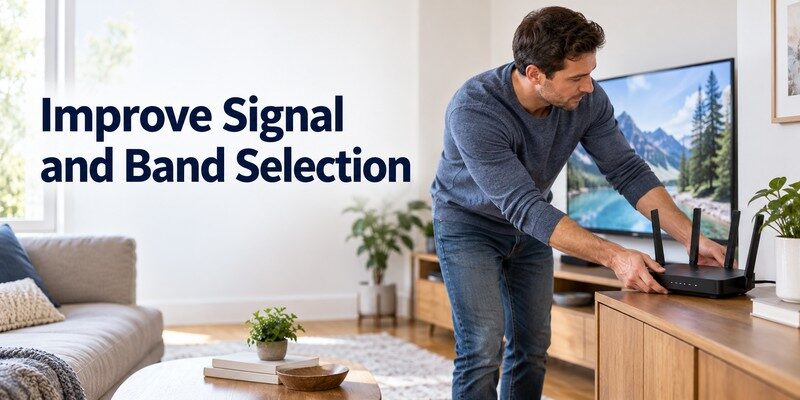
Fix 3: Move the Router Closer to Your TV
Distance and obstacles reduce wireless performance.
Place the router in an open, elevated location where possible.
Avoid positioning it:
- Inside enclosed cabinets
- Behind large metal appliances
- Next to microwave ovens
- Behind thick concrete walls
- On the floor behind entertainment furniture
Tip: Even moving the router a short distance into a more open position can improve coverage in some homes.
If the router cannot be relocated, consider an appropriately placed mesh WiFi point or additional access point.
Fix 4: Switch From 2.4 GHz to 5 GHz WiFi
If your Smart TV supports 5 GHz, try connecting to that network.
Open the TV’s WiFi settings and look for the 5 GHz network name.
For example:
HomeWiFi-2.4G → HomeWiFi-5G
Select the 5 GHz connection, enter the password, and run another speed test.
Google TV’s official troubleshooting guidance recommends testing 5 GHz when the router supports it.
However, 5 GHz is not always better. If the television is far away or separated by multiple walls, 2.4 GHz may provide a more stable connection.
Also, some older Smart TVs support only 2.4 GHz networks.
Fix 5: Disconnect Unnecessary Devices
If your tv wifi slow problem becomes worse when multiple family members use the internet, network congestion may be responsible.
Temporarily pause large downloads, cloud backups, and other streaming sessions.
Test the television again.
If performance improves, consider scheduling downloads outside viewing hours or enabling supported router traffic-priority features.
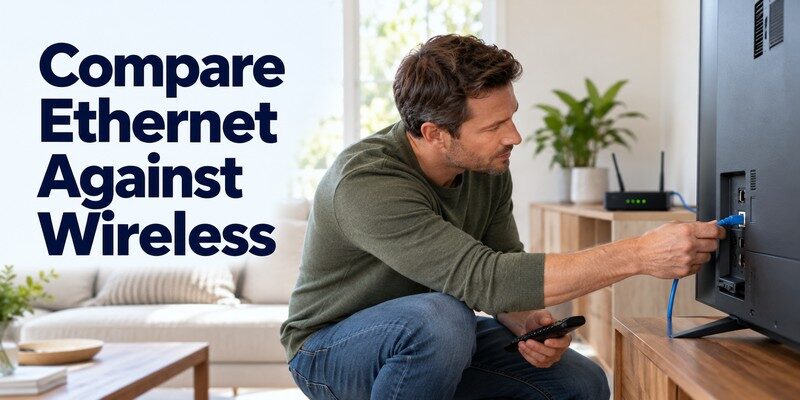
Fix 6: Use an Ethernet Cable
A wired connection removes the wireless link between your TV and router.
Connect a suitable Ethernet cable from your router to the TV’s LAN port, if available.
Open the television’s network settings and select the wired connection.
A wired network is often more consistent for stationary televisions, especially in apartments with crowded WiFi networks.
However, Ethernet does not automatically increase internet speeds. Performance still depends on the router, cable, internet service, and TV Ethernet hardware.
Fix 7: Forget and Reconnect to WiFi
Saved network settings can sometimes become outdated after a router replacement, password change, or configuration update.
Open the television’s network settings and locate the current wireless connection.
Choose Forget Network, Delete Saved Network, or an equivalent option.
Reconnect using the correct WiFi password.
Samsung’s official WiFi troubleshooting guide recommends forgetting and reconnecting to the network when a television has a poor connection.
Fix 8: Update TV Firmware
Outdated firmware may contribute to networking problems or application incompatibility.
Open your television’s Support, System, or Software Update settings.
Check for available updates and install the official version for your device.
Keep your television powered on while the update completes.
If your internet connection is too unstable for an online update, consult the manufacturer for supported offline update methods.
Fix 9: Restart or Update Streaming Apps
Sometimes the tv wifi slow problem affects only one application.
If YouTube works normally but another application constantly buffers, investigate the application before changing your router.
Try:
- Closing and reopening the application.
- Checking for app updates.
- Restarting the TV.
- Clearing the app cache if supported.
- Reinstalling the app when necessary.
Google TV’s official support documentation recommends updating applications and restarting the device when performance is slow.
Fix 10: Reduce Video Quality Temporarily
If your internet connection cannot consistently support 4K streaming, try lowering the playback resolution.
For example, switch from 4K to 1080p when the application provides a manual quality option.
Netflix recommends at least 15 Mbps for 4K streaming and 5 Mbps for 1080p.
Reducing video quality may reduce buffering during periods of network congestion.
This does not improve your actual WiFi speed, but it can improve playback stability.
Fix 11: Check Router Settings
For persistent problems, inspect the router’s wireless configuration.
Look for outdated firmware, incompatible security settings, excessive bandwidth restrictions, or congested WiFi channels.
Some routers also support Quality of Service (QoS), which can prioritize traffic for selected devices.
Do not change advanced router settings randomly. Record the original configuration before making adjustments.
Changing DNS settings may help certain name-resolution problems, but it should not be treated as a reliable solution for low download throughput.
Fix 12: Reset Network Settings
If the tv wifi slow problem continues, consider resetting only the television’s network configuration.
This may remove saved WiFi connections, passwords, and custom network settings.
Reconnect to your home network afterward.
A complete factory reset should remain a last resort because it can remove installed applications, accounts, and personalized settings.
📖 Read More Guides: TV No Sound? 12 Easy Fixes to Restore Your TV Audio
4. 2.4 GHz vs. 5 GHz vs. Ethernet: Which Is Best for Smart TVs?
Selecting the right connection type can make a noticeable difference in streaming consistency.
For a tv wifi slow issue, compare stability as well as raw speed.
| Connection | Main Advantage | Main Limitation | Best Use |
|---|---|---|---|
| 2.4 GHz WiFi | Longer range | More interference and congestion | TVs farther from the router |
| 5 GHz WiFi | Often faster at short range | Weaker coverage through obstacles | TVs near the router |
| Ethernet | Avoids wireless interference | Requires cable and LAN support | Fixed TV installations |
Is 5 GHz Always Faster?
Not necessarily.
A strong 2.4 GHz connection can outperform a weak 5 GHz connection at a distant location.
The best band depends on router placement, building materials, interference, and hardware compatibility.
Google’s Nest WiFi documentation confirms that device capabilities and wireless frequencies influence the speeds users experience.
Should You Use Ethernet for 4K Streaming?
If an Ethernet connection is available and practical, it is worth testing.
A wired connection is especially helpful when the television sits in a location with heavy wireless interference.
However, even Ethernet cannot solve an internet-provider outage or insufficient household bandwidth.
Recommendation: Choose the connection that consistently delivers sufficient speed with minimal interruptions rather than assuming the highest advertised WiFi speed is always best.
5. Fix TV WiFi Slow on Samsung, LG, Roku, and Google TV
Different Smart TV platforms provide different network diagnostics.
If your tv wifi slow problem affects a particular brand, use the relevant settings below.
Samsung TV WiFi Slow
Samsung recommends checking network status, signal strength, router placement, and network congestion.
On many recent models:
- Open Settings > All Settings.
- Select Connection > Network.
- Open Network Status.
- Run the diagnostic.
- Reconnect or reset the network if needed.
Menu locations vary by model year.
If the physical remote is unavailable, a compatible samsung tv remote app may help navigate the interface after successful pairing.
Remember that a network-based remote also depends on reliable local connectivity.
LG Smart TV WiFi Slow
LG’s April 2026 support guidance recommends checking network status and identifying whether weak signal, router congestion, or an internet-service issue is responsible.
On supported webOS models, start with:
Settings > All Settings > General > Network > Wi-Fi Connection
Check that the television is connected to the intended network.
Restart the TV and router, compare speeds, and test an Ethernet connection if possible.
If you also have trouble discovering your TV from a phone, see the LG ThinQ app connection troubleshooting guide.
Roku TV WiFi Slow
Roku provides connection diagnostics in its network settings.
Open:
Settings > Network > About
Review the signal-strength indicator, then select Check Connection.
Roku recommends adjusting the router’s placement, reducing interference, using a supported 5 GHz network, and trying Ethernet where available.
For streaming sticks, moving the device away from the back of the television with a compatible HDMI extender may improve wireless reception.
Google TV or Android TV WiFi Slow
Google’s official troubleshooting instructions recommend:
- Open Settings > Network & Internet.
- Confirm the correct WiFi network.
- Restart the router.
- Check for system updates.
- Test 5 GHz or Ethernet when supported.
If the television interface itself is slow, restart the device and review application updates.
For additional remote-related problems, read the Google TV remote troubleshooting guide.
These instructions help separate a network issue from a slow or unresponsive operating system.
6. Why Is TV WiFi Slow Only When Streaming?

If your tv wifi slow problem appears during Netflix, YouTube, or other streaming services, the cause may not be the WiFi signal alone.
Streaming depends on the internet connection, video service, application, and decoding performance of the television.
Video Buffering vs. Slow Internet
Buffering happens when the playback application does not receive enough usable video data in time to continue smoothly.
Possible causes include:
- Insufficient download speed
- Network congestion
- WiFi interference
- Streaming-service problems
- Application errors
- Device performance limitations
A common search question is why is my smart tv wifi so slow, but the important distinction is whether every online activity is affected or only one streaming application.
Test More Than One Application
Open two or three streaming applications.
If all of them buffer, investigate the internet connection first.
If only one app struggles, focus on its updates, cache, playback settings, and service availability.
Avoid immediately replacing the router based on the behavior of a single app.
Check Peak-Hour Performance
Internet performance can vary throughout the day.
Test your television once during a quiet period and again when multiple devices are active.
If the results differ substantially, household congestion or internet-provider performance may be contributing.
When tv internet speed slow warnings appear repeatedly, save the test results and compare them before contacting your provider.
7. Can a Remote TV App Help With Slow WiFi?
A smartphone remote cannot increase your internet bandwidth, but it can make troubleshooting more convenient.
For supported Smart TVs, the Remote TV app allows compatible phone-based navigation and remote-control functions.
This can help when your physical remote is missing or inconvenient to use.
How to Use a Remote App for Network Troubleshooting
If your TV and phone can already communicate over the same local network:
- Open the remote application on your phone.
- Select your compatible television.
- Approve any required pairing request.
- Navigate to the TV’s network settings.
- Check the connected WiFi name and available diagnostics.
The universal remote tv control app is an option for compatible televisions and iOS devices.
Important: A WiFi remote does not repair a router, strengthen wireless signals, or guarantee access when the TV is disconnected. Initial pairing may require the television to be online and able to display a confirmation prompt.
If remote commands respond slowly during a tv wifi slow issue, check that both devices use the same local network and that the router permits local device communication.
For more help, see the Remote TV troubleshooting guide.
8. Frequently Asked Questions About TV WiFi Slow
Why Is My Smart TV WiFi Slower Than My Phone?
A Smart TV may use different wireless hardware, antennas, or network bands from your phone.
Even when both devices connect to the same router, their speeds can vary.
If your tv wifi slow problem affects only the television, compare signal strength and connection settings before assuming your internet provider is responsible.
How Can I Fix Slow WiFi on a Smart TV Without Buying a New Router?
To fix slow wifi on smart tv, restart the TV and router, move the router into an open location, test 5 GHz, reduce background network activity, and reconnect the WiFi network.
These changes often help identify the cause without buying new equipment.
Is 25 Mbps Enough for 4K TV Streaming?
A stable 25 Mbps connection can meet Netflix’s published 15 Mbps recommendation for one 4K stream.
However, other devices and services may compete for bandwidth, so 25 Mbps does not guarantee uninterrupted playback in every household.
Does 5 GHz WiFi Improve Smart TV Speed?
It can, particularly when the television is close to the router.
However, 5 GHz usually has less range than 2.4 GHz and may perform worse through several walls.
Can a Smart TV Cause Slow WiFi for Other Devices?
A Smart TV can contribute to network congestion when streaming or downloading large amounts of data.
It does not automatically slow every device simply by being connected.
The effect depends on household bandwidth, router capacity, and concurrent usage.
Will Changing DNS Make My TV Internet Faster?
Usually not in terms of raw download bandwidth.
Changing DNS may affect how quickly certain domain names are resolved, but it cannot fix weak WiFi signals or an overloaded internet connection.
When Should I Contact My Internet Provider?
If multiple devices report slow speeds, your wired connection also performs poorly, or the service repeatedly fails during certain hours, contact your provider.
Share speed-test results, connection times, and the troubleshooting steps you have already completed.
How Do I Stop TV WiFi Slow Problems From Coming Back?
To reduce recurring tv wifi slow problems, keep your router and TV updated, maintain good wireless coverage, avoid unnecessary bandwidth congestion, and periodically check connection quality.
Where practical, a reliable wired connection can reduce the impact of wireless interference.
Final Checklist
Before replacing your router or television, verify the following:
- Restart the TV, modem, and router.
- Run a speed test directly on the television.
- Compare the results with another device.
- Check WiFi signal strength and router placement.
- Test both supported wireless bands.
- Pause large downloads on other devices.
- Test Ethernet if available.
- Update the TV firmware and streaming applications.
- Reconnect or reset the television’s network.
- Contact your internet provider if the whole network remains slow.
Final takeaway: The most effective way to solve a tv wifi slow problem is to identify whether the bottleneck comes from the wireless signal, home-network congestion, internet provider, or the television itself.
Start with a restart, measure the connection, improve router placement, and test 5 GHz or Ethernet. Only consider expensive hardware replacements after these simpler checks fail.
If you need convenient smartphone navigation while adjusting your TV’s network settings, you can Download universal remote tv control for a compatible television.
Download TV Remote App