Reset Samsung Smart TV Network Settings and Reconnect
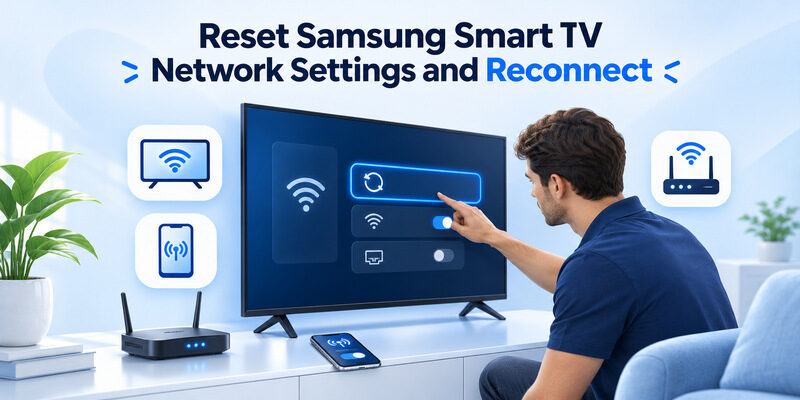
Short answer: Choose Reset Network in the Samsung TV’s Network menu, then open Network Settings to reconnect.
Samsung Canada’s Wi-Fi troubleshooting guide provides a network reset path and separates it from broader reset options.
Before you reset Samsung smart TV network settings, check the TV’s current connection and keep the new Wi-Fi password ready. Identify which connection is saved and have the new password ready. The available controls depend on the television’s platform and model. Test the native TV connection after making the change, and keep a physical control handy while network-based control is unavailable.
Reset Samsung smart TV network settings: Open the Samsung Reset Network Menu
Open the Network page directly
- Open the Network page directly. Use the Samsung remote to open All Settings and look under Connection or General for Network.
- Check the result. If neither matches the model, search the model’s electronic manual rather than guessing.
Samsung Canada gives Connection → Network → Reset Network on a current example. If you find General instead, look up the procedure for your exact model and software. Start from All Settings to avoid confusing a quick shortcut with the complete menu. The intended confirmation describes a network reset and leads back to network setup. Include whether this occurred before or after the change when you describe the “reset Samsung smart TV network settings” case.
Check the current state
When discussing the “reset Samsung smart TV network settings” case with support, use the TV’s own interface and leave any third-party streaming app. The Reset Network option belongs to the television. For a comparison of network menus across different television platforms, see our guide to smart TV network settings by brand and platform.
Read the warning before confirming any reset. The smallest option that targets the connection is usually the easiest to verify. Keep the normal control and current Wi-Fi credentials nearby. If the prompt describes accounts, applications or general TV settings, confirm the manufacturer’s exact procedure before continuing. Then open the documented network setup again.
If your question is “How to reset my Samsung smart TV network settings?”, start in the full Network menu. Check that the Samsung smart TV network reset is offered on your version before choosing it.
Read more: How to Forget Network on Samsung Smart TV and Rejoin Wi-Fi
Check Network Status Before Resetting
Read the existing status
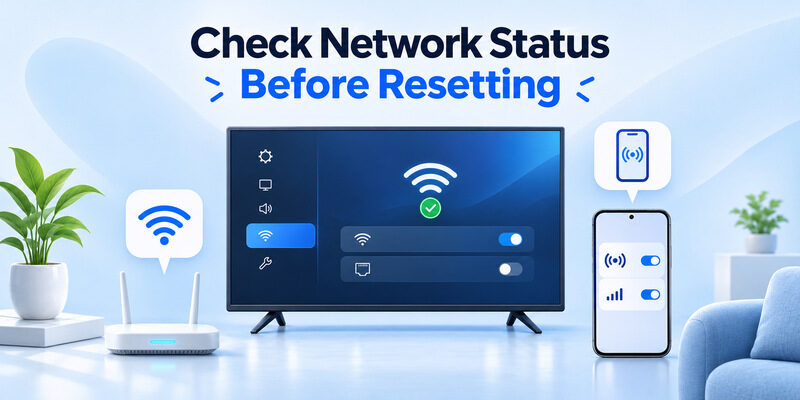
Open Network Status and identify which part fails. Note whether the TV can connect to its router, whether internet works elsewhere and which connection type is active.
Confirm the result before proceeding
If other devices also fail, a local reset may clear a saved network without restoring service. Run the comparison before proceeding. Write down the result if you need to report the “reset Samsung smart TV network settings” case. If the TV is connected but streaming is slow, first troubleshoot slow TV Wi-Fi and compare its connection with another device.
After changing a connection, play a familiar short video in an app installed on the television. If it fails, try a second service and inspect network status without assuming the first app’s generic error identifies the cause. If the TV can still stream from an HDMI player, return to Home for a test that belongs to the set itself. Include whether this occurred before or after the change when you describe the “reset Samsung smart TV network settings” case.
Identify the entry by its exact name and verify it is the currently saved one before you remove it. A Settings page can show nearby networks and previously used ones in the same list. If the model offers management of saved entries, read the prompt to confirm you selected the intended network rather than the broader reset.
Take the television’s diagnostic stages in order. Observe the physical or wireless link, then local access through the router and finally the internet result where the model exposes it. Stop at the first failed stage when choosing a comparison. A streaming app can report a vague error while the network screen provides a more specific result.
Read more: How to Forget Network on Smart TV and Reconnect
Find Connection or General on Your Model
A newer Samsung interface can group Network under Connection. Earlier models can show General → Network. The wording can also vary with region and software.
Before you reset Samsung smart TV network settings, use All Settings when only a settings shortcut appears. The support page for a similarly named TV may have the same options in a different hierarchy.
Before you troubleshoot the “reset Samsung smart TV network settings” case, start at the television’s own Home screen and open its complete settings. An HDMI-connected player can present a nearly identical looking menu, and quick settings often show only shortcuts. Look up the exact model and region when the path differs. Write down the first menu and its current connection before tapping a reset or disconnect option.
After the temporary connection test, turn off the alternate network if you control it and choose the regular home network from the device’s own menus. Reopen connection status before watching a long program. Where the television stores more than one entry, check which network it automatically chooses the next time it wakes. Reuse the same conditions the next time you check the “reset Samsung smart TV network settings” case.
Match the television’s full model and regional support before following a menu path. Some brands sell multiple operating systems under the same brand name. The built-in Home screen and software information can help you choose the appropriate documentation. A comparison that applies to several platforms is still useful when an exact menu action differs. Write down the result if you need to report the “reset Samsung smart TV network settings” case.
A link that can pass ordinary streaming under light load may behave differently at the busiest hour. Replay a familiar program in the fixed location with the usual network activity. If a measured result changes while other devices also slow, compare the shared link separately. This keeps one short speed test from deciding the entire setup.
Verify mobile data on the phone before turning the hotspot on. Check that it appears in another device’s wireless list, then use the television for a short connection and playback test. The comparison uses a different network and upstream service, so a successful result narrows the problem without proving one particular router setting caused it.
If only one service fails while other apps work, follow these steps to fix a TV app that is not loading before resetting the entire network connection.
Read more: How to Connect Phone Network to Smart TV Using a Hotspot
Run Reset Network
| What you observe | What to check next |
|---|---|
| Network Status shows a failed router link | Check connection or credentials before resetting |
| Reset Network is available | Confirm the network-only action in Samsung’s Network menu |
| The TV rejoins but internet still fails | Check a second device on the router |
| Reset Network remains greyed out | Record the option and check the ordinary model support process |
Confirm Reset Network
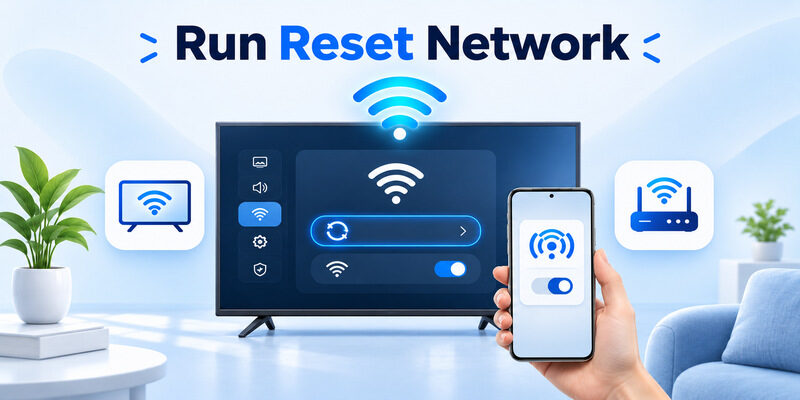
- Confirm Reset Network. Select the network reset from inside Network.
- Check the result. Read the confirmation and continue if your current SSID and password are available for setup afterward.
Before escalating the “reset Samsung smart TV network settings” case, take note of the exact confirmation. If it mentions the broad device settings, applications or Smart Hub, return to the Network page and select the documented network reset instead. Once the Samsung returns to its setup screen, look for Wireless or Wired under Network Settings. Connect to one route at a time to make the status result unambiguous.
Use a reversible test
Record static IP or DNS first if it was intentionally configured. Use default automatic settings where your network normally uses them. If you replaced your router, you may also need to reconnect your TV remote app after changing routers once the television is back online.
Use the network’s normal automatic addressing as a baseline when it is appropriate. Make a record of deliberately configured values before changing them, and ask the network owner if those values are required. If the TV has no local address or gateway on a network where it should, resolve that stage first. A DNS change concerns name lookup farther along the connection.
When two access points use the same name, the wireless list may show one apparently familiar choice. Use the router’s regular client view where available to identify the equipment serving the TV. Compare with one known network or a clearly named test hotspot and then return to the household arrangement. Keep working mesh names intact unless the network owner intends to change them.
Reconnect Wi-Fi or Ethernet
Rejoin by Wi-Fi or cable
Open Network Settings and choose Wireless to enter the current password or Wired where supported. For Ethernet, verify that the other end is in an active LAN port.
Check the current state
An in-wall socket may be unpatched at the router. A direct temporary cable can give a baseline if the installed route fails. Keep this observation with the model and software details for the “reset Samsung smart TV network settings” case.
Before you reset Samsung smart TV network settings, check the router’s current network name and password using a fresh connection on another trusted device. An already-connected phone can prove the network is running without proving that your remembered password is correct. After verifying the password, rejoin on the TV and record the active network. Compare the result with what the television showed before the change.
Check the equipment at both ends. The TV’s cable should reach the router’s local network or a switch connected to it. Confirm the plug is seated without putting sideways pressure on the socket. If a router shows a link indicator, observe it after reconnecting the cable. The television’s wired status is the next check after the physical link appears.
Keep the TV in the same place and connect a temporary Ethernet cable where supported. Compare the exact app and playback mode on the original and wired paths. Note the time of day, startup delay and any drop in quality. A wired success points toward a local wireless factor, and a second device can help judge whether the rest of the service is also affected.
Read more: Smart TV Network Cable Guide for Ethernet Setup
Read the New Network Status
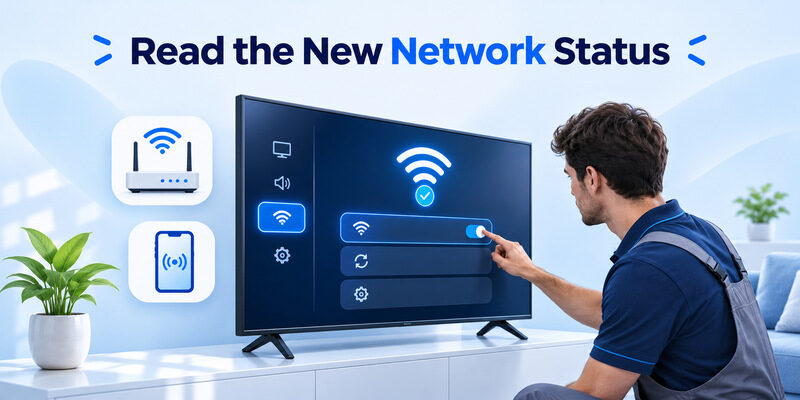
Read both connection stages again
Open Network Status. Confirm which network or wired connection is active and whether the TV reaches the internet. Test an app installed on the TV itself.
Use the same baseline for the “reset Samsung smart TV network settings” case. The status may show the Samsung reached its router and failed after it. Check whether a site loads on a phone without cellular before adjusting DNS or resetting again. If the phone works and the TV fails, take a photo or write down the category and current connection. It gives you a comparison even if the television reconnects during the next setup.
For more help choosing and testing a connection, see how to set up a smart TV internet connection using Wi-Fi or Ethernet.
Confirm the result before proceeding
For an active router link but no internet, compare another device on that network. If only one app fails, try a second app before resetting again. Use the observed change to narrow down the “reset Samsung smart TV network settings” case.
A phone on Wi-Fi and a television on Ethernet can share the router’s local network if the router allows it. Guest isolation can block phone discovery even with a working internet test. Use the main reachable network for both as a comparison. Then check any permission the app requests for local access, and repeat a single visible action.
Avoid conflating turning the TV off briefly with a full documented restart. If you reboot network equipment, let its normal service indicators return before restarting the television or running the next test. Open the TV’s status before relaunching the app. A result that changes after standby and recovers after restarting can provide useful model-specific evidence.
Recover a Greyed-Out Reset Option
Handle Reset Network being unavailable
Return to Home, close the active source or app where practical and restart the set. If Reset Network is still greyed out, locate the exact model instructions or ask the administrator for a managed TV.
A model that still plays a native app may not need a reset even if a particular control is greyed out. Check the current menu and the remedy Samsung lists for that setting. If startup or a different input changes availability, describe the difference in your support notes. Keep a reliable connection available until you have a verified reason to remove it. Use the observed change to narrow down the “reset Samsung smart TV network settings” case.
Compare the model’s options
Record the model and active route when working through the “reset Samsung smart TV network settings” case. Write down the exact option that is disabled. A greyed-out IP setting and a greyed-out entire Network menu can have different causes.
Check which individual action is disabled and which controls still open. Try from the TV’s own Home screen after a normal restart. An unavailable address field can be expected for automatic addressing, while an entire missing settings menu calls for a model-specific check. Compare that result with a built-in app and note whether the equipment is managed.
Use another service from the television as a comparison when the status shows it is connected. Check the affected app on another device on the same network too. If only the single app fails, review its ordinary update, sign-in or service guidance rather than clearing the television’s saved Wi-Fi. Return to the first app once the second one supplies a baseline.
Read more: Sony Smart TV Network Settings for BRAVIA Models
Check SmartThings After Reconnection
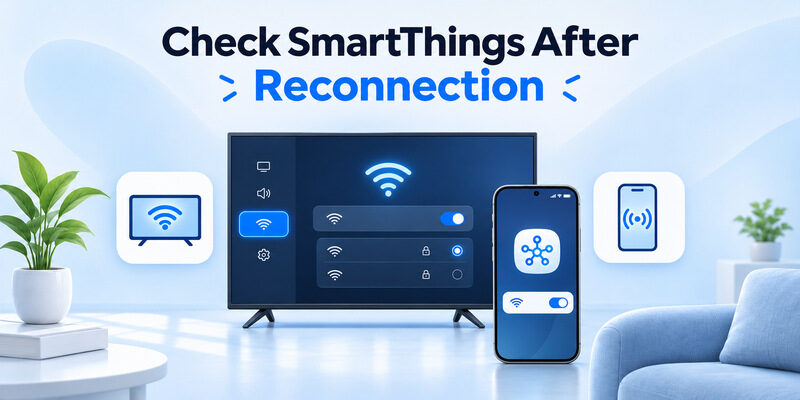
| Task | Useful comparison |
|---|---|
| Read the existing status | If other devices also fail, a local reset may clear a saved network without restoring service. |
| Rejoin by Wi-Fi or cable | An in-wall socket may be unpatched at the router. |
| Pair SmartThings after the network returns | Confirm the television remains awake during discovery. |
Pair SmartThings after the network returns
Check that the phone can reach the TV and that you selected the right Samsung device in SmartThings. Test navigation or volume if supported.
Use a reversible test
Confirm the television remains awake during discovery. A stale device name can appear even when the television is no longer reachable. Write down the result if you need to report the “reset Samsung smart TV network settings” case.
Local control has its own baseline. Put the phone and compatible television on the expected home network and open the app with the TV awake. Select the actual device and test a direction that produces an obvious focus change. If a different set responds, verify the device name before reconnecting or removing any saved equipment.
A hidden Wi-Fi name requires exact manual entry on devices that support it. Verify the spelling and current security details from the network owner. Compare with a visible network if the hidden setup fails. A failed scan, an unsupported radio option and a rejected password are distinct results even if all of them leave the TV offline.
Read more: Vizio Smart TV Network Settings for Wi-Fi and Ethernet
Separate Network Reset From Factory Reset
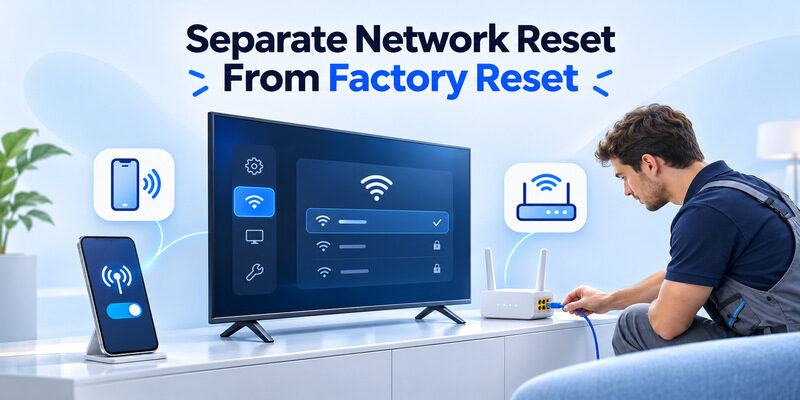
Separate manufacturer reset choices
Reset Network addresses connection settings. Reset Smart Hub and broader factory reset can affect settings, accounts or apps. Verify scope in Samsung support before choosing either.
Check the current state
Include the active route in a report on the “reset Samsung smart TV network settings” case. Keep the working connection once you have it, and use a different diagnostic for an isolated app or account problem.
Start the next comparison for the “reset Samsung smart TV network settings” case from the same room. Retain the evidence from before a broader reset so you can compare afterward. Make sure the TV owner can restore any accounts or device settings along with the network information. Check the exact model and the procedure’s scope. If the comparison already points to a specific provider or service failure, address that before affecting working parts of the TV setup.
For a fair wired comparison, confirm the television’s status actually moved from Wi-Fi to Ethernet after the cable was attached. Use the same router and built-in app first, so you changed the local connection only. If wired works, retest the wireless path from the usual room. Reconnect the expected route after you finish comparing.
If you need a backup for compatible TV controls, open on an iPhone after the television reconnects to a reachable home network. Select that TV with its screen awake and test one direction. If discovery fails, check the actual network and the app’s relevant local access.
Final Thoughts
Reset Network addresses connection settings. Keep the working connection once you have it, and use a different diagnostic for an isolated app or account problem.
For the “reset Samsung smart TV network settings” case, record the comparison that worked and retest the task you use most.