How to Connect Phone Network to Smart TV Using a Hotspot
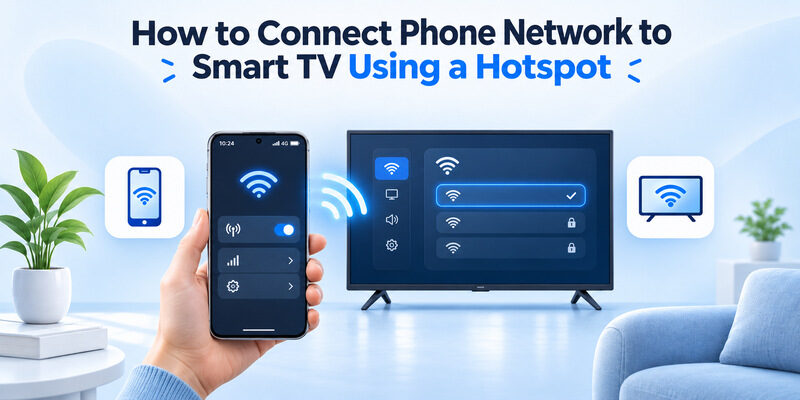
Short answer: Turn on your phone’s Wi-Fi hotspot and select it in the smart TV’s Wi-Fi settings.
Apple’s Personal Hotspot guide and Google’s Android tethering instructions explain when mobile data, hotspot access and compatibility settings apply.
If you searched “how to connect phone network to smart TV,” verify the actual connection screen before changing a setting. Start with the phone’s active mobile connection and end with a short app test on the TV. A hotspot is also a way to compare another network when your home connection fails. Check the phone’s data and discovery options before using it for a full evening of streaming.
Check Hotspot and Data Support
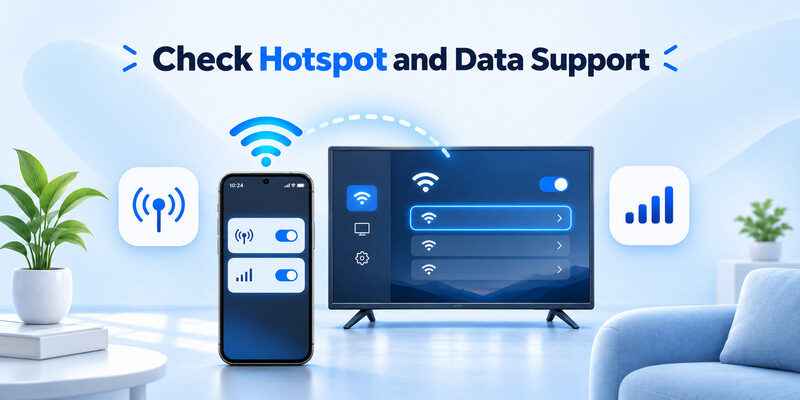
Check data access from the phone
- Check data access from the phone. Make sure the phone can load a webpage or clip over cellular alone and that your plan supports tethering.
- Check the result. Note the hotspot name, password and any data cap.
If you cannot enter the hotspot password because your Google TV remote is missing, explore these ways to connect Google TV to Wi-Fi without a remote.
Check the active connection
Keep the original starting state for the phone in this “how to connect phone network to smart TV” setup. A phone can show Wi-Fi and cellular icons near each other. Disable its regular Wi-Fi temporarily if necessary to check that cellular actually works.
Keep the change and the observation separate when assessing the phone in this “how to connect phone network to smart TV” setup. Verify mobile data on the phone before turning the hotspot on. Check that it appears in another device’s wireless list, then use the television for a short connection and playback test. The comparison uses a different network and upstream service, so a successful result narrows the problem without proving one particular router setting caused it.
Check two things before you open the TV’s Wi-Fi screen. First see whether your carrier plan permits a mobile hotspot. Then connect a different device to the hotspot and load a simple page. If both checks pass, you have working mobile data and a visible network to compare with the TV’s scan.
If you are asking “How to connect mobile network to smart TV?”, verify hotspot support in the phone plan first. Then set up the connection as Wi-Fi on the television.
Read more: Smart TV Network Cable Guide for Ethernet Setup
Set Up Personal Hotspot on iPhone
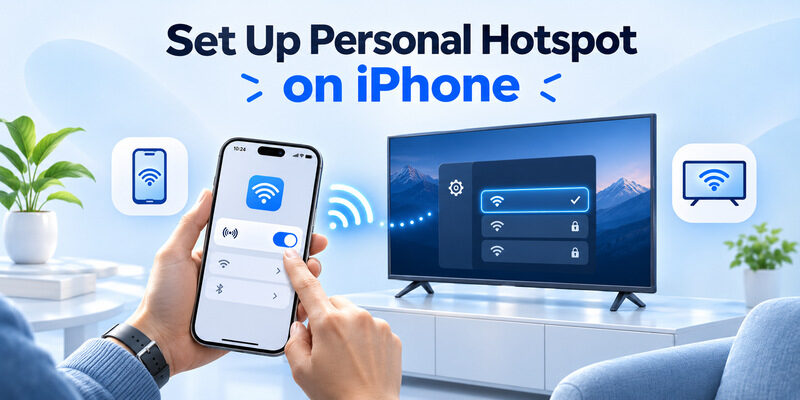
Open Personal Hotspot on iPhone
Go to Settings → Personal Hotspot or Settings → Cellular → Personal Hotspot, depending on the setup. Turn on Allow Others to Join, check the listed password and stay on the screen during the initial connection if needed.
If the iPhone appears by its device name, compare that name on the TV screen before entering the hotspot password. A similarly named network from another phone can be in range. Keep Personal Hotspot visible during initial setup when instructed by Apple. Verify the TV’s wireless page reports a connection, then try a short clip and check the phone’s data before you leave it streaming. Write down the result if you need to report the phone in this “how to connect phone network to smart TV” setup.
If the TV connects to your hotspot but only one streaming service fails, follow these steps to fix a TV app that is not loading and compare it with another app.
Compare supported options
If the TV cannot find the hotspot, Apple’s support guide describes Maximize Compatibility on supported iPhones. Try it as a compatibility check, then compare performance. Keep this observation with the model and software details for the phone in this “how to connect phone network to smart TV” setup.
An iPhone exposes the hotspot under its own name. If multiple phones are in the room, use the name shown in the iPhone settings to choose the right entry. Keep the hotspot screen open during initial discovery when Apple’s guidance calls for it. Change one compatibility option at a time and compare the TV’s list again. Use the observed change to narrow down the phone in this “how to connect phone network to smart TV” setup.
Start at the television’s own Home screen and open its complete settings. An HDMI-connected player can present a nearly identical looking menu, and quick settings often show only shortcuts. Look up the exact model and region when the path differs. Write down the first menu and its current connection before tapping a reset or disconnect option.
Choose a hotspot name that is easy to identify on the television. Keep it distinct from your home router’s name so the TV can tell the two apart the next time it wakes. Enter the current hotspot password from the phone’s settings instead of relying on a password you remember from the regular router.
Read more: Sony Smart TV Network Settings for BRAVIA Models
How to connect phone network to smart TV: Share Mobile Data From Android
Open Hotspot and Tethering on Android
Use the documented hotspot menu for the phone. On many Android devices a Quick Settings hotspot tile or Network & internet settings can take you there. Set a name and use a password.
Verify the device name
Menu names and band choices vary by manufacturer. If a hotspot turns itself off idle, check its timeout setting before the television scans. Use the observed change to narrow down the phone in this “how to connect phone network to smart TV” setup.
Include the active route in a report on the phone in this “how to connect phone network to smart TV” setup. Android phone makers can name the hotspot controls differently. Find the screen that shows network name, authentication and available band. If the hotspot disappears before the television connects, compare its automatic timeout behavior. Start with a single TV client and verify that the phone itself has mobile service before starting playback.
Record the model and active route when working through the phone in this “how to connect phone network to smart TV” setup. A hidden Wi-Fi name requires exact manual entry on devices that support it. Verify the spelling and current security details from the network owner. Compare with a visible network if the hidden setup fails. A failed scan, an unsupported radio option and a rejected password are distinct results even if all of them leave the TV offline.
If your question is “How to connect my phone network to my smart TV?”, look for the phone’s Wi-Fi hotspot or tethering menu and keep the credentials in view during setup.
If the television’s menu lists two networks with similar names, check the name shown in the phone’s hotspot settings and select that exact entry. Wait for the television to finish associating before trying an app. If the hotspot stays visible but never connects, verify the password and the band the phone is offering.
Join the Hotspot on the TV
| What you observe | What to check next |
|---|---|
| The hotspot is missing from the TV scan | Check that another device sees it and compare compatible bands |
| The TV joins but cannot stream | Verify working mobile data and tethering allowance |
| Streaming works but the phone remote cannot discover the TV | Check local discovery and hotspot client restrictions |
| The TV keeps returning to the phone’s hotspot | Turn the hotspot off and verify the regular Wi-Fi profile |
Join from the TV’s built-in settings
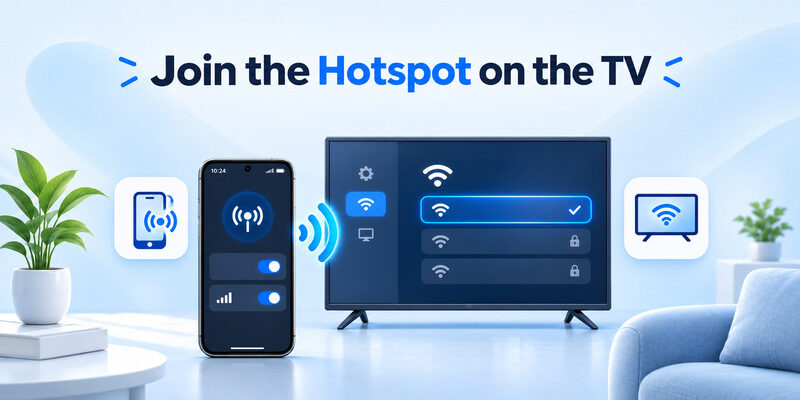
- Join from the TV’s built-in settings. Open the television’s wireless setup and select the exact phone network name.
- Check the result. Enter the password using the TV remote and wait for the connection status to settle.
Test the actual phone feature
If you repeat the test for the phone in this “how to connect phone network to smart TV” setup, use the native TV settings. A streaming stick has a separate Wi-Fi list and can use the hotspot independently while the television remains on its home network.
Casting and local media require the controller, player and network behavior documented by the application. Start a simple playback session and verify that the correct television appears for discovery. Then test whether you can stop or control that playback. If a hotspot setup fails to expose devices, compare it with a normal home router before changing the TV.
After changing a connection, play a familiar short video in an app installed on the television. If it fails, try a second service and inspect network status without assuming the first app’s generic error identifies the cause. If the TV can still stream from an HDMI player, return to Home for a test that belongs to the set itself.
When testing smart TV mobile internet, verify the phone is providing the connection and the TV is receiving it. The TV should show the hotspot name as its active network.
Read more: Vizio Smart TV Network Settings for Wi-Fi and Ethernet
Fix a Hotspot the TV Cannot See
Compare 2.4 GHz where offered
Bring the phone close and confirm a second device can see the hotspot. On a phone with an optional 2.4 GHz compatibility setting, compare it with the original band.
Before you troubleshoot the phone in this “how to connect phone network to smart TV” setup, look at the provider settings when the phone offers the hotspot feature but the television never reaches the internet. Test a browser on a second device after joining the hotspot, then compare the TV’s own status. If the provider allows tethering but the TV still misses the hotspot, the next check is phone compatibility mode or the supported Wi-Fi band.
Check the active connection
If both devices miss it, inspect hotspot availability on the phone. If only the TV misses it, check the TV’s supported wireless bands and security modes. Include whether this occurred before or after the change when you describe the phone in this “how to connect phone network to smart TV” setup.
Start the next comparison for the phone in this “how to connect phone network to smart TV” setup from the same room. A phone on Wi-Fi and a television on Ethernet can share the router’s local network if the router allows it. Guest isolation can block phone discovery even with a working internet test. Use the main reachable network for both as a comparison. Then check any permission the app requests for local access, and repeat a single visible action.
Test mobile signal near the television before you assume the hotspot has poor Wi-Fi reach. The phone may receive a strong local hotspot link from the TV’s perspective and still have weak mobile data. Compare a second device’s web access on the hotspot, then move the phone only as far as needed to improve its cellular signal.
Check the model’s supported wireless bands and use a comparison at the television. A stable lower-frequency link through walls can behave differently from a faster link at close range. One shared SSID can make the used band hard to identify on the TV alone. Use the router’s normal information screen where available and repeat the original playback task.
To understand why a TV may see one wireless band but not another, review the differences between 2.4 GHz and 5 GHz Wi-Fi, then check the bands supported by your phone and TV.
Check Casting and Phone Control
Separate internet access and casting
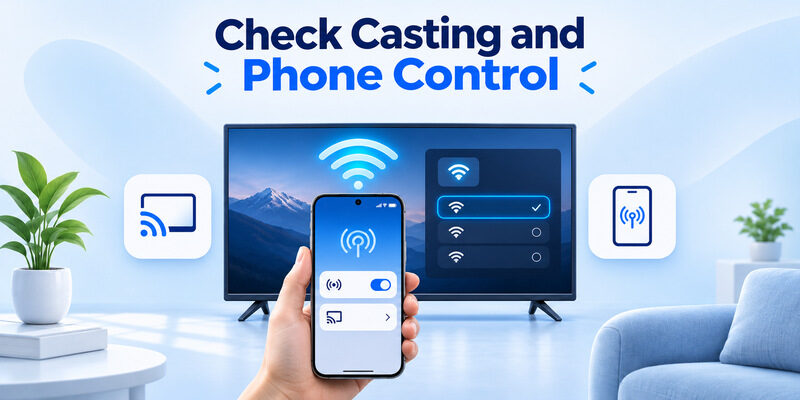
Joining a hotspot can provide internet to the TV. Casting, screen mirroring and phone remotes have their own discovery requirements. Some hotspot setups isolate clients or make the host phone unsuitable as the controller.
Use the same baseline for the phone in this “how to connect phone network to smart TV” setup. A temporary hotspot can help you diagnose the home router, but it is an imperfect replacement for home casting. Start with a built-in streaming app. To test casting, place the controller and television where the casting method requires them, using a second phone or tablet if supported. If video succeeds but no local devices appear, return to the normal router for a controlled comparison.
Compare supported options
For a second check of the phone in this “how to connect phone network to smart TV” setup, verify casting with the exact feature and a second connected device if available. A clip playing through a TV app says little about local phone-to-TV discovery.
Local control has its own baseline. Put the phone and compatible television on the expected home network and open the app with the TV awake. Select the actual device and test a direction that produces an obvious focus change. If a different set responds, verify the device name before reconnecting or removing any saved equipment. Keep this observation with the model and software details for the phone in this “how to connect phone network to smart TV” setup.
Take the television’s diagnostic stages in order. Observe the physical or wireless link, then local access through the router and finally the internet result where the model exposes it. Stop at the first failed stage when choosing a comparison. A streaming app can report a vague error while the network screen provides a more specific result.
Read more: LG Smart TV Network Settings for webOS
Avoid High Mobile Data Use
| Task | Useful comparison |
|---|---|
| Open Personal Hotspot on iPhone | If the TV cannot find the hotspot, Apple’s support guide describes Maximize Compatibility on supported iPhones. |
| Compare 2.4 GHz where offered | If both devices miss it, inspect hotspot availability on the phone. |
| Control streaming quality on limited plans | Background TV updates can use mobile data in addition to playback. |
Control streaming quality on limited plans
Start a short item and choose a lower quality in the app when it offers one. Check the carrier or phone’s data counters before a longer stream.
Set a clear end point for the data test. Play a few minutes of content, record how much data the phone reported and return the television to regular Wi-Fi when done. Mobile video can adapt its quality during playback, so do not assume a short initial sample predicts the full show precisely. Use the streaming application’s own data settings where it offers them. Include whether this occurred before or after the change when you describe the phone in this “how to connect phone network to smart TV” setup.
Verify the device name
Use the result to narrow down the phone in this “how to connect phone network to smart TV” setup. Background TV updates can use mobile data in addition to playback. If the hotspot is a temporary backup, switch back to home internet for large downloads.
Begin with a short item at a lower available quality when using a limited mobile plan. Compare the data usage the phone or carrier reports before and after. After the diagnostic test, return the TV to its ordinary connection for long viewing or software updates. Check the currently active route so the set does not silently keep using the hotspot.
If a video app automatically jumps to a high quality, use any data or quality option it offers before a longer mobile session. Compare a short preview and monitor the phone’s tethering usage. If the device gets warm during a prolonged session, stop the hotspot when the television returns to its normal network.
If your goal is to display your phone’s screen instead of opening an app on the TV, see how to cast your phone screen to a TV and check the requirements for your devices.
Disconnect and Restore Home Wi-Fi
Return the television to home Wi-Fi
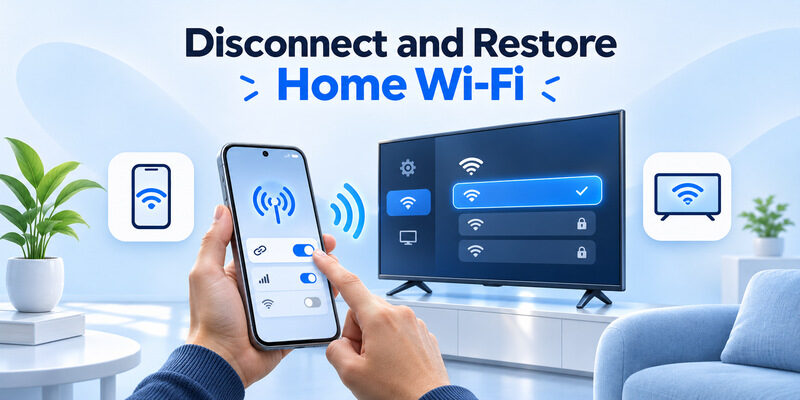
Stop playback, disconnect the TV from the hotspot and select the intended home SSID. If you will use the hotspot again, check whether your model can keep it saved without preferring it.
Test the actual phone feature
Confirm the TV’s active network once the phone’s hotspot is off. If your usual app uses local control, reopen it from the regular home network. Write down the result if you need to report the phone in this “how to connect phone network to smart TV” setup.
After the temporary connection test, turn off the alternate network if you control it and choose the regular home network from the device’s own menus. Reopen connection status before watching a long program. Where the television stores more than one entry, check which network it automatically chooses the next time it wakes. Reuse the same conditions the next time you check the phone in this “how to connect phone network to smart TV” setup.
Identify the entry by its exact name and verify it is the currently saved one before you remove it. A Settings page can show nearby networks and previously used ones in the same list. If the model offers management of saved entries, read the prompt to confirm you selected the intended network rather than the broader reset.
If you need a backup for compatible TV controls, open on an iPhone after the television reconnects to a reachable home network. Select that TV with its screen awake and test one direction. If discovery fails, check the actual network and the app’s relevant local access.
Return to the TV’s home network from its wireless connection menu when you are finished. Open an installed app and verify the stream no longer uses mobile data. If the television prefers the temporary connection on future startup, check whether your model can forget that profile while keeping your existing home network saved.
Final Thoughts
Stop playback, disconnect the TV from the hotspot and select the intended home SSID. Confirm the TV’s active network once the phone’s hotspot is off. If your usual app uses local control, reopen it from the regular home network.
For the “how to connect phone network to smart TV” case, record the comparison that worked and retest the task you use most.