
Cast Phone Screen to TV: Choose Full Mirroring or App Playback
By the Remote TV App Team
Last updated: November 6, 2026
To cast phone screen to tv, connect your phone and a compatible television to the same Wi-Fi, then use Android’s Cast or Smart View feature or iPhone’s AirPlay Screen Mirroring. Select the television, approve any connection prompt, and your display should appear on the big screen. If your TV lacks wireless mirroring, use a compatible HDMI adapter or streaming receiver instead.
This guide explains how to cast screen to tv on popular devices, identifies the hardware needed for older televisions, and gives practical fixes for missing devices, lag, and black screens. It also explains when a TV remote application is helpful without confusing remote control with full-screen mirroring.
1. Check These Three Things Before Casting
Before you cast phone screen to tv, confirm that your devices can communicate. A television described as “smart” does not necessarily support every mirroring standard. Google Cast, Apple AirPlay, Samsung Smart View, and Miracast are related but not interchangeable technologies.
First, identify your TV’s receiving method. Google TV and many Android TV models support Google Cast; compatible Samsung and other TVs may support Smart View or AirPlay. Older sets generally need an HDMI-connected receiver or cable. Check the television’s settings or official specifications rather than relying on a generic “wireless” label.
Second, check your network. For ordinary wireless casting, your phone and receiver should join the same local Wi-Fi network. A guest network or router setting that isolates devices can prevent discovery even when both devices can browse the internet. Keep the television powered on and, during setup, unlock your phone.
Third, choose what you want to display. Full-screen mirroring duplicates your phone interface, including notifications; app-based casting sends supported media to the TV and often lets you keep using your phone. Understanding that difference saves time when a video plays successfully but the phone’s Home screen never appears.
| Your setup | Best first method | What it displays |
|---|---|---|
| Android + Google Cast TV | Android Cast or Google Home | Full phone screen, when supported |
| Samsung Galaxy + compatible Samsung TV | Smart View | Full phone screen |
| iPhone + AirPlay-compatible TV | AirPlay Screen Mirroring | Full iPhone screen |
| Either phone + supported video app | In-app Cast or AirPlay | Selected video or music |
| Older TV with HDMI input | Compatible HDMI adapter or receiver | Screen or supported media |
If your chosen method fails, don’t immediately download multiple apps. Verify the receiving technology first; it is usually the deciding factor in whether you can cast phone screen to tv successfully.
Download TV Remote App2. How to Cast Android Screen to Smart TV
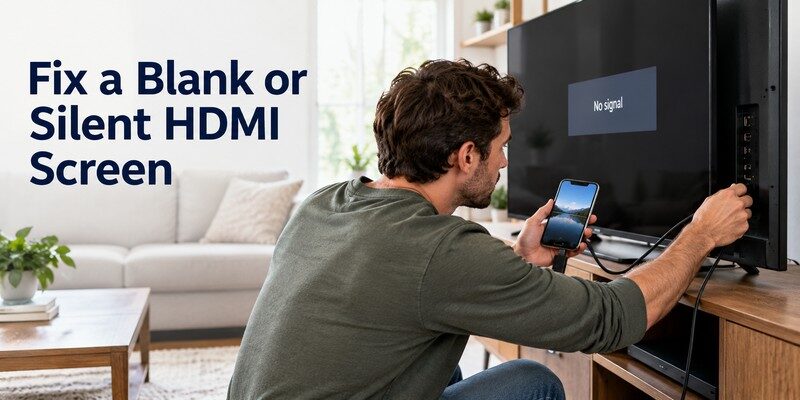
For many people, cast android screen to smart tv is a built-in operation rather than an extra download. If you want to cast phone screen to tv directly from Android settings, the controls vary by manufacturer, but the process is similar: connect to the same network, start a mirroring tool, and approve the TV connection.
Option A: Use Your Phone’s Quick Settings
- Turn on the TV and enable its screen-mirroring or compatible receiving function if needed.
- On Android, swipe down from the top of the screen, sometimes twice, to open Quick Settings.
- Find Cast, Screen Cast, Smart View, or Screen Share. You may need to edit the Quick Settings tiles to reveal it.
- Select your television from the list, then accept the pairing request on the TV.
- Test by opening a photo. When finished, return to the same control and disconnect.
Option B: Use the Google Home App
For a Google Cast-compatible receiver, open Google Home, locate your TV under Devices or Favorites, and press and hold its tile. Choose Cast → Cast my screen → Cast screen or the equivalent wording shown on your device. Grant the requested permissions and confirm the sharing prompt.
Google’s official “Cast your Android screen from the Google Home app” guidance specifies Android 8.0 or later for this feature. It also instructs users to keep the phone and receiver on the same Wi-Fi network. Menus can change across app versions, so follow the labels actually displayed.
When you cast phone screen to tv this way, remember that private notifications may also become visible. Enable Do Not Disturb if the screen will be shared in a meeting, classroom, or crowded living room.
📖 Read More Guides: How to Screen Mirror Android to TV: Easy Methods for 2026
3. Cast an iPhone Screen Using AirPlay
On an iPhone, AirPlay Screen Mirroring is the native way to duplicate the display onto a supported Apple TV box or AirPlay-compatible smart television. It is different from Google Cast and doesn’t automatically work on every Android TV.
Open Control Center by swiping down from the upper-right corner on newer iPhones, or up from the bottom on older Home-button models.
Tap the icon with overlapping rectangles, choose the television, and enter the on-screen code if requested. Your iPhone interface should appear after the connection completes. Return to the same menu and select Stop Mirroring to end the session.
When selecting cast phone screen to tv methods for an iPhone, check for AirPlay in the television settings before installing third-party applications. Certain Samsung, LG, Roku, and other models support AirPlay directly, while other smart televisions only receive media from Cast-enabled apps.
If your TV supports Google Cast but not AirPlay, open a compatible media application, tap its Cast button, and select the receiver. This can play a video on the television, but it does not necessarily mirror the entire iPhone display. Google lists iOS 14 or later among the current supported platforms for Google Cast-enabled app casting, and some apps need Local Network access to discover the receiver.
4. Connect to Samsung, LG, TCL, and Roku TVs
The easiest way to cast phone screen to tv depends on which brand and software platform appears in your living room. Use the television’s native receiving feature when possible; this is generally less confusing than installing several apps that promise identical results.
Samsung TVs: Smart View or AirPlay
On a compatible Samsung Galaxy phone, open Quick Settings and select Smart View. Choose the TV, review the sharing prompt, and approve the connection. Samsung’s official Smart View instructions recommend putting both devices on the same Wi-Fi if the initial connection fails.
For an iPhone paired with a Samsung model that supports AirPlay, enable AirPlay in the TV settings and use iPhone Screen Mirroring instead. If the physical remote is missing, a compatible samsung tv remote app can help with navigation and input changes, but remote-control support doesn’t guarantee phone-wide mirroring.
📖 Read More Guides: Miracast Setup Guide: How to Connect Phone or PC to TV
LG, TCL, and Roku: Check the Platform
Many compatible LG TVs offer AirPlay for iPhones and Screen Share or other supported methods for certain Android phones. TCL TVs may use Roku TV, Google TV, or another platform, so the TCL brand name alone is insufficient to choose a protocol. Use Google Cast for supported Google TV models and AirPlay for Roku or other receivers that expressly support it.
On compatible Roku devices, enable Apple AirPlay and HomeKit in Settings before mirroring an iPhone. An Android phone may need a compatible screen-mirroring feature rather than the iPhone’s AirPlay flow. For Google TV receivers, follow the Google Home method or cast directly from a compatible media app.
Practical check: If a television appears in YouTube’s device list but not in Android’s Screen Cast menu, you may have app-based casting without a compatible full-screen mirroring path. That distinction matters when trying to cast phone screen to tv for games or presentations rather than just videos.
📖 Read More Guides: AirPlay for Android: How to Cast and Mirror to Any TV in 2026
5. Use Chromecast or Google TV for Casting
A TV with Google Cast built in, an external Chromecast, or a compatible Google streaming device can receive media from supported phone apps. If you need to cast phone screen to tv with an older HDMI-equipped set, an external receiver can add compatible wireless features.
Cast a Video Instead of the Entire Screen
Connect the phone and receiving device to the same Wi-Fi. Open a Google Cast-enabled application, start or select the content, tap the Cast icon, and choose the television. The Cast icon usually changes appearance after connecting. To stop, tap it again and choose Disconnect.
Google’s official help lists Android 6.0 or later and iOS 14 or later for its current Google Cast-enabled app workflow. Those minimums apply to supported app casting; full Android screen mirroring through Google Home has a different Android 8.0+ requirement. Software compatibility can still depend on the specific app and TV receiver.
Mirror Android Through Google Home
If your goal is to cast phone screen to tv rather than stream one movie, use the Android Google Home procedure described earlier. This method displays a broader range of phone activity, although performance depends on the device and network. Some protected video apps may restrict mirroring while supporting direct in-app casting.
Google Home is particularly useful when you want to cast phone screen to tv for demonstrating applications or sharing photos instead of playing a single movie.
📖 Read More Guides: How to Cast Phone to TV Without WiFi: 5 Reliable
6. How to Cast Phone to an Old TV
You can often cast phone to old tv hardware if it has a working HDMI input. An older TV does not need its own Wi-Fi chip when a compatible external receiver or wired adapter handles the connection. Before trying to cast phone screen to tv with older hardware, check the ports on the back or side of the set.
HDMI: A Direct Wired Connection
For an iPhone, use a video-capable adapter that matches the phone’s Lightning or USB-C connector. Connect the adapter to the phone, attach HDMI, choose the correct input on the TV, and check for a picture.
Apple specifies that its Lightning Digital AV Adapter supports mirroring at up to 1080p HD. Compatible USB-C iPhone models and HDMI 2.0 equipment can support output of up to 4K at 60 Hz, depending on the exact hardware.
For Android, verify that the specific phone supports USB-C video output such as DisplayPort Alternate Mode before buying an adapter. A USB-C charging port alone does not guarantee video output.
Streaming Receiver: Add Wireless Features
Plug a compatible Chromecast, Google TV device, or AirPlay receiver into an HDMI input, connect its power supply, and follow the device’s setup instructions. Once configured, the external hardware becomes the receiver for supported casting or mirroring methods. Choose an AirPlay-compatible receiver if full iPhone mirroring is essential; not every Google Cast device offers that function.
For viewers hoping to cast phone screen to tv without replacing an otherwise functional display, HDMI and streaming hardware are usually more dependable than searching for a universal app that claims to support every television.
📖 Read More Guides: Screen Mirroring App Free: Best Apps to Cast Phone to TV
7. Can You Cast Without Wi-Fi or Internet?
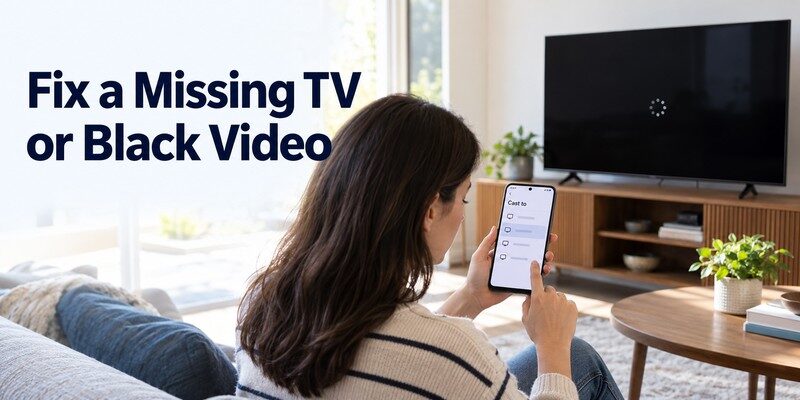
Yes, but distinguish no internet from no local network. Wireless methods to cast phone screen to tv normally require a suitable local connection, while online video services may additionally require internet access. An HDMI cable can bypass the local network entirely.
When a Wi-Fi router is operating but the internet connection is down, some local screen-mirroring setups may still function. However, streaming a cloud-hosted movie won’t work without internet, and receiver setup or licensing checks can require connectivity. Avoid promising a fully offline wireless method unless your particular equipment supports it.
When there is no Wi-Fi network at all, a compatible wired connection is generally the most predictable way to cast phone screen to tv. Connect the video adapter, select HDMI on the TV, and test with a photo stored on the phone. This isolates the display connection from streaming-service restrictions.
Quick rule: For local photos and slides, try HDMI; for online streaming, use a stable internet connection; for wireless full-screen mirroring, verify the exact protocol and network requirements first. These decisions matter more than the number of casting applications installed.
8. How to Choose a Screen Cast App for TV
A screen cast app for tv can be useful when your phone and television do not expose a compatible built-in mirroring option. But advertisements often use “cast,” “mirror,” and “remote” as if the three terms meant the same thing. Read the actual feature list before downloading.
To cast phone screen to tv using a third-party app, look for explicit support for your phone operating system, television platform, and desired output. A good listing should explain whether it sends individual photos and videos, mirrors the entire phone display, or only controls the TV. It should also explain if a receiver app must be installed on the television.
For people who want to cast phone screen to tv, permissions deserve attention. A screen-recording or broadcasting permission may be needed for certain third-party mirroring methods, while a local-network permission can help the application discover nearby devices. Only grant access when it clearly relates to the function you are using, and avoid sharing private messages, banking screens, or authentication codes during a session.
📖 Read More Guides: How to Mirror iPhone to TV: AirPlay and HDMI Steps
9. Fix Casting That Doesn’t Connect or Keeps Lagging
When you cannot cast phone screen to tv, begin with device discovery rather than changing every setting. A missing television, a black video, and delayed audio can have different causes, so match the symptom with the right fix.
| Symptom | Likely explanation | First fix |
|---|---|---|
| TV never appears | Wrong protocol or isolated Wi-Fi | Confirm TV compatibility and network |
| Pairing request fails | Authorization or stale connection | Restart devices and approve TV prompt |
| TV shows a black screen | Protected content or adapter issue | Test a local photo, then check hardware |
| Picture freezes or stutters | Wi-Fi congestion or device load | Move closer to router; close heavy apps |
| Video works but Home screen doesn’t | Media casting, not full mirroring | Switch to supported screen-mirroring tool |
| No sound | Audio routing or unsupported content | Check TV output and reconnect |
For failed attempts to cast phone screen to tv, start with a same-network check. On the phone, inspect the Wi-Fi network name; on the television, check its connected SSID. Two names that look similar may still belong to separate networks. Public or guest Wi-Fi can block communication even when both devices access websites.
If there is a black screen only in one movie service, test the Photos or Gallery app. Content-protection restrictions may prevent full mirroring of selected streams. If a photo displays correctly, the connection itself is probably working.
For persistent lag, remove unnecessary network load and keep the phone near the router. Google’s casting guidance also notes that AP isolation can prevent compatible devices from communicating on the local network. If you manage your own router, review its guest-network or client-isolation settings before performing a factory reset.
10. When a Phone-Based Remote Is a Better Companion
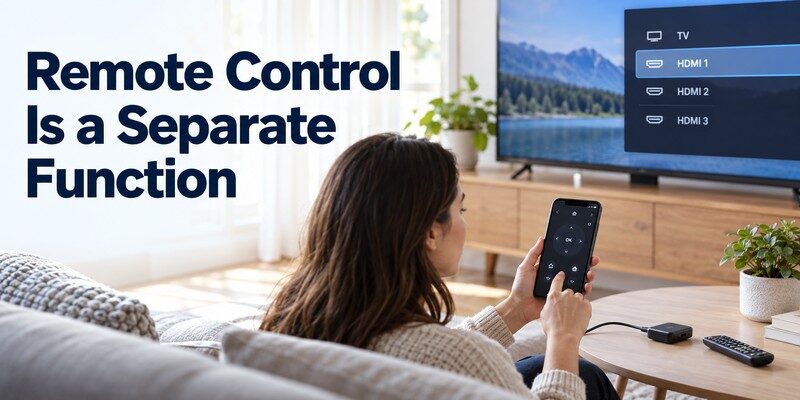
Sometimes the real problem is not sharing the phone’s display. You may simply need to change the TV input, adjust its volume, or open an application when the physical remote is missing. That is a different task from trying to cast phone screen to tv. That is where a compatible Remote TV app can help.
Begamob Global Limited’s app is designed to turn a supported iPhone or iPad into a TV controller. Its App Store description includes channel navigation, volume control, app launching, and photo or video casting on compatible televisions. Remote control and media casting are not a promise of universal full-screen mirroring.
The official App Store listing is universal remote tv control. Download it only if your device and television fit the supported workflow; some features and subscriptions may involve charges.
You can also learn about compatible controls in the Remote TV app guide. If a TV cannot be found, review its network and device-discovery settings before trying another application. Download universal remote tv control to try the app on a compatible iPhone or iPad.
For readers wanting to cast phone screen to tv, start with AirPlay, Smart View, or Google Home for true screen mirroring. Use a remote-control application for the tasks it actually supports, such as navigating the TV or sharing selected media.
📖 Read More Guides: Wireless Display Setup: How to Connect Windows or Phone to TV
11. Frequently Asked Questions
Can I Cast My Entire Android Phone Screen for Free?
Yes, on compatible hardware. Many Android phones provide screen casting in Quick Settings, while Google Home supports Android screen casting to compatible Google Cast receivers. Google’s documented Google Home workflow requires Android 8.0 or later. You do not always need a paid application.
Can I Cast an iPhone Screen to a Google TV?
Sometimes. If that particular television supports AirPlay, you can mirror the full iPhone screen through Control Center. Otherwise, Google Cast-enabled iPhone apps can send supported videos or music, but Google Cast’s usual iOS media workflow is not the same as whole-screen AirPlay mirroring.
How Do I Cast Phone Screen to TV Without Chromecast?
Use the television’s built-in mirroring support or a compatible HDMI adapter. Samsung Smart View, Apple AirPlay, and certain other phone-to-TV protocols work without an external Chromecast when both devices support the same technology. Check the TV model before purchasing extra hardware.
Why Does YouTube Cast but My Phone Screen Won’t Mirror?
YouTube may send a video through Google Cast even when the phone and TV do not share a full-screen mirroring protocol. To cast phone screen to tv beyond a video player, try the phone’s Cast or Smart View feature, Google Home screen casting on supported Android hardware, or AirPlay for compatible iPhones.
Can I Cast Without a Smart TV or Internet?
Yes, with the right hardware. A non-smart TV with HDMI can display output from a compatible wired phone adapter or external receiver. A wired connection can show locally stored content without Wi-Fi, but cloud streaming services may still need internet access and can impose playback restrictions.
12. Final Thoughts
To cast phone screen to tv reliably, match the phone’s mirroring method to the television’s actual receiving technology. On Android, start with Quick Settings, Smart View, or Google Home. On an iPhone, use AirPlay if supported; otherwise consider app-based media casting or a compatible HDMI connection.
If your television is older, adding a receiver or using a video cable can avoid replacing the entire set. If the physical remote is missing, Begamob’s phone-based remote is a separate, useful companion for compatible control and media-sharing functions—not a substitute for every mirroring protocol.
The fastest solution is the one your hardware supports. Check compatibility, connect on the right network, test with a local photo, and only then troubleshoot the specific app or playback issue.
Download TV Remote App