
Screen Mirroring App Free: Best Apps to Cast Phone to TV
Quick Answer: The easiest way to mirror your phone to a TV for free is to use its built-in casting feature. Android users can try Google Cast, Samsung Smart View, or a compatible manufacturer’s screen mirroring tool. iPhone users can use AirPlay with supported televisions. These options generally do not require a separate screen mirroring subscription.
If your television does not support your phone’s built-in technology, a compatible third-party application may provide additional casting options.
For most users searching for a screen mirroring app free to download, Google Home, Samsung Smart View, and built-in AirPlay are good starting points, depending on the device.
The important distinction is that free to download does not always mean completely free to use. Some applications display advertisements, limit mirroring sessions, or charge subscriptions for advanced features.
This guide compares free options, explains how to connect your phone to a smart television, and helps you avoid unnecessary downloads or payments.
1. What Is a Free Screen Mirroring App and How Does It Work?
Screen mirroring is a technology that displays the content of a smartphone, tablet, or computer on another screen.
Instead of using an HDMI cable, compatible devices communicate through a wireless connection.
For example, you can display family photos from an Android phone, show a presentation from your tablet, or share a mobile application’s interface on a television.
A screen mirroring app free to use may provide this capability without requiring a separate subscription.
However, the technology behind the connection varies between devices.
How does wireless screen mirroring work?
Most wireless mirroring systems follow a similar process:
- Your phone discovers a compatible television.
- The television accepts the connection.
- The phone captures or transmits supported screen content.
- The television displays the received video and audio.
- The connection remains active until you disconnect.
Technologies such as Google Cast, AirPlay, and Miracast can support wireless sharing, although their operation and compatibility differ.
Screen mirroring is not always the same as media casting.
Full-screen mirroring duplicates what appears on your device. Media casting may instead instruct a compatible receiver to play a video directly.
For example, when casting from YouTube, the television may play the video independently while your phone acts as a controller.
What do you need before getting started?
Check that you have:
- A compatible Android phone, iPhone, or tablet.
- A smart television or supported streaming receiver.
- A working wireless connection.
- The appropriate casting or mirroring feature.
- Updated software on both devices.
For most Google Cast and AirPlay setups, your phone and television should be connected to the same Wi-Fi network.
Miracast can use Wi-Fi Direct, depending on the devices involved.
Does screen mirroring reduce picture quality?
Wireless mirroring can affect visual quality and responsiveness.
A Full HD display contains 1920 × 1080 pixels, or approximately 2.07 million pixels.
A 4K UHD display contains 3840 × 2160 pixels, or about 8.29 million pixels.
That is approximately four times as many pixels.
Higher resolutions can require more processing and wireless bandwidth, although compression and device capabilities also matter.
For casual sharing, 1080p may provide a practical balance between quality and performance.
When choosing a screen mirroring app free of extra charges, prioritize compatibility and stability over impressive advertising claims.
📖 Read More Guides: How to Screen Mirror Android to TV: Easy Methods for 2026
2. Best Free Screen Mirroring Apps for Android and iPhone
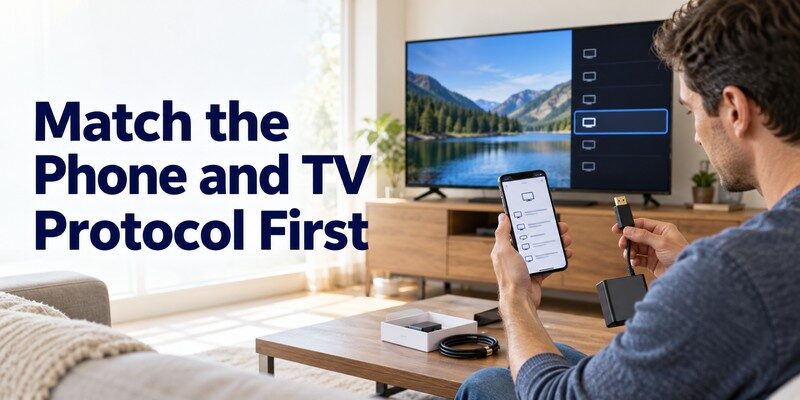
The best free screen mirroring app depends on the phone and television you own.
There is no single application that works perfectly with every smart television because manufacturers use different operating systems and wireless display technologies.
Quick comparison of free mirroring options
| Option | Supported devices | Pricing model | Best for |
|---|---|---|---|
| Google Home / Google Cast | Compatible Android devices and Google Cast TVs | Free core casting features | Android screen sharing |
| Samsung Smart View | Compatible Galaxy phones and TVs | Built-in feature | Samsung screen mirroring |
| Apple AirPlay | iPhone, iPad, compatible receivers | Built-in feature | Apple devices |
| Miracast | Selected Android devices and receivers | Usually built-in | Wireless display sharing |
| Third-party mirroring apps | Varies by application | Free, ad-supported, or freemium | Additional TV compatibility |
Pricing and available features may change, so review current app-store terms before installing third-party software.
1. Google Home and Google Cast
Google Home and Google Cast are convenient options for Android users with compatible televisions.
Google’s official support documentation explains that Android 8.0 or later is supported for Google Home screen-casting controls.
For casting media from compatible applications, Google’s documentation lists Android 6.0 or later as a supported starting requirement.
These are two different activities: screen mirroring and casting individual media items.
To mirror your Android screen using a compatible Google Home setup:
- Install or open Google Home.
- Connect your phone and TV to the same Wi-Fi network.
- Select your compatible Google Cast device.
- Find the screen-casting option.
- Confirm that you want to share your display.
Google Home is a sensible first choice for anyone who wants a free screen mirroring app for android without paying for basic compatible casting functions.
Best for: Chromecast, Google TV, and televisions with Google Cast.
2. Samsung Smart View
Samsung Smart View is a built-in feature on many Galaxy smartphones.
It allows compatible users to mirror their phone screen to a supported TV.
To connect, open Quick Settings, select Smart View, choose the television, and approve the connection.
Samsung’s support documentation explains that compatible devices can share their displays through Smart View and related features.
Best for: Samsung Galaxy users who want a simple screen mirroring solution.
3. Apple AirPlay
Apple AirPlay allows compatible iPhones and iPads to mirror their displays to Apple TV or supported smart televisions.
It is built into iOS and iPadOS, so users generally do not need a separate third-party application.
Apple Support recommends connecting devices to the same Wi-Fi network before starting ordinary AirPlay screen mirroring.
Best for: iPhone and iPad users with AirPlay-compatible televisions.
4. Miracast
Miracast is a wireless display standard associated with the Wi-Fi Alliance.
It allows supported devices to establish wireless display connections without a conventional HDMI cable.
Some Android manufacturers include Miracast-compatible mirroring features.
However, not every Android phone or smart TV supports Miracast.
Best for: Compatible devices that offer Wireless Display or Miracast functionality.
5. Third-party screen mirroring applications
Some third-party applications support additional televisions or connection methods.
These tools can be useful when your phone and TV lack a shared built-in casting protocol.
However, free plans may include:
- Advertisements
- Limited session duration
- Restricted video quality
- Paid upgrades
- In-app purchases
- Device compatibility limitations
Before installing a screen mirroring app free to try, confirm which functions remain available without payment.
Download TV Remote App3. How to Mirror Your Android Phone to TV for Free
Android users can often mirror their screens without purchasing additional software.
The exact steps depend on the manufacturer and Android version.
Method 1: Mirror Android using Google Home
This approach works with compatible Google Cast receivers.
Step 1: Connect your devices
Turn on the television and connect it to your Wi-Fi network.
Connect your Android smartphone to the same network.
Step 2: Open Google Home
Launch Google Home and locate the compatible streaming device.
If your TV is not listed, verify that Google Cast is enabled and the devices are on the same network.
Step 3: Start screen sharing
Select the device and use its available Cast screen feature.
Confirm the screen-sharing request when prompted.
Step 4: Enjoy your content
Your phone screen should appear on the television.
You can now open photos, browser pages, presentations, or compatible applications.
Step 5: Disconnect
Return to the casting controls and end the session.
This prevents unnecessary background screen sharing.
Method 2: Cast directly from a supported application
You do not always need to duplicate your entire screen.
For example, Google TV Help provides the following basic casting process:
- Connect your phone and TV to the same Wi-Fi.
- Open a supported media application.
- Tap the Cast icon.
- Choose your television.
- Begin playback.
This is usually the easiest approach for compatible videos and music.
If you mainly want to watch supported streaming content, a built-in Cast button may be more practical than a separate mirroring application.
For related Google TV controls, read our Google TV remote app for Android guide.
Method 3: Use your phone’s screen mirroring feature
Certain Android devices provide built-in Wireless Display or Screen Mirroring settings.
Open Settings and search for:
- Cast
- Screen Mirroring
- Wireless Display
- Smart View
- Screen Share
Select the appropriate feature and choose your television.
Do not assume all options use the same technology.
For example, some devices prioritize Google Cast, while others support Miracast.
The safest approach is to use the feature officially supported by your phone manufacturer.
If you are searching for a screen mirroring app free to use on Android, check these built-in options before downloading anything.
📖 Read More Guides: Miracast Setup Guide: How to Connect Phone or PC to TV
4. How to Mirror an iPhone to Smart TV Without Paying
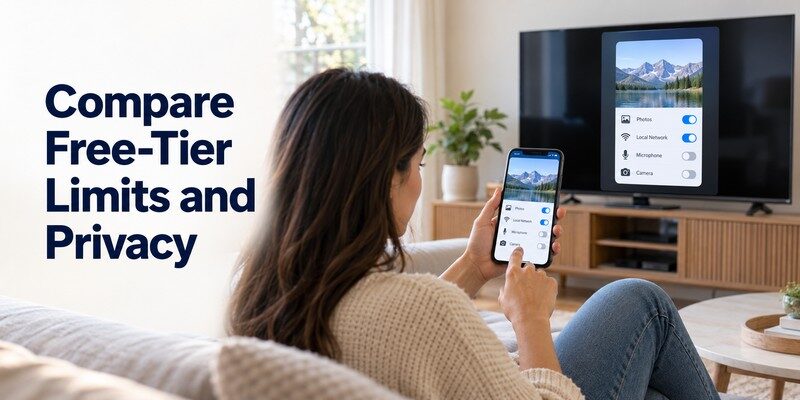
iPhone users can mirror their screens through AirPlay when the television or streaming receiver supports the technology.
Apple’s official instructions identify Screen Mirroring in Control Center as the primary method.
Step-by-step AirPlay setup
- Step 1: Connect your iPhone and compatible television to the same Wi-Fi network.
- Step 2: Turn on the television and enable AirPlay if necessary.
- Step 3: Open Control Center on your iPhone.
- Step 4: Tap Screen Mirroring.
- Step 5: Choose your television from the available devices.
- Step 6: Enter the AirPlay passcode if one appears on the television.
Your iPhone display should appear on the larger screen.
How to stop mirroring
Open Control Center, tap Screen Mirroring, and select Stop Mirroring.
The television will return to its previous content.
What if your TV does not support AirPlay?
If your television does not have AirPlay, consider another compatible streaming solution.
Certain third-party applications can send media to Google Cast receivers or other compatible devices.
However, an application’s ability to cast photos or videos does not guarantee full iPhone screen mirroring.
Some solutions also charge for advanced features.
Check whether the free version supports actual screen mirroring before installing.
For most users with compatible Apple equipment, built-in AirPlay is a more direct alternative to searching for a screen mirroring app free on the App Store.
💡 Discover Helpful Guides: AirPlay for Android: How to Cast and Mirror to Any TV in 2026
5. Free Screen Mirroring for Samsung, LG, Roku, and Google TV
Different TV brands use different platforms, which affects the casting methods they support.
Samsung Smart TV
Samsung users can start with Smart View on compatible Galaxy phones.
Samsung also provides SmartThings for connected-device management.
According to Samsung Support, SmartThings can automatically detect and connect to most compatible Samsung TVs manufactured from 2016 onward, although individual model support varies.
For iPhone users, many compatible Samsung smart televisions include AirPlay support.
If you also need help navigating menus or replacing your physical remote, see our samsung tv remote app guide.
Remember: A remote application is not necessarily a screen mirroring application.
LG Smart TV
LG smart televisions may include Screen Share, AirPlay, Google Cast, or other wireless functions.
The available features depend on the model and software version.
For Android users, check whether Screen Share or Google Cast is supported.
For iPhone users, check AirPlay compatibility.
If your LG television cannot be discovered, our LG ThinQ app not finding TV guide covers related connectivity problems.
Roku TV
Roku devices support various screen sharing methods, but capabilities vary by model.
Compatible Apple devices can use AirPlay on supported Roku products.
Selected Android devices may use supported screen mirroring features.
If your Android phone only provides Google Cast, do not assume it can mirror directly to every Roku device.
Check your Roku’s supported connection methods.
Google TV and Android TV
Google Cast is usually the natural starting point for Google TV and Android TV.
Google’s official documentation explains that compatible televisions generally enable Google Cast during setup.
If casting is unavailable, check the television’s system applications and verify Google Cast is enabled.
For basic navigation, you can also learn about compatible virtual remotes in our Google TV remote guide.
What about older televisions?
Older TVs without built-in wireless display support may need additional hardware.
Options include compatible streaming receivers or an HDMI connection.
A third-party application cannot automatically add wireless receiving hardware to a television that lacks the necessary capabilities.
When selecting a screen mirroring app free to download, always confirm that your TV can receive its connection protocol.
💡 Discover Helpful Guides: How to Cast Phone to TV Without WiFi: 5 Reliable
6. Free vs Ad-Free Screen Mirroring Apps: What Should You Choose?
The word “free” can describe several different pricing models.
Understanding these models helps you avoid unexpected charges.
Completely free built-in features
Google Cast, AirPlay, and Samsung Smart View offer core mirroring or casting functionality without a separate mirroring-app subscription on compatible devices.
These are good starting points because they are supported by platform manufacturers.
Free with advertisements
Some third-party applications allow users to mirror their screens while displaying advertisements.
Advertisements may appear in the app interface or before a mirroring session.
The exact experience varies between applications.
Freemium applications
Freemium apps allow free installation but charge for selected features.
Premium functions may include:
- Advertisement removal
- Higher-quality mirroring
- Longer sessions
- Additional device compatibility
- Advanced playback controls
Free download does not guarantee unlimited free mirroring.
How to find an ad-free solution
Users looking for a screen mirror app no ads should begin with built-in manufacturer functionality.
These features do not require installing a separate ad-supported mirroring application.
If you need third-party software, examine the app-store listing and check whether advertisement removal requires payment.
What should you check before installing?
Review the following:
| Criteria | What to verify |
|---|---|
| Free access | Is basic mirroring available without payment? |
| Advertisements | Are ads present during setup or use? |
| Compatibility | Does it support your exact TV model? |
| Session limits | Is there a time restriction? |
| Resolution | Does the app limit video quality? |
| Privacy | What information does it collect? |
| Subscription | Will the app renew automatically? |
A trustworthy screen mirroring app free to try should explain its limitations before requesting payment.
Avoid applications promising universal compatibility without describing supported protocols.
💡 Discover Helpful Guides: How to Mirror iPhone to TV: AirPlay and HDMI Steps
7. Screen Mirroring App Not Working? Common Problems and Fixes
Wireless screen mirroring can fail even when both devices appear compatible.
The most common issues involve network discovery, software compatibility, incorrect device settings, or wireless interference.
Fix 1: Check your Wi-Fi network
Connect your phone and television to the same Wi-Fi network.
This is especially important for Google Cast and ordinary AirPlay configurations.
Google’s official documentation recommends checking the network name, also called the SSID, on both devices.
If you have separate guest and private networks, verify that both devices can communicate.
Fix 2: Restart both devices
Restart your smartphone and television.
If necessary, restart your wireless router.
This can resolve temporary device discovery problems.
Fix 3: Confirm casting compatibility
Not every screen mirroring protocol works with every TV.
An Android phone that only supports Google Cast may not connect directly to a Miracast-only receiver.
Similarly, AirPlay requires a compatible receiver.
Check the sending and receiving protocols before changing advanced settings.
Fix 4: Update your software
Install available updates for your phone, television, and casting applications.
Outdated software can cause connection failures and compatibility issues.
Fix 5: Enable casting on your television
Some Google TV devices allow users to disable or enable Google Cast through system application settings.
Google TV Help recommends checking whether the Google Cast system application is enabled.
If it has been disabled, re-enable it and restart the television.
Fix 6: Reduce wireless interference
Move your phone and television closer to the wireless router when practical.
Consider whether other devices are heavily using the network.
Both 2.4 GHz and 5 GHz Wi-Fi bands are commonly used in home networks.
The 5 GHz band may provide better performance under suitable signal conditions, while 2.4 GHz often offers greater reach.
Actual results depend on interference, distance, router capabilities, and device compatibility.
Fix 7: Check for protected content
Some video services restrict screen capture or screen mirroring.
If your photos appear correctly but a particular streaming video shows a black screen, digital rights management may be the reason.
Try the service’s supported television application instead.
Fix 8: Review permissions
Some third-party applications require screen recording, media access, or local network permissions.
Grant only the permissions necessary for the requested features.
Avoid sharing sensitive content with unfamiliar receivers.
Troubleshooting checklist
| Problem | Possible cause | Recommended fix |
|---|---|---|
| TV not detected | Different networks | Check Wi-Fi connection |
| Mirroring fails | Unsupported protocol | Confirm compatibility |
| Black screen | Protected media | Use a supported TV app |
| Frequent freezing | Wireless instability | Improve network conditions |
| Missing sound | Audio routing | Check playback output |
| Subscription prompt | Paid feature | Try built-in casting |
If a screen mirroring app free to download repeatedly fails, test the manufacturer’s built-in feature before paying for another application.
A successful free connection depends more on device compatibility than the number of apps installed.
💡 Discover Helpful Guides: Cast Phone Screen to TV: Choose Full Mirroring or App Playback
8. FAQs: Free Screen Mirroring, Compatibility, and TV Controls
What is the best free way to mirror Android to TV?
For a compatible Google Cast television, Google Home or built-in Google Cast features are practical starting points.
Samsung Galaxy users can also try Smart View with a supported television.
The best choice depends on your phone and TV.
Can I mirror my phone without installing an app?
Yes.
Many Android smartphones offer built-in casting or wireless display features.
iPhones provide AirPlay screen mirroring for compatible receiving devices.
These features may eliminate the need for additional applications.
Is there a completely free cast-to-TV app?
Yes, some official casting solutions provide basic features without a separate subscription.
For example, Google Cast supports compatible media casting through supported applications.
If you want a free cast to tv app, try an official platform feature before third-party alternatives.
Can I mirror my phone without Wi-Fi?
Some compatible Miracast devices can establish Wi-Fi Direct connections without conventional home internet access.
However, Google Cast and AirPlay setups commonly rely on local network connectivity.
A wired connection is another alternative, provided your phone supports the required video output.
Is screen mirroring safe?
Screen mirroring can be safe when using trusted devices, supported applications, and secure connections.
However, mirroring your entire screen may expose notifications, messages, or personal information.
Enable Do Not Disturb before public presentations.
Disconnect when you finish sharing.
Can I control my TV with a smartphone?
Yes, compatible remote-control applications allow you to manage supported television functions from your phone.
Remote-control applications can provide navigation, volume adjustment, and other device controls.
If you are looking for a compatible Remote TV app, explore the available options for your television model.
Remote-control features and screen mirroring are separate capabilities, although some applications provide both.
Can I use Universal Remote TV Control for casting?
Begamob Global Limited offers universal remote tv control for iPhone and iPad.
According to its App Store listing, the application supports various functions on compatible televisions, including:
- Channel selection
- Volume adjustment
- Navigation controls
- Supported streaming-app shortcuts
- Photo and video casting
- Music sharing
The App Store listing describes more than 10 million downloads as a developer-reported milestone.
It also lists the application as free to download with in-app purchases.
Premium features and advertisement removal may require a subscription. Therefore, the app should not be presented as a completely free, ad-free full-screen mirroring solution.
For users who want smartphone-based TV controls and supported media-sharing features, Download universal remote tv control from the App Store.
Important: The app is available for iPhone and iPad. Its advertised photo and video casting functionality does not necessarily mean it supports unrestricted full-screen mirroring to every TV.
Does screen mirroring work on every Smart TV?
No.
Some smart TVs support Google Cast, AirPlay, Miracast, or a combination of these technologies.
Other models may not offer native mirroring.
Always check the manufacturer’s compatibility information.
Is a free screen mirroring app good for gaming?
A screen mirroring app free to use may be suitable for casual gaming, but wireless screen mirroring introduces some delay.
For games requiring precise timing, an HDMI connection may provide more predictable responsiveness.
Network quality, resolution, and device performance all affect the viewing experience.
Which screen mirroring method is best for families?
For households using different types of phones and televisions, choose a TV with support for multiple casting technologies.
Android users can use Google Cast, while iPhone users may prefer AirPlay.
If a TV supports both, different family members can connect using their preferred devices.
Conclusion
Finding a reliable screen mirroring app free to use does not have to involve downloading multiple applications or purchasing a subscription.
For most Android users, Google Cast and built-in manufacturer screen mirroring features are the best places to start.
Samsung Galaxy users can try Smart View, while iPhone and iPad users can use AirPlay with compatible televisions.
Third-party applications are worth considering when your devices require additional compatibility, but you should check for advertisements, subscription fees, and session limits.
The best free screen mirroring solution is the one that works with your existing devices, protects your privacy, and provides stable performance without unnecessary costs.
For additional smart TV convenience, a compatible remote-control application can help you navigate menus, adjust volume, and manage supported media features from your phone.
Before installing any screen mirroring app free to download, identify your television’s supported technology and try the manufacturer’s recommended connection method.
