
AirPlay for Android: How to Cast and Mirror to Any TV in 2026
Quick Answer: AirPlay for Android is possible through compatible third-party applications, but Android does not include Apple’s native AirPlay screen mirroring feature. To cast an Android phone to a TV, use Google Cast, a manufacturer’s screen mirroring feature, or a third-party application that supports sending content to an AirPlay receiver.
If your goal is to receive AirPlay content on an Android TV, you can use a television with built-in AirPlay support or install a compatible receiver application.
The easiest option for most Android users is Google Cast, especially when using Google TV, Chromecast, or a compatible smart television.
However, some users specifically need AirPlay compatibility because they own an Apple TV, use multiple devices, or want to share content between Apple and Android ecosystems.
This guide explains how airplay for android works, which methods are available, how to connect different televisions, and what to do when screen mirroring fails.
By the end, you will understand the difference between native AirPlay, third-party AirPlay compatibility, and standard Android casting.
1. What Is AirPlay for Android and Does It Really Work?
AirPlay is Apple’s wireless media streaming technology. It allows compatible Apple devices to transmit audio, video, photos, and screen content to supported receivers.
Common AirPlay devices include Apple TV, compatible smart televisions, wireless speakers, and supported Mac computers.
Apple introduced AirPlay 2 with iOS 11.4 on May 29, 2018, expanding its wireless audio capabilities with features such as synchronized multiroom playback.
According to Apple Support, AirPlay can be used to stream video or mirror the screen of an iPhone or iPad to a compatible television.
However, Android devices do not automatically provide the same functionality.
Does Android support AirPlay natively?
No. Android does not include a universal, system-level Apple AirPlay sender.
Unlike iPhones, Android smartphones typically rely on technologies such as:
- Google Cast
- Miracast on compatible devices
- Samsung Smart View
- Manufacturer-specific screen sharing
- Third-party applications supporting additional protocols
This distinction matters because some applications advertise airplay for android while actually using Google Cast or another screen mirroring technology.
These solutions may achieve a similar result, but they do not necessarily communicate using Apple’s AirPlay protocol.
How does AirPlay work with Android?
There are two different situations.
Situation 1: Android sends content to an AirPlay receiver.
A compatible third-party application may transmit supported photos, videos, or music from an Android device to an Apple TV or another AirPlay-compatible receiver.
The functionality depends on the application and receiver.
Situation 2: Android TV receives AirPlay content.
Certain televisions running Android TV or Google TV include licensed AirPlay support.
Others may support receiving AirPlay through an additional application.
This allows an iPhone, iPad, or Mac to send content to the television.
Understanding the direction of the connection is essential when selecting an airplay for android solution.
What can you share?
Depending on your devices and applications, supported features may include:
- Photos and personal videos
- Music and audio files
- Presentations and documents
- Browser content
- Live screen mirroring
- Compatible streaming media
Not every application supports every feature. Full-screen mirroring, protected streaming content, audio-only playback, and remote media control may require different solutions.
For the best results, check both the sending device and receiving television before installing software.
📖 Read More Guides: How to Screen Mirror Android to TV: Easy Methods for 2026
2. How to Use AirPlay from Android to Apple TV or Smart TV
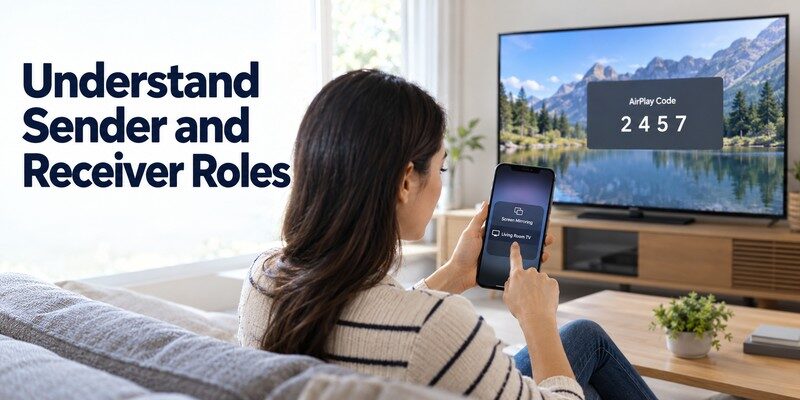
If you want to stream media airplay from android devices to an Apple TV, you generally need a compatible third-party sender application.
Android’s normal Cast button usually communicates with Google Cast devices rather than AirPlay receivers.
Step 1: Check your receiving device
First, verify that your television or streaming device supports AirPlay.
Possible receivers include:
- Apple TV devices with AirPlay capabilities.
- Smart televisions with built-in AirPlay 2.
- Compatible third-party AirPlay receivers.
- Certain televisions running receiver applications.
Make sure the receiving device is powered on and that its AirPlay functionality is enabled.
Step 2: Connect both devices to Wi-Fi
Connect your Android smartphone and television to the same local Wi-Fi network.
This is the simplest configuration for device discovery.
Although some wireless display technologies use direct connections, most ordinary AirPlay setups rely on devices being discoverable over the local network.
Avoid guest networks that prevent connected devices from communicating.
Step 3: Choose a compatible Android application
Search your device’s trusted application store for a casting app that explicitly supports AirPlay receivers.
Before installing it, check:
- Whether AirPlay sending is supported.
- Whether the app supports your Android version.
- Which media formats can be transmitted.
- Whether full-screen mirroring is available.
- Whether the service requires payment.
- What permissions and data access the app requests.
An application that only supports Google Cast will not necessarily connect to Apple TV through AirPlay.
Step 4: Select your content
Open the compatible application.
Depending on the software, you may be able to select a photo, video, audio file, or screen mirroring feature.
Choose the content you want to display on your television.
For personal videos, check whether the format is supported by both the sender and receiver.
Step 5: Select the AirPlay receiver
Open the application’s device discovery screen and select your television.
If the receiver requests a pairing code, enter it in the Android application.
Wait for the connection to complete before starting playback.
The exact procedure for airplay using android depends on the application because Android does not provide one standardized AirPlay interface.
Step 6: Start playback
After establishing a successful connection, start streaming the selected content.
If your application supports remote playback controls, you may be able to pause, resume, or change the volume.
For full-screen mirroring, the television may display notifications and other content visible on your phone.
Privacy tip: Enable Do Not Disturb before sharing your screen with other people.
What if Apple TV cannot be detected?
Some applications only support specific versions of the AirPlay protocol.
Others support photos and audio but cannot mirror the entire Android screen.
If your Apple TV is not detected, check the application’s compatibility documentation before changing advanced router settings.
This is particularly important when setting up airplay for android on newer devices.
📖 Read More Guides: Miracast Setup Guide: How to Connect Phone or PC to TV
3. How to Set Up AirPlay on Android TV and Google TV
A different situation occurs when you want to receive AirPlay content on a television running Android TV or Google TV.
In this case, the television is the receiver, and the content usually comes from an iPhone, iPad, or Mac.
Does Android TV support AirPlay?
Some Android TV and Google TV models support AirPlay directly, but others do not.
Support depends on the television manufacturer, model, and firmware.
For example, Sony Support states that its Google TV models support Apple AirPlay 2 and HomeKit, with software updates required for certain models.
Sony also identifies selected older Android TV model series with AirPlay 2 compatibility.
Therefore, airplay for android tv is not a feature that can be assumed from the operating system alone.
Method 1: Use built-in AirPlay support
If your TV includes AirPlay:
- Turn on the television.
- Open Settings.
- Find Apple AirPlay or AirPlay & HomeKit settings.
- Enable AirPlay.
- Connect the TV and Apple device to the same Wi-Fi network.
- Open Control Center on the iPhone or iPad.
- Select Screen Mirroring.
- Choose the television.
- Enter the displayed pairing code if requested.
Your Apple device’s screen should appear on the TV.
These steps are consistent with Apple’s official AirPlay setup instructions, although television menu names vary.
Method 2: Install an AirPlay receiver application
If your TV does not include native AirPlay, some Android TV applications can provide receiver functionality.
Examples of applications offering AirPlay-related receiver features include AirScreen and similar third-party solutions.
To try this method:
- Open Google Play on your Android TV.
- Search for an AirPlay receiver application.
- Review the application’s capabilities and privacy policy.
- Install the application.
- Open it and enable the appropriate receiving mode.
- Connect your Apple device to the same network.
- Search for the receiver through the AirPlay menu.
Important: Third-party receiver applications are not equivalent to manufacturer-certified AirPlay 2 support.
Some may only support specific audio or video formats, and certain protected streaming services may not work.
Method 3: Use Google Cast instead
For most Android phone owners, Google Cast is the simpler alternative.
According to Google TV Help, you can cast supported content by connecting your phone and television to the same Wi-Fi network.
Then:
- Open a Google Cast-enabled app.
- Tap the Cast button.
- Select your television.
- Start playback.
- Tap Disconnect when finished.
Google Cast is generally built into Google TV and Android TV devices.
If your main goal is displaying Android content rather than using Apple’s protocol, this method may be easier than configuring airplay for android.
For related device control instructions, read our Google TV remote app for Android guide.
The article explains remote-control options for compatible Google TV devices, which are separate from the casting process.
💡 Discover Helpful Guides: AirPlay for Android: How to Cast and Mirror to Any TV in 2026
4. How to Mirror Android to Samsung, LG, and Sony TVs
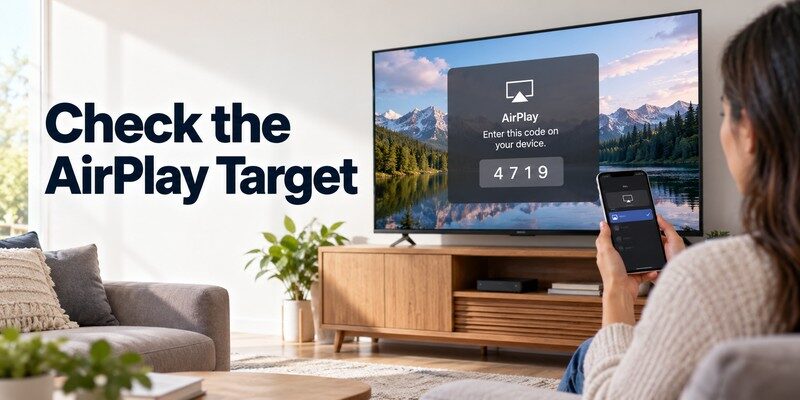
Different television brands implement wireless sharing in different ways.
Before attempting airplay with android, identify the manufacturer’s supported casting methods.
Samsung Smart TV
Many compatible Samsung smart televisions support Apple AirPlay 2 for Apple devices.
However, an Android phone will not automatically gain native AirPlay support simply because the television includes AirPlay.
For Samsung Galaxy users, Smart View is often the more appropriate screen mirroring method.
To use Smart View:
- Turn on your compatible Samsung television.
- Connect both devices to the same Wi-Fi network.
- Swipe down on the Galaxy phone to open Quick Settings.
- Tap Smart View.
- Select the television.
- Approve the connection request.
- Tap Start now when prompted.
Your phone screen should appear on the television.
If you are using an iPhone with an AirPlay-compatible Samsung TV, Samsung Support identifies Apple AirPlay Settings under the television’s Settings menu.
On some models, the path is Settings > Connection > Apple AirPlay Settings.
To make navigating your Samsung television easier, explore our samsung tv remote app guide.
LG Smart TV
LG televisions may support Apple AirPlay, Screen Share, Google Cast, or combinations of these features.
Compatibility depends on the specific model.
For an Android phone, check for Screen Share or Google Cast before attempting AirPlay.
A typical compatible Screen Share setup involves opening the television’s mirroring feature, selecting the corresponding option on your smartphone, and approving the connection.
If you cannot discover your television, check its network configuration and software version.
Our LG ThinQ app not finding TV article provides additional guidance for LG device connectivity.
Remember that remote-control pairing and screen mirroring are different functions.
Sony Android TV and Google TV
Sony provides built-in AirPlay 2 support on various compatible television models.
For Apple devices, use the TV’s AirPlay settings and Apple’s screen mirroring menu.
For Android phones, Google Cast is usually the more convenient approach.
Open a compatible media application, select the Cast icon, and choose your Sony TV.
If the device does not appear, confirm that Google Cast is enabled and both devices are using the same local network.
When evaluating airplay for android, prioritize the protocol your television actually supports rather than assuming every smart TV uses identical technology.
💡 Discover Helpful Guides: How to Cast Phone to TV Without WiFi: 5 Reliable
5. Best Ways to Get AirPlay Features on Android
There is no single application that guarantees complete AirPlay functionality on every Android device.
Instead, choose software based on whether you want to send content, receive content, or mirror your entire screen.
Option 1: A third-party AirPlay sender
An airplay app for android may help send compatible media from an Android phone to an AirPlay receiver.
The main advantage is potential compatibility with Apple TV and selected AirPlay-enabled televisions.
However, these tools can have limitations:
- Some only support local media files.
- Certain apps require subscriptions.
- Full-screen mirroring may be unavailable.
- Protected streaming videos may display a black screen.
- Performance depends on network quality.
Best for: Users who own an AirPlay receiver and specifically need Android-to-AirPlay media sharing.
Option 2: Google Cast
Google Cast is often the best starting point for Android phones.
It works with compatible streaming applications and televisions that support Google’s casting protocol.
Google’s documentation explains that compatible media applications can send playback instructions to a receiver, allowing supported media to play directly on the TV.
This can reduce the need to continuously transmit the phone’s entire display.
Best for: YouTube, compatible streaming services, music, and everyday media playback.
Option 3: Built-in screen mirroring
Some Android manufacturers offer Smart View, Wireless Display, or similar technologies.
These features may use Miracast or another manufacturer-specific protocol.
For users who want to duplicate their entire smartphone screen, this approach can be more useful than media-only casting.
Best for: Presentations, photo sharing, demonstrations, and supported screen mirroring scenarios.
Option 4: An AirPlay receiver on Android TV
If you own an Android TV and want to receive content from an iPhone, consider a compatible receiver application when native AirPlay is unavailable.
This reverses the direction of the connection.
The Android TV receives content instead of sending it.
Best for: Households using both Apple and Android devices.
Which option should you choose?
| Your goal | Recommended method |
|---|---|
| Android phone to Google TV | Google Cast |
| Android phone to Apple TV | Compatible third-party sender |
| iPhone to compatible Android TV | Built-in AirPlay |
| iPhone to Android TV without AirPlay | Compatible receiver application |
| Samsung Galaxy to Samsung TV | Smart View |
| General smart TV navigation | Compatible remote-control app |
Choosing the correct method makes airplay for android easier to understand and prevents unnecessary downloads.
💡 Discover Helpful Guides: How to Mirror iPhone to TV: AirPlay and HDMI Steps
6. AirPlay vs Google Cast: Which Should Android Users Choose?
AirPlay and Google Cast both enable wireless media sharing, but they have different software ecosystems and compatibility requirements.
AirPlay
Apple developed AirPlay for media streaming between compatible devices.
AirPlay supports various audio, video, and screen sharing functions depending on the device.
AirPlay 2 expanded capabilities such as synchronized multiroom audio.
Apple’s announcement on May 29, 2018, introduced these improvements alongside iOS 11.4.
Google Cast
Google Cast is designed to work with compatible applications and receiving devices.
It supports both Android and iOS sender applications, as explained in Google’s Cast developer documentation.
On a compatible television, Google Cast can play media through the receiver while the phone provides playback controls.
AirPlay vs Google Cast comparison
| Feature | AirPlay | Google Cast |
|---|---|---|
| Developer | Apple | |
| Native Apple support | Yes | Available in compatible apps |
| Native Android sending | No | Yes, where supported |
| Compatible receivers | Apple TV, supported TVs, other receivers | Chromecast, Google TV, supported TVs |
| Screen mirroring | Supported from compatible Apple devices | Supported on compatible devices |
| Third-party Android solutions | Often required | Usually unnecessary |
| Primary ecosystem | Apple | Cross-platform |
Which is better for Android?
For most Android users, Google Cast is the more straightforward option.
It is widely integrated into Android TV and Google TV products and supported by numerous media applications.
However, if you already own Apple TV hardware or an AirPlay-enabled receiver, a third-party AirPlay-compatible sender may be worth considering.
For households with both Apple and Android devices, a television supporting multiple protocols offers greater flexibility.
The key is not choosing the technology with the most features. It is choosing the technology that your devices actually support.
AirPlay for Android should be treated as a compatibility solution rather than a native Android feature.
💡 Discover Helpful Guides: Cast Phone Screen to TV: Choose Full Mirroring or App Playback
7. AirPlay for Android Not Working? Troubleshooting Guide
If your connection fails, first identify the direction of the connection.
Are you trying to send media from an Android phone, or receive AirPlay content on an Android TV?
These scenarios require different solutions.
Fix 1: Check compatibility
Verify that both devices support the same wireless communication protocol.
An AirPlay-only receiver may not appear in Android’s Google Cast device list.
Likewise, a Google Cast-only television may not appear in an iPhone’s AirPlay menu.
Protocol incompatibility cannot always be solved by changing Wi-Fi settings.
Fix 2: Connect devices to the same network
Connect your smartphone and television to the same local Wi-Fi network.
Check that neither device is using a guest network with client isolation enabled.
Google’s official casting instructions identify shared Wi-Fi connectivity as a basic requirement.
Fix 3: Restart your devices
Restart your Android phone, television, and third-party casting application.
If necessary, restart the router.
Temporary discovery errors may disappear after the devices reconnect.
Fix 4: Update software
Install available updates for your television, Android device, and casting application.
Older applications may not support newer receivers or updated protocol implementations.
This is particularly important when using airplay for android through third-party software.
Fix 5: Check application permissions
Some casting applications require local network discovery, media access, or screen recording permissions.
Review the permissions requested by your application and allow only those needed for the intended function.
Avoid granting access to unrelated personal information.
Fix 6: Disable conflicting network settings temporarily
Some VPN configurations, restrictive firewalls, or router isolation settings prevent local device discovery.
Test the connection without those restrictions where it is safe to do so.
Restore your preferred security settings afterward.
Fix 7: Test another media file
If one video fails, try a personal photo or another supported media file.
Streaming services may enforce digital rights management restrictions.
A black screen does not always indicate a network problem.
Fix 8: Reduce wireless interference
Move the devices closer together.
Reduce obstacles between them and avoid heavily congested wireless environments.
If playback frequently freezes, test a different supported Wi-Fi band or reduce the mirroring quality if the application provides that setting.
Quick troubleshooting table
| Problem | Likely cause | Solution |
|---|---|---|
| TV not detected | Protocol mismatch | Check device compatibility |
| Connection fails | Network isolation | Use the same local network |
| Black screen | Protected content | Try supported local media |
| Video lag | Wireless interference | Improve network conditions |
| No audio | Output settings | Check audio device selection |
| Mirroring disconnects | Software or network instability | Update and restart devices |
A reliable airplay for android setup depends on compatible software, correct device discovery, and a stable local connection.
8. Frequently Asked Questions and Smart TV Control Tips
Can I use AirPlay on Android without installing an app?
Android does not offer Apple’s native AirPlay sender interface.
To send content to an AirPlay-only receiver, a compatible third-party application is generally required.
However, you can use Google Cast or a supported manufacturer mirroring feature without installing an AirPlay application.
Can I use AirPlay with Android TV?
Yes, depending on your TV model and intended direction of streaming.
Some Android TV and Google TV devices support AirPlay 2 as a built-in receiving feature.
Other models may require third-party receiver applications.
For airplay on android tv, always verify your exact model’s compatibility.
Can I send AirPlay to Android TV from an iPhone?
Yes, provided the Android TV has built-in AirPlay support or a compatible receiver application.
To use airplay to android tv, connect the iPhone and TV to the same Wi-Fi network, open Screen Mirroring on the iPhone, and select the available receiver.
Enter a passcode when requested.
Does AirPlay work without an internet connection?
Some local AirPlay connections can operate without access to the public internet when the devices have an appropriate local network connection.
However, streaming online video still requires internet access, and some receiver configurations have additional network requirements.
Is AirPlay better than screen mirroring?
They are not necessarily competing features.
AirPlay includes capabilities for streaming media and mirroring screens.
Traditional screen mirroring duplicates the device display, while supported media streaming can offer independent playback.
The better option depends on what you want to share.
Can I use a remote app alongside AirPlay?
Yes. A smart TV remote application can help you navigate television menus and adjust supported settings while using a separate casting feature.
However, remote-control software does not automatically add AirPlay support to an incompatible television.
For smart TV navigation, explore our Remote TV app guide.
It covers using your phone as a replacement for a compatible television remote.
How can I control my Smart TV from my iPhone?
Begamob Global Limited offers universal remote tv control for compatible iPhone and iPad devices.
The application is designed to provide remote-control functionality for supported smart television brands.
According to its App Store description, available features include:
- Channel and volume controls
- TV menu navigation
- Compatible streaming app shortcuts
- Keyboard or voice search features
- Supported photo and video sharing
Feature availability depends on the television model and connection method.
Important: This application is an iOS smart TV remote, not a native Android AirPlay sender. Its media-sharing features should not be confused with universal AirPlay compatibility.
If you frequently misplace your physical remote or want convenient TV navigation, you can Download universal remote tv control from the App Store.
Can Android and iPhone users share the same TV?
Yes.
Many modern smart TVs support more than one wireless streaming technology.
For example, a compatible television may provide Google Cast for Android devices and AirPlay for Apple devices.
This allows different household members to connect using the method supported by their phones.
Before purchasing or configuring a television, verify whether it supports both technologies.
Is AirPlay secure on third-party Android applications?
Security depends on the particular application, permissions, receiver implementation, and network configuration.
Use applications from trusted sources, review their privacy policies, and avoid sharing sensitive content with unfamiliar receivers.
When using airplay for android, verify the receiving device’s name before connecting.
Disconnect after finishing a presentation or sharing personal information.
💡 Discover Helpful Guides: Screen Mirroring Not Working? 12 Easy Fixes for Any TV
Conclusion
AirPlay for Android is possible through compatible third-party solutions, but it is important to understand that Android does not include Apple’s native AirPlay screen sharing system.
For Android smartphones, Google Cast or manufacturer-supported mirroring is often the easiest way to display content on a smart television.
For Apple TV receivers, compatible third-party applications may offer additional functionality.
Meanwhile, some Android TV and Google TV models support AirPlay 2 directly, allowing iPhone and iPad users to stream or mirror content without additional receiver software.
The best approach is to check compatibility, identify the correct connection protocol, and use the appropriate casting method.
With the right setup, you can share videos, photos, presentations, and other supported content across devices without depending on a physical HDMI connection.
Download TV Remote App