
How to Screen Mirror Android to TV: Easy Methods for 2026
Want to show photos, videos, a presentation, or your entire phone screen on a bigger display? The easiest way to learn how to screen mirror android to tv is to connect your phone and a compatible smart TV to the same Wi-Fi network, open your phone’s Cast, Screen Share, or Smart View control, select your TV, and approve the connection on the television. Your phone screen should then appear on the TV.
If that option is missing, try Google Home with a Google Cast-compatible TV, a supported Miracast connection, or a wired USB-C-to-HDMI setup. The correct method depends on both your Android phone and the TV—not just the TV brand. This android screen mirroring guide covers reliable options, common connection problems, and when a remote-control app is useful.
How to Screen Mirror Android to TV in Five Steps
For most compatible devices, how to screen mirror android to tv comes down to five actions:
- Turn on the TV. Leave it on its home screen, and enable Screen Mirroring or Screen Share if your TV requires it.
- Connect both devices to the same Wi-Fi. Check the actual network name, not just whether each device has internet access.
- Open Android Quick Settings. Swipe down once or twice from the top of your phone. Look for Cast, Screen Cast, Screen Share, Smart View, or Wireless Display.
- Choose your TV. Wait for nearby compatible displays to appear, then tap the correct name. Accept any prompt or PIN on the TV.
- Start sharing. Open your photos, browser, slideshow, or another supported app. To stop, return to the mirroring control and select Disconnect.
Before repeating the process, determine whether the phone uses Google Cast or Miracast. A TV that supports only one protocol may not appear in the other protocol’s device list. That difference explains many unsuccessful attempts at how to screen mirror android to tv.
Screen Mirroring vs. Casting: Which One Should You Use?
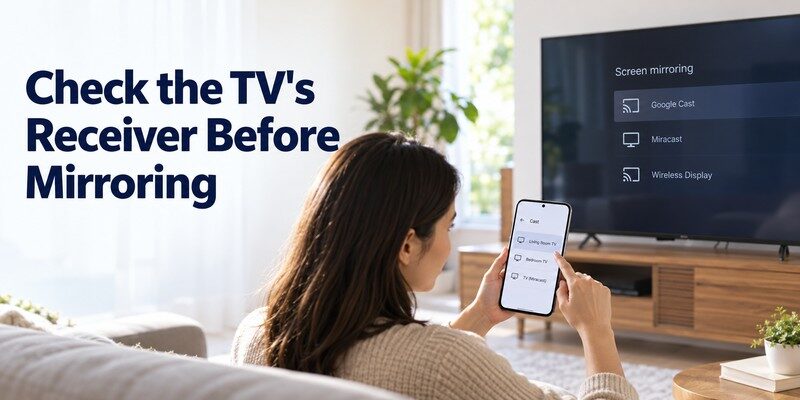
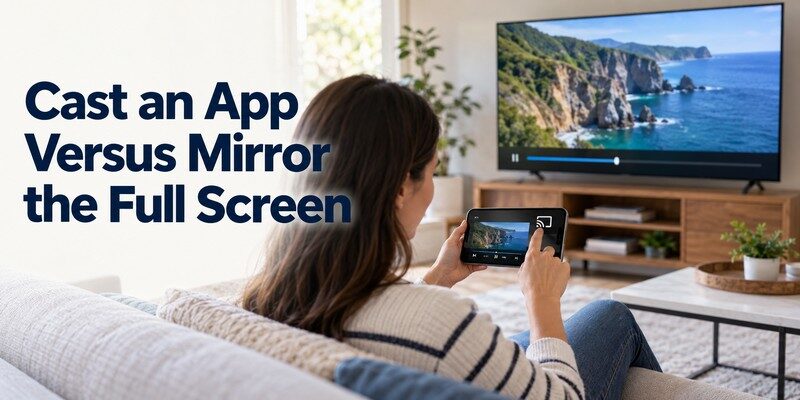
People use cast and mirror interchangeably, but they work differently. When learning how to screen mirror android to tv, choosing the right mode comes first.
For screen mirroring android to smart tv, start by understanding the two connection types. Screen mirroring duplicates most of what appears on your phone. Swipe through a photo gallery, open a browser, or rotate the phone, and the TV follows. It is useful for demos, family photos, webpages, and presentations. Depending on the device, the phone typically needs to stay awake and connected.
App casting sends supported media to a compatible TV or streaming device. You start a video from an app such as YouTube, press its Cast icon, and the TV handles playback. You can often use another phone app without displaying your messages or notifications on the television.
| Feature | Full-screen mirroring | App casting |
|---|---|---|
| TV displays | Phone screen and actions | Selected video, music, or media |
| Best for | Photos, documents, demos, browsing | Movies, music, online videos |
| Phone notifications | May be visible | Normally not shown as part of playback |
| Compatibility | Requires supported mirroring technology | Requires a supported app and receiver |
| Playback behavior | Can be affected by phone activity | Often continues while you use the phone |
When researching how to screen mirror android to tv, first decide whether you actually need the entire screen. For watching a film, native app casting usually offers a cleaner experience. For sharing a webpage or demonstrating an app, screen mirroring is a better fit.
📖 Read More Guides: Miracast Setup Guide: How to Connect Phone or PC to TV
Mirror Android to Chromecast, Google TV, or Android TV
A Google Cast-compatible TV or streaming device is a practical option for many Android phones. Google says Android 8.0 and later supports screen casting through Google Home controls, although real-world performance depends on device capability and network conditions.
Method 1: Mirror the entire phone through Google Home
If your TV or streaming device supports Google Cast, follow this how to screen mirror android to tv procedure:
- Connect the phone and TV or streaming device to the same Wi-Fi network.
- Open Google Home on your Android phone, and locate the compatible TV or streaming device.
- Open its device controls and tap Cast my screen or Cast screen, depending on the interface.
- Confirm the on-screen warning. The TV should show the phone display.
- When finished, return to the device controls and choose Stop mirroring.
Method 2: Cast only a video or song
Open a Cast-enabled app, select the Cast icon, choose the TV, and start playback. Google TV’s official guidance says the app and receiver must support Google Cast and be on the same wireless network. The video plays on the television, rather than copying your entire phone interface.
Do not confuse the Google TV phone remote with its media-casting feature. A virtual remote controls menus and playback; it does not automatically mirror every screen. For additional TV-control instructions, see our Google TV remote app for Android guide.
Method 3: Use the built-in Android Cast shortcut
On supported phones, open Quick Settings, tap Cast, select a compatible TV, and approve the connection. If the tile is absent, check the phone’s connected-device settings.
The most important lesson about how to screen mirror android to tv with Google devices is that Google Cast is not universally interchangeable with Miracast. A Roku or older wireless display may require a different route.
Mirror Android to Samsung, LG, Roku, and Fire TV
TV brands take different approaches, so how to screen mirror android to tv changes slightly across models and operating systems. Use the instructions below as a starting point and follow your TV’s on-screen prompts.
Samsung TV: Use Smart View
For Samsung owners wondering how to screen mirror android to tv, the built-in Smart View shortcut is often the quickest route. On a compatible Samsung Galaxy phone, swipe down to Quick Settings, tap Smart View, select the Samsung TV, and choose Start now. Approve the connection on the television if prompted. Samsung also documents a path through SmartThings, where you select the TV and use Mirror screen (Smart View). Samsung says SmartThings can discover most of its TVs released from 2016 onward, although compatibility is model-dependent.
Smart View is a built-in Galaxy feature, not an Android app you must download separately. Samsung notes that availability varies by phone and TV model. For problems navigating the TV menus, our samsung tv remote app article covers alternative control options.
LG TV: Use Screen Share
On many compatible LG televisions, select Screen Share or the corresponding sharing feature on the TV. On your Android phone, open Screen Share, Smart View, or Wireless Display, select your LG TV, and accept the request on its screen. LG’s July 2026 support guidance confirms this workflow, while noting that the exact controls vary by model.
If your LG TV does not appear, check its network settings and screen-sharing permissions before installing anything. If you’re also troubleshooting LG’s smart-home connection, see LG ThinQ app not finding TV.
Roku TV or Roku streaming device: Check screen mirroring support
Roku supports screen mirroring from compatible Android devices, but not every Roku model or Android phone supports the necessary method. On the Roku, check Settings > System > Screen mirroring if available. Set its prompt preference, then start your phone’s compatible wireless-display feature and confirm the Roku request.
Roku’s support documentation lists exceptions even within the Roku Express family. Some phones, including certain Google Pixel models, may not provide the Miracast-based mirroring Roku expects. In that case, use a supported app’s casting option, another compatible receiver, or a cable instead.
Fire TV: Enable Display Mirroring when available
On a compatible Amazon Fire TV, open Settings > Display & Sounds > Enable Display Mirroring. Activate a Miracast-compatible wireless display feature on your Android phone and select Fire TV. Amazon explicitly states that if the Enable Display Mirroring option is absent, that Fire TV does not support this method.
💡 Discover Helpful Guides: AirPlay for Android: How to Cast and Mirror to Any TV in 2026
How to Mirror Android to TV Without Wi-Fi
Not having home Wi-Fi does not always prevent screen sharing. However, the alternatives depend on hardware support, and the phrase without Wi-Fi can mean two different things: no internet subscription or no wireless connection at all.
Option 1: USB-C to HDMI cable
If you want a stable connection and your phone supports video output over USB-C, consider a compatible USB-C-to-HDMI adapter or dock.
- Check the phone manufacturer’s specifications for external-display or video-output support, such as DisplayPort Alternate Mode.
- Connect the adapter to the phone, then attach an HDMI cable to the TV.
- Select the matching HDMI input on the television.
- Follow the phone’s external-display prompt, if one appears.
Important: Many Android phones use USB-C only for charging and data. A USB-C port does not automatically mean HDMI video output works. Buying a random cable before confirming compatibility can waste money.
A wired connection is a good way to approach how to screen mirror android to tv in a hotel, a meeting room, or a home with unreliable wireless service. It can also reduce Wi-Fi-related instability, although display behavior still depends on the phone.
Option 2: Miracast or Wi-Fi Direct
Some supported phones and TVs can establish a Miracast connection through Wi-Fi Direct without an internet connection or a conventional home router. Both devices must support the same wireless-display technology. This is not the same as saying every TV can mirror without Wi-Fi hardware.
For how to screen mirror android to tv without an existing router, try a verified wired adapter first if both devices support it. Otherwise, confirm Miracast compatibility before relying on wireless methods.
Do You Need a Screen Mirroring App?
Usually, no. When researching how to screen mirror android to tv, start with features already on your phone. A modern compatible Android phone may already have Cast, Smart View, or Screen Share. Installing a screen mirror app for android is useful only when the TV and phone need a compatible receiver or sender solution that their built-in tools do not offer.
Mirroring and remote control are separate features
A TV remote app is not necessarily a mirroring app. For example, Begamob Global Limited’s Remote TV app focuses on turning a supported iPhone or iPad into a smart TV remote. Its App Store listing describes TV navigation, playback controls, and photo or video casting on supported televisions. That does not make it an Android screen-mirroring tool.
After learning how to screen mirror android to tv, a separate remote can still be useful for changing inputs, opening TV apps, or adjusting the volume. If you also use an iPhone or iPad, explore universal remote tv control for supported TV-control functions.
CTA for iPhone/iPad users: Download universal remote tv control to manage compatible smart TVs. For Android mirroring, continue using the compatible Android method described above.
Fix Android Screen Mirroring Not Working
If you’ve followed the steps for how to screen mirror android to tv but nothing appears, troubleshoot systematically instead of installing several apps at once.
TV does not appear in the device list
A common obstacle to how to screen mirror android to tv is network isolation. Confirm the Wi-Fi network name. Your phone and TV should use the same local network for typical Cast discovery. Guest networks, router client isolation, and some mesh configurations may prevent devices from discovering each other even when both have internet access. Google specifically recommends ensuring that AP isolation is disabled for Google Cast connections.
Check the protocol. Google Cast, Miracast, and brand-specific mirroring are not identical. If the TV does not support the phone’s mirroring method, a restart will not change that limitation.
Restart and update. Power-cycle the phone, TV, and router. Install supported TV firmware and Android updates. On Google TV, check that the Google Cast system app is enabled.
The TV connects but shows a black screen
First test the phone’s home screen or a personal photo. If those appear but one movie app stays black, digital rights management (DRM) may be blocking mirrored playback. Samsung warns that DRM-protected content may not mirror. Use the licensed TV app or its supported media-casting function.
If every screen stays black, disconnect the session and reconnect. Check for pending permission prompts on the television and switch away from any unsupported adapter or HDMI input.
Screen mirroring lags, stutters, or disconnects
Move the phone closer to the router or TV, reduce competing downloads, and avoid congested guest Wi-Fi. Where supported, a less-congested 5 GHz connection can improve responsiveness at shorter ranges, while 2.4 GHz may reach farther. The best band depends on your environment; keep devices discoverable on the same local network.
The key to how to screen mirror android to tv successfully is choosing compatible technology first; Wi-Fi resets and new apps should be secondary troubleshooting steps.
Download TV Remote AppFrequently Asked Questions
Can I mirror any Android phone to any smart TV?
No. How to screen mirror android to tv depends on supported standards, operating-system features, and receiver compatibility. A television may accept Google Cast but not Miracast, or vice versa. A non-smart television generally needs a compatible external receiver or supported wired connection. The best answer to how to screen mirror android to tv also depends on the television’s firmware and available inputs.
How do I mirror Android phone to TV for free?
Most built-in phone and TV features do not require a separate paid subscription. Start with Cast, Smart View, or Screen Share and use a compatible television. If your TV requires an additional streaming device or adapter, hardware costs may apply. This is the simplest how to mirror android phone to tv workflow for many households.
Can I screen mirror Android to TV without Chromecast?
Yes. A compatible Samsung Smart View, LG Screen Share, Roku Miracast, Fire TV Miracast, or wired HDMI setup may work. Chromecast is one common route, not a universal requirement. Select the method based on your phone and TV specifications.
Can I mirror Android to a non-smart TV?
If you are wondering how to screen mirror android to tv without smart features, a compatible HDMI solution may help. Yes, if the TV has a usable HDMI port and you connect a compatible streaming receiver, or if your phone supports wired video output through the correct adapter. The non-smart TV itself typically cannot discover your phone wirelessly without additional hardware.
Why can I cast YouTube but not mirror my whole screen?
YouTube may send video through an app-supported Cast connection even when full-screen screen mirroring is unavailable. These are different technical capabilities. How to screen mirror android to tv is therefore a different question from how to play a Cast-enabled video.
Is screen mirroring safe on public Wi-Fi?
Prefer a trusted private network. Public or shared networks can introduce privacy and device-discovery risks, and many block local-device communication entirely. Avoid displaying passwords, private messages, financial accounts, or sensitive work content on a television other people can see.
💡 Discover Helpful Guides: How to Cast Phone to TV Without WiFi: 5 Reliable
Final Thoughts
Learning how to screen mirror android to tv is easier once you identify what your devices support. Use Smart View for compatible Samsung combinations, Google Home or Cast for Google Cast receivers, Screen Share or Miracast where supported, and HDMI when your phone allows wired video output. For movies, an app’s native Cast option may work better than duplicating the entire screen.
