
Screen Mirroring Not Working? 12 Easy Fixes for Any TV
Quick Answer: If screen mirroring not working is preventing your phone from connecting to your TV, first check that both devices support the same casting technology and are connected to the correct network. Then restart your phone and TV, update their software, enable screen mirroring, and reconnect.
For Android users, check Google Cast, Smart View, or Wireless Display settings. For iPhone users, make sure AirPlay is enabled and both devices are on the same Wi-Fi network.
The fastest fixes are usually checking Wi-Fi, restarting both devices, and allowing the connection request on the television.
If the connection succeeds but video freezes, disconnects, or displays a black screen, the problem may involve wireless interference, application compatibility, or protected content.
This guide explains the most common causes of screen mirroring not working and provides practical solutions for Android, iPhone, Samsung, LG, Roku, Google TV, and Windows.
1. Why Is Screen Mirroring Not Working? Common Causes
Screen mirroring allows a smartphone, tablet, or computer to display its screen on a compatible television without a physical HDMI cable.
Depending on the device, the connection may use Google Cast, Apple AirPlay, Miracast, or a manufacturer-specific technology.
Although these systems provide similar results, they do not use identical communication methods.
That means a connection failure does not always indicate a problem with your television or smartphone.
The most common causes
The main reasons for screen mirroring not working include:
- Different Wi-Fi networks: The sending device and television cannot discover each other.
- Unsupported protocols: The phone and TV use incompatible casting technologies.
- Missing permissions: The television has not approved the connection request.
- Outdated software: Device firmware or applications may contain compatibility issues.
- Wireless interference: Weak or congested connections cause delays and interruptions.
- Router restrictions: Guest networks or client isolation prevent local device discovery.
- Application problems: The casting application may be outdated or malfunctioning.
- Protected content: Certain streaming services block screen capture or mirroring.
Google’s official screen-casting documentation identifies network configuration and device proximity as important factors in connection quality.
Samsung also explains that devices must support compatible screen-sharing features and may require approval before mirroring begins.
Identify your problem before troubleshooting
| Symptom | Likely cause | Start with |
|---|---|---|
| TV does not appear | Network or compatibility | Check Wi-Fi and protocol |
| Connection fails immediately | Permission or pairing | Restart and reconnect |
| Screen goes black | Protected content | Test another application |
| Video freezes | Wireless performance | Reduce interference |
| Connection drops | Network instability | Check router and power settings |
| Mirroring app closes | Software problem | Update or reinstall the app |
A useful troubleshooting strategy is to identify whether the problem occurs during device discovery, connection, or playback.
If the television never appears, investigate connectivity and compatibility first.
If it appears but disconnects later, focus on connection stability.
📖 Read More Guides: How to Screen Mirror Android to TV: Easy Methods for 2026
2. 12 Quick Fixes for Screen Mirroring Connection Problems
When dealing with screen mirroring not working, start with basic checks before changing advanced settings.
The following twelve solutions address common problems across popular devices.
Fix 1: Connect both devices to the same Wi-Fi network
For ordinary Google Cast and AirPlay setups, connect your smartphone and television to the same local network.
On your phone, open Wi-Fi settings and check the connected network name.
Then open the television’s network settings and confirm its connection.
Both devices should be able to communicate over the same local network.
Different network names, guest networks, or router restrictions can prevent discovery.
Fix 2: Restart your phone and TV
Restart the smartphone and television.
This may clear temporary network sessions and software errors.
For a streaming adapter, disconnect and reconnect power according to the manufacturer’s instructions.
Apple, Google, and Samsung all recommend restarting affected devices as part of their troubleshooting guidance.
Fix 3: Verify casting compatibility
A television supporting Google Cast does not automatically support Miracast.
Similarly, an Android device cannot necessarily connect through Apple’s AirPlay protocol.
Check the documentation for your exact phone and TV model.
Both devices must support a compatible sending and receiving method.
Fix 4: Enable screen mirroring on the TV
Some televisions automatically advertise their casting capabilities.
Others require the user to open Screen Share, Screen Mirroring, or another receiving feature.
If your TV is not discoverable, check whether the correct option is enabled.
Fix 5: Allow the connection request
Your television may display a permission prompt when a new device attempts to connect.
Select Allow or the equivalent confirmation.
Samsung specifically identifies missing connection approval as a possible reason screen mirroring fails.
Fix 6: Update device software
Check for available operating system and firmware updates.
Outdated software may affect network discovery, pairing, or media playback.
Use the manufacturer’s supported update process.
Fix 7: Update your mirroring application
If you use a third-party app, install the latest compatible version.
Application updates may resolve crashes or connection problems.
Avoid downloading unofficial modified applications.
Fix 8: Check phone permissions
Casting applications may require Local Network, Nearby Devices, or other relevant permissions.
Open your phone’s application settings and review the required access.
Grant only the permissions necessary for the intended function.
Fix 9: Disable VPN temporarily for testing
Some VPN configurations interfere with local network discovery.
If you are comfortable testing without your VPN, temporarily disconnect it and try mirroring again.
Restore your normal security settings after the test.
Fix 10: Check router isolation settings
Certain routers prevent connected devices from communicating with one another.
Google identifies AP isolation, also called client isolation, as a possible cause of casting problems.
If your devices are on a guest network, move them to a trusted home network that permits local communication.
Change router settings only when you understand the security implications.
Fix 11: Remove saved devices and reconnect
Old pairing records can sometimes cause connection errors.
Remove the previously connected television from the relevant device list and establish a new connection.
For Windows Miracast connections, Microsoft recommends removing the saved wireless display and connecting again.
Fix 12: Try another casting method
If screen mirroring remains unavailable, determine whether your devices support another technology.
For example:
- Use Google Cast with compatible Android and Google TV devices.
- Use AirPlay with compatible Apple devices and TVs.
- Use Smart View with supported Samsung devices.
- Use Miracast on supported Windows computers and receivers.
- Use a compatible wired connection when wireless options fail.
Do not assume installing another application can add missing wireless display hardware or protocol support.
These checks can resolve many screen mirroring not working problems without requiring a factory reset.
📖 Read More Guides: Miracast Setup Guide: How to Connect Phone or PC to TV
3. How to Fix Screen Mirroring on Android and Google TV
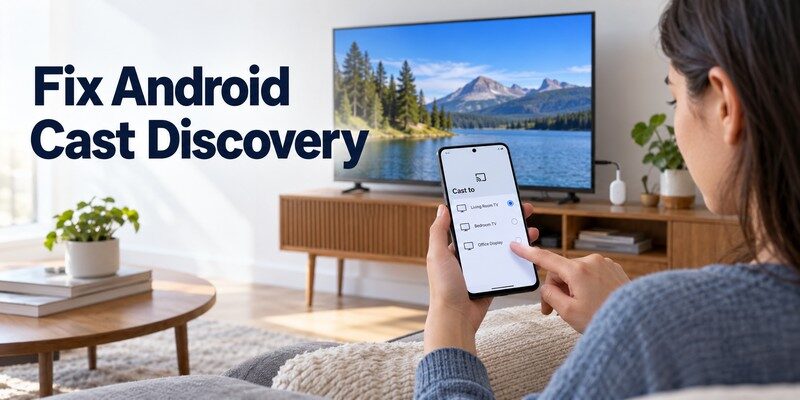
Android screen mirroring depends on the smartphone manufacturer and the receiving television.
Google Pixel phones, Samsung Galaxy devices, and other Android phones may use different wireless display technologies.
Check Google Cast settings
If you use Chromecast or Google TV:
- Turn on your television.
- Connect your Android phone to the same Wi-Fi network.
- Open a Google Cast-compatible application.
- Look for the Cast icon.
- Select your television.
- Begin playback.
If the television does not appear, check whether Google Cast is enabled on the TV.
For full-screen mirroring, use the supported screen-casting function through your device or Google Home.
Check the Google Home application
If the device is missing:
- Update Google Home.
- Confirm your TV is powered on.
- Check the network connection.
- Restart the streaming receiver.
- Open Google Home again.
- Retry device discovery.
Google recommends reviewing access-point isolation when devices cannot communicate across the network.
Check Samsung Smart View
On compatible Samsung Galaxy phones:
- Swipe down to open Quick Settings.
- Tap Smart View.
- Choose your television.
- Approve the connection request.
- Tap Start now if prompted.
If the connection fails, restart the devices and check for available updates.
Samsung also recommends ensuring that the correct television permissions have been granted.
Check Android battery restrictions
Battery-saving features can sometimes interfere with third-party screen-sharing applications.
If a particular app stops working when your phone locks, review its battery settings.
Where appropriate, allow the application to operate normally during mirroring.
However, do not disable battery protections globally without a clear reason.
When screen mirroring not working affects only one Android application, the issue may be application-specific rather than a fault with the television.
💡 Discover Helpful Guides: AirPlay for Android: How to Cast and Mirror to Any TV in 2026
4. How to Fix Screen Mirroring on iPhone and AirPlay
Apple devices primarily use AirPlay for wireless screen mirroring.
Apple Support recommends checking compatibility, Wi-Fi connectivity, software updates, and device availability when AirPlay fails.
Step 1: Verify AirPlay compatibility
Confirm that your television supports AirPlay.
Many compatible Samsung, LG, Sony, and other smart televisions include AirPlay functionality, but support varies by model.
An iPhone cannot automatically mirror through a Miracast-only receiver.
Step 2: Connect to the same Wi-Fi network
Open Wi-Fi settings on your iPhone.
Check your television’s network settings and confirm that both devices can communicate over the local network.
This is particularly important for AirPlay receivers.
Step 3: Open Screen Mirroring
On your iPhone:
- Open Control Center.
- Tap Screen Mirroring.
- Select your compatible television.
- Enter the AirPlay passcode if requested.
- Wait for the connection to complete.
If the TV does not appear, check whether AirPlay receiving is enabled.
Step 4: Restart and update
Restart the iPhone and television.
Install relevant software updates.
Apple identifies outdated software and incompatible network conditions as possible causes of AirPlay problems.
Step 5: Check application restrictions
Some applications restrict screen capture or wireless streaming.
If your photos mirror correctly but one streaming service displays a black screen, the application may be enforcing content protection.
Try the service’s supported TV app instead.
If screen mirroring not working occurs only with protected video, changing Wi-Fi settings may not resolve it.
💡 Discover Helpful Guides: How to Cast Phone to TV Without WiFi: 5 Reliable
5. Screen Mirroring Problems on Samsung, LG, Roku, and Other TVs
Different smart TV brands use different operating systems and wireless sharing technologies.
The following fixes focus on common manufacturer-specific problems.
Samsung Smart TV
Samsung users should check Smart View compatibility, device approval, and network connectivity.
Samsung Support advises users to ensure that the phone and TV are connected to the same network and that the television accepts the connection request.
If Smart View fails:
- Restart the TV.
- Restart your Galaxy phone.
- Confirm both devices use the correct Wi-Fi network.
- Open Smart View again.
- Select the television.
- Approve the connection request.
For help navigating television settings, see our samsung tv remote app guide.
It explains compatible phone-based remote controls for Samsung televisions.
LG Smart TV
LG televisions may provide Screen Share, AirPlay, Google Cast, or another wireless display feature.
Availability depends on the specific model.
If your television does not appear, confirm which technology it supports and whether the corresponding feature is enabled.
For related device discovery problems, read our LG ThinQ app not finding TV guide.
LG ThinQ remote-control pairing and screen mirroring are different functions, so troubleshooting one may not automatically resolve the other.
Roku TV
Roku supports different screen-sharing capabilities depending on the model.
Some Roku devices support AirPlay, while compatible Android devices may use supported screen mirroring methods.
If your phone does not detect the TV:
- Confirm device compatibility.
- Open the Roku’s screen mirroring settings, where available.
- Check device permissions.
- Restart the Roku and smartphone.
- Reconnect using the supported protocol.
VIZIO Smart TV
VIZIO televisions may support different casting technologies depending on their model and software version.
If the television cannot be discovered, check the local network, app permissions, and firmware.
For additional connectivity guidance, see VIZIO SmartCast app won’t connect to TV.
The guide covers device discovery, permissions, network settings, and pairing issues.
Manufacturer compatibility should always be checked before treating screen mirroring not working as a hardware failure.
6. How to Fix Screen Mirroring Disconnecting, Lagging, or Freezing
A connection that starts successfully but becomes unstable usually requires a different troubleshooting approach from a television that never appears.
Why does screen mirroring disconnect?
If your screen mirror keeps disconnecting, possible causes include:
- Weak wireless signal
- Router congestion
- Device power-saving behavior
- Outdated application software
- Receiver instability
- Automatic network switching
Start by moving your devices closer together and restarting the connection.
Improve wireless signal quality
Google’s Android screen-casting guidance recommends keeping the Android device and receiving device within approximately 15 feet (4 meters) of one another for optimal performance.
It also recommends keeping the streaming receiver within approximately 15 feet of the router.
These are troubleshooting recommendations, not strict technical range limits.
Walls, interference, and router capabilities can affect the actual connection.
Try the same Wi-Fi band
Many modern home networks support both 2.4 GHz and 5 GHz wireless bands.
The 2.4 GHz band generally provides longer reach, while 5 GHz may offer better throughput under suitable conditions.
If mirroring is unstable, test whether connecting both devices to the same supported band improves performance.
The important factor is a stable connection, not simply choosing the highest frequency.
Reduce display resolution
High-resolution mirroring requires more processing and transmission capacity.
A Full HD display contains 1920 × 1080 pixels, approximately 2.07 million pixels.
A 4K UHD display contains 3840 × 2160 pixels, approximately 8.29 million pixels.
That is four times as many pixels.
Higher resolution does not always mean four times the network traffic because compression and encoding methods vary.
However, reducing resolution may improve stability on devices that support adjustable mirroring quality.
Reduce background activity
Close unnecessary applications, pause large downloads, and check whether the phone is overheating.
Some devices reduce performance when they become too hot.
Avoid using aggressive power-saving settings during demanding screen mirroring sessions.
Understand wireless latency
A display operating at 60 Hz refreshes approximately once every 16.7 milliseconds.
However, wireless screen mirroring also requires encoding, transmission, decoding, and display processing.
Therefore, 16.7 milliseconds is not a measurement of total mirroring latency.
A practical screen mirroring lag fix is to reduce interference, lower the output resolution when supported, and use a wired connection for latency-sensitive activities.
If screen mirroring not working occurs mainly during gaming, consider whether the wireless connection is suitable for your performance requirements.
💡 Discover Helpful Guides: How to Mirror iPhone to TV: AirPlay and HDMI Steps
7. How to Fix Screen Mirroring Apps Crashing or Showing a Black Screen
Software problems can affect third-party casting applications even when the phone and television are compatible.
The correct solution depends on whether the application closes unexpectedly, fails to detect the television, or displays blank content.
Fix a crashing screen mirroring application
If you encounter a screen mirror app crashing problem, try the following:
- Close the application completely.
- Restart the smartphone.
- Update the application.
- Install available operating system updates.
- Review application permissions.
- Clear temporary app data where supported.
- Reinstall the application if necessary.
On Android, you can often open Settings > Apps, select the application, and choose Storage & cache.
Use Clear cache if available.
Avoid selecting Clear storage unless you understand that saved settings and application data may be removed.
Google’s casting support guidance includes force-closing applications and clearing cache as possible solutions for playback problems.
Fix black screen during mirroring
A black screen does not always indicate a broken connection.
First, test ordinary content such as your phone’s home screen or a personal photo.
If general content appears correctly but a streaming video remains black, digital rights management may be responsible.
Some services restrict screen capture or mirroring of protected video.
Use the streaming service’s supported television application instead.
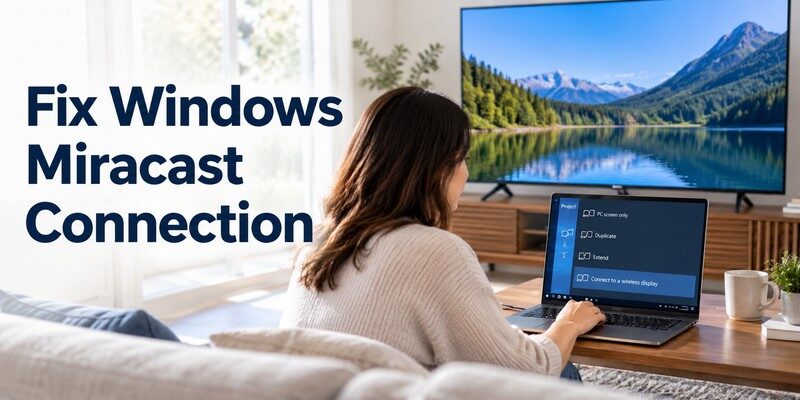
Fix Windows wireless display problems
For Windows computers, Microsoft recommends checking Miracast support, wireless connectivity, drivers, and receiving-device compatibility.
Try the following:
- Enable Wi-Fi.
- Press Windows + K.
- Confirm that Miracast is supported.
- Restart the computer and TV.
- Update graphics and wireless drivers.
- Remove an old display pairing.
- Reconnect the television.
If you are projecting to another Windows PC, the receiving computer may need the optional Wireless Display feature installed.
That feature is different from the sender’s built-in Miracast functionality.
Know when to stop troubleshooting
If screen mirroring not working persists after compatibility checks, software updates, and network testing, consider another supported connection method.
For a compatible computer, HDMI may provide a more reliable display connection.
A factory reset should generally be reserved for situations where less disruptive solutions have failed and the manufacturer specifically recommends it.
💡 Discover Helpful Guides: Cast Phone Screen to TV: Choose Full Mirroring or App Playback
8. Frequently Asked Questions and Tips for Stable Screen Mirroring
Why is my screen mirroring not working even though both devices use Wi-Fi?
Both devices may be connected to Wi-Fi but unable to communicate with one another.
Guest networks, client isolation, incompatible casting protocols, or missing permissions can cause this problem.
Confirm that both devices support the same connection method and can communicate over the local network.
Why does my TV appear but fail to connect?
The television may be rejecting the pairing request or using an incompatible receiving mode.
Restart both devices and approve any connection prompts.
Also check for outdated firmware and saved connection records.
Why does screen mirroring stop after a few minutes?
Wireless interference, application instability, power-saving settings, or an overheated device may interrupt the connection.
Try moving devices closer together, restarting the mirroring session, and checking battery settings.
Can I fix screen mirroring without restarting my router?
Yes.
Many problems can be resolved by reconnecting Wi-Fi, restarting the phone and TV, enabling the correct receiver feature, or updating the application.
Restarting your router is only one possible troubleshooting step.
Does screen mirroring work without internet access?
Some compatible Miracast devices can communicate using Wi-Fi Direct without a conventional home internet connection.
AirPlay and Google Cast commonly use local network connections, and online streaming content still requires internet access.
Available features depend on the devices and connection method.
💡 Discover Helpful Guides: Screen Mirroring Not Working? 12 Easy Fixes for Any TV
Can a TV remote application fix screen mirroring?
A remote application may help you navigate television settings or select the correct input.
However, it cannot automatically repair unsupported casting protocols.
For users whose physical remote is missing, a compatible Remote TV app may make television navigation more convenient.
Can I control my TV from an iPhone?
Begamob Global Limited offers universal remote tv control for compatible iPhone and iPad devices.
The application provides supported smart TV remote-control features, including navigation, volume adjustment, and selected media functions.
According to its App Store listing, the application is free to download with in-app purchases.
Remote-control functionality should not be confused with native AirPlay, Miracast, or universal screen mirroring support.
If you want an alternative way to navigate supported smart television menus, you can Download universal remote tv control from the App Store.
How can I prevent future screen mirroring problems?
Follow these practical recommendations:
- Keep your television and smartphone updated.
- Use a stable wireless connection.
- Avoid isolated guest networks for local casting.
- Check compatibility before installing casting applications.
- Review app permissions.
- Keep streaming devices within a suitable wireless range.
- Disconnect after screen sharing.
- Use a wired connection when low latency is essential.
These habits can reduce recurring screen mirroring not working issues and make future connections more reliable.
Conclusion
If screen mirroring not working is preventing you from connecting your phone or computer to a television, start with compatibility, Wi-Fi connectivity, and device permissions.
The most effective first steps are to connect devices to the correct network, restart both devices, update software, and enable the appropriate screen-sharing feature.
Android users should check Google Cast or their manufacturer’s mirroring technology.
iPhone users should verify AirPlay compatibility and settings.
For Samsung, LG, Roku, and other smart TVs, the correct troubleshooting method depends on the specific model and supported protocol.
If the connection works but freezes or disconnects, focus on wireless stability, resolution, and application performance.
For problems involving protected streaming content, use the service’s compatible TV application rather than attempting to bypass content restrictions.
Successful screen mirroring depends on compatible devices, a stable connection, and the correct casting technology.
By following these steps, you can resolve many common connection problems without replacing your television or purchasing unnecessary software.
Download TV Remote App