
Wireless Display Setup: How to Connect Windows or Phone to TV
Quick Answer: To complete a wireless display setup, turn on your compatible TV, enable its screen mirroring or Miracast feature, and press Windows + K on your Windows 11 or Windows 10 computer. Select your television from the available devices and approve the connection request. Your computer screen should appear on the TV without an HDMI cable.
For Android phones, open the supported Cast, Smart View, or Screen Mirroring feature and select your television.
The most important requirement is compatibility. Both devices must support the same wireless display technology, such as Miracast or Google Cast.
If your television lacks built-in wireless mirroring, a compatible HDMI wireless display adapter may provide the missing functionality.
This wireless display setup guide explains how to connect Windows computers, Android phones, and smart televisions, install the necessary Windows features, troubleshoot connection problems, and choose suitable adapters.
Whether you want to stream presentations, share family photos, or extend your computer desktop, these instructions will help you establish a reliable wireless connection.
1. What Is Wireless Display and How Does It Work?
Wireless display technology allows a computer, smartphone, or tablet to transmit visual content to another screen without using a traditional video cable.
Instead of connecting a device through HDMI, the sender communicates with a compatible television, monitor, projector, or wireless display receiver.
A successful wireless display setup can make presentations, screen sharing, and home entertainment more convenient.
How wireless display technology works
Most wireless display systems involve three main components:
- Sending device: A Windows computer, Android smartphone, or another compatible device.
- Wireless connection: A supported wireless communication technology.
- Receiving display: A smart TV, projector, monitor, or dedicated adapter.
The sender discovers the receiver, establishes a connection, and transmits the appropriate video or screen information.
The receiver then displays the content on its screen.
However, different wireless display technologies operate differently.
Miracast
Miracast is a wireless display standard developed through the Wi-Fi Alliance certification program.
The program launched in September 2012, enabling compatible devices to establish wireless display connections using Wi-Fi Direct.
Miracast can connect devices without requiring a conventional home internet connection.
However, both sending and receiving devices must support the protocol.
Google Cast
Google Cast is commonly used with Chromecast devices, Google TV, and compatible smart televisions.
Google’s support documentation explains that casting typically requires the sending device and receiving television to be connected to the same Wi-Fi network.
Unlike basic full-screen mirroring, compatible media casting can allow the receiving device to play content independently.
Apple AirPlay
AirPlay is Apple’s wireless streaming technology.
Compatible Apple devices can use it to transmit supported media or mirror their screens to Apple TV and AirPlay-enabled televisions.
Windows and Android devices do not generally include Apple’s native AirPlay sender functionality.
Wireless display vs screen mirroring
These terms are related but not identical.
| Feature | Wireless display | Screen mirroring |
|---|---|---|
| Purpose | Connect devices to external displays | Duplicate screen content |
| Display extension | Supported by some systems | Usually not |
| Wireless technology | Miracast, Wi-Fi Direct, and others | Miracast, AirPlay, Google Cast, etc. |
| Typical use | Presentations and additional monitors | Sharing the current screen |
Wireless display is the broader concept, while screen mirroring is one possible function.
Understanding this distinction helps you select the correct technology before beginning your wireless display setup.
Download TV Remote App2. Wireless Display Setup on Windows 11 and Windows 10
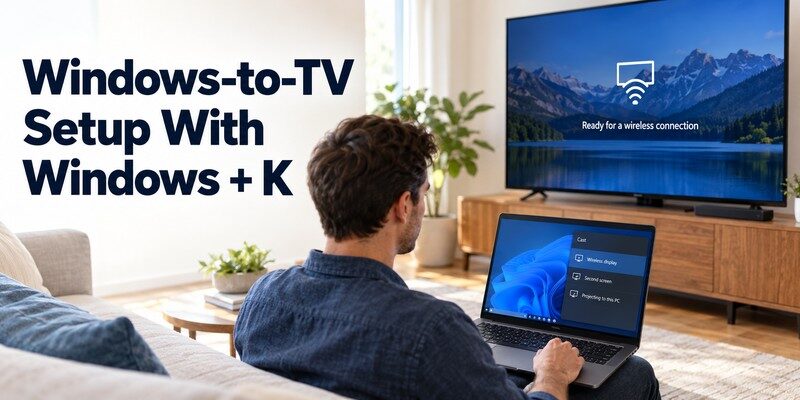
Windows provides built-in Miracast projection support on compatible computers.
According to Microsoft Support, Windows 11 and Windows 10 can connect to external displays that support Miracast.
You generally do not need to install the optional Windows Wireless Display receiver application just to cast your desktop to a TV.
Step 1: Check whether your computer supports Miracast
Before starting, confirm that your computer has compatible graphics hardware and a wireless network adapter.
Microsoft recommends checking Miracast availability through Windows.
Follow these steps:
- Turn on your Windows computer.
- Enable Wi-Fi.
- Press Windows + K.
- Check whether Windows can search for compatible wireless displays.
- Review any unsupported-device warning.
If Windows indicates that your computer cannot use Miracast, update your graphics and wireless network drivers.
Remember that driver updates cannot always overcome hardware limitations.
🧭 Explore Guides: How to Screen Mirror Android to TV: Easy Methods for 2026
Step 2: Enable wireless display on your television
Turn on the TV and open its connection settings.
Depending on the manufacturer, look for:
- Screen Mirroring
- Wireless Display
- Miracast
- Screen Share
- Wireless Projection
Enable the supported feature if required.
Some televisions automatically advertise their wireless display capability, while others require you to open a dedicated mirroring screen.
If your TV lacks Miracast, you may need a compatible receiver connected to HDMI.
Step 3: Connect your Windows computer
The basic wireless display setup procedure is straightforward.
- Press Windows + K.
- Wait for the list of available devices.
- Select your television or wireless adapter.
- Approve the connection request on the TV.
- Enter a PIN if requested.
- Wait for Windows to establish the connection.
Once connected, your computer should display content on the television.
The process is similar for Windows 10, although the appearance of menus may differ.
Users searching for wireless display windows to tv instructions can generally begin with this keyboard shortcut instead of installing unrelated applications.
Step 4: Choose the correct projection mode
Press Windows + P to open projection settings.
Windows offers four main options:
| Projection mode | Function |
|---|---|
| PC screen only | Displays content only on the computer |
| Duplicate | Shows the same screen on both displays |
| Extend | Uses the television as an additional desktop |
| Second screen only | Displays content on the external screen |
Choose Duplicate if you want ordinary screen mirroring.
Choose Extend when you want additional workspace for documents, spreadsheets, or presentations.
For example, you can keep notes on your laptop while displaying slides on a television.
Step 5: Adjust display settings
Open Settings > System > Display.
Select the connected television and review the available resolution and scaling options.
A Full HD display uses 1920 × 1080 pixels, equivalent to approximately 2.07 million pixels.
A 4K UHD display uses 3840 × 2160 pixels, approximately 8.29 million pixels.
That means 4K UHD contains four times as many pixels as Full HD.
However, actual wireless output resolution depends on your computer, television, receiver, and connection conditions.
If the connection is unstable, try a lower supported resolution.
Step 6: Disconnect when finished
Press Windows + K and disconnect the television.
This is particularly important after presentations or meetings involving sensitive information.
Completing these steps provides a practical wireless display setup for compatible Windows computers without requiring a physical video cable.
🧭 Explore Guides: Miracast Setup Guide: How to Connect Phone or PC to TV
3. How to Install Wireless Display on a Windows PC
One common source of confusion is the difference between casting from Windows and receiving a wireless projection on Windows.
Installing the optional Wireless Display feature is primarily necessary when you want another device to project onto your Windows computer.
It is not normally required just to cast a compatible Windows PC to a Miracast television.
How to install Wireless Display on Windows 11
According to Microsoft Support, the procedure for configuring a Windows PC as a wireless receiver is:
- Open Start > Settings.
- Select System.
- Open Projecting to this PC.
- Find the Wireless Display optional feature option.
- Select Optional features.
- Choose View features.
- Search for Wireless Display.
- Select the feature and click Next.
- Click Install.
After installation, return to Projecting to this PC and configure the available projection preferences.
Launch the Wireless Display application
For Windows 11 version 22H2 and later, Microsoft identifies Wireless Display as the application used to receive supported wireless projections.
Search for Wireless Display in the Windows taskbar and open it.
On supported earlier Windows versions, the corresponding receiver application may be called Connect.
The receiving computer must have compatible hardware and appropriate projection settings.
Connect another PC to the receiver
Once the receiving computer is ready:
- Open Wireless Display on the receiving PC.
- On the sending computer, press Windows + K.
- Select the receiving PC.
- Approve any connection prompts.
- Choose the appropriate projection mode.
This allows a compatible computer to function as an additional wireless screen.
What if Wireless Display is unavailable?
Check your Windows version, wireless adapter support, and system permissions.
Some computers do not support receiving Miracast projections.
If the optional feature cannot be installed, do not assume a third-party application will automatically provide equivalent hardware support.
For a successful wireless display setup, determine whether your Windows device is acting as the sender or receiver before installing anything.
🧭 Explore Guides: AirPlay for Android: How to Cast and Mirror to Any TV in 2026
4. How to Set Up Wireless Display on Android and Smart TV
Android phones can share their screens wirelessly, but the available features vary between manufacturers.
For example, Samsung Galaxy devices commonly include Smart View, while Google Pixel phones generally rely on Google Cast.
Wireless display setup on Samsung Galaxy
Samsung provides Smart View for compatible screen mirroring connections.
Samsung Support recommends connecting the phone and television to the same Wi-Fi network.
To begin:
- Turn on your Samsung Smart TV.
- Enable Wi-Fi on your Galaxy phone.
- Swipe down to open Quick Settings.
- Tap Smart View.
- Select your television.
- Approve the connection request.
- Tap Start now if prompted.
Your phone’s screen should appear on the TV.
If Smart View does not appear, check your phone’s Quick Settings customization options.
Some television models may require enabling screen mirroring first.
If you need help controlling the television before connecting, read our samsung tv remote app guide.
Wireless display setup on Google TV
Google TV and many Android TV devices support Google Cast.
Google TV Help provides a simple process for casting supported content:
- Connect your phone and TV to the same Wi-Fi network.
- Open a Google Cast-enabled application.
- Tap the Cast icon.
- Select your television.
- Start playback.
This process is particularly useful for compatible streaming applications.
However, casting an individual video is not always the same as mirroring the entire Android screen.
Full-screen sharing depends on the phone and supported Google Cast functionality.
For related television controls, explore our Google TV remote app for Android guide.
Wireless display on LG and other TVs
Many LG televisions include Screen Share or another compatible wireless display feature.
A typical setup involves:
- Opening the television’s connection settings.
- Enabling its supported screen sharing feature.
- Opening the corresponding option on your Android phone.
- Selecting the television.
- Approving the connection.
Some televisions support Miracast, while others support Google Cast or proprietary technologies.
Do not assume that every Cast button establishes a Miracast connection.
If your LG TV cannot be discovered, see our LG ThinQ app not finding TV troubleshooting guide.
Before beginning any wireless display setup, confirm that both devices support the same connection technology.
5. How to Choose and Set Up a Wireless Display Adapter
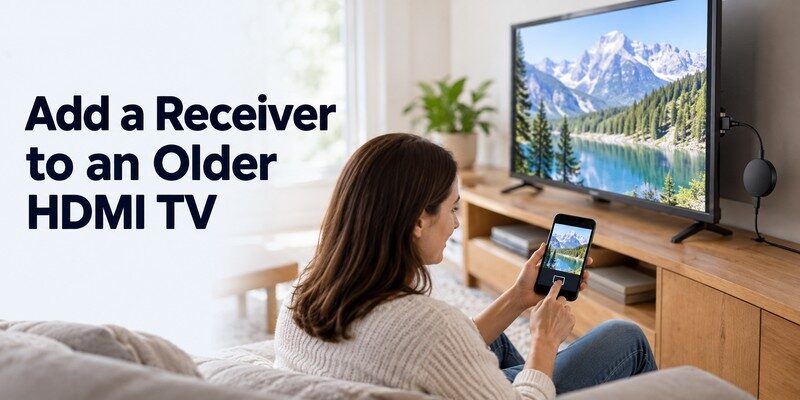
Not every television includes built-in wireless display functionality.
If your TV has an HDMI input but lacks compatible wireless mirroring support, an external adapter may provide the missing receiving capability.
What is a wireless display adapter?
A wireless display adapter is a device that connects to a television or monitor and receives supported wireless display signals.
Many Miracast adapters connect through HDMI and require USB power.
Microsoft’s official Wireless Display Adapter instructions describe connecting the HDMI end to the display and supplying power through USB.
For Microsoft’s adapter, the documented alternative power requirement is 5W (5V/1A) when the display does not provide a suitable USB power port.
Other adapters may have different power requirements.
How to set up an adapter
A typical wireless display setup with a Miracast receiver involves:
- Connect the adapter to an HDMI port.
- Supply power according to its instructions.
- Turn on the television.
- Select the correct HDMI input.
- Wait for the receiver’s connection screen.
- Enable Wi-Fi on your sending device.
- Press Windows + K on a compatible Windows PC.
- Select the adapter and approve the connection.
After pairing, your computer screen should appear on the television.
How to choose the right adapter
When looking for the best wireless display adapter, evaluate the following:
| Feature | Why it matters |
|---|---|
| Protocol support | Must match your sending device |
| HDMI compatibility | Must work with your display |
| Resolution | Determines available image quality |
| Power requirements | Affects installation convenience |
| Firmware updates | May improve stability |
| Audio support | Important for video playback |
| Manufacturer support | Helps with troubleshooting |
Protocol compatibility is more important than the adapter’s advertised resolution.
For example, a Google Cast receiver is not automatically a Miracast receiver.
Similarly, a Miracast-only adapter will not necessarily support native iPhone AirPlay mirroring.
Choose an adapter based on your actual devices rather than relying on labels such as “universal wireless display.”
🧭 Explore Guides: How to Cast Phone to TV Without WiFi: 5 Reliable
6. Wireless Display Not Working? Common Problems and Fixes
Connection problems can occur even when a computer and television appear compatible.
Microsoft’s troubleshooting guidance recommends checking Miracast support, Wi-Fi status, firmware, drivers, and saved device connections.
If you encounter wireless display not working errors, try the following solutions.
Fix 1: Confirm Miracast support
On Windows, press Windows + K.
If Windows reports that Miracast is unsupported, confirm that the graphics adapter and wireless hardware meet the necessary requirements.
Also verify that the receiving television supports Miracast.
A television supporting only Google Cast may not appear as a Windows Miracast display.
Fix 2: Turn on Wi-Fi
Even when a Miracast connection does not require home internet access, the Windows wireless adapter must generally be active.
Check that Wi-Fi is enabled and Airplane Mode is off.
If the wireless adapter is disabled, enable it before trying again.
Fix 3: Restart both devices
Restart your computer and television.
If using an external adapter, restart it according to the manufacturer’s instructions.
Temporary discovery and pairing errors may disappear after a restart.
Fix 4: Update graphics and Wi-Fi drivers
Windows relies on compatible graphics and wireless networking components for Miracast.
Outdated drivers can prevent connections or cause unstable performance.
Use Windows Update or trusted manufacturer-provided drivers.
Avoid unofficial driver download websites.
Fix 5: Update the TV firmware
Some wireless connection issues result from outdated receiver software.
Open the television’s settings and check for available system updates.
Install supported updates and restart the device.
Fix 6: Remove an old connection
A previously saved wireless display pairing may cause connection problems.
On Windows 11:
- Open Settings.
- Select Bluetooth & devices.
- Open Devices.
- Locate Wireless displays & docks.
- Select the saved device.
- Remove it.
- Reconnect using Windows + K.
Microsoft recommends removing and reconnecting the wireless display when connection problems persist.
Fix 7: Check the receiving device
If you are projecting to another Windows computer, confirm that the receiving PC has the optional Wireless Display feature installed and its receiving application running.
If you are projecting to a TV, confirm that the correct mirroring feature or HDMI adapter input is active.
This is a critical distinction in wireless display setup troubleshooting.
Fix 8: Check your local network
For Google Cast connections, confirm that the sending device and television use the same Wi-Fi network.
Google TV Help also recommends checking whether Google Cast is enabled in the television’s system applications.
A guest network or router isolation setting may prevent device discovery.
Fix 9: Reduce interference
Move the devices closer together and reduce potential interference from nearby wireless equipment.
If your adapter supports multiple wireless frequency bands, follow the manufacturer’s recommendations.
Do not assume that changing a router setting will repair an unsupported Miracast connection.
Fix 10: Try a wired connection
When wireless mirroring remains unstable, HDMI may provide a more predictable alternative for compatible computers.
A cable is also useful for diagnosing whether the problem involves the wireless connection or the television itself.
Wireless display troubleshooting checklist
| Problem | Possible cause | Recommended action |
|---|---|---|
| TV not discovered | Unsupported protocol | Verify Miracast compatibility |
| Connection rejected | Pairing problem | Remove and reconnect device |
| Black screen | Protected content or output issue | Test desktop or local media |
| No audio | Incorrect audio output | Select the TV audio device |
| Image freezes | Wireless interference | Improve connection conditions |
| PC receiver not found | Missing receiver feature | Install Wireless Display |
| TV disconnects | Driver or firmware issue | Update software |
A systematic wireless display setup troubleshooting process is more effective than repeatedly installing unrelated casting applications.
🧭 Explore Guides: Screen Mirroring App Free: Best Apps to Cast Phone to TV
7. How to Improve Wireless Display Quality and Performance
A successful connection does not always guarantee smooth video or responsive controls.
Wireless performance depends on hardware capabilities, signal conditions, resolution, and the type of content being transmitted.
Use an appropriate display resolution
High-resolution video requires additional processing and transmission capacity.
If your computer supports multiple output resolutions, experiment with a lower setting when the display frequently freezes.
For presentations and general desktop use, Full HD may be sufficient.
However, lowering resolution does not resolve every connection problem.
Understand refresh rates and latency
A display running at 60 Hz updates its image 60 times per second.
That corresponds to an approximately 16.7-millisecond refresh interval.
However, this interval is not the total wireless display delay.
Screen capture, encoding, transmission, decoding, and display processing can introduce additional latency.
For ordinary presentations, this delay may be acceptable.
For fast competitive games, a wired display connection is generally more predictable.
Reduce background activity
Close unnecessary applications consuming significant processing resources.
Pause large downloads when the network is heavily congested.
Keep the computer connected to power during lengthy presentations when practical.
Use a stable wireless environment
Keep receiving devices within a suitable range.
Avoid unnecessary obstacles and strong sources of wireless interference.
Depending on your equipment, the 5 GHz band may provide more bandwidth under favorable conditions, while 2.4 GHz can offer greater range.
Actual performance varies with the local environment and receiver capabilities.
Protect your privacy
Full-screen mirroring can expose notifications, messages, and confidential documents.
Before connecting:
- Enable Do Not Disturb.
- Close personal applications.
- Confirm the receiver’s name.
- Avoid accepting unknown pairing requests.
- Disconnect after your session.
Reliable wireless display setup involves both performance and security, especially in meeting rooms and shared environments.
🧭 Explore Guides: How to Mirror iPhone to TV: AirPlay and HDMI Steps
8. Wireless Display Setup FAQs and Smart TV Control Tips
Can I set up a wireless display without Wi-Fi internet?
Yes, in some cases.
Miracast uses Wi-Fi Direct and can establish connections between compatible devices without a conventional home internet connection.
However, Wi-Fi hardware is still required, and some manufacturer-specific configurations may have additional requirements.
Google Cast commonly relies on a shared local network.
Does Windows 11 support wireless displays?
Yes, Windows 11 supports projecting to Miracast-compatible wireless displays when the computer has appropriate hardware and drivers.
Press Windows + K to discover available receivers.
The optional Wireless Display application is used when configuring a compatible Windows PC to receive projections.
Can I connect an Android phone to a wireless display?
Yes.
Many Android phones support Google Cast, Smart View, Miracast, or another manufacturer-specific screen mirroring feature.
Check your phone and television compatibility before attempting the connection.
Can I connect an iPhone using Miracast?
iPhones do not provide native Miracast screen mirroring.
Apple devices primarily use AirPlay with compatible receiving devices.
A Miracast-only adapter generally cannot provide native iPhone AirPlay support.
Does wireless display work with every smart TV?
No.
Some televisions support Miracast, others support Google Cast or AirPlay, and some support multiple technologies.
Older televisions may require compatible external receiving hardware.
Can I use wireless display for gaming?
Yes, but latency varies.
A wireless display may be suitable for casual games, presentations, and video sharing.
Games requiring highly responsive controls may perform better with a wired display connection.
Can a TV remote app help with wireless display setup?
Yes, indirectly.
A smart TV remote application can help users navigate supported television menus, change inputs, and access compatible settings.
However, a remote-control application does not automatically add Miracast support to an incompatible TV.
If your original remote is unavailable, a compatible Remote TV app may help you access the television’s settings before connecting.
For users with supported iPhones, Begamob Global Limited offers universal remote tv control.
The application is designed to provide convenient remote-control features for compatible smart TVs, including supported navigation and media functions.
Its App Store listing describes features such as volume control, channel navigation, supported streaming shortcuts, and selected media-sharing capabilities.
These functions should not be confused with native Windows Miracast projection.
To explore the available features for your television, Download universal remote tv control from the App Store.
The application is free to download with in-app purchases, and supported capabilities depend on your television model.
How long does wireless display setup take?
The connection process can be completed in a few steps once compatibility and settings are correct.
However, installation time varies when driver updates, receiver configuration, or optional Windows features are required.
What should I do if my TV never appears?
Start by confirming protocol compatibility.
Then verify that the television is turned on, its receiving feature is enabled, and the appropriate wireless settings are active.
If necessary, restart both devices and update their software.
For Google Cast, also verify that both devices can communicate over the same local network.
Conclusion
A reliable wireless display setup allows you to connect compatible Windows computers, Android smartphones, and other devices to a television without relying on a traditional HDMI cable.
For Windows 11 and Windows 10, the simplest approach is to enable the TV’s Miracast feature, press Windows + K, select the television, and approve the connection.
Android users can use supported features such as Google Cast or Samsung Smart View.
If your television lacks built-in compatibility, a suitable external wireless display adapter may provide an additional connection option.
When problems occur, begin with compatibility checks before updating drivers, changing settings, or replacing hardware.
The most important factor is choosing a wireless display method supported by both your sending device and your television.
For convenient television navigation, a compatible smart TV remote application can complement the experience by making it easier to access menus and control supported functions.
With the right equipment and settings, wireless screen sharing can provide a convenient solution for presentations, entertainment, and everyday productivity.
